
5 Steps on How to Copy from PDF to Excel for Finance Pros
Learn effective methods on how to copy from PDF to Excel for finance professionals.

Introduction
Navigating the vast sea of information in finance requires a critical skill: efficiently transferring data from PDFs to Excel. This challenge can be daunting, but with the right techniques - like identifying PDF types and leveraging tools such as Power Query and OCR - finance professionals can significantly boost their productivity and streamline workflows.
So, how can you ensure that the extraction process is both accurate and efficient? This guide will delve into essential steps and best practices, empowering you to master the art of PDF to Excel conversion. By doing so, you’ll elevate your data management capabilities and transform the way you handle information.
Identify Your PDF Type: Text-Based vs. Image-Based
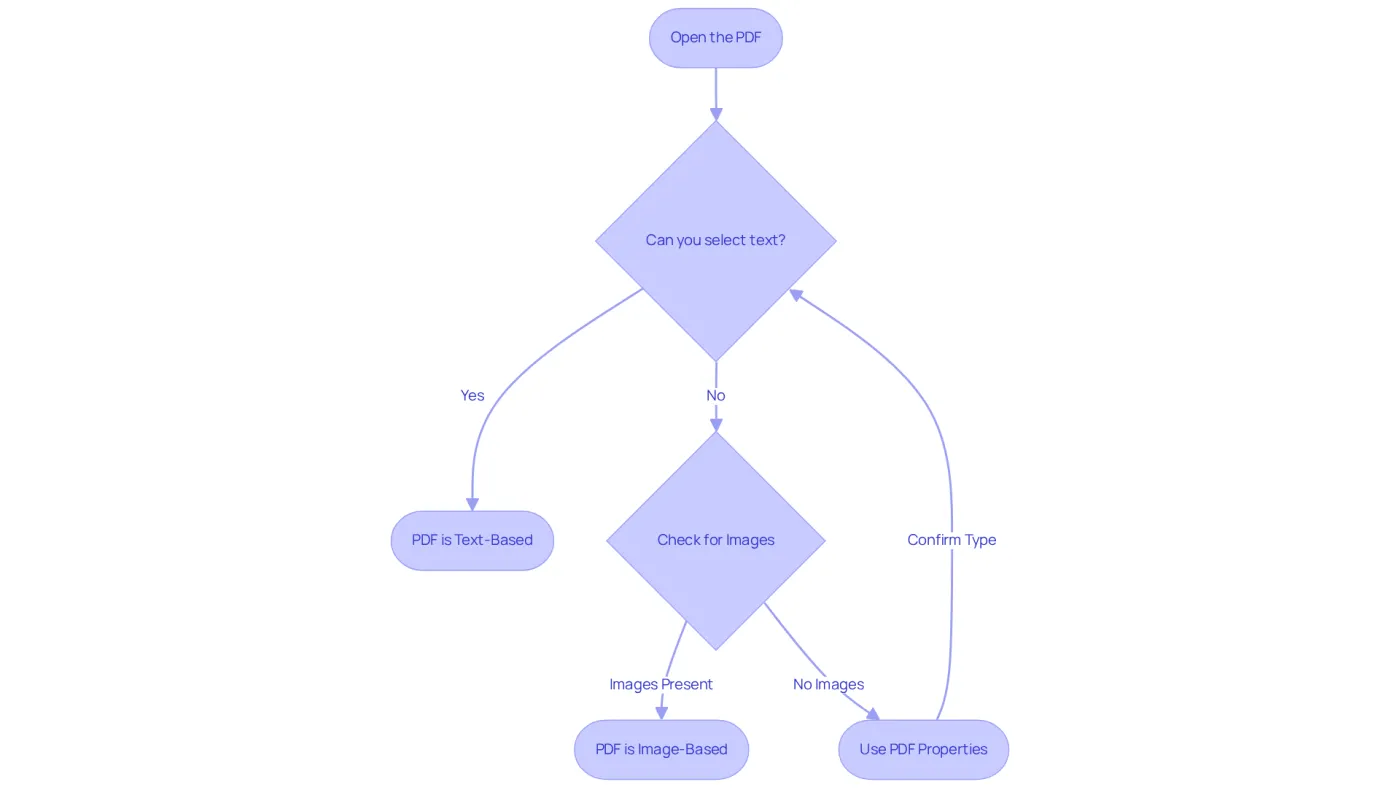
Before duplicating information from a PDF, it's essential to determine whether it is text-based or image-based. This distinction significantly influences your extraction process.
- Open the PDF: Use a PDF reader like Adobe Acrobat Reader.
- Select Text: Try to highlight some text. If you can select and copy it, the PDF is text-based. Approximately 60% of PDFs are text-based, allowing for straightforward information extraction.
- Check for Images: If text selection isn't possible and only images or boxes appear, the PDF is likely image-based. Many documents, especially scanned ones, fall into this category.
- Use PDF Properties: In Adobe Acrobat, navigate to the document properties to check for a text layer. This feature can confirm the PDF type and assist in determining the best extraction method.
Understanding the type of PDF is crucial for learning how to copy from pdf to excel efficiently. It dictates whether you will need OCR tools like pytesseract or paddleocr for image-based PDFs. As experts note, "Identifying the type of PDF is an essential step when you want to extract text from a PDF." This knowledge streamlines your workflow and enhances productivity.
Use Simple Copy and Paste: Step-by-Step Instructions
Learning how to copy from pdf to excel can make transferring information from text-based PDFs to spreadsheets a straightforward task that significantly boosts efficiency for finance professionals. Here’s a step-by-step guide to streamline this process:
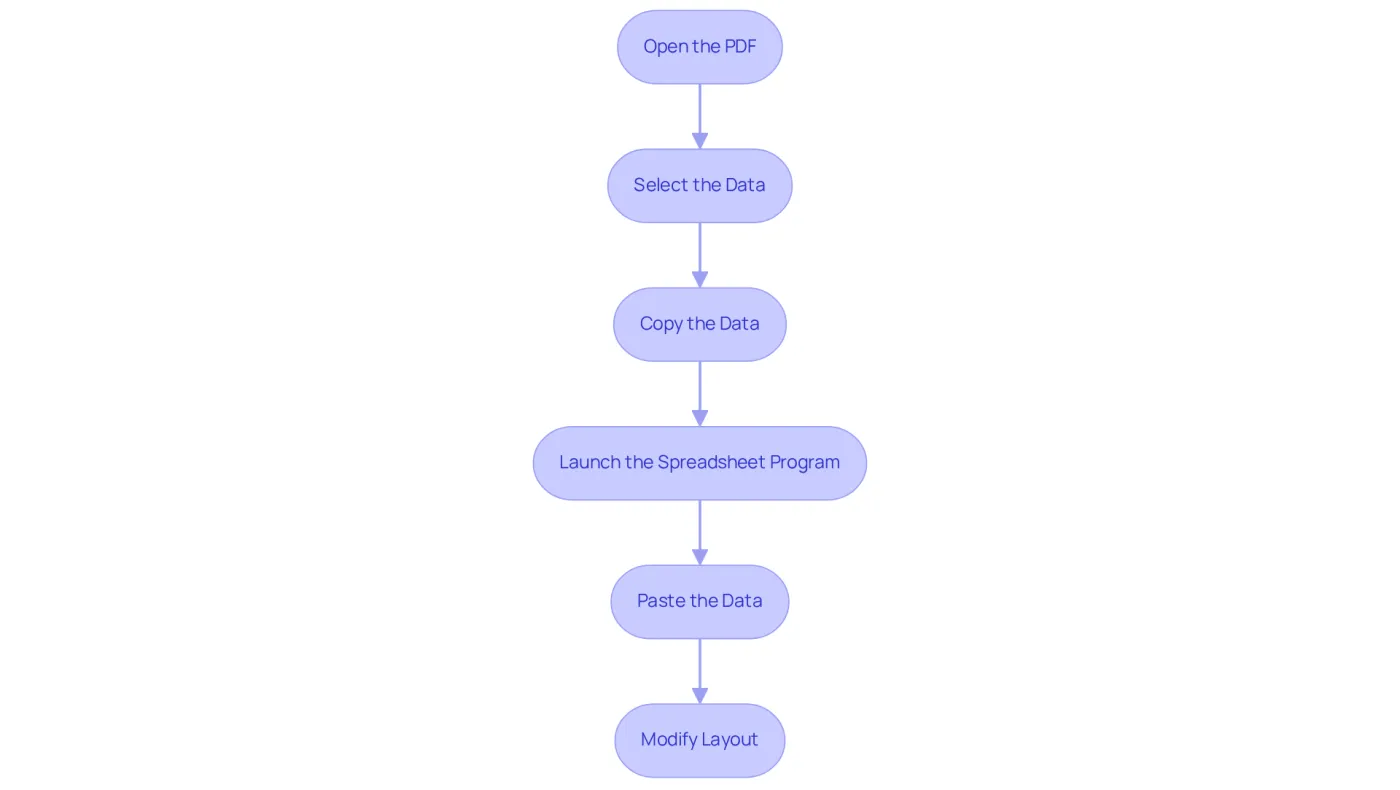
- Open the PDF: Launch your preferred PDF reader to access the document.
- Select the Data: Click and drag your mouse to highlight the text you wish to copy.
- Copy the Data: Right-click the highlighted text and select 'Copy' or use the shortcut
Ctrl+C(Windows) orCmd+C(Mac). - Launch the Spreadsheet Program: Start Microsoft’s application and open a new or existing document where you wish to insert the information.
- Paste the Data: Click on the desired cell and right-click to select 'Paste' or press
Ctrl+V(Windows) orCmd+V(Mac). - Modify Layout: After pasting, you may need to adjust the layout in the spreadsheet application to ensure the information displays correctly.
To further enhance your productivity, consider using ShortieCuts, an extension that integrates ALT-key shortcuts from spreadsheets into Google Sheets. This tool is particularly beneficial for finance professionals who frequently work with data in Google Sheets. By installing ShortieCuts from the Chrome Web Store, you can transition seamlessly from a spreadsheet application to Google Sheets while maintaining your efficiency. The extension automatically detects when you’re using Google Sheets and activates the Excel shortcuts, simplifying information manipulation.
By mastering these straightforward steps and utilizing ShortieCuts, you will discover how to copy from pdf to excel, allowing you to streamline your workflow and significantly reduce the time spent on data input. Many finance specialists emphasize the importance of effective information management, as it directly impacts productivity and decision-making in an information-driven environment.
Utilize Microsoft Word as a Go-Between: Detailed Steps
Converting a PDF into an editable format can be a challenge, but learning how to copy from PDF to Excel can make this process easier. Here’s how to do it effectively:
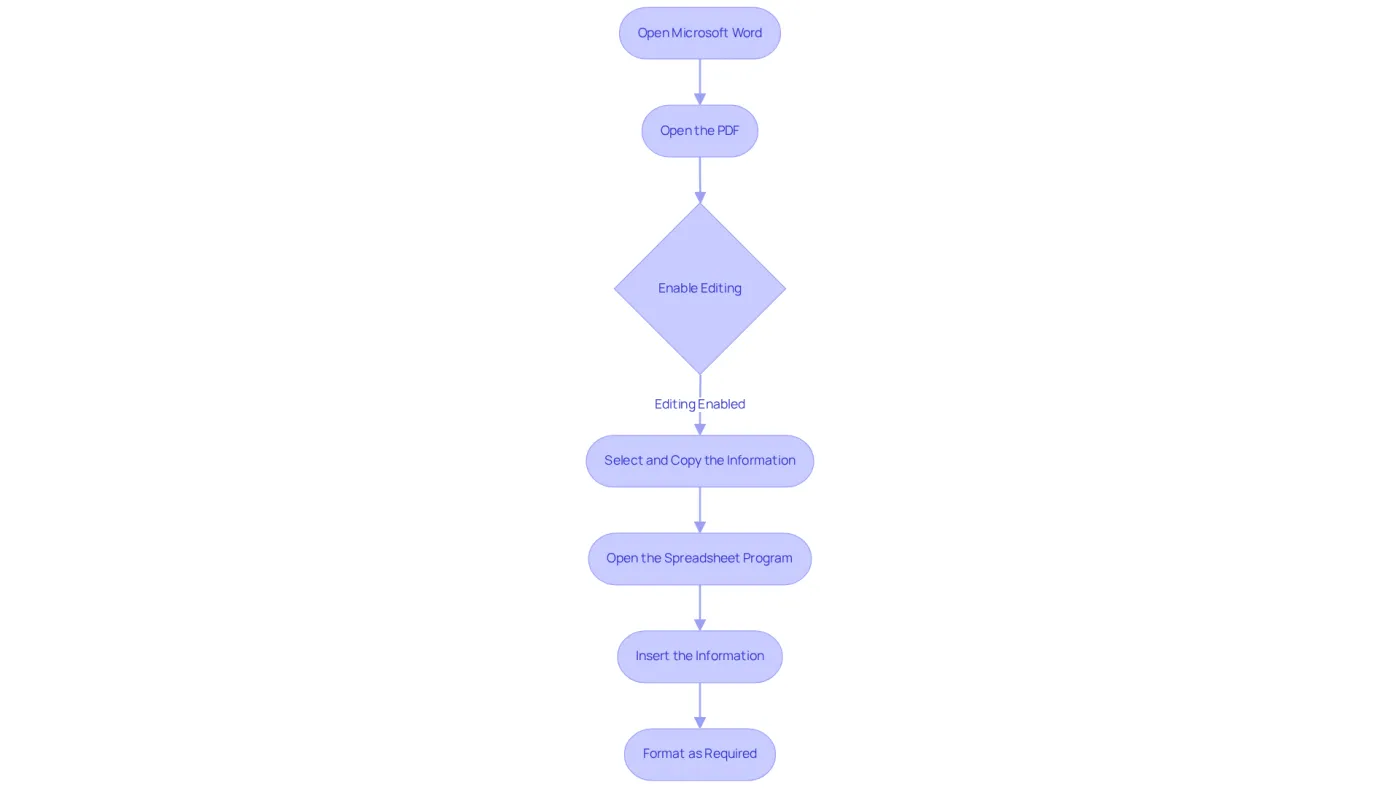
- Open Microsoft Word: Start by launching the application on your computer.
- Open the PDF: Go to
File>Open, and select the PDF file you want to convert. Word will automatically transform the PDF into an editable document. - Enable Editing: If prompted, click 'Enable Editing' to allow modifications to the document.
- Select and Copy the Information: Highlight the relevant information, right-click, and choose 'Copy' or simply use
Ctrl+Cto copy the selected content. - Open the Spreadsheet Program: Launch the application where you want to insert the information.
- Insert the Information: Click on the target cell in the spreadsheet and paste the information using
Ctrl+V. - Format as Required: Adjust the layout in the spreadsheet program to enhance clarity and usability.
This method proves particularly beneficial for finance professionals who often need to understand how to copy from PDF to Excel to extract tabular data. By leveraging Word's conversion features, users can understand how to copy from PDF to Excel while maintaining a high success rate in preserving the original layout and structure of the information, simplifying its integration into spreadsheet applications. As productivity expert Steven R. Covey wisely stated, "The key is in not spending time but in investing it." Utilizing tools like Word for data extraction not only streamlines workflows but also boosts overall efficiency in managing financial documents. Moreover, with Office 365 and newer versions offering enhanced PDF import functionalities through Power Query, finance professionals can significantly optimize their productivity by mastering these conversion techniques. Additionally, alternatives like PDFgear provide solutions for users needing to convert PDFs to spreadsheets while retaining formatting.
Leverage Excel's Power Query Tool for Efficient Data Extraction
Power Query revolutionizes the process of how to copy from PDF to Excel for finance professionals, making it easier to import information into spreadsheets. This tool is not just a convenience; it’s essential for enhancing efficiency in data management. Statistics reveal that a significant number of spreadsheet users rely on Power Query for PDF information extraction, underscoring its effectiveness. Here’s a streamlined approach to extracting data:
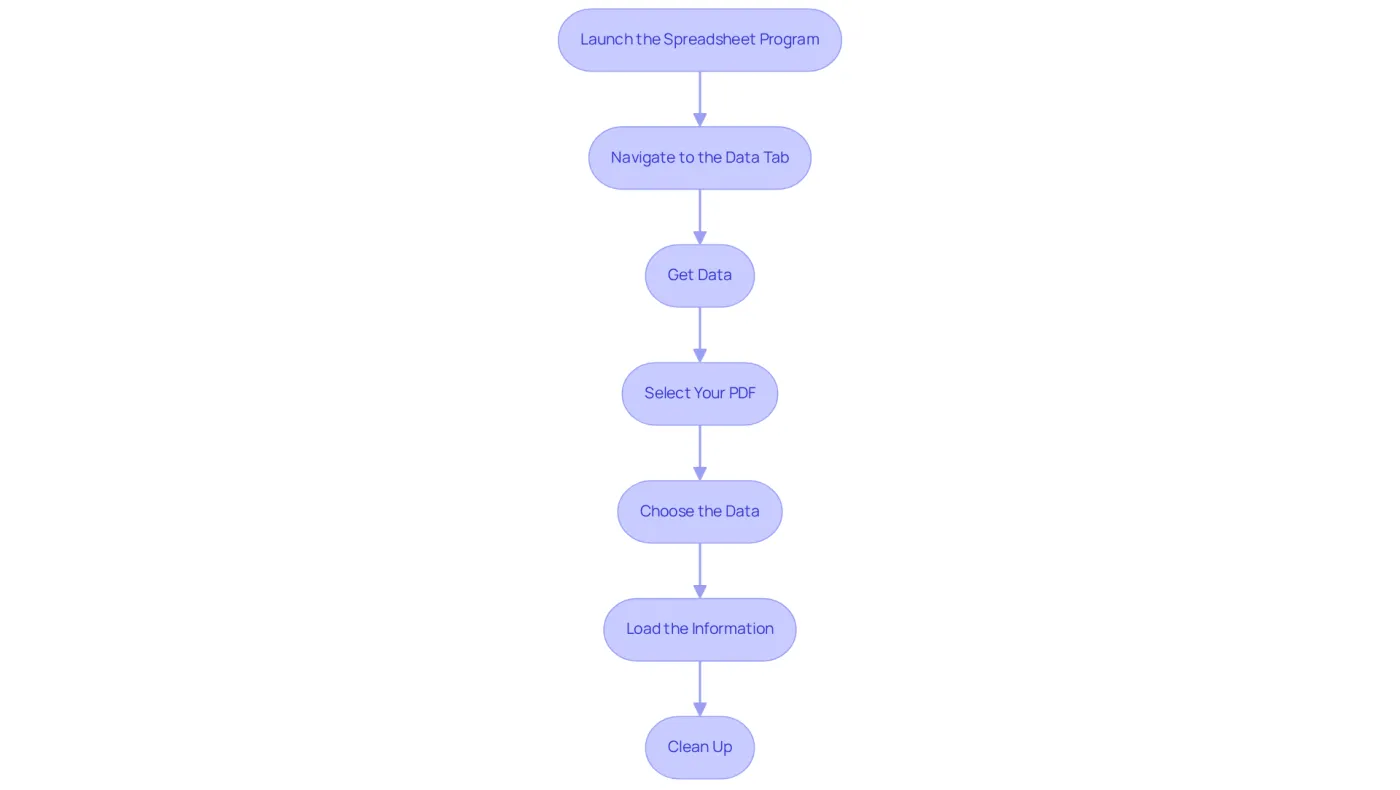
- Launch the spreadsheet program: Start by opening a new workbook.
- Navigate to the Data Tab: Click on the
Datatab in the ribbon. - Get Data: Select
Get Data, then chooseFrom File, followed byFrom PDF. - Select Your PDF: Browse your files to find the desired PDF and click
Import. - Choose the Data: Power Query will display the available tables in the PDF. Select the table you wish to import.
- Load the Information: Click
Loadto transfer the selected information into your spreadsheet. - Clean Up: Use Excel's information tools to format and refine the imported data as necessary.
Analysts frequently praise Power Query for its ability to simplify complex data import tasks, significantly boosting productivity and accuracy in financial reporting. As Hilary Mason aptly points out, curiosity and learning are at the heart of analytics, making tools like Power Query indispensable for finance professionals. By understanding how to copy from PDF to Excel, finance professionals can streamline their workflows, ensuring timely and accurate analysis. However, it’s crucial to be mindful of common errors that may arise when using Power Query, as these can complicate the user experience. This guide is based on the most current information available as of 08/15/2025.
Apply OCR for Scanned PDFs: Tools and Techniques
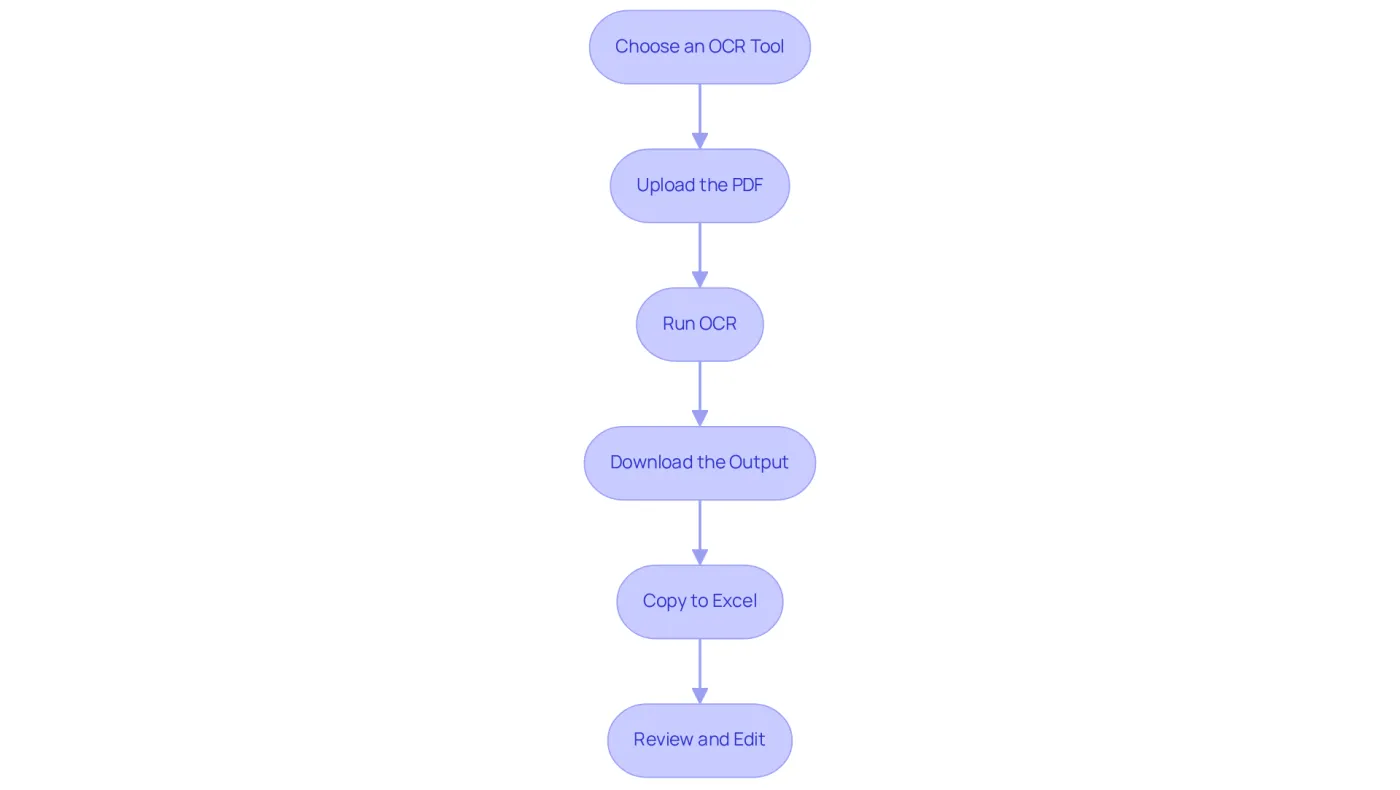
For image-based PDFs, OCR technology is essential for converting images into editable text. Here’s a streamlined approach to effectively utilize OCR tools:
-
Choose an OCR Tool: Select reliable OCR software such as Adobe Acrobat or ABBYY FineReader, or consider online services like Smallpdf for quick access. Choosing a tool that matches your needs is crucial for ensuring accuracy and formatting.
-
Upload the PDF: Launch your chosen OCR tool and upload the scanned PDF file you wish to convert.
-
Run OCR: Start the OCR process to transform the scanned images into editable text. Contemporary OCR systems, employing artificial intelligence and machine learning, exhibit an accuracy rate exceeding 95% in 2025, making them highly efficient for information extraction.
-
Download the Output: After the OCR process is complete, download the converted file, typically available in Word or spreadsheet format.
-
If the output is in Word, open it, copy the relevant information, and refer to how to copy from pdf to excel by pasting it into a spreadsheet. If it’s already in Excel format, simply open it directly.
-
Review and Edit: Carefully check the extracted information for accuracy, making any necessary adjustments to ensure reliability. When managing sensitive documents, consider security measures to safeguard your information, as emphasized in best practices for OCR usage.
Finance experts often utilize OCR tools for information extraction, which is essential for learning how to copy from pdf to excel, significantly improving their workflow efficiency. Maintaining high-quality scans and using standard fonts can greatly enhance OCR results, ensuring that the extracted data is both accurate and usable.
Conclusion
Mastering the process of copying data from PDF to Excel is crucial for finance professionals aiming to boost their efficiency and accuracy in data management. Understanding the differences between text-based and image-based PDFs allows users to streamline their workflow and select the right tools for effective extraction. This foundational knowledge is essential for navigating the various methods available for transferring data into spreadsheets.
Several key techniques stand out, including:
- Simple copy-and-paste methods for text-based PDFs
- Utilizing Microsoft Word as a converter
- Leveraging Excel's Power Query for efficient data extraction
- Applying OCR technology for image-based PDFs
Each method underscores the importance of choosing the right approach based on the PDF type, ensuring finance professionals can extract and manipulate data effortlessly. Tools like ShortieCuts and Power Query exemplify how technology can simplify these processes and enhance productivity.
The ability to efficiently copy from PDF to Excel not only saves time but also elevates the quality of financial analysis and reporting. By adopting these best practices and techniques, finance professionals can significantly enhance their data handling capabilities, leading to improved decision-making and a more organized workflow. Embracing these strategies is vital for maintaining a competitive edge in an increasingly data-driven environment.
Frequently Asked Questions
How can I determine if a PDF is text-based or image-based?
To determine the type of PDF, open it with a PDF reader like Adobe Acrobat Reader. Try to highlight some text; if you can select and copy it, the PDF is text-based. If only images or boxes appear, it is likely image-based. You can also check the PDF properties in Adobe Acrobat to see if there is a text layer.
Why is it important to identify the type of PDF before extracting information?
Identifying the type of PDF is crucial because it influences the extraction process. Text-based PDFs allow for straightforward information extraction, while image-based PDFs may require OCR tools like pytesseract or paddleocr, impacting your workflow and productivity.
What are the steps to copy data from a text-based PDF to Excel?
The steps to copy data from a text-based PDF to Excel are as follows:
- Open the PDF using a PDF reader.
- Select the data by clicking and dragging your mouse to highlight the text.
- Copy the data by right-clicking the highlighted text and selecting 'Copy' or using Ctrl+C (Windows) or Cmd+C (Mac).
- Launch your spreadsheet program and open a new or existing document.
- Paste the data into the desired cell by right-clicking and selecting 'Paste' or pressing Ctrl+V (Windows) or Cmd+V (Mac).
- Modify the layout in the spreadsheet application as needed.
What is ShortieCuts and how can it help when copying data to Google Sheets?
ShortieCuts is an extension that integrates ALT-key shortcuts from spreadsheets into Google Sheets. It is beneficial for finance professionals as it allows seamless transitions between spreadsheet applications and Google Sheets while maintaining efficiency. The extension automatically activates Excel shortcuts when using Google Sheets, simplifying data manipulation.
How does effective information management impact productivity in finance?
Effective information management is essential in finance as it directly impacts productivity and decision-making in an information-driven environment. Mastering the process of copying data from PDFs to spreadsheets helps streamline workflows and reduces time spent on data input.