
Compare Two Excel Files and Highlight Differences in 5 Steps
Easily compare two Excel files and highlight differences in just 5 simple steps.

Introduction
Comparing two Excel files can feel overwhelming, particularly when accuracy is crucial. Did you know that nearly half of all new records contain significant errors? This alarming statistic underscores the necessity for a meticulous approach to data comparison. In this guide, we present a streamlined, five-step process designed to effectively highlight differences between Excel files, ensuring clarity and precision in your data analysis. But what should you do when discrepancies arise? How can you navigate the complexities of data integrity to achieve reliable results? Let's explore these essential questions together.
Prepare Your Excel Files for Comparison
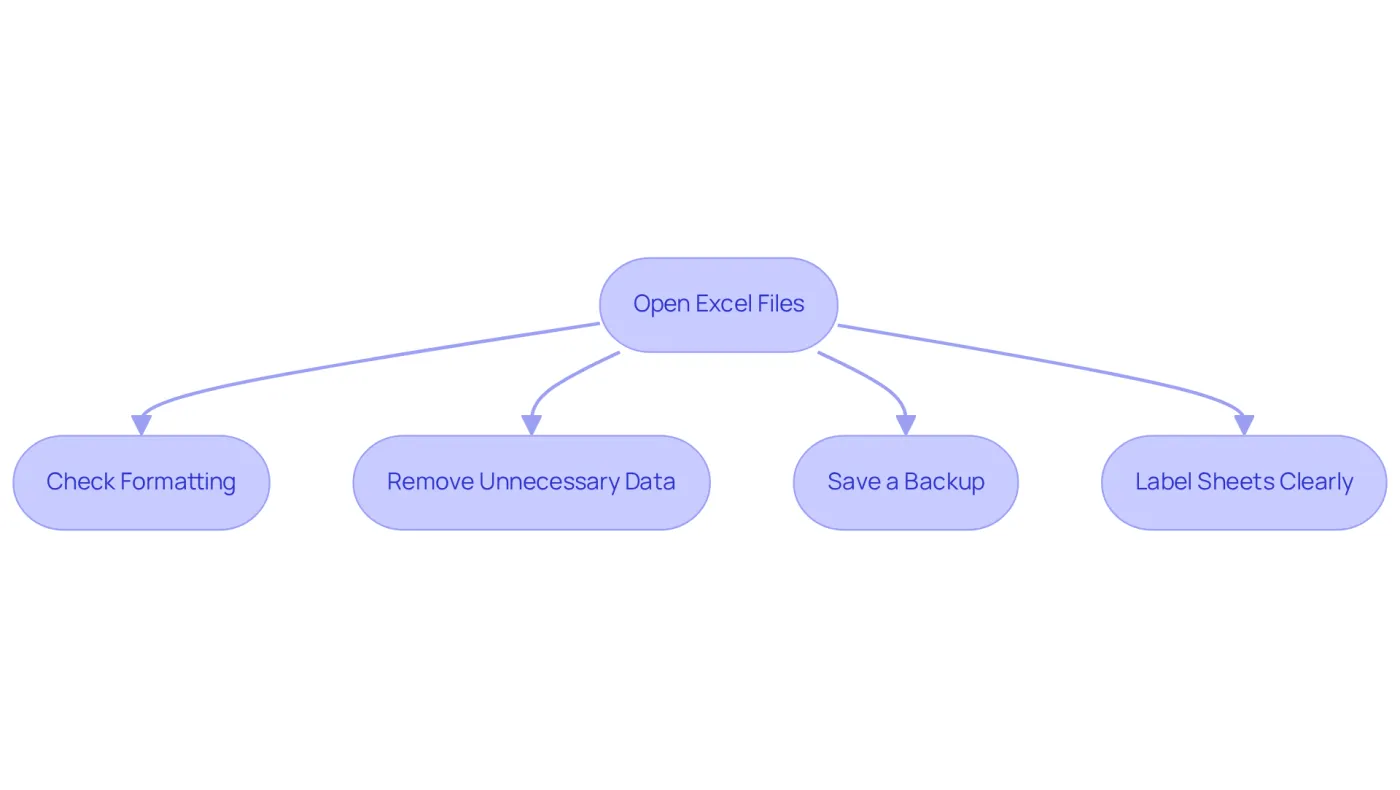
To compare two Excel files and highlight differences, start by opening the two Excel documents you wish to analyze. Ensure both are accessible and that you possess the necessary permissions to edit them.
-
Check Formatting: Confirm that both documents share the same formatting. This includes consistent date formats, number formats, and text alignment. Inconsistent formatting can lead to misinterpretation of data, a common pitfall in document evaluations.
-
Remove Unnecessary Data: Eliminate any irrelevant rows or columns that do not require comparison. This streamlining will enhance the clarity of your analysis by focusing on essential data.
-
Save a Backup: Prior to making any changes, save a backup of both documents. This precaution ensures you can revert to the originals if needed, safeguarding against unintentional data loss.
-
Label Sheets Clearly: If your files contain multiple sheets, ensure each is clearly labeled to prevent confusion during evaluation, especially when navigating complex datasets.
Statistics reveal that 47% of newly generated records contain at least one significant mistake, underscoring the importance of thorough preparation before evaluation. This highlights the necessity for automated validation at ingestion to catch errors early. Real-world examples demonstrate that professionals who adhere to these best practices significantly reduce the likelihood of errors, resulting in more accurate and efficient data analysis. Additionally, consider utilizing resources like the Spreadsheet Compare feature to compare two Excel files and highlight differences for a more streamlined comparison process, and explore the Inquire add-in for enhanced analysis capabilities.
Utilize Excel's Built-in Comparison Tools
-
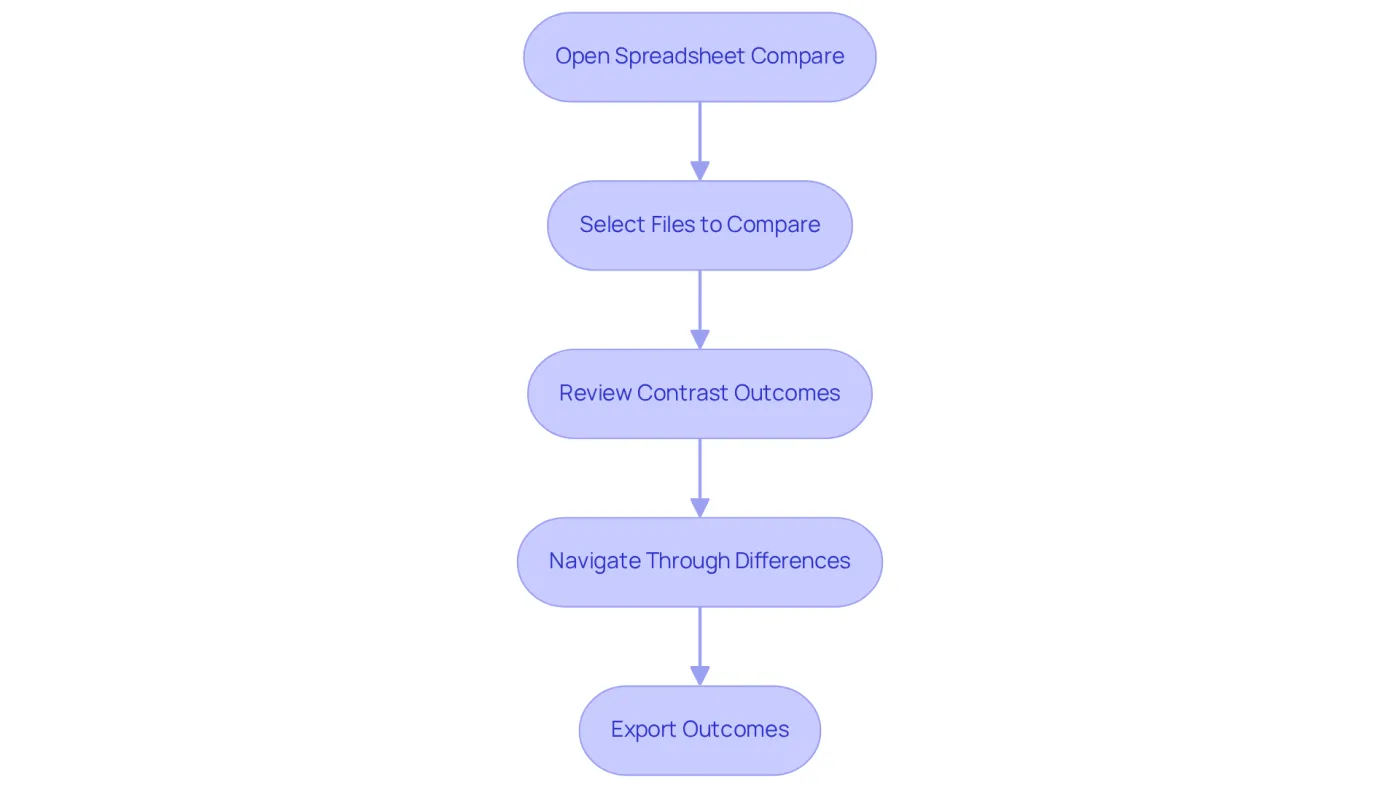
Open Spreadsheet Compare: If you possess Microsoft Office Professional Plus or Office 365, you have access to the powerful Spreadsheet Compare feature. Simply search for it in the Start menu and launch the application.
-
Select Files to Compare: Within the Spreadsheet Compare window, navigate to 'Home' and click on 'Compare Files'. From there, browse to select the two Excel documents you wish to compare and highlight differences.
-
Review Contrast Outcomes: After the analysis concludes, the tool will compare the two Excel files and highlight differences. You will be able to observe changes in values, formulas, and formatting clearly.
-
Navigate Through Differences: Utilize the navigation pane to explore the highlighted differences in the evaluation results. This feature allows you to compare the two Excel files and highlight differences, enabling you to swiftly identify and address any discrepancies.
-
Export Outcomes: Should you need to, you can export the evaluation results to a new spreadsheet for further analysis or documentation.
Highlight Differences for Easy Visualization
-
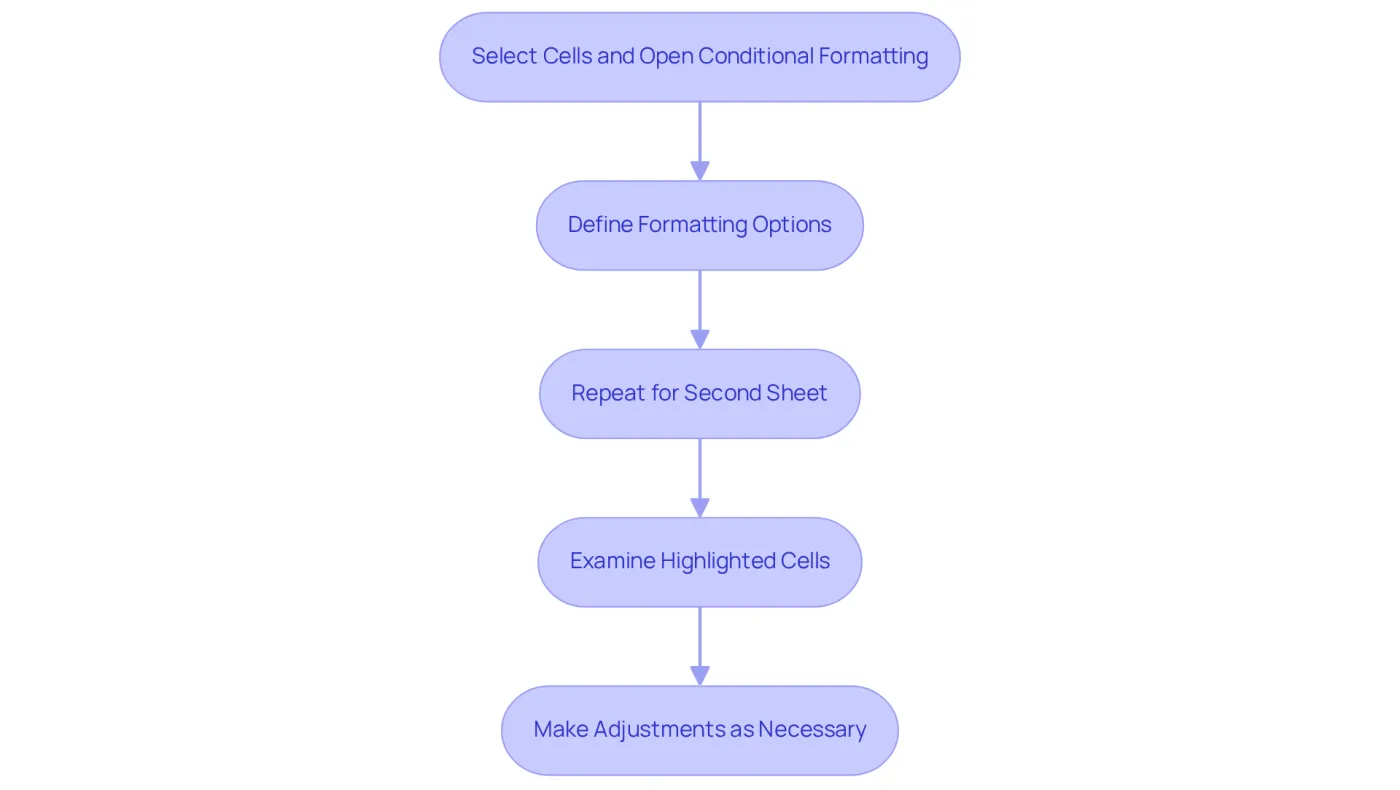
Utilize Conditional Formatting: Begin by selecting the range of cells in one of your sheets. Navigate to the 'Home' tab, click on 'Conditional Formatting', and select 'New Rule'. Opt for 'Use a formula to determine which cells to format'. Input a formula that allows you to compare two excel files and highlight differences, such as
=A1<>Sheet2!A1. This step is crucial to compare two excel files and highlight differences in an effective manner. -
Define Formatting Options: Choose a formatting style, such as a fill color, to clearly highlight the differences. Click 'OK' to apply the formatting. This visual distinction will make it easier to spot variations at a glance.
-
Repeat for the Second Sheet: Implement the same steps on the second sheet to highlight differences in the opposite direction. To ensure a comprehensive analysis across both sheets, it is important to compare two excel files and highlight differences.
-
Examine Highlighted Cells: After applying the conditional formatting, take the time to review the highlighted cells. This will enable you to compare two excel files and highlight differences between the two sheets effectively.
-
Make Adjustments as Necessary: If the highlighted differences are not sufficiently clear, consider modifying the formatting style or incorporating additional colors to differentiate between types of changes. This adaptability will enhance your ability to analyze data accurately.
Explore Third-Party Tools for Enhanced Comparison
-
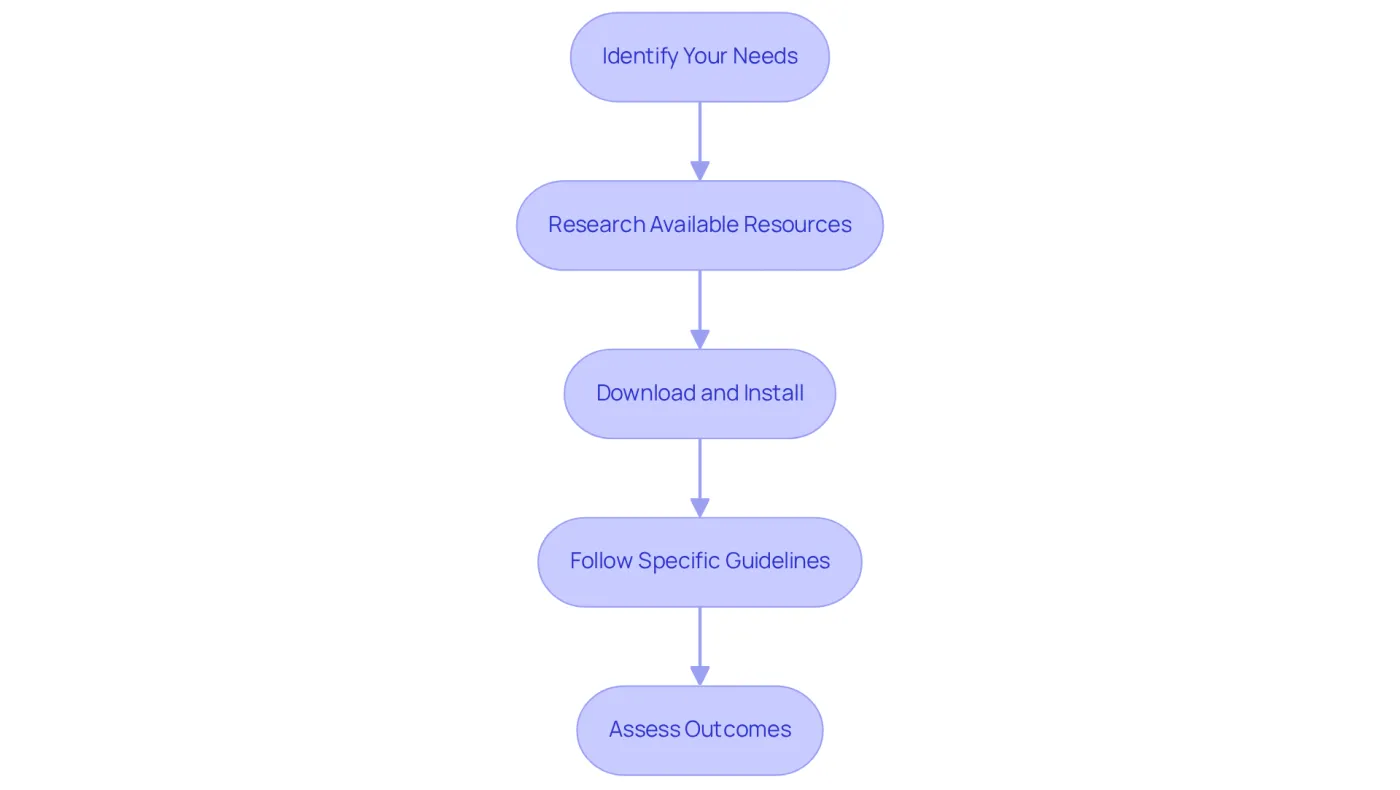
Identify Your Needs: Begin by evaluating the specific features you require from a comparison resource. Think about the size of your Excel files, the complexity of the data, and whether you need additional functionalities like merging or reporting capabilities.
-
Research Available Resources: Look into reputable third-party options such as Beyond Compare, DiffEngineX, and xlCompare, which boasts over 300,000 downloads, showcasing its popularity among users. Analyze user reviews and compare features to find the option that best aligns with your requirements.
-
Download and Install: After selecting the right application, download and install it according to the provided instructions. Ensure it is compatible with your version of Excel to prevent any operational issues.
-
Follow Specific Guidelines: Each analysis application comes with its own set of instructions for file evaluation. Adhere closely to these guidelines to achieve accurate and reliable results.
-
Assess Outcomes: Once the analysis is complete, carefully examine the results produced by the tool. Most third-party applications enable users to compare two excel files and highlight differences, making it easier to analyze and resolve discrepancies. With the growing enterprise adoption of Google Sheets, which experienced a 9.3% year-over-year increase in 2025, utilizing effective comparison tools is more relevant than ever.
Troubleshoot Common Comparison Issues
-
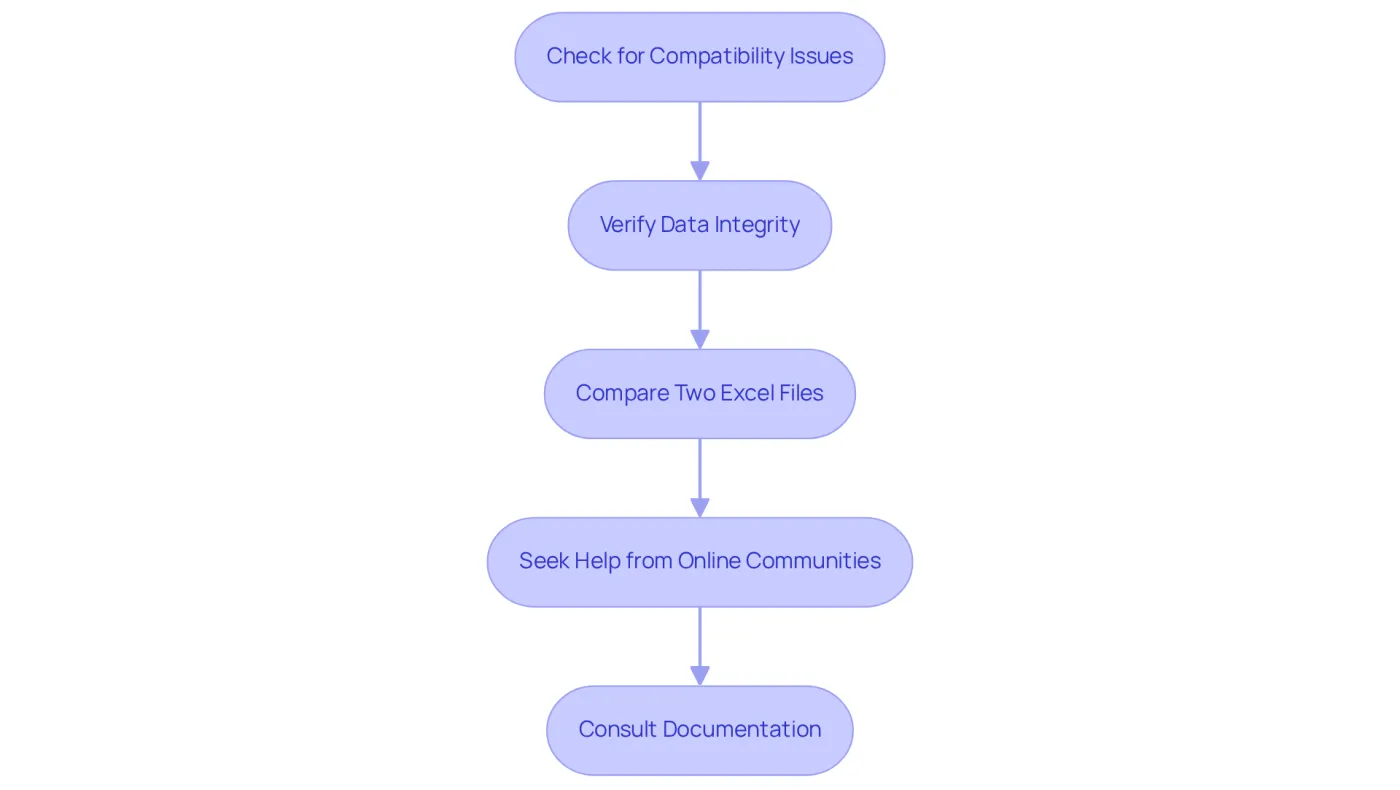
Check for Compatibility Issues: Ensure that both Excel documents align with your version of Excel. Older formats may not function correctly with newer versions, potentially leading to discrepancies in data interpretation.
-
Verify Data Integrity: If the assessment results appear flawed, conduct a thorough inspection of the information in both documents for any corruption or errors. Hidden characters, formatting inconsistencies, or even simple typos can significantly impact your analysis. Data integrity issues are a common source of misunderstanding in spreadsheet evaluations. In fact, studies indicate that nearly 20% of Excel users face data integrity problems that affect their analysis.
To analyze the data effectively, it is essential to compare two Excel files and highlight differences. To effectively compare two Excel files and highlight differences, adjust the comparison settings when utilizing external resources to meet your specific needs. Many tools offer customization options that allow you to compare two Excel files and highlight differences, thereby enhancing the clarity of your results.
-
Seek Help from Online Communities: If you encounter ongoing challenges, consider engaging with online forums or communities like Reddit or Stack Overflow. These platforms are rich with user-generated solutions to common issues, providing a wealth of knowledge from experienced spreadsheet users.
-
Consult Documentation: Always refer to the help documentation for the spreadsheet software or third-party tool you are using. These resources often contain valuable troubleshooting insights and can effectively guide you through resolving specific issues. As Claudia Buckley, a certified Microsoft Office Expert, wisely states, "Whenever you see an error message in Excel, consider it a welcome clue to identifying what went wrong so that you can go about fixing it.
Conclusion
Effectively comparing two Excel files and highlighting their differences is an essential skill for anyone working with data. This guide presents a systematic approach that streamlines the comparison process, ensuring accuracy and clarity in analyses. By preparing files correctly, utilizing built-in tools, and exploring third-party options, individuals can significantly enhance their data evaluation techniques.
Key steps include:
- Preparing your Excel files by checking formatting and removing unnecessary data.
- Leveraging Excel’s built-in comparison tools like Spreadsheet Compare.
- Employing conditional formatting for easy visualization of differences.
- Troubleshooting common issues that may arise during the comparison process, ensuring users maintain data integrity and accuracy.
In conclusion, mastering the art of comparing Excel files transcends merely identifying discrepancies; it fosters a deeper understanding of data integrity and analysis. By implementing the strategies discussed, users can improve their efficiency and enhance the reliability of their data insights. Embracing these practices will lead to more informed decision-making and a greater ability to leverage data effectively in any professional setting.
Frequently Asked Questions
How do I prepare my Excel files for comparison?
To prepare your Excel files for comparison, open both documents, ensure they have the same formatting (including date and number formats), remove unnecessary data, save backups of both files, and clearly label each sheet.
Why is consistent formatting important in Excel file comparison?
Consistent formatting is crucial because it prevents misinterpretation of data, which is a common pitfall in document evaluations.
What should I do before making changes to my Excel files?
Before making any changes, save a backup of both documents to ensure you can revert to the originals if needed, protecting against unintentional data loss.
What is the significance of labeling sheets clearly in Excel?
Clear labeling of sheets helps prevent confusion during evaluation, especially when navigating complex datasets.
What statistics highlight the importance of preparing Excel files?
Statistics indicate that 47% of newly generated records contain at least one significant mistake, emphasizing the need for thorough preparation before evaluation.
What tools can I use to compare Excel files and highlight differences?
You can use the Spreadsheet Compare feature and the Inquire add-in for enhanced analysis capabilities to compare Excel files and highlight differences.
How do I access the Spreadsheet Compare feature in Excel?
If you have Microsoft Office Professional Plus or Office 365, you can access Spreadsheet Compare by searching for it in the Start menu and launching the application.
How do I select files to compare using Spreadsheet Compare?
In the Spreadsheet Compare window, navigate to 'Home' and click on 'Compare Files', then browse to select the two Excel documents you wish to compare.
What can I do after the comparison analysis is complete?
After the analysis, you can review the highlighted differences in values, formulas, and formatting, and utilize the navigation pane to explore these differences. You can also export the evaluation results to a new spreadsheet if needed.