
Convert Excel to Google Sheets Online: A Step-by-Step Guide
Easily convert Excel files to Google Sheets online and enhance collaboration and accessibility.

Introduction
Maximizing productivity in today’s digital workspace often hinges on the tools used for collaboration and data management. The challenge many face is how to effectively transition from Excel spreadsheets to Google Sheets. This conversion not only facilitates real-time collaboration but also enhances accessibility and affordability, making it a compelling choice for individuals and organizations alike.
However, users frequently encounter obstacles during this transition. What are the best practices to ensure a smooth conversion process and fully leverage the benefits of Google Sheets? This guide provides a step-by-step approach to:
- Converting Excel files
- Troubleshooting common issues
- Utilizing tools like ShortieCuts to optimize the user experience
By following these strategies, you can enhance your productivity and streamline your workflow.
Understand the Benefits of Converting Excel to Google Sheets
Understanding the benefits of using an excel to google sheets converter online is crucial for maximizing productivity.
-
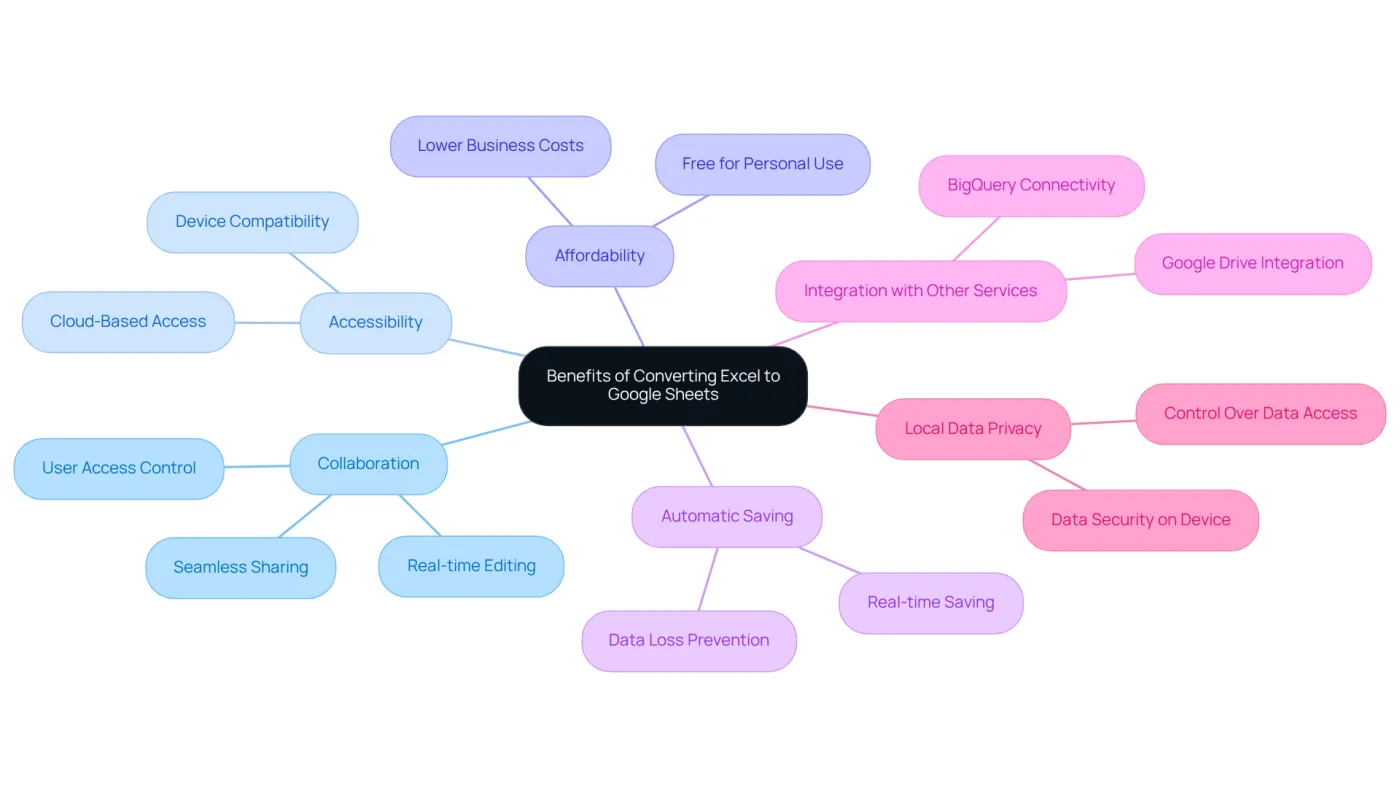
Collaboration: Google Sheets excels in real-time collaboration, allowing multiple users to edit the same document simultaneously. This feature is particularly advantageous in remote work environments, where seamless communication and teamwork are essential. Recent data indicates that organizations increasingly rely on cloud-based collaboration tools, with a popular spreadsheet application leading in this area.
-
Accessibility: As a cloud-based application, Google Sheets can be accessed from any device with internet connectivity. This ensures that your data is always available, whether you're in the office or on the go, facilitating a flexible work style.
-
Affordability: Google Sheets is free for personal users, greatly lowering expenses for both individuals and organizations compared to Microsoft Excel, which usually necessitates a subscription. This affordability makes it an attractive option for startups and small businesses.
-
Automatic Saving: One of the standout characteristics of Google Sheets is its automatic saving capability. Changes are saved in real-time, minimizing the risk of data loss due to unexpected shutdowns or crashes, which can be a concern with traditional desktop applications.
-
Integration with Other Services: Google Sheets seamlessly integrates with other platforms, such as Drive and Forms. This integration enhances productivity by streamlining workflows and enabling users to leverage a suite of tools for data management and analysis.
-
Local Data Privacy: With ShortieCuts, your data remains on your device, ensuring that your content is secure and not accessible to external servers. This is a significant advantage for finance professionals.
By recognizing these advantages, users can approach the conversion process with enthusiasm, ready to take full advantage of the innovative features and functionalities that Google Sheets provides, especially with the enhancements offered by ShortieCuts and the excel to google sheets converter online.
Follow the Step-by-Step Conversion Process
Using an excel to google sheets converter online makes transforming your Excel file into Google Sheets a straightforward process that can significantly enhance your productivity with ShortieCuts. Follow these essential steps:
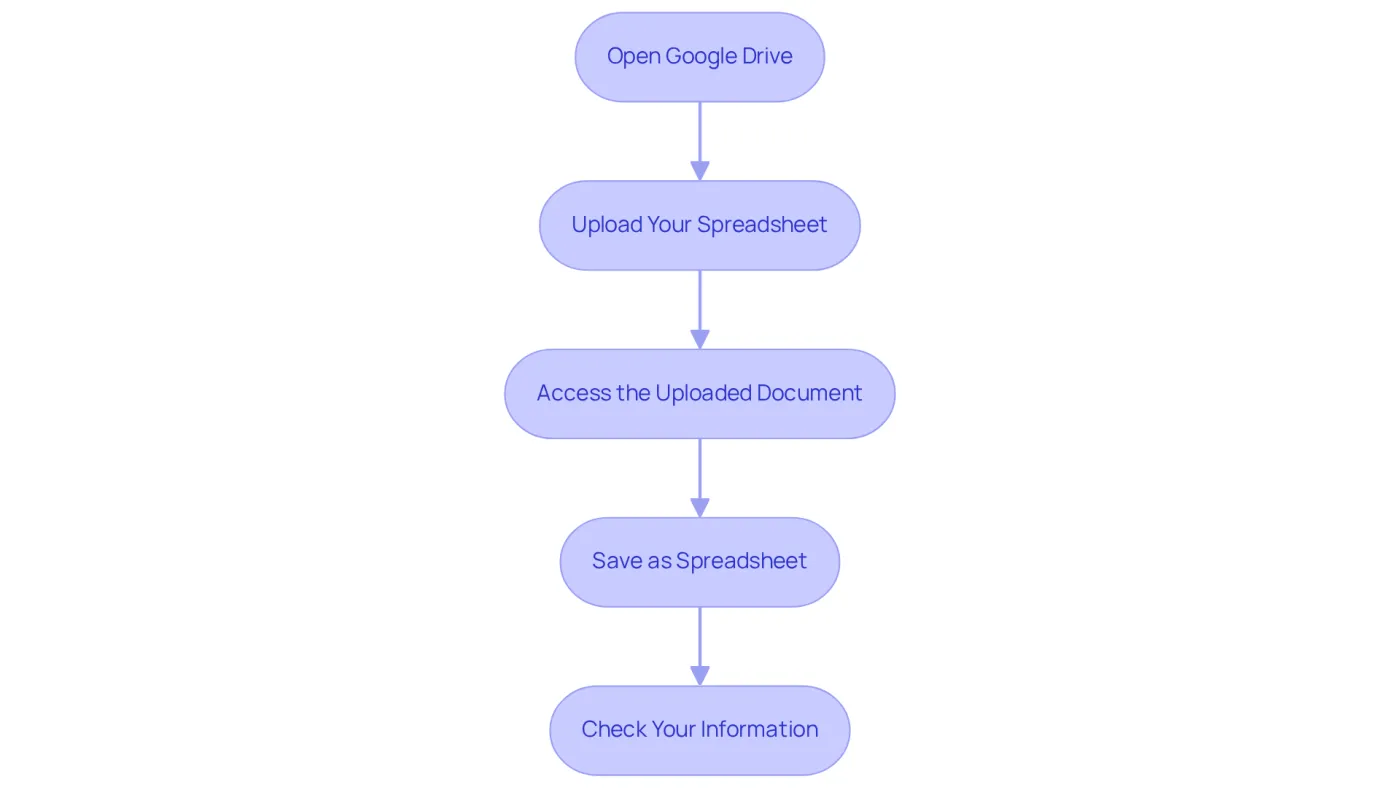
- Open Google Drive: Start by navigating to Google Drive and logging into your account.
- Upload Your Spreadsheet: Click the '+ New' button on the left side, then select 'File upload'. Choose the Excel document (.xlsx) you wish to convert from your computer.
- Access the Uploaded Document: Once the upload is complete, find the document in your Drive. Right-click on it and select 'Open with' > 'Google Spreadsheets'.
- Save as Spreadsheet: After the document opens in the Spreadsheet application, click on 'File' in the menu, then choose 'Save as Spreadsheet'. This action creates a new version of your document, preserving your data and formatting.
- Check Your Information: Review the new spreadsheet to ensure that all data, formulas, and formatting have been accurately maintained. Make any necessary adjustments.
By following these steps, you can seamlessly use an excel to google sheets converter online to convert your spreadsheet files into online documents, which allows you to take advantage of real-time collaboration and cloud storage. With the ShortieCuts extension, you gain access to 233 ALT shortcuts for spreadsheets, significantly enhancing your efficiency in online documents. In fact, numerous users have reported a 19% improvement in collaboration scores when using the spreadsheet application for group projects, making it an ideal choice for finance professionals looking to streamline their workflows.
Additionally, adjusting settings in Drive can enable automatic conversion of future spreadsheet uploads, further simplifying your process. Keep in mind that the spreadsheet application currently allows for one document conversion at a time, so plan accordingly when converting multiple documents.
Troubleshoot Common Conversion Issues
Transforming spreadsheet documents to online formats can be a smooth experience when using an excel to google sheets converter online, yet many individuals face specific challenges. Here’s how to tackle common formatting issues effectively:
-
Formatting Issues: If your formatting looks off after conversion, check the original Excel file for complex elements. Simplifying these can greatly enhance the final result.
-
Formula Errors: Not all spreadsheet formulas transfer seamlessly to other platforms. Review and adjust your formulas as needed, utilizing available formula help resources. For instance, a finance division found that creating a pivot table analysis took 8-10 minutes in one application, while it only took 30 seconds in another. This highlights the importance of formula compatibility. To boost your efficiency, consider the ShortieCuts extension, which offers 233 ALT shortcuts for spreadsheets. Just press "ALT" (or Option on Mac), and key-tips will pop up in the corner of your screen, guiding you through the shortcuts effortlessly.
-
Missing Data: If data seems to be missing, ensure all sheets from the Excel file were uploaded. Check each tab in the spreadsheet application to confirm completeness; overlooking a tab can lead to significant data gaps.
-
File Size Limitations: The spreadsheet application has a cell limit of 10 million. If your spreadsheet exceeds this limit, consider splitting it into smaller documents before conversion to avoid performance issues.
-
Compatibility Issues: Some spreadsheet functionalities, like macros, may not be supported in the alternative application. If your workflow depends on these features, explore alternative solutions or workarounds to maintain functionality.
By understanding these common challenges and their solutions, users can navigate the conversion process using an excel to google sheets converter online with greater efficiency and confidence. Embrace the power of ShortieCuts to streamline your workflow and enhance productivity.

Leverage ShortieCuts for an Enhanced Google Sheets Experience
Enhance Your Spreadsheet Experience with ShortieCuts
Are you struggling to navigate Google Sheets after transitioning from Excel? ShortieCuts is here to revolutionize your experience. Here’s how this powerful extension can transform your workflow:
-
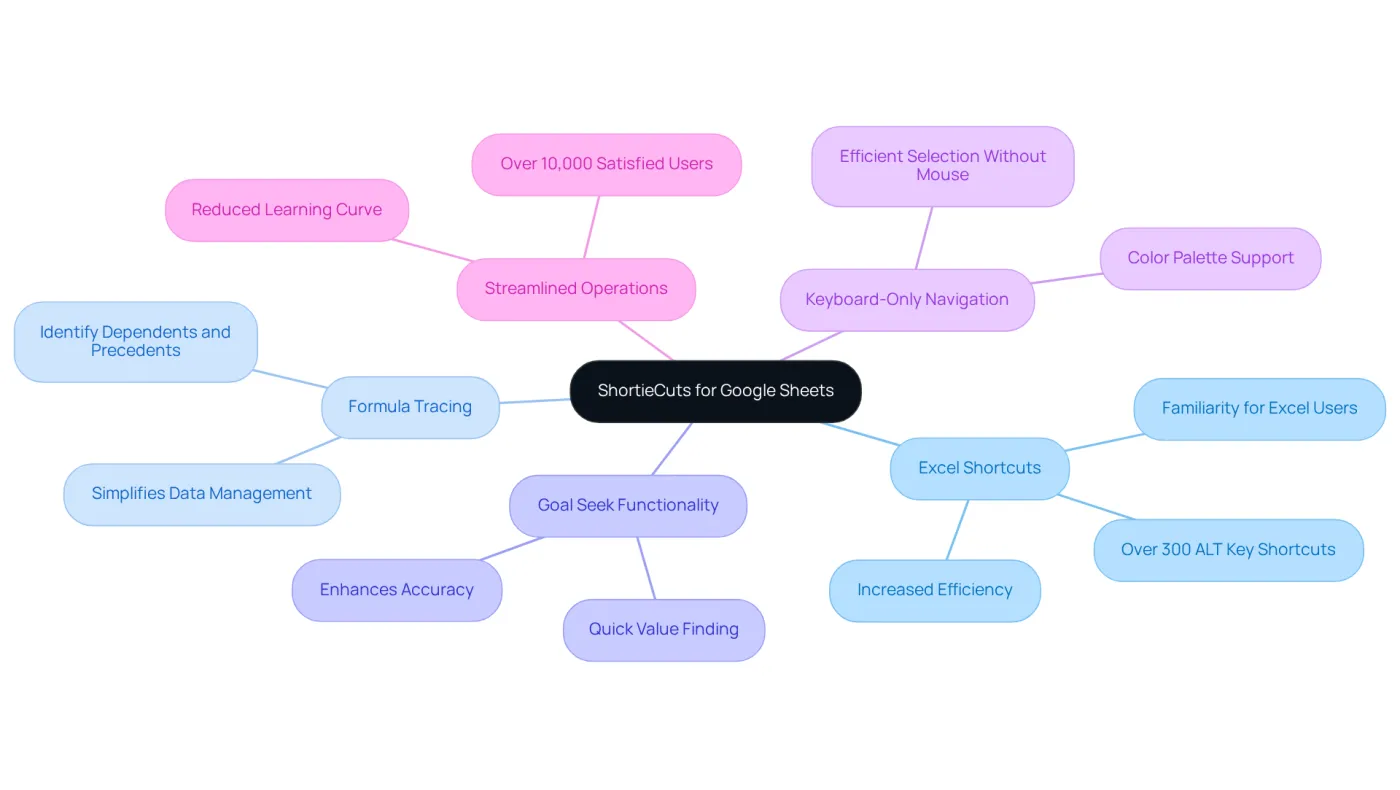
Excel Shortcuts: ShortieCuts integrates 233 Excel ALT key shortcuts into Google Sheets. This means you can work more efficiently and comfortably, allowing for quicker navigation and data handling compared to mouse usage. The result? A significant boost in productivity.
-
Formula Tracing: With the formula tracing function, you can effortlessly identify dependents and precedents in your spreadsheets, just like you would in traditional spreadsheet applications. This feature simplifies complex data management.
-
Goal Seek Functionality: The Goal Seek feature mimics the capabilities of standard spreadsheet software, enabling you to quickly find necessary values for your calculations. This functionality saves you time and enhances accuracy.
-
Keyboard-Only Navigation: ShortieCuts enhances the spreadsheet interface with a color palette that supports keyboard-only navigation. This makes selecting options without a mouse straightforward and efficient.
-
Streamlined Operations: Familiar shortcuts and advanced functionalities reduce the learning curve for users transitioning to Google Sheets. With over 10,000 satisfied users, ShortieCuts provides a sense of familiarity for those accustomed to spreadsheet software, significantly easing frustration during the transition.
By leveraging ShortieCuts, you can transform your Google Sheets experience, making it as efficient and user-friendly as using an excel to google sheets converter online. Don’t miss out on the opportunity to enhance your productivity - try ShortieCuts today!
Conclusion
Transitioning from Excel to Google Sheets is not just a change; it’s a strategic move that can significantly boost productivity and enhance collaboration. For both individuals and organizations, this shift is a worthwhile endeavor. By embracing the online conversion process, users gain access to a suite of benefits: real-time editing, accessibility from any device, and cost savings, all while ensuring data security through local privacy measures.
This article outlines a straightforward, step-by-step conversion process, emphasizing how easily users can upload and adapt their Excel files into the Google Sheets environment. It also addresses common challenges encountered during this transition, offering practical solutions to ensure a seamless experience. Moreover, the integration of ShortieCuts enhances this process, providing users with familiar shortcuts and advanced functionalities that make navigating Google Sheets more intuitive.
Ultimately, converting Excel spreadsheets to Google Sheets streamlines workflows and fosters collaboration and flexibility in data management. Embracing these tools and techniques can lead to improved efficiency and productivity. Therefore, it’s essential for users to explore the full potential of Google Sheets and the advantages of using ShortieCuts to elevate their spreadsheet experience.
Frequently Asked Questions
What are the main benefits of converting Excel to Google Sheets?
The main benefits include enhanced collaboration, accessibility from any device, affordability, automatic saving, integration with other services, and local data privacy.
How does Google Sheets improve collaboration?
Google Sheets allows multiple users to edit the same document simultaneously in real-time, which is especially beneficial for remote work environments.
Why is accessibility an advantage of Google Sheets?
As a cloud-based application, Google Sheets can be accessed from any device with internet connectivity, ensuring that data is always available regardless of location.
How does Google Sheets compare to Microsoft Excel in terms of cost?
Google Sheets is free for personal users, making it more affordable compared to Microsoft Excel, which typically requires a subscription.
What is the significance of Google Sheets' automatic saving feature?
Google Sheets automatically saves changes in real-time, reducing the risk of data loss due to unexpected shutdowns or crashes, which can be a problem with traditional desktop applications.
How does Google Sheets integrate with other services?
Google Sheets seamlessly integrates with platforms like Drive and Forms, enhancing productivity by streamlining workflows and allowing users to utilize a variety of tools for data management and analysis.
What does local data privacy mean in the context of using ShortieCuts?
With ShortieCuts, users' data remains on their device, ensuring that content is secure and not accessible to external servers, which is particularly important for finance professionals.