

Introduction
Converting Excel files to JPG format is a pivotal solution for finance professionals who prioritize clarity and security in their data presentations. This transformation not only enhances compatibility across various platforms but also safeguards sensitive formulas from prying eyes. Yet, the process of converting spreadsheets to images can pose challenges, such as maintaining image quality and ensuring complete data visibility.
What are the most effective methods to achieve this conversion seamlessly? How can professionals navigate common pitfalls? By addressing these questions, we can explore the best practices for a smooth transition, ensuring that your data remains both accessible and secure.
Understand the Need for Converting Excel to JPG
Converting Excel files to JPG format is essential for finance professionals, especially when you need to convert Excel to JPG, and here's why.
-
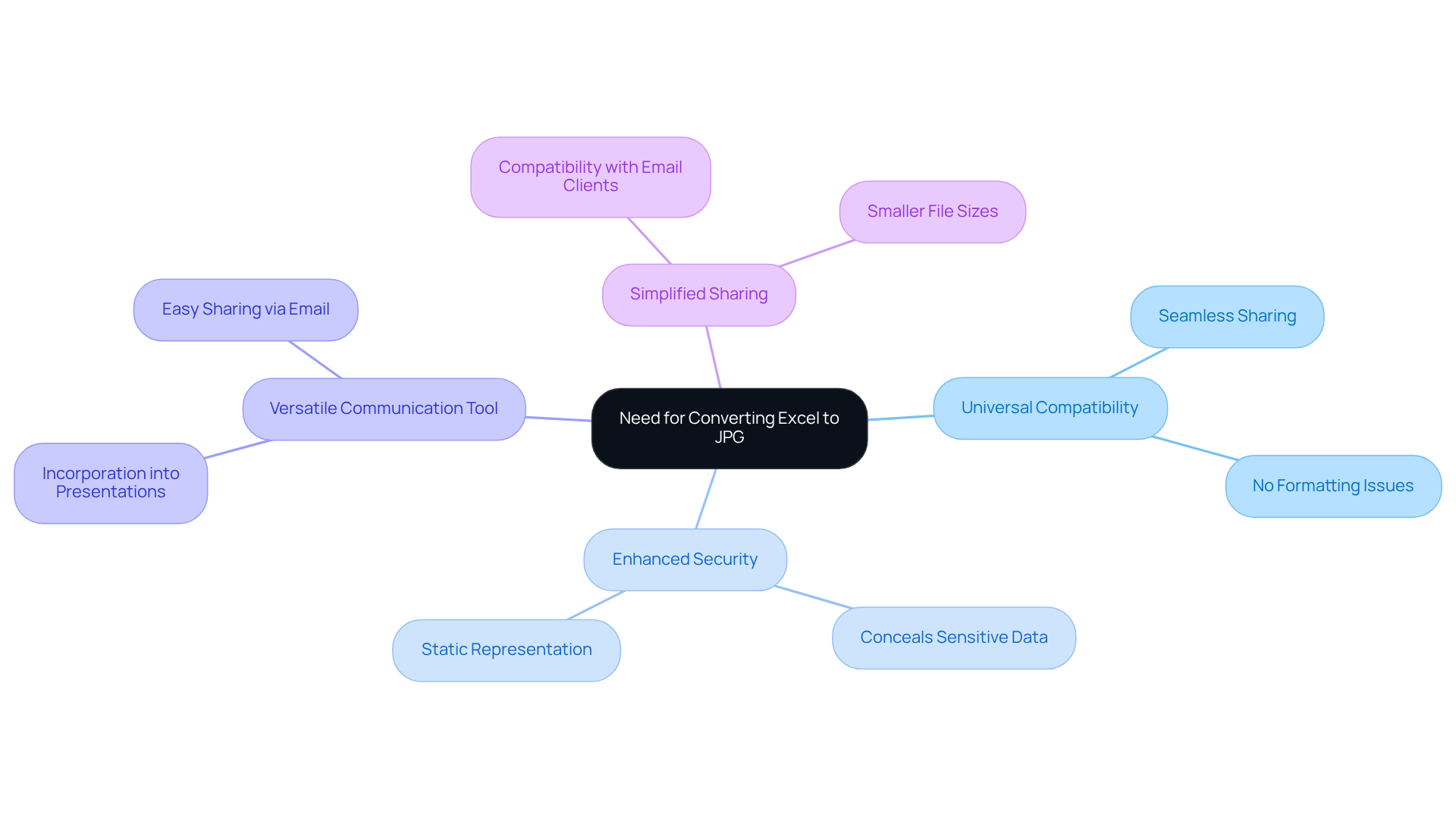
Universal Compatibility: JPG files are universally compatible, allowing for seamless sharing across various platforms without the risk of formatting issues. This is particularly advantageous in business settings where it is important to convert Excel to JPG for effective data presentation. It ensures that reports and visualizations can be easily viewed by clients and colleagues alike.
-
Enhanced Security: JPG provides a static representation of data, effectively concealing sensitive formulas and calculations. This safeguards proprietary information, adding a vital layer of security that is crucial for maintaining confidentiality in financial communications.
-
Versatile Communication Tool: Additionally, JPG files can be effortlessly incorporated into presentations, documents, and emails. This versatility enhances their role as a communication tool, making it easier to share important information.
-
Simplified Sharing: Statistics indicate that formats like JPG are more compatible across various email clients than spreadsheet formats. This compatibility enables simpler sharing and accessibility, which is a significant advantage in fast-paced business environments.
Real-world examples illustrate how finance professionals effectively utilize JPG files to present data in meetings, often requiring them to convert Excel to JPG for enhanced clarity. This approach ensures clarity and professionalism in their communications, reinforcing the importance of adopting this format.
Explore Methods to Convert Excel to JPG
Several effective methods exist for converting Excel files to JPG format:
-
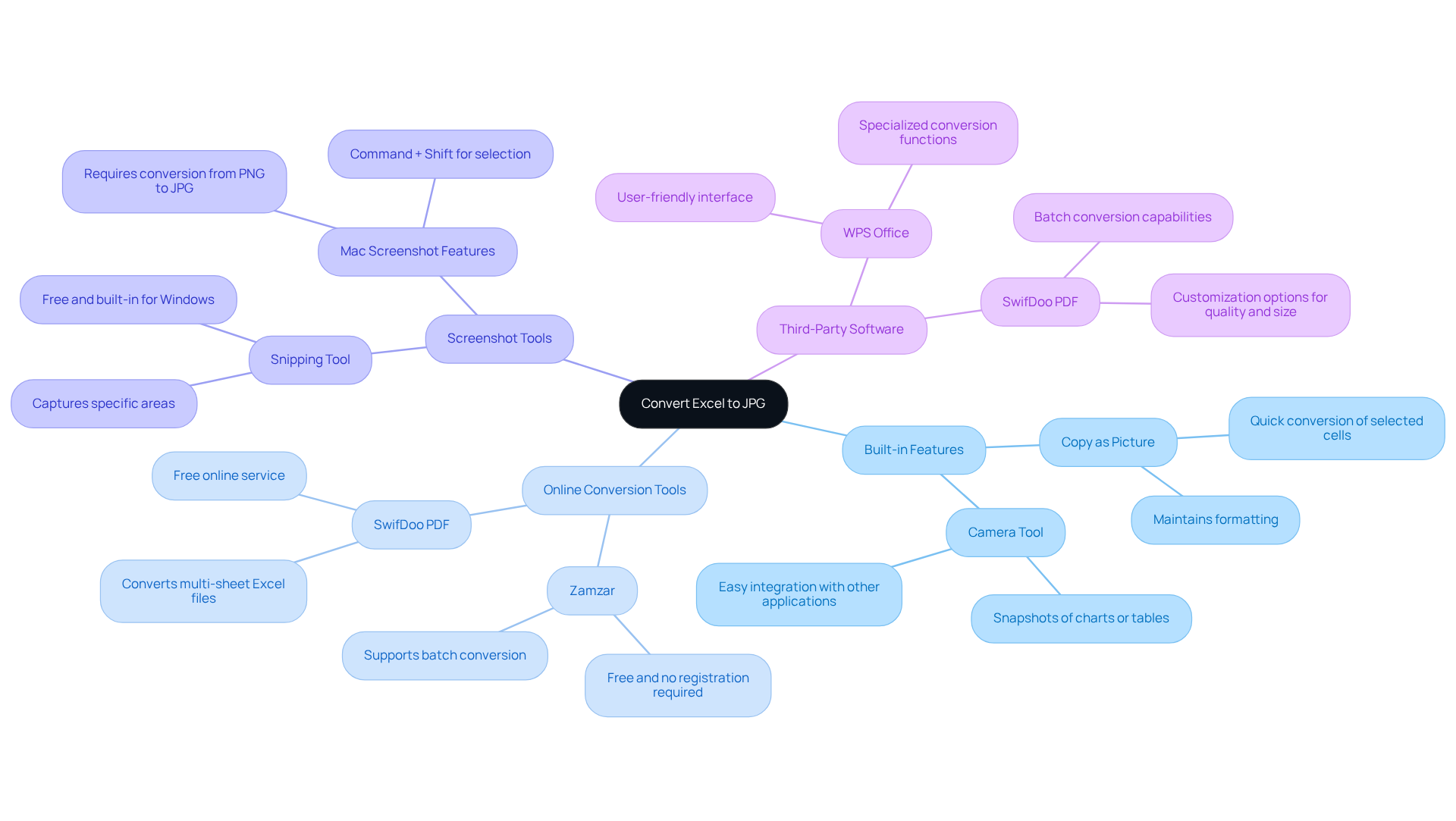
Utilizing the Software’s Built-in Features: The application offers a straightforward way to save charts and selected ranges as graphics. By using the 'Copy as Picture' feature, users can easily convert excel to jpg files of specific data without needing additional software. This method is particularly advantageous for capturing visual representations of data, ensuring that formatting remains intact.
-
Online Conversion Tools: Numerous websites, such as Zamzar and Smallpdf, provide free online services that allow you to convert Excel to JPG. These tools are user-friendly and ideal for quick conversions, allowing users to upload their files and receive JPG formats without requiring software installation. Statistics show that many users prefer online converters for their convenience and speed, especially for smaller tasks.
-
Screenshot Tools: Tools like the Snipping Tool on Windows or integrated screenshot features on Mac can capture specific sections of a spreadsheet and save them as JPG files. This method is particularly effective for obtaining high-resolution images of targeted data points or charts, making it easy to share insights visually. The Snipping Tool is a free option that allows users to convert Excel to JPG without additional software, enhancing its accessibility.
-
Third-Party Software: Applications such as WPS Office and SwifDoo PDF offer specialized functions that allow users to convert Excel to JPG. For instance, SwifDoo PDF supports batch conversion, enabling users to transform multiple spreadsheet files into distinct JPG files efficiently. These tools often include additional customization features, allowing users to adjust quality and size based on their needs.
By leveraging these methods, finance professionals can streamline their workflow, ensuring that data visualizations are easily shareable and maintain high quality.
Follow Step-by-Step Instructions to Save Excel as JPG
To convert Excel to JPG, you need to navigate a few straightforward methods, since Excel lacks a direct conversion feature that could impact image quality.
-
Using Excel's Built-in Feature:
Open your Excel file and select the range or chart you wish to convert. Right-click on the selection and choose 'Copy'. Then, open a graphics editor, such as Paint, and paste the copied content. Save the document as a JPG by selecting 'File' > 'Save As' and choosing JPG format. Keep in mind that the image quality may vary based on its intended use. -
Using Online Tools:
Consider using an online converter like Smallpdf or Zamzar. Upload your spreadsheet, select JPG as the output format, and click 'Convert'. Once the process is complete, download the converted JPG document. However, user satisfaction rates with these tools can differ, so it’s wise to check reviews before proceeding. -
Using Screenshot Tools:
Open your Excel file and adjust the view to display the desired data. Utilize the Snipping Tool or a screenshot application to capture the area. Save the screenshot as a JPG image. Be aware that this technique may also result in lower resolution visuals. -
Using Third-Party Software:
Download and install a program like WPS Office. Open your spreadsheet in the application, navigate to the export or save options, and select JPG as the format.
For improved image quality, consider converting your spreadsheet to a PDF first. This can enhance the resolution before converting to JPG. These methods provide flexibility to convert Excel to JPG, catering to various user preferences and ensuring outputs suitable for presentations and reports.

Troubleshoot Common Conversion Issues
When converting Excel files to JPG, users often face several common challenges that can hinder their workflow:
-
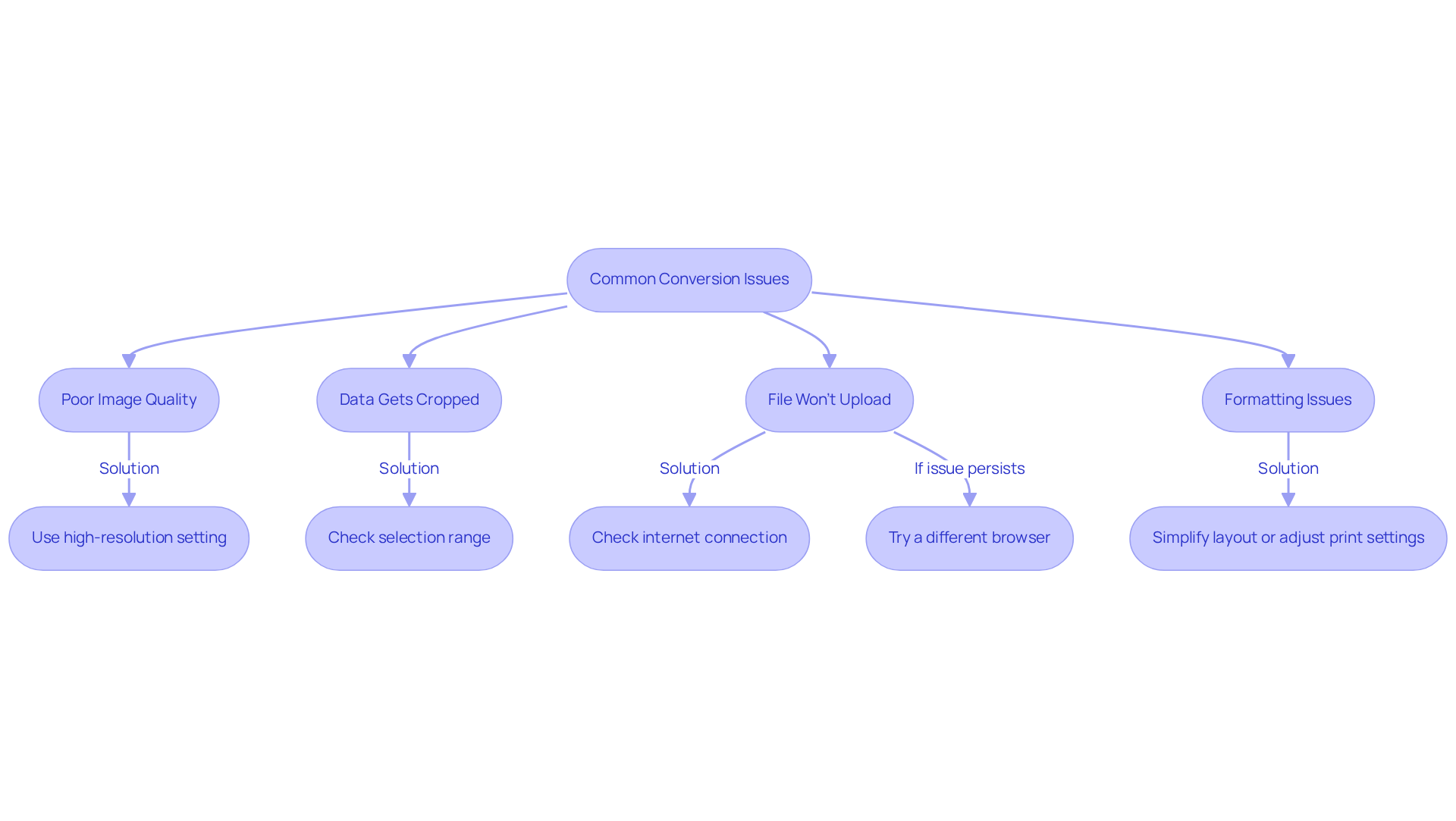
Poor Image Quality: If your resulting JPG appears blurry or pixelated, it’s crucial to ensure that you’re using a high-resolution setting in your conversion tool. Additionally, adjusting the size of the selection before copying can significantly improve the outcome.
-
Data Gets Cropped: If parts of your data are missing in the JPG, double-check that the entire range is selected before copying or exporting. This simple step can save you time and frustration.
-
File Won't Upload: Should an online tool fail to upload your spreadsheet, first check your internet connection. If that’s not the issue, trying a different browser may resolve the problem.
-
Formatting Issues: If the formatting appears off in the JPG, consider simplifying the Excel layout or adjusting the print settings prior to conversion. This can help maintain the integrity of your data presentation.
By addressing these common issues, you can streamline your process to convert Excel to JPG and improve the quality of your JPG outputs.
Conclusion
Converting Excel files to JPG format is an essential skill for finance professionals. This capability ensures that data presentations are not only effective but also secure. By transforming data into JPGs, you enhance compatibility across various platforms while safeguarding sensitive information through a static representation. This approach allows finance experts to communicate insights with clarity and professionalism, which is crucial in high-stakes environments.
In this guide, we’ve explored several methods for converting Excel to JPG, including:
- Built-in features
- Online tools
- Screenshot applications
- Third-party software
Each method presents unique advantages, catering to diverse preferences and needs, while addressing common challenges like image quality and formatting issues. By following the outlined steps, you can streamline your workflow and ensure high-quality visual outputs.
Ultimately, mastering the conversion of Excel to JPG transcends mere technical skill; it is a vital component of effective communication in finance. Embracing this format enhances the clarity of your presentations, protects sensitive data, and fosters better collaboration among colleagues and clients. As the demand for clear and accessible data continues to rise, the ability to convert Excel files to JPG will remain an invaluable asset for finance professionals.
Frequently Asked Questions
Why is converting Excel files to JPG format important for finance professionals?
Converting Excel files to JPG is important for finance professionals because it ensures universal compatibility, enhanced security for sensitive information, and simplifies sharing and communication of data.
What are the advantages of using JPG files over Excel files in business settings?
JPG files are universally compatible, preventing formatting issues when shared across platforms. They also provide a static representation of data, which conceals sensitive formulas and calculations, enhancing security.
How do JPG files enhance communication in a business context?
JPG files can be easily incorporated into presentations, documents, and emails, making them a versatile communication tool that facilitates the sharing of important information.
What statistics support the use of JPG files for sharing information?
Statistics indicate that JPG formats are more compatible across various email clients than spreadsheet formats, making sharing simpler and more accessible in fast-paced business environments.
Can you provide examples of how finance professionals use JPG files?
Finance professionals often convert Excel to JPG for presentations in meetings, ensuring clarity and professionalism in their communications, which reinforces the importance of using this format.