
Convert Excel to Sheets: A Step-by-Step Guide for Finance Pros
Easily convert Excel files to Google Sheets using our comprehensive excel to sheets converter guide.

Introduction
Navigating the finance landscape often requires managing intricate data through spreadsheets, with Excel being a trusted tool for many professionals. Yet, the rise of cloud-based solutions like Google Sheets offers a significant opportunity for enhanced collaboration and accessibility. This guide outlines the essential steps for converting Excel files to Google Sheets, while also addressing common pitfalls that may arise.
How can finance professionals ensure a seamless transition, uphold data integrity, and maximize productivity?
Upload Your Excel File to Google Drive
Upload Your Excel File to Google Drive and Boost Your Productivity with ShortieCuts
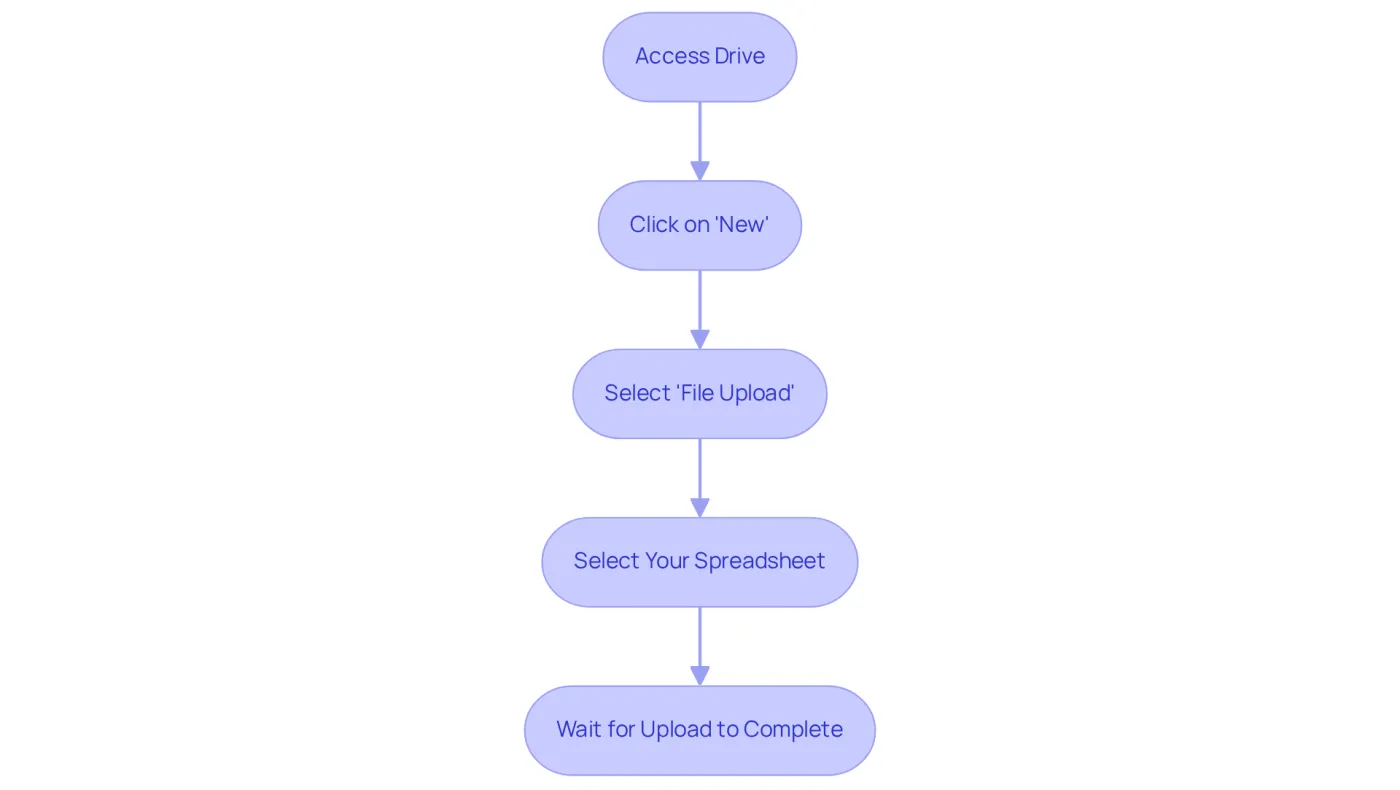
To enhance your productivity, follow these straightforward steps to upload your Excel file to Google Drive:
- Access Drive: Navigate to drive.google.com and log in with your account.
- Click on 'New': In the top left corner, click the '+ New' button.
- Select 'File Upload': From the dropdown menu, choose 'File upload'.
- Select Your Spreadsheet: Locate your spreadsheet on your computer, select it, and click 'Open'.
- Wait for the Upload to Complete: A progress bar will indicate the upload status. Once finished, your document will be accessible in your Drive.
This process not only saves your spreadsheets in the cloud but also ensures they are reachable from any device with internet connectivity. Notably, around 61% of professionals utilize Google Drive for storing spreadsheet files, highlighting its popularity among finance specialists. As productivity expert Paul Maritz emphasizes, cloud computing significantly enhances accessibility and collaboration, making it an invaluable resource for finance professionals managing extensive data.
Unlock Efficiency with ShortieCuts
With ShortieCuts, you gain access to 233 ALT shortcuts directly in online spreadsheets, streamlining your workflow and boosting your efficiency. Importantly, your data remains private, as ShortieCuts operates locally on your computer, ensuring that no content is stored or accessed externally. This combination of advanced functionalities and local data privacy positions ShortieCuts as an essential tool for finance professionals utilizing an excel to sheets converter while transitioning from traditional spreadsheets to cloud-based applications.
Open and Convert the Excel File in Google Sheets
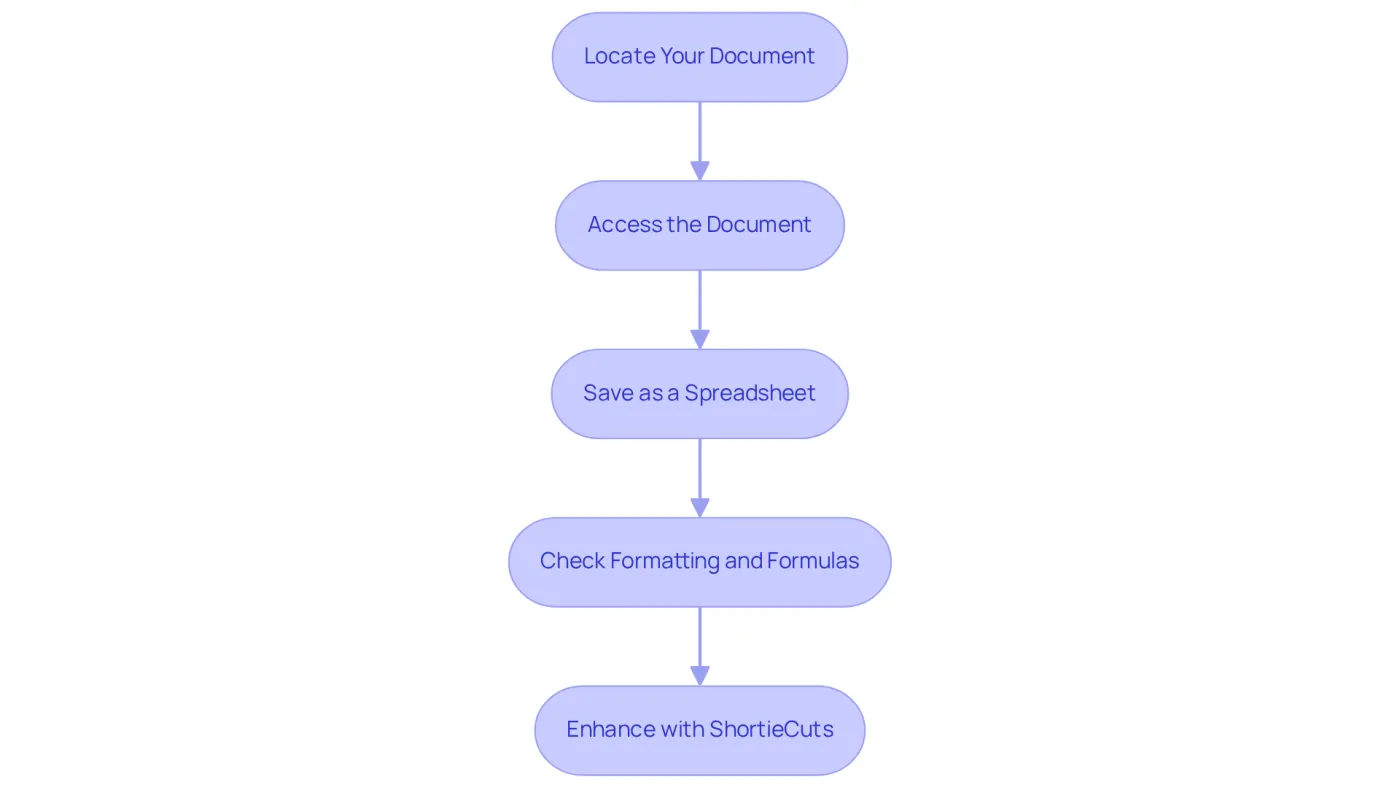
To convert your uploaded Excel file into Google Sheets, follow these essential steps:
- Locate Your Document: In Drive, find the Excel document you just uploaded.
- Access the Document: Right-click on the document, select 'Open with', and then choose 'Google Spreadsheet'.
- Save as a Spreadsheet: Once the document opens in the spreadsheet application, click on 'File' in the upper menu, then choose 'Save as a spreadsheet'. This action utilizes the excel to sheets converter to create a new spreadsheet version of your file while keeping the original Excel document intact in your Drive.
- Check Formatting and Formulas: Review the new spreadsheet to ensure that all formatting and formulas have been accurately converted. Basic formatting usually transfers well, but complex features like conditional formatting may not. Adjust any discrepancies to maintain data integrity.
This step is crucial for ensuring that your data operates effectively in the application environment. Improper formatting can lead to errors in analysis and reporting. After conversion, enhance your spreadsheet experience with ShortieCuts, which offers 233 ALT shortcuts. Simply hit "ALT" (or Option on Mac), and key-tips will appear in the corner of your screen, streamlining your workflow.
With a remarkable user satisfaction rate of 4.8 out of 5 from 165,481 ratings for the Data Analytics Professional Certificate, it's evident that mastering these tools significantly boosts productivity and data management efficiency. Additionally, it's vital to note that spreadsheet macros will not function correctly after conversion to an alternative platform, a critical consideration for finance professionals who rely on them. As Geoffrey Moore emphasizes, data is essential for making informed business decisions, highlighting the importance of ensuring data integrity during the conversion process.
Troubleshoot Common Conversion Issues
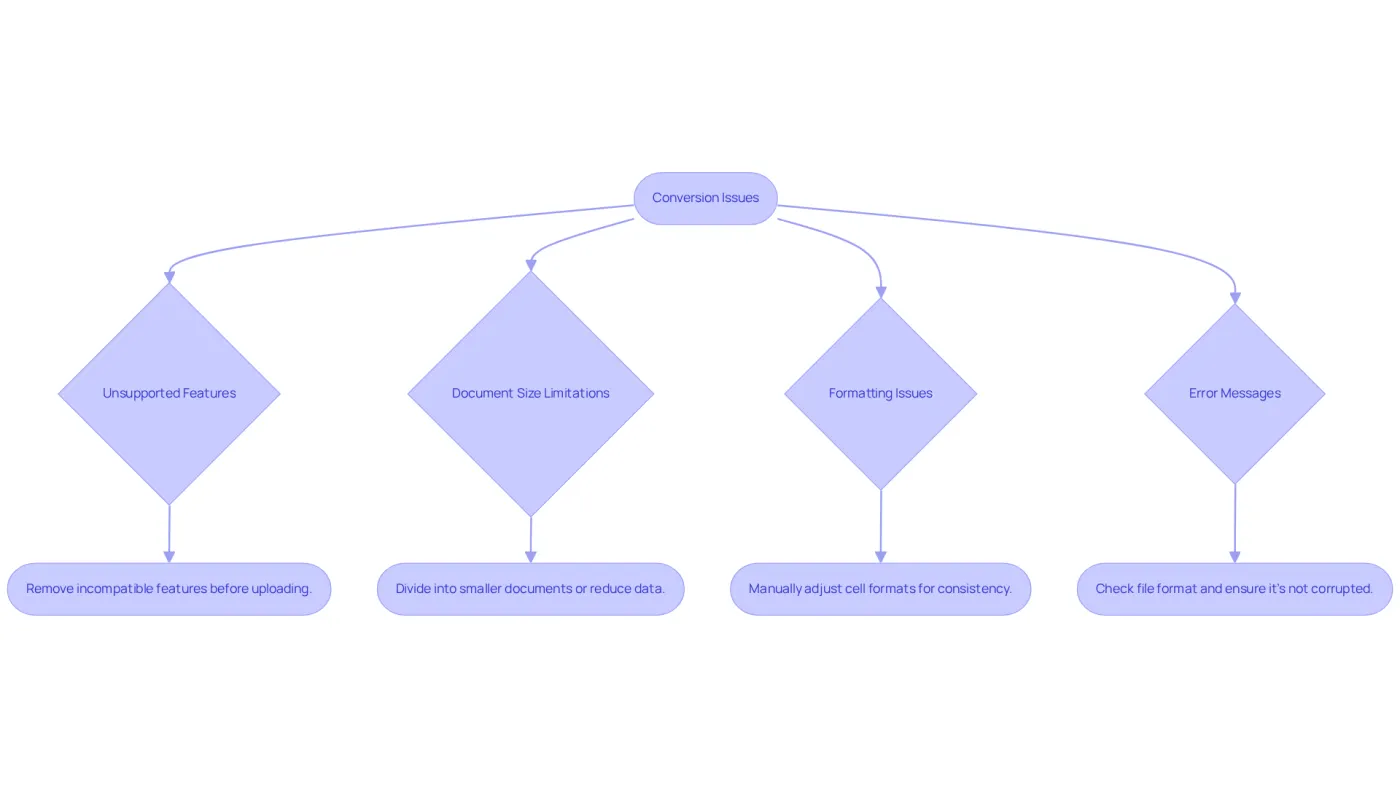
When using an excel to sheets converter for transitioning spreadsheet documents to Google’s platform, users often encounter several common challenges. Here are effective troubleshooting tips to ensure a seamless transition:
- Unsupported Features: Certain spreadsheet functionalities, such as macros and complex formulas, may not be compatible with different applications. To prevent complications, streamline your spreadsheet by removing these features before uploading.
- Document Size Limitations: Google Sheets imposes a document size restriction that can hinder the conversion process. If your spreadsheet exceeds this limit, consider dividing it into smaller documents or reducing the data amount.
- Formatting Issues: After conversion, formatting discrepancies are frequent, particularly with dates and currency. Be ready to manually adjust cell formats to maintain consistency and accuracy.
- Error Messages: If you encounter error messages while opening the file, ensure that the file is not corrupted and is saved in a compatible format, such as .xlsx.
Statistics show that a significant percentage of users face formatting issues after conversion, underscoring the importance of these troubleshooting steps. By proactively addressing these common challenges, you can enhance your experience and ensure a successful transition from one spreadsheet program to another.
Utilize ShortieCuts for Enhanced Functionality in Google Sheets
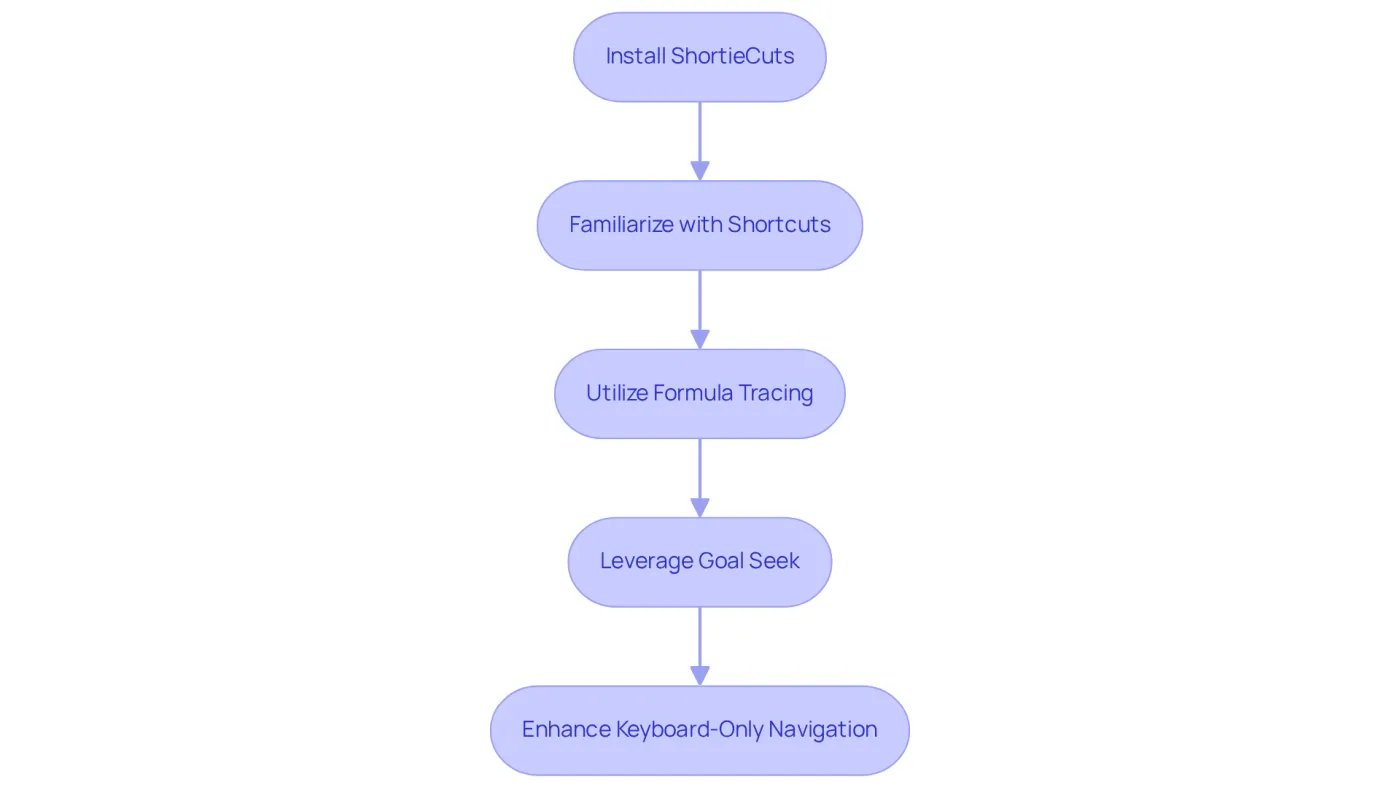
Maximize your productivity in Google Sheets with the ShortieCuts extension. Are you struggling to navigate and manipulate data efficiently? Here’s how to effectively utilize its powerful features:
- Install ShortieCuts: Start by installing the ShortieCuts Chrome extension from the Chrome Web Store. This unlocks a suite of functionalities designed to enhance your workflow.
- Familiarize Yourself with Shortcuts: Dive into the extensive library of 233 ALT key shortcuts integrated into ShortieCuts. These shortcuts streamline navigation and data manipulation, allowing you to complete tasks in a fraction of the time compared to traditional methods.
- Utilize Formula Tracing: Take advantage of the formula tracing feature to easily identify dependents and precedents in your calculations. This mirrors the functionalities you appreciate in spreadsheet software, enhancing your ability to analyze complex data sets efficiently.
- Leverage Goal Seek Functionality: The Goal Seek feature enables you to quickly determine necessary values for your calculations. This significantly enhances your analytical capabilities and decision-making processes.
- Enhance Keyboard-Only Navigation: Use the color palette feature for keyboard-only navigation, minimizing reliance on a mouse and improving your overall workflow.
By integrating ShortieCuts into your Google Sheets experience, you can use it as an excel to sheets converter to replicate the functionalities you are accustomed to, leading to substantial productivity improvements. Users have reported that adopting these shortcuts not only enhances their efficiency but also fosters a more comfortable and familiar working environment. Ready to transform your productivity? Start using ShortieCuts today!
Conclusion
Transitioning from Excel to Google Sheets significantly enhances productivity, particularly for finance professionals who need efficient data management and collaboration. This article presents a comprehensive step-by-step guide to upload, convert, and optimize Excel files in Google Sheets. By leveraging cloud-based tools, you can streamline workflows and improve accessibility.
Key insights include the importance of using ShortieCuts to enhance functionality within Google Sheets, alongside troubleshooting common issues that may arise during the conversion process. From uploading files to addressing formatting discrepancies, each step is designed to ensure a smooth transition while maintaining data integrity. Mastering these tools underscores their value to finance professionals in daily operations.
Ultimately, adopting Google Sheets for financial analysis not only facilitates collaboration but also empowers users with advanced features that can transform productivity. Embracing this transition and utilizing tools like ShortieCuts leads to more efficient data handling and informed decision-making. As the landscape of data management evolves, finance professionals are encouraged to embrace these modern solutions to stay ahead in their field.
Frequently Asked Questions
How do I upload my Excel file to Google Drive?
To upload your Excel file to Google Drive, navigate to drive.google.com, log in to your account, click the '+ New' button in the top left corner, select 'File upload' from the dropdown menu, locate your spreadsheet on your computer, select it, and click 'Open'. Wait for the upload to complete, and your document will be accessible in your Drive.
What are the benefits of uploading my Excel files to Google Drive?
Uploading your Excel files to Google Drive saves them in the cloud, making them accessible from any device with internet connectivity. This enhances productivity and collaboration, particularly beneficial for finance professionals managing extensive data.
How popular is Google Drive among professionals for storing spreadsheet files?
Approximately 61% of professionals utilize Google Drive for storing spreadsheet files, indicating its popularity, especially among finance specialists.
What is ShortieCuts and how does it enhance productivity?
ShortieCuts is a tool that provides access to 233 ALT shortcuts directly in online spreadsheets, streamlining workflows and boosting efficiency for users transitioning from traditional spreadsheets to cloud-based applications.
Is my data safe when using ShortieCuts?
Yes, your data remains private when using ShortieCuts, as it operates locally on your computer and does not store or access content externally.