

Introduction
Creating a Gantt chart in Excel can significantly enhance how project managers visualize and manage their timelines. This powerful tool not only clarifies project schedules but also fosters collaboration and accountability among team members. Yet, many may ask: how can one effectively leverage Excel to craft a Gantt chart that is both functional and visually appealing? This guide will lead you through a step-by-step process, unveiling the intricacies of organizing project data, customizing charts, and troubleshooting common issues, ensuring a seamless project management experience.
Understand Gantt Charts and Their Importance
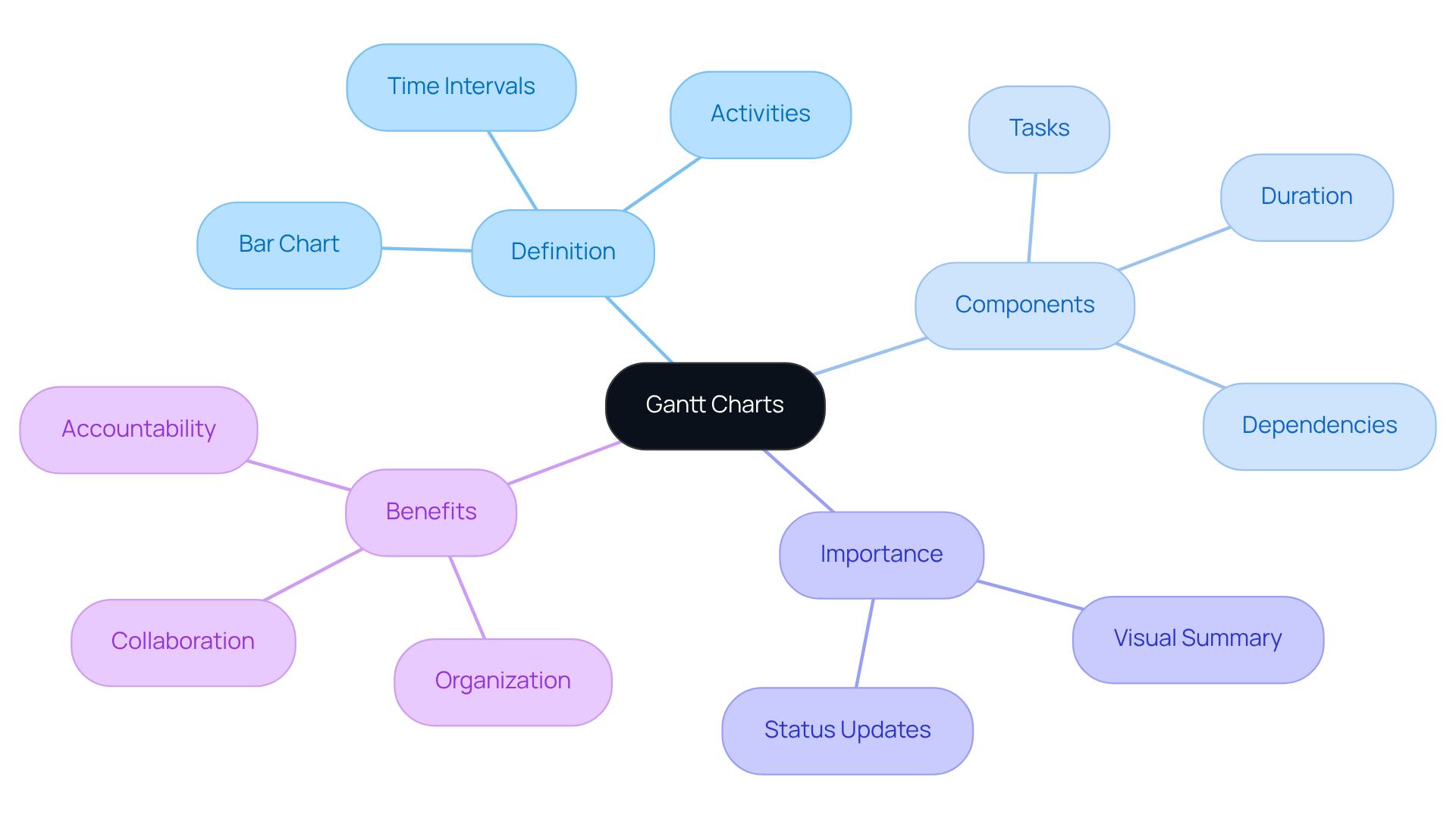
A gantt chart in excel template is a powerful tool in project management, serving as a bar chart that clearly illustrates a project schedule. It displays activities on the vertical axis and time intervals on the horizontal axis. Each assignment is represented by a bar, with the length of the bar indicating the duration of the task.
Using a Gantt chart in Excel template is indispensable for managing tasks effectively. They provide a clear visual summary of timelines, dependencies, and progress, enabling teams to organize assignments efficiently. By overseeing timelines and conveying status updates, Gantt charts become essential resources for both managers and teams alike.
Incorporating a gantt chart in excel template into your project management strategy not only enhances organization but also fosters collaboration and accountability. With their ability to visualize complex schedules, they empower teams to stay on track and meet deadlines with confidence.
Gather and Organize Your Project Data
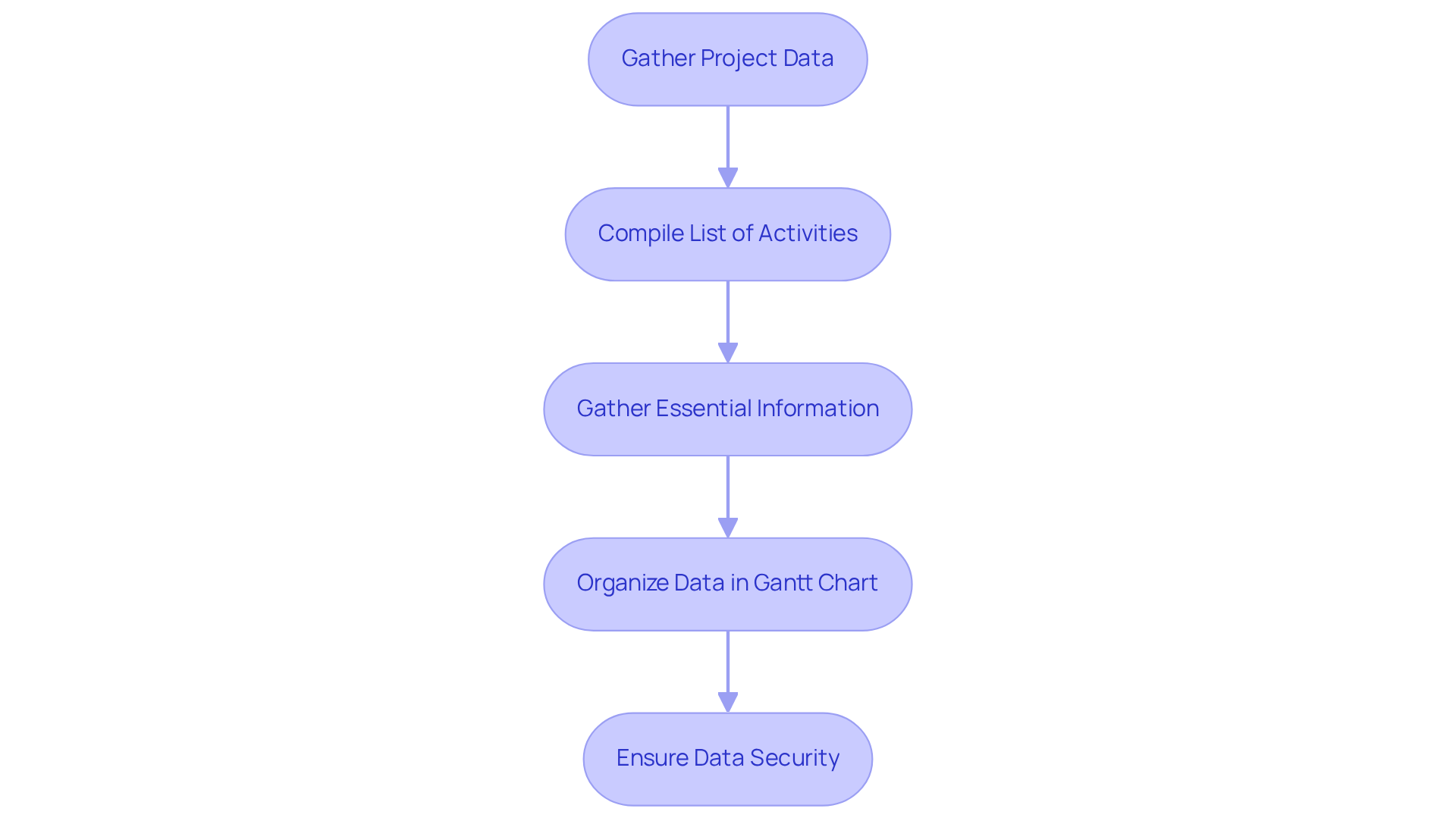
Start by compiling a comprehensive list of all activities involved in your project. For each task, ensure you gather the following essential information:
- Task Name: A concise description of the task.
- Start Date: When the assignment is scheduled to commence.
- End Date: When the assignment is expected to be completed.
- Dependencies: Any activities that must be completed before others can start.
Organize this data systematically using a Gantt chart in Excel template or Google Sheets, leveraging ShortieCuts to enhance your experience with Excel-style shortcuts. Each column should be dedicated to a specific piece of information. This organized approach not only simplifies the creation of a gantt chart in excel template but also improves clarity and accessibility, making it easier to monitor progress and manage schedules effectively.
By ensuring that your data remains local and secure, ShortieCuts allows you to focus on organization without concerns about data privacy. As Henry noted, 'He developed this visual management tool to assist with scheduling activities and monitoring progress.' Furthermore, scheduling diagrams help identify potential issues with assignment scheduling or resource availability, underscoring the importance of meticulous data arrangement.
Create Your Gantt Chart Using Excel
Creating a timeline in Excel is not just a simple process; it significantly enhances project management effectiveness. Here’s how to develop your chart:
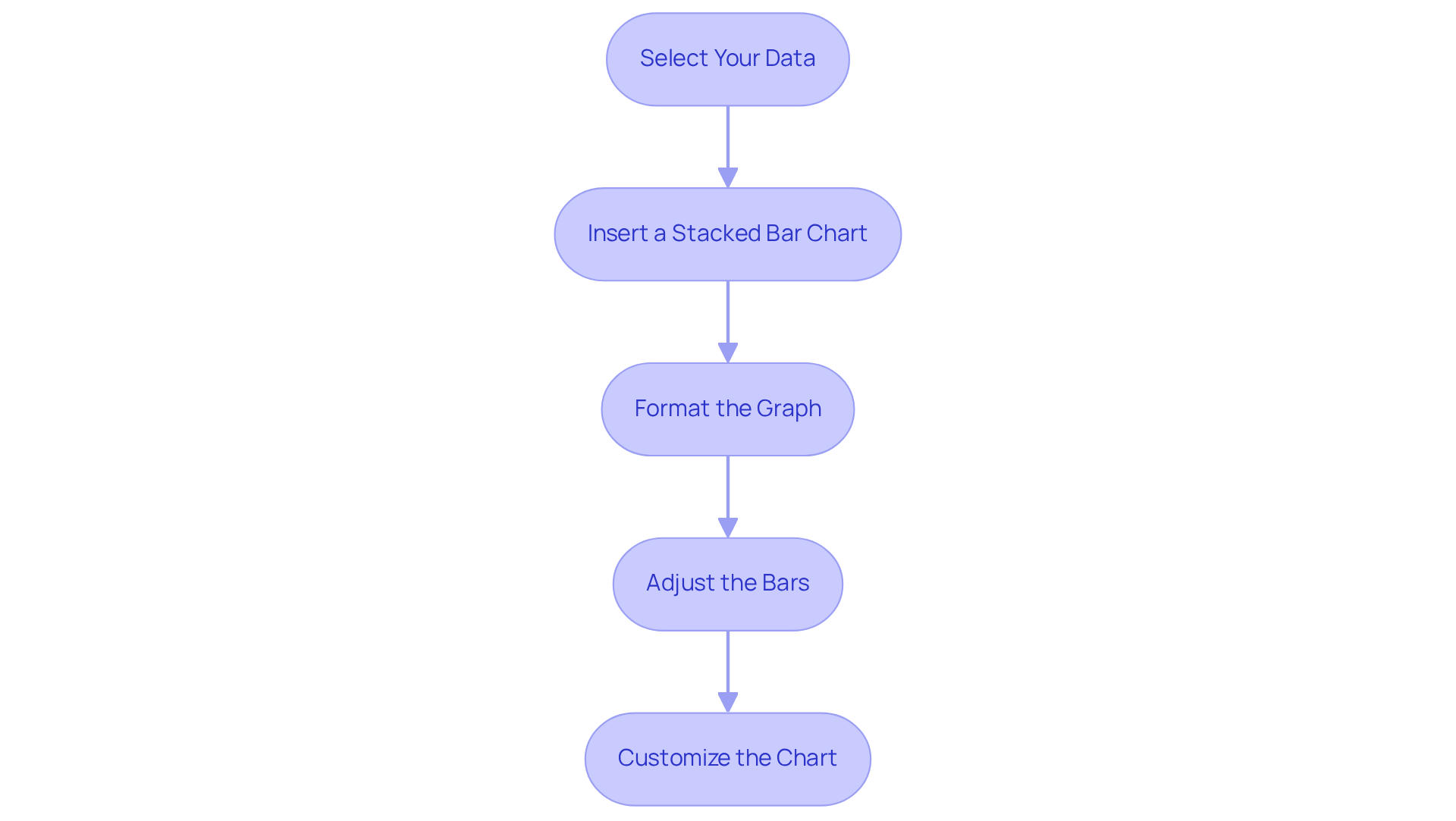
- Select Your Data: Start by highlighting your organized data, which should include task names, start dates, and durations. This foundational step is crucial for clarity.
- Insert a Stacked Bar Chart: Navigate to the 'Insert' tab, select 'Bar Chart', and choose 'Stacked Bar'. This chart will serve as the backbone of your Gantt diagram, providing a visual representation of your project.
- Format the Graph: Right-click on the graph and select 'Select Data'. Here, add your activities as the horizontal axis labels to ensure clarity and understanding.
- Adjust the Bars: Click on the bars representing the start dates and format them to be invisible by setting the fill to 'No Fill'. This adjustment will leave only the duration bars visible, creating a clean and effective visual representation.
- Customize the Chart: Enhance the chart's readability by adjusting colors, adding data labels, and formatting the date axis. Utilize conditional formatting to emphasize overdue assignments or impending deadlines - this is essential for efficient management. Regularly refreshing task information is vital to ensure precision and accurately represent the current status of the work.
By following these steps, your gantt chart in excel template will be ready for use, providing a visual summary of your project's progress and schedules. While a gantt chart in excel template is a powerful tool for creating timeline visuals, it’s important to recognize that it may not be the best option for larger, intricate endeavors due to scalability issues. However, Excel's familiarity and accessibility make it an ideal tool for managing tasks, especially for those transitioning from more complex management software.
Customize and Format Your Gantt Chart
Once you've created your gantt chart in excel template, it's time to elevate its effectiveness through customization.
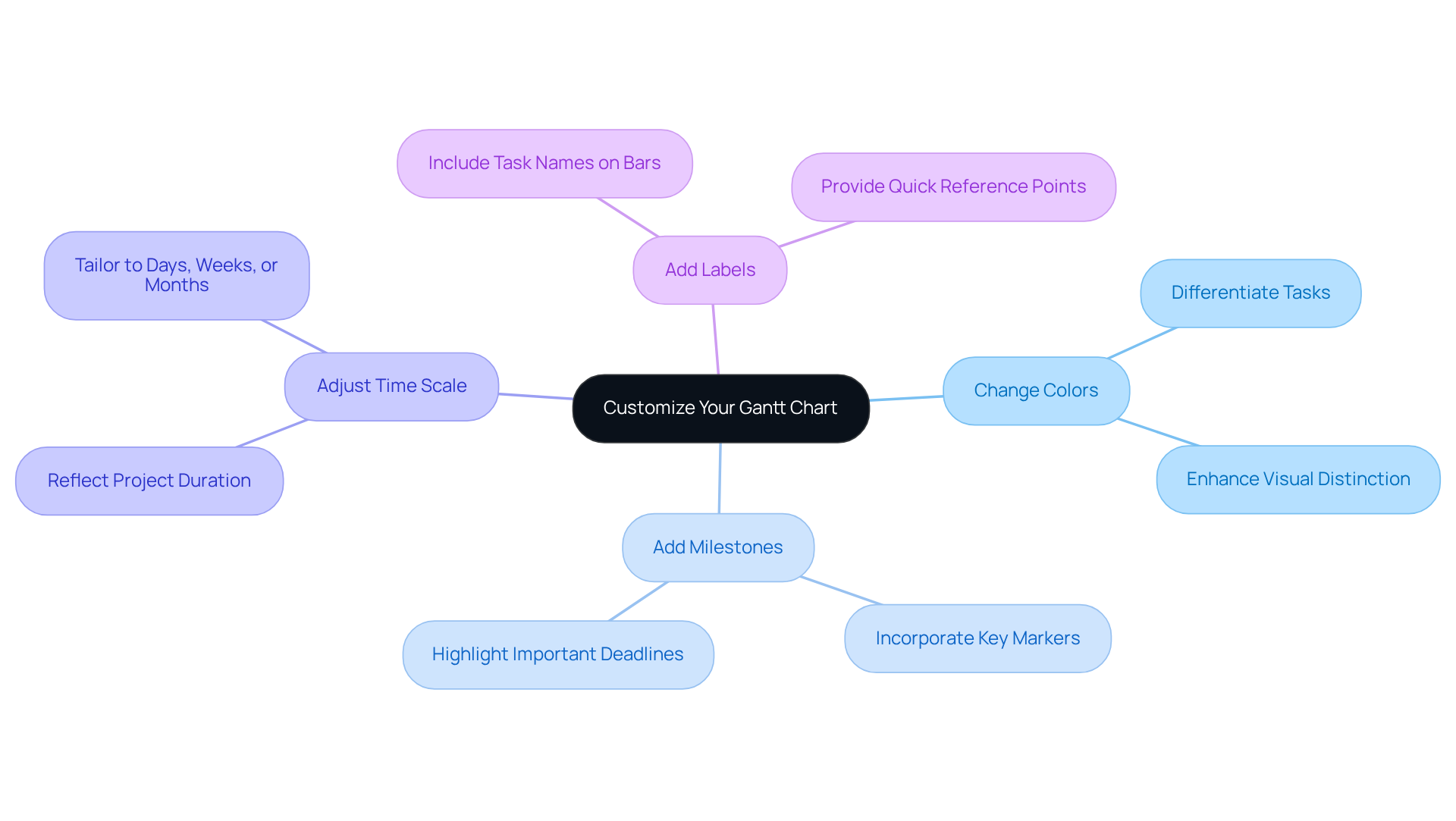
- Change Colors: Differentiate tasks or phases with distinct colors. This not only enhances visual distinction but also aids in quick identification of project components.
- Add Milestones: Incorporate markers for key milestones in your project. Highlighting important deadlines ensures that critical points are easily recognizable.
- Adjust Time Scale: Tailor the time scale to reflect days, weeks, or months, depending on your project's duration. This flexibility allows for a more accurate representation of your timeline.
- Add Labels: Including task names directly on the bars provides quick reference points. This customization not only makes your timeline more informative but also visually appealing.
By implementing these enhancements, your gantt chart in excel template will not only function as a planning tool but also as a powerful visual aid that effectively communicates your project's progress.
Troubleshoot Common Gantt Chart Issues
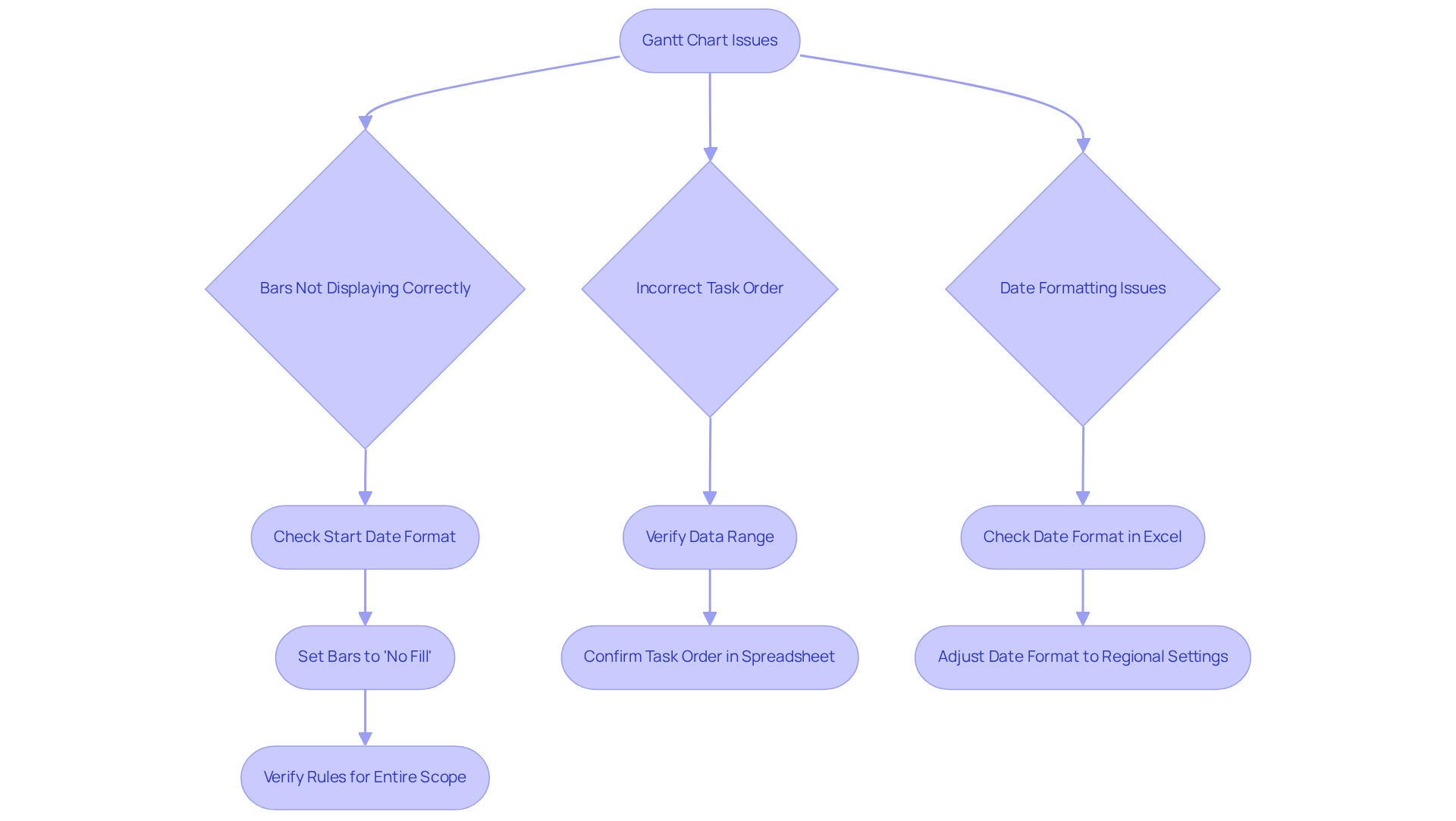
When creating or using your Gantt chart, you may encounter several common issues that can hinder your project management efforts. Here are some troubleshooting tips to help you resolve them effectively:
- Bars Not Displaying Correctly: Ensure that your start dates are formatted correctly. Additionally, check that the bars representing start dates are set to 'No Fill' to ensure visibility. If the problem persists, verify that the rules pertain to the entire scope, including your new assignments, as recommended by Chris-DKN from Microsoft Community.
- Incorrect Task Order: If tasks appear out of sequence, verify the data range and confirm that tasks are listed in the correct order within your spreadsheet.
- Date Formatting Issues: If dates are not displaying as expected, check that the date format in Excel aligns with your regional settings. Adjust the format as necessary to ensure consistency.
Statistics indicate that 39% of initiatives fail due to lack of planning, underscoring the importance of addressing these issues promptly. In contemporary management, there is a notable shift towards adaptive methodologies, offering a more flexible approach to execution. By following these troubleshooting steps, you can effectively resolve common Gantt chart problems and ensure your chart functions as intended, ultimately enhancing your project management efficiency.
Conclusion
Creating a Gantt chart in Excel is a crucial strategy in project management. It empowers teams to visualize timelines and task dependencies effectively. Gantt charts are not just organizational tools; they facilitate collaboration and accountability among team members.
To harness the full potential of Gantt charts, follow these key steps:
- Gather and organize your project data
- Create the Gantt chart in Excel
- Customize it for enhanced clarity
- Troubleshoot common issues that may arise
Each step underscores the importance of meticulous data arrangement and the visual enhancements that can elevate a basic chart into a powerful project management asset.
Incorporating a Gantt chart into your project workflows can significantly boost efficiency and clarity. It ensures that deadlines are met and resources are allocated wisely. By embracing this tool, you streamline project management and empower your team to adapt and respond to challenges effectively. Whether you're managing small projects or tackling more complex initiatives, mastering the Gantt chart in Excel is an invaluable skill that can lead to greater success in achieving your project goals.
Frequently Asked Questions
What is a Gantt chart and why is it important in project management?
A Gantt chart is a bar chart that illustrates a project schedule, displaying activities on the vertical axis and time intervals on the horizontal axis. It is important because it provides a clear visual summary of timelines, dependencies, and progress, enabling effective task management.
How does a Gantt chart enhance project management?
A Gantt chart enhances project management by improving organization, fostering collaboration, and promoting accountability. It visualizes complex schedules, helping teams stay on track and meet deadlines.
What essential information should be gathered for each task when creating a Gantt chart?
For each task, gather the following information: Task Name (description of the task), Start Date (when the task starts), End Date (when the task is expected to be completed), and Dependencies (tasks that must be completed before others can start).
How should project data be organized for a Gantt chart in Excel?
Organize project data systematically using a Gantt chart in Excel or Google Sheets, with each column dedicated to a specific piece of information. This organized approach simplifies the creation of the chart and improves clarity and accessibility.
What is the role of ShortieCuts in creating a Gantt chart?
ShortieCuts enhances the experience of using Excel-style shortcuts, allowing for easier organization of data when creating a Gantt chart. It ensures that data remains local and secure, allowing users to focus on organization without privacy concerns.
What potential issues can scheduling diagrams help identify?
Scheduling diagrams can help identify potential issues with assignment scheduling or resource availability, highlighting the importance of meticulous data arrangement in project management.