

Introduction
Effective stock management stands as a cornerstone of financial success. Yet, many finance professionals find themselves grappling with the challenge of maintaining accurate inventory records. This struggle can lead to inefficiencies and costly errors.
By harnessing the power of Excel, finance professionals can streamline their stock tracking processes. This not only simplifies inventory management but also enhances decision-making capabilities. Imagine having a robust inventory system that minimizes errors and maximizes efficiency.
However, creating a stock format tailored to specific business needs can present a series of challenges. How can finance professionals effectively navigate these complexities? The answer lies in establishing a systematic approach to inventory management that leverages the capabilities of Excel.
In the following sections, we will explore how to overcome these challenges and implement a solution that drives financial success.
Understand Stock Management Basics in Excel
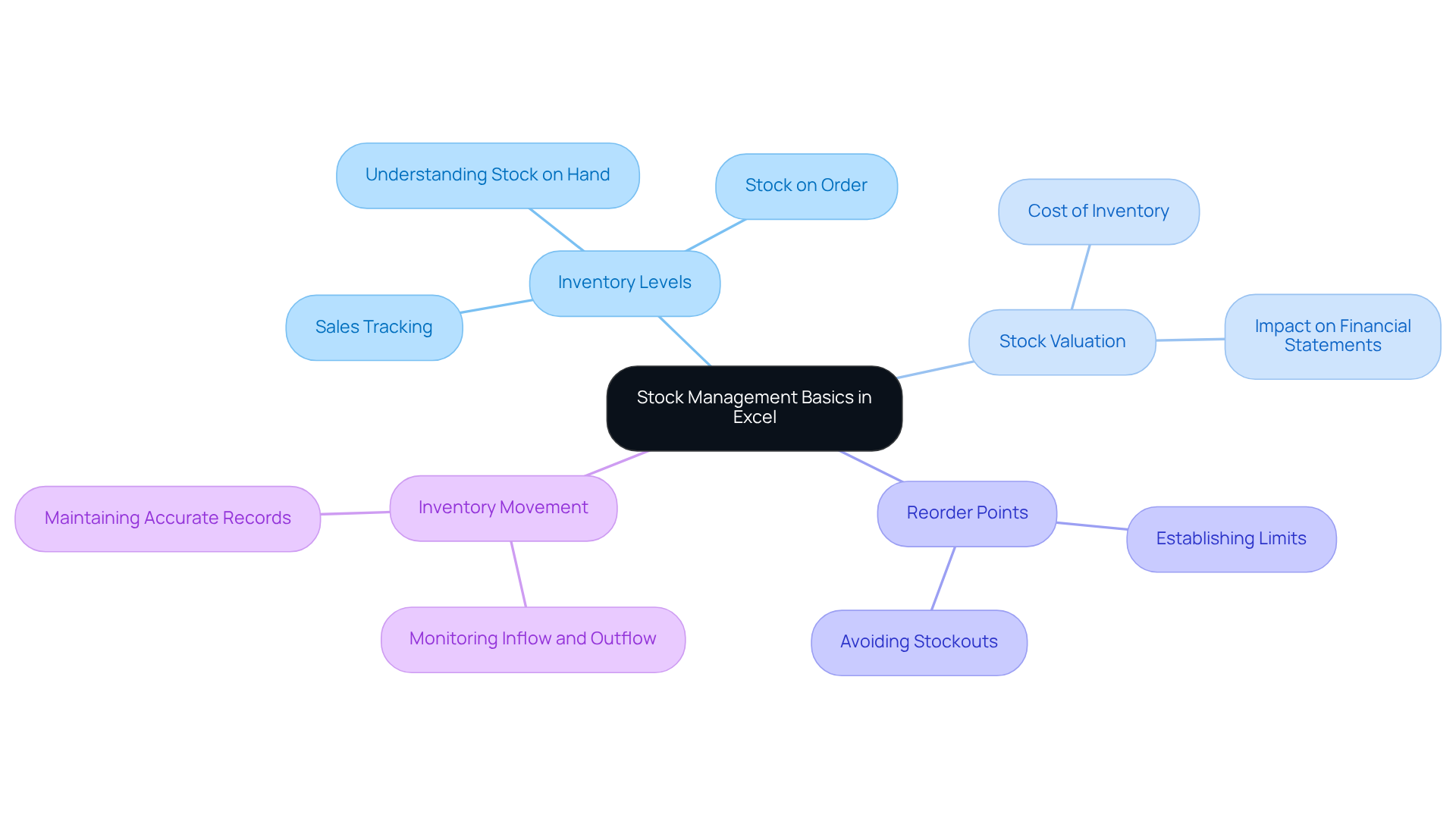
Stock management is crucial for any business, as it involves tracking and controlling inventory levels, orders, sales, and deliveries. In Excel, you can effectively manage this through the use of stock format in excel, structured data entry, and the application of formulas. Let’s explore some key concepts that will enhance your stock management skills:
- Inventory Levels: It’s essential to understand how much stock you have on hand, how much is on order, and how much has been sold. This knowledge helps prevent overstocking or stockouts.
- Stock Valuation: Knowing the cost of your inventory is vital. It directly impacts your financial statements and overall business health.
- Reorder Points: Establishing clear limits for when to replenish inventory is necessary to avoid shortages that can disrupt operations.
- Inventory Movement: Monitoring the inflow and outflow of inventory ensures precise records, which are critical for effective management.
By mastering these concepts, you can create a robust stock format in excel that meets your financial requirements and enhances your operational efficiency.
Gather Necessary Tools and Resources
Before you start creating your stock format, ensure you have the following tools and resources:
- Microsoft Excel: Ensure you have the latest version of Excel installed on your computer.
- Templates: Consider acquiring inventory organization templates from reliable providers like Microsoft or Smartsheet. These templates often come with built-in formulas that can save you hours of manual data entry and streamline your inventory management processes.
- Information Sources: Identify where you will obtain your inventory information, such as supplier databases or inventory lists, to guarantee accuracy and completeness.
- Fundamental Spreadsheet Skills: Familiarize yourself with essential functions like SUM, AVERAGE, and IF statements, as these will be crucial for effectively managing your inventory data.
Statistics reveal that nearly 62% of organizations face financial repercussions due to inadequate inventory tracking. This underscores the necessity of utilizing effective tools and templates, including a stock format in Excel. As financial author Michael Kern states, "Spreadsheet software can be a useful resource for creating essential inventory oversight methods, particularly for companies that are just beginning." By leveraging these resources, finance professionals can enhance their inventory management capabilities and drive improved financial performance.

Create Your Stock Format: Step-by-Step Instructions
Creating an effective stock format in Excel is crucial for efficient inventory management. Follow these detailed steps to establish a robust system:
- Open the Program: Launch Microsoft’s spreadsheet application and create a new blank workbook.
- Set Up Your Headers: In the first row, label your columns with essential headers. Commonly used headers include:
- Item Name
- SKU (Stock Keeping Unit)
- Quantity
- Cost Price
- Selling Price
- Supplier
- Reorder Level
- Unique Item No (to prevent duplication)
- Enter Your Data: Fill in the rows below each header with precise inventory information. Precision is crucial for maintaining reliable records.
- Utilize Powerful Formulas: Leverage Excel’s capabilities to automate calculations. For instance, use
=Quantity*Cost Priceto calculate total inventory value and establish reorder alerts with the=IFformula to indicate items when inventory levels fall below the reorder threshold. - Format Your Sheet: Enhance the visual appeal and readability of your sheet using Excel's formatting tools. Implement conditional formatting to automatically highlight low stock levels, ensuring quick identification of items that need replenishment.
- Conduct Regular Audits: Regularly audit your inventory information to maintain accuracy and prevent discrepancies.
- Save Your Workbook: Regularly save your work to prevent data loss. If multiple users require access, consider saving the workbook in a shared location to facilitate collaboration.
By adhering to these steps, you can create a strong inventory system in a spreadsheet that not only organizes your goods efficiently but also facilitates prompt decision-making and operational effectiveness. Notably, approximately 54% of businesses worldwide utilize Microsoft’s spreadsheet software, underscoring its relevance in inventory management.

Troubleshoot Common Issues in Stock Format Creation
Creating a stock format in Excel presents several challenges that finance professionals must navigate. Here are some common issues you may encounter, along with effective troubleshooting tips:
- Data Not Updating: If your formulas aren't calculating correctly, verify that your cell references are accurate and that data is entered in the correct format. Manual information entry errors can vary from 1% to 5%, emphasizing the significance of precision in your inputs. It's crucial to note that human mistakes impact nearly 43% of warehouses globally.
- Formatting Issues: When numbers appear as text, select the affected cells, navigate to the Data tab, and choose 'Text to Columns' to convert them. Uniformity in information formatting is essential for avoiding misinterpretations in stock oversight.
- Missing Formulas: Ensure that all formulas are entered correctly. Double-check for typos or incorrect cell references, as formula errors like
#VALUE!and#REF!can indicate incorrect references or incompatible types. The absence of error control systems in the software makes it susceptible to mistakes, complicating information management. - Performance Lag: If your workbook is sluggish, consider simplifying complex formulas or breaking your data into multiple sheets. The software's performance can decline when managing large datasets, which is a considerable limitation for professional use. Significantly, 63% of supply chain managers still depend on spreadsheet software for inventory management, despite these limitations.
- Error Messages: Familiarize yourself with common spreadsheet error messages (e.g.,
#DIV/0!,#VALUE!) and their meanings to troubleshoot effectively. The spreadsheet program provides nine built-in error-checking options to assist users in identifying and resolving issues.
By addressing these common challenges, finance professionals can enhance their stock management processes through the use of stock format in Excel, thereby improving overall data accuracy. This is essential, given that the average inventory accuracy in U.S. retail businesses is only 66%. Implementing best practices in Excel can significantly mitigate these issues.

Conclusion
Creating a stock format in Excel is a vital skill for finance professionals who seek to optimize inventory management. This guide highlights the importance of grasping stock management fundamentals, assembling the right tools, and adhering to a structured approach to develop an effective stock format. By mastering these components, businesses can significantly enhance their operational efficiency and financial accuracy.
Key insights include:
- The critical nature of tracking inventory levels
- Understanding stock valuation
- Establishing reorder points to avert disruptions
The step-by-step instructions emphasize the necessity of leveraging Excel’s powerful features-such as formulas and formatting tools-to create a user-friendly and efficient stock management system. Addressing common troubleshooting issues further ensures that finance professionals can uphold accuracy and reliability in their inventory records.
In summary, effective stock management transcends mere item tracking; it is a crucial element that impacts overall business performance. By implementing the strategies outlined in this guide, finance professionals can markedly improve their inventory oversight, minimize errors, and make informed decisions. Embracing these practices will not only streamline operational workflows but also contribute to the long-term success of any business endeavor.
Frequently Asked Questions
Why is stock management important for a business?
Stock management is crucial as it involves tracking and controlling inventory levels, orders, sales, and deliveries, which helps prevent overstocking or stockouts.
How can Excel help in stock management?
Excel can effectively manage stock through the use of structured data entry, stock formats, and the application of formulas.
What are inventory levels, and why are they important?
Inventory levels refer to the amount of stock on hand, on order, and sold. Understanding these levels is essential to avoid overstocking or stockouts.
What is stock valuation, and why does it matter?
Stock valuation is the process of determining the cost of inventory, which directly impacts financial statements and overall business health.
What are reorder points, and how do they help in stock management?
Reorder points are established limits for when to replenish inventory, necessary to avoid shortages that can disrupt operations.
Why is monitoring inventory movement important?
Monitoring inventory movement ensures precise records of the inflow and outflow of inventory, which is critical for effective management.
How can mastering stock management concepts improve operational efficiency?
By mastering stock management concepts, you can create a robust stock format in Excel that meets financial requirements and enhances operational efficiency.