

Introduction
Creating an effective stock register in Excel goes beyond merely tracking numbers; it empowers businesses to make informed decisions that drive operational success. This guide outlines the essential steps for establishing a robust inventory log that enhances accuracy, provides financial insights, and ensures regulatory compliance. With numerous potential pitfalls in stock management, how can businesses guarantee their register remains reliable and efficient?
By addressing these challenges head-on, organizations can implement a system that not only meets their needs but also supports their growth. A well-structured inventory log serves as a foundation for sound decision-making, ultimately leading to improved operational efficiency and profitability.
In the following sections, we will explore the critical components of an effective stock register, highlighting the benefits of accurate inventory management and the positive impact it can have on your business.
Understand the Purpose of a Stock Register
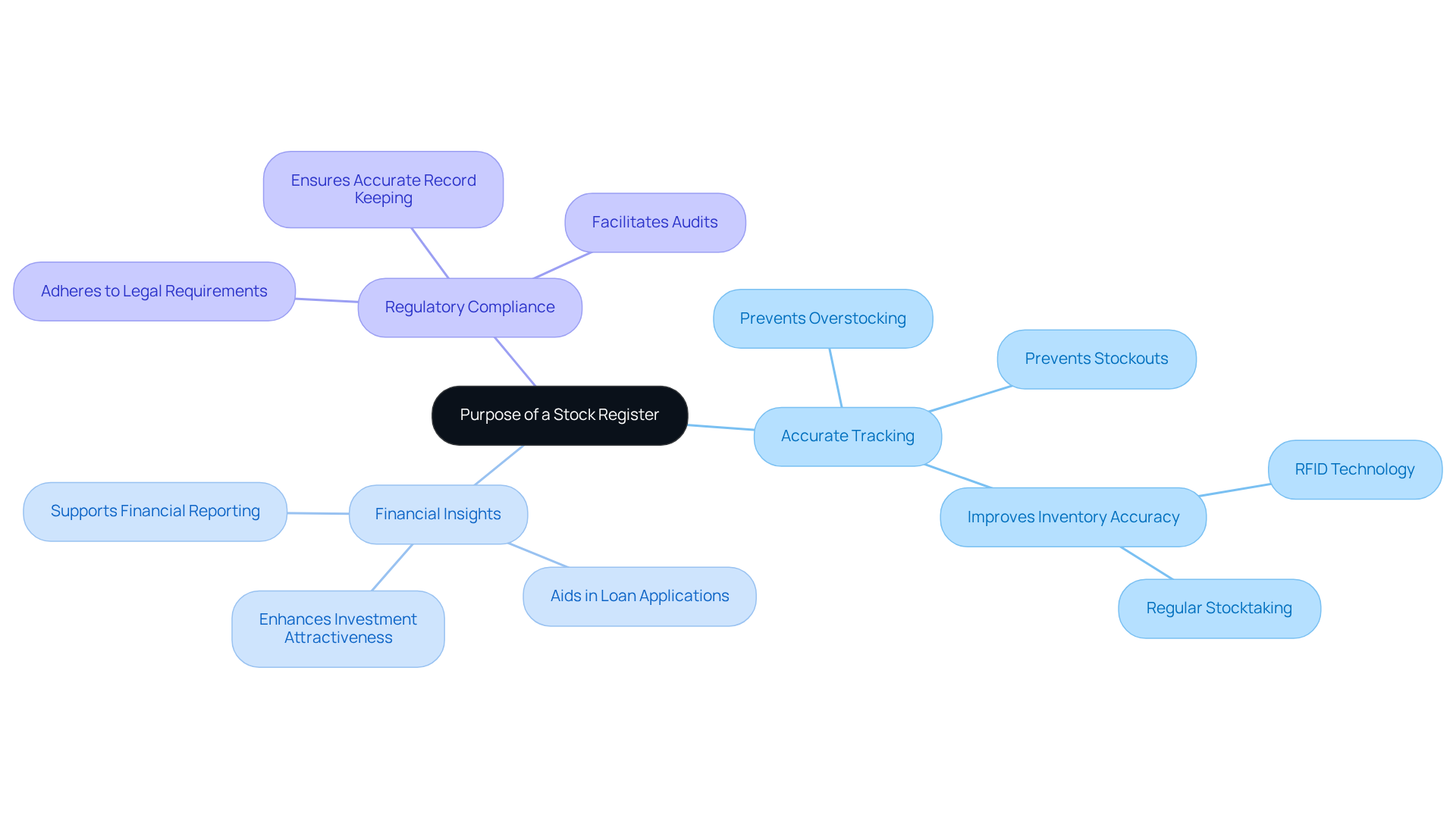
An inventory log serves as a comprehensive record of all inventory movements within a business. It plays a crucial role in tracking the amount of supplies on hand, monitoring supply inflow and outflow, and ensuring that levels are maintained efficiently. Understanding the purpose of an inventory register empowers users to manage their supplies effectively, reduce losses, and enhance overall operational efficiency.
Key Benefits of an Inventory Log:
- Accurate Tracking: It keeps a precise record of stock levels, preventing overstocking or stockouts.
- Financial Insights: It provides essential data for financial reporting and analysis.
- Regulatory Compliance: It assists in adhering to legal requirements related to stock management.
In summary, maintaining a well-kept record of goods is essential for any business reliant on supplies. It ensures smooth operations and informed decision-making.
Prepare Your Excel Environment for Stock Management
To optimize your Excel environment for effective stock management, follow these essential steps:
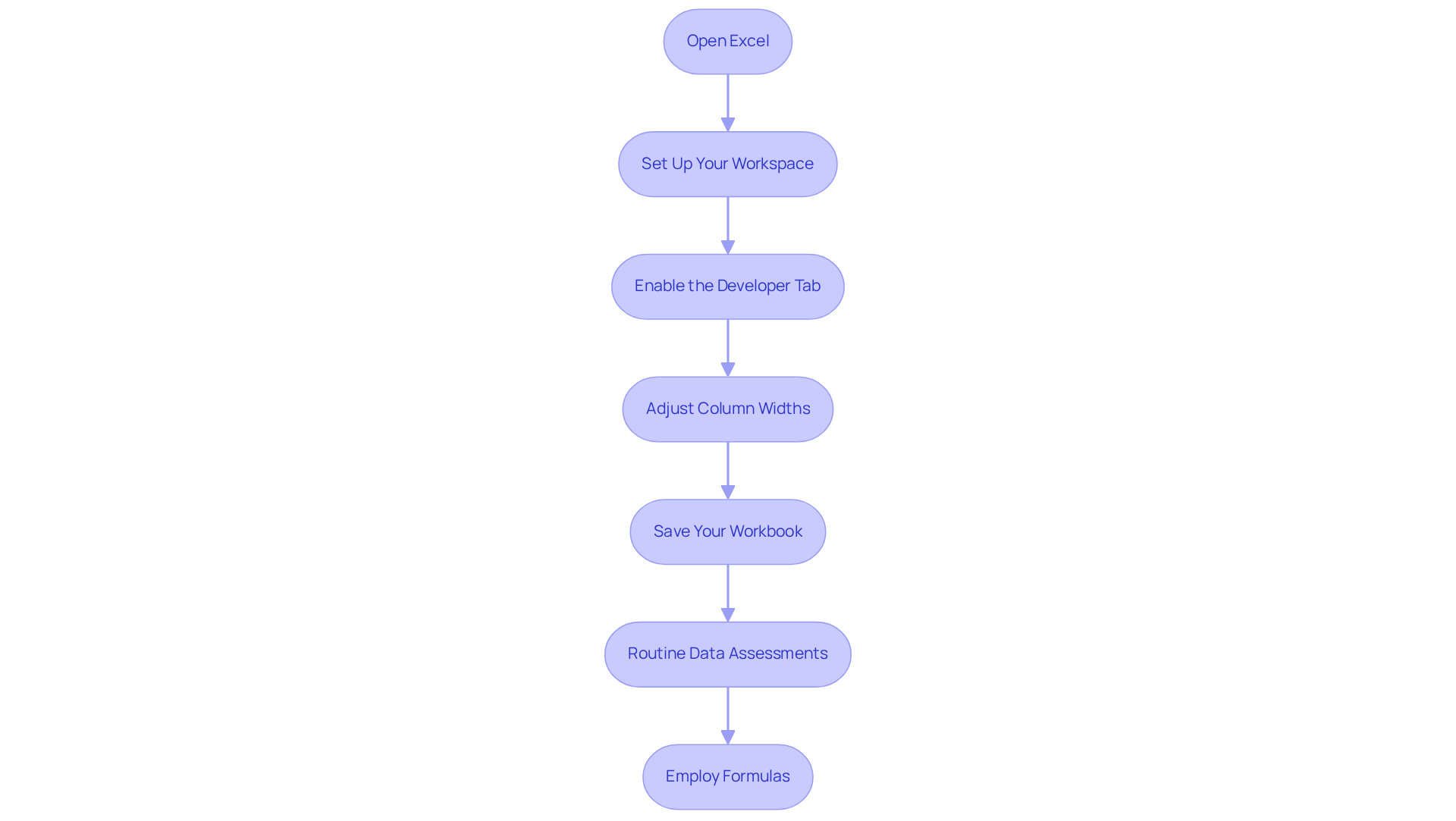
- Open Excel: Launch Microsoft Excel and create a new workbook tailored for your inventory needs.
- Set Up Your Workspace: Adjust the view settings to enhance usability. Utilize the 'Freeze Panes' feature to keep headers visible while scrolling, ensuring easy navigation through your information.
- Enable the Developer Tab: For those looking to automate tasks with macros, enable the Developer tab by navigating to File > Options > Customize Ribbon and checking the Developer box. This feature is crucial for streamlining repetitive tasks.
- Adjust Column Widths: Set suitable column widths to enhance visibility of information. Choose the columns and pull the borders in the stock register in Excel to guarantee all information is easily readable, which is essential for precise stock monitoring.
- Save Your Workbook: Save your workbook as 'Stock Register in Excel' with a descriptive name to facilitate quick access in the future.
- Routine Data Assessments: Arrange frequent evaluations of your stock information to guarantee precision and implement required modifications. This practice aids in keeping trustworthy records and preventing typical errors such as inconsistent structures and manual information entry mistakes.
- Employ Formulas: Integrate formulas such as
SUM()andAVERAGE()to monitor sales figures and compute turnover, improving your capacity to oversee levels efficiently.
As Marijn Overvest, founder of Procurement Tactics, emphasizes, "Proper preparation is a significant business asset." By meticulously preparing your Excel environment, you lay the groundwork for efficient inventory management, making data input and analysis significantly more manageable. Statistics indicate that 43% of small businesses still rely on Excel for inventory management due to its flexibility and familiarity, underscoring the importance of optimizing this tool for your specific needs.
Create Your Stock Register Layout and Key Columns
Creating an effective stock register in excel is essential for managing your inventory efficiently. Here’s how to do it:
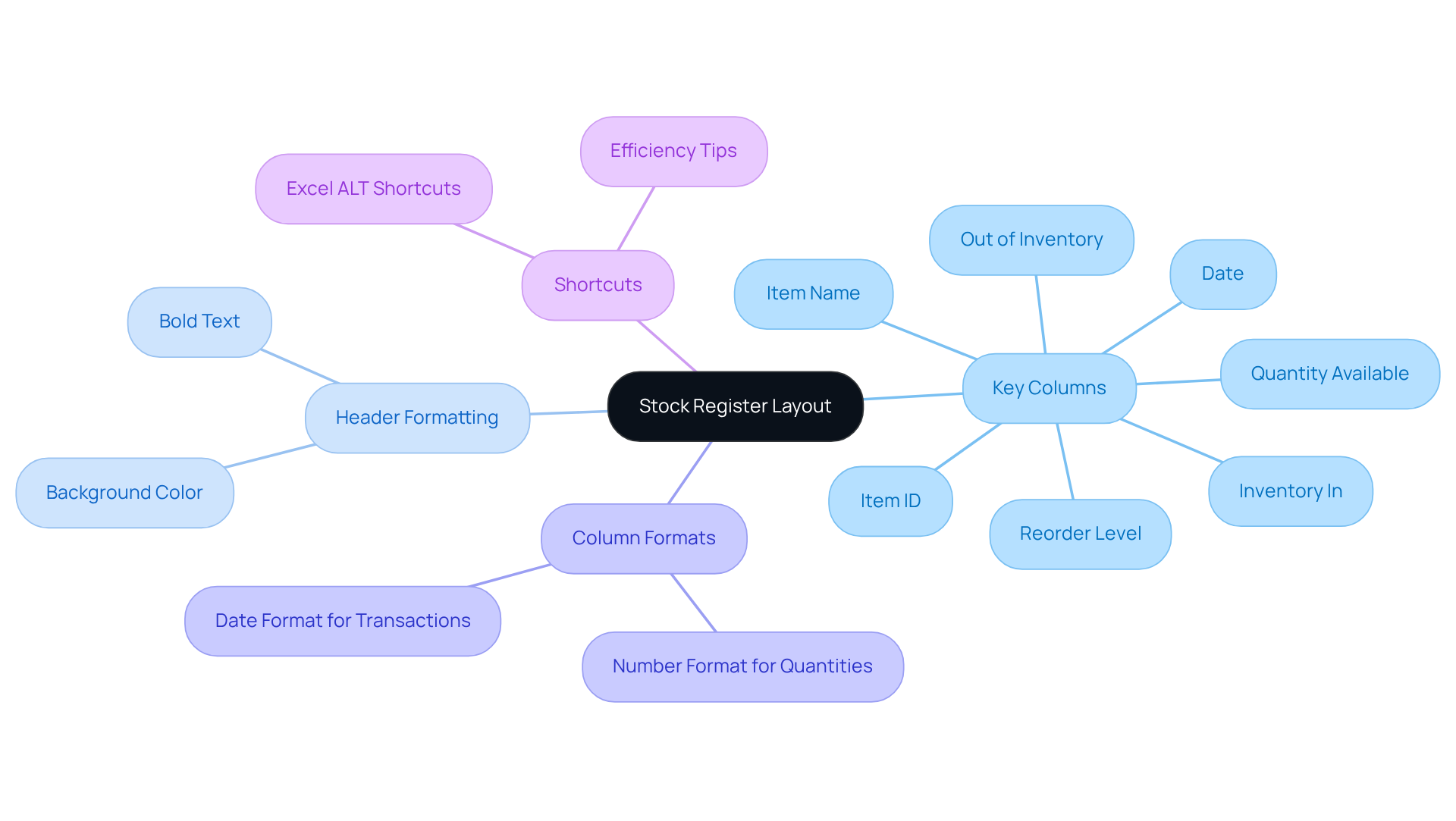
- Define Key Columns: Your stock register should include these essential columns:
- Item ID: A unique identifier for each stock item.
- Item Name: The name of the inventory item.
- Quantity Available: Current inventory level.
- Reorder Level: The minimum quantity before restocking is necessary.
- Inventory In: Quantity added to inventory.
- Out of Inventory: Quantity removed from inventory.
- Date: The date of the transaction.
The stock register in excel is an essential tool for managing inventory. In your stock register in excel, create the Header Row by labeling the first row with the column names defined above.
-
Format the Header: Use bold text and a background color to distinguish the header row from the data entries.
-
Adjust Column Formats: Set the appropriate formats for each column (e.g., number format for quantities, date format for transaction dates).
-
Utilize ShortieCuts for Efficiency: To enhance your experience while working in Google Sheets, remember to leverage the 300+ Excel ALT shortcuts available through ShortieCuts. Simply hit "ALT" (or Option on Mac) to display key-tips in the corner of your screen, allowing you to navigate and execute commands more efficiently.
By creating a clear layout with key columns and utilizing ShortieCuts, you significantly improve the usability of your stock register in excel. This approach simplifies tracking and managing supplies, making your workflow more efficient.
Incorporate Formulas and Conditional Formatting for Efficiency
Enhance Your Stock Register with Formulas and Conditional Formatting
Managing inventory can be a daunting task, but with the right tools, it becomes a streamlined process. By incorporating formulas and conditional formatting into your stock register in Excel, you can transform it into a powerful asset for efficient supply management.
Add Formulas
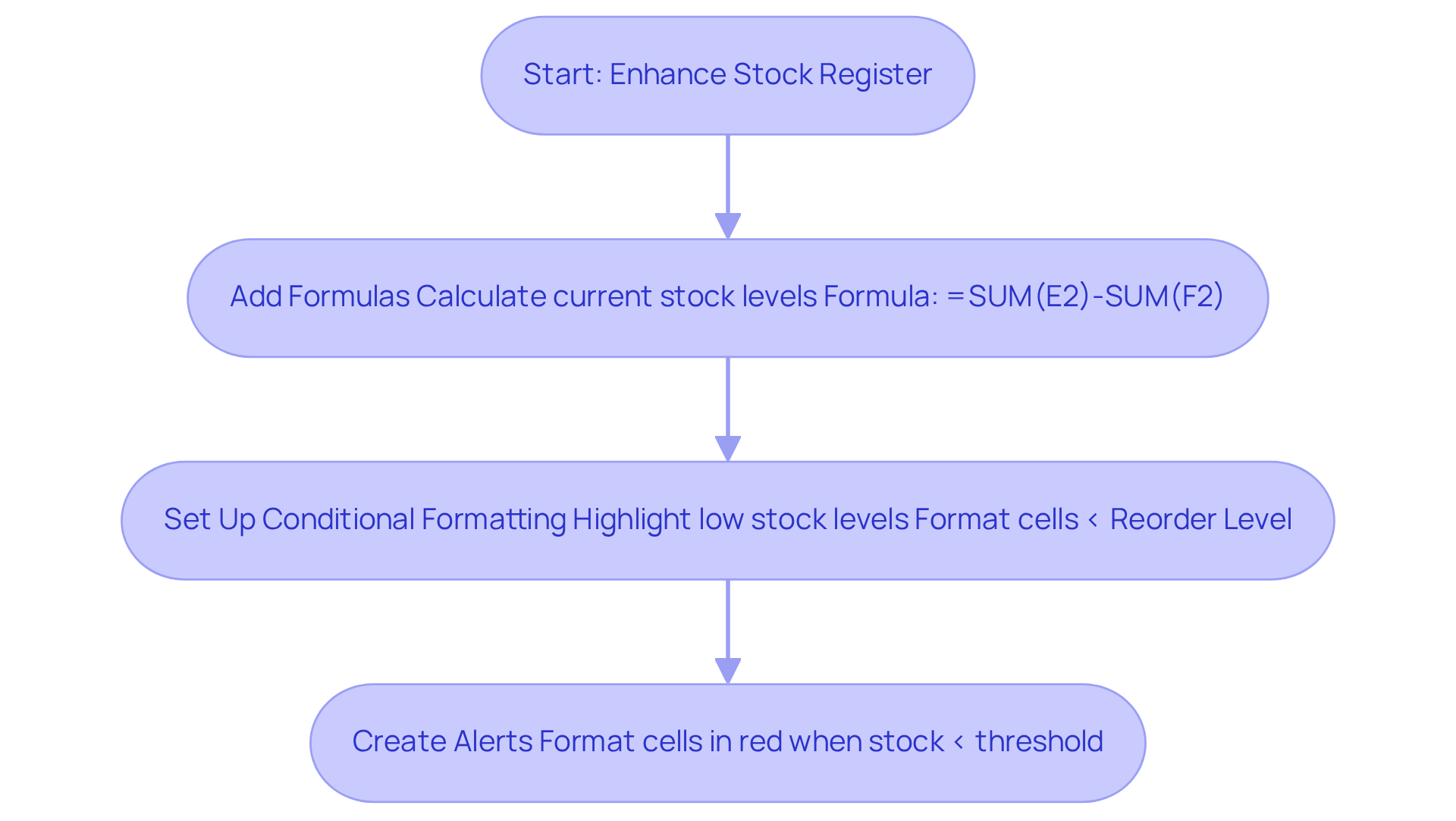
Start by calculating your current stock levels. In the 'Quantity In Stock' column, use a formula to determine this. For example, if 'Stock In' is in column E and 'Stock Out' is in column F, the formula in the 'Quantity In Stock' column (G) could be:
=SUM(E2)-SUM(F2). This simple calculation provides immediate insight into your inventory status.
Set Up Conditional Formatting
Next, highlight low stock levels. Select the 'Quantity In Stock' column and navigate to Home > Conditional Formatting > New Rule. Choose 'Format cells that contain' and set the rule to format cells that are less than the 'Reorder Level'. This visual cue allows for immediate identification of items that are running low. Additionally, you can emphasize products with fewer than 10 items available, ensuring timely replenishment.
Create Alerts
Utilize conditional formatting to highlight items that need restocking. For instance, establish a guideline to format cells in red when inventory levels drop below a defined threshold. This makes it visually simple to recognize which items require attention. As Austin Duerfeldt notes, conditional formatting provides visual cues that draw attention to essential details in a spreadsheet.
By incorporating these features, your inventory register evolves into a robust tool for managing supplies efficiently. This method not only enables swift evaluations but also encourages proactive inventory management with a stock register in Excel, ultimately improving operational efficiency. Furthermore, consider calculating safety stock levels using the formula Z * σLT * √(LT) to prevent stockouts. Experts agree that mastering conditional formatting can significantly enhance data analysis and usability in Excel, making your spreadsheets more engaging and effective. A case study on using conditional formatting for inventory reconciliation illustrates how these techniques can enhance operational efficiency by visually identifying discrepancies in records.
Maintain Your Stock Register with Best Practices
Master Your Stock Register: Best Practices for Success
To maintain your stock register effectively, consider these essential practices:
-
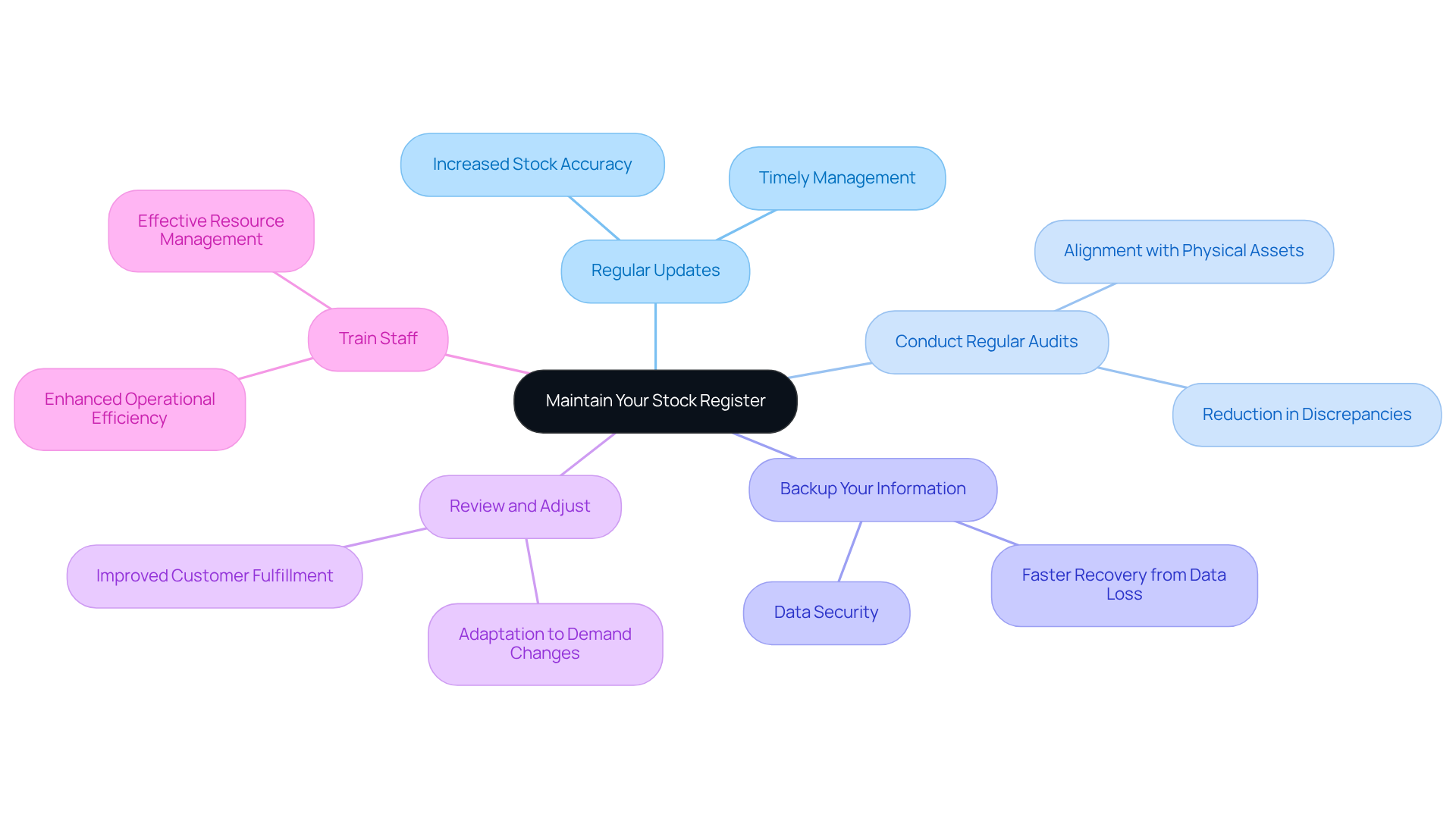
Regular Updates: Update your stock register immediately after any stock movement - whether in or out. This ensures accuracy. As Bill Gates noted, efficiency in stock management is crucial, and timely updates are key to achieving that efficiency. In fact, organizations that implement regular updates see a remarkable 20% increase in stock accuracy.
-
Conduct Regular Audits: Schedule periodic evaluations of your stock to ensure that physical assets align with your stock register. This practice is vital. James Sinegal emphasizes the need to rotate stock faster than staff, highlighting the importance of precise monitoring. Companies that conduct regular audits report a 15% reduction in discrepancies between physical and recorded inventory.
-
Backup Your Information: Regularly back up your Excel file to safeguard your information. Utilizing cloud storage allows for easy access and recovery, ensuring your data remains secure and retrievable. Research shows that businesses with robust data backup practices can recover from data loss incidents 50% faster.
-
Review and Adjust: Periodically assess your stock levels and reorder points to adapt to changes in demand or supply chain issues. As Peter Drucker stated, effectiveness is about accomplishing the right tasks, which includes modifying stock practices based on current needs. Businesses that consistently evaluate their stock levels experience a 30% improvement in fulfilling customer demand.
-
Train Staff: Ensure all personnel involved in resource management are well-versed in utilizing the supply log effectively and understand its significance. Proper training, as Keeth Smart suggests, is a valuable asset in business operations. Organizations that invest in staff training report a 25% increase in operational efficiency.
By adhering to these best practices, you can ensure that your stock register remains a reliable tool for managing inventory, ultimately leading to enhanced operational efficiency.
Conclusion
Creating an effective stock register in Excel transcends mere data organization; it represents a strategic initiative that can significantly enhance inventory management. Understanding the purpose of a stock register and following the steps outlined in this guide enables businesses to streamline operations and make informed decisions that drive efficiency and profitability.
Accurate tracking, financial insights, and compliance with regulations are paramount. Setting up an optimized Excel environment, defining key columns, and incorporating formulas and conditional formatting are essential steps that elevate a basic stock register into a powerful inventory management tool. Regular updates, audits, data backups, and staff training are critical to ensuring the stock register remains reliable and effective.
Mastering inventory management through an organized stock register is vital for any business. By embracing these best practices and leveraging Excel's capabilities, organizations can enhance operational efficiency, minimize discrepancies, and adapt to evolving demands. Implementing these strategies now will pave the way for a more streamlined and successful inventory management process.
Frequently Asked Questions
What is the purpose of a stock register?
A stock register serves as a comprehensive record of all inventory movements within a business, helping to track supplies on hand, monitor supply inflow and outflow, and ensure efficient maintenance of inventory levels.
What are the key benefits of maintaining an inventory log?
The key benefits of maintaining an inventory log include accurate tracking of stock levels to prevent overstocking or stockouts, providing essential data for financial reporting and analysis, and assisting in regulatory compliance related to stock management.
How can I prepare my Excel environment for stock management?
To prepare your Excel environment for stock management, you should open Excel and create a new workbook, set up your workspace with appropriate view settings, enable the Developer tab for automation, adjust column widths for better visibility, save your workbook with a descriptive name, conduct routine data assessments, and employ formulas like SUM() and AVERAGE() for efficient monitoring.
Why is it important to adjust column widths in Excel for stock management?
Adjusting column widths in Excel is important to enhance the visibility of information, ensuring that all data in the stock register is easily readable, which is essential for precise stock monitoring.
What should I do to ensure the accuracy of my stock records?
To ensure the accuracy of your stock records, you should arrange frequent evaluations of your stock information to verify precision and implement necessary modifications, helping to maintain trustworthy records and prevent errors.
What percentage of small businesses rely on Excel for inventory management?
Statistics indicate that 43% of small businesses still rely on Excel for inventory management due to its flexibility and familiarity.