
Enhance Google Sheets with Excel Features for Financial Success
Enhance Google Sheets with Excel features to boost financial analysis and productivity.

Introduction
In today’s data-driven landscape, effectively analyzing financial information is paramount. Google Sheets offers robust capabilities, yet its potential can be significantly amplified by integrating key Excel features. This integration not only streamlines workflows but also enhances analytical prowess. However, the challenge remains: how can finance professionals navigate these tools to maximize their impact?
To seamlessly blend the strengths of both platforms, finance professionals must adopt strategic approaches. By leveraging the unique functionalities of Excel alongside Google Sheets, they can unlock superior financial insights that drive informed decision-making. The benefits of this integration are clear: improved efficiency, enhanced data analysis, and ultimately, better financial outcomes.
What strategies will you implement to harness the power of these tools? The path to superior financial analysis begins with understanding how to effectively combine these platforms.
Master Essential Google Sheets Functions for Financial Analysis
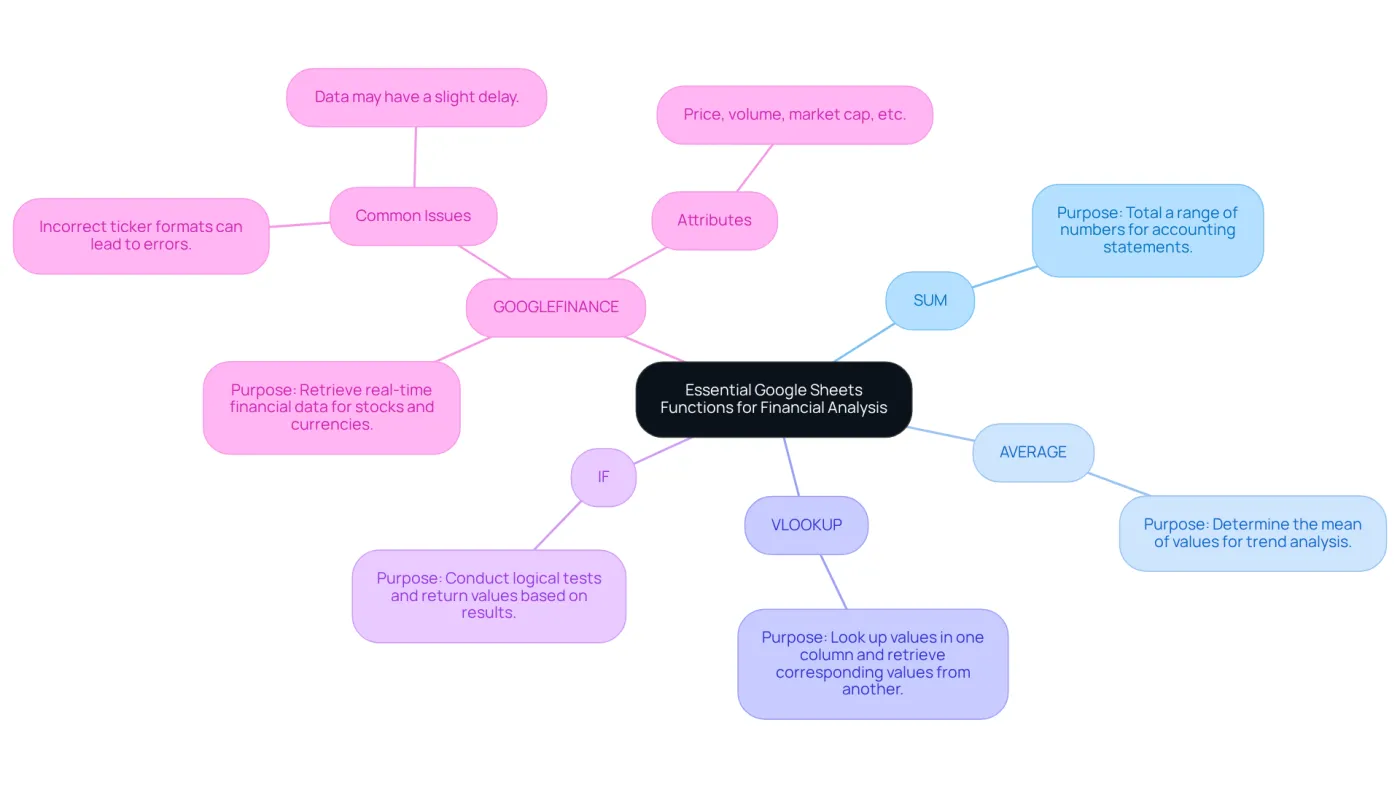
To enhance your economic analysis skills in Google Sheets, mastering key formulas is vital. Here are some essential functions to focus on:
- SUM: This tool enables you to swiftly total a range of numbers, making it crucial for determining sums in accounting statements.
- AVERAGE: Utilize this method to determine the mean of a set of values, particularly useful for analyzing trends over time.
- VLOOKUP: This robust feature allows you to look up a value in one column and retrieve a corresponding value from another column, essential for information reconciliation and ensuring precision in reporting.
- IF: Implement this procedure to conduct logical tests and return various values based on the result, assisting in scenario analysis and decision-making processes.
- GOOGLEFINANCE: This feature retrieves real-time financial data directly into your sheets, invaluable for tracking stock prices and market trends, thus enhancing your investment strategies.
In addition to mastering these functions, utilizing the ShortieCuts extension can significantly enhance your productivity. By simply hitting 'ALT' (or Option on Mac), you can see key-tips appear in the corner of your screen, guiding you through 149 Word ALT shortcuts in Google Docs. This streamlined workflow is crucial for finance professionals, as it improves analytical capabilities and ensures a smoother transition from Excel to Google Drive.
By focusing on these core functions and leveraging ShortieCuts, you can dramatically improve your financial analysis and reporting efficiency. Don't miss out on the opportunity to elevate your skills and streamline your processes!
Integrate Excel-Like Shortcuts and Features into Google Sheets
Maximize Your Efficiency in Google Docs with Excel Shortcuts
For finance professionals, replicating the efficiency of Excel in Google Docs is crucial. Integrating familiar shortcuts can significantly enhance productivity. Here are key shortcuts and features to enable:
-
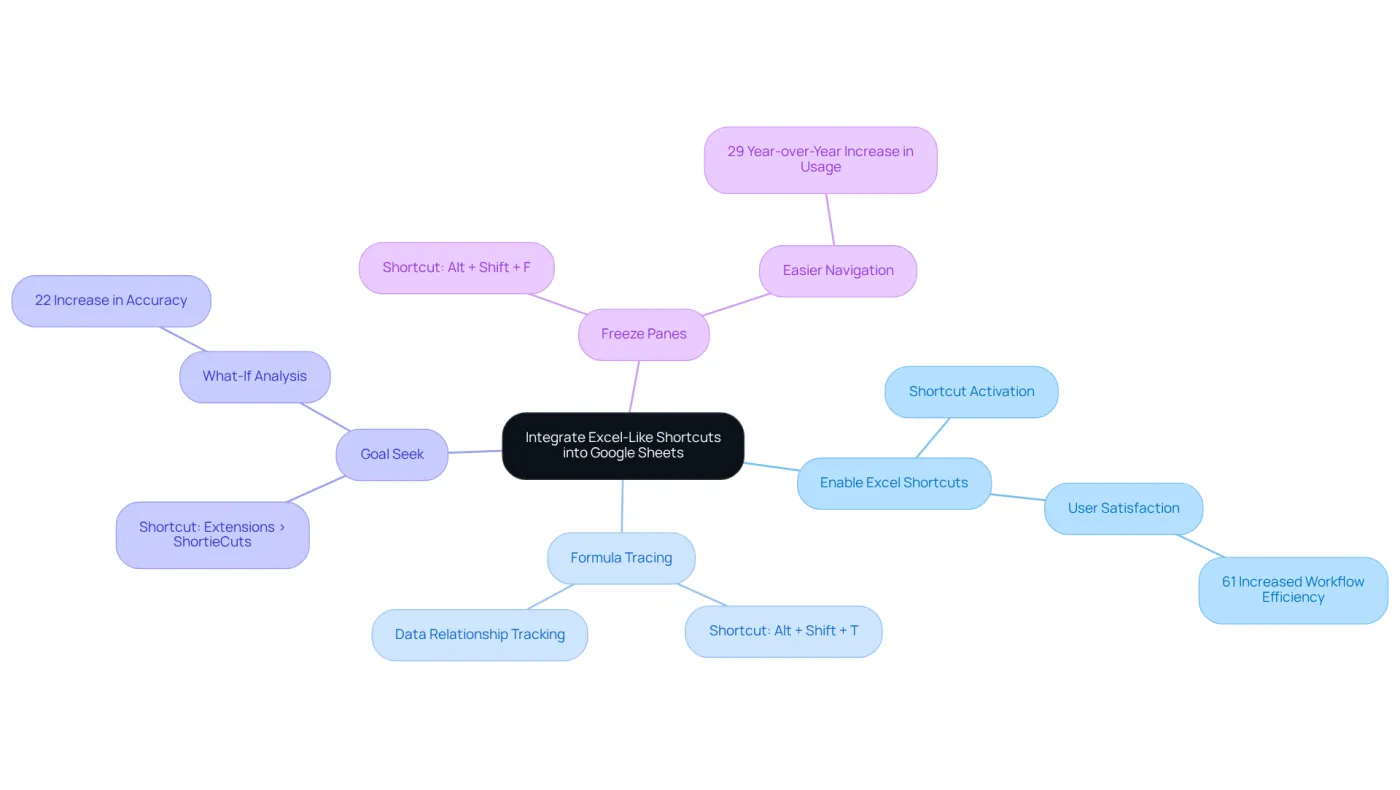
Enable Excel Shortcuts: Navigate to Help > Keyboard shortcuts and activate compatible shortcuts to utilize familiar commands like Ctrl+C for copy and Ctrl+V for paste. This feature boosts user satisfaction, with many reporting enhanced productivity when using Excel-like shortcuts in Google Docs. A recent survey indicated that 61% of finance professionals using these shortcuts experienced a notable increase in their workflow efficiency. Just hit "ALT" (or Option on Mac) and key-tips will appear in the corner of your screen, guiding you through the available shortcuts.
-
Formula Tracing: Use the shortcut Alt + Shift + T to trace precedents and dependents in your formulas, mirroring Excel's functionality. This feature is particularly beneficial for finance teams, allowing for precise tracking of data relationships. As Chris Reilly noted, "SheetWhiz brings native Excel shortcuts into Google Sheets and also adds some much-needed functionality like formula auditing, which can greatly enhance productivity."
-
Goal Seek: Access this feature via Extensions > ShortieCuts to conduct what-if analysis, enabling users to determine the necessary input values to achieve desired outcomes. This capability is crucial for financial modeling and decision-making, with many finance teams reporting a 22% increase in accuracy when utilizing Goal Seek in their analyses. Importantly, your information remains private; ShortieCuts functions locally on your computer, ensuring that no content is stored or accessed externally.
-
Freeze Panes: Utilize the shortcut Alt + Shift + F to freeze rows or columns, facilitating easier navigation through extensive datasets. This feature is essential for maintaining focus on important information while examining large spreadsheets, as demonstrated by a 29% year-over-year rise in active utilization of automated reporting tools in the application.
By incorporating these shortcuts, finance professionals can enhance Google Sheets with Excel features while sustaining their productivity levels during the transition to Google’s spreadsheet application. This adaptation process becomes smoother and more efficient, empowering you to work smarter.
Utilize Advanced Data Analysis Tools for Enhanced Financial Insights
Elevate Your Financial Analysis in Google Sheets
To truly enhance your financial analysis in Google Sheets, it’s essential to leverage advanced data analysis tools that can significantly boost your insights. Here’s how:
-
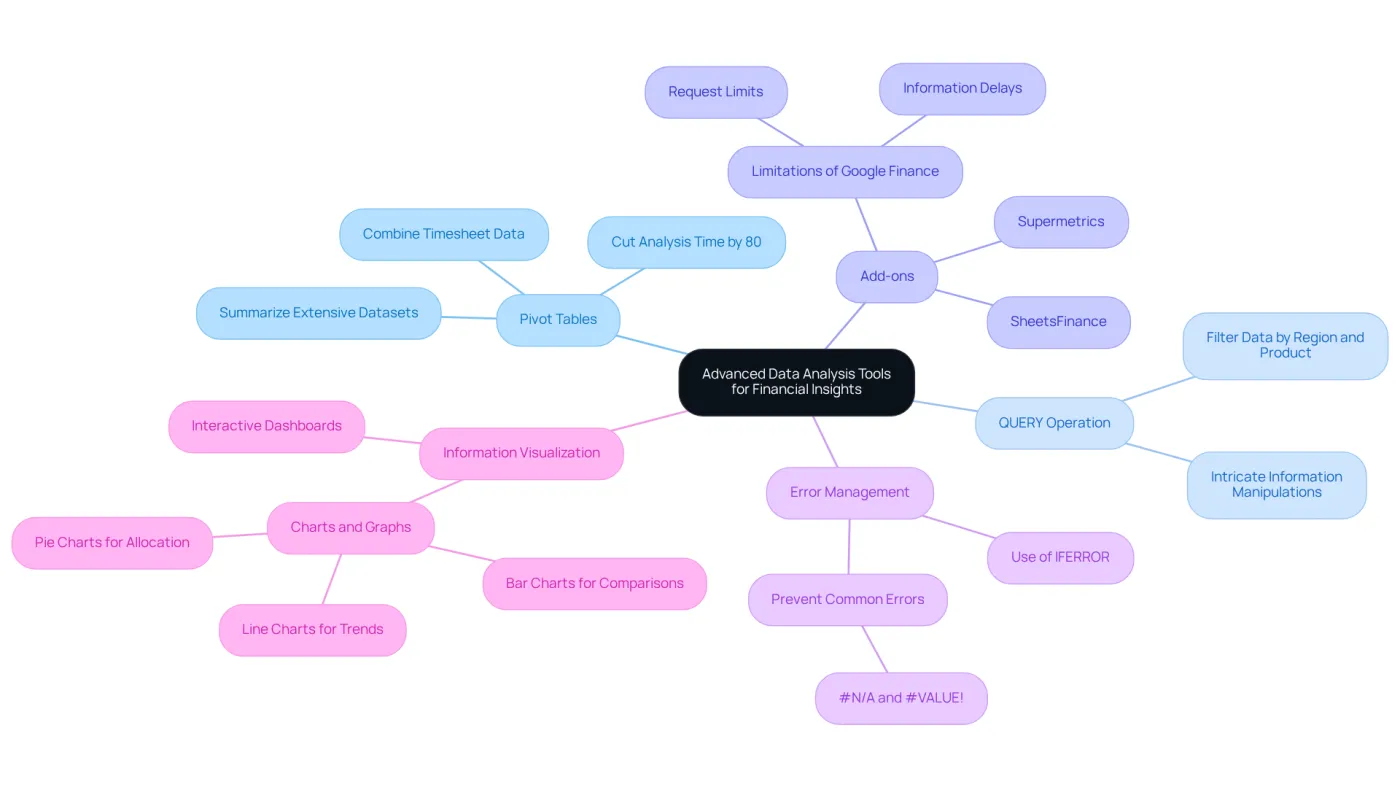
Pivot Tables: Start with pivot tables. They allow you to summarize extensive datasets, providing quick insights into economic performance. In fact, statistics show that pivot tables can cut analysis time by up to 80%. This makes them invaluable for finance professionals looking to optimize their workflow.
-
QUERY Operation: Next, consider the QUERY operation. This powerful feature enables intricate information manipulations akin to SQL queries, making it easier to retrieve specific financial data. For instance, a finance analyst might use the QUERY function to filter sales information by region and product type, delivering targeted insights that inform strategic decisions.
-
Add-ons: Don’t overlook the potential of add-ons like Supermetrics and SheetsFinance. These tools enhance your analysis capabilities by facilitating seamless integration of information from various sources. However, be mindful of the limitations of Google Finance, such as information delays and request limits, which can impact the accuracy and timeliness of your analyses.
-
Error Management: When using Google Finance formulas, incorporating error handling functions like IFERROR is crucial. This can prevent interruptions in your analysis due to common mistakes like #N/A or #VALUE!. By doing so, you ensure that your economic models remain robust and reliable.
-
Information Visualization: Finally, utilize charts and graphs to visualize monetary information. This not only aids in conveying insights efficiently to stakeholders but also clarifies trends that support strategic decision-making.
By integrating these advanced tools and being aware of the associated challenges, finance professionals can significantly enhance Google Sheets with Excel features to boost their analytical abilities. This leads to more informed choices and stronger economic strategies.
Ensure Data Privacy and Foster Collaboration in Financial Projects
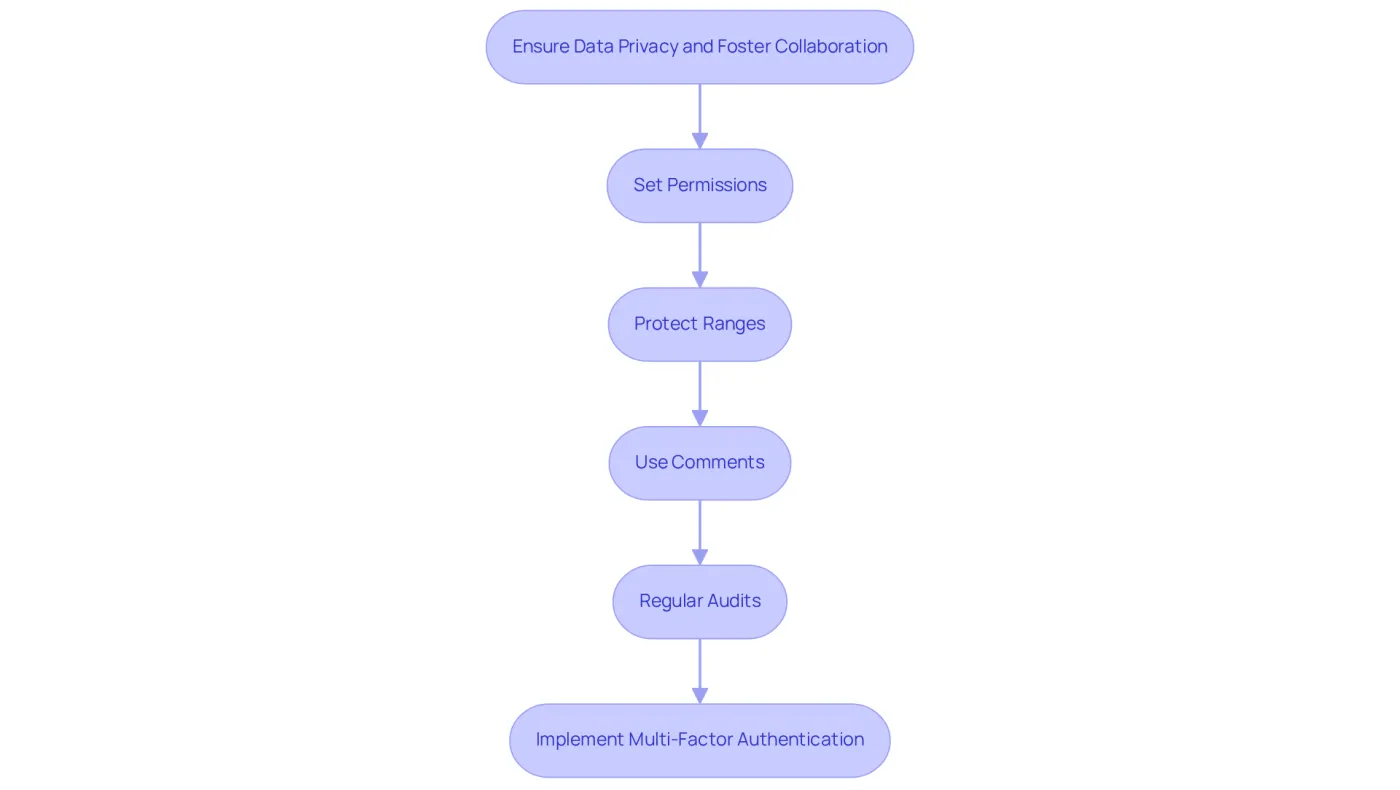
To maintain data privacy while fostering collaboration in Google Sheets, consider these essential practices:
-
Set Permissions: Utilize sharing configurations to manage who can view or modify your sheets. This ensures sensitive financial information is accessible only to authorized personnel. Google Docs offers three sharing settings: View Only, Commenter, and Editor, effectively managing access.
-
Protect Ranges: Use the Protect Sheets and Ranges feature to restrict editing on specific cells or ranges. This safeguards crucial information from unintended modifications.
-
Use Comments: Encourage collaboration by utilizing the comment feature. This allows discussions about modifications without altering the original information, maintaining a clear audit trail.
-
Regular Audits: Conduct frequent assessments of who has access to your sheets. Adjust permissions as necessary to ensure ongoing information security. Regularly reviewing permissions is vital for managing user access and preventing unauthorized access to sensitive information.
-
Implement Multi-Factor Authentication (MFA): Adding MFA provides an extra layer of security, ensuring that only authorized users can access sensitive monetary information.
By implementing these practices, finance teams can collaborate effectively while ensuring that sensitive information remains secure. With ShortieCuts, users can enhance Google Sheets with Excel features, utilizing Excel-style shortcuts, all while ensuring local data privacy. As the CFO of an offensive-security company states, "When it comes to handling sensitive financial information, it’s essential to have a solid grasp of security best practices.
Conclusion
Enhancing Google Sheets with Excel features is a powerful strategy for achieving financial success. Mastering essential functions like SUM, AVERAGE, and VLOOKUP, along with leveraging tools such as ShortieCuts, allows finance professionals to significantly elevate their analysis and reporting capabilities. This integration streamlines workflows and empowers users to make informed decisions based on accurate, timely data.
Key insights include:
- The importance of utilizing Excel-like shortcuts to maximize efficiency
- The advantages of advanced data analysis tools like pivot tables and QUERY operations
- The necessity of maintaining data privacy while fostering collaboration
Implementing these practices ensures productivity and security in projects, ultimately leading to better financial outcomes.
As finance evolves in a digital landscape, embracing these enhancements in Google Sheets is essential. The combination of advanced features and robust security practices enables finance professionals to navigate their projects with greater confidence and effectiveness. Adopting these strategies refines analytical skills and lays the groundwork for sustained financial success.
Frequently Asked Questions
What are some essential Google Sheets functions for financial analysis?
Key functions include SUM for totaling numbers, AVERAGE for calculating the mean, VLOOKUP for retrieving corresponding values from different columns, IF for conducting logical tests, and GOOGLEFINANCE for accessing real-time financial data.
How does the SUM function help in financial analysis?
The SUM function allows users to quickly total a range of numbers, which is crucial for determining sums in accounting statements.
What is the purpose of the AVERAGE function in Google Sheets?
The AVERAGE function is used to calculate the mean of a set of values, making it particularly useful for analyzing trends over time.
How does VLOOKUP function work in Google Sheets?
VLOOKUP enables users to look up a value in one column and retrieve a corresponding value from another column, which is essential for information reconciliation and ensuring accuracy in reporting.
What role does the IF function play in financial analysis?
The IF function allows users to conduct logical tests and return different values based on the results, assisting in scenario analysis and decision-making processes.
What is the GOOGLEFINANCE function used for?
The GOOGLEFINANCE function retrieves real-time financial data directly into Google Sheets, which is invaluable for tracking stock prices and market trends.
How can the ShortieCuts extension enhance productivity in Google Sheets?
The ShortieCuts extension provides key-tips for 149 Word ALT shortcuts within Google Docs, improving workflow and analytical capabilities for finance professionals.
Why is mastering these functions and using ShortieCuts important for finance professionals?
Mastering these functions and leveraging ShortieCuts can dramatically improve financial analysis and reporting efficiency, ensuring a smoother transition from Excel to Google Drive.