
Fix Formula Parse Errors in Google Sheets: Step-by-Step Solutions
Discover effective solutions to fix "fehler beim parsen der formel" in Google Sheets.

Introduction
Frustration often accompanies the use of Google Sheets, especially when users face formula parse errors that disrupt their workflow. These errors, arising from simple syntax mistakes or more complex issues, are not mere annoyances; they can significantly hinder productivity and lead to incorrect data analysis.
This article offers a comprehensive, step-by-step guide to identifying and resolving these common errors, empowering users to regain control over their spreadsheets. But what happens when the very tools designed to simplify tasks become sources of confusion? Understanding the root causes of these errors is essential for effective troubleshooting and long-term success in mastering Google Sheets.
By addressing these challenges head-on, you can transform your experience with Google Sheets, ensuring that your data analysis is both accurate and efficient. Let’s dive into the solutions that will help you navigate these issues with confidence.
Understand Formula Parse Errors in Google Sheets
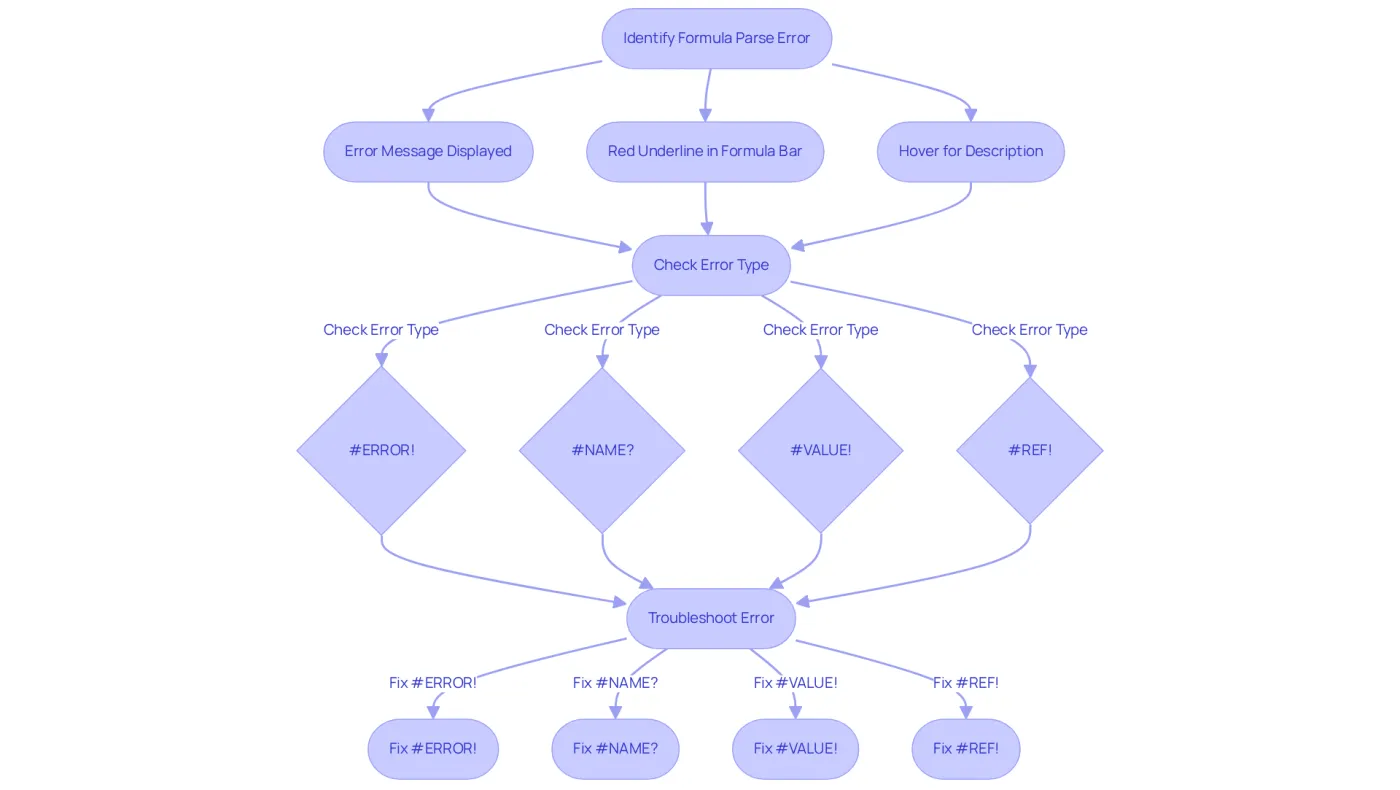
Fehler beim parsen der formel in Google Sheets can be frustrating, especially when the application fails to interpret your entered expressions. These problems often arise from incorrect syntax, missing arguments, or unsupported functionalities. Common indicators of a fehler beim parsen der formel include the dreaded #ERROR! notification, along with specific codes like #NAME?, #VALUE!, or #REF!. Understanding these errors is crucial for effective troubleshooting and rectifying calculations.
To identify a formula parse error, watch for these signs:
- The formula shows an error message instead of returning a value.
- The formula bar highlights the problematic part of the calculation with a red underline.
- Hovering over the warning message often reveals a brief description of the issue.
Recent updates in Google Sheets have significantly improved error handling. Features like Gemini now offer various calculation options and comprehensive explanations for complex tasks. This enhancement empowers users to better understand and resolve formula issues. For example, encountering a #REF! error often stems from invalid references, typically caused by deleted cells or ranges. To fix this, users should carefully read the warning message and replace the invalid reference with the correct cell or range.
Statistics indicate that a substantial percentage of users face parsing issues, underscoring the importance of mastering troubleshooting techniques. By recognizing these indicators and leveraging the latest tools, users can effectively diagnose and resolve spreadsheet issues, ultimately boosting their productivity and confidence in using Google Sheets.
Identify Common Causes of Formula Parse Errors
Parsing issues in Google Sheets can stem from several common reasons. Here are key issues to check:
-
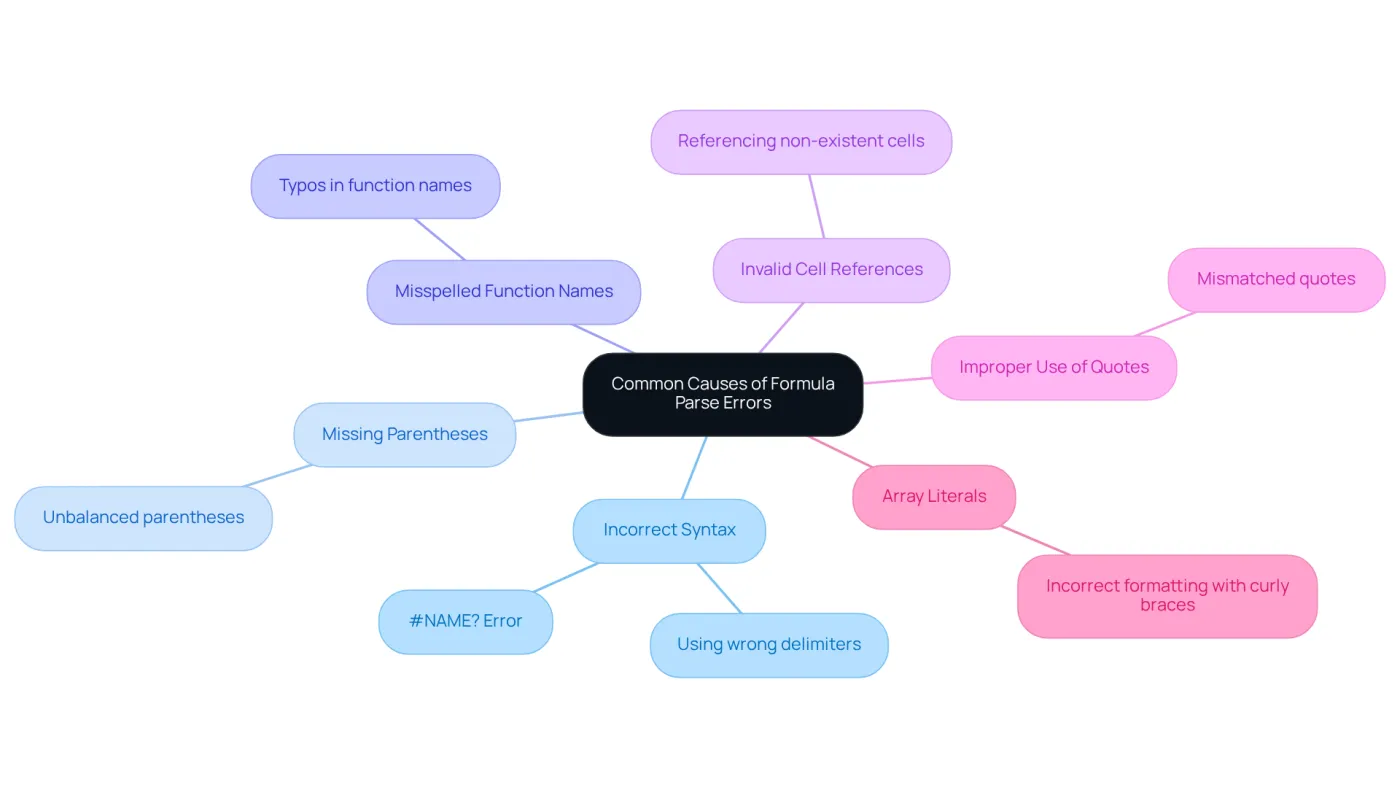
Incorrect Syntax: Ensure your expression adheres to the correct syntax. For example, using commas instead of semicolons (or vice versa) based on your locale settings can lead to problems. The #NAME? error occurs when Google Sheets cannot recognize text in an expression, often due to such syntax errors.
-
Missing Parentheses: Verify that every opening parenthesis has a corresponding closing one. An unbalanced number of parentheses is a frequent source of mistakes.
-
Misspelled Function Names: Double-check that all function names are spelled correctly. A simple typo can lead to a parsing issue in calculations.
-
Invalid Cell References: Confirm that all cell references in your formula are valid and exist within the sheet. Referencing a non-existent cell will result in an error.
-
Improper Use of Quotes: When using text strings, ensure they are enclosed in the correct type of quotes. Mismatched quotes can lead to parsing issues.
-
Array Literals: If you’re using array literals, make sure they are formatted correctly with curly braces and that the syntax is accurate.
Understanding these typical causes allows users to recognize and correct errors, specifically fehler beim parsen der formel, more effectively. For instance, the #N/A error arises when a value is unavailable in the specified range, often encountered with functions like VLOOKUP, QUERY, or MATCH. Utilizing the autocomplete function in a spreadsheet application can assist users in crafting precise calculations, thereby minimizing the chances of such errors. As Ben Collins notes, 'This will lead to the popup warning message. It’s easily corrected by removing the unwanted character.
Fix Formula Parse Errors: Step-by-Step Solutions
To effectively resolve formula parse errors in Google Sheets, follow this systematic approach:
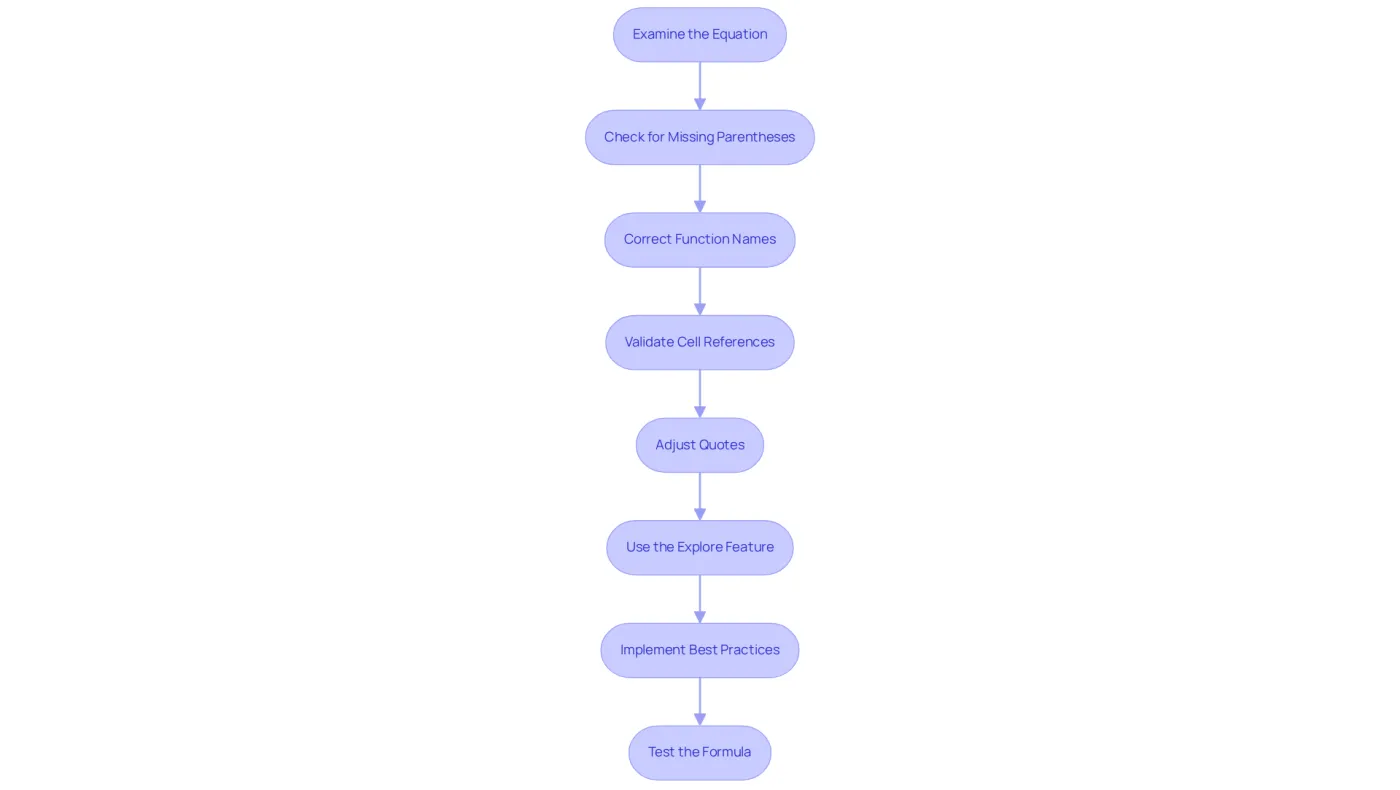
- Examine the Equation: Click on the cell displaying the error and analyze the calculation in the formula bar. Look for obvious mistakes such as typos or incorrect syntax.
- Check for Missing Parentheses: Count the opening and closing parentheses in your formula to ensure they are balanced. If discrepancies exist, adjust by adding or removing parentheses as necessary.
- Correct Function Names: Confirm that all function names are spelled accurately. Utilize the function helper wizard in Google Sheets to verify correct syntax and prevent mistakes.
- Validate Cell References: Ensure all cell references are valid. If a reference points to a deleted or non-existent cell, update it to a valid reference to avoid issues. The #REF! error often arises from such invalid references.
- Adjust Quotes: For calculations that include text strings, ensure they are enclosed in the correct type of quotes. Replace any mismatched quotes to maintain equation integrity.
- Use the Explore Feature: Leverage Google Sheets' Explore feature to analyze your data and receive suggestions for correcting your formulas, enhancing your efficiency. This tool can assist in recognizing common problems that result in mistakes, such as incorrect data types or syntax issues.
- Implement Best Practices: To avoid future mistakes, consider enclosing risky logic in IFERROR or IFNA functions. This proactive strategy can assist in handling possible issues gracefully.
- Test the Formula: After making adjustments, press Enter to see if the issue remains. If it does, revisit the previous steps to identify any remaining issues.
By adhering to these steps, users can systematically tackle and rectify fehler beim parsen der formel in the application, significantly enhancing their spreadsheet precision and functionality. Furthermore, employing AI tools for auditing can simplify the issue resolution process, ensuring consistency and speed in identifying and correcting mistakes.
Troubleshoot and Prevent Future Formula Parse Errors
To troubleshoot and prevent future formula parse errors in Google Sheets, consider these effective strategies:
-
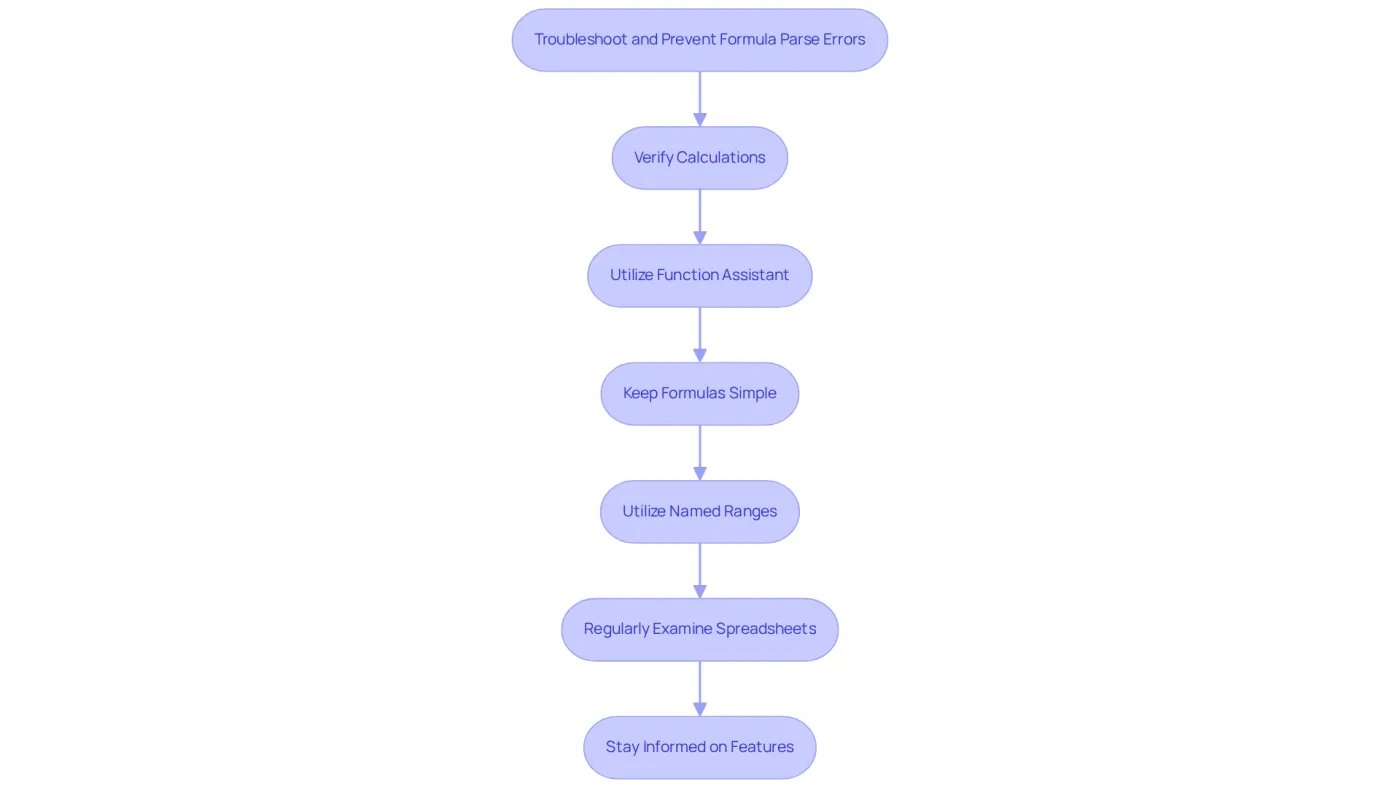
Verify Calculations Prior to Input: Always examine your calculations for syntax issues before pressing Enter. This simple step can save you time and frustration, especially since spreadsheet mistakes occur in 2-5% of all calculation cells.
-
Utilize the Function Assistant: Leverage the function helper wizard to ensure you’re using the correct syntax and parameters for your calculations. As Ben Collins notes, understanding error notifications is crucial for efficient troubleshooting.
-
Keep Formulas Simple: Steer clear of overly complex formulas that can be challenging to debug. Break down intricate calculations into smaller, manageable parts. This approach helps prevent errors like #NAME? or #REF!, which often stem from referencing issues.
-
Utilize Named Ranges: Instead of relying on cell references, consider using named ranges for enhanced clarity and to reduce the risk of referencing mistakes.
-
Regularly Examine Your Spreadsheets: Proactively check your spreadsheets for mistakes and discrepancies. This approach can help catch issues before they escalate. For instance, the $2.6 billion mistake by Fidelity Investments serves as a cautionary tale about the importance of thorough auditing.
-
Stay Informed on Spreadsheet Features: Familiarize yourself with new functionalities and updates in spreadsheets that can enhance your calculation capabilities and minimize errors.
By implementing these strategies, you can significantly reduce the likelihood of encountering formula parse errors in your Google Sheets.
Conclusion
Understanding and resolving formula parse errors in Google Sheets is crucial for maintaining accuracy and efficiency in spreadsheet management. These errors can hinder productivity and undermine confidence in using this powerful tool. By mastering the identification and correction of these errors, you can significantly enhance your productivity and confidence.
This article has provided key insights into the nature of formula parse errors. Common causes include:
- Incorrect syntax
- Missing parentheses
- Invalid cell references
Systematic, step-by-step solutions for troubleshooting these issues have been outlined. Additionally, strategies for prevention - such as utilizing the function assistant and conducting regular audits of spreadsheets - empower you to minimize errors and improve your overall experience with Google Sheets.
Embracing these techniques simplifies the process of fixing formula parse errors and fosters a deeper understanding of spreadsheet functionalities. By actively applying these best practices, you can ensure your calculations remain accurate and your data reliable. This paves the way for more effective decision-making and analysis.
Take charge of your spreadsheet management today. Implement these strategies and watch your confidence soar as you navigate Google Sheets with ease.
Frequently Asked Questions
What are formula parse errors in Google Sheets?
Formula parse errors occur when Google Sheets fails to interpret the entered expressions due to incorrect syntax, missing arguments, or unsupported functionalities.
What are some common indicators of a formula parse error?
Common indicators include the #ERROR! notification, specific codes like #NAME?, #VALUE!, or #REF!, and the formula bar highlighting the problematic part of the calculation with a red underline.
How can I identify a formula parse error in Google Sheets?
You can identify a formula parse error if the formula shows an error message instead of returning a value, the formula bar highlights an issue, or hovering over the warning message provides a brief description of the problem.
What recent updates have improved error handling in Google Sheets?
Recent updates, including the Gemini feature, have improved error handling by offering various calculation options and comprehensive explanations for complex tasks.
What does a #REF! error indicate, and how can I fix it?
A #REF! error indicates invalid references, often caused by deleted cells or ranges. To fix it, read the warning message and replace the invalid reference with the correct cell or range.
Why is it important to understand formula parse errors?
Understanding formula parse errors is crucial for effective troubleshooting and rectifying calculations, as a significant percentage of users encounter these issues. Mastering troubleshooting techniques can enhance productivity and confidence in using Google Sheets.