
Fix #REF! Errors in Google Sheets: A Step-by-Step Guide
Learn to fix #REF! errors in Google Sheets with this step-by-step guide.

Introduction
Understanding spreadsheet errors is crucial for maintaining data integrity. Yet, many users find themselves stumped by the notorious #REF! error in Google Sheets. This common issue arises when formulas reference cells that have become invalid, often due to accidental deletions or incorrect formula syntax.
By exploring the root causes and implementing effective solutions, users can resolve these frustrating errors and enhance their overall spreadsheet efficiency. What strategies can be employed to tackle #REF! errors head-on and prevent them from disrupting workflow?
In the following sections, we will delve into practical solutions that not only address these errors but also empower users to optimize their spreadsheet experience.
Understand #REF! Errors in Google Sheets
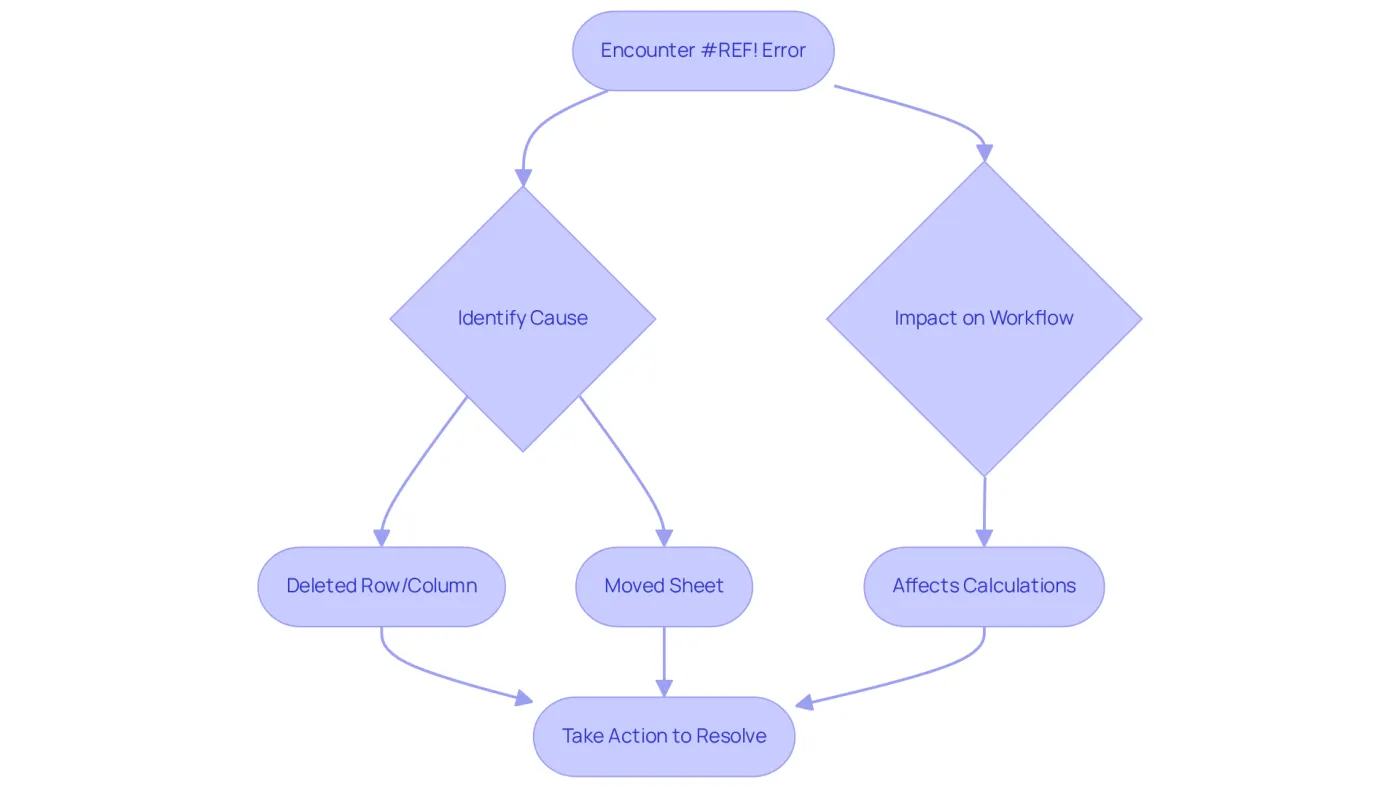
The #REF! error in Google Sheets indicates that a calculation is referencing a cell that is no longer valid. This issue can arise for several reasons, such as deleting a row or column that the calculation relies on, or moving a sheet that contains the referenced data. Understanding this error is essential for troubleshooting, as it helps you identify the root cause of the problem.
When you encounter #REF!, it signifies that the formula cannot locate the necessary data to execute its calculations. This disruption can significantly impact your entire spreadsheet workflow. Recognizing this mistake early can save you considerable time and frustration in the long run.
To effectively manage your spreadsheets, it’s crucial to address #REF! errors promptly. By doing so, you not only enhance your efficiency but also maintain the integrity of your data analysis. Don't let these errors derail your productivity - take action to resolve them swiftly.
Identify Common Causes of #REF! Errors
Common causes of #REF! mistakes include:
-
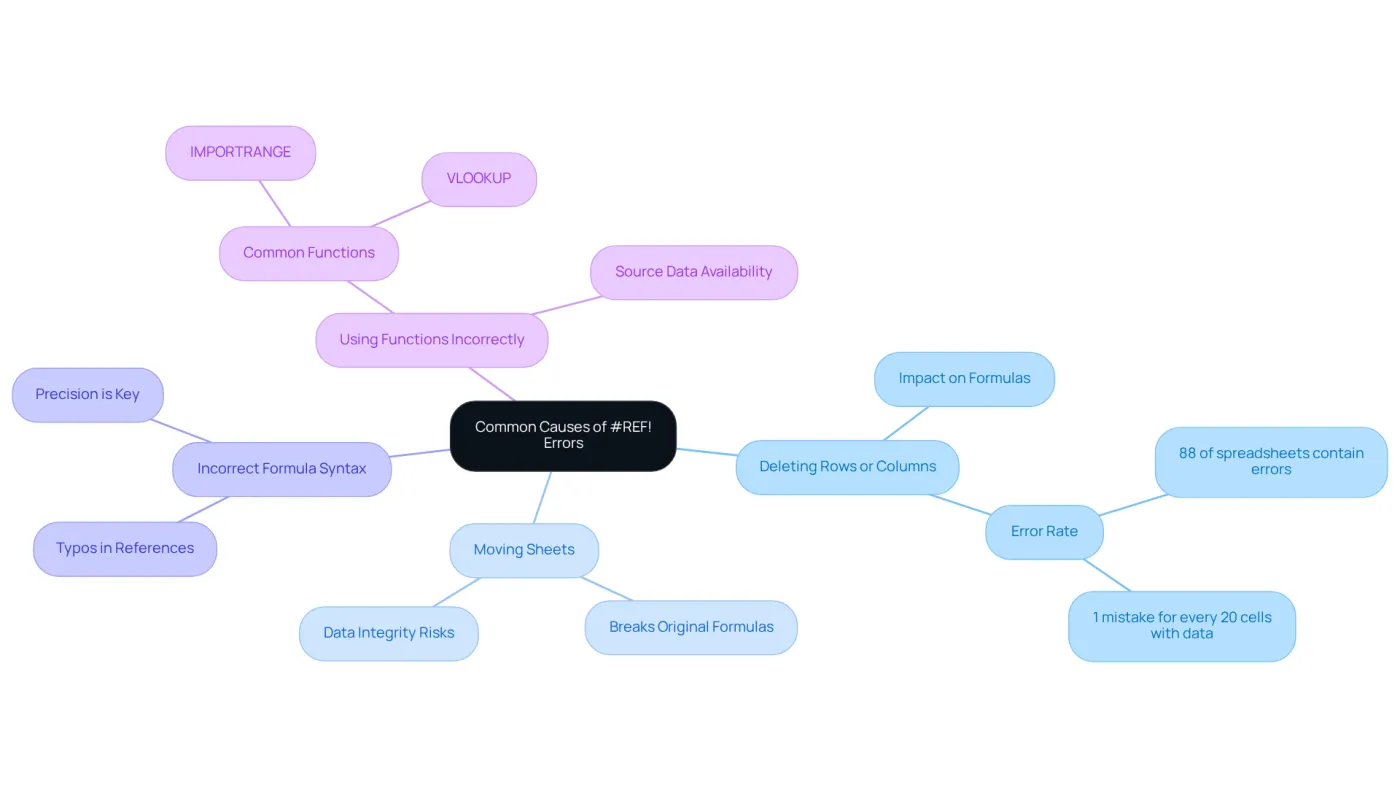
Deleting Rows or Columns: When a formula references a cell in a deleted row or column, it results in a #REF! mistake. This issue is alarmingly common; studies indicate that mistakes occur in approximately 88% of spreadsheets, often stemming from such deletions. On average, a spreadsheet contains 1 mistake for every 20 cells with data, underscoring the critical need for careful management.
-
Moving Sheets: Relocating a sheet that contains referenced data to another spreadsheet can break the original formulas, leading to mistakes that can compromise your data integrity.
-
Incorrect Formula Syntax: A simple typo in the formula can trigger a #REF! mistake, particularly when it involves cell references. Precision is key.
-
Using Functions Incorrectly: Functions like IMPORTRANGE or VLOOKUP can lead to ref google sheets with errors like #REF! Mistakes can occur if the ref google sheets ranges are incorrect or if the source data is unavailable.
To mitigate these issues, it is essential to maintain awareness of the sources involved in your formulas. Adding comments to relevant cells can help track dependencies and prevent accidental deletions. As Holly Meikle notes, if a #REF! mistake is left uncorrected, there is a high risk of losing entire columns, rows, or even sheets of data. By understanding these common causes and implementing preventive measures, you can significantly enhance the integrity of your spreadsheets.
Fix #REF! Errors: Step-by-Step Solutions
To effectively resolve #REF! mistakes in Google Sheets, follow these structured steps:
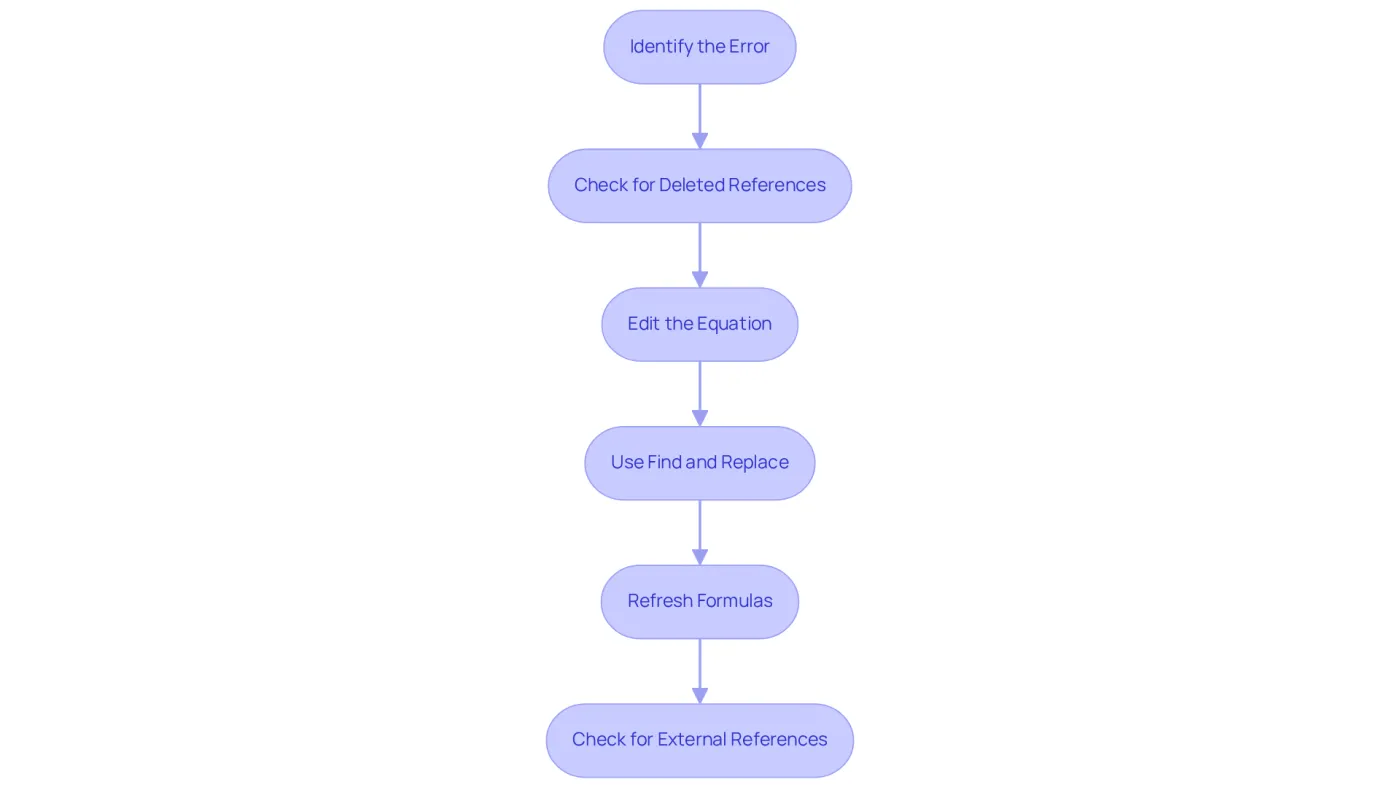
- Identify the Error: Click on the cell displaying the #REF! mistake to examine the formula causing the issue.
- Check for Deleted References: Inspect the calculation for any references to deleted rows or columns. If such references exist, restore the deleted data or adjust the calculation to point to existing cells.
- Edit the Equation: Access the equation bar and replace the #REF! with the correct cell reference. For instance, if your calculation was
=A1+B1and row 1 was deleted, update it to=A2+B2as necessary. - Use Find and Replace: For multiple cells with #REF! mistakes, utilize the Find and Replace feature (Ctrl + H) to search for #REF! and substitute it with the appropriate references.
- Refresh Formulas: Occasionally, simply clicking on the formula and pressing Enter can refresh the calculation and resolve the mistake.
- Check for External References: If your formula connects to another sheet, verify that the referenced sheet is accessible and correctly linked.
By adhering to these steps, you can efficiently address #REF! mistakes, ensuring your spreadsheet operates smoothly. Regular audits of your spreadsheet data can further prevent such mistakes. For example, the University of Toledo faced a $2.4 million budget shortfall due to a budgeting mistake stemming from a spreadsheet error, underscoring the critical need for meticulous data management. Similarly, the incident involving Barclays acquiring unwanted assets due to an Excel mistake highlights the importance of careful data handling. Implementing best practices in spreadsheet use can significantly enhance your efficiency and accuracy. As expert Ben Collins notes, "A handy tool for simple checks, and for making or parsing complex or nested formulas, and for finding ‘Parse Error’, and diagnosing #REF!, #NAME?, #N/A, #NUM!, #VALUE! mistake codes." Incorporating these insights can empower users to manage mistakes effectively.
Troubleshoot Persistent #REF! Errors
If you continue to experience #REF! errors after attempting basic fixes, it’s crucial to take further action. Here are some advanced troubleshooting steps to consider:
-
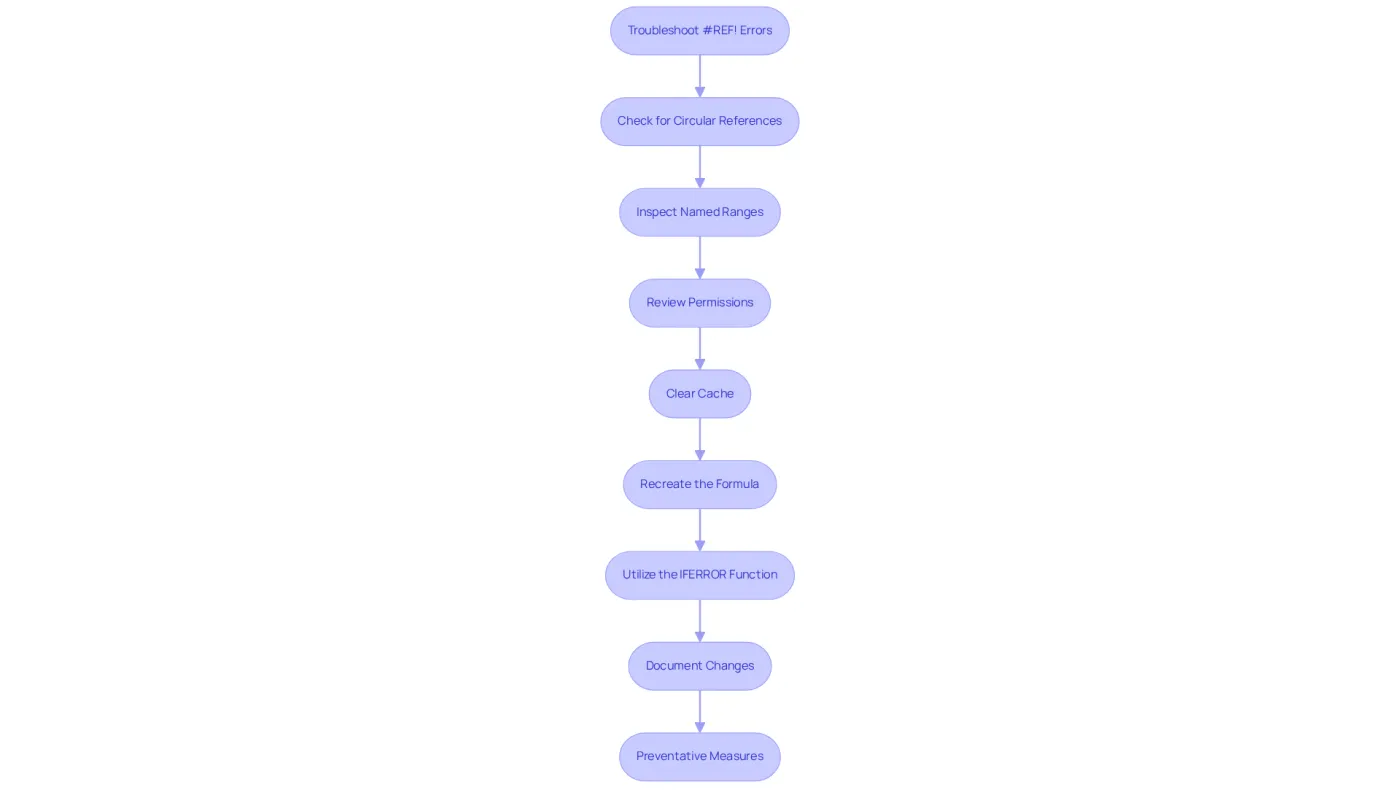
Check for Circular References: A calculation may inadvertently reference itself, leading to circular references that cause errors. Look for indicators such as calculations that don’t refresh and sheets stuck on 'Calculating...'. Utilize the 'Circular References' tool in ref google sheets to identify and resolve these issues. Google Sheets will alert you with a warning message stating, 'Circular dependency detected.'
-
Inspect Named Ranges: If your formulas rely on named ranges, ensure they remain valid and haven’t been deleted or altered. Invalid named ranges can trigger #REF! errors, so double-check their integrity.
-
Review Permissions: If your document pulls data from another source, confirm that you have the necessary permissions to access that data. Insufficient access can lead to #REF! errors, particularly when referencing other documents or files.
-
Clear Cache: Occasionally, clearing your browser's cache can resolve issues with ref google sheets not updating correctly. This can be done through your browser settings and may help refresh the application.
-
Recreate the Formula: If all else fails, delete the problematic formula and recreate it from scratch. This can sometimes resolve hidden issues that aren’t immediately apparent, allowing for a fresh start.
-
Utilize the IFERROR Function: To tidy up your document, consider using the IFERROR function. This allows you to replace #REF! errors with a message or a blank cell, providing clarity for future users.
-
Document Changes: Keeping a record of changes made to your spreadsheets can help track down the source of #REF! errors, making troubleshooting easier.
-
Preventative Measures: To avoid #REF! issues in the future, consider substituting removed cells with a zero value to maintain valid formulas.
By employing these advanced troubleshooting techniques, you can effectively manage and resolve persistent #REF! errors in your Google Sheets. This ensures a smoother and more efficient spreadsheet experience.
Conclusion
Encountering #REF! errors in Google Sheets can significantly hinder your workflow. These errors signal that a formula is referencing invalid data, disrupting calculations and leading to inaccuracies in data analysis. Understanding the causes and implementing effective solutions are crucial for maintaining the integrity of your spreadsheets.
Common causes of #REF! errors include:
- Deleted rows or columns
- Incorrect formula syntax
- Issues with external references
This article provided a comprehensive step-by-step guide to fixing these errors, emphasizing the importance of addressing them promptly to prevent further complications. Advanced troubleshooting techniques were also discussed, equipping users with the knowledge to tackle persistent issues effectively.
Mastering the management of #REF! errors is essential for anyone working with Google Sheets. By implementing the strategies shared in this guide, you can enhance your spreadsheet accuracy and efficiency. Embracing best practices in data management not only prevents future errors but also fosters a more productive environment, allowing for clearer analysis and decision-making.
Take action today to ensure your spreadsheets remain reliable and error-free. Don't let #REF! errors disrupt your workflow any longer!
Frequently Asked Questions
What does the #REF! error mean in Google Sheets?
The #REF! error indicates that a calculation is referencing a cell that is no longer valid, often due to deleting a row or column that the calculation relies on or moving a sheet that contains the referenced data.
What causes #REF! errors in Google Sheets?
#REF! errors can occur when a user deletes a row or column that is referenced in a formula or moves a sheet that contains the data needed for the calculation.
Why is it important to understand #REF! errors?
Understanding #REF! errors is essential for troubleshooting, as it helps identify the root cause of the problem, allowing users to correct issues and maintain their spreadsheet workflow.
How can #REF! errors affect my spreadsheet?
#REF! errors can disrupt calculations and significantly impact the entire spreadsheet workflow, leading to potential data analysis inaccuracies.
What should I do when I encounter a #REF! error?
It’s crucial to address #REF! errors promptly to enhance efficiency and maintain the integrity of your data analysis, preventing these errors from derailing your productivity.