
How to Add a Password to an Excel File: Step-by-Step Guide
Learn how to add a password to an Excel file for enhanced security and data protection.

Overview
To secure an Excel file with a password, users must follow a systematic process. Begin by accessing the file menu, then select the 'Protect Workbook' option. Enter a strong passphrase to effectively secure the document.
The significance of employing robust encryption and a complex password cannot be overstated. These measures are essential for protecting sensitive information. Additionally, the article provides troubleshooting tips for common issues that may arise during this process, ensuring users can navigate any challenges with confidence.
Introduction
Understanding the importance of safeguarding sensitive information is more critical than ever in a world where data breaches are increasingly common. This article explores essential steps for adding a password to an Excel file, equipping readers with the knowledge necessary to protect their valuable data from unauthorized access. As users navigate the process of implementing this vital security measure, they may ponder:
- What are the best practices for creating a strong password?
- How can they troubleshoot potential issues that arise during this crucial task?
Understand Password Protection in Excel
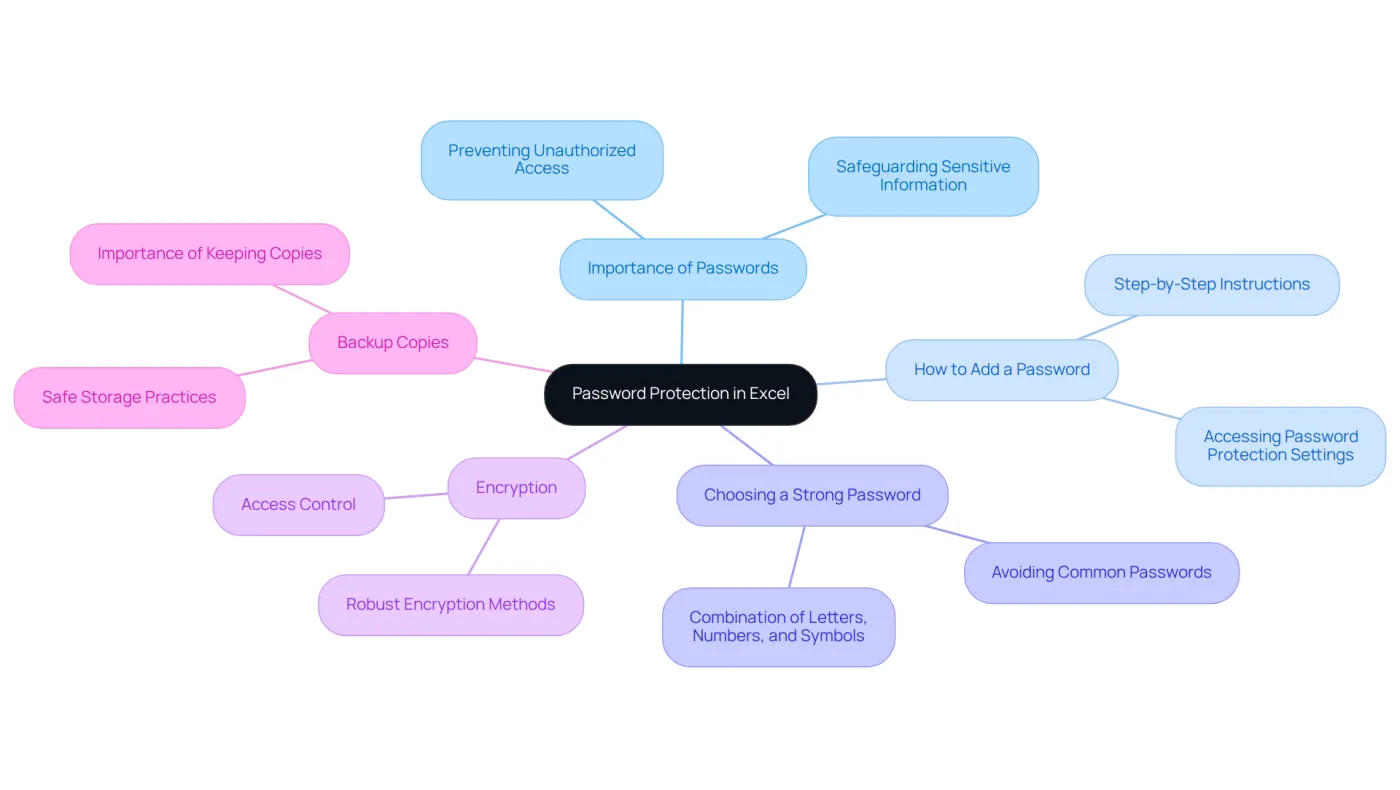
Understanding how to add a password to an excel file is a critical feature that enables users to safeguard their workbooks and worksheets from unauthorized access in a spreadsheet application. Establishing a secure code is important, especially when learning how to add a password to an excel file, to prevent others from accessing or altering your files, particularly when handling sensitive information such as financial data or personal records.
Excel employs robust encryption to protect your information, ensuring that only those with the correct credentials can gain access. It is essential to select a strong access code that combines letters, numbers, and symbols to enhance security, particularly when learning how to add a password to an excel file.
While access protection provides an additional layer of security, it is important to remember that it is not infallible. Therefore, always maintain copies of your crucial documents in a safe place. By taking these precautions, you can significantly reduce the risk of unauthorized access and protect your valuable information.
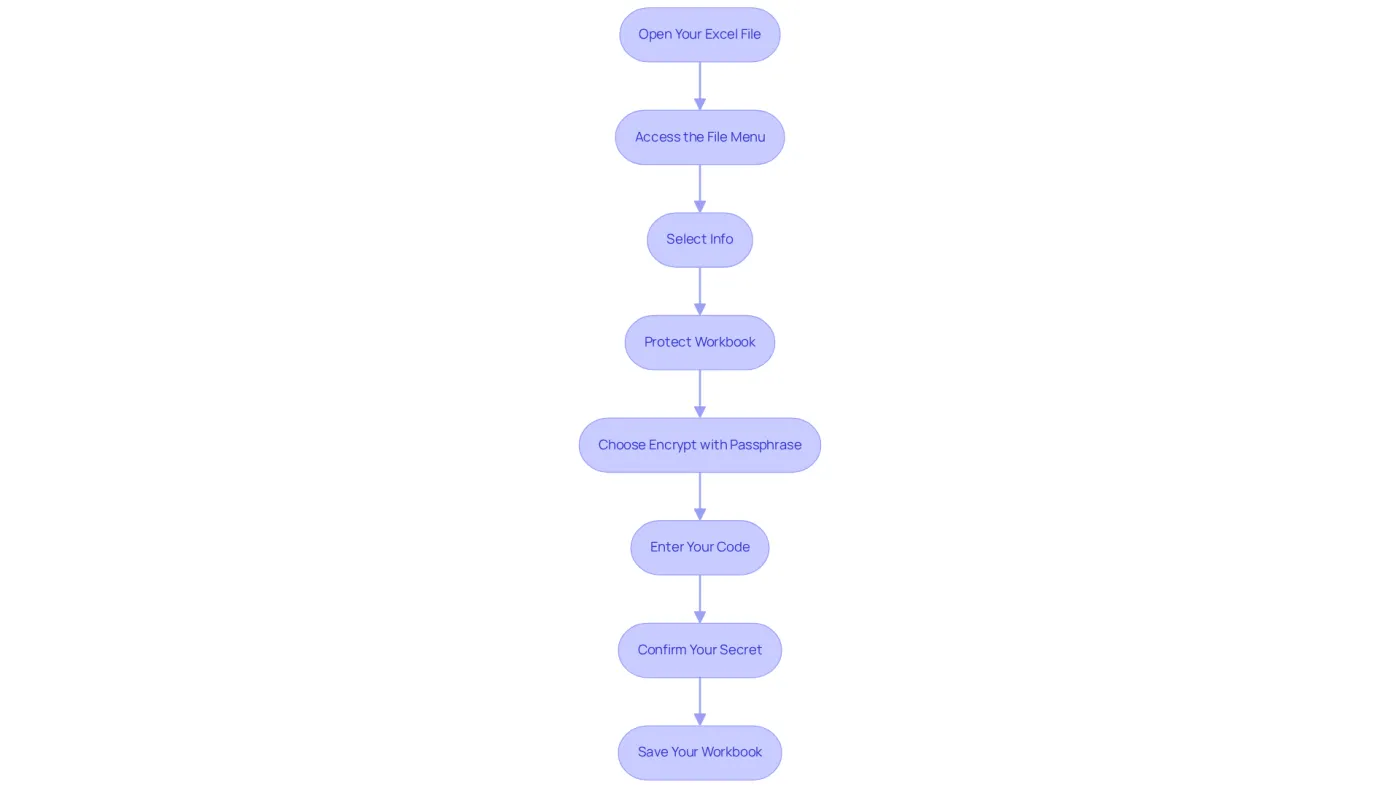
Steps to Add a Password to Your Excel File
To add a password to your Excel file, follow these essential steps:
-
Open Your Excel File: Launch Excel and open the workbook you wish to protect.
-
Access the File Menu: Click on the 'File' tab located in the upper left corner of the window.
-
Select Info: In the menu that appears, click on 'Info' to access file protection options.
-
Protect Workbook: Look for the 'Protect Workbook' option and click on it. A dropdown menu will appear.
-
Choose Encrypt with Passphrase: From the dropdown, select 'Encrypt with Passphrase'. This will open a dialog box.
-
Enter Your Code: Enter your chosen code in the 'Code' field. Ensure it is strong and memorable. Click 'OK'.
-
Confirm Your Secret: You will be prompted to re-enter your secret to validate it. Type it again and click 'OK'.
-
Save Your Workbook: Finally, save your workbook to ensure the security protection is applied. You can do this by clicking 'File' and then 'Save', or by using the shortcut Ctrl + S.
By following these steps, your Excel file will now require a password to open, effectively adding a crucial layer of security to your sensitive data.
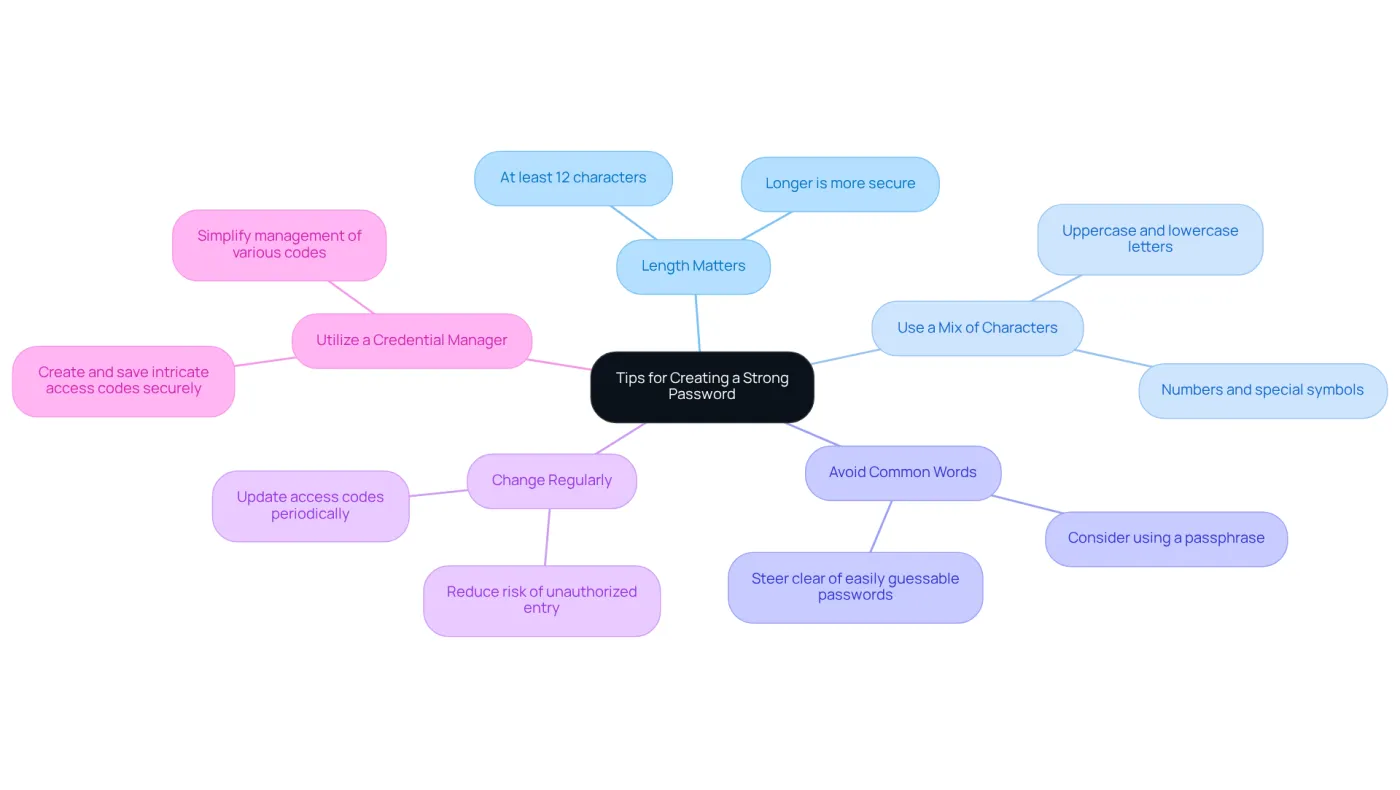
Tips for Creating a Strong Password
Establishing a robust passphrase is essential when learning how to add a password to an Excel file. Here are some critical tips to enhance your security:
-
Length Matters: Aim for a passphrase that is at least 12 characters long. Longer passphrases are typically more secure.
-
Use a Mix of Characters: Combine uppercase letters, lowercase letters, numbers, and special symbols (e.g., !, @, #, $) to create complexity.
-
Avoid Common Words: Steer clear of easily guessable passwords, such as 'passcode', '123456', or your name. Instead, consider using a passphrase or a combination of unrelated words.
-
Change Regularly: Update your access codes periodically to reduce the risk of unauthorized entry.
-
Utilize a Credential Manager: Consider employing a credential manager to create and save intricate access codes securely, simplifying the management of various codes without jeopardizing security.
By adhering to these suggestions on how to add a password to an Excel file, you can significantly enhance the security of your spreadsheets and protect your confidential information.
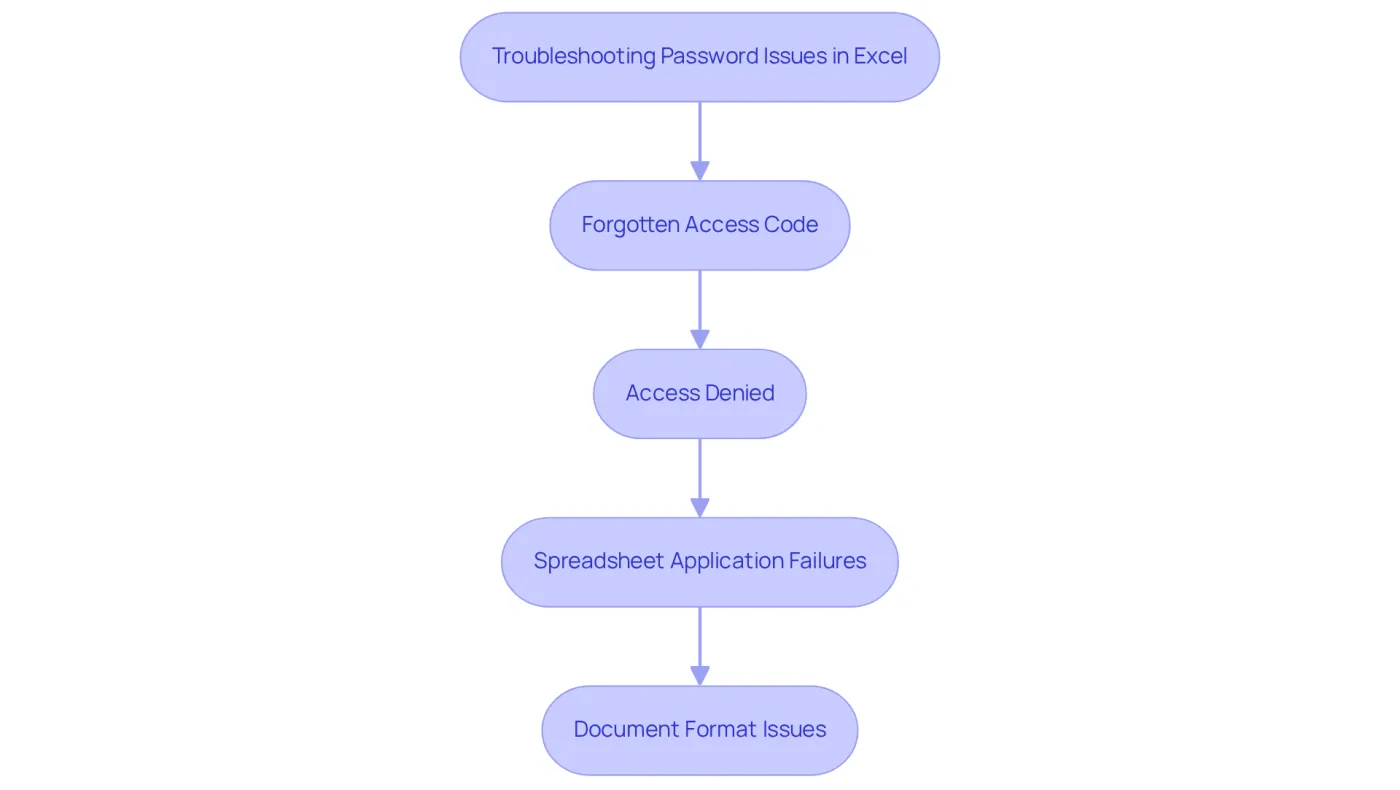
Troubleshooting Common Issues
If you encounter issues while adding a password to your Excel file, consider these troubleshooting tips:
-
Forgotten Access Code: Losing your access code can be frustrating, as there is no built-in method to retrieve it. Always maintain a safe record of your access codes or utilize a password management tool to avoid this issue.
-
Access Denied: Ensure you are entering the credentials correctly, including any uppercase letters or special characters. Remember, access codes are case-sensitive, so double-check your input.
-
Spreadsheet Application Failures: Should the spreadsheet program fail while you attempt to set a passcode, restart the software and try again. Keeping your software updated is crucial to avoid compatibility issues that may hinder your efforts.
-
Document Format Issues: Confirm that you are saving your document in a compatible format (e.g., .xlsx) that supports password protection. Older formats may lack this essential feature.
By following these troubleshooting tips, you can effectively address common issues and figure out how to add a password to an Excel file to ensure your Excel files are securely protected.
Conclusion
Adding a password to an Excel file is not just a precaution; it is an essential step in safeguarding sensitive information from unauthorized access. By implementing this crucial security feature, users can ensure that their valuable data remains confidential, effectively protecting it against potential breaches and alterations. While the process may seem straightforward, understanding its significance and the best practices for creating a strong password is vital for effective protection.
This guide outlines key steps for adding a password to an Excel file, including:
- Accessing the file menu
- Selecting the appropriate options
- Providing tips for crafting a secure passphrase
Emphasizing the importance of using a mix of characters while maintaining a record of passwords can greatly enhance the security of your documents. Additionally, troubleshooting common issues ensures that users can navigate potential challenges effectively.
In a world where data privacy is paramount, taking proactive measures to secure Excel files is not merely recommended; it is necessary. By following the outlined steps and tips, individuals can significantly reduce the risk of unauthorized access to their spreadsheets. This is a call to action for users to prioritize security in their digital practices and protect their sensitive information from prying eyes.
Frequently Asked Questions
Why is it important to add a password to an Excel file?
Adding a password to an Excel file is important to safeguard workbooks and worksheets from unauthorized access, especially when handling sensitive information like financial data or personal records.
How does Excel protect information with passwords?
Excel employs robust encryption to protect information, ensuring that only individuals with the correct credentials can access the file.
What should be considered when creating a password for an Excel file?
When creating a password for an Excel file, it is essential to select a strong access code that combines letters, numbers, and symbols to enhance security.
Is password protection in Excel completely secure?
While password protection provides an additional layer of security, it is not infallible. It is advisable to maintain copies of crucial documents in a safe place to further reduce the risk of unauthorized access.
What precautions can be taken to protect valuable information in Excel?
To protect valuable information in Excel, users should create strong passwords, regularly back up their documents, and keep copies of important files in a secure location.