
How to Compare 2 Excel Sheets: A Step-by-Step Guide for Finance Pros
Learn how to effectively compare 2 Excel sheets for accurate data analysis and reporting.
Introduction
In finance, precision is crucial. The ability to compare data efficiently can significantly impact critical decisions. This guide explores essential techniques for comparing two Excel sheets, providing finance professionals with a structured approach to ensure accuracy and clarity in their data analysis.
With various tools and methods available, how can you effectively navigate the complexities of data comparison and avoid common pitfalls? Let's delve into the solutions that will enhance your data analysis capabilities.
Prepare Your Excel Sheets for Comparison
-
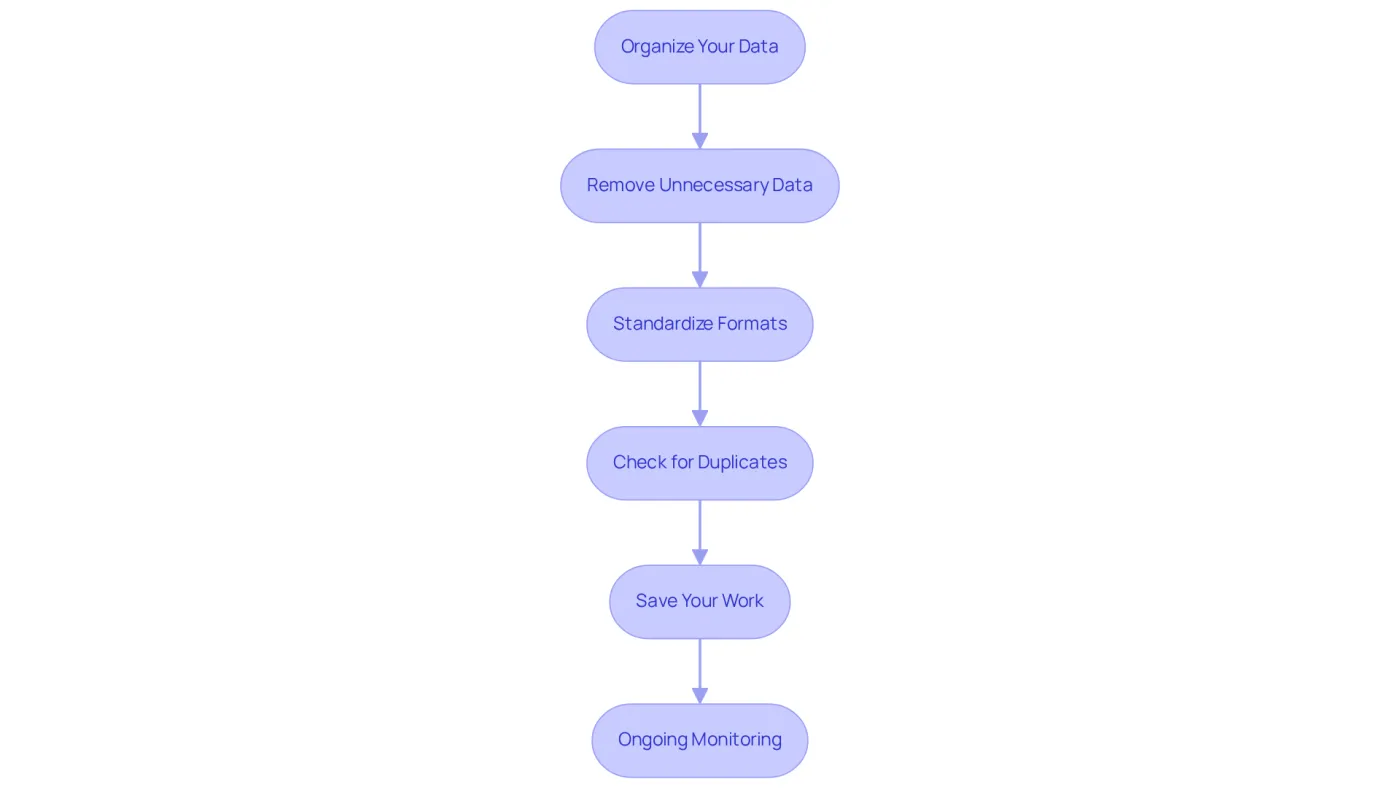
Organize Your Data: Start by ensuring that both sheets have identical structures. This includes having the same number of columns and similar headers. Rearranging columns to align is essential for a seamless evaluation, which is necessary to compare 2 excel sheets effectively.
-
Remove Unnecessary Data: Next, eliminate irrelevant rows or columns that do not contribute to the comparison. This focus on crucial information enhances clarity and precision, allowing for a more meaningful analysis.
-
Standardize Formats: Consistency in information types across both sheets is crucial. For instance, if one sheet uses 'MM/DD/YYYY' for dates while the other uses 'DD/MM/YYYY', standardizing the format will prevent discrepancies and improve accuracy. As Faisal Khan emphasizes, "Begin with standardization, and you’ll establish the foundation for accurate, reliable, and efficient information management."
-
Check for Duplicates: It’s vital to identify and remove duplicate entries in both sheets. This step ensures that when you compare 2 excel sheets, the comparison yields meaningful results and accurately reflects true differences, enhancing the reliability of your data.
-
Save Your Work: After preparing your sheets, save them with clear, descriptive names like 'Sheet1_Prepared' and 'Sheet2_Prepared'. This practice helps avoid confusion and facilitates easier access in the future, streamlining your workflow.
-
Ongoing Monitoring: Finally, regularly review your information to ensure adherence to established standards. Ignoring data standardization can lead to costly mistakes and poor decision-making, as highlighted in recent findings. By maintaining vigilance, you can safeguard the integrity of your data.
Utilize Effective Comparison Techniques
Utilize Excel's Built-In Features:
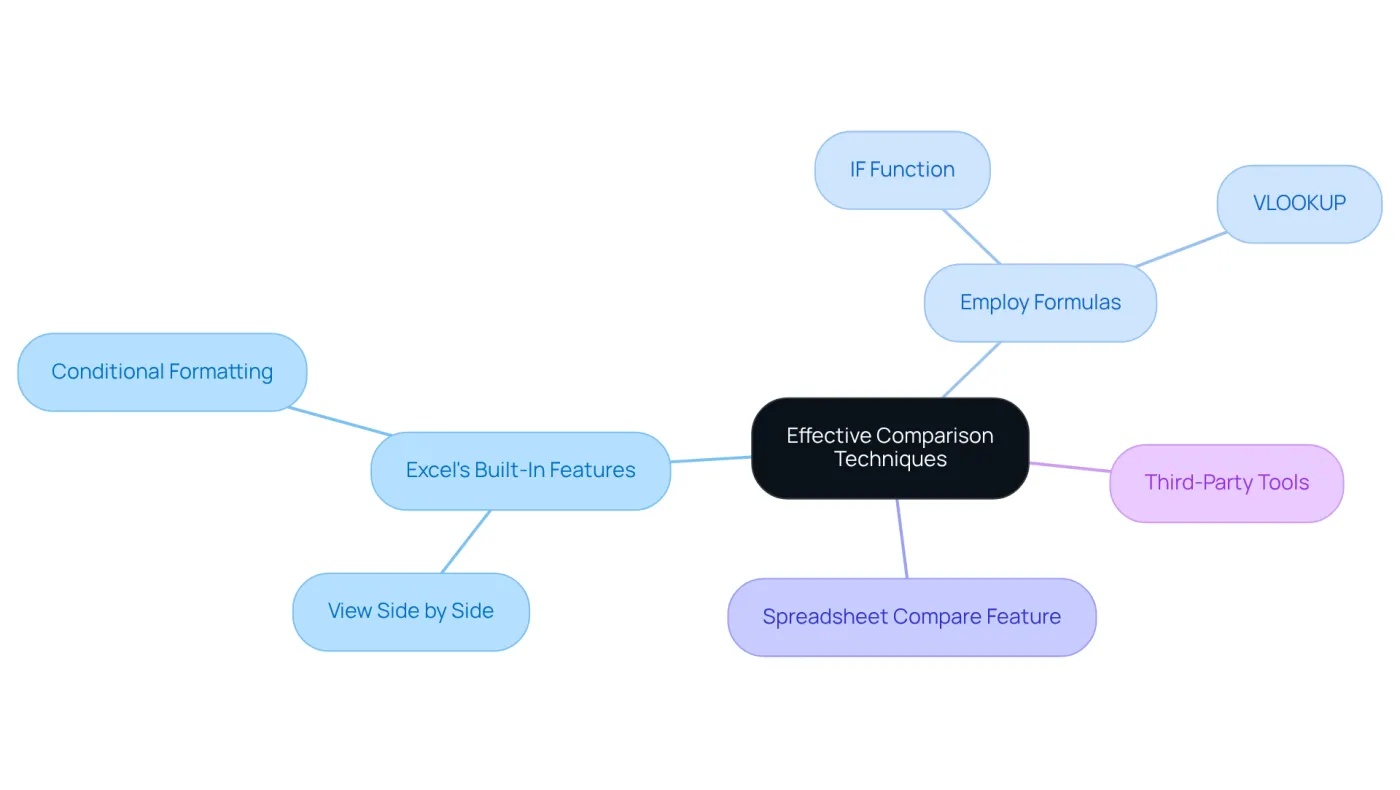
- View Side by Side: Open both sheets and navigate to the 'View' tab, selecting 'View Side by Side'. This feature allows for simultaneous visual comparison of the sheets, enabling users to compare 2 excel sheets more easily and spot differences.
- Conditional Formatting: Highlight discrepancies by selecting the range in one sheet, going to 'Conditional Formatting', and creating a new rule to format cells that differ from the corresponding cells in the other sheet. This method is particularly effective for quickly identifying variations in information when you compare 2 excel sheets.
Employ Formulas:
- IF Function: Use the formula
=IF(Sheet1!A1<>Sheet2!A1, "Different", "Same")to compare cells across sheets. Drag this formula down to compare 2 excel sheets, which provides a straightforward way to identify differences. - VLOOKUP: This function is instrumental in finding discrepancies by checking if values in one sheet exist in another, enhancing your ability to manage information integrity. This common method is widely utilized among finance professionals to compare 2 excel sheets for effective data analysis.
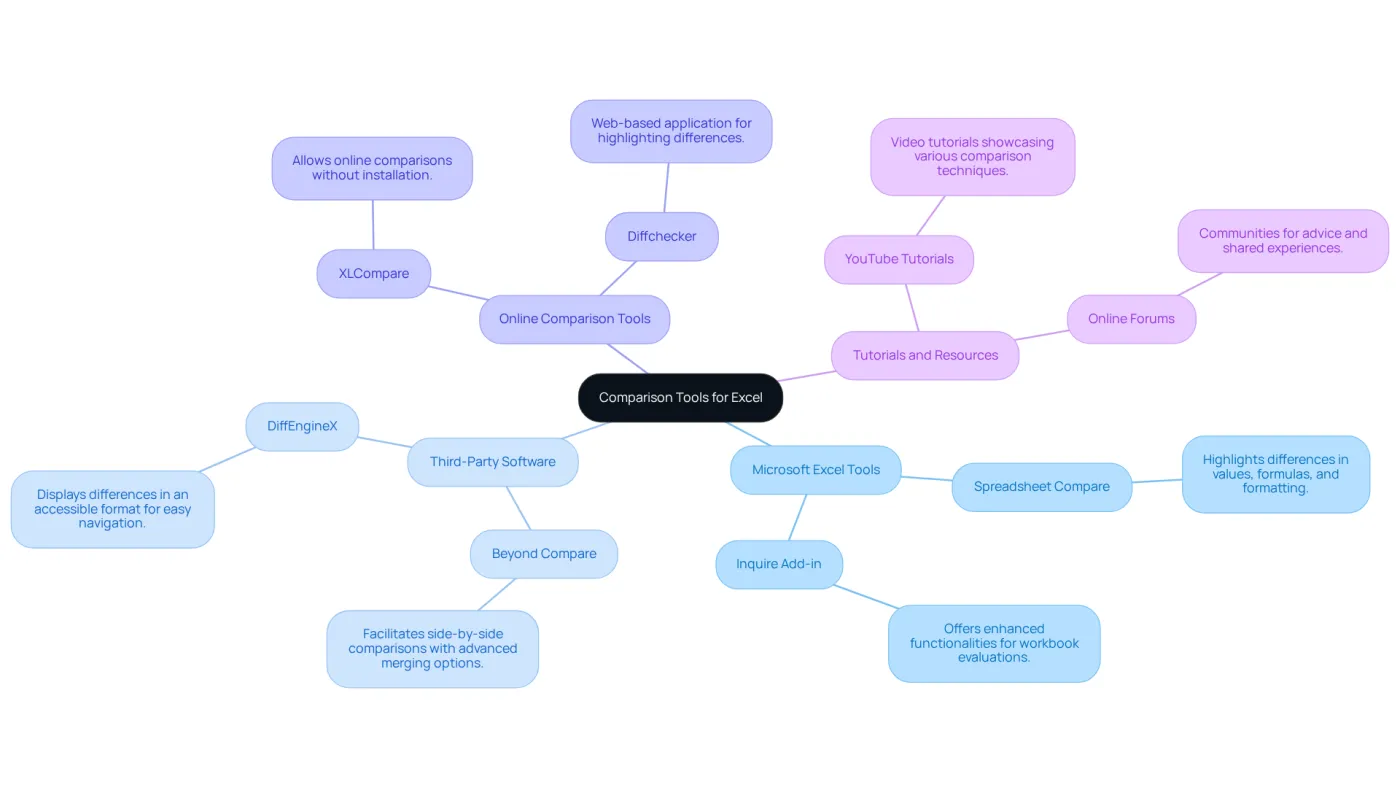
Leverage the Spreadsheet Compare Feature: If accessible, utilize Microsoft Excel's Spreadsheet Compare feature to automate the evaluation process. This tool efficiently highlights differences in values, formulas, and formatting, allowing you to compare 2 excel sheets and streamline your workflow.
Consider Third-Party Tools: For more complex comparisons, especially with large datasets, consider specialized software like Beyond Compare or DiffEngineX. These tools provide advanced features that can significantly enhance your data management capabilities. According to a case study, utilizing such resources can offer additional benefits compared to Excel's built-in features, making them a valuable asset for finance professionals.
Analyze and Interpret Comparison Results
-
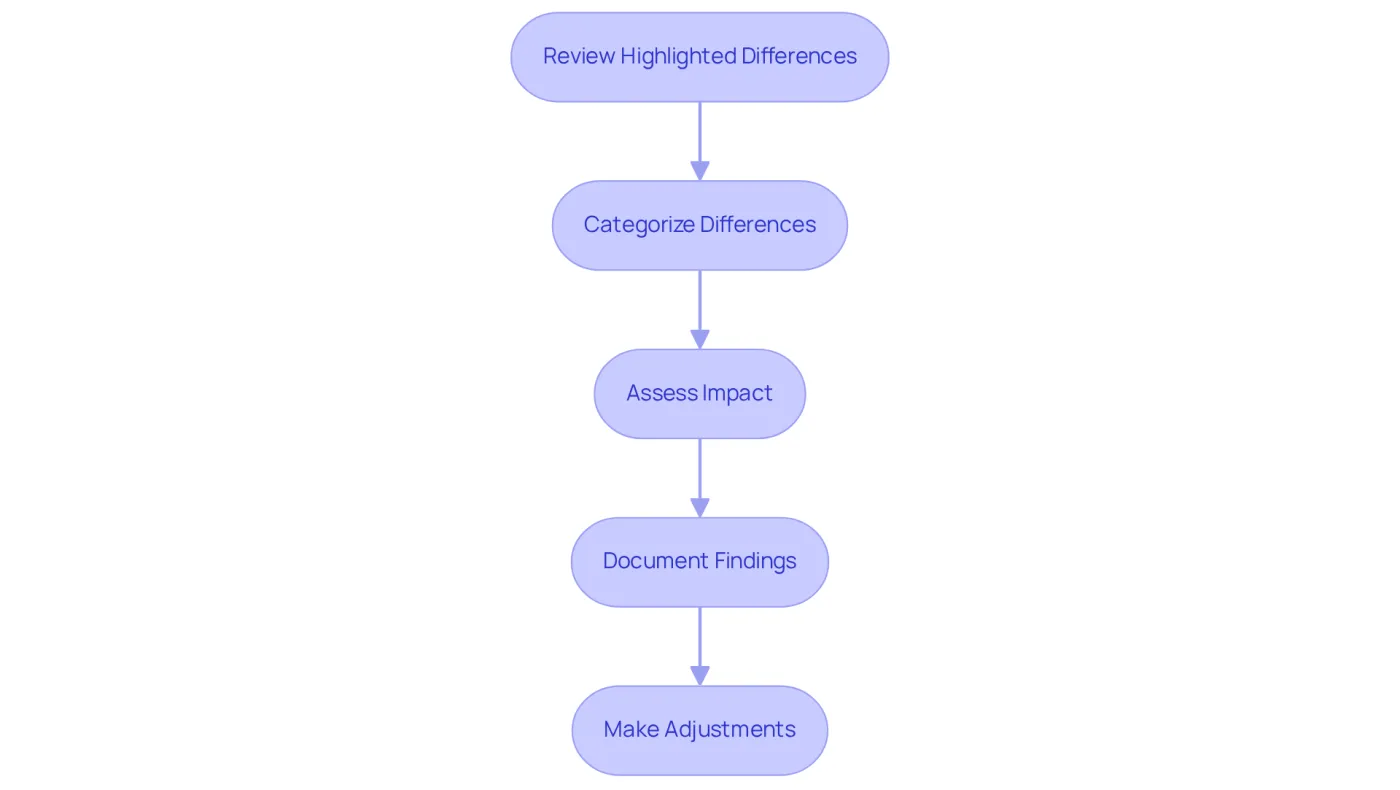
Review Highlighted Differences: Start by examining the cells marked by conditional formatting or the results from the analysis function. Pay close attention to any significant discrepancies that stand out.
-
Categorize Differences: Organize the differences into distinct categories such as 'Data Entry Errors', 'Format Issues', or 'Missing Data'. This systematic approach will facilitate effective resolution of the discrepancies.
-
Assess Impact: Evaluate how these differences affect your overall analysis or reporting. For example, if a crucial financial figure is incorrect, it may necessitate immediate correction to maintain accuracy.
-
Document Findings: Maintain a detailed record of the differences and their implications. This documentation will serve as a valuable resource for future reference or for clarifying discrepancies to stakeholders.
-
Make Adjustments: Based on your thorough analysis, implement the necessary adjustments to the data in either sheet to ensure ongoing accuracy.
Explore Tools and Resources for Enhanced Comparison
-
Microsoft Excel Tools:
- Spreadsheet Compare: This built-in tool allows users to conduct detailed comparisons of two Excel files, effectively highlighting differences in values, formulas, and formatting. It streamlines the process of identifying discrepancies, making it an essential resource for finance professionals. Industry feedback indicates that Excel's built-in evaluation features often serve as a starting point for users before they explore more advanced options.
- Inquire Add-in: This add-in offers enhanced functionalities, enabling thorough workbook evaluations and analysis of differences, providing deeper insights into data variations. Users have noted that this resource significantly improves their ability to monitor changes over time.
-
Third-Party Software:
- Beyond Compare: Renowned for its robust capabilities, this tool facilitates side-by-side comparisons of Excel files and other formats, featuring advanced merging options that enhance collaborative efforts. User testimonials praise Beyond Compare for its intuitive interface and efficiency in handling large datasets.
- DiffEngineX: Customized specifically for spreadsheet file evaluations, this software displays differences in an accessible format, facilitating user navigation and comprehension of data inconsistencies. Users report that DiffEngineX simplifies the process when they need to compare 2 excel sheets, especially for complex spreadsheets.
-
Online Comparison Tools:
- XLCompare: This online tool allows users to compare Excel files without the need for installation, supporting various formats and offering a straightforward interface for quick assessments. Its accessibility has made it a popular choice among finance professionals who require flexibility in their workflow.
- Diffchecker: Accessible from any device, this web-based application highlights differences in spreadsheet files, providing a convenient solution for users on the go. Many users appreciate its simplicity and effectiveness in quickly identifying discrepancies.
-
Tutorials and Resources:
- YouTube Tutorials: A wealth of video tutorials is available, showcasing various comparison techniques and tools in Excel, catering to different learning preferences. These resources can significantly enhance users' understanding and application of the tools discussed.
- Online Forums: Engaging with communities on platforms like Reddit or Stack Overflow can provide valuable advice and shared experiences regarding Excel comparisons, fostering a collaborative learning environment. Users often find that these forums are an excellent way to troubleshoot issues and discover new techniques.
Conclusion
Mastering the skill of preparing and comparing Excel sheets is essential for finance professionals. This expertise not only facilitates precise data analysis but also empowers informed decision-making. By adhering to the structured approach outlined in this guide, users can meticulously organize their sheets, standardize data, and prepare for effective comparisons. This preparation is crucial for identifying discrepancies and making necessary adjustments with confidence.
Key techniques include leveraging Excel's built-in features, such as:
- the Spreadsheet Compare tool
- conditional formatting
alongside powerful formulas like:
- IF
- VLOOKUP
Furthermore, the guide emphasizes the value of third-party tools for more complex comparisons, ensuring users have access to a variety of options tailored to their specific needs. By categorizing differences and documenting findings, professionals can significantly enhance their data integrity and reporting accuracy.
Ultimately, mastering the art of comparing Excel sheets streamlines workflows and mitigates risks associated with data inaccuracies. By embracing these best practices and utilizing the right tools, finance professionals can uphold high standards in their analyses, driving better business outcomes. Investing time to refine these skills leads to greater efficiency and effectiveness in data management, positioning professionals for success in their roles.
Frequently Asked Questions
How should I organize my Excel sheets for comparison?
Ensure that both sheets have identical structures, including the same number of columns and similar headers. Rearranging columns to align is essential for effective comparison.
What should I do with unnecessary data before comparing Excel sheets?
Eliminate irrelevant rows or columns that do not contribute to the comparison. This helps enhance clarity and precision for a more meaningful analysis.
Why is standardizing formats important when comparing Excel sheets?
Consistency in information types across both sheets is crucial. For example, if one sheet uses 'MM/DD/YYYY' for dates and the other uses 'DD/MM/YYYY', standardizing the format prevents discrepancies and improves accuracy.
How can I ensure that duplicate entries do not affect my comparison?
Identify and remove duplicate entries in both sheets to ensure that the comparison yields meaningful results and accurately reflects true differences.
What is a good practice for saving prepared Excel sheets?
Save your sheets with clear, descriptive names like 'Sheet1_Prepared' and 'Sheet2_Prepared' to avoid confusion and facilitate easier access in the future.
Why is ongoing monitoring of my Excel sheets important?
Regularly reviewing your information ensures adherence to established standards. Ignoring data standardization can lead to costly mistakes and poor decision-making, so maintaining vigilance safeguards the integrity of your data.