
How to Compare Excel Spreadsheets: A Step-by-Step Guide for Finance Pros
Master the art of comparing Excel spreadsheets for enhanced accuracy and financial integrity.
Introduction
Accuracy in financial data is crucial for finance professionals. Even the smallest discrepancy can lead to significant consequences. The challenge lies in effectively comparing Excel spreadsheets, a task that not only safeguards data integrity but also enhances decision-making processes. With a multitude of tools and techniques available, how can finance experts navigate the complexities of spreadsheet comparison to achieve optimal results?
This guide explores essential strategies and tools designed to empower finance professionals. By streamlining analysis and upholding the highest standards of accuracy, you can elevate your work and make informed decisions with confidence.
Understand the Importance of Comparing Excel Spreadsheets
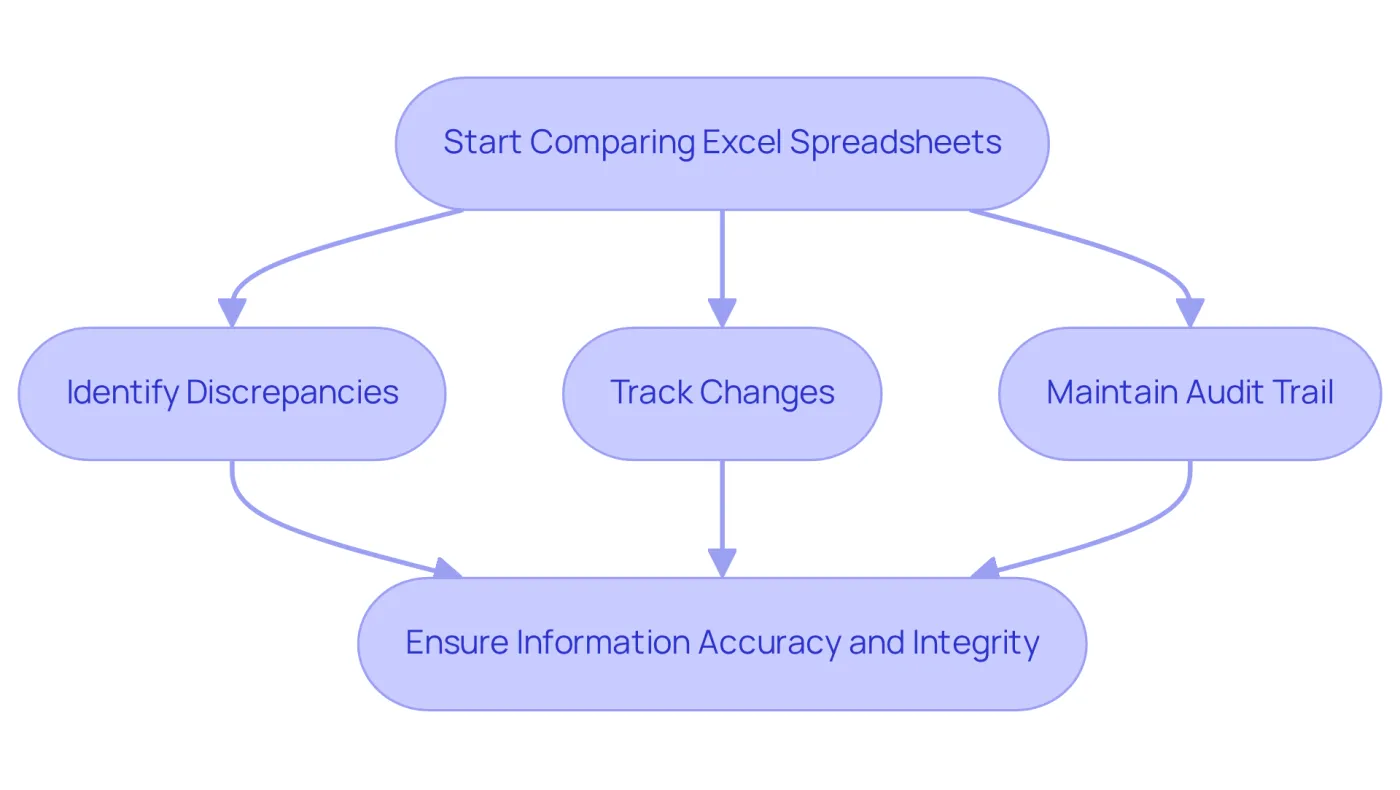
It is essential for finance experts to compare Excel spreadsheets to ensure information accuracy and integrity. Inaccuracies in financial data can lead to poor decision-making and substantial financial losses. By regularly comparing Excel spreadsheets, you can identify discrepancies, track changes, and maintain a clear audit trail. This practice not only safeguards your information but also enhances your credibility as a finance professional.
Understanding the consequences of these evaluations will motivate you to adopt efficient techniques for maintaining data consistency. Embrace the power of meticulous comparisons as you compare Excel spreadsheets to protect your financial integrity and bolster your professional reputation.
Choose the Right Tools for Spreadsheet Comparison
Choosing the right tools to compare excel spreadsheets can significantly enhance your workflow. Here are some effective options:
-
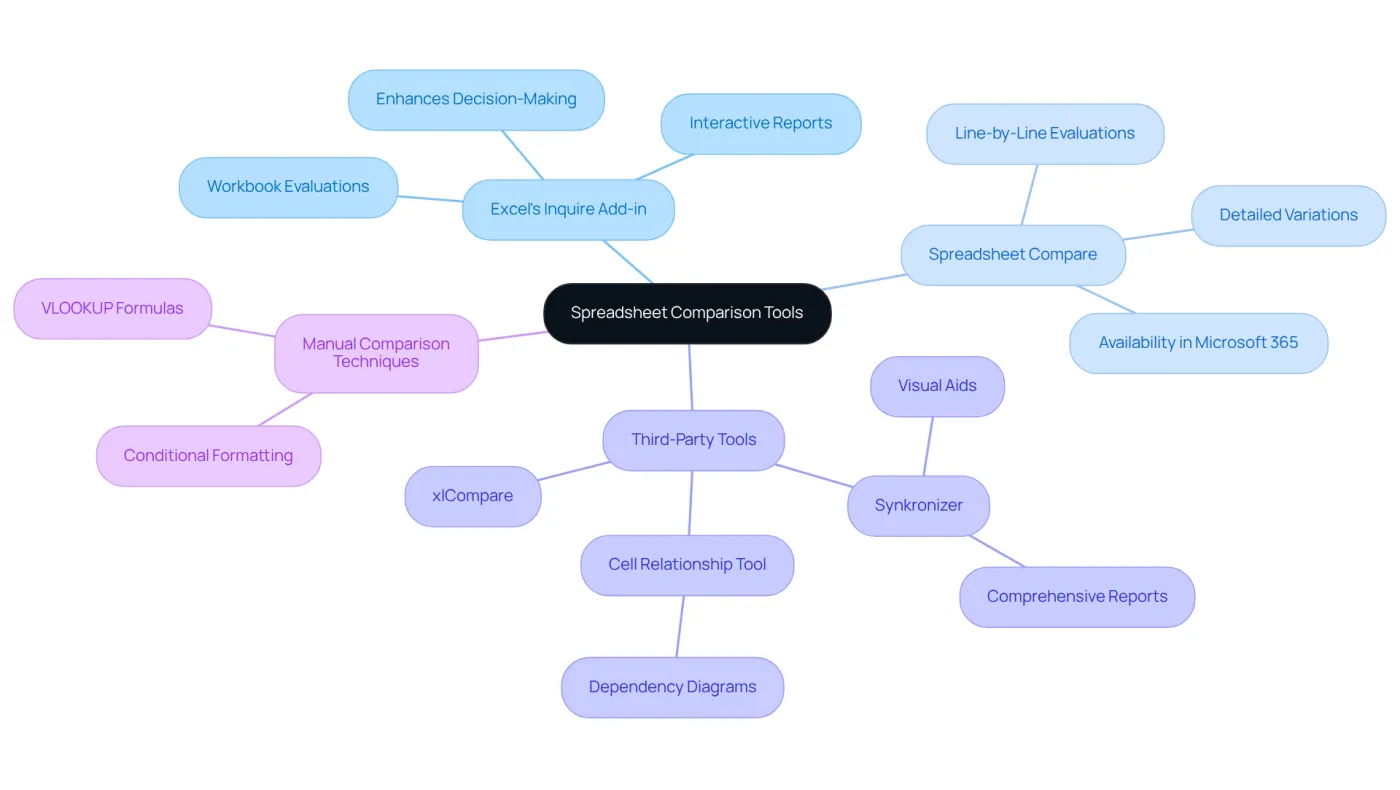
Excel's Inquire Add-in: This built-in feature provides a robust solution for workbook evaluations, highlighting differences in formulas, values, and formatting. Finance experts have noted that using the Inquire add-in boosts their ability to swiftly detect discrepancies, enhancing information integrity and decision-making processes. Additionally, the Workbook Analysis command generates an interactive report detailing the structure and formulas of a workbook, which is particularly useful for understanding complex datasets.
-
Spreadsheet Compare: As an independent tool, Spreadsheet Compare offers detailed line-by-line evaluations, making it especially advantageous for analyzing extensive datasets. Users appreciate its ability to pinpoint variations in values and formulas, which is crucial for accurate financial reporting. Keep in mind that this tool is available in specific editions of Microsoft 365, so verify your access before attempting to use it.
-
Third-Party Tools: Tools like Synkronizer and xlCompare provide advanced functionalities, including visual aids and comprehensive reports. These tools are favored by finance experts for their effectiveness in handling intricate contrasts, enabling a more thorough examination of information. The Cell Relationship Tool can also enhance information integrity by providing a detailed diagram showing links from a selected cell to others, which is beneficial for understanding dependencies.
-
Manual Comparison Techniques: For smaller datasets, leveraging conditional formatting or simple formulas such as VLOOKUP can effectively highlight discrepancies. This approach is often utilized by professionals who need quick insights without the overhead of additional tools.
Ultimately, your choice of tool should align with your specific requirements, including dataset size and the complexity of the comparisons needed to compare excel spreadsheets. By selecting the appropriate method, you can enhance your data analysis capabilities and ensure accuracy in your financial assessments.
Follow Step-by-Step Instructions to Compare Spreadsheets
To effectively compare Excel spreadsheets, follow these essential steps:
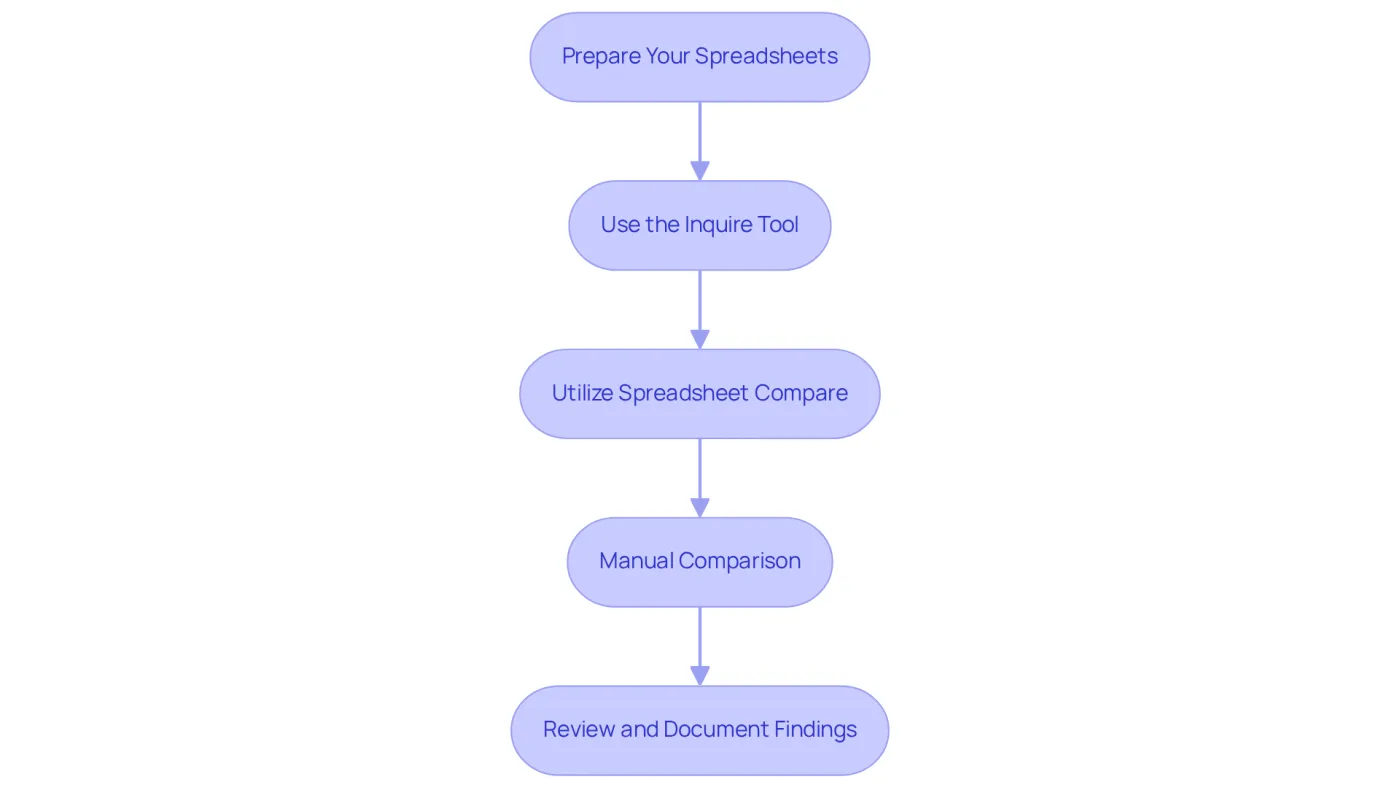
- Prepare Your Spreadsheets: Ensure both spreadsheets are open and organized. If you’re utilizing Excel's built-in tools, activate the 'Inquire' add-in from the ribbon.
- Use the Inquire Tool: Click on the 'Inquire' tab, then select 'Compare Files'. Choose the two workbooks you want to compare and click 'OK'. Review the analysis report generated to understand the differences.
- Utilize Spreadsheet Compare: Open Spreadsheet Compare, select 'Compare Files', and choose your workbooks. Adjust the settings to include formulas, values, and formatting as needed for a comprehensive comparison.
- Manual Comparison: For smaller datasets, leverage conditional formatting to highlight differences. Alternatively, use VLOOKUP to identify mismatches between the two sheets.
- Review and Document Findings: After completing the evaluation, record any discrepancies and take necessary actions to correct them. This may involve updating formulas or reconciling data entries.
By adhering to these steps, you can ensure a thorough and efficient process to compare Excel spreadsheets, ultimately enhancing your data accuracy and decision-making.
Troubleshoot Common Issues in Spreadsheet Comparison
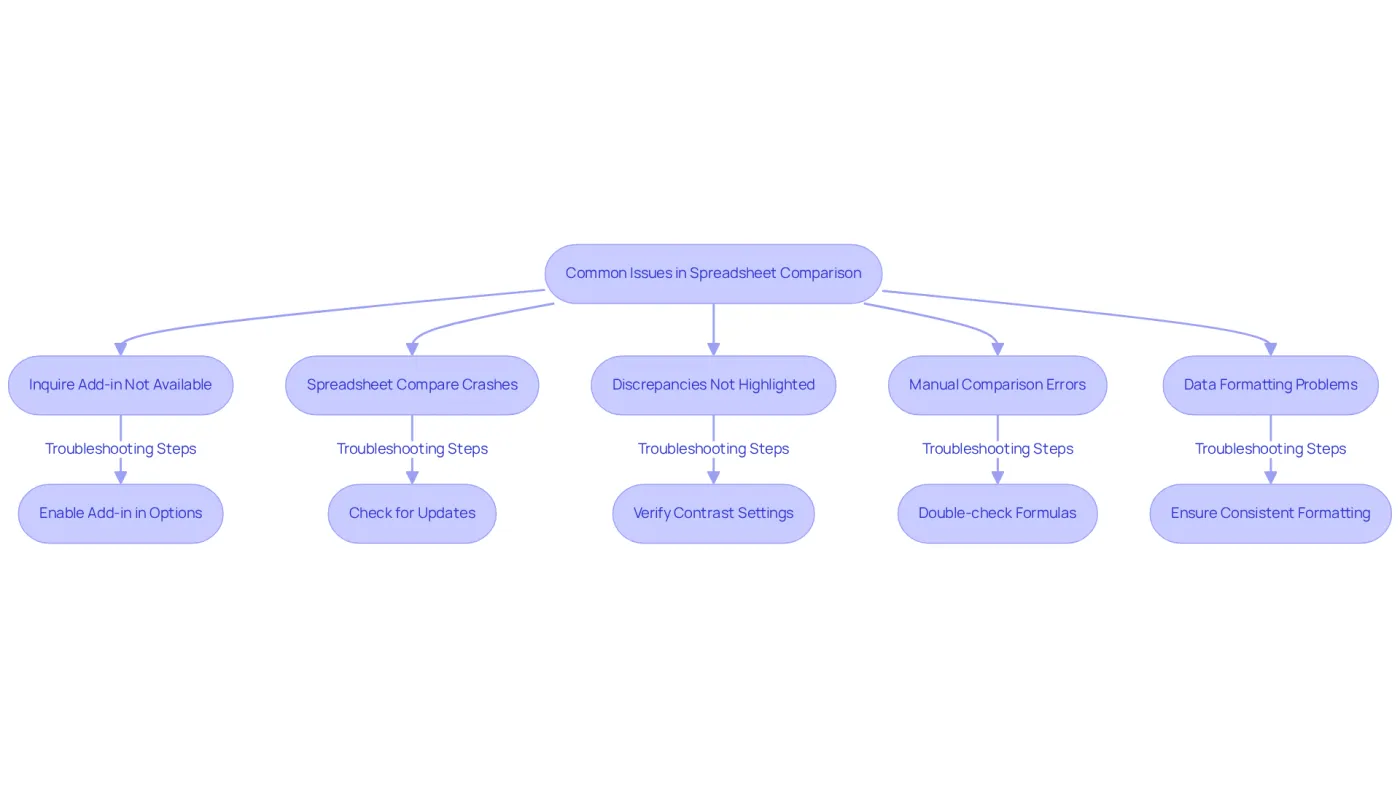
When you compare excel spreadsheets, several common issues may arise. Here’s how to troubleshoot them effectively:
- Inquire Add-in Not Available: If the Inquire tab is absent, ensure that the add-in is enabled in the application Options under 'Add-ins'. This is a common problem that can obstruct your capacity to use the features for contrast.
- Spreadsheet Compare Crashes: If the tool crashes, check for updates to Excel and confirm that your system meets the software requirements. Users have reported crashes following updates, so keeping your software current is essential.
- Discrepancies Not Highlighted: If differences are not showing, verify that you have selected the correct options in the contrast settings, such as including formulas and formatting. This oversight can lead to missed discrepancies, impacting your analysis.
- Manual Comparison Errors: When using manual methods, double-check your formulas for accuracy. Ensure that ranges are correctly defined and that there are no hidden rows or columns affecting the results. Mistakes in manual evaluations can lead to significant misinterpretations of data.
- Data Formatting Problems: Ensure that both files are formatted consistently. Differences in number formats or text casing can lead to false discrepancies. For example, a frequent mistake is neglecting how Excel handles text and numbers differently, which can distort your results.
By addressing these common issues, you can streamline the process to compare Excel spreadsheets and maintain data integrity. This ultimately enhances your productivity in financial analysis.
Conclusion
Comparing Excel spreadsheets effectively is an essential skill for finance professionals. It ensures the accuracy and integrity of financial data, protecting against costly errors and enhancing the credibility of finance experts in their decision-making processes. By adopting systematic comparison techniques, finance professionals can uphold the quality of their work and maintain trust with stakeholders.
This guide highlights key strategies and tools designed to simplify the spreadsheet comparison process. From utilizing Excel’s built-in Inquire add-in to exploring third-party software like Spreadsheet Compare, each method presents unique advantages tailored to different scenarios. Step-by-step instructions provide a clear pathway to identify discrepancies, while troubleshooting tips address common challenges that may arise during comparisons.
The significance of meticulous Excel spreadsheet comparisons cannot be overstated. By prioritizing data accuracy and employing the right tools, finance professionals can significantly enhance their analytical capabilities and decision-making outcomes. Taking action today to refine these skills not only safeguards financial integrity but also positions professionals for greater success in their careers.
Frequently Asked Questions
Why is it important to compare Excel spreadsheets in finance?
Comparing Excel spreadsheets is essential for ensuring information accuracy and integrity, which helps prevent poor decision-making and substantial financial losses.
What are the benefits of regularly comparing Excel spreadsheets?
Regular comparisons help identify discrepancies, track changes, and maintain a clear audit trail, safeguarding information and enhancing the credibility of finance professionals.
How can comparing Excel spreadsheets impact a finance professional's reputation?
Meticulous comparisons protect financial integrity and bolster a finance professional's reputation by demonstrating attention to detail and commitment to accuracy.
What motivates finance experts to adopt efficient techniques for maintaining data consistency?
Understanding the consequences of inaccurate financial data and the importance of evaluations motivates finance experts to implement efficient techniques for maintaining data consistency.