
How to Compare Two Excel Files for Differences: A Step-by-Step Guide
Learn how to compare two Excel files for differences with this step-by-step guide.

Introduction
Comparing two Excel files can often feel like searching for a needle in a haystack, particularly when faced with vast amounts of data. This guide offers a clear, step-by-step approach to streamline the comparison process, enabling users to easily identify discrepancies and maintain data integrity. But what if the tools at your disposal fall short? How can you navigate the complexities of Excel comparisons while maximizing both efficiency and accuracy?
With ShortieCuts, you can transform this daunting task into a manageable one. Our solution not only simplifies the comparison process but also enhances your ability to maintain data integrity. Imagine the confidence you'll gain from knowing that discrepancies are swiftly identified and addressed. It's time to take control of your data comparisons and ensure accuracy in every aspect.
Prepare Your Excel Files for Comparison
-
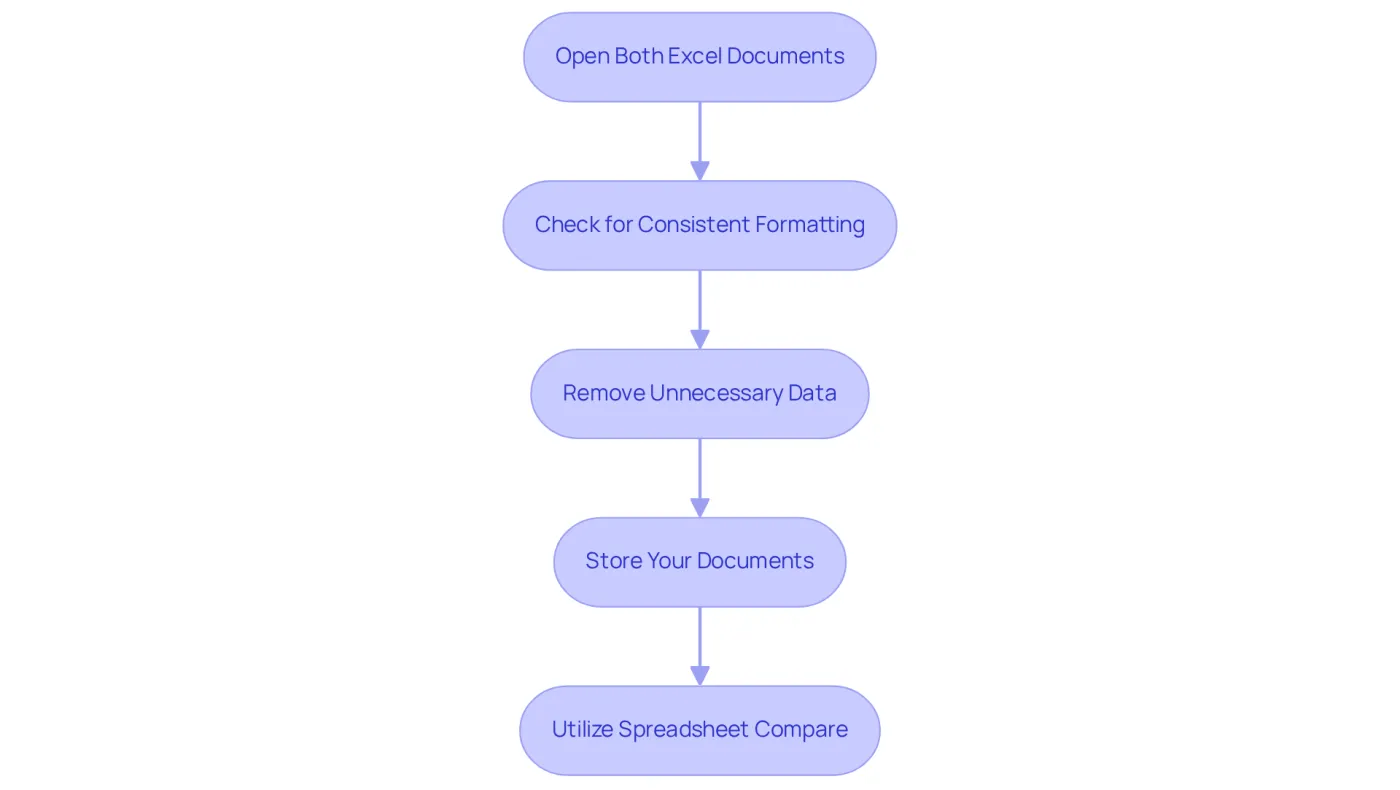
Open Both Excel Documents: Begin by launching Excel and opening the two documents you wish to compare. Ensure that both documents are accessible and saved in a compatible format (e.g., .xlsx).
-
Check for Consistent Formatting: Confirm that both documents share the same structure. This includes having an identical number of columns and similar headers. If necessary, adjust the formatting to ensure consistency.
-
Remove Unnecessary Data: Eliminate any irrelevant rows or columns that do not need to be compared. This simplification will enhance the evaluation process and minimize confusion.
-
Store Your Documents: After making adjustments, save both documents to ensure that all changes are retained before proceeding to the evaluation steps. Notably, around 7% of users assessed their spreadsheet skills as intermediate, while 83% regarded themselves as either intermediate or advanced spreadsheet users. This highlights the importance of these foundational practices for understanding how to compare two excel files for differences.
-
Utilize Spreadsheet Compare: If you have access to Microsoft Apps for enterprise or Office Professional Plus, consider leveraging the Spreadsheet Compare tool. This tool allows you to compare two spreadsheet workbooks side by side, highlighting differences in values, formulas, and cell formatting. Such capabilities can significantly enhance your analysis.
Compare Files Using Side-by-Side View
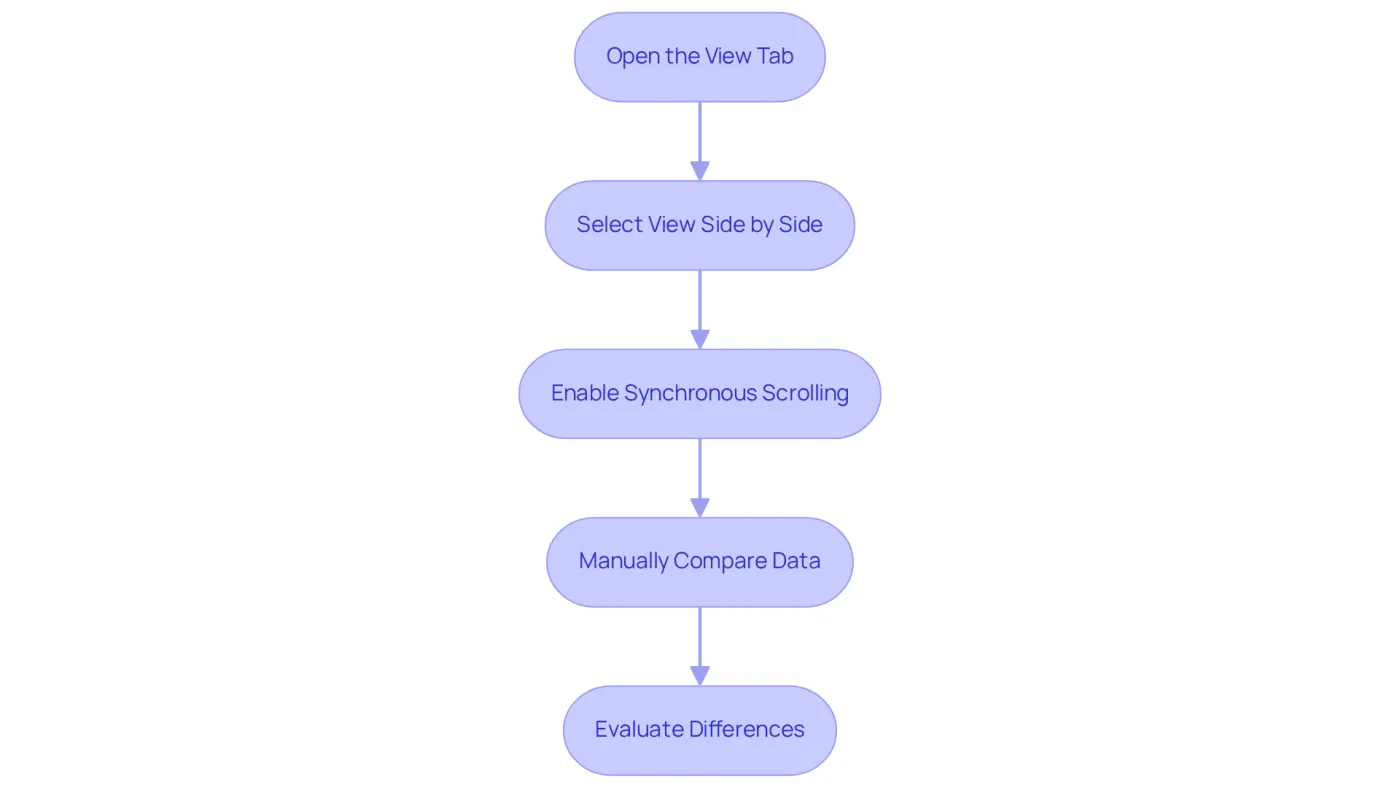
Open the View Tab: Begin by launching both spreadsheet documents you wish to compare. Navigate to the 'View' tab in the Excel ribbon.
Select View Side by Side: Click on the 'View Side by Side' button. This feature positions the two documents next to each other on your screen, allowing for direct evaluation.
Enable Synchronous Scrolling: To enhance your comparison, activate 'Synchronous Scrolling' from the same View tab. This function allows you to scroll through both documents simultaneously, making it significantly easier to understand how to compare two excel files for differences in data and formatting.
Manually Compare Data: Carefully scrutinize the data in both documents. Look for discrepancies in values, formatting, and other relevant details. Highlight any differences you find for easier reference.
Based on user satisfaction ratings, the synchronous scrolling feature is highly valued for its efficiency in simplifying the evaluation process. Data analysts have noted that it greatly improves productivity and precision during document assessments. One analyst remarked, "Synchronous scrolling has changed the way I compare documents, making it easy to identify differences."
By implementing these steps, you can discover how to compare two excel files for differences, which will streamline your document comparison process and ensure accuracy and efficiency.
Utilize Formulas for Detailed Comparisons
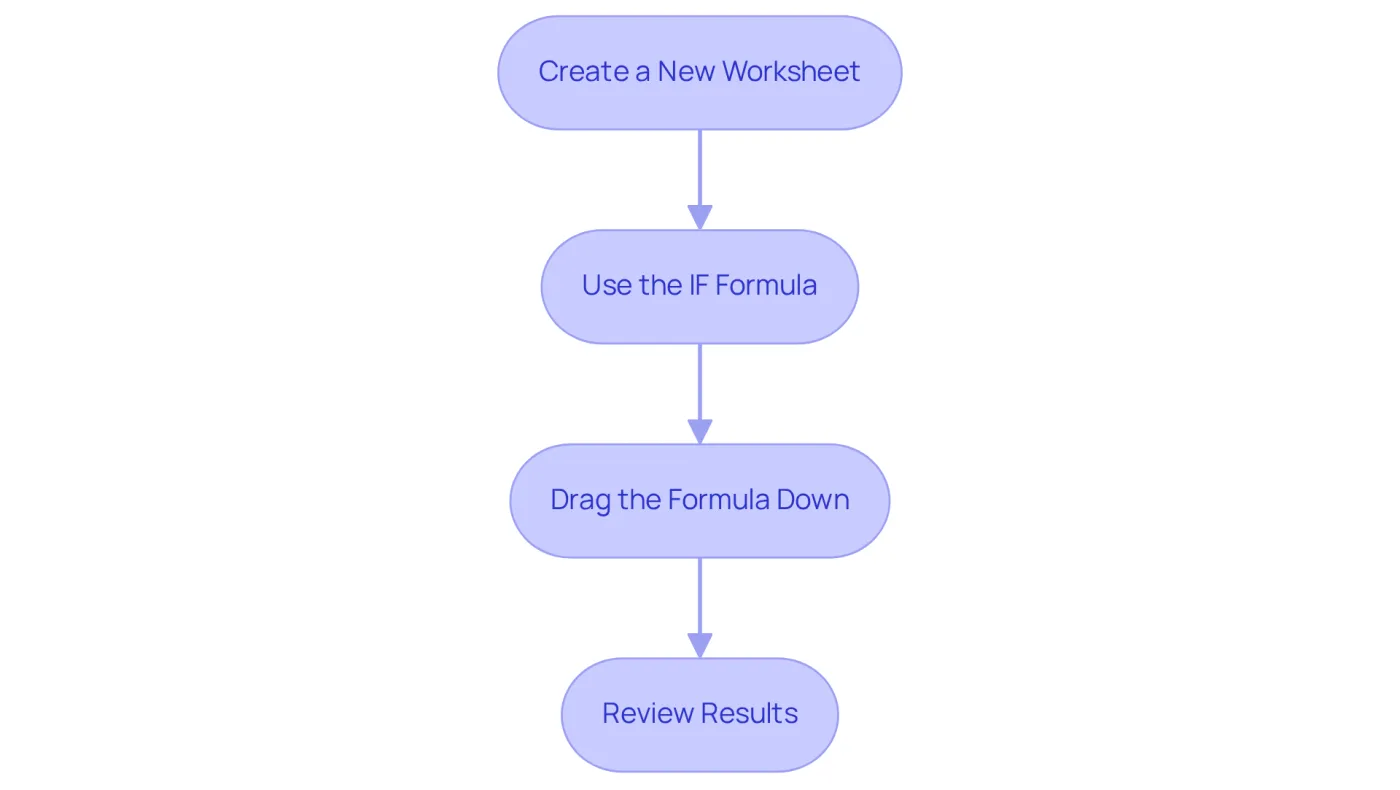
Create a New Worksheet: Begin by opening a new worksheet in one of your spreadsheet documents tailored for analysis. To boost your efficiency, consider leveraging the ShortieCuts extension, which offers access to 233 ALT shortcuts specifically designed for Google Sheets.
Use the IF Formula: In your new worksheet, enter the following formula in cell A1: =IF(Sheet1!A1<>Sheet2!A1, "Difference", "Match"). This formula effectively compares the values in cell A1 of both sheets, returning 'Difference' if they do not match. The IF function is widely utilized, with many Excel users relying on formulas for document evaluations, underscoring their importance in identifying inconsistencies.
Drag the Formula Down: Use the fill handle (the small square at the bottom-right corner of the cell) to drag the formula down through the column. This action applies the assessment to all corresponding cells across the two sheets, allowing for a thorough review of the data. Remember, the ShortieCuts extension can help you quickly access the necessary shortcuts during this task.
Review Results: Take the time to carefully examine the results in your new worksheet. Any cell displaying 'Difference' indicates a discrepancy between the two files, enabling you to focus on those specific areas for further investigation. This systematic approach not only streamlines how to compare two excel files for differences but also enhances accuracy, as evidenced by the effectiveness of formulas like IF in identifying discrepancies. As Victor Santoro noted, "Microsoft's spreadsheet application remains an indispensable tool for professionals in data analysis," emphasizing the critical role of such formulas in effective data management.
Explore Additional Tools for Excel Comparison
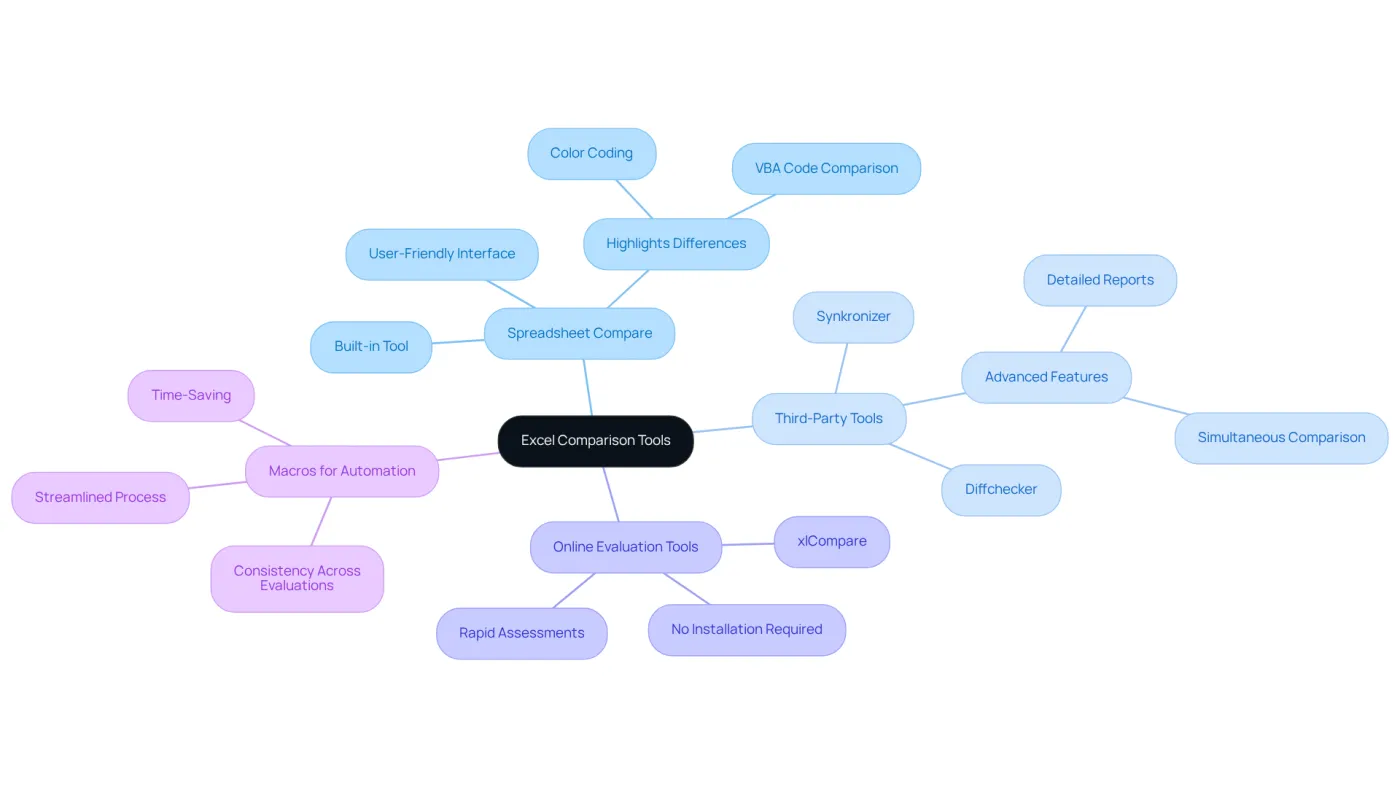
Spreadsheet Compare: This built-in tool in Microsoft Excel shows how to compare two Excel files for differences by allowing you to view two workbooks side by side, effectively highlighting differences in values, formulas, and formatting. To access it, navigate to the 'Inquire' tab and select 'Compare Files'. This feature proves invaluable for auditing and error correction, as it visually represents discrepancies with color coding, making it easier to understand how to compare two Excel files for differences. Additionally, it can compare VBA code, which is crucial for those who need to understand how to compare two Excel files for differences when relying on macros and automation.
Third-Party Tools: For more advanced comparison capabilities, consider third-party applications like Diffchecker and Synkronizer. These tools empower users by showing how to compare two Excel files for differences simultaneously and generate detailed reports on discrepancies, enhancing the analysis process. The demand for these tools is substantial, with over 350,000 professionals depending on Coefficient for spreadsheet automation, underscoring a significant reliance on these advanced functionalities over standard options.
Online Evaluation Tools: Websites such as xlCompare offer online platforms where users can upload their Excel documents for analysis. These tools frequently provide visual representations of differences, making it easier to identify changes. Such online solutions are particularly beneficial for those needing rapid assessments on how to compare two Excel files for differences without the hassle of installing additional software.
Macros for Automation: For individuals learning how to compare two Excel files for differences, creating a macro can greatly streamline the process. Automating the assessment not only saves time but also ensures consistency across evaluations. This approach is especially advantageous for finance professionals who frequently handle large datasets and require precise comparisons to maintain accuracy in their work.
Conclusion
Mastering the art of comparing Excel files is not just a skill; it’s a necessity for anyone serious about data accuracy and efficiency. By following the outlined steps, you can effectively pinpoint discrepancies between two documents, ensuring that critical information remains precise and reliable. Whether you choose to utilize built-in features like Spreadsheet Compare or opt for advanced third-party tools, the comparison process becomes streamlined and straightforward.
Key methods include:
- Preparing your files for comparison through consistent formatting
- Using side-by-side views for direct evaluation
- Employing formulas for detailed analysis
These techniques simplify the comparison process and empower you to conduct thorough reviews of your data. The insights gained from these strategies can significantly enhance your productivity and decision-making in data-driven environments.
Embracing these practices leads to more accurate data management and analysis. As professionals increasingly rely on Excel for critical tasks, understanding how to compare two Excel files for differences is essential. By implementing the recommended tools and techniques, you can elevate your spreadsheet skills, ensuring your data remains flawless and actionable. Don’t wait-start mastering these comparison techniques today and transform your data management approach.
Frequently Asked Questions
How do I start comparing two Excel documents?
Begin by launching Excel and opening the two documents you wish to compare. Ensure both documents are accessible and saved in a compatible format, such as .xlsx.
What should I check for before comparing the documents?
Confirm that both documents have the same structure, including an identical number of columns and similar headers. Adjust the formatting if necessary to ensure consistency.
Is there any data I should remove before comparison?
Yes, eliminate any irrelevant rows or columns that do not need to be compared. This simplification will enhance the evaluation process and minimize confusion.
What should I do after making adjustments to the documents?
Save both documents to ensure that all changes are retained before proceeding to the evaluation steps.
What is the significance of having good spreadsheet skills for this process?
Around 7% of users assessed their spreadsheet skills as intermediate, while 83% regarded themselves as either intermediate or advanced. This highlights the importance of foundational practices for effectively comparing two Excel files.
Is there a tool I can use to compare Excel spreadsheets more efficiently?
Yes, if you have access to Microsoft Apps for enterprise or Office Professional Plus, you can use the Spreadsheet Compare tool. This tool allows you to compare two spreadsheet workbooks side by side, highlighting differences in values, formulas, and cell formatting.