
How to Compare Two Excel Sheets for Accurate Data Analysis
Learn effective methods to compare two Excel sheets for accurate data analysis and reporting.

Overview
Accurate comparison of Excel sheets is essential for effective data analysis. Systematic comparison not only maintains data integrity but also prevents costly errors. This article delves into various techniques that enhance precision and efficiency in financial reporting, including manual checks, Excel formulas, conditional formatting, and third-party tools.
Why is this important? In the world of finance, even minor discrepancies can lead to significant consequences. By implementing systematic comparison methods, professionals can safeguard their data and ensure reliable outcomes.
Consider the benefits:
- Enhanced Accuracy: Manual checks and Excel formulas help identify discrepancies quickly.
- Increased Efficiency: Conditional formatting allows for immediate visual cues, streamlining the review process.
- Cost Savings: Preventing errors reduces the risk of financial loss and enhances overall reporting quality.
In conclusion, adopting these techniques is not just beneficial; it’s imperative for maintaining the integrity of financial data. By prioritizing accurate comparisons, finance professionals can navigate their responsibilities with confidence and precision.
Introduction
In a landscape where data dictates decisions, the accuracy of spreadsheet information can either propel a business forward or lead it to failure. Comparing Excel sheets transcends mere technicality; it is an essential practice that protects against costly errors and bolsters data integrity. As organizations increasingly depend on intricate datasets, a pressing question emerges: how can one effectively navigate the multitude of methods available for comparing these sheets to guarantee precise analysis?
This guide explores the fundamental techniques and tools that empower users to master the art of Excel comparison. By transforming potential pitfalls into opportunities for clarity and insight, you can enhance your decision-making process and drive your business toward success.
Understand the Importance of Comparing Excel Sheets
Ensure Accuracy: The Importance of Contrasting Excel Files
In professional settings, maintaining information integrity and correctness is non-negotiable. Data discrepancies can lead to significant errors in financial reporting and decision-making, ultimately impacting overall business performance.
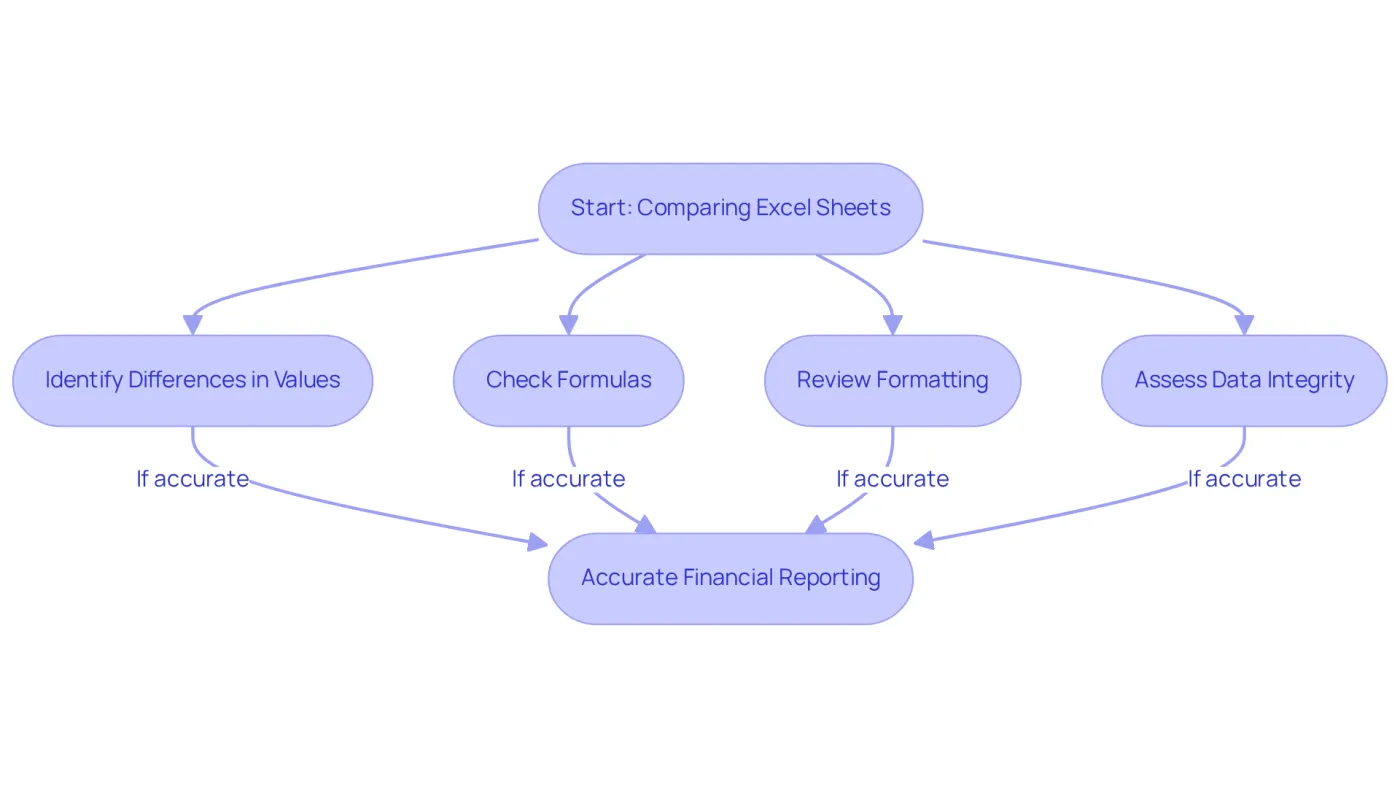
By systematically comparing two excel sheets, you can uncover differences in values, formulas, and formatting. This process is essential for effective financial analysis, project tracking, and information consolidation. For instance, consider a major U.S. manufacturer that faced an $11 million severance error due to a simple typo in a spreadsheet. This case underscores the costly consequences of overlooked discrepancies.
Moreover, with 18% of accountants reporting financial errors daily, the necessity of thorough information comparison becomes even more critical. Understanding these differences is essential when you compare two excel sheets, as it helps maintain high standards of accuracy and reliability while also enhancing productivity and confidence in your analyses.
As you navigate the complexities of financial data, it’s vital to recognize the risks associated with spreadsheet use, such as data insecurity and limited scalability. By addressing these challenges head-on, you empower yourself to make informed decisions that bolster your organization’s financial health.
Prepare Your Excel Environment for Comparison
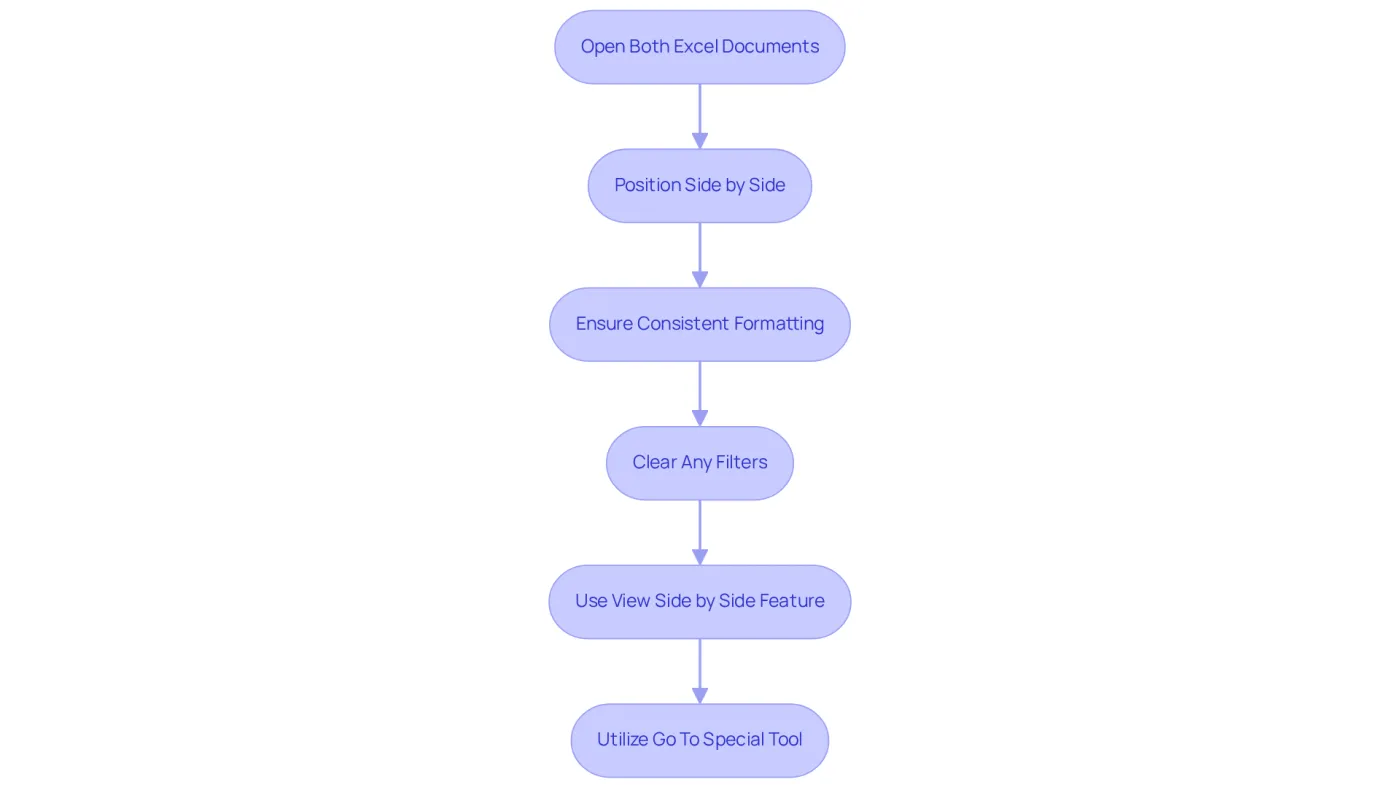
To effectively compare two Excel sheets, proper preparation of your environment is essential. Begin by opening both documents you intend to analyze in order to compare two Excel sheets, and position them side by side for optimal visibility. Consistent formatting is crucial; ensure that font sizes, cell colors, and number formats align across both sheets. Standardizing these elements significantly reduces confusion during the comparison process, as inconsistent formatting often hinders analysis.
Moreover, clear any filters that may obscure relevant data, as they can impede accurate evaluation. Utilize the spreadsheet program's 'View Side by Side' feature and the 'Go To Special' tool to efficiently compare two Excel sheets and identify differences. This thorough preparation lays the groundwork for a more efficient and effective evaluation.
Execute Comparison Using Various Methods
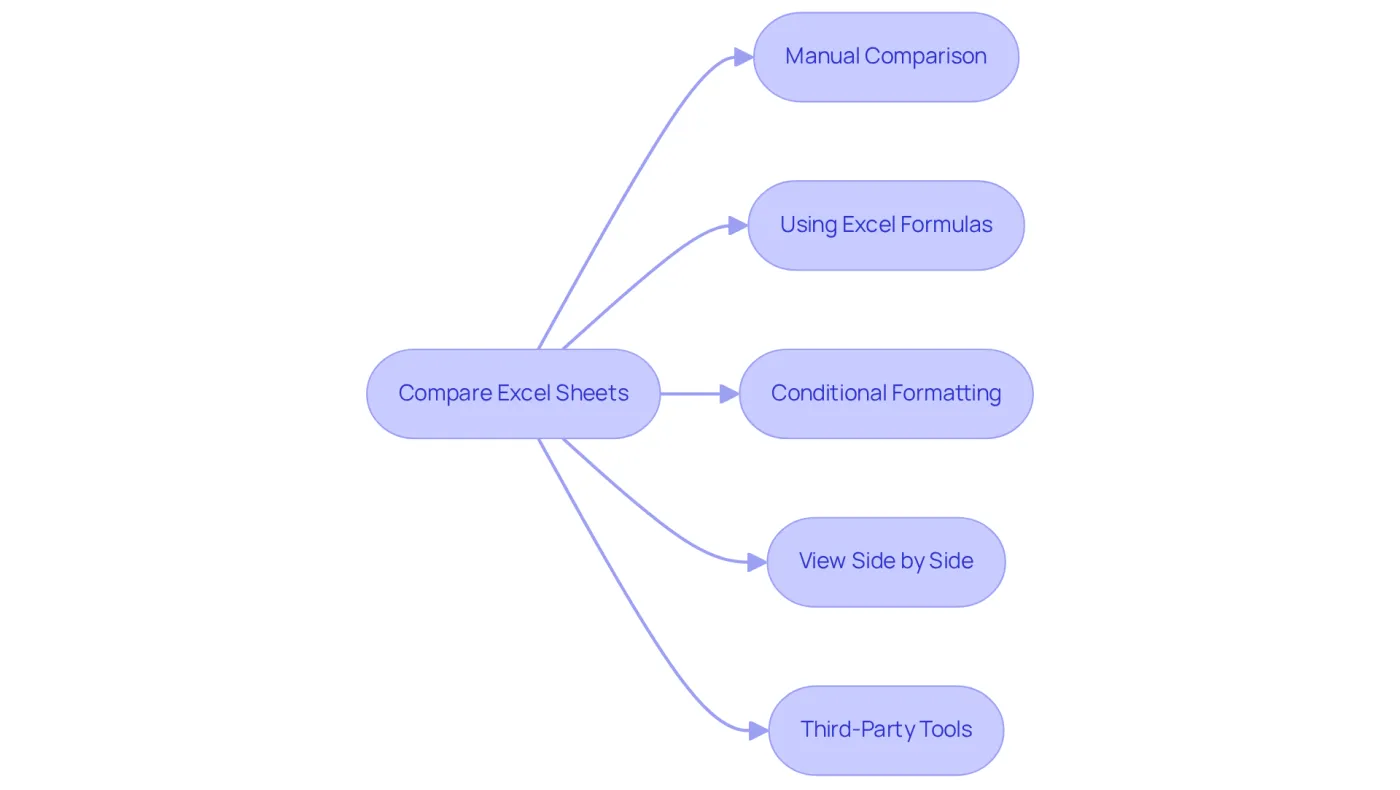
It is crucial to compare two Excel sheets effectively for accuracy and efficiency. Here are several methods to achieve this:
-
Manual Comparison: This straightforward approach involves visually examining both documents side by side to identify discrepancies in values, formulas, and formatting. While it’s simple, this method can become labor-intensive when you compare two Excel sheets for larger datasets.
-
Using Excel Formulas: Formulas like
=A1=B1allow users to compare equivalent cells across two sheets. By dragging the formula down, you can quickly assess equality across the entire data range. Additionally, the IF function can be employed with the formula=IF(A1=B1, 'Match', 'Difference')to compare two Excel sheets, providing a clear indication of matches and differences. This makes it a powerful tool to compare two Excel sheets for financial analysis. -
Conditional Formatting: This feature effectively highlights differences. By selecting a range in one document and applying conditional formatting rules, you can visually mark cells that differ from their equivalents in another document, which helps to compare two Excel sheets and aids in the swift recognition of discrepancies.
-
Excel's 'View Side by Side' Feature: This functionality enables simultaneous viewing of two sheets, enhancing your ability to spot differences. Available through the 'View' tab, it simplifies the evaluation process, especially when you need to compare two Excel sheets for detailed analyses.
-
Third-Party Tools: For more intricate evaluations, specialized tools like 'Spreadsheet Compare' or 'Ablebits' can automate the process. These tools provide comprehensive reports on differences, allowing users to compare two Excel sheets, saving time and ensuring thorough analysis. It's important to note that built-in comparison methods have limitations, such as not comparing formulas or cell formatting, which third-party tools can address.
Employing these methods not only enhances precision in analysis but also adheres to best practices for financial professionals, ensuring that essential insights are not overlooked.
Troubleshoot Common Comparison Issues
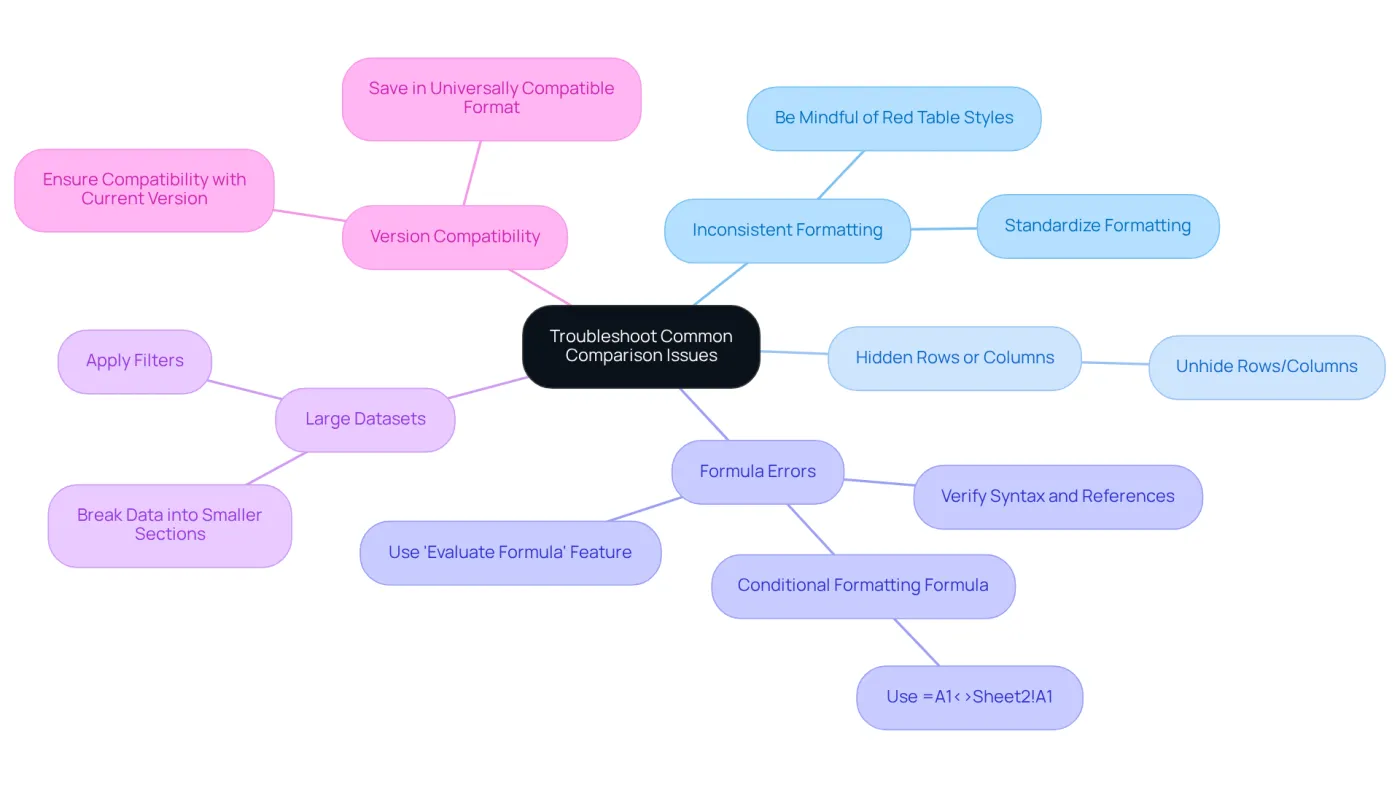
Even with careful preparation, users may encounter challenges when they compare two Excel sheets. Here are some common issues and their solutions:
-
Inconsistent Formatting: Variations in layout between pages can lead to confusion and misinterpretation of data. To ensure accuracy when you compare two Excel sheets, standardize the formatting across both sheets before starting the evaluation. Be mindful of red table styles in Excel Tables, as they may obscure visibility of certain cell styles.
-
Hidden Rows or Columns: Concealed data can lead to incomplete evaluations, obscuring essential discrepancies. Always unhide any rows or columns before you compare two Excel sheets to ensure a comprehensive analysis.
-
Formula Errors: Incorrectly calculating formulas can skew results. If you suspect formula errors, verify the syntax and references. Utilize Excel's 'Evaluate Formula' feature to troubleshoot and identify issues effectively. For a swift evaluation to compare two Excel sheets, you can use the formula
=A1<>Sheet2!A1in conditional formatting to highlight the differences. -
Large Datasets: When dealing with extensive datasets, comparisons can become cumbersome. To manage this, break the data into smaller, more manageable sections or apply filters to concentrate on specific areas of interest.
-
Version Compatibility: Compatibility issues may arise if the documents are created in different versions of Excel. Ensure both documents are compatible with your current version. If issues continue, consider saving both sheets in a universally compatible format to enable easier evaluations.
Additionally, consider using tools like the Synkronizer Excel Compare add-in. This tool can quickly identify differences, merge multiple files, and generate detailed difference reports. By addressing these common issues and utilizing available tools, you can enhance the accuracy of your data comparisons when you compare two Excel sheets and streamline your analysis process.
Conclusion
Comparing Excel sheets is not just a technical task; it’s a vital practice that safeguards data integrity and enhances decision-making processes. The meticulous comparison of spreadsheets can prevent costly errors, ensuring that financial reporting is both accurate and reliable. By adopting systematic methods for comparison, professionals can significantly elevate the quality of their analyses and the trustworthiness of their data.
Key insights from our discussion highlight the importance of preparing the Excel environment and utilizing various comparison methods—ranging from manual checks to advanced tools. Troubleshooting common issues that may arise during the evaluation process is equally crucial. Each method, whether through Excel formulas, conditional formatting, or third-party applications, serves to spotlight discrepancies that could lead to detrimental decisions. Moreover, addressing formatting inconsistencies and hidden data guarantees a comprehensive analysis that leaves no stone unturned.
Ultimately, the ability to effectively compare Excel sheets is an invaluable skill that empowers professionals to uphold high standards of accuracy in their work. By prioritizing this practice, organizations can cultivate a culture of diligence and precision, leading to improved financial health and informed decision-making. Embrace the tools and techniques outlined in this guide to enhance your data analysis capabilities and mitigate the risks associated with data discrepancies.
Frequently Asked Questions
Why is it important to compare Excel sheets in professional settings?
Comparing Excel sheets is crucial to ensure information integrity and correctness, as data discrepancies can lead to significant errors in financial reporting and decision-making, impacting overall business performance.
What can be uncovered by systematically comparing two Excel sheets?
Systematic comparison can reveal differences in values, formulas, and formatting, which is essential for effective financial analysis, project tracking, and information consolidation.
Can you provide an example of the consequences of not comparing Excel sheets?
A major U.S. manufacturer faced an $11 million severance error due to a simple typo in a spreadsheet, highlighting the costly consequences of overlooked discrepancies.
What percentage of accountants report financial errors daily?
18% of accountants report financial errors daily, emphasizing the need for thorough information comparison.
How does comparing Excel sheets enhance productivity and confidence?
Understanding differences when comparing Excel sheets helps maintain high standards of accuracy and reliability, which in turn enhances productivity and confidence in analyses.
What risks are associated with using spreadsheets for financial data?
Risks include data insecurity and limited scalability, which can affect the overall decision-making process in an organization.
How can addressing challenges in spreadsheet use benefit an organization?
By addressing these challenges, individuals can make informed decisions that bolster their organization’s financial health.