
How to Compare Two Excel Sheets for Differences Effectively
Learn how to compare two Excel sheets for differences using various effective methods.

Introduction
Comparing two Excel sheets for differences is not just a skill; it’s a necessity that can significantly save time and enhance accuracy in data analysis. By adopting the right approach, users can uncover discrepancies in data, formulas, and formatting, which leads to more informed decision-making. But what are the most effective techniques and tools available to streamline this process?
This article explores practical strategies and advanced features that empower users to efficiently identify differences. By transforming how you work with spreadsheets, you can elevate your data analysis to new heights. Dive in to discover how mastering these techniques can make a tangible difference in your workflow.
Understand the Basics of Comparing Excel Sheets
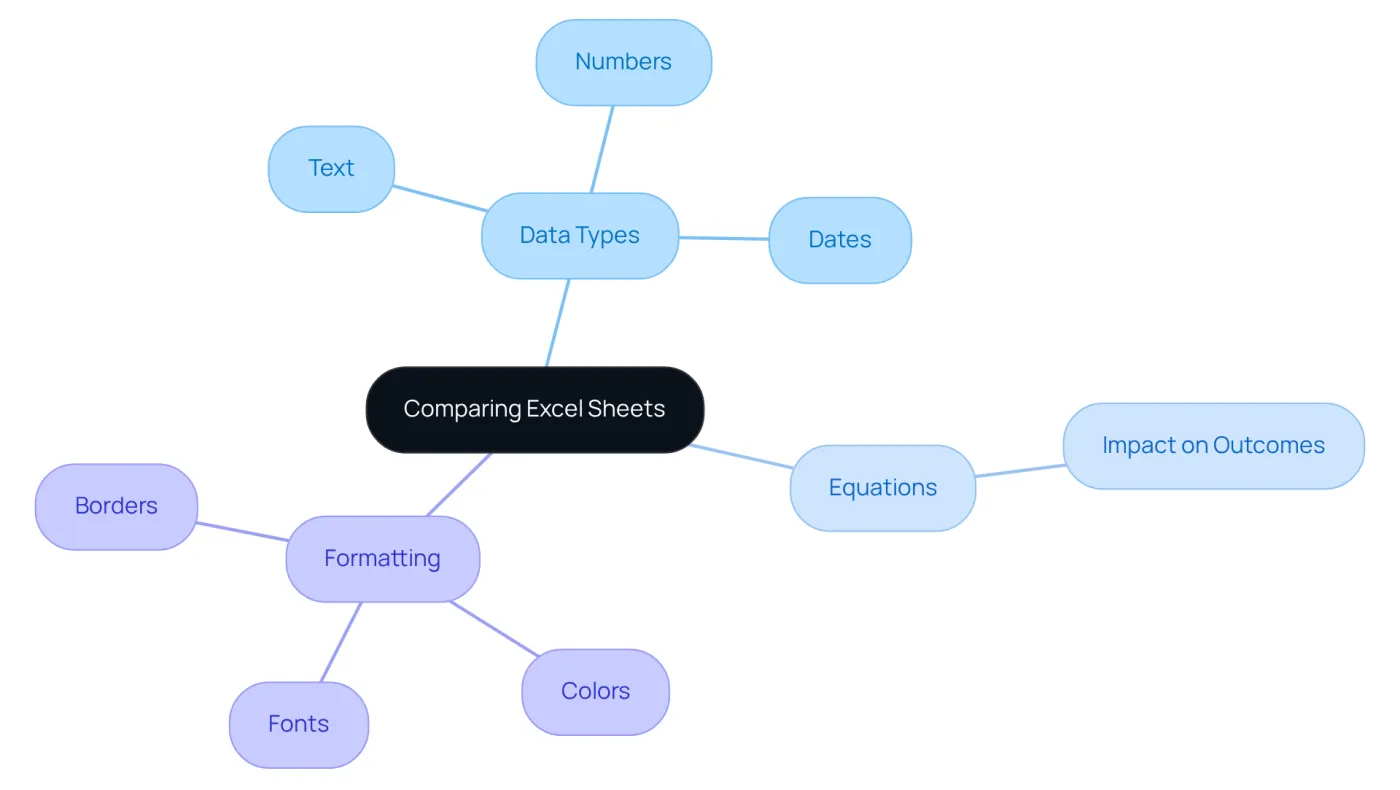
Before you dive into the process to compare two Excel sheets for differences, it’s crucial to clarify your objectives. Typically, evaluations aim to compare two Excel sheets for differences in data, formulas, and formatting. A solid grasp of the following key concepts will significantly enhance your effectiveness in this process:
-
Data Types: Recognizing the types of data involved-such as text, numbers, and dates-is essential. Each type may require different handling during comparisons. As analyst Hilary Mason points out, "At the core of analytics and science is curiosity and learning; discovering patterns, narrating stories, and enhancing your comprehension of the world surrounding you."
-
Equations: Be mindful that equations can yield different outcomes based on the data they reference. Understanding how these equations interact with various data types is vital for precise analysis. Statistics reveal that accurate formula usage can greatly influence financial decision-making, with studies indicating that 70% of financial professionals report improved outcomes when they fully grasp the formulas they employ.
-
Formatting: Variations in cell formatting-including colors, fonts, and borders-can significantly affect how information is interpreted. These visual cues often highlight critical differences that may not be apparent from the data alone.
Grasping these foundational concepts not only prepares you for efficient evaluations but also aligns with insights shared by analysts who stress the importance of understanding data types and formulas in financial contexts. A well-structured approach to compare two Excel sheets for differences can lead to more informed decision-making, as emphasized by industry experts. By mastering these basics, you’ll be well-equipped to effectively utilize various comparison techniques, such as Excel's built-in comparison tools or leveraging conditional formatting to spotlight differences.
Utilize Side-by-Side View and Formulas for Comparison
To effectively compare two Excel sheets for differences, utilize the side-by-side view feature. Here’s how you can do it:
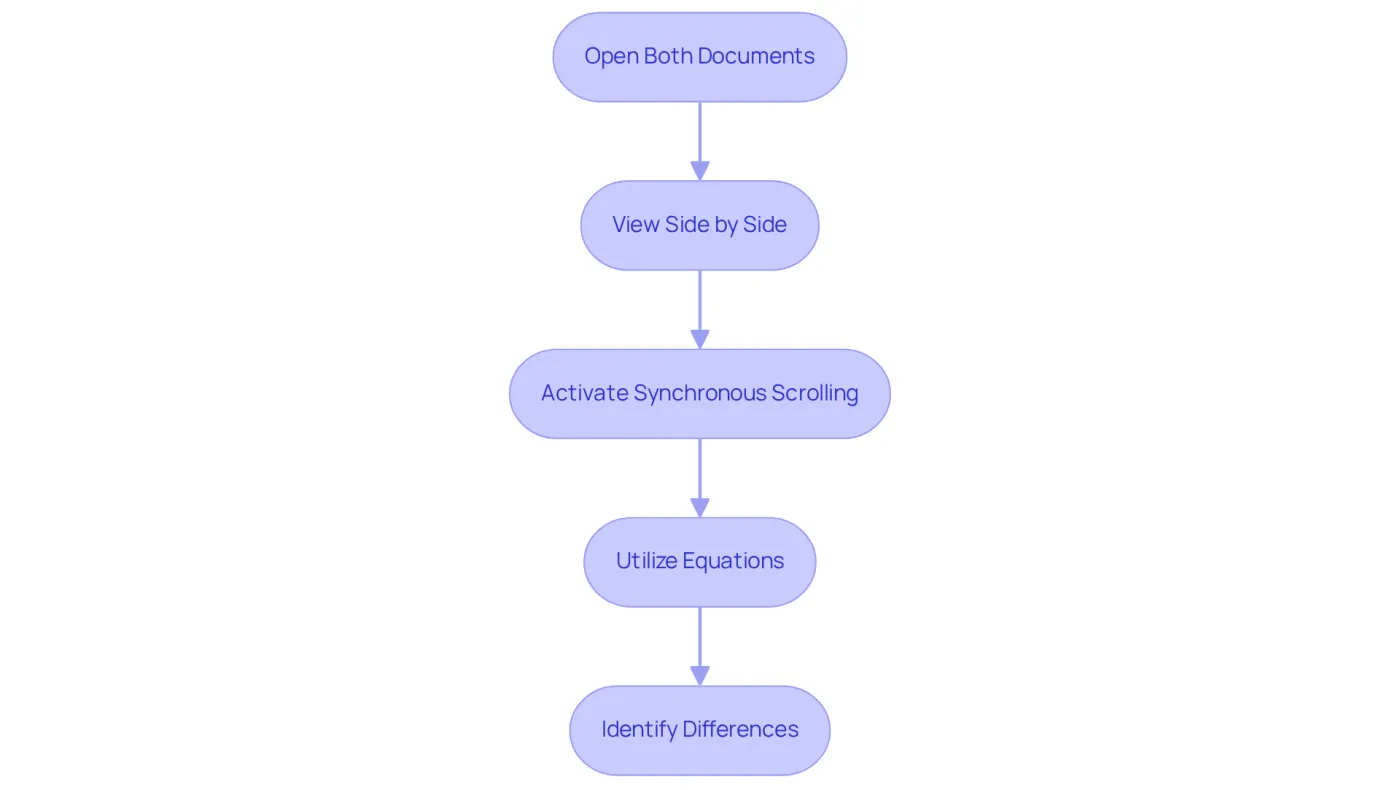
- Open Both Documents: Begin by opening the two files you wish to compare in Excel.
- View Side by Side: Navigate to the 'View' tab on the ribbon and select 'View Side by Side'. This action allows you to see both documents simultaneously.
- Synchronous Scrolling: Activate synchronous scrolling to move through both sheets at the same time, facilitating the identification of differences.
- Utilize Equations: In a new column, employ equations such as
=Sheet1!A1=Sheet2!A1to compare corresponding cells. This formula returns TRUE if they match and FALSE if they don’t. Drag the formula down to compare entire columns.
This method not only provides a clear visual representation of differences but also helps to compare two Excel sheets for differences swiftly.
Highlight Differences Using Conditional Formatting
Conditional formatting can revolutionize how you compare two Excel sheets for differences. Here’s how to set it up effectively:
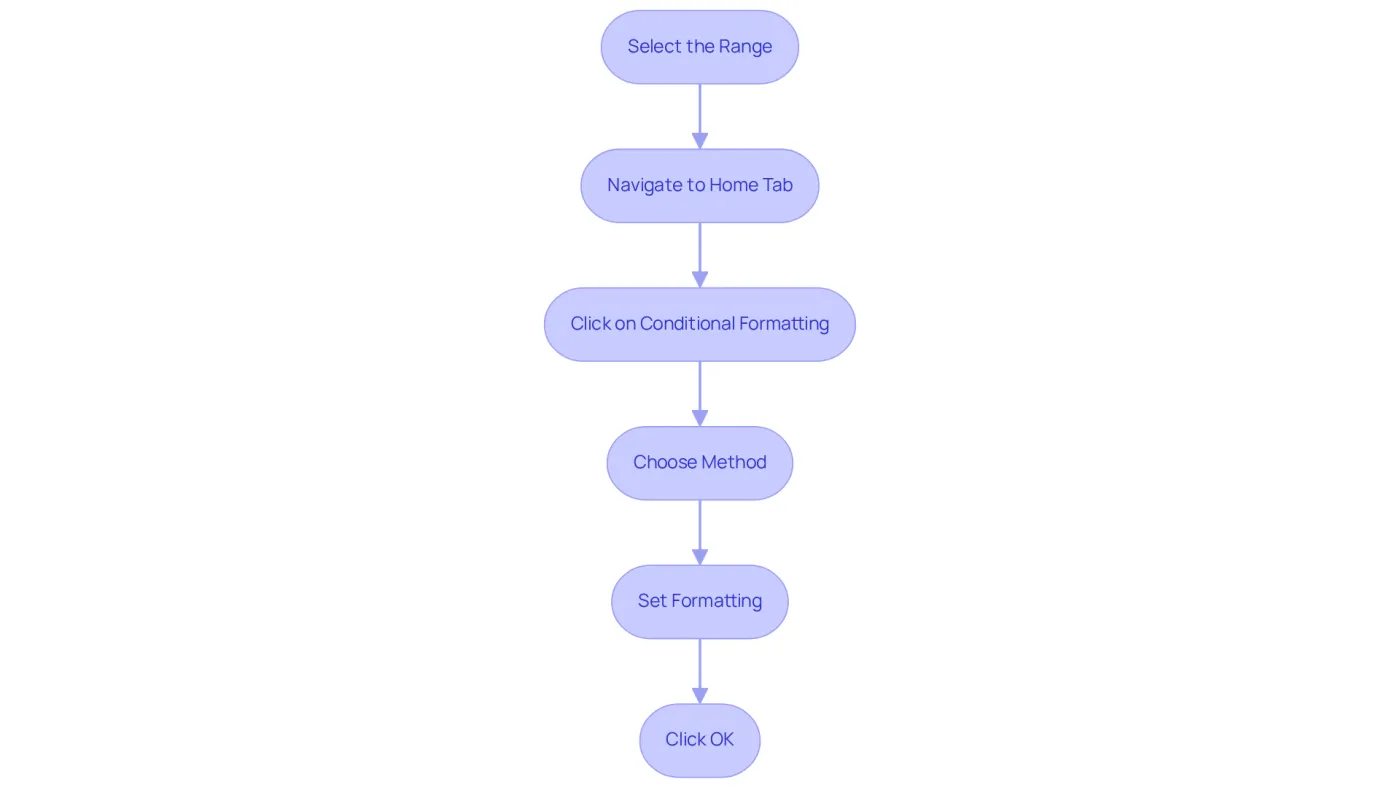
- Select the Range: Begin by highlighting the range of cells in one of the sheets that you wish to compare.
- Conditional Formatting: Navigate to the 'Home' tab, click on 'Conditional Formatting', and select 'New Rule'.
- Utilize a Method: Choose 'Utilize a method to decide which cells to format'. Enter the formula
=A1<>Sheet2!A1, adjusting the cell reference as necessary. - Set Formatting: Select a formatting style, such as a fill color, to apply when the condition is met.
- Apply: Click OK to implement the formatting. To compare two Excel sheets for differences, cells that differ from their corresponding cells in the other sheet will now be highlighted.
This visual cue allows for quick identification of discrepancies, significantly enhancing your evaluation process. For example, you can easily highlight the top 25 salaries in a department or pinpoint the lowest 5% of values to identify underperformers. The applications of conditional formatting not only bolster decision-making capabilities but also streamline the analysis of critical metrics like EBITDA or profit margins. Furthermore, effectively managing your conditional formatting rules can lead to improved organization and efficiency in your spreadsheet management.
Explore Advanced Tools and Features for Efficient Comparison
For users looking to elevate their comparison skills, several advanced tools and features can significantly enhance both efficiency and accuracy:
-
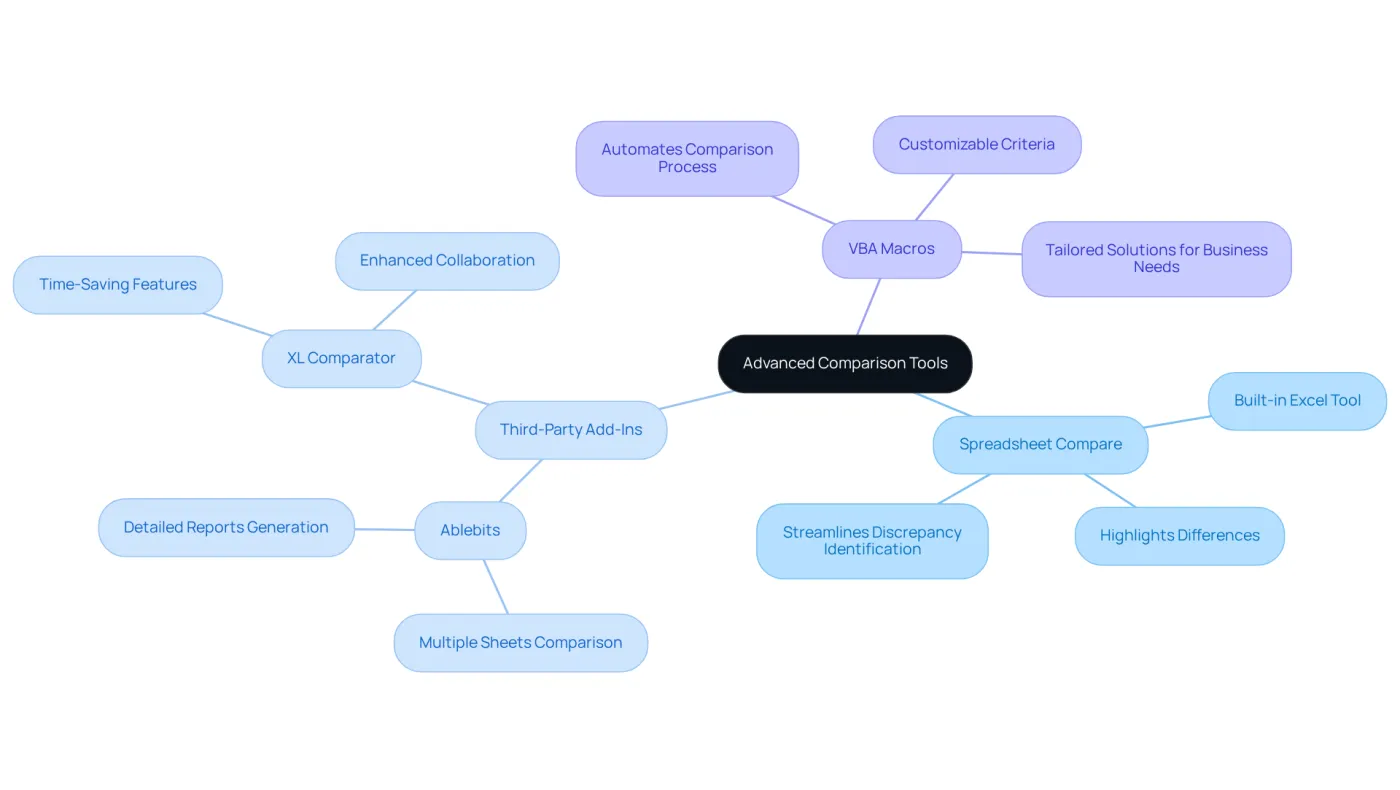
Spreadsheet Compare: This built-in tool in Excel allows users to compare two workbooks, highlighting differences in values, formulas, and formatting. To utilize it, simply navigate to the 'Inquire' tab and select 'Compare Files'. This tool is particularly effective, streamlining the process of identifying discrepancies and proving invaluable for professionals managing complex datasets.
-
Third-Party Add-Ins: Solutions like Ablebits and XL Comparator offer enhanced features for document comparisons. These tools enable users to compare multiple sheets simultaneously and generate detailed reports, saving considerable time and effort. The effectiveness of these add-ins is underscored by the fact that 87% of Google Sheets users engage with real-time collaboration features at least weekly, showcasing a strong preference for tools that promote efficient information management.
-
VBA Macros: For those with advanced skills, writing a VBA macro can automate the comparison process, allowing for customized comparisons based on specific criteria. This approach not only enhances accuracy but also provides tailored solutions that meet unique business needs.
As Robert A. Lee, Senior Editor, noted, "Google Sheets isn’t merely a spreadsheet tool; it’s a platform transforming how individuals and businesses work together with information." By leveraging these advanced tools, users can significantly boost their efficiency and precision when they compare two Excel sheets for differences, which leads to improved information management and decision-making. Furthermore, case studies like that of McGraw-Hill Education (MHE) illustrate how enhanced collaboration through advanced tools can elevate data governance and operational efficiency.
Conclusion
Mastering the art of comparing two Excel sheets for differences is crucial for anyone who regularly engages with data. Understanding the fundamental concepts of data types, equations, and formatting empowers users to approach the comparison process confidently. This foundational knowledge paves the way for employing various techniques, such as side-by-side viewing and conditional formatting, to effectively pinpoint discrepancies.
Several key strategies stand out in this process:
- The side-by-side view facilitates simultaneous analysis.
- Formulas can automate the comparison, delivering immediate insights into matching or differing values.
- Conditional formatting acts as a powerful visual tool, instantly highlighting areas that warrant further examination.
- Advanced features like Spreadsheet Compare and third-party add-ins provide enhanced capabilities for users aiming to streamline their evaluation processes.
Ultimately, the ability to compare Excel sheets effectively not only boosts data accuracy but also fosters informed decision-making. Embracing these techniques and tools leads to greater efficiency and precision in data management. As the reliance on data-driven insights continues to escalate, mastering these comparison methods will prove invaluable for professionals across various industries. Investing time to refine these skills empowers users to navigate their datasets with ease and confidence, ensuring that critical differences do not go unnoticed.
Frequently Asked Questions
What is the purpose of comparing two Excel sheets?
The main purpose of comparing two Excel sheets is to identify differences in data, formulas, and formatting.
Why is it important to understand data types when comparing Excel sheets?
Understanding data types, such as text, numbers, and dates, is essential because each type may require different handling during comparisons.
How can equations affect the comparison of Excel sheets?
Equations can yield different outcomes based on the data they reference, so understanding how these equations interact with various data types is vital for accurate analysis.
What role does formatting play in comparing Excel sheets?
Variations in cell formatting, including colors, fonts, and borders, can significantly affect how information is interpreted, often highlighting critical differences that may not be apparent from the data alone.
How can mastering the basics of Excel sheet comparison improve decision-making?
A well-structured approach to comparing Excel sheets can lead to more informed decision-making, as it allows for a clearer understanding of the differences and their implications.
What techniques can be used to compare two Excel sheets effectively?
Techniques for effective comparison include using Excel's built-in comparison tools and leveraging conditional formatting to highlight differences.