
How to Format Google Sheets: Essential Tips for Finance Pros
Master essential techniques for how to format Google Sheets and enhance your financial documents.

Introduction
Mastering the art of formatting in Google Sheets is crucial for finance professionals who depend on clear and accurate data presentation. The challenge lies in making complex financial information accessible and actionable. By implementing essential formatting techniques, you can significantly enhance the readability and professionalism of your spreadsheets. But with so many options available, how do you determine which strategies will yield the most impactful results?
This is where effective formatting comes into play. It not only improves the visual appeal of your data but also ensures that your insights are communicated effectively. Imagine presenting your financial reports with clarity that captures attention and drives action. The right formatting techniques can transform your spreadsheets from mere data collections into powerful tools for decision-making.
Understand Basic Formatting Options in Google Sheets
To effectively format your Google Sheets, it’s essential to explore fundamental options that can significantly enhance your spreadsheet's clarity and usability:
-
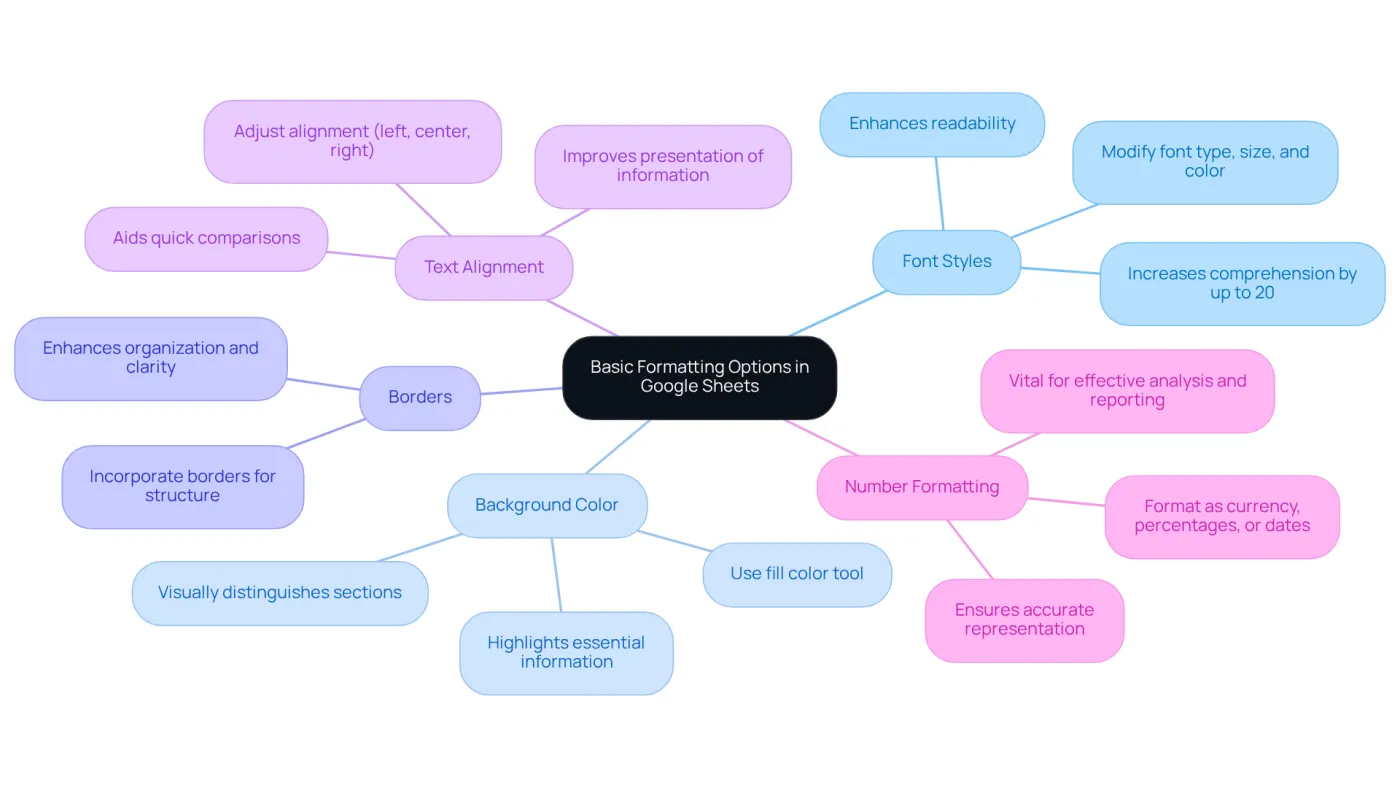
Font Styles: Modify font type, size, and color using the toolbar. This is crucial for distinguishing headers and improving overall readability. Studies show that well-chosen font styles can increase comprehension by up to 20%. Remember, Google Sheets defaults to 'Automatic', adjusting formats based on the content type entered.
-
Background Color: Use the fill color tool to change backgrounds. This technique visually distinguishes sections of your spreadsheet or highlights essential information, making navigation through intricate details easier for users.
-
Borders: Incorporate borders around areas to create a structured visual layout. Select the desired cells, click on the borders icon, and choose a style to enhance organization and clarity.
-
Text Alignment: Adjust text alignment (left, center, right) to improve the presentation of your information. Proper alignment is especially beneficial for numerical figures, aiding quick comparisons and enhancing readability. Google Sheets automatically aligns text to the left and numbers to the right, maintaining a clean layout.
-
Number Formatting: Format numbers as currency, percentages, or dates by selecting the relevant sections, navigating to 'Format' in the menu, and choosing 'Number'. This ensures accurate representation of your financial information, vital for effective analysis and reporting. Google Sheets also modifies data formats according to the content type inputted, ensuring your data is displayed accurately.
By mastering these basic layout techniques, you’ll establish a strong foundation for understanding how to format Google Sheets, ultimately enhancing the effectiveness of your financial spreadsheets.
Apply Text and Cell Formatting Techniques
To enhance the readability and professionalism of your Google Sheets, consider these essential text and cell formatting techniques:
-
Use Bold for Headers: Highlight your header row by selecting it and clicking the bold icon (or pressing Ctrl + B). This draws attention to the categories of your data, reinforcing the idea that effective formatting can significantly impact data presentation.
-
Adjust Column Widths: Double-click the line between column headers to auto-fit the width based on the content. Research suggests that keeping an average column width of 15-20 characters is ideal for professional documents. This prevents text from being cut off and enhances overall readability.
-
Wrap Text: For entries with lengthy text, enable text wrapping by selecting the entry, clicking on 'Format', then 'Text wrapping', and choosing 'Wrap'. This keeps your spreadsheet tidy without enlarging the sizes of the boxes too much, ensuring that all information is visible at a glance.
-
Conditional Styling: Utilize conditional styling to automatically alter the color of cells according to their values. For instance, highlight cells that exceed a certain threshold in red to quickly identify outliers. To apply, select the range, go to 'Format', then 'Conditional formatting', and set your rules. This technique not only enhances visual appeal but also aids in data analysis.
-
Merge Cells for Titles: For titles or section headers, merge cells by selecting the desired range, right-clicking, and choosing 'Merge cells'. This creates a unified header that stands out, making it easier for users to navigate through the document.
-
Utilize Checkboxes and Dropdown Lists: Incorporate checkboxes for tracking project tasks or dropdown lists to restrict data entry. These features enhance interactivity and organization within your data tables.
Learning how to format Google Sheets will greatly enhance the clarity and professionalism of your financial documents. Finance experts emphasize that 'your design decisions can determine the effectiveness of your financial report.' Additionally, adhering to accessibility guidelines, such as WCAG 2.2, ensures that your spreadsheets are usable for all audiences.

Utilize Advanced Formatting Features for Data Clarity
Enhance Your Google Sheets with Advanced Formatting Features
Capture Attention: Are you struggling to maintain accuracy in your financial records? It’s time to leverage advanced formatting features to understand how to format Google Sheets, which can transform your data management.
Information Verification: Establish clear guidelines for information verification to regulate input types. This is crucial for preserving precision in your financial records. For instance, create a dropdown list for categories in your financial data by selecting the cell, navigating to 'Data', then 'Data validation', and setting your criteria. This practice minimizes errors and ensures consistency across datasets, streamlining your workflows.
Conditional Formatting Rules: Want to highlight trends or anomalies effectively? Set up multiple conditional formatting rules. Color-code cells based on performance metrics to visualize areas needing attention quickly. This not only boosts analysis efficiency but also helps you recognize essential insights at a glance.
Custom Number Formats: Need to display data in a specific manner? To show numbers as currency with two decimal places, you need to understand how to format Google Sheets by designing custom number formats. Select the fields, click 'Format', then 'Number', and choose 'More formats' to create a customized format that aligns with your reporting standards.
Freeze Rows and Columns: Keep your headers visible while scrolling through large datasets by freezing the top row or first column. Click on 'View', then 'Freeze', and select your preference. This feature is particularly beneficial for maintaining context in extensive financial spreadsheets, especially for those learning how to format Google Sheets.
Use Sparklines: Looking for a visual depiction of data trends? Insert sparklines to illustrate trends within a single cell. Select the desired cell, go to 'Insert', then 'Chart', and choose 'Sparkline'. This allows you to visualize performance over time without cluttering your spreadsheet, making it easier to track key metrics.
Automation in Information Validation: Want to detect discrepancies early? Utilize automated tools for information validation processes. This proactive approach enables finance teams to focus on strategic tasks rather than manual corrections, maintaining high information quality and reducing the risk of mistakes.
Prompt Action: By utilizing these advanced features, including well-defined rules and automation, you can create more insightful and visually appealing financial spreadsheets. Enhance your data management capabilities today!

Leverage ShortieCuts for Enhanced Formatting Efficiency
Maximize Your Formatting Efficiency in Google Sheets
Are you struggling to keep your formatting efficient in Google Sheets? Look no further than the ShortieCuts extension. Here’s how you can leverage its features to enhance your productivity:
-
Use Excel Shortcuts: Familiarize yourself with the Excel-style shortcuts provided by ShortieCuts. For instance, pressing 'ALT' (or Option on Mac) displays key-tips in the corner of your screen. Use Alt + H for styling choices, saving you valuable time compared to navigating through menus.
-
Quickly Add or Remove Rows/Columns: Streamline your workflow by using shortcuts to add or remove rows and columns effortlessly. For example, Ctrl + Shift + + allows you to insert a new row or column in seconds.
-
Formula Tracing: Take advantage of the formula tracing feature to quickly identify dependents and precedents in your financial models. This helps you understand complex formulas and ensures accuracy in your calculations.
-
Goal Seek Functionality: The Goal Seek feature is invaluable for efficiently finding the necessary input values for your calculations. This is particularly useful in financial modeling and forecasting.
-
Keyboard-Only Navigation: Enhance your efficiency with keyboard navigation features that let you move through your spreadsheet without a mouse. This significantly accelerates your data entry and arrangement processes.
By integrating ShortieCuts into your Google Sheets workflow, you can discover how to format Google Sheets more efficiently while also maintaining a high level of productivity. Don’t miss out on the opportunity to transform your spreadsheet experience!

Conclusion
Mastering the art of formatting in Google Sheets is crucial for finance professionals who want to present data clearly and effectively. The challenge lies in making complex financial information accessible and insightful. By understanding and applying various formatting techniques, you can significantly enhance the readability and usability of your spreadsheets.
Key insights include the use of font styles, background colors, and borders to create a visually appealing layout. Advanced techniques, such as conditional formatting and custom number formats, can streamline workflows and improve data management. Tools like ShortieCuts further enhance these capabilities, making your processes more efficient. Emphasizing these strategies not only boosts comprehension but also helps maintain accuracy and consistency across financial reports.
Investing time in learning how to format Google Sheets effectively is a game changer for finance professionals. Implementing these best practices transforms complex data into accessible information, ultimately enhancing your decision-making processes. Embrace these formatting techniques to elevate your financial documents, ensuring they communicate your insights with clarity and precision. Take action now - start mastering these skills today!
Frequently Asked Questions
What are the basic formatting options available in Google Sheets?
The basic formatting options in Google Sheets include font styles, background color, borders, text alignment, and number formatting.
How can font styles improve the usability of a Google Sheet?
Modifying font type, size, and color helps distinguish headers and improves overall readability, potentially increasing comprehension by up to 20%.
What is the purpose of using background color in Google Sheets?
Changing the background color can visually distinguish sections of the spreadsheet or highlight important information, making it easier to navigate through details.
How do borders enhance the organization of a Google Sheet?
Incorporating borders around areas creates a structured visual layout, which enhances organization and clarity within the spreadsheet.
Why is text alignment important in Google Sheets?
Adjusting text alignment (left, center, right) improves the presentation of information, especially for numerical figures, aiding quick comparisons and enhancing readability.
How does Google Sheets handle text and number alignment by default?
Google Sheets automatically aligns text to the left and numbers to the right, maintaining a clean layout.
How can I format numbers in Google Sheets?
You can format numbers as currency, percentages, or dates by selecting the relevant sections, navigating to 'Format' in the menu, and choosing 'Number'.
Why is accurate number formatting important in Google Sheets?
Accurate number formatting ensures proper representation of financial information, which is vital for effective analysis and reporting.
What should I keep in mind regarding data formats in Google Sheets?
Google Sheets automatically modifies data formats according to the content type inputted, ensuring your data is displayed accurately.