
How to Make a Pie Chart in Sheets: A Step-by-Step Guide
Learn how to make a pie chart in Sheets with this step-by-step guide for effective data visualization.
Introduction
Creating a pie chart transforms raw data into a visually appealing representation that communicates insights at a glance. This guide delves into the step-by-step process of making a pie chart in Google Sheets, equipping users with the tools to visualize their data effectively. But with numerous customization options available, how can you ensure that your pie chart not only looks good but also conveys your intended message clearly and accurately? Let's explore the solution together.
Prepare Your Data for Pie Chart Creation
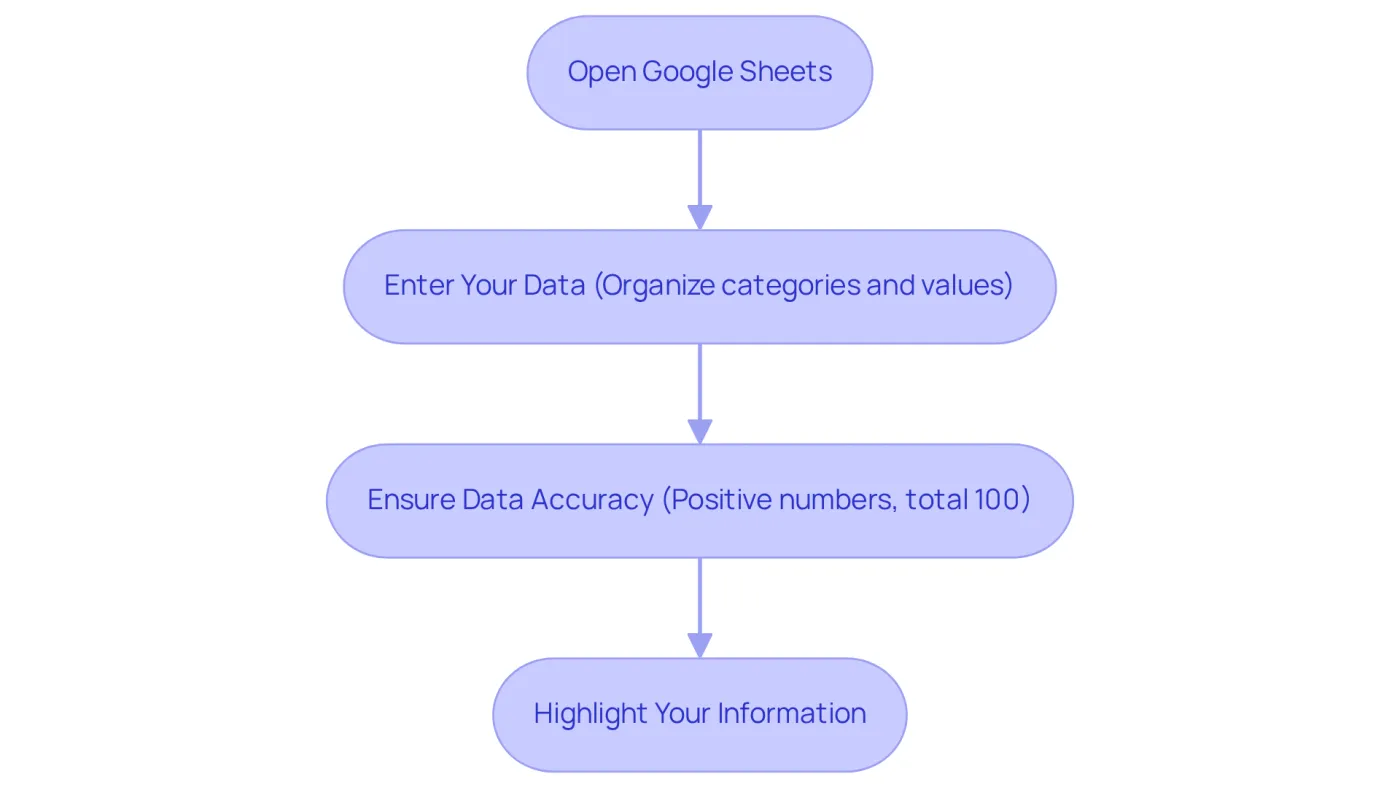
- Open Google Sheets: Begin by launching Google Sheets and either opening a new or an existing spreadsheet.
- Enter Your Data: Organize your data into two columns. To understand how to make a pie chart in sheets, the first column should contain the categories (labels) for your pie diagram, while the second column should hold the corresponding numeric values. For instance:
- Category: A, Value: 30
- Category: B, Value: 70
- Ensure Data Accuracy: It is crucial to double-check that all values are positive numbers, as pie representations cannot depict negative values. Each category should sum up to a meaningful total, ideally 100%, for clarity.
- Highlight Your Information: Click and drag to select both columns of information, including the headers if applicable. This selection will be utilized to show how to make a pie chart in sheets.
Insert Your Pie Chart in Google Sheets
Access the Insert Menu: Highlight your data, then navigate to the top menu and click on Insert.
Select Chart: From the dropdown menu, choose Chart. This action will open the graph editor on the right side of your screen.
Choose Pie Graph Type: In the editor, select Pie graph from the Type dropdown to understand how to make a pie chart in sheets. A preview of your pie graph will show in the spreadsheet, enabling you to visualize your information right away.
Modify Graph Settings: Confirm the range of information is accurate in the graph editor. You can also explore various pie designs, including 2D and 3D options, to find the best fit for your presentation needs. Recent statistics indicate that users demonstrate a strong preference for 2D pie representations due to their simplicity and clarity in illustrating proportions.
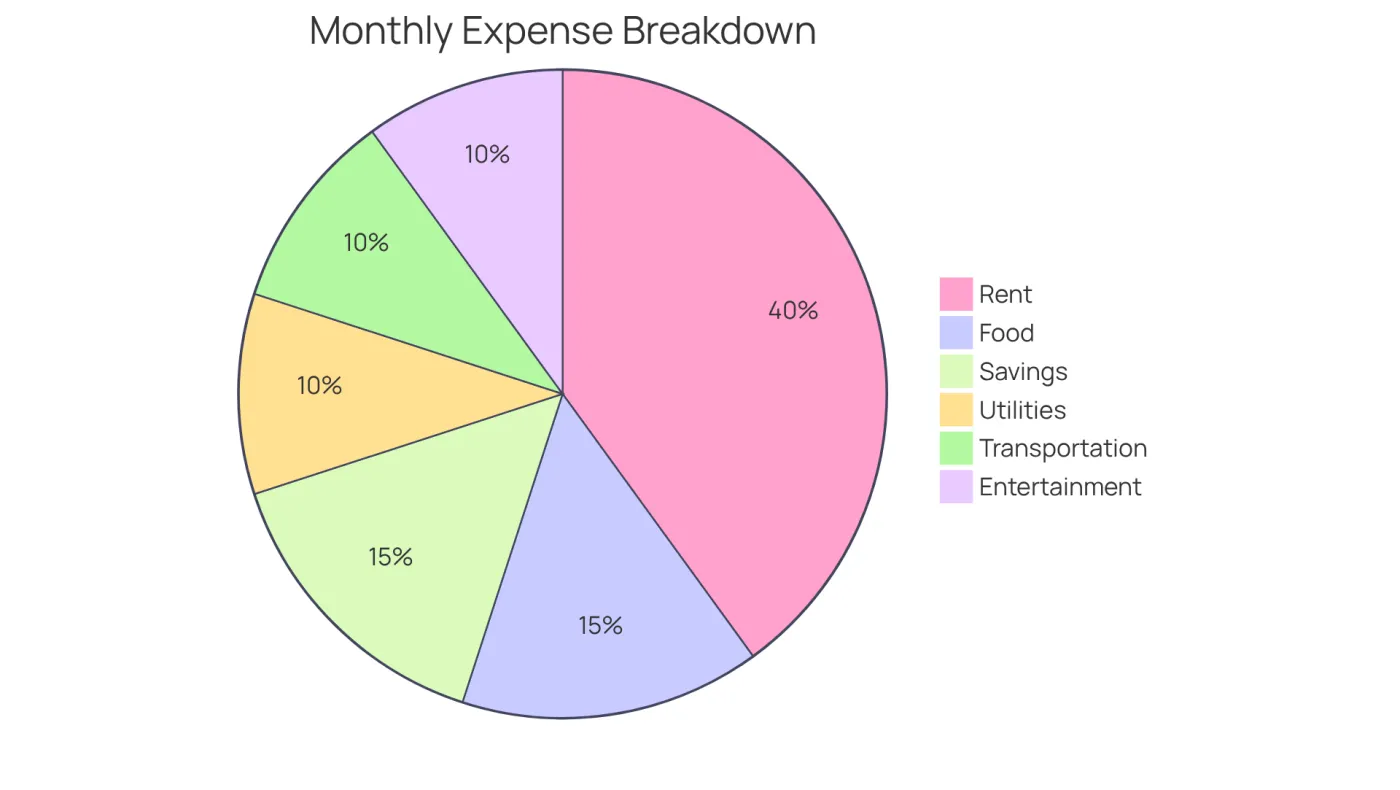
For effective data visualization, experts emphasize that understanding how to make a pie chart in sheets can help pie graphs illustrate parts of a whole, making them ideal for displaying categories such as monthly expenses or sales distribution. Personalizing your diagram with labels and colors can significantly enhance its readability and impact. As Abigail Sims noted, "Pie graphs assist audiences in effortlessly understanding insights by immediately visualizing trends, patterns, and proportions.
Customize Your Pie Chart for Better Presentation
-
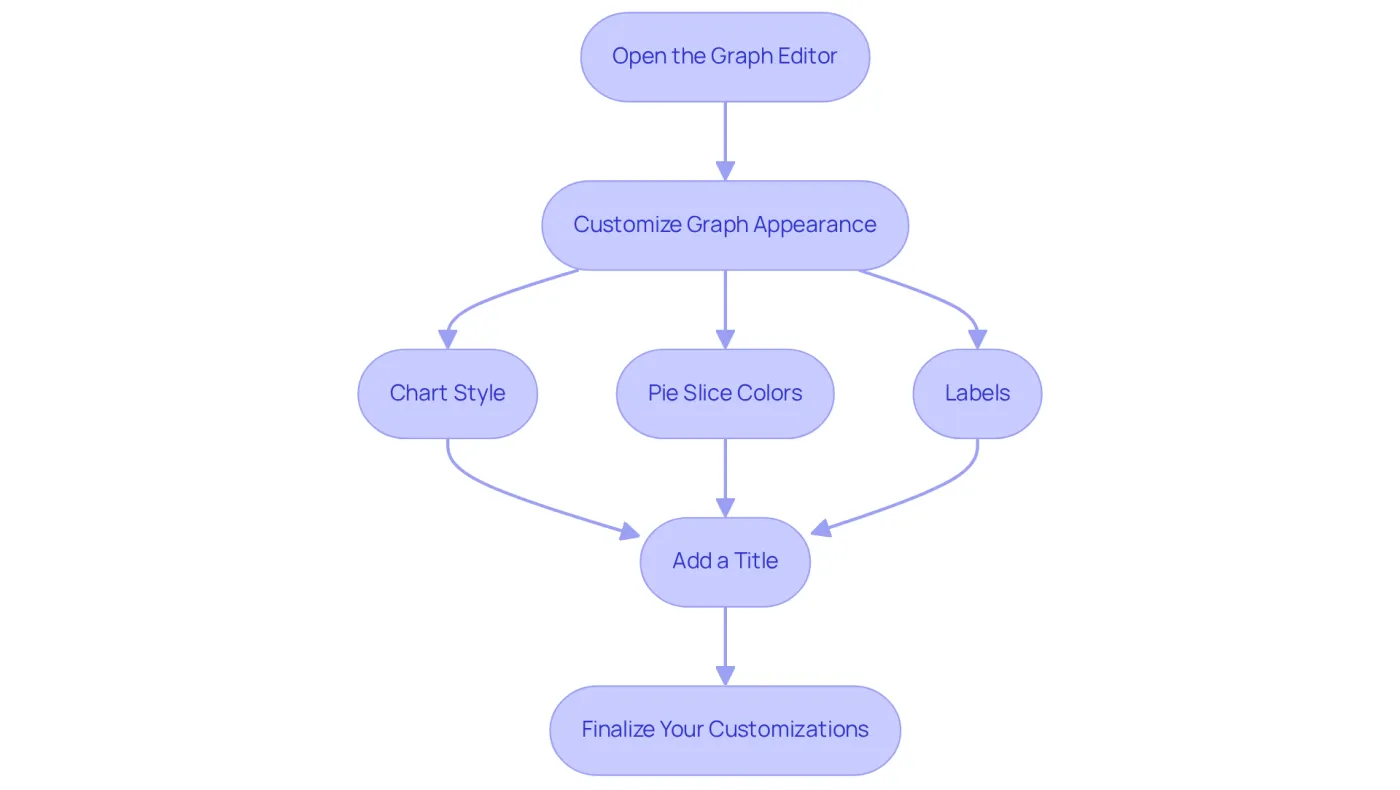
Open the Graph Editor: Begin by selecting the pie diagram. Click on the three vertical dots located in the upper right corner of the visual, then choose
Edit graph. -
Customize Graph Appearance: Within the graph editor, navigate to the
Customizetab. Here, you can modify various aspects:- Chart Style: Alter the background color or border to suit your preferences.
- Pie Slice Colors: Click on
Pie sliceto select distinct colors for each slice, enhancing visual distinction. - Labels: Under
Slice label, opt to display the category name, percentage, or both for clarity.
-
Add a Title: In the
Chart & axis titlessection, include a descriptive title for your pie graph. This title should clarify what the information represents, ensuring your audience understands the context. -
Finalize Your Customizations: Review your changes and make any additional adjustments as necessary. This step is crucial for ensuring both clarity and visual appeal.
Effective visual presentation significantly influences information comprehension, particularly in finance, where clarity is paramount. By personalizing pie graphs in Sheets, you can learn how to make a pie chart in sheets that creates captivating visuals to attract interest and enhance understanding of complex information. For example, using contrasting colors for different slices allows stakeholders to quickly grasp the proportions represented. Remember, a well-designed pie chart can transform raw data into insightful narratives, making your presentations more impactful.
Share and Export Your Pie Chart Effectively
-
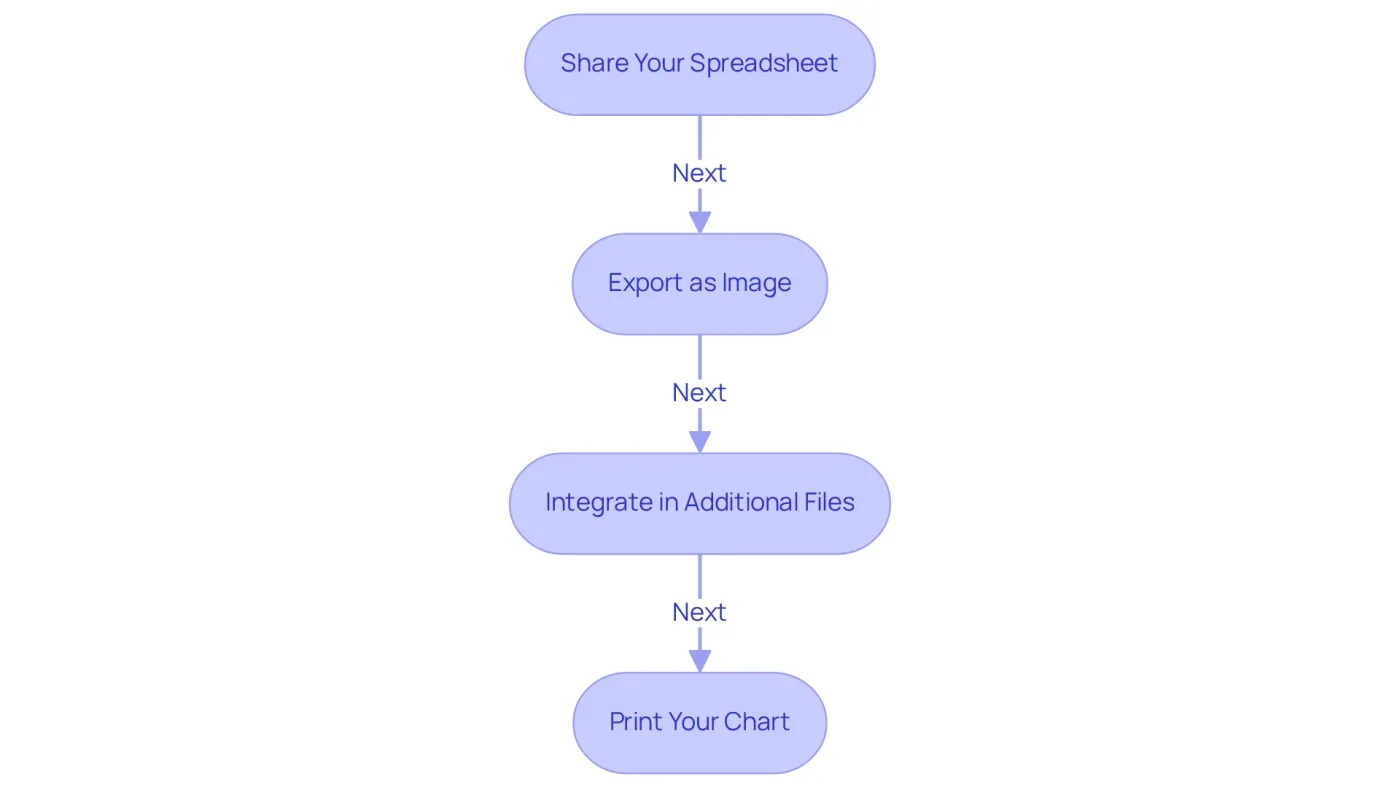
Share Your Spreadsheet: To share your entire sheet, simply click the
Sharebutton located in the upper right corner. Enter the email addresses of your collaborators and set their permissions as Viewer, Commenter, or Editor. Notably, 87% of Sheets users collaborate on shared documents weekly, averaging 4.3 collaborators per sheet. This statistic underscores the critical importance of effective sharing. -
Export as Image: To export your pie diagram as an image, click the three vertical dots in the upper right corner of the diagram and select
Download. Choose your preferred format, such as PNG, PDF, or SVG. This feature is essential, as 92% of companies utilize Sheets for commenting and feedback, and Sheets boasts a 90% rating for collaboration. Thus, representing visual information effectively is crucial. -
Integrate in Additional Files: To incorporate the graph into a Slides presentation or a Doc, simply copy the graphic (right-click and choose
Copy) and paste it into your desired document. You can link it to the original spreadsheet for automatic updates, ensuring your data remains current. This method is favored by many users for its efficiency in presentations. -
Print Your Chart: If you need a physical copy, print the chart directly from Sheets by selecting
File>Print, ensuring the chart is visible in the print preview. This straightforward process supports the 54% of remote and hybrid teams that rely on Google Sheets for project tracking and reporting.
Conclusion
Creating a pie chart in Google Sheets is a straightforward process that transforms raw data into visually engaging representations. By following the outlined steps, users can effectively prepare their data, insert a pie chart, customize its appearance, and share or export the final product. This guide empowers individuals to leverage Google Sheets for enhanced data visualization, making it easier to communicate insights and trends.
The article delves into essential aspects of pie chart creation, including:
- Data organization
- Chart insertion
- Customization
Clear labeling and color differentiation are crucial; these elements significantly contribute to a better understanding and engagement with the presented information. Furthermore, effective sharing and exporting options are vital, ensuring users can distribute their charts seamlessly across various platforms.
Ultimately, mastering the art of pie chart creation in Google Sheets not only enhances presentation skills but also fosters better data comprehension. By implementing the strategies discussed, individuals can create impactful visuals that resonate with their audience, making complex information accessible and engaging. Embrace these techniques to elevate your data storytelling and make your presentations stand out.
Frequently Asked Questions
How do I start creating a pie chart in Google Sheets?
Begin by launching Google Sheets and opening either a new or an existing spreadsheet.
How should I organize my data for a pie chart?
Organize your data into two columns: the first column should contain the categories (labels) for your pie chart, and the second column should hold the corresponding numeric values.
What is an example of how to enter data for a pie chart?
For example, you could enter "Category: A, Value: 30" in one row and "Category: B, Value: 70" in another row.
Why is it important to ensure data accuracy before creating a pie chart?
It is crucial to double-check that all values are positive numbers, as pie charts cannot depict negative values. Additionally, the categories should ideally sum up to 100% for clarity.
How do I select the data for the pie chart?
Click and drag to select both columns of information, including the headers if applicable. This selection will be used to create the pie chart.