
How to Merge Excel Spreadsheets: Essential Steps for Finance Pros
Learn essential steps on how to merge Excel spreadsheets for effective data management.

Introduction
Merging Excel spreadsheets can often feel like navigating a complex labyrinth, particularly for finance professionals who depend on precise data integration to make informed decisions. This challenge not only hampers productivity but also jeopardizes the integrity of critical financial insights derived from a well-organized dataset.
What happens when inconsistencies, duplicates, or formatting errors threaten this crucial process? By exploring essential steps and best practices for merging Excel spreadsheets, users can tackle these challenges head-on. This approach transforms a potentially daunting task into a streamlined and efficient workflow, ultimately enhancing decision-making capabilities and driving better financial outcomes.
Prepare Your Excel Workbooks for Merging
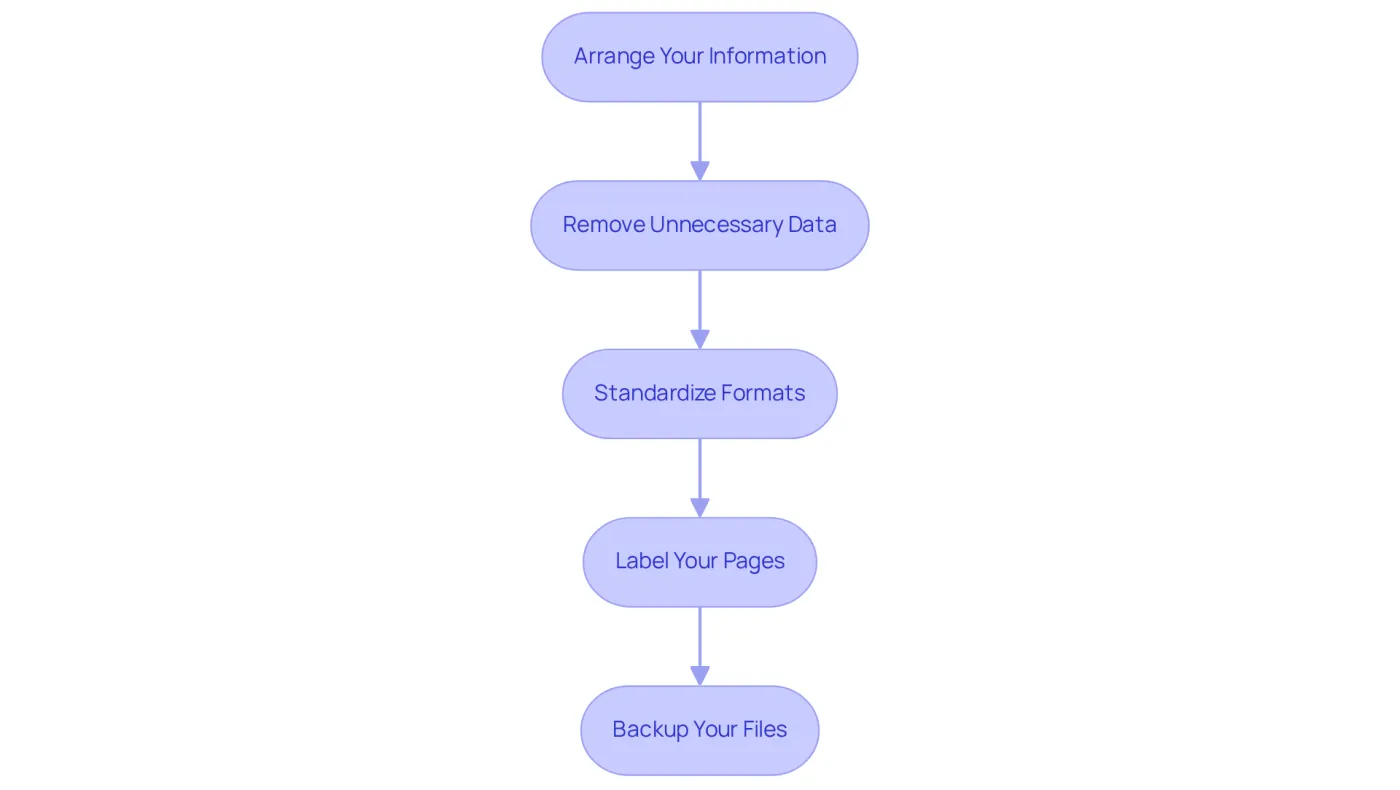
Arrange Your Information: To ensure a seamless merging process, all workbooks must maintain a consistent structure. This includes identical column headers and formats across pages. Such uniformity is essential for effective data integration, as organizations that prioritize clean, well-structured data can maximize the value of their financial insights.
Remove Unnecessary Data: It's crucial to eliminate irrelevant rows or columns that do not contribute to the final merged dataset. This practice minimizes clutter and confusion, enhancing clarity in your analysis. Additionally, be vigilant about identifying and managing duplicates, as they can lead to inaccuracies in your final dataset.
Standardize Formats: Consistency is key. Ensure that dates, numbers, and text are uniformly formatted across all documents. For instance, if one document uses 'MM/DD/YYYY' for dates, all should adhere to this format to prevent discrepancies.
Label Your Pages: Clearly identify each page with descriptive names that reflect their content. This labeling not only aids in identifying which sheets to merge but also reduces the risk of errors.
Backup Your Files: Before making any modifications, create backups of your original workbooks. This precaution protects against information loss during the combination process, ensuring that you can revert to the original information if necessary.
By following these steps, you can learn how to merge excel spreadsheets and prepare your Excel workbooks for a successful merging process. Utilize tools like Power Query or VBA for efficient information integration.
Explore Methods for Merging Excel Workbooks
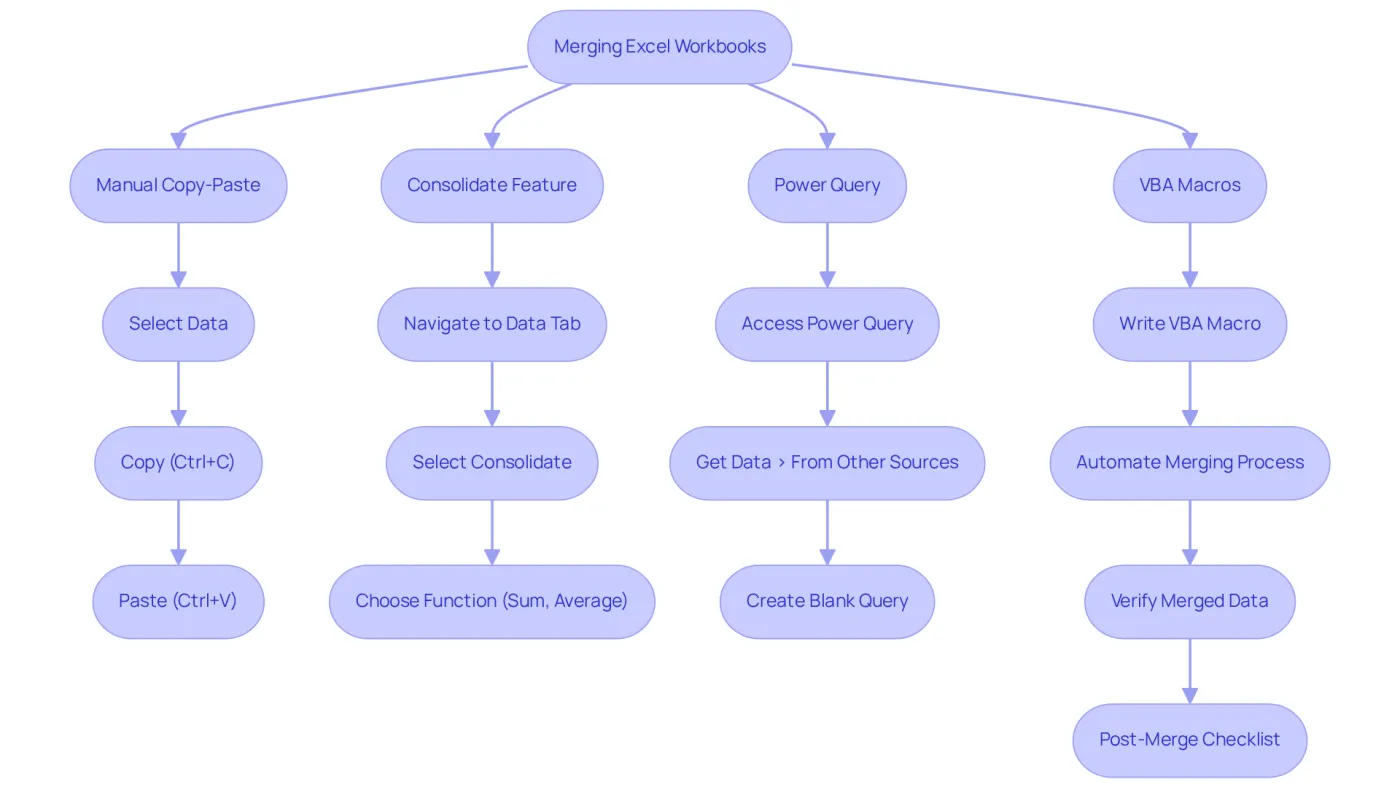
Manual Copy-Paste: This straightforward method illustrates how to merge Excel spreadsheets by selecting the information from one workbook, copying it (Ctrl+C), and pasting it (Ctrl+V) into the target workbook. Ensure that the information aligns properly in the target document to maintain precision.
Utilizing Excel's Consolidate Feature: To understand how to merge Excel spreadsheets effectively, navigate to the 'Data' tab, select 'Consolidate', and choose your desired function (e.g., Sum, Average). This feature is especially beneficial for condensing information from various documents, enabling finance experts to generate thorough reports efficiently. In fact, many analysts rely on this function to learn how to merge Excel spreadsheets that combine budgets from various departments into a cohesive company-wide budget. A significant percentage of finance professionals utilize this feature for its efficiency in data aggregation.
For a more advanced approach on how to merge Excel spreadsheets, utilize Power Query to combine multiple sheets. Access this by going to 'Data' > 'Get Data' > 'From Other Sources' > 'Blank Query'. This method is particularly effective for handling large datasets and demonstrates how to merge Excel spreadsheets by standardizing formats and streamlining the merging process. Additionally, Power Query can help standardize dates, ensuring consistency across merged data.
VBA Macros: If you frequently merge workbooks, consider writing a VBA macro to automate the process. While this requires some programming knowledge, it can significantly reduce the time spent on repetitive tasks, making it a valuable tool for finance professionals who regularly compile reports.
Various third-party tools can provide guidance on how to merge Excel spreadsheets more efficiently. Investigate and choose one that matches your specific requirements, as these tools often offer extra features that enhance efficiency and precision in information management. Tools such as RDBMerge and Ablebits can help you understand how to merge Excel spreadsheets without duplicates, utilizing features like the Remove Duplicates function or the UNIQUE() formula.
After merging, it’s crucial to verify the integrity of your information. A post-merge checklist should include:
- Verifying total row counts
- Checking for absent columns or headers
- Identifying duplicate entries
- Ensuring formatting consistency
- Confirming that all types are correctly aligned
As Michael Schaeffer pointed out, 'Combining Excel workbooks into a master file is the best option to arrange the dispersed information.' By employing these methods, you can enhance your productivity and ensure that your information is well-organized and easily accessible.
Implement Best Practices for Successful Merging
-
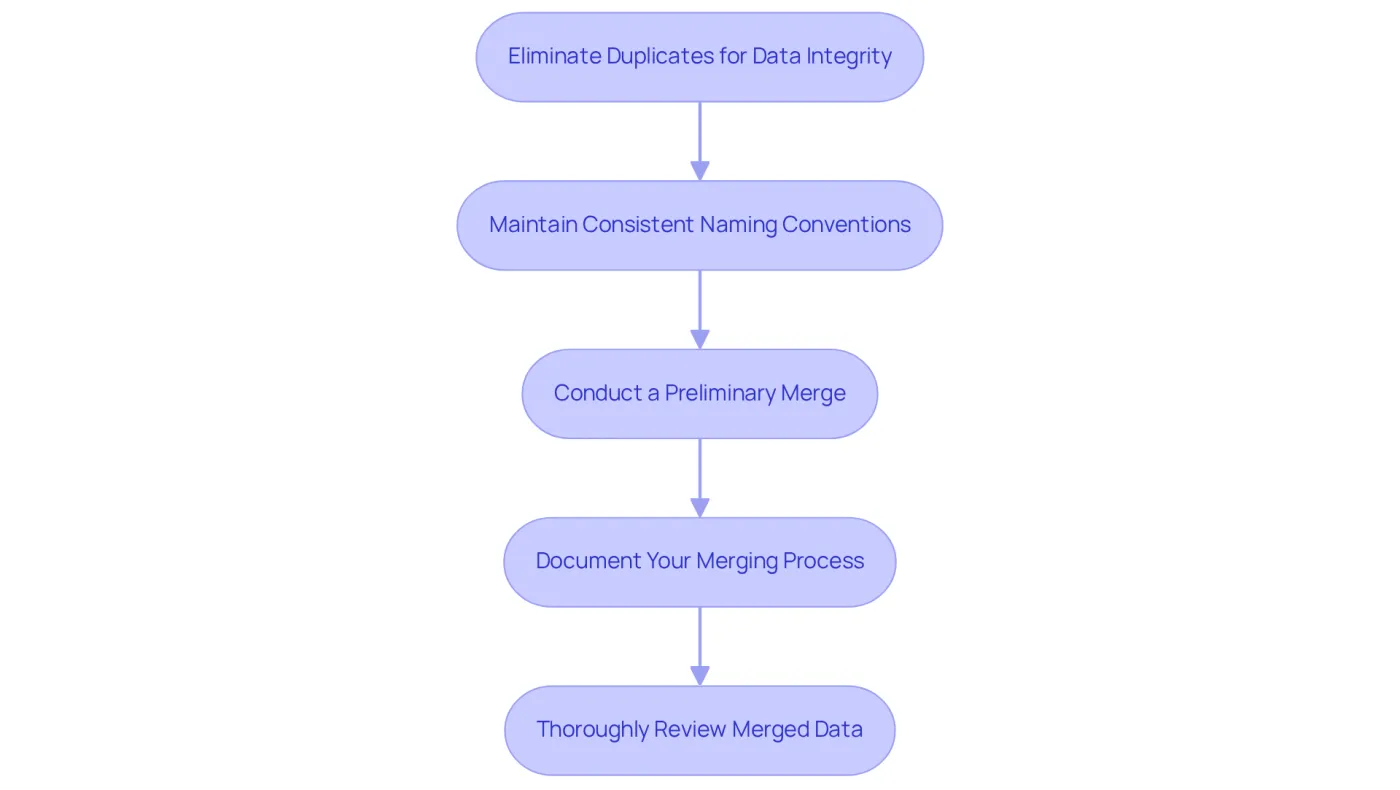
Eliminate Duplicates for Data Integrity: Identifying and removing duplicate entries is crucial before merging your collections. Repeated information can lead to inaccuracies and distorted analyses, making this step vital for reliable outcomes. Did you know that poor information quality costs organizations an average of $15 million each year? This statistic underscores the financial implications of overlooking this essential practice.
-
Maintain Consistent Naming Conventions: Consistency is key when naming similar information points across all sheets. For example, using 'Revenue_Q1' instead of variations like 'Q1 Revenue' or 'Revenue Q1' minimizes confusion when understanding how to merge excel spreadsheets. Adopting consistent naming conventions ensures seamless integration and precise interpretation of information.
-
Conduct a Preliminary Merge: Before executing a full-scale merge, test the waters with a small subset of data. This preliminary merge helps uncover potential issues early on, paving the way for a smoother integration experience, especially when considering how to merge excel spreadsheets.
-
Document your merging process by keeping a detailed record of how to merge Excel spreadsheets, as it is invaluable. This documentation not only serves as a reference for future merges but also assists colleagues in understanding how to merge excel spreadsheets, fostering a collaborative environment.
-
Thoroughly Review Merged Data: After understanding how to merge excel spreadsheets, meticulously review the combined dataset for discrepancies or errors. This final check is essential for ensuring the accuracy and reliability of your output. Even minor errors can have significant implications in financial reporting. Remember, duplicate records can lead to substantial expenses, such as the staggering $1.7 billion in yearly malpractice costs linked to patient identification mistakes in healthcare. This highlights the critical importance of preserving information integrity.
Troubleshoot Common Merging Issues
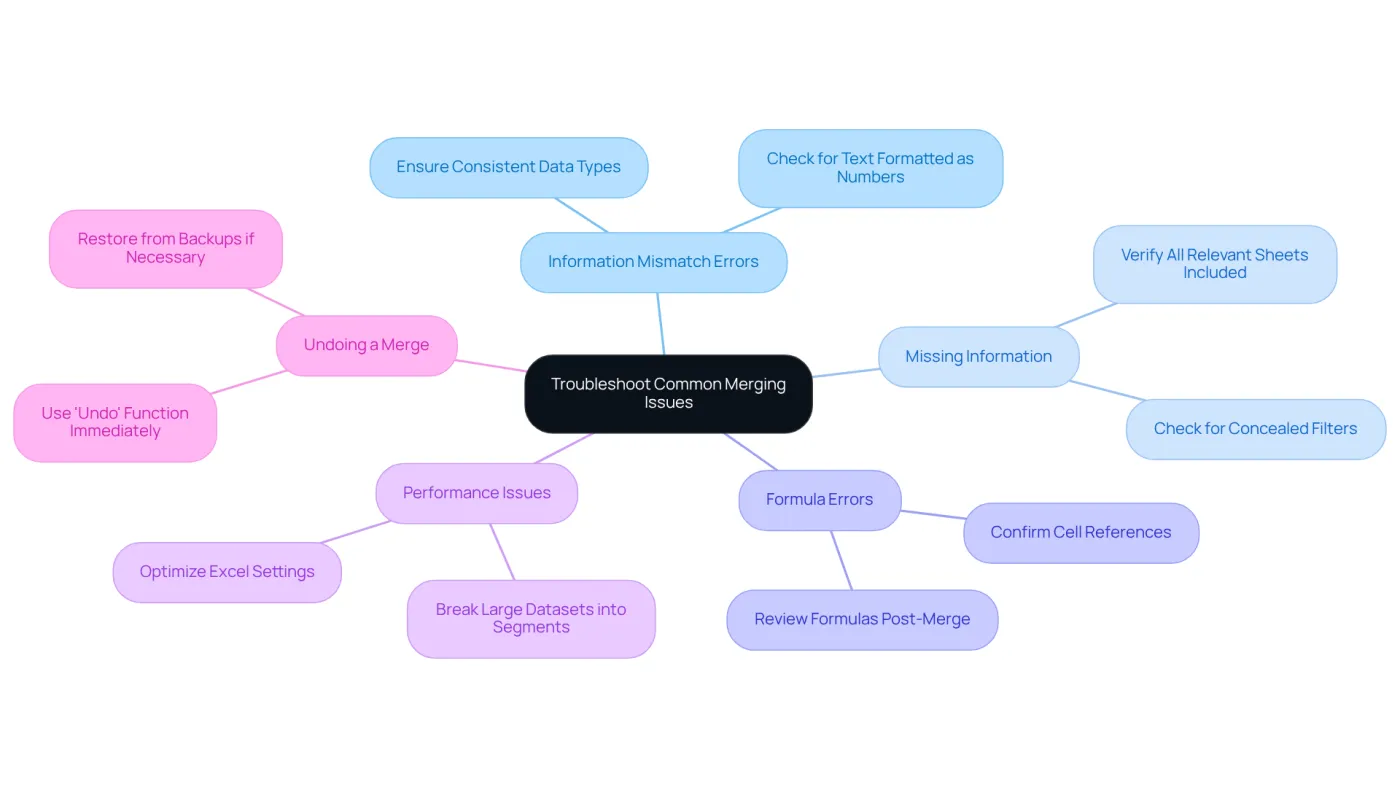
Information Mismatch Errors
When dealing with information types, consistency is key. When learning how to merge excel spreadsheets, ensure that all columns in the documents you are combining share the same information type. For example, if a page contains text formatted as numbers, it can lead to significant problems down the line.
Missing Information
If you notice that information appears to be missing after a combination, take a moment to verify that all relevant sheets were included in the process. Additionally, check for any filters that might be concealing important data.
Formula Errors
Post-merge, formulas may not function as intended. It’s crucial to review any formulas to confirm they reference the correct cells within the merged dataset. This step can save you from potential headaches later on.
Performance Issues
Working with large datasets can lead to performance slowdowns in Excel. If you experience lag, consider breaking the information into smaller segments or optimizing your Excel settings for better performance.
Undoing a Merge
Should you need to revert a merge, utilize the 'Undo' function (Ctrl+Z) immediately after the action. If too much time has elapsed, you may have to manually restore the original data from backups.
Conclusion
Merging Excel spreadsheets is an essential skill for finance professionals. It streamlines data integration and enhances the accuracy of analyses. By following the steps outlined in this guide - preparing workbooks, utilizing various merging methods, and implementing best practices - you can achieve a seamless merging process that maximizes the value of financial insights.
Key strategies include:
- Ensuring uniformity in data structures
- Employing Excel's built-in features like the Consolidate function
- Leveraging advanced tools such as Power Query and VBA macros to significantly improve your merging efficiency
- Eliminating duplicates
- Maintaining consistent naming conventions
- Conducting thorough post-merge reviews
These practices not only prevent inaccuracies but also uphold the integrity of financial reporting.
In a landscape where data quality directly influences decision-making, mastering the art of merging Excel spreadsheets is paramount. By adopting these recommended techniques and being vigilant in troubleshooting common issues, finance professionals can enhance productivity and ensure their data is organized and reliable. Embracing these strategies leads to more efficient workflows and positions individuals and organizations to make informed, data-driven decisions.
Frequently Asked Questions
What is the first step to prepare Excel workbooks for merging?
The first step is to arrange your information by ensuring that all workbooks have a consistent structure, including identical column headers and formats across pages.
Why is it important to remove unnecessary data before merging?
Removing irrelevant rows or columns minimizes clutter and confusion, enhancing clarity in your analysis. It also helps in identifying and managing duplicates, which can lead to inaccuracies in the final dataset.
How should formats be standardized across the workbooks?
Consistency in formatting is essential. Ensure that dates, numbers, and text are uniformly formatted across all documents, such as using the same date format (e.g., 'MM/DD/YYYY') in all workbooks.
What does labeling your pages involve?
Labeling your pages involves clearly identifying each page with descriptive names that reflect their content, which aids in recognizing which sheets to merge and reduces the risk of errors.
Why is it necessary to backup your files before merging?
Creating backups of your original workbooks protects against information loss during the merging process, allowing you to revert to the original information if necessary.
What tools can be utilized for efficient information integration when merging Excel workbooks?
Tools like Power Query or VBA can be utilized for efficient information integration during the merging process.