
How to Merge Multiple Excel Sheets into One: A Step-by-Step Guide
Learn how to merge multiple Excel sheets into one for efficient data management and analysis.

Introduction
Merging multiple Excel sheets into one cohesive document is not just a useful skill; it’s a crucial competency in today’s data-driven landscape. Efficiency and accuracy in this process can significantly influence business outcomes. This guide will clarify the merging process and underscore the practical benefits of consolidating information - from reducing redundancy to enhancing data integrity. Yet, with various methods available and common pitfalls to navigate, how can users ensure a seamless merging experience that maximizes their data's potential? Let's explore the solutions that can transform your data management practices.
Understand the Basics of Merging Excel Sheets
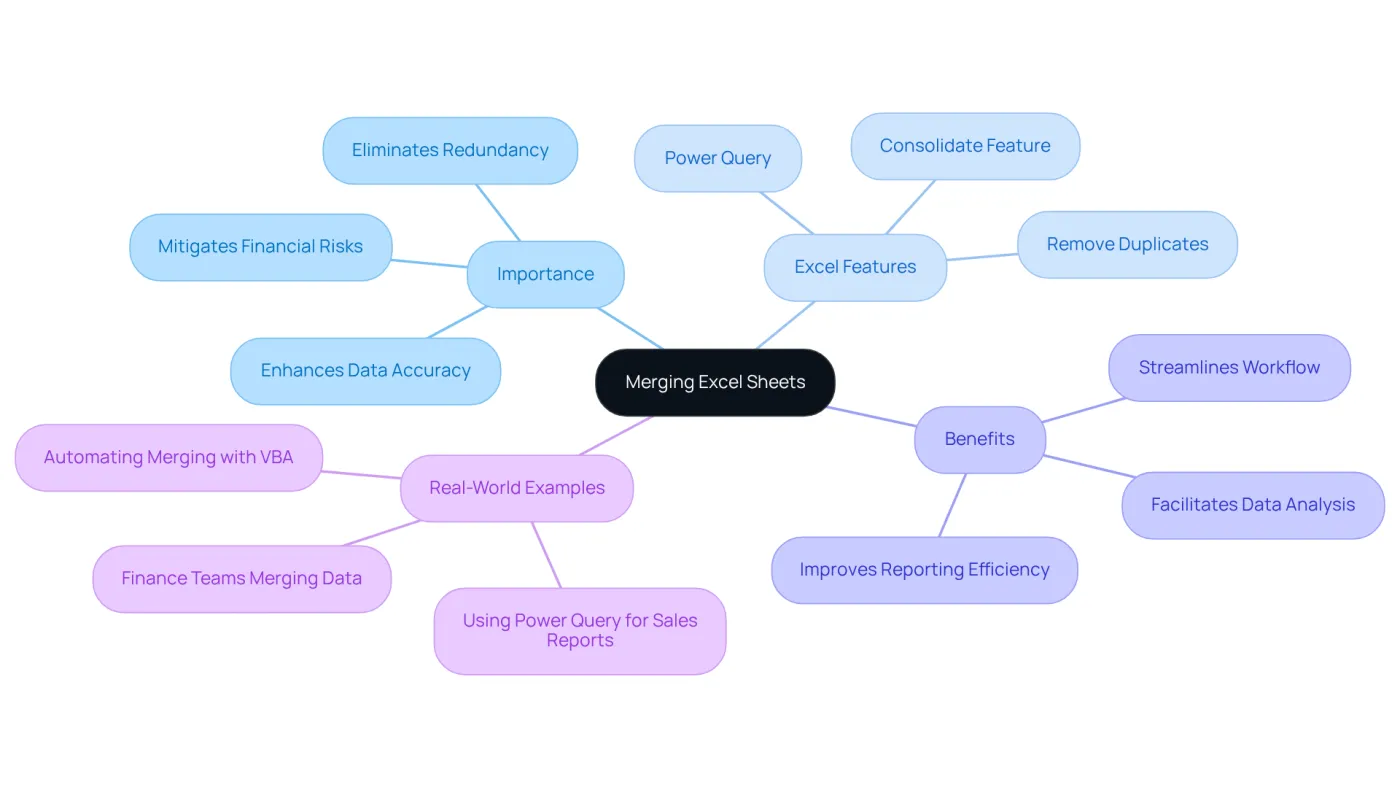
Merging Excel sheets is a crucial process that demonstrates how to merge multiple Excel sheets into one cohesive sheet. This practice is vital for effective information analysis, reporting, and maintaining organized records. By consolidating information, users can eliminate redundancy, enhance data accuracy, and streamline their workflow. Did you know that a typical small to medium-sized business experiences an invoice duplication rate of 1.29%? This can lead to potential financial losses exceeding $12,000. Therefore, understanding how to merge multiple Excel sheets into one not only boosts efficiency but also mitigates the risk of costly mistakes.
Familiarity with Excel's powerful functionalities, such as the Consolidate feature and Power Query, significantly enhances the merging process. Power Query, in particular, allows users to append information from various sources seamlessly, saving steps for easy updates. This makes it a favored tool among finance professionals. Understanding the structure of your information and ensuring consistency across sheets is essential for understanding how to merge multiple Excel sheets into one. Regular quality evaluations are crucial for preserving the accuracy of combined information, ensuring adherence to industry standards.
Analysts have observed that effective consolidation can transform raw information into actionable insights, underscoring the importance of this skill in today’s information-driven environment. Real-world examples illustrate the advantages of combining information in Excel. For instance, finance teams often merge monthly data from sales, marketing, and operations into a master file to assess overall company performance. This not only simplifies reporting but also provides a comprehensive view of business metrics. By leveraging Excel's capabilities, including the Remove Duplicates feature, professionals can ensure that their analyses are both accurate and insightful, ultimately leading to better decision-making. As Peter Sondergaard aptly stated, "Information is like oil; it only becomes valuable when properly mined and analyzed.
Prepare Your Excel Files for Merging
To understand how to merge multiple excel sheets into one effectively, it’s essential to ensure that all files are organized and formatted consistently. Here’s how to prepare your files for a seamless merging process:
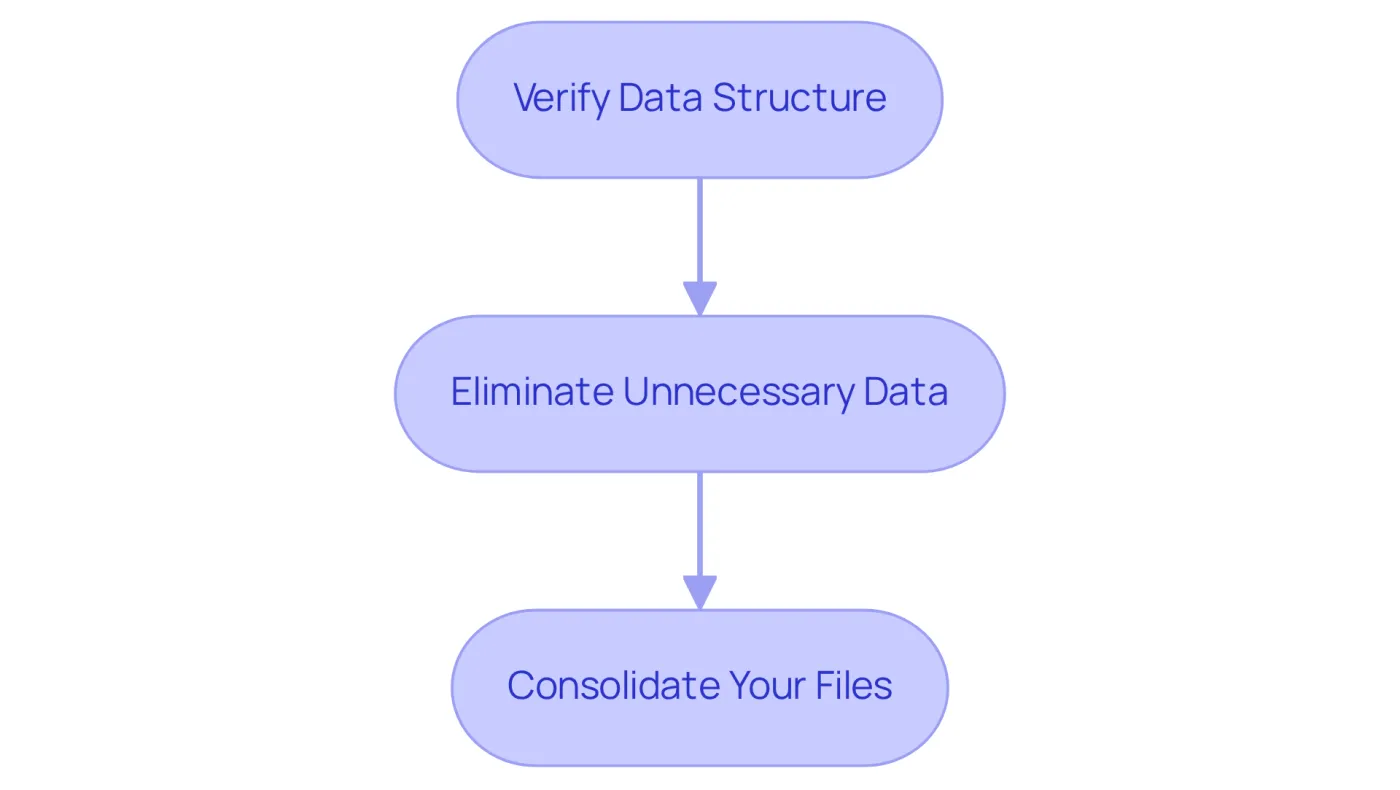
- Verify Data Structure: Confirm that all tabs share identical column headers and data types. This uniformity is crucial for a smooth merging process, as discrepancies can lead to errors and complications.
- Eliminate Unnecessary Data: Remove any irrelevant rows or columns that do not contribute to the final merged sheet. Keeping your information tidy enhances clarity and reduces the chance of misunderstandings during the merge.
- Consolidate Your Files: Store all Excel files in one folder for easy access during the combining process. This organization streamlines your workflow and minimizes the potential for errors and oversight.
By adhering to these best practices, you can ensure a more efficient and effective experience in learning how to merge multiple excel sheets into one, ultimately enhancing your information management capabilities.
Explore Methods for Merging Excel Sheets
Merging Excel sheets can be a daunting task, but several methods exist, each with its own advantages:
-
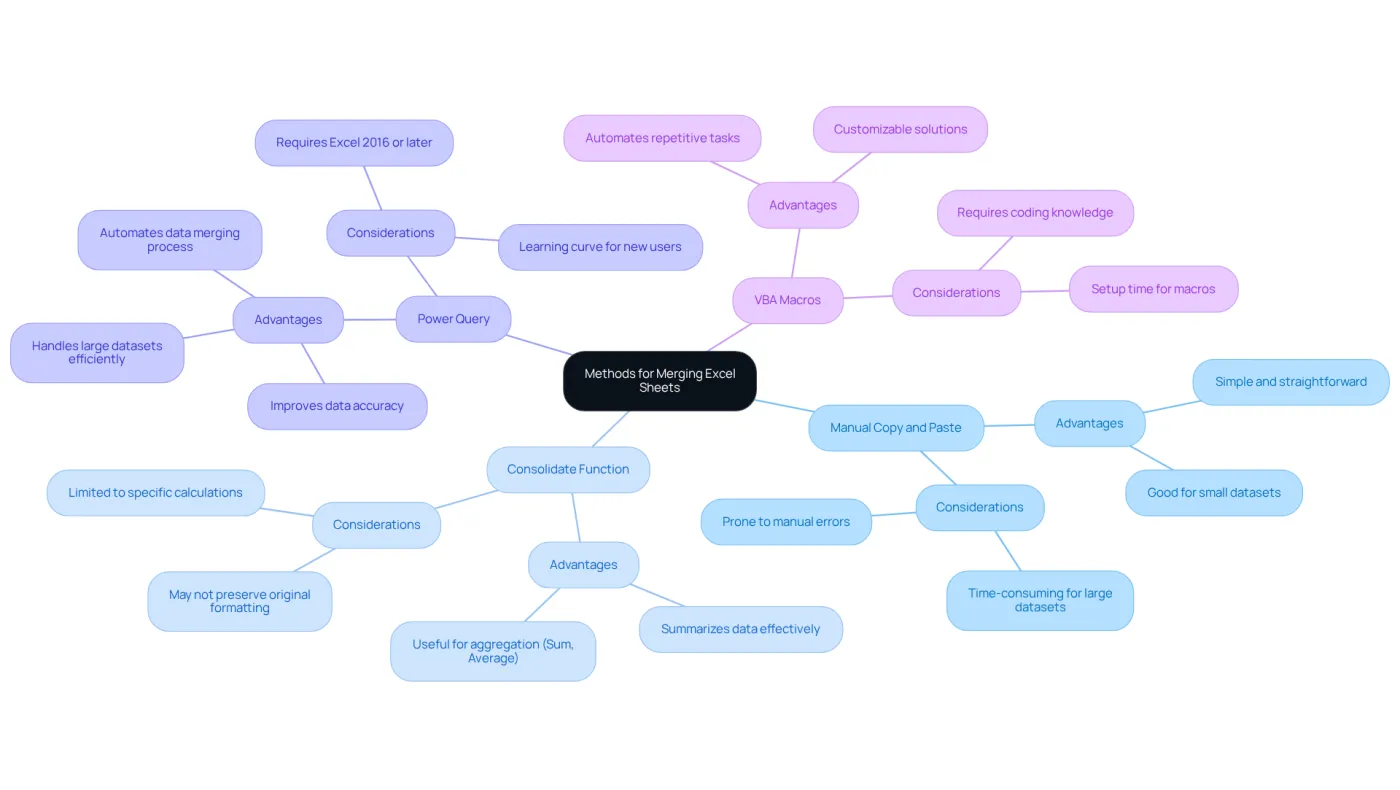
Manual Copy and Paste: This straightforward approach involves opening the source documents, selecting the necessary information, and using CTRL + C to copy and CTRL + V to paste it into the target document. While this method is simple, it can quickly become tedious and time-consuming when handling large datasets.
-
Utilizing the Consolidate Function: Found under the Data tab, the Consolidate function allows users to summarize information from various tabs by selecting a calculation like Sum or Average. This technique is particularly effective for consolidating data, although it may not preserve the original formatting of the documents.
-
Power Query: For those using Excel 2016 or later, Power Query emerges as a powerful solution for combining tables. By loading your sheets into Power Query and using the Append feature, you can understand how to merge multiple excel sheets into one efficiently. This method excels in managing large datasets and simplifies the process of refreshing information, making it ideal for finance professionals who often navigate extensive details. Real-world applications, such as the USA Properties Fund, illustrate that effective information consolidation through Power Query can lead to significant improvements in budget precision, achieving a remarkable 50% increase in financial reporting accuracy. This enhancement was realized by standardizing data formats and leveraging Power Query's automation features to streamline integration.
-
VBA Macros: For experienced users, VBA macros offer a way to automate the merging process, particularly beneficial for repetitive tasks across multiple files. This method allows for customized combination solutions, saving time and reducing manual errors.
In evaluating these techniques, Power Query stands out not only for simplifying how to merge multiple excel sheets into one but also for enhancing information integrity and precision. Analysts have noted that using Power Query significantly reduces the likelihood of errors compared to manual methods, making it a preferred choice for effective information management. However, users should remain vigilant about potential challenges, such as managing files with differing column names or erroneous formats, which can complicate the integration process. By adopting these techniques and practicing careful information management, finance professionals can streamline their workflows and ensure accurate analysis.
Troubleshoot Common Merging Issues
When merging Excel sheets, users often encounter several common challenges that can significantly hinder the process:
-
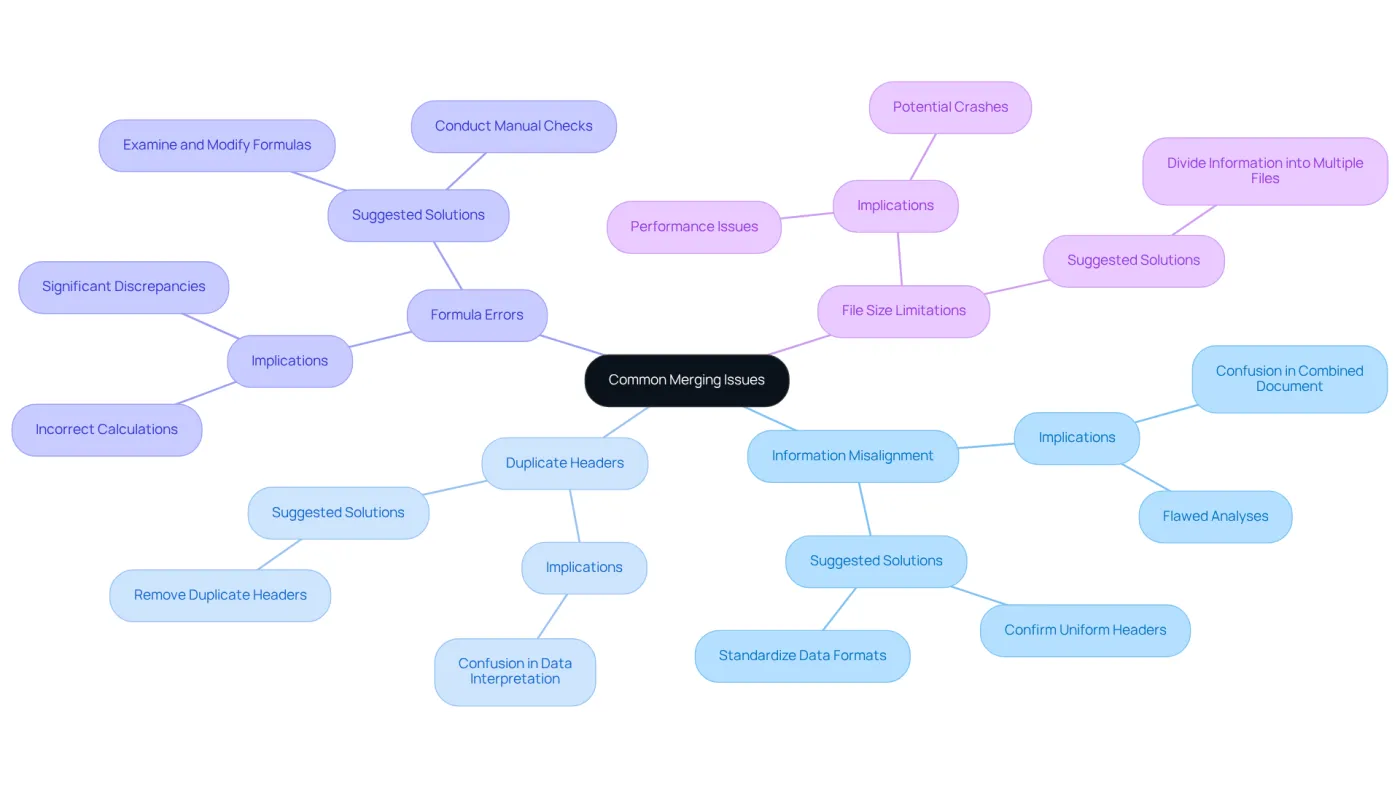
Information Misalignment: One of the most prevalent issues is information misalignment. This occurs when headers differ or information is placed in different columns, leading to confusion in the combined document and flawed analyses. Research indicates that nearly 30% of users face data misalignment during merges. This statistic underscores the importance of confirming that all documents have uniform headers and data formats before proceeding.
-
Duplicate Headers: If your documents contain identical headers, managing these duplicates is crucial to avoid confusion in the combined document. Removing duplicate headers prior to merging can streamline the process and enhance clarity.
-
Formula Errors: Merging sheets that contain formulas can lead to errors if those formulas reference incorrect cells after the merge. It’s essential to examine and modify formulas to reflect the updated information structure, ensuring that calculations remain precise. Data analysts stress that manual checks are vital, as undocumented modifications can result in significant discrepancies in results.
-
File Size Limitations: Excel has a row limit of over 1 million rows, which can pose a significant constraint when combining large datasets. If merging leads to exceeding this limit, consider dividing the information into several documents or files to maintain performance and accessibility.
To effectively address data misalignment, start by examining how to merge multiple Excel sheets into one to ensure compatibility in both documents. Utilize Excel’s Remove Duplicates feature to eliminate any duplicate entries and ensure consistent formatting across all sheets. Additionally, employing tools like Power Query can help you understand how to merge multiple Excel sheets into one, automating the merging process, reducing the likelihood of errors, and enhancing efficiency. As noted by industry experts, proactively addressing these common issues can lead to smoother merges and more reliable data outcomes.
Conclusion
Merging multiple Excel sheets into one is not just a technical task; it’s a strategic process that significantly enhances data management and decision-making. By consolidating information, users can improve accuracy, reduce redundancy, and streamline workflows, ultimately leading to more informed business decisions.
This guide has explored key strategies for merging Excel sheets, emphasizing the importance of preparing files and utilizing various methods such as Power Query and VBA macros. Troubleshooting common issues is also crucial. Best practices, like maintaining consistent data structures and eliminating unnecessary data, ensure a smooth merging experience. The insights shared illustrate how effective information consolidation can transform raw data into actionable insights, which is vital in today’s data-centric landscape.
Given the outlined benefits, it’s essential for professionals to embrace these merging techniques and tools to enhance their analytical capabilities. By investing time in mastering the merging process, individuals can avoid costly errors and empower their organizations with better data-driven strategies. Take action today by applying these best practices to your Excel sheets, and witness the transformation in your data management and analysis efforts.
Frequently Asked Questions
Why is merging Excel sheets important?
Merging Excel sheets is important for effective information analysis, reporting, and maintaining organized records. It helps eliminate redundancy, enhance data accuracy, and streamline workflow.
What are the potential financial implications of invoice duplication in businesses?
A typical small to medium-sized business experiences an invoice duplication rate of 1.29%, which can lead to potential financial losses exceeding $12,000.
What tools in Excel can assist with merging sheets?
Key tools for merging sheets in Excel include the Consolidate feature and Power Query, which allows users to append information from various sources seamlessly.
How does Power Query enhance the merging process?
Power Query enhances the merging process by saving steps for easy updates and allowing users to seamlessly combine information from various sources.
What is essential for successfully merging multiple Excel sheets?
It is essential to understand the structure of your information and ensure consistency across sheets for successful merging.
Why are regular quality evaluations important when merging data?
Regular quality evaluations are crucial for preserving the accuracy of combined information and ensuring adherence to industry standards.
How can effective consolidation of data in Excel benefit businesses?
Effective consolidation can transform raw information into actionable insights, simplifying reporting and providing a comprehensive view of business metrics.
Can you provide an example of how businesses use merged data in Excel?
Finance teams often merge monthly data from sales, marketing, and operations into a master file to assess overall company performance, simplifying reporting and analysis.
What feature in Excel helps ensure accurate analyses when merging data?
The Remove Duplicates feature in Excel helps ensure that analyses are accurate by eliminating duplicate entries in the data.