

Introduction
Merging two Excel files is a vital skill for finance professionals who routinely manage diverse datasets. This process streamlines data analysis and significantly enhances the accuracy of financial reporting, which is crucial for informed decision-making. However, the challenge lies in ensuring data integrity and compatibility between files. Even minor discrepancies can lead to substantial errors.
How can finance experts effectively navigate the complexities of merging spreadsheets? By mastering this skill, they can ensure seamless integration and reliable outcomes, ultimately empowering their decision-making processes.
Understand the Basics of Merging Excel Files
Finance professionals who frequently analyze diverse datasets together often need to learn how to merge two Excel files, as combining Excel documents is a critical task. This process entails merging data from multiple spreadsheets into a single file, and grasping essential concepts is vital for success:
-
Data Integrity: Ensuring accuracy and consistency across all files is crucial. Errors in combined data can lead to flawed analyses and poor decision-making. Notably, 18% of accountants report daily errors, highlighting the necessity for meticulous attention to detail during integration. As Geoffrey Moore aptly states, "information is absolutely crucial to making smart business decisions," reinforcing the significance of information integrity in this context.
-
Common Columns: Identifying a shared column, or key, present in both documents is essential for effective merging. This could be an ID number, name, or any unique identifier. Vikas Singh notes, 'The best choice to arrange the dispersed data is to understand how to merge two excel files into a master document.' Furthermore, tools like Power Query can streamline this process, and as Singh also mentions, 'Power Query is one of the best ways to understand how to merge two Excel files automatically.'
-
File Formats: Pay attention to the file formats you are working with (e.g., .xlsx, .csv), as this can significantly impact the combining process. Ensuring compatibility between formats can prevent complications during information integration.
To guarantee information accuracy when merging spreadsheets, finance professionals should adopt best practices such as double-checking headers, utilizing spreadsheet tables, and employing the Remove Duplicates feature to avoid redundancy. Additionally, testing the merged dataset by verifying sums, record counts, or key metrics ensures that values align as expected.
Real-world instances of information integrity issues often arise when combining spreadsheets, such as mismatched column headers or inconsistent formats, which can lead to significant errors. By organizing information effectively-ensuring uniform column headings and formats, checking for duplicates, and leveraging Excel's built-in functions-users can sidestep common pitfalls and simplify the integration process. This proactive approach not only enhances the quality of the merged data but also supports more accurate financial analysis. Moreover, with 81% of finance experts indicating heightened workload pressures from economic instability as a significant challenge, the importance of effective integration practices is more crucial than ever.

Gather Necessary Tools and Resources
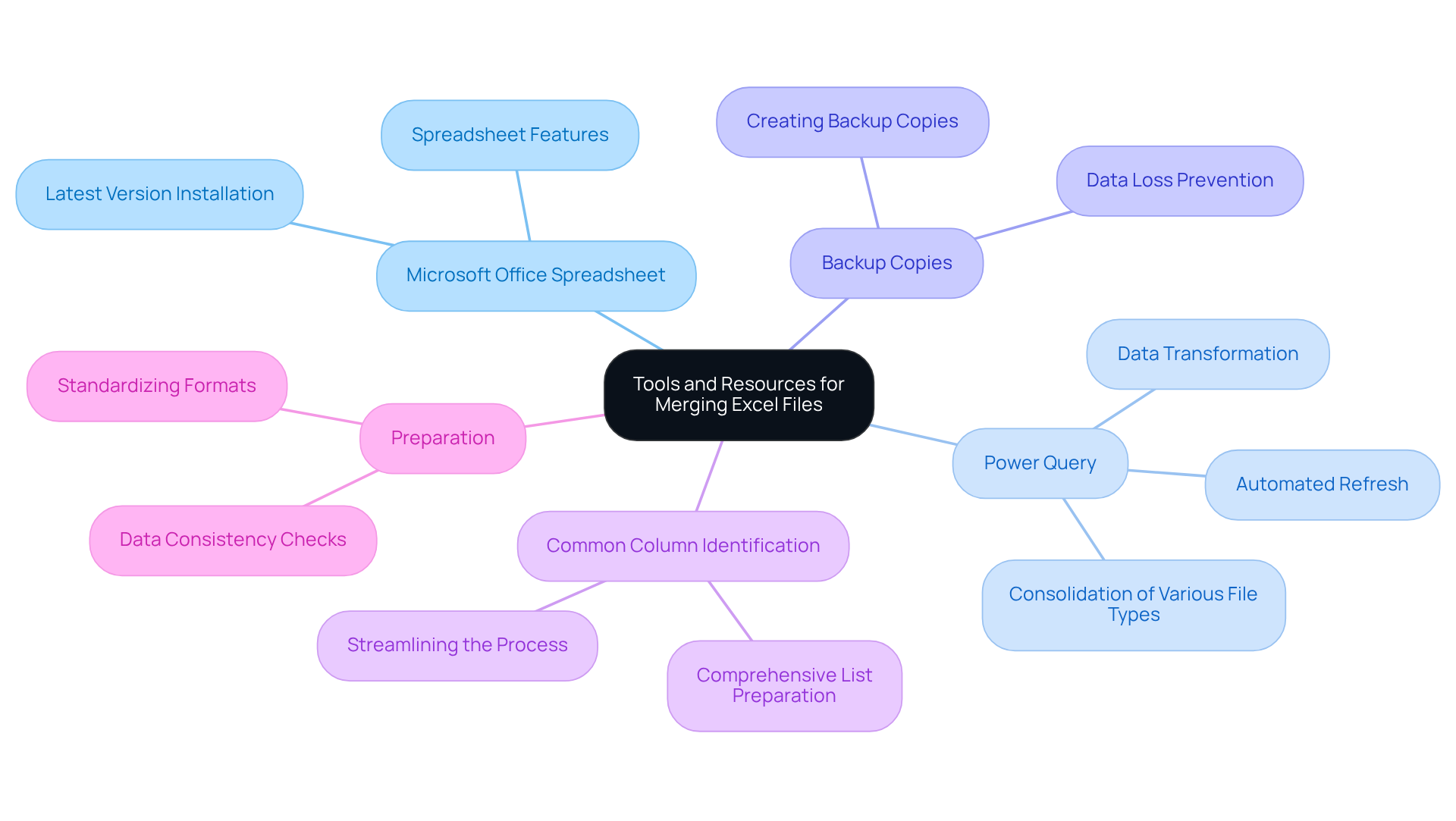
Microsoft Office Spreadsheet: This is your primary tool for combining documents effectively. Ensure you have the latest version installed to maximize functionality.
Power Query is a robust tool within Excel that provides an efficient way to understand how to merge two Excel files, especially for large datasets. Take the time to familiarize yourself with its interface and capabilities to leverage its full potential.
Backup Copies: Always prioritize creating backup copies of your original files. This precaution is essential to prevent data loss during the combining process.
Common Column Identification: Prepare a comprehensive list of common columns that will be utilized for combining. This preparation will streamline the process and significantly reduce the likelihood of errors.
Having these tools ready will facilitate a smoother experience when understanding how to merge two Excel files.
Execute the Merge Using a Common Column
To merge two Excel files using a common column, follow these essential steps:
- Access Both Documents: Begin by opening the two spreadsheet documents you wish to combine.
- Identify the Common Column: Determine the column that exists in both files and contains corresponding information, such as Employee ID or Product Code.
- Use Power Query:
- Navigate to the Data tab in Excel.
- Click on Get Data > Combine Queries > Merge.
- Select the first table, then the second table.
- Choose the common column from both tables to merge on.
- Select Merge Type: Choose the type of join you want to apply. Common options include:
- Inner Join: Returns only the rows with matching values in both tables.
- Left Join: Returns all rows from the first table and the matched rows from the second table, filling in with nulls where there are no matches.
- Right Join: Returns all rows from the second table and the matched rows from the first table.
- Full Outer Join: Returns all rows when there is a match in either table.
- Load the Merged Information: After completing the merge, load the information into a new worksheet for further analysis.
By following these steps, you will understand how to merge two Excel files effectively, allowing you to consolidate information from multiple sources into a single, cohesive dataset that streamlines your analysis and reporting processes. Utilizing Power Query minimizes human error by employing a consistent process every time, making it a reliable choice for finance professionals. As David Szmidla observes, "Microsoft Power Query (also referred to as Get & Transform Information) enables you to import and consolidate information from multiple Excel files in a repeatable, automated manner." This capability is particularly beneficial when dealing with large datasets, as the Data Model can handle millions of rows, improving performance and efficiency.

Troubleshoot Common Merging Issues
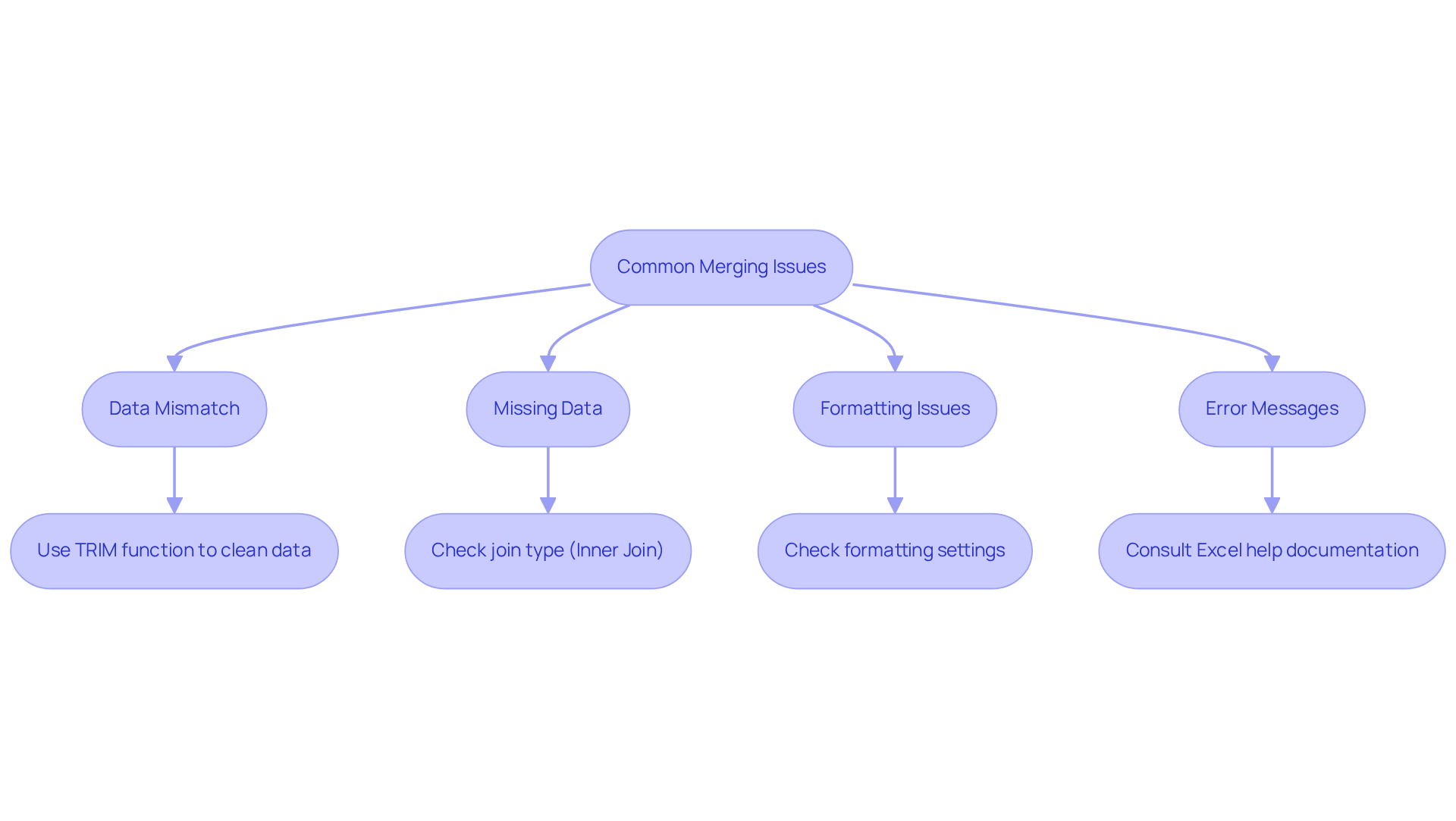
Even with meticulous preparation, challenges can arise when figuring out how to merge two excel files. Here are some prevalent issues and their solutions:
- Data Mismatch: When common column data fails to align, it’s crucial to eliminate any leading or trailing spaces in the cells. Utilizing the TRIM function can effectively clean the information, ensuring consistency.
- Missing Data: If certain rows are absent post-merge, verify the type of join selected. An Inner Join will only show rows with corresponding information in both documents, possibly excluding others.
- Formatting Issues: If the combined information seems improperly formatted, check the formatting settings in the spreadsheet application. Consistency in data types (e.g., text, number) across both documents is essential for accurate representation.
- Error Messages: Encountering error messages during the merge process can be frustrating. Consulting Excel's help documentation or relevant online forums can provide specific troubleshooting steps tailored to the encountered issues.
In collaborative environments, interruptions may lead to merge conflicts. In such cases, an unmerged copy of the file is automatically saved for up to seven days. This copy, named in the format 'Date Time - BookName.xlsx', can be accessed on Windows at %localappdata%/Microsoft/Excel/TemporaryBackupFile and on Mac at ~/Library/Containers/com.microsoft.Excel/Data/Library/Application Support/Microsoft/TemporaryBackupFile. Users can manually compare and merge changes if necessary. Be aware that a blank pane may appear during a merge conflict, indicating missing changes. Users also have the option to discard their changes if needed. By proactively addressing these issues, you can ensure that important updates are not lost and also learn how to merge two excel files to keep your data accurate and reliable.
Conclusion
Merging two Excel files is a crucial skill for finance professionals looking to enhance their data analysis processes. Understanding the importance of data integrity, identifying common columns, and utilizing the right tools allows individuals to consolidate information from multiple spreadsheets into a single, cohesive dataset. This practice not only boosts the accuracy of financial reports but also empowers informed decision-making.
Key strategies are essential for effective merging:
- Utilizing Power Query for efficient merging
- Ensuring file compatibility
- Troubleshooting common issues
Meticulous preparation and attention to detail are paramount in avoiding errors and achieving successful data integration.
As the demands on finance professionals continue to grow, mastering the art of merging Excel files can significantly reduce workload pressures and enhance overall efficiency. By adopting these best practices and leveraging available tools, finance experts can elevate their analytical capabilities, ensuring their data remains accurate and reliable. Investing time in refining merging skills will lead to improved outcomes in financial analysis and reporting.
Frequently Asked Questions
Why is merging Excel files important for finance professionals?
Merging Excel files is crucial for finance professionals as it allows them to analyze diverse datasets together, ensuring accurate and consistent data for better decision-making.
What is data integrity and why is it significant in merging Excel files?
Data integrity refers to the accuracy and consistency of data across all files. It is significant because errors in combined data can lead to flawed analyses and poor decision-making, highlighting the need for meticulous attention during integration.
What should be considered when identifying common columns for merging?
When merging Excel files, it is essential to identify a shared column, or key, present in both documents, such as an ID number or name, which serves as the basis for effective merging.
How can Power Query assist in merging Excel files?
Power Query can streamline the process of merging Excel files by automating the integration, making it one of the best tools for understanding how to merge two Excel files efficiently.
What file formats should be considered when merging Excel files?
It is important to pay attention to file formats such as .xlsx and .csv, as compatibility between formats can significantly impact the merging process and prevent complications.
What best practices should finance professionals follow to ensure accurate merging of spreadsheets?
Best practices include double-checking headers, utilizing spreadsheet tables, employing the Remove Duplicates feature, and testing the merged dataset by verifying sums, record counts, or key metrics.
What common issues can arise during the merging process?
Common issues include mismatched column headers, inconsistent formats, and duplicates, which can lead to significant errors if not addressed.
How can effective organization of information improve the merging process?
Organizing information effectively by ensuring uniform column headings and formats, checking for duplicates, and leveraging Excel's built-in functions can help sidestep common pitfalls and enhance the quality of the merged data.
Why is effective integration of data more crucial now for finance professionals?
Effective integration practices are increasingly important due to heightened workload pressures from economic instability, as indicated by 81% of finance experts, making accurate financial analysis essential.