

Overview
To recover deleted Excel files, finance professionals must first assess the type of deletion—whether it was unintentional, due to file corruption, or due to unsaved changes. This assessment is crucial in selecting the appropriate recovery method. The article outlines various recovery techniques, including Excel's built-in features like the Recycle Bin and AutoRecover. Additionally, it discusses third-party tools and preventative measures. By understanding these options, users can effectively restore their files and safeguard against future data loss.
Introduction
Recovering deleted Excel files can often feel like navigating a labyrinth of confusion, particularly for finance professionals who depend on data accuracy and availability. Understanding the nuances of file deletion—ranging from unintentional removals to file corruption—can significantly influence the restoration process. This guide outlines effective recovery methods utilizing Excel's built-in features and explores third-party tools alongside preventative measures to protect against future data loss.
What proactive steps can be implemented to ensure that critical financial information is never truly lost?
Assess the Situation: Identify the Type of Deletion
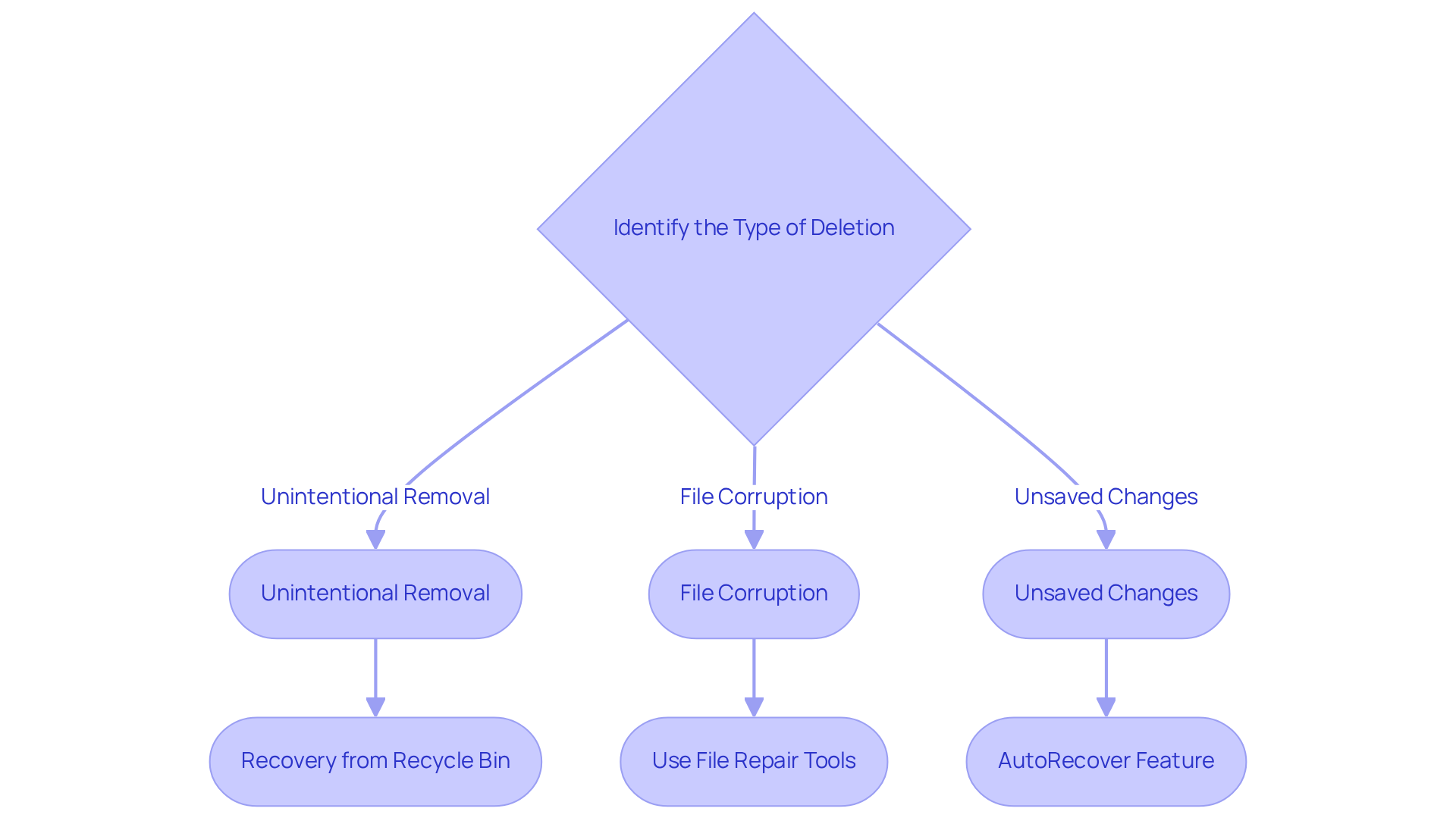
Before attempting to understand how to recover deleted excel files, it is essential to assess the situation. Identifying the type of deletion is the first step in this process:
- Unintentional Removal: If you have removed the document from your system or transferred it to the Recycle Bin, recovery is typically straightforward.
- File Corruption: Should the file fail to open or display errors, it may be corrupted rather than deleted. In this case, the restoration techniques will differ.
- Unsaved Changes: If you closed the application without saving your work, there is still a possibility to recover unsaved changes via the AutoRecover feature.
By accurately determining how to recover deleted excel files, you can choose the most effective restoration method in the following steps.
Utilize Built-in Recovery Features in Excel
Excel provides several built-in recovery features that guide you on how to recover deleted Excel files efficiently.
- Recover from Recycle Bin: If you have removed the document, it is advisable to check the Recycle Bin. Simply right-click the document and select 'Restore' to recover it.
- AutoRecover: In the event of an Excel crash or if you close a document without saving, reopen Excel and look for the Document Recovery pane. You can then choose the document to restore any unsaved changes.
- Previous Versions: To recover previous versions of the document, right-click the document in File Explorer, select 'Properties', and navigate to the 'Previous Versions' tab.
- Excel Options: To ensure future protection, go to 'File' > 'Options' > 'Save' and confirm that AutoRecover is enabled. You may also adjust the AutoRecover time interval to save more frequently.
By effectively utilizing these built-in features, you can often learn how to recover deleted Excel files without needing additional software.

Explore Third-Party Recovery Tools and Preventative Measures
When built-in recovery methods fail to deliver results, it is crucial to explore third-party recovery tools that can effectively assist you:
- Data Recovery Software: Utilize tools like Recuva, EaseUS Data Recovery Wizard, or Disk Drill to retrieve deleted documents from your hard drive. Adhere to the software instructions for scanning and recovering your files.
- Cloud Backup Services: If you are using cloud platforms such as OneDrive or Google Drive, verify whether your document is backed up. These services often feature version history, allowing you to restore earlier versions of your documents with ease.
- Preventative Measures: To mitigate future data loss, consistently back up your documents using cloud storage or external drives. Activate AutoSave features in Excel and consider implementing version control for critical documents.
By investigating these options, you significantly enhance your chances of understanding how to recover deleted excel files and safeguarding your data against potential future incidents.

Conclusion
Understanding how to recover deleted Excel files is essential for finance professionals who depend on these documents for their daily operations. By adhering to the outlined steps, individuals can adeptly navigate various deletion scenarios, ensuring that valuable data is not permanently lost.
The article underscores the significance of assessing the type of deletion, utilizing Excel's built-in recovery features, and exploring third-party tools when necessary. Key strategies include:
- Checking the Recycle Bin
- Leveraging the AutoRecover feature
- Utilizing cloud backup services
Moreover, implementing preventative measures such as regular backups and enabling AutoSave can significantly mitigate the risk of future data loss.
Ultimately, mastering these recovery techniques not only safeguards essential information but also enhances overall productivity. By being proactive and informed, finance professionals can effectively reduce the impact of accidental deletions and uphold the integrity of their work. Embracing these practices is crucial for anyone aiming to ensure the reliability and security of their Excel files.
Frequently Asked Questions
What is the first step in recovering deleted Excel files?
The first step is to assess the situation and identify the type of deletion.
What should I do if I accidentally removed a document from my system?
If you have removed the document or transferred it to the Recycle Bin, recovery is typically straightforward.
How can I tell if my Excel file is corrupted?
If the file fails to open or displays errors, it may be corrupted rather than deleted.
What can I do if I closed Excel without saving my work?
If you closed the application without saving, you may still recover unsaved changes using the AutoRecover feature.
Why is it important to determine the type of deletion before attempting recovery?
Accurately determining the type of deletion helps you choose the most effective restoration method.