
How to Resize Cells in Google Sheets: A Step-by-Step Guide
Learn how to resize cells in Google Sheets for better clarity and organization in your spreadsheets.

Introduction
Resizing cells in Google Sheets is more than just a visual concern; it is essential for enhancing the clarity and functionality of your spreadsheets. For professionals transitioning from Excel, mastering this skill is vital. It can significantly ease the adaptation process, allowing for a seamless workflow that retains familiar layouts. Yet, many users encounter challenges when adjusting cell dimensions, which can lead to frustration and inefficiency.
So, what are the most effective methods to ensure that your data is presented clearly and effectively? By understanding the best practices for resizing cells, you can avoid common pitfalls and enhance your spreadsheet experience.
Understand the Importance of Resizing Cells in Google Sheets
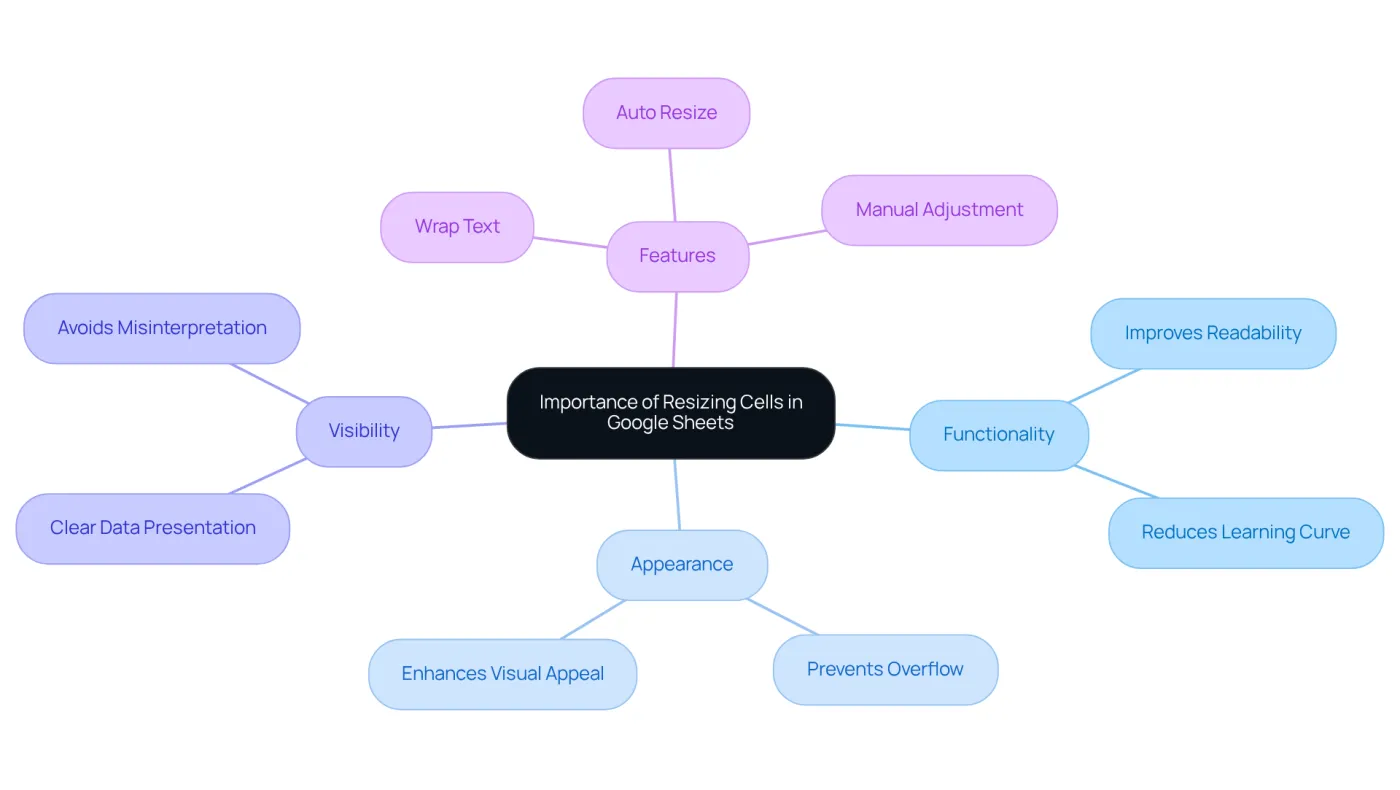
It is essential to resize cells in Google Sheets to enhance both functionality and appearance in your spreadsheets. Properly sized units significantly improve information visibility, making it easier to read and analyze critical details. For finance professionals transitioning from Excel, mastering how to resize cells in Google Sheets can replicate the familiar layout they are accustomed to, effectively reducing the learning curve associated with this platform.
Well-proportioned units not only prevent overflow and misinterpretation but also contribute to a visually appealing display of information. Case studies demonstrate that effective dimension management leads to clearer data presentation, which is vital for accurate financial reporting. By ensuring that all relevant information is visible, professionals can avoid misunderstandings and boost their overall productivity.
Consider the 'Wrap Text' feature, for instance. This tool allows lengthy entries to fit neatly within a designated space without expanding the column width, maintaining a clean and organized appearance. Ultimately, understanding the significance of how to resize cells in Google Sheets is a fundamental skill that empowers users to create more effective and visually appealing spreadsheets.
Explore Methods to Adjust Column Width and Row Height
Mastering Cell Resizing in Google Sheets
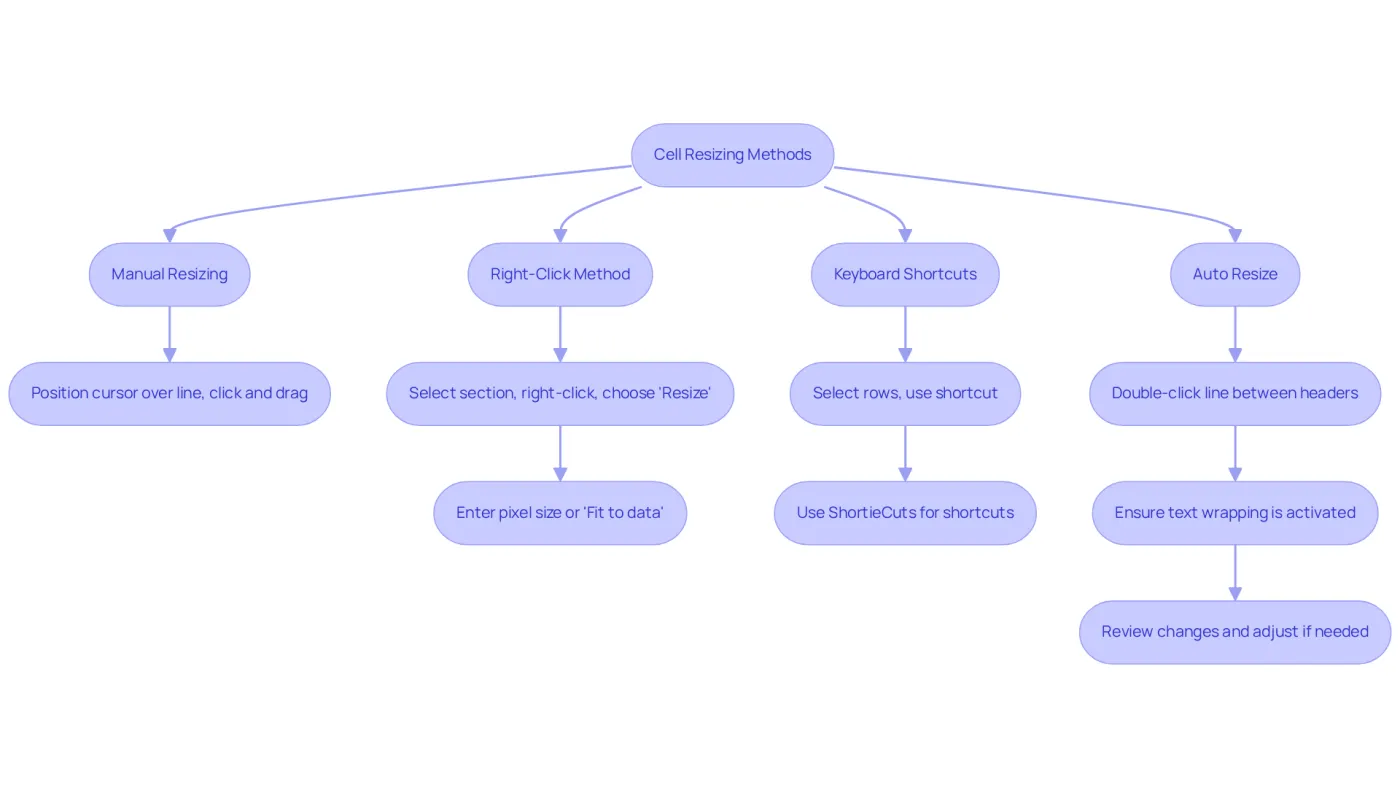
Resizing cells in Google Sheets can be a challenge, but with the right methods, you can enhance your spreadsheet's clarity and organization. Here are several effective techniques tailored to meet your needs:
- Manual Resizing: Position your cursor over the line between two header sections or row numbers until it transforms into a double arrow. Click and drag to adjust the size to your preference.
- Right-Click Method: Select the section(s) or row(s) you wish to resize, right-click, and choose 'Resize section' or 'Resize row'. Enter a specific pixel size or opt for 'Fit to data' to automatically adjust based on the content.
- Keyboard Shortcuts: For quick adjustments, select the desired rows or sections and utilize keyboard shortcuts, such as
Ctrl + Alt + Shift + Hfor height adjustments. The ShortieCuts extension enhances this process by providing access to 233 Excel ALT shortcuts, streamlining column width adjustments and integrating familiar Excel functionalities into your workflow. - Auto Resize: To automatically adjust the size based on the content, simply double-click the line between the headers. This method saves time and improves clarity, ensuring all information is visible without manual adjustments.
These techniques not only enhance the clarity and organization of your spreadsheets but also allow you to easily resize cells in Google Sheets, aligning with familiar practices from Excel and making the transition smoother for finance professionals. Additionally, ensure that text wrapping is activated under 'Format' > 'Text wrapping' to prevent text overflow, which can lead to misunderstandings of essential information. Be mindful of potential issues, such as headers not adjusting or content overflow, and adapt your approach accordingly.
Mastering these resizing methods, especially with the help of ShortieCuts, can significantly improve your data analysis and communication of critical information. Take action now to ensure your data remains private and secure while enhancing your spreadsheet skills.
Follow Step-by-Step Instructions to Resize Cells
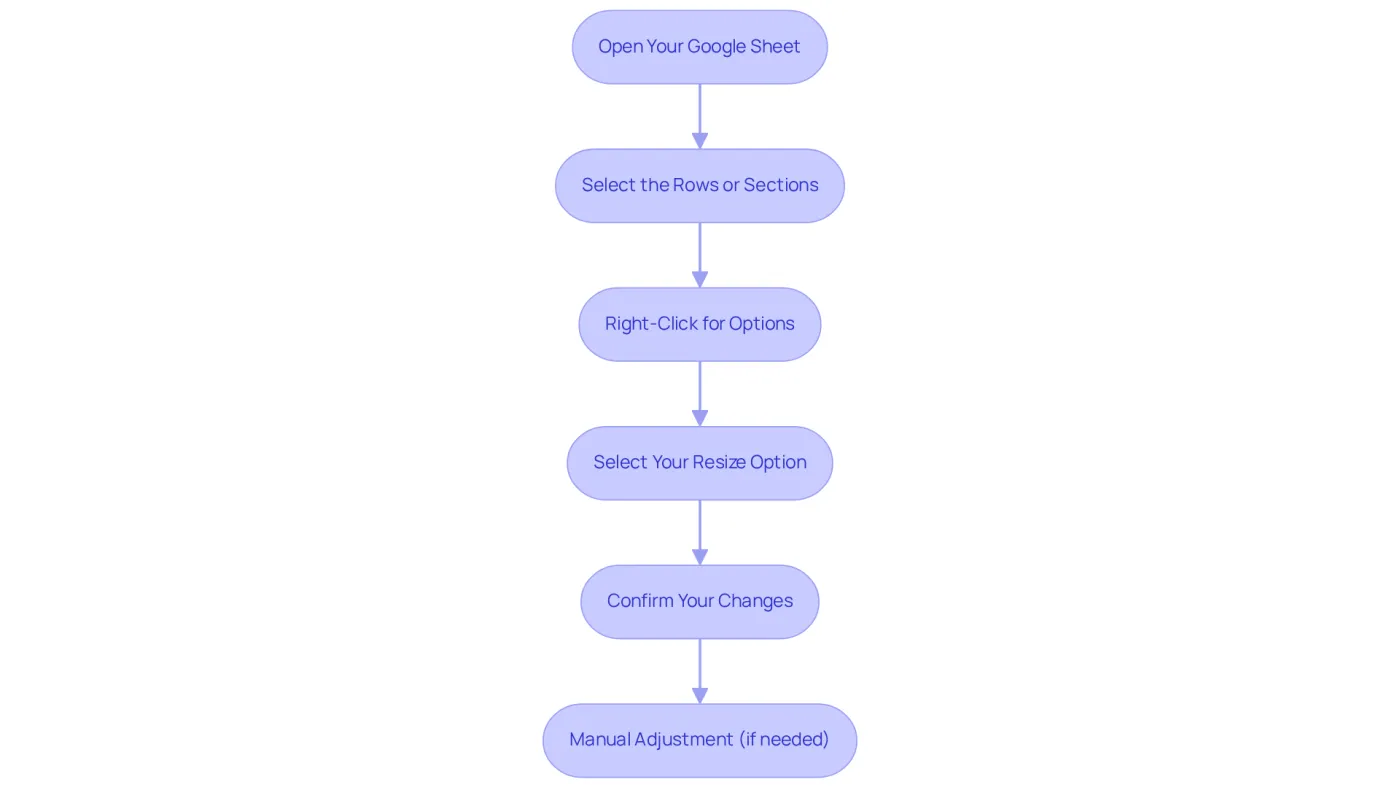
To resize cells in Google Sheets effectively, follow these steps:
- Open Your Google Sheet: Launch Google Sheets and access the document you wish to edit.
- Select the Rows or Sections: Click on the letter(s) for sections or the number(s) for rows you want to resize. For multiple selections, click and drag across the desired rows or sections.
- Right-Click for Options: Right-click on the highlighted area and select 'Resize column' or 'Resize row'.
- Select Your Resize Option: In the dialog box, you can either enter a specific size in pixels or choose 'Fit to content' to automatically adjust the size based on the material. This feature ensures all text is visible, preventing misinterpretation of data.
- Confirm Your Changes: Click 'OK' to apply your adjustments. Your units will now reflect the new dimensions.
- Manual Adjustment (if needed): Alternatively, you can manually resize by dragging the borders between the headers. This approach enables rapid modifications and is perfect for fine-tuning dimensions.
Adjusting row heights and column widths significantly improves visibility and organization. Ensuring that all content is displayed clearly minimizes whitespace and enhances the overall aesthetics of your spreadsheet. As productivity specialists note, effective management of cell dimensions is crucial for maintaining a well-structured spreadsheet. By following these steps, you can create visually appealing and organized layouts that allow you to resize cells in Google Sheets, enhancing readability and facilitating improved analysis.
Moreover, with ShortieCuts, you can employ 233 Excel ALT shortcuts to simplify these adjustment actions. This ensures a smooth transition from Excel to Google Sheets while preserving local data privacy. Why not take advantage of these tools to elevate your spreadsheet management?
Troubleshoot Common Issues When Resizing Cells
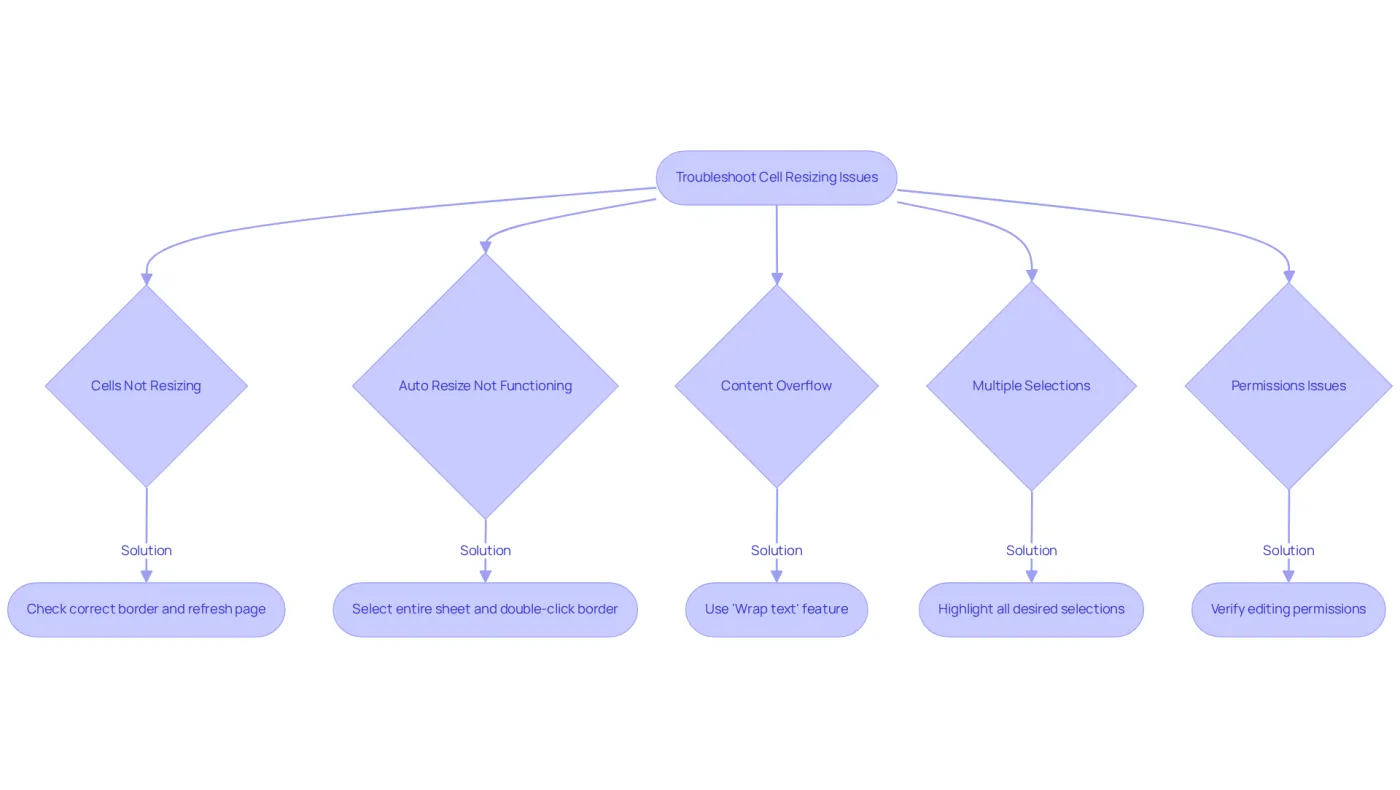
While resizing cells in Google Sheets can be a straightforward process, users often encounter common challenges that can hinder their efficiency.
- Cells Not Resizing: If dragging the borders doesn’t work, double-check that you’re clicking on the correct border. Refreshing the page can often resolve temporary glitches that may impede your adjustments.
- Auto Resize Not Functioning: If the auto-resize feature fails to adjust the size as expected, select the entire sheet using Ctrl + A. Then, double-click the border between any two columns or rows to trigger the adjustment.
- Content Overflow: When text continues to overflow after resizing, utilize the 'Wrap text' feature found in the Format menu. This allows text to fit within the cell without extending beyond its borders, enhancing readability.
- Multiple Selections: When adjusting several columns or rows, ensure all desired selections are highlighted. Omitting any choices may lead to inconsistent adjustments across your spreadsheet.
- Permissions Issues: If you’re unable to adjust the size, verify your editing permissions for the document. If you lack access, request permission from the document owner to enable resizing capabilities.
By mastering these troubleshooting techniques, you can effectively manage your spreadsheets and learn how to resize cells in Google Sheets, ensuring clear data presentation and improved productivity. Adjusting column widths not only enhances visibility but also minimizes errors, making it an essential skill for finance professionals.
Conclusion
Resizing cells in Google Sheets is not just a cosmetic adjustment; it’s a vital skill that significantly enhances the functionality and readability of your spreadsheets. Properly sized cells improve data visibility and organization, allowing you to present information clearly and effectively. This expertise is especially beneficial for finance professionals transitioning from Excel, as it helps replicate familiar layouts while easing the learning curve associated with Google Sheets.
In this article, we’ve explored various techniques for resizing cells, including:
- Manual adjustments
- Right-click options
- Keyboard shortcuts
- Auto-resizing features
Each method equips you with the tools necessary to create visually appealing and well-structured spreadsheets. Moreover, troubleshooting common issues ensures a seamless experience, empowering you to overcome any obstacles that may arise during the resizing process.
Ultimately, mastering the ability to resize cells effectively in Google Sheets is essential for anyone aiming to enhance their data presentation and analysis skills. By embracing these techniques and recognizing their significance, you can boost productivity and accuracy in your work. Investing time in mastering cell resizing not only elevates your individual spreadsheets but also fosters more efficient communication of critical information across various professional fields.
Frequently Asked Questions
Why is resizing cells in Google Sheets important?
Resizing cells in Google Sheets enhances functionality and appearance, improves information visibility, and makes it easier to read and analyze critical details.
How does resizing cells benefit finance professionals transitioning from Excel?
Mastering cell resizing in Google Sheets helps finance professionals replicate the familiar layout from Excel, reducing the learning curve associated with the new platform.
What are the consequences of improperly sized cells?
Improperly sized cells can lead to overflow, misinterpretation of data, and a less visually appealing display, which can hinder accurate financial reporting.
What feature can help manage lengthy entries in Google Sheets?
The 'Wrap Text' feature allows lengthy entries to fit within a designated space without expanding the column width, maintaining a clean and organized appearance.
How does effective dimension management impact data presentation?
Effective dimension management leads to clearer data presentation, which is vital for accurate financial reporting and helps avoid misunderstandings, ultimately boosting productivity.