

Introduction
Mastering the art of spreadsheet management hinges on one crucial yet often overlooked aspect: column width. In Google Sheets, adjusting column dimensions not only enhances visibility but also significantly boosts data readability. This transformation turns chaotic information into organized insights.
This guide delves into practical techniques for setting column width, offering users the opportunity to optimize their spreadsheets for clarity and efficiency. However, what happens when common column width issues arise, threatening to derail productivity? Exploring these challenges reveals essential troubleshooting strategies that can restore order to any spreadsheet.
Understand Column Width in Google Sheets
Maximize Visibility and Readability in Google Sheets
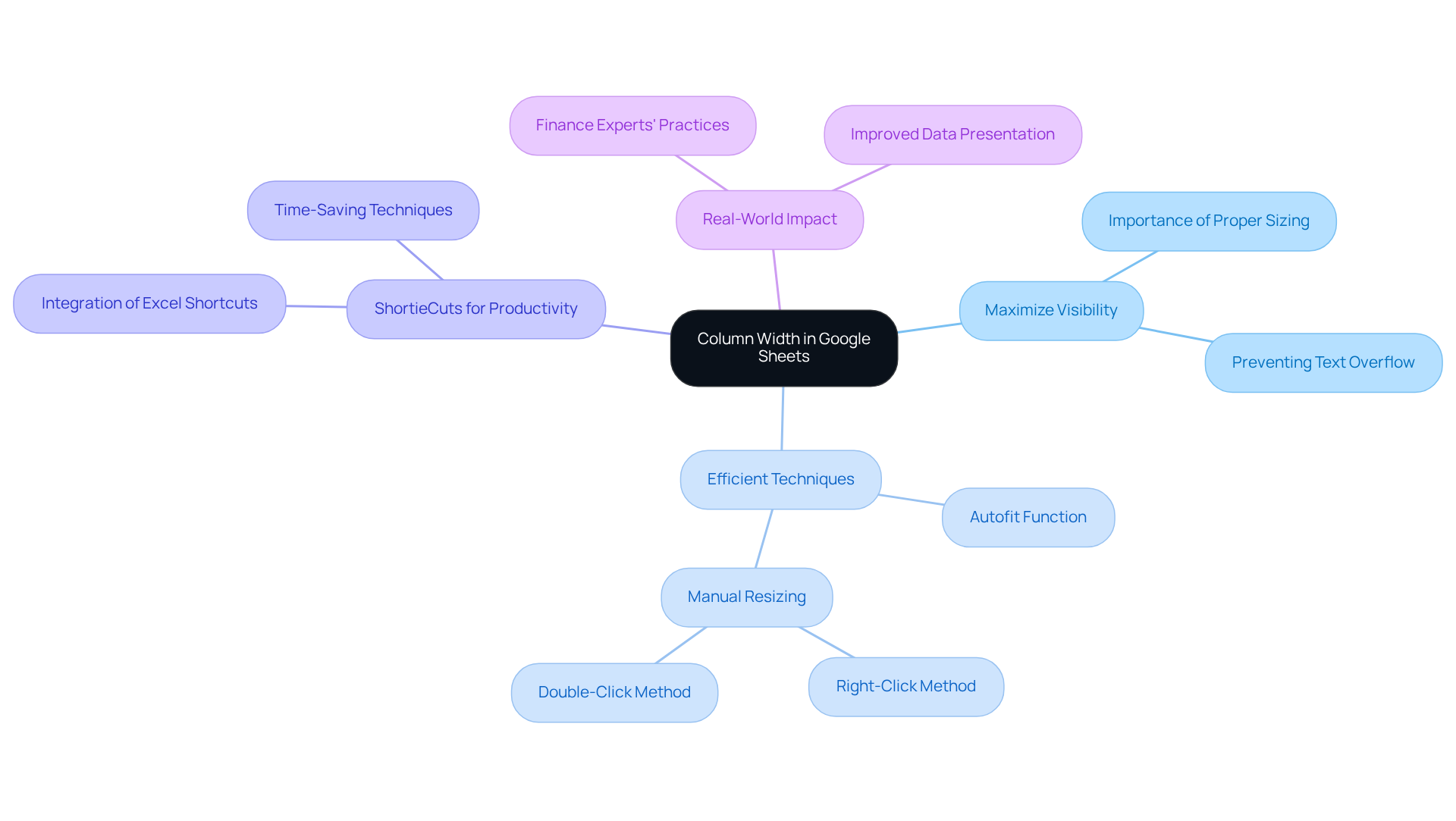
The size of sections in Google Sheets plays a crucial role in determining the horizontal area assigned for each part, significantly impacting visibility and readability. By correctly modifying these dimensions, users can understand how to set column width in Google Sheets to ensure that all information is clearly visible, eliminating the need for excessive scrolling or managing overlapping text. This adjustment is particularly essential for users transitioning from Excel, who may be accustomed to specific spacing that enhances their information presentation. Productivity specialists emphasize that appropriately sized sections can greatly improve data analysis efficiency, preventing misinterpretation of critical information and enhancing overall understanding.
Efficient Techniques for Modifying Section Sizes
To modify the size of sections efficiently, users can employ various techniques. The autofit function automatically adjusts the widths to accommodate the longest entry, ensuring that all content is displayed without manual modifications. For those seeking precise control, this is how to set column width in Google Sheets: users can manually set widths by selecting the header, right-clicking, and entering specific pixel dimensions. This flexibility allows for tailored adjustments based on the nature of the data and the intended audience.
Enhance Productivity with ShortieCuts
With the ShortieCuts extension, users can seamlessly integrate over 300 Excel ALT shortcuts into their Sheets experience, significantly enhancing productivity and making adjustments even more efficient. Simply hit "ALT" (or Option on Mac) to access key-tips that guide you through the process, ensuring a smooth transition from Excel to Google Sheets.
Real-World Impact of Effective Adjustments
Real-world examples illustrate the benefits of effective column size adjustments. For instance, finance experts frequently modify dimensions to ensure complete names or descriptions are visible, thus avoiding misinterpretation of essential information. By mastering these techniques and utilizing ShortieCuts, users can transform their spreadsheets from cluttered information dumps into organized, readable reports. This transformation ultimately enhances productivity and the clarity of analyses.
Explore Methods to Set Column Width
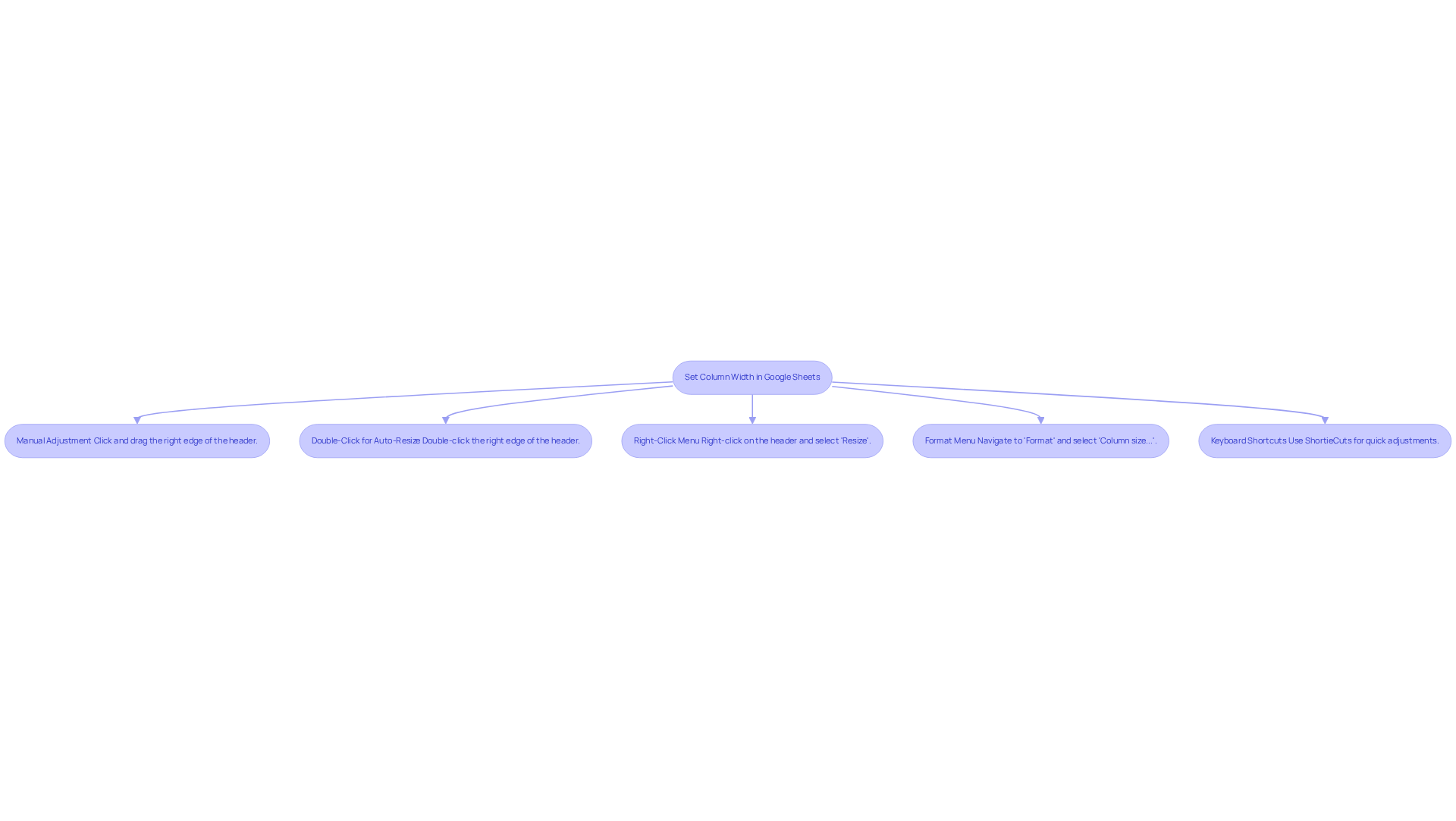
Enhancing data visibility and arrangement in Google Sheets is crucial for effective spreadsheet management. Modifying the size of vertical sections can significantly improve your workflow. Here are several effective methods to set column width:
-
Manual Adjustment: Click and drag the right edge of the header to increase or decrease the size as needed. This method allows for precise control over dimensions, accommodating varying content sizes. With ShortieCuts, you can quickly access shortcuts to streamline this process.
-
Double-Click for Auto-Resize: Position your cursor on the right edge of the header until it changes to a double-sided arrow. Double-clicking will automatically adjust the size of the section to fit the longest text, making it a fast and effective choice.
-
Right-Click Menu: Right-click on the header, select 'Resize', and input a specific measurement in pixels. This option is ideal for users who prefer to set exact dimensions for uniformity, and ShortieCuts can help you navigate this menu faster.
-
Format Menu: Navigate to the 'Format' menu, select 'Column size...', and specify the desired measurement. This method offers a straightforward approach to modify several sections simultaneously, with ShortieCuts enhancing your workflow.
-
Keyboard Shortcuts: Excel users can expedite adjustments with keyboard shortcuts. With the ShortieCuts extension, simply hit "ALT" (or Option on Mac) to see key-tips appear in the corner of your screen, allowing for a more efficient workflow when adjusting column widths.
Mastering these techniques will improve the functionality of your spreadsheets and will show you how to set column width in Google Sheets to enhance their visual appeal. This makes data easier to read and interpret, ultimately leading to better decision-making.
Follow Step-by-Step Instructions for Each Method
Manual Adjustment
- Open your Google Sheets document.
- Identify the section you wish to adjust.
- Hover your mouse over the right edge of the header until the cursor changes to a double-sided arrow.
- Click and drag to the left or right to set the desired width.
Double-Click for Auto-Resize
- Open your Google Sheets document.
- Locate the section you wish to auto-resize.
- Position your cursor on the right edge of the header until it transforms into a double-sided arrow.
- Double-click to automatically adjust the width to fit the content. This method is particularly efficient, as it instantly accommodates the longest text in the selected cells, ensuring no overflow occurs.
Right-Click Menu
- Open your Google Sheets document.
- Right-click on the header of the section you want to resize.
- Choose 'Resize section' from the context menu.
- Enter the preferred size in pixels and click 'OK'. This option allows for precise control over column dimensions, catering to specific formatting needs.
Format Menu
- Open your Google Sheets document.
- Click on the 'Format' menu at the top.
- Choose 'Column size...'.
- Enter the desired width in the dialog box and click 'OK'. This method is useful for users who prefer a more traditional approach to formatting.
Keyboard Shortcuts
- Select the column(s) you want to adjust.
- Use the shortcut
Alt + H, thenO, and thenWto open the resize dialog. This shortcut is part of the 300+ Excel ALT Shortcuts available with the ShortieCuts extension, designed to enhance your productivity in Google Sheets. - Enter the desired width and press 'Enter'.
Real-world examples demonstrate that professionals who implement these methods report improved data visibility and organization, leading to more effective analysis. User satisfaction ratings indicate a preference for the double-click method due to its speed and efficiency, while the right-click menu is favored for its precision. Mastering these techniques is essential for anyone looking to optimize their workflow in Google Sheets.

Troubleshoot Common Column Width Issues
Troubleshoot Common Column Width Issues
-
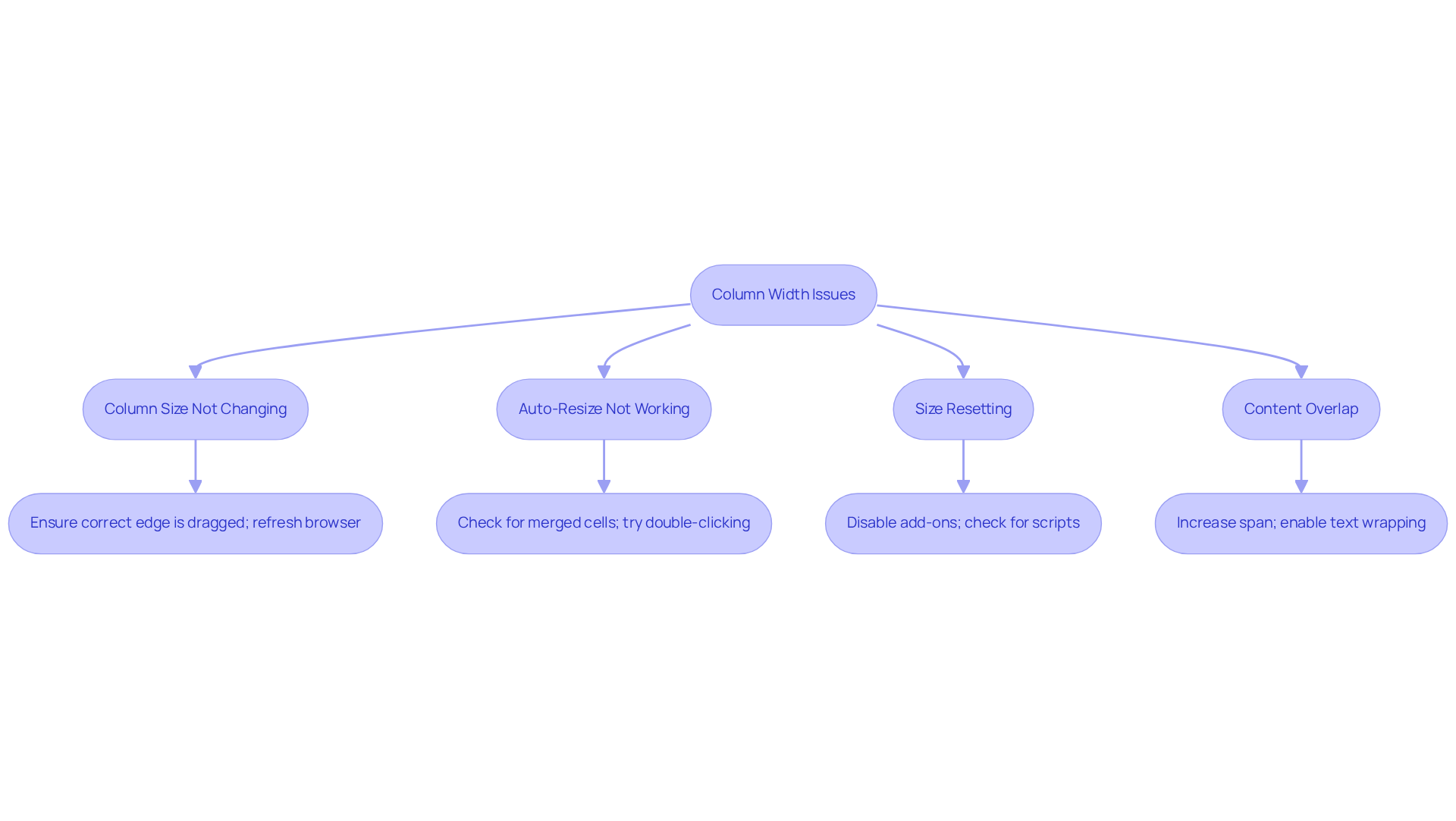
Column Size Not Changing: If the size isn't adjusting, ensure you're clicking and dragging the correct edge of the header. A simple refresh of your browser can also resolve this issue.
-
Auto-Resize Not Working: If double-clicking the header does not trigger auto-resize, examine for merged cells within the area, as these can obstruct resizing functionality.
-
Size Resetting: If the space measurement keeps reverting, it may be due to a script or add-on interfering with your sheet. Disabling any add-ons can help determine if they are the cause of the problem.
-
Content Overlap: If text continues to overlap after resizing, consider further increasing the span or enabling text wrapping. To do this, select the cell, navigate to 'Format', and choose 'Text wrapping'.
Common issues related to how to set column width in Google Sheets can significantly affect visibility and presentation. Many users encounter problems with merged cells or wrapped text, often requiring manual adjustments to understand how to set column width in Google Sheets for proper autofitting. By mastering these troubleshooting techniques, finance professionals can enhance their spreadsheet management and improve overall readability. This ultimately leads to more effective data analysis.
Conclusion
Understanding how to set column width in Google Sheets is essential for creating organized and readable spreadsheets. By effectively adjusting column sizes, users can enhance data visibility and streamline their workflow, leading to improved productivity and clearer analysis. The ability to customize column widths not only aids in presenting information clearly but also helps prevent misinterpretation, making it a crucial skill for anyone working with data.
Key techniques discussed include:
- Manual adjustments
- Using the double-click method for auto-resizing
- Leveraging the right-click menu and keyboard shortcuts for precise control
Each method offers unique advantages, catering to different user preferences and needs. Additionally, utilizing the ShortieCuts extension can significantly simplify the process, allowing for a smoother transition from Excel to Google Sheets while enhancing overall efficiency.
Ultimately, mastering these column width adjustment techniques empowers users to transform their spreadsheets into effective tools for data analysis. By prioritizing visibility and organization, professionals can make better-informed decisions and elevate their data management skills. Embracing these strategies not only improves individual productivity but also contributes to a more collaborative and efficient work environment.
Frequently Asked Questions
Why is column width important in Google Sheets?
Column width is crucial for determining the horizontal area assigned to each part of a spreadsheet, significantly impacting visibility and readability. Properly sized columns ensure all information is clearly visible, reducing the need for excessive scrolling and preventing overlapping text.
How can users efficiently modify column widths in Google Sheets?
Users can modify column widths using techniques such as the autofit function, which automatically adjusts widths to accommodate the longest entry. Alternatively, users can manually set widths by selecting the column header, right-clicking, and entering specific pixel dimensions for precise control.
What is the ShortieCuts extension and how does it help users?
The ShortieCuts extension allows users to integrate over 300 Excel ALT shortcuts into Google Sheets, enhancing productivity by making adjustments more efficient. Users can access key-tips by pressing 'ALT' (or Option on Mac), facilitating a smooth transition from Excel to Google Sheets.
Can you provide an example of the impact of effective column width adjustments?
Finance experts often modify column dimensions to ensure complete visibility of names or descriptions, which helps avoid misinterpretation of essential information. Mastering these techniques leads to better-organized spreadsheets and clearer analyses, ultimately enhancing productivity.
What are the benefits of appropriately sized sections in Google Sheets?
Appropriately sized sections improve data analysis efficiency, prevent misinterpretation of critical information, and enhance overall understanding, making the data more accessible and easier to work with.