

Introduction
Adjusting column widths in Excel is not merely a formatting task; it’s a crucial element in crafting readable and professional spreadsheets. By employing effective techniques, users can significantly enhance the clarity of their data, ensuring that every piece of information is both visible and well-presented. Yet, many individuals encounter common pitfalls that lead to inefficiencies and misinterpretations.
What are the best practices for mastering column width adjustments? How can keyboard shortcuts streamline this process? This article explores essential shortcuts and methods to optimize column widths, empowering users to elevate their Excel skills and productivity. With the right approach, you can transform your spreadsheets into powerful tools for communication and analysis.
Understand Column Width Adjustment in Excel
Modifying the size of a section in Excel is crucial for ensuring that all information within a cell is fully visible and correctly formatted. A narrow column can lead to truncated text or figures displayed as hash symbols (###), obstructing effective information analysis and presentation. The standard width in Excel is typically 8.43 characters. Mastering the adjustment of column widths not only enhances the readability of spreadsheets but also facilitates efficient data analysis.
Users can adjust column width in Excel shortcut by either manually dragging the borders or utilizing keyboard shortcuts, providing flexibility that is particularly advantageous in fast-paced professional environments. Additionally, the AutoFit feature allows users to double-click the boundary line between two header titles, automatically adjusting the width to accommodate the longest content. However, this method may result in excessively wide columns if lengthy text entries are present, necessitating careful consideration of content length.
- Visibility: Proper adjustments ensure all data is visible without truncation, enhancing clarity.
- Professionalism: Well-structured spreadsheets reflect a meticulous approach to information management.
- Efficiency: Streamlined formatting saves time during information presentation and analysis, allowing for quicker decision-making.
Real-world examples illustrate the significance of these adjustments. For instance, a finance expert may find that modifying the spacing to fit lengthy financial descriptions not only enhances clarity but also aids in showcasing information more effectively during meetings. By ensuring that all relevant information is visible, users can avoid misinterpretations and boost their overall productivity in spreadsheet tasks. As Geoffrey Moore asserts, data is essential for making informed business decisions, and proper formatting plays a vital role in this process.
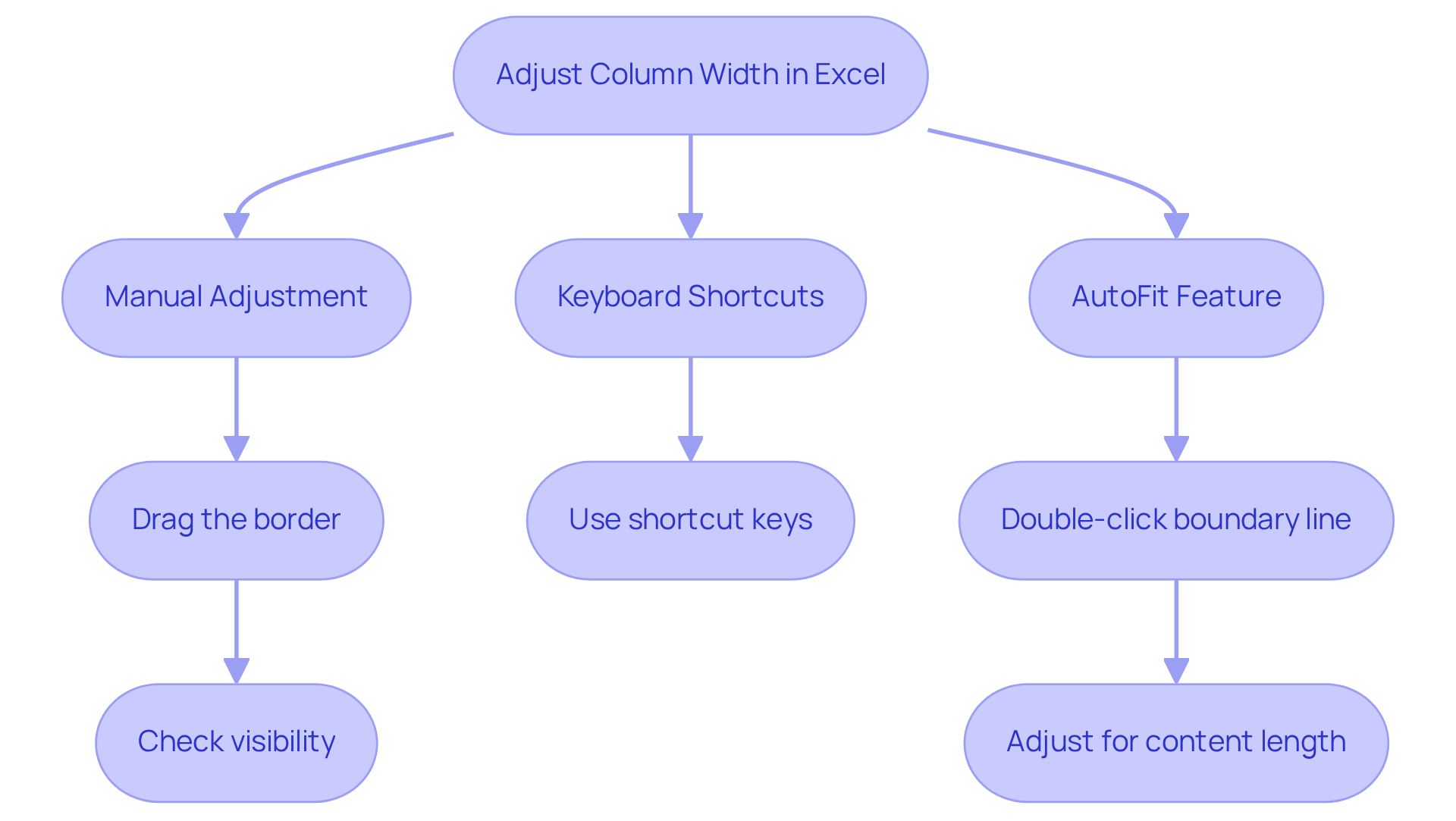
Utilize Keyboard Shortcuts for Quick Adjustments
Enhance Your Efficiency with Keyboard Shortcuts in Google Sheets
Keyboard shortcuts are a powerful way to swiftly modify cell sizes in Google Sheets using ShortieCuts. Here are some essential shortcuts that can significantly boost your productivity:
- Open Column Width Dialog: Press
Alt + H, thenO, and finallyW. This opens the dialog for adjusting the size, allowing you to enter a specific measurement. - AutoFit Cell Size: To automatically adjust the cell size to fit its contents, use
Alt + H, thenO, followed byI. This is particularly useful when dealing with varying data lengths in a field. - To adjust column width in Excel shortcut: Select the section, then press
Alt + H,O, andWto open the size dialog, enabling you to set a precise measurement.
Tips for Mastery
Familiarize yourself with these shortcuts to enhance your efficiency in Google Sheets. Practice using them in various scenarios to become more comfortable with ShortieCuts and unlock your productivity potential.

Apply AutoFit for Optimal Column Width
Mastering Excel's AutoFit Feature
The AutoFit feature in Excel is a powerful tool that automatically adjusts the width of a cell to fit the longest entry. This functionality not only streamlines your workflow but also enhances the presentation of your data. Here’s how to utilize it effectively:
- Select the Section(s): Click on the header of the section you wish to adjust. You can select multiple sections by clicking and dragging across the headers.
- To adjust column width in Excel shortcut, you can utilize the Resize Shortcut by pressing
Alt + H, thenO, and finallyI. This shortcut enables you to adjust column width in excel shortcut instantly to fit the content of the selected section(s). - Manual Adjustment: Alternatively, double-click the right border of the column header to achieve the same result.
Why You Should Use AutoFit
- Efficiency: Save valuable time by eliminating manual adjustments. This allows you to focus on data analysis rather than formatting. Users have reported significant time savings, especially when handling large datasets.
- Consistency: Ensure all information is visible and neatly presented. This clarity is essential for finance professionals who rely on accurate data for decision-making.
- Improved Data Display: The automatic adjustment optimizes widths and enhances the visual appeal of spreadsheets. Properly sized columns prevent information overlap, ensuring that all details are easily accessible-crucial for effective communication of financial data.
The AutoFit feature has garnered praise for its ability to streamline spreadsheet management. Many users note that it transforms their workflow. As one user stated, "Excel's AutoFit function is designed to automatically adjust cells in a worksheet to fit various sized information without needing to manually alter the row height and dimensions." This capability is particularly advantageous for finance professionals who frequently work with extensive datasets and require efficient tools to boost productivity.
It's also important to note that Excel has a maximum size limit of 255 characters, with a default measurement of 8.43 characters. For those looking to optimize row heights, the shortcut for AutoFit Row Height is ALT + H + O + A, further enhancing your workflow.

Avoid Common Mistakes in Column Width Adjustment
When users try to adjust column width in Excel shortcut, they often encounter common errors that can significantly impact spreadsheet usability. Here are key pitfalls to avoid:
- Excessively Tight Sections: Adjusting sections too tightly can lead to information being truncated, complicating readability. Always verify the content after adjustments to ensure visibility.
- Variable Sizes: Maintaining uniform sizes for sections with comparable data types enhances readability and creates a tidier appearance. For instance, monetary values typically require narrower spans of about 7-10 characters, while longer text entries may need broader areas.
- Disregarding the Feature: Neglecting the automatic sizing function can result in unnecessary manual adjustments, wasting valuable time. This feature automatically modifies the sizes of sections to accommodate the broadest entry, ensuring all information is visible without estimation. As noted by Microsoft Support, "AutoFit guarantees uniform readability without estimating sizes - a genuine time-saver."
- Not Checking Print Layout: Always preview your spreadsheet in print layout mode to confirm that the dimensions of the sections are suitable for printed documents. This step helps prevent discrepancies between on-screen display and printed output, especially when using proportionally spaced fonts. Remember, Excel mistakes can cost hours or lead to incorrect data being sent to leadership, making this step crucial.
Recommendations:
- Regularly review your spreadsheet for formatting consistency to enhance usability, especially considering that the default column width in Excel is usually 8.43.
- Utilize the AutoFit function or the adjust column width in excel shortcut to effortlessly maintain ideal sizes of sections, conserving time and improving presentation.
- Consider the impact of column width adjustments on overall data clarity and accessibility, including the potential pitfalls of using merged cells.

Conclusion
Mastering the art of adjusting column widths in Excel is not just a technical skill; it’s a vital component of effective data management. Enhancing data visibility and ensuring clear communication of information can transform your spreadsheets from cluttered and unreadable to clear and professional. This shift ultimately leads to more informed decision-making.
Consider the key insights: visibility, professionalism, and efficiency are paramount when managing column widths. By utilizing keyboard shortcuts and the AutoFit feature, you can make quick and accurate adjustments. This not only saves valuable time but also reduces the risk of common formatting errors. However, be mindful of potential pitfalls, such as excessively tight sections or neglecting the automatic sizing function, as these can hinder the usability of your spreadsheets.
In conclusion, embracing the ability to efficiently adjust column widths significantly improves the clarity and presentation of your data. This practice makes it easier to analyze and share insights, elevating your spreadsheet skills. By prioritizing proper formatting, you contribute to more effective communication and decision-making in your professional environment. Take action now - implement these techniques and witness the transformation in your data management practices.
Frequently Asked Questions
Why is adjusting column width important in Excel?
Adjusting column width is crucial for ensuring that all information within a cell is fully visible and correctly formatted, preventing truncated text or figures displayed as hash symbols (###).
What is the standard column width in Excel?
The standard width in Excel is typically 8.43 characters.
How can users adjust column width in Excel?
Users can adjust column width by manually dragging the borders or utilizing keyboard shortcuts. The AutoFit feature can also be used by double-clicking the boundary line between two header titles to automatically adjust the width.
What is the AutoFit feature in Excel?
The AutoFit feature automatically adjusts the column width to accommodate the longest content when users double-click the boundary line between two header titles.
What are the potential downsides of using the AutoFit feature?
The AutoFit feature may result in excessively wide columns if lengthy text entries are present, which requires careful consideration of content length.
How does proper column width adjustment impact visibility and professionalism?
Proper adjustments ensure all data is visible without truncation, enhancing clarity and reflecting a meticulous approach to information management in spreadsheets.
In what ways does adjusting column width improve efficiency?
Streamlined formatting saves time during information presentation and analysis, allowing for quicker decision-making.
Can you provide an example of how column width adjustment benefits real-world tasks?
For instance, a finance expert may modify spacing to fit lengthy financial descriptions, which enhances clarity and aids in showcasing information more effectively during meetings.
What role does proper formatting play in business decision-making?
Proper formatting is vital for making informed business decisions, as it ensures that all relevant information is visible and reduces the risk of misinterpretations.