
Master 4 Ways to Unhide Excel Columns for Seamless Spreadsheets
Learn how to unhide Excel columns effortlessly with these simple methods for seamless spreadsheets.

Introduction
Understanding the nuances of hidden columns in Excel can significantly enhance data management and analysis. Concealing sections may streamline a spreadsheet's appearance or protect sensitive information, but it often leads to confusion, particularly for users unfamiliar with the process of unhiding these columns. This article explores effective methods for revealing hidden columns, providing practical techniques that can streamline workflows and help avoid common pitfalls.
What strategies can be employed to ensure that no crucial data remains concealed? How can users navigate these challenges with ease? By addressing these questions, we aim to empower users with the knowledge needed to manage their data effectively.
Understand Hidden Columns in Excel
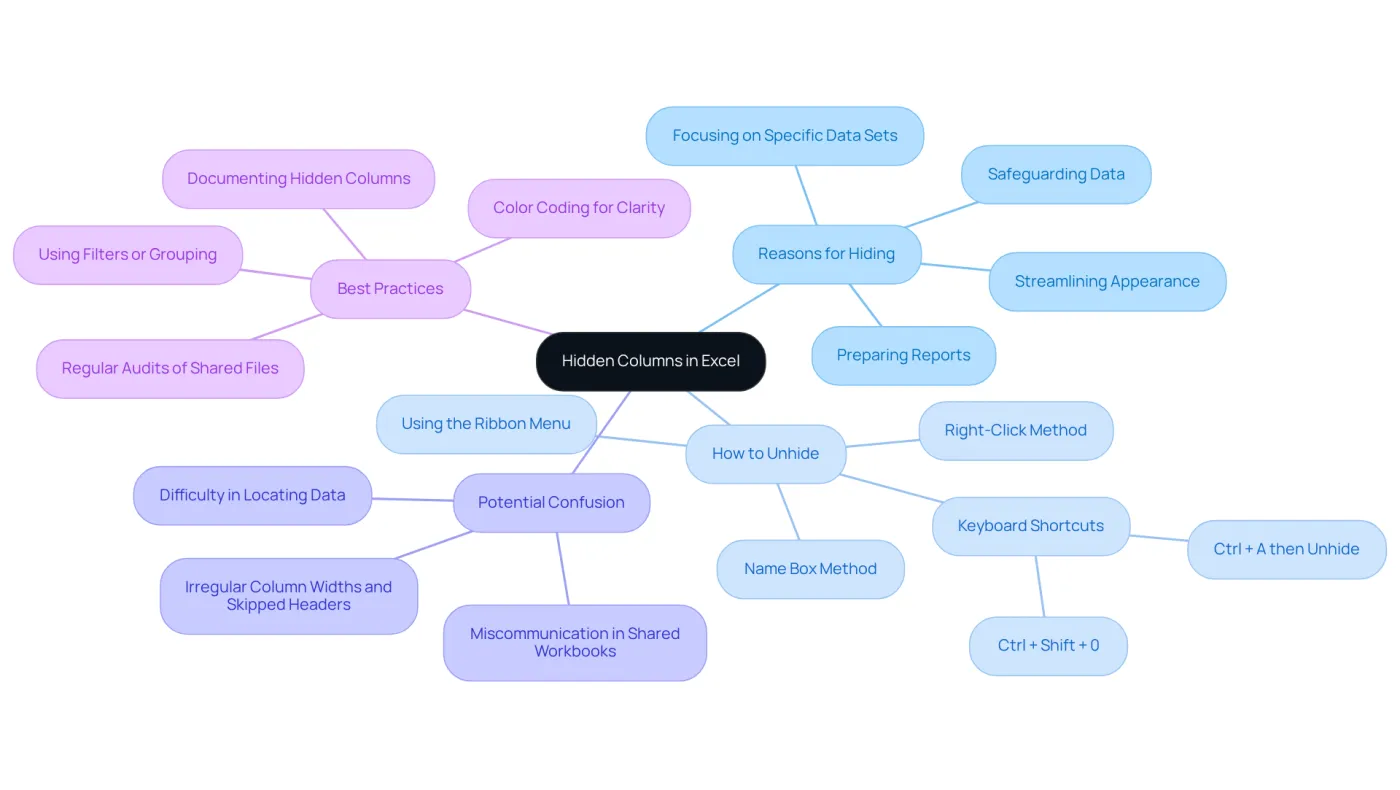
In Excel, vertical sections can be concealed for various reasons, such as streamlining the appearance of a worksheet or safeguarding confidential data, and users can easily unhide excel columns when necessary. It's important to note that hidden sections are not removed; you can simply unhide excel columns to make them visible again. This can lead to confusion when trying to locate data. Understanding how and why data sections are concealed is the first step in managing your workbook effectively, including how to unhide excel columns.
Users often hide sections to focus on specific data sets or to prepare reports, and to access the hidden information, they can unhide excel columns. Recognizing this practice can enhance your ability to navigate spreadsheets efficiently and mitigate potential data loss during analysis. However, a significant percentage of Excel users find concealed sections perplexing, underscoring the necessity for clear communication and documentation regarding their use.
Data analysts emphasize the importance of documenting intentionally concealed entries in a readme tab or employing color coding to clarify their purpose. Additionally, utilizing filters or grouping instead of hiding sections in shared workbooks can enhance clarity and prevent misunderstandings - an essential consideration for finance professionals.
Explore Methods to Unhide Columns
To unhide columns in Excel, you have several effective methods at your disposal:
-
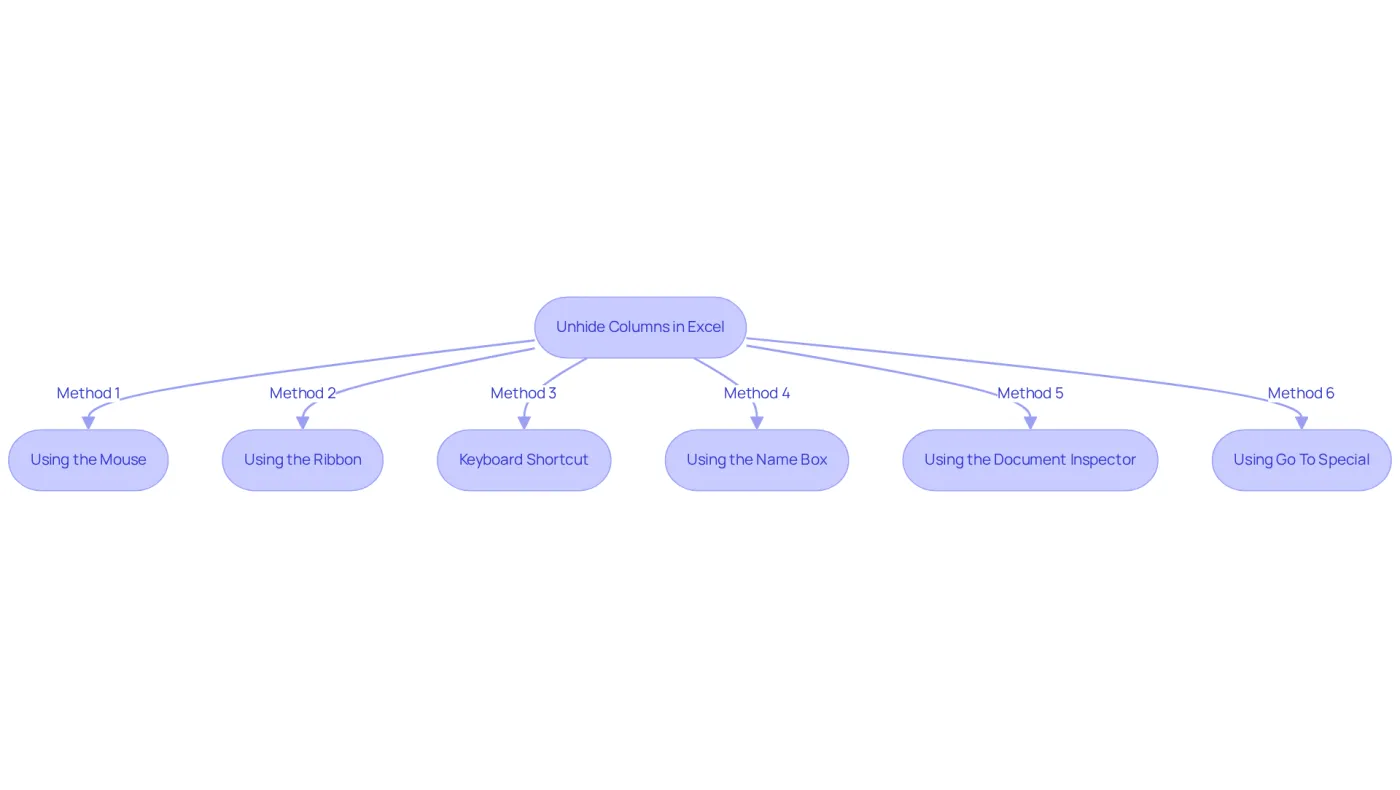
Using the Mouse: Select the sections adjacent to the hidden columns. Right-click on the selected area and choose the option to 'unhide excel columns' from the context menu. This straightforward approach is quick and intuitive.
-
Using the Ribbon: Navigate to the 'Home' tab, click on 'Format' in the 'Cells' group, and select 'Hide & Unhide,' followed by 'Unhide Columns.' This method is particularly useful for those who want to unhide excel columns using the ribbon interface.
-
Keyboard Shortcut: Select the sections next to the hidden columns and press
Ctrl + Shift + 0. Note that this shortcut may need to be enabled in some Excel settings, but it can significantly speed up your workflow. -
Using the Name Box: Click on the Name Box (located to the left of the formula bar), type the letter of the hidden column (e.g., A), and press Enter. After that, you can use the right-click method to unhide excel columns. This technique is efficient for quickly accessing specific columns.
-
Using the Document Inspector: To check for hidden sections throughout the entire workbook, utilize the Document Inspector. This tool helps identify concealed areas that might not be visible through standard methods, ensuring you don’t miss anything important.
-
Using Go To Special: For those managing large datasets, the Go To Special feature allows you to select 'visible cells only,' which can help reveal all hidden columns at once. This is particularly beneficial when dealing with extensive spreadsheets.
Columns may appear hidden for various reasons, including being too narrow, active filters, or protection settings. Understanding these factors can aid in troubleshooting visibility issues effectively.
Statistics show that a significant number of spreadsheet users rely on keyboard shortcuts to enhance their efficiency, underscoring the importance of mastering these techniques for optimal management. Additionally, the Protect Your Sheet function can prevent users from revealing specific sections, which is crucial for maintaining data security.
Incorporating insights from trainers about effective techniques for revealing hidden sections can further bolster the credibility of this content. Are you ready to enhance your Excel skills and streamline your workflow? Start implementing these methods today!
Address Special Cases: Unhiding the First Column
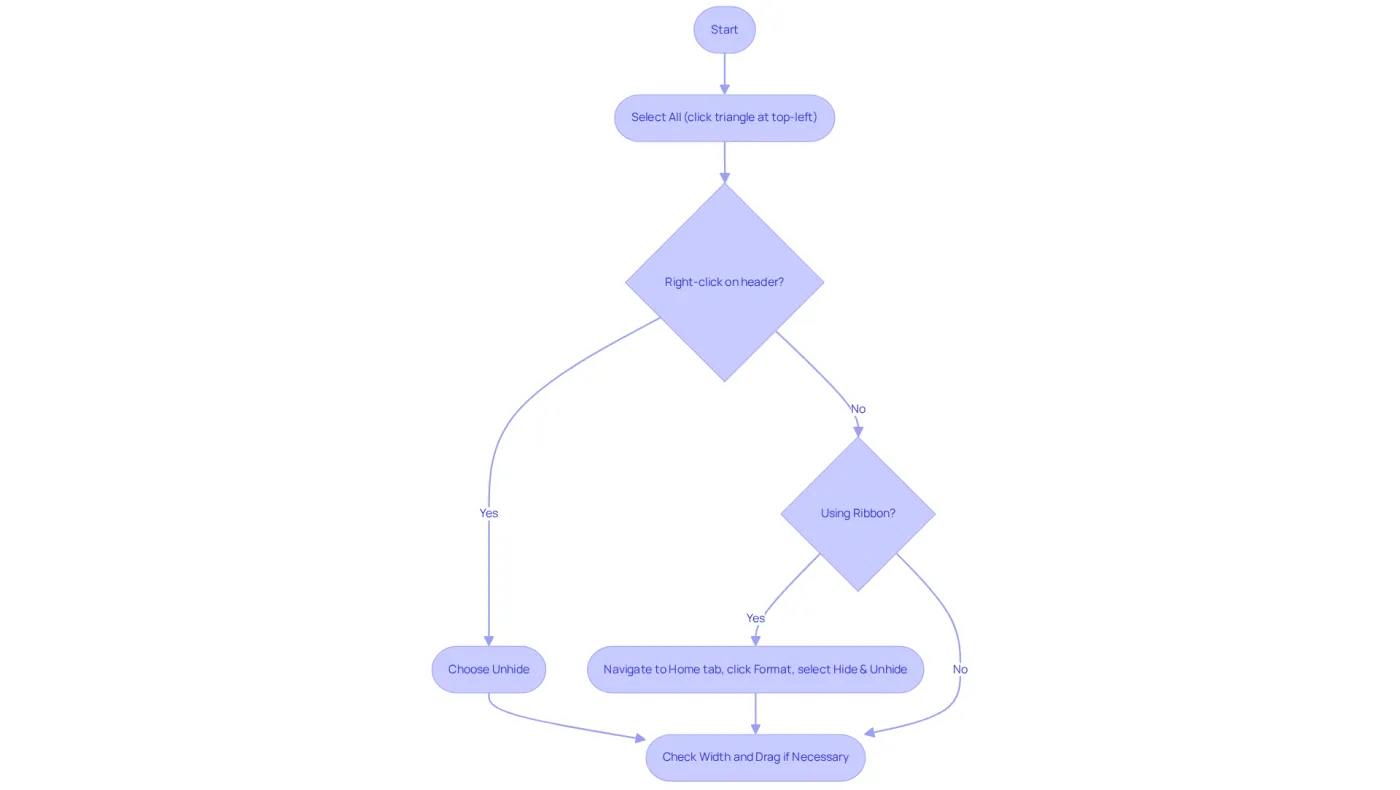
Revealing the first section (A) in Excel can pose a challenge, particularly since it is positioned at the edge of the document. Here’s a straightforward approach to tackle this issue:
- Select All: Begin by clicking the small triangle located at the top-left corner of the spreadsheet, where the row and header labels converge. This action will select the entire sheet.
- Right-click: With the entire sheet selected, right-click on any header and choose 'Unhide' to unhide excel columns. This action will help you to unhide excel columns that are currently hidden.
- Using the Ribbon: Alternatively, navigate to the 'Home' tab, click on 'Format', then 'Hide & Unhide', and select the option to unhide excel columns.
If the section remains concealed, it may be due to a very narrow width. To resolve this, select the header and drag it to the right until the content becomes visible. This method ensures that you can access all necessary information efficiently.
Utilize Resources and Troubleshooting Tips
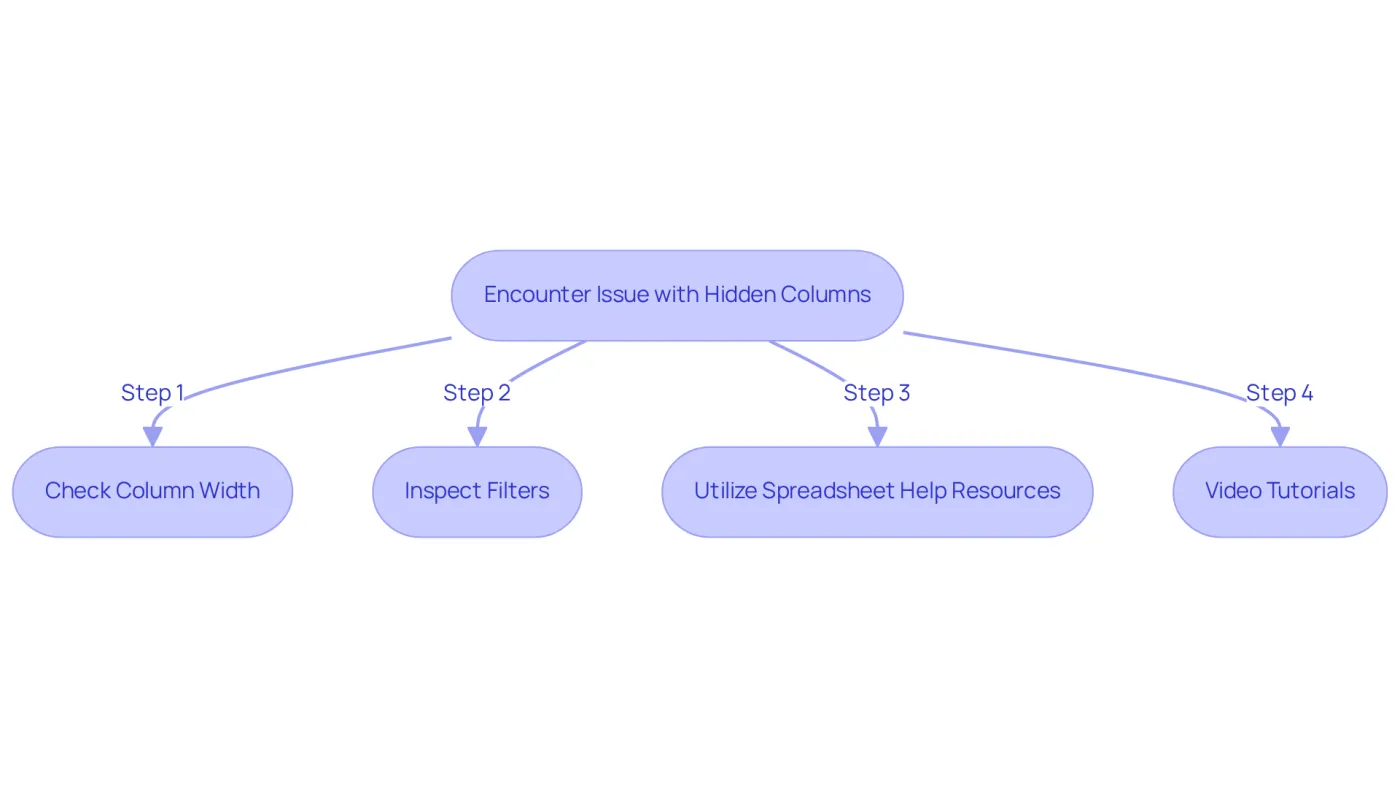
When you encounter challenges with unhiding columns in Excel, consider these effective troubleshooting strategies:
- Check Column Width: A common issue is that a column may appear hidden simply because its width is set to zero. To resolve this, select the neighboring sections and manually adjust the width to restore visibility.
- Inspect Filters: If filters are applied, certain fields may not be visible. Clearing any active filters can help reveal all data, ensuring nothing is overlooked.
- Utilize Spreadsheet Help Resources: Microsoft provides extensive support documentation and community forums that can aid with particular issues. Resources like Microsoft Support and Ablebits offer valuable guides and tips. Notably, discussions on these platforms have yielded helpful answers, with 5 responses noted in relevant discussions.
- Video Tutorials: For those who learn better visually, platforms such as YouTube host numerous tutorials that demonstrate how to unhide Excel columns step-by-step, making it easier to follow along.
By utilizing these resources, you can significantly enhance your Excel skills and efficiently resolve common problems associated with concealed sections. Remember, a missing letter in column headers often indicates a hidden column; a missing letter almost always means a hidden column is present. Addressing these details can create a strong professional impression, as noted by Kevin Durand.
Conclusion
Mastering the management of hidden columns in Excel is crucial for achieving clarity and efficiency in your spreadsheet work. By learning how to unhide columns effectively, you can streamline your data analysis and ensure that vital information is always at your fingertips. This expertise not only boosts your productivity but also enhances collaboration in shared workbooks.
In this article, we explored several effective techniques for unhiding columns, including:
- Using the mouse
- The ribbon
- Keyboard shortcuts
- The Name Box
We paid special attention to troubleshooting hidden columns, particularly the first column, and emphasized the importance of utilizing resources like Microsoft Support and video tutorials for additional guidance. These strategies empower you to navigate your spreadsheets confidently, steering clear of common pitfalls associated with hidden data.
Ultimately, the ability to manage hidden columns in Excel is an essential skill that can significantly elevate your professional presentation and data integrity. By implementing these methods and utilizing available resources, you can enhance your workflows and contribute to a more organized and transparent data environment. Embrace these techniques today to unlock the full potential of your Excel spreadsheets and elevate your data management skills.
Frequently Asked Questions
Why are columns hidden in Excel?
Columns in Excel may be hidden to streamline the appearance of a worksheet, safeguard confidential data, focus on specific data sets, or prepare reports.
Can hidden columns be made visible again?
Yes, hidden columns can easily be unhid to make them visible again; they are not removed from the worksheet.
What should users understand about hidden columns?
Users should understand how and why data sections are concealed to manage their workbook effectively and to navigate spreadsheets efficiently.
How can hidden columns lead to confusion?
Hidden columns can lead to confusion when users are trying to locate data, especially if they are unaware that certain sections are concealed.
What do data analysts recommend regarding concealed entries?
Data analysts recommend documenting intentionally concealed entries in a readme tab or using color coding to clarify their purpose.
What alternatives to hiding columns can enhance clarity in shared workbooks?
Utilizing filters or grouping instead of hiding sections can enhance clarity and prevent misunderstandings in shared workbooks.