
Master Age in Excel: Essential Steps for Finance Professionals
Master age in Excel with essential methods tailored for finance professionals.

Introduction
Calculating age in Excel is a crucial skill that can significantly enhance the accuracy of financial analyses. For finance professionals, mastering functions like DATEDIF and YEARFRAC goes beyond mere number crunching; it’s about making informed decisions that can influence everything from retirement planning to loan eligibility. Yet, many face challenges in navigating the nuances of these functions, which can lead to inaccuracies in calculations.
What are the best practices for leveraging age calculations in Excel? How can one troubleshoot common pitfalls to ensure data integrity? By addressing these questions, we can empower finance professionals to enhance their analytical capabilities and make more informed decisions.
Understand Basic Age Calculation Methods in Excel
Calculating age in Excel can be challenging; however, various methods exist to simplify this task, each tailored to specific scenarios. Here are the most effective approaches:
-
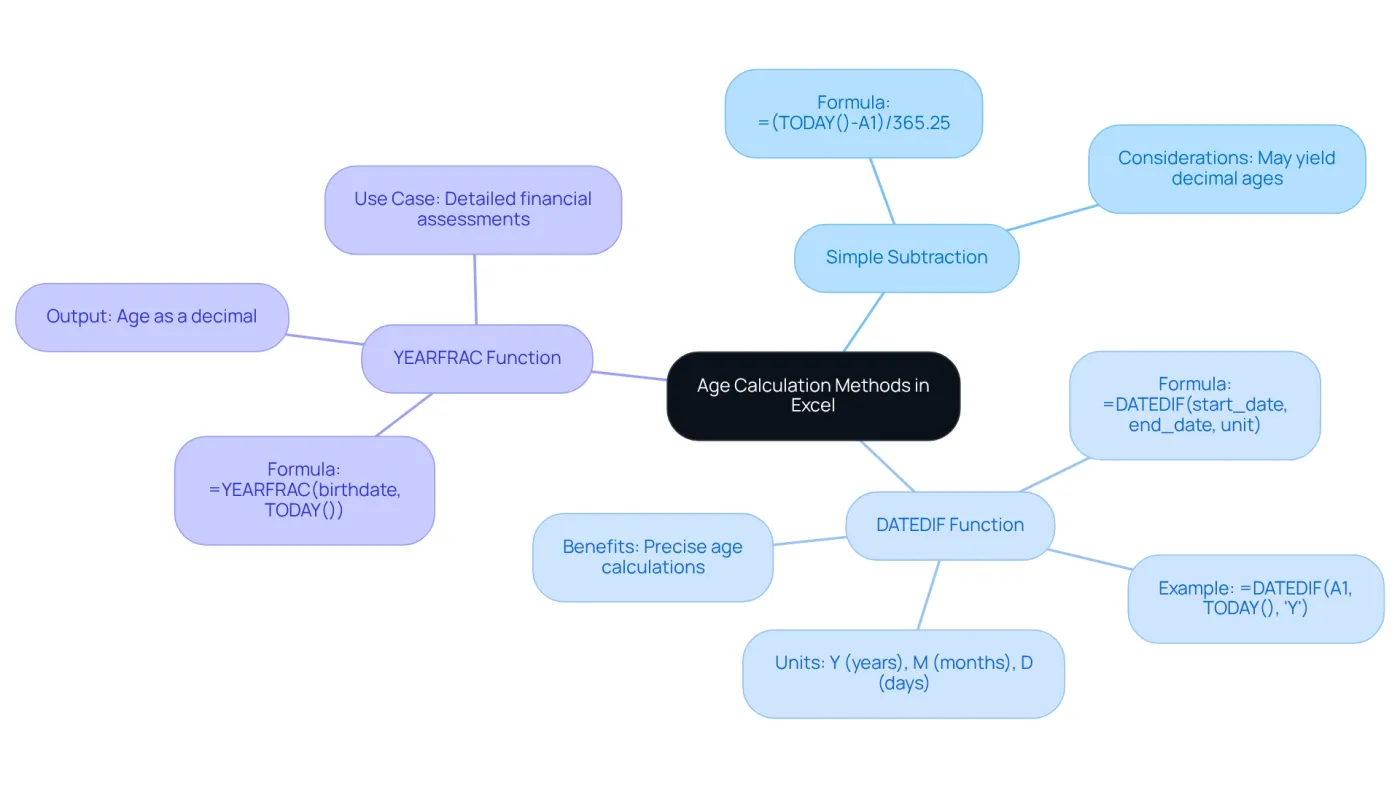
Simple Subtraction: This straightforward method involves subtracting the birth date from the current date. For example, if the birth date is in cell A1, the formula
=TODAY()-A1yields the age in days. To convert this into years, divide by 365.25 to account for leap years:=(TODAY()-A1)/365.25. However, be aware that using=(TODAY()-A2)/365may result in a figure like 35.3 instead of precisely 35 years and 3 months for someone born on January 15, 1990. -
DATEDIF Function: Specifically designed for calculating the difference between two dates, the DATEDIF function uses the syntax
=DATEDIF(start_date, end_date, unit), whereunitcan be 'Y' for years, 'M' for months, or 'D' for days. For instance,=DATEDIF(A1, TODAY(), 'Y')shows the age in Excel as complete years. This function is particularly valuable for financial analysis, allowing for precise age calculations that can significantly impact data interpretation. Additionally, DATEDIF can display age in various formats, enhancing its utility for finance professionals. -
YEARFRAC Function: This function calculates the year fraction between two dates. The formula
=YEARFRAC(birthdate, TODAY())returns the age as a decimal, which can be beneficial for detailed financial assessments.
These methods are essential for finance professionals, as a significant percentage rely on Excel for age calculations in their analyses. Mastering these techniques not only enhances accuracy but also streamlines workflows, making it easier to incorporate age-related data into financial models and reports. Notably, Excel's formulas utilizing the current date function automatically recalculate whenever the spreadsheet is opened, ensuring that age calculations remain current.
Utilize Key Excel Functions for Accurate Age Calculation
To accurately calculate age in Excel, leveraging key functions is essential:
-
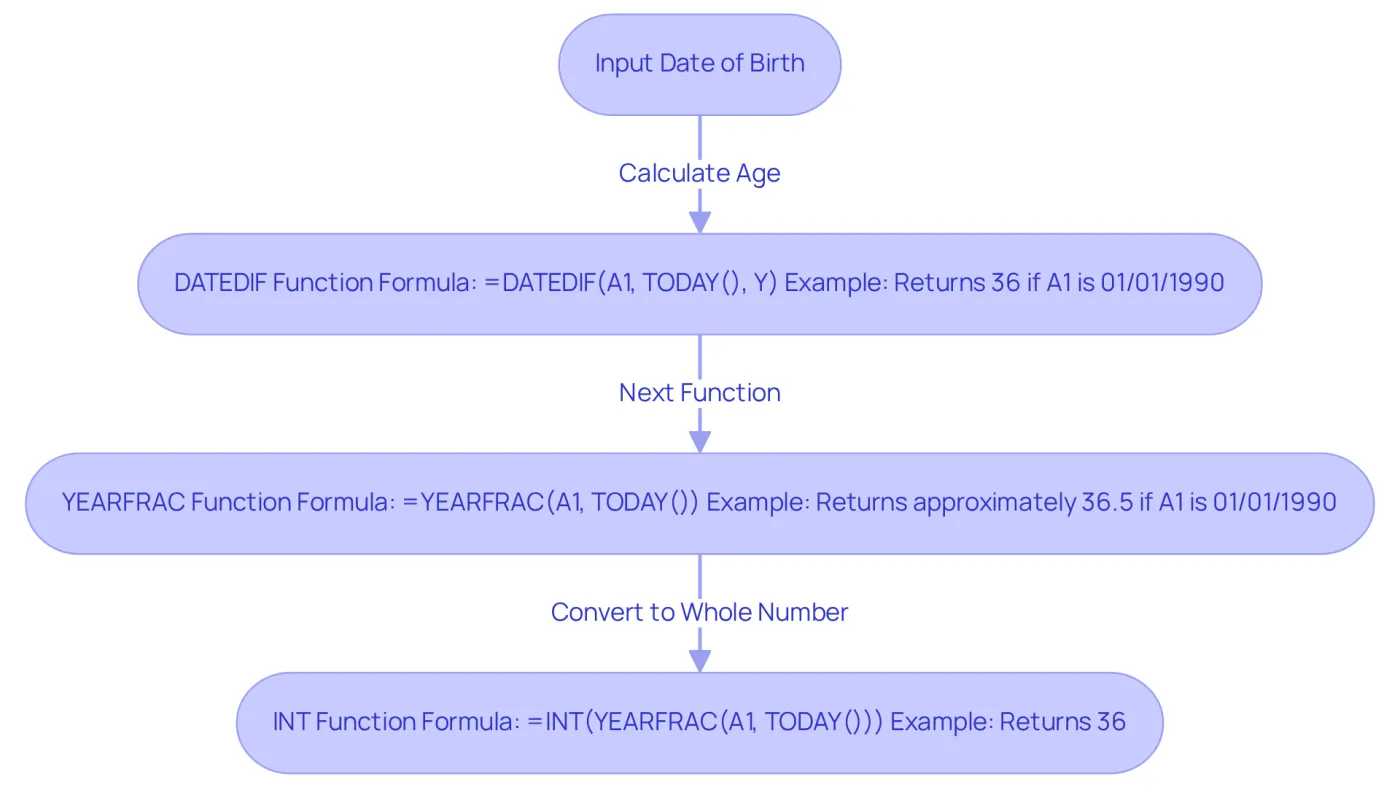
The DATEDIF function is invaluable for calculating age in Excel. Here’s how to use it:
- Formula:
=DATEDIF(A1, TODAY(), "Y")returns the age in complete years. - Example: If A1 contains the date of birth 01/01/1990, the formula will return 36 as of today.
- Formula:
-
YEARFRAC: This function provides a decimal representation of age, useful for financial calculations.
- Formula:
=YEARFRAC(A1, TODAY()) - Example: If A1 is 01/01/1990, this will return approximately 36.5, indicating that the person is 36 years and about 6 months old.
- Formula:
-
INT Function: To convert the decimal from YEARFRAC into a whole number, use the INT function.
- Formula:
=INT(YEARFRAC(A1, TODAY())) - Example: This will return 36, giving you the age in complete years.
- Formula:
By mastering these functions, you ensure that your calculations for age in Excel are both accurate and efficient. This precision is essential for any financial analysis.
Apply Age Calculation Techniques to Real-World Scenarios
Understanding how to apply age in Excel calculation techniques in real-world scenarios is crucial for finance professionals. Consider the following compelling examples:
-
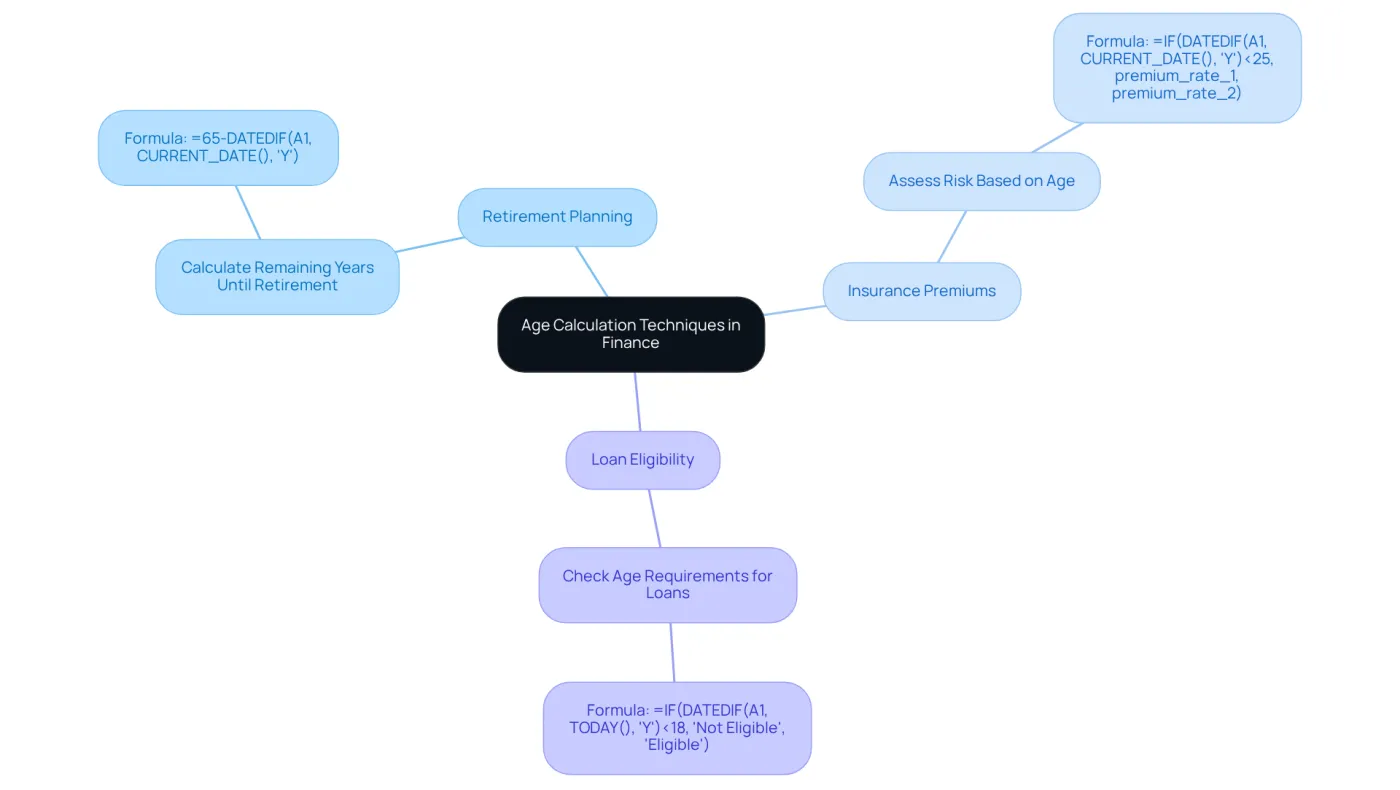
Retirement Planning: When determining the time until retirement, age computations are essential. By calculating the remaining periods until an employee reaches retirement age in Excel, you can make informed decisions. For instance, if the retirement age is 65, you can determine the remaining years using
=65-DATEDIF(A1, CURRENT_DATE(), "Y"). -
Insurance Premiums: Age significantly influences insurance premiums. By accurately calculating clients' age in Excel, you can assess risk and establish appropriate premium rates. For example, to calculate the premium based on age, use
=IF(DATEDIF(A1, CURRENT_DATE(), "Y")<25, premium_rate_1, premium_rate_2)to apply different rates according to age brackets. -
Loan Eligibility: Financial institutions often factor in age when evaluating loan eligibility. By calculating the age in Excel for applicants, you can determine if they meet the necessary age requirements for specific loans. For instance,
=IF(DATEDIF(A1, TODAY(), "Y")<18, "Not Eligible", "Eligible")can effectively check eligibility.
These scenarios illustrate the practical applications of age in Excel calculations in finance, emphasizing the importance of accuracy and efficiency in your work. Embracing these techniques not only enhances your decision-making but also reinforces your credibility as a finance professional.
Troubleshoot Common Age Calculation Issues in Excel
Even experienced users can encounter challenges when trying to calculate age in Excel. Here are some common problems and effective solutions to troubleshoot them:
-
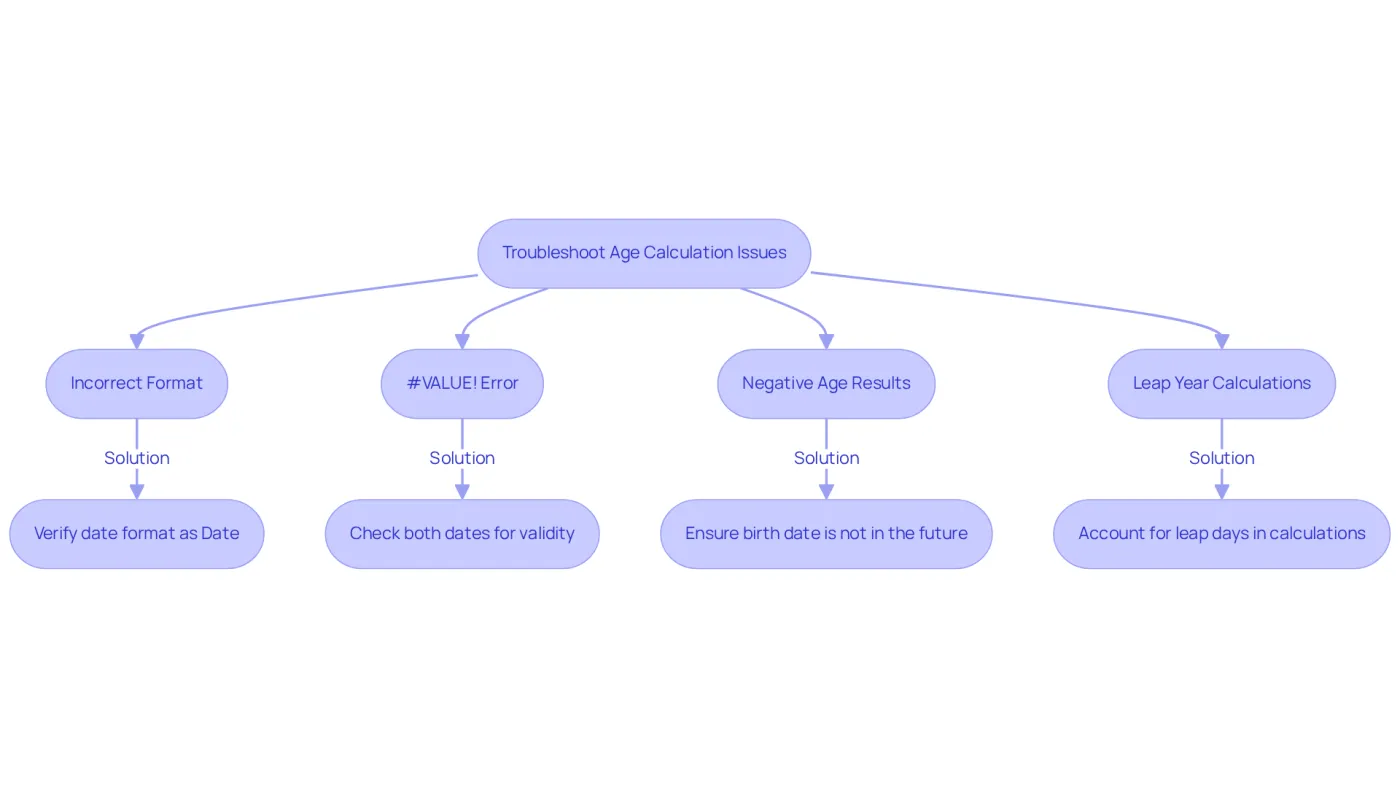
Incorrect Format: Ensure that the birth information is formatted as a date. If Excel interprets it as text, calculations will produce errors. To resolve this, select the cell, right-click, choose 'Format Cells', and select 'Date'.
-
#VALUE! Error: This issue often arises when one of the dates is invalid. Verify that both the birth date and the current date are accurately entered and formatted. You can use the formula
=ISERROR(DATEDIF(A1, TODAY(), "Y"))to identify any errors. -
Negative Age Results: Receiving a negative age typically indicates that the birth date is set in the future. Double-check the dates to ensure accuracy. Conditional formatting can be employed to highlight any negative results for easy identification.
-
Leap Year Calculations: Leap days can affect age calculations. Ensure your formulas account for leap days, especially when calculating age in days. Using
=DATEDIF(A1, TODAY(), "D")will provide the total days, which can then be converted to years accurately.
By understanding these common issues and their solutions, you can ensure that your calculations of age in Excel are both accurate and reliable. This precision is essential for effective financial analysis.
Conclusion
Mastering age calculation in Excel is essential for finance professionals. Accurate age data significantly influences various financial analyses and decision-making processes. By employing the right methods and functions, you can enhance your efficiency and precision in handling age-related data. This is vital for assessments like retirement planning, insurance premiums, and loan eligibility.
Several effective techniques for calculating age exist, including:
- Simple subtraction
- The DATEDIF function
- The YEARFRAC function
Each method serves distinct purposes, from providing complete years to offering decimal representations of age. This variety caters to different analytical needs. Additionally, troubleshooting common issues - such as incorrect formatting or negative age results - ensures that your calculations remain reliable and accurate.
Incorporating these age calculation techniques into your financial modeling streamlines workflows and reinforces your credibility as a finance professional. Embracing these best practices lays the foundation for more informed decision-making and enhances overall financial analysis. As the landscape of finance continues to evolve, mastering these Excel skills becomes increasingly essential for staying competitive and effective in your field.
Frequently Asked Questions
What are the basic methods for calculating age in Excel?
The basic methods for calculating age in Excel include Simple Subtraction, the DATEDIF function, and the YEARFRAC function.
How does the Simple Subtraction method work for calculating age?
The Simple Subtraction method involves subtracting the birth date from the current date using the formula =TODAY()-A1 for days. To convert this into years, divide by 365.25: =(TODAY()-A1)/365.25. However, this method may not provide precise age in years and months.
What is the DATEDIF function and how is it used?
The DATEDIF function calculates the difference between two dates using the syntax =DATEDIF(start_date, end_date, unit). The unit can be 'Y' for years, 'M' for months, or 'D' for days. For example, =DATEDIF(A1, TODAY(), 'Y') calculates the age in complete years.
What advantage does the DATEDIF function provide for financial analysis?
The DATEDIF function offers precise age calculations, which are crucial for financial analysis, allowing professionals to interpret data accurately and display age in various formats.
How does the YEARFRAC function calculate age?
The YEARFRAC function calculates the year fraction between two dates. The formula =YEARFRAC(birthdate, TODAY()) returns the age as a decimal, which can be useful for detailed financial assessments.
Why are these age calculation methods important for finance professionals?
These methods are essential for finance professionals because a significant percentage rely on Excel for age calculations in their analyses, enhancing accuracy and streamlining workflows.
Do Excel formulas for age calculations update automatically?
Yes, Excel's formulas that utilize the current date function automatically recalculate whenever the spreadsheet is opened, ensuring that age calculations remain current.