

Introduction
Mastering the art of column width adjustment in Google Sheets is not just a skill; it’s a game changer. It can transform chaotic data into clear, actionable insights that drive productivity. This guide explores essential techniques and advanced strategies that empower users to enhance their spreadsheet efficiency and organization.
But with numerous methods available, how do you determine the most effective approach? Tailoring column widths for optimal readability is crucial. Imagine the difference it makes when your data is not only organized but also easy to interpret. By implementing these strategies, you can elevate your spreadsheet experience and unlock the full potential of your data.
Understand Basic Column Width Adjustment Techniques
Adjusting the column width in Google Sheets is crucial for effective data presentation and organization. Here’s how to do it using ShortieCuts for seamless integration of Excel shortcuts:
- Select the Section: Click on the letter at the top of the section you want to adjust. This action highlights the entire section, making it ready for modification.
- Manual Adjustment: Position your cursor over the right edge of the header until it transforms into a double-sided arrow. Click and drag to the right to widen or to the left to narrow it. This allows for precise control over the size of the section, ensuring it meets your needs.
- Auto-Resize: For a quick adjustment, simply double-click the right edge of the header. This automatically adjusts the width to accommodate the longest content, ensuring all information is visible without manual effort.
- Using the Menu: Right-click on the column header and select 'Resize column'. You can enter a specific width in pixels for uniformity or choose 'Fit to content' to adjust the width based on the material. This enhances readability and organization.
- Utilizing ShortieCuts: To further boost your productivity, leverage the 300+ Excel ALT shortcuts available through the ShortieCuts extension. By pressing 'ALT' (or Option on Mac), key-tips will appear, guiding you through efficient modifications and other functionalities in Google Sheets.
Mastering these techniques not only improves the aesthetics of your spreadsheets but also significantly boosts overall productivity. This makes it easier to analyze and interpret data effectively.

Explore Advanced Column Width Customization Options
For users seeking to customize column widths beyond basic adjustments, consider these effective methods:
-
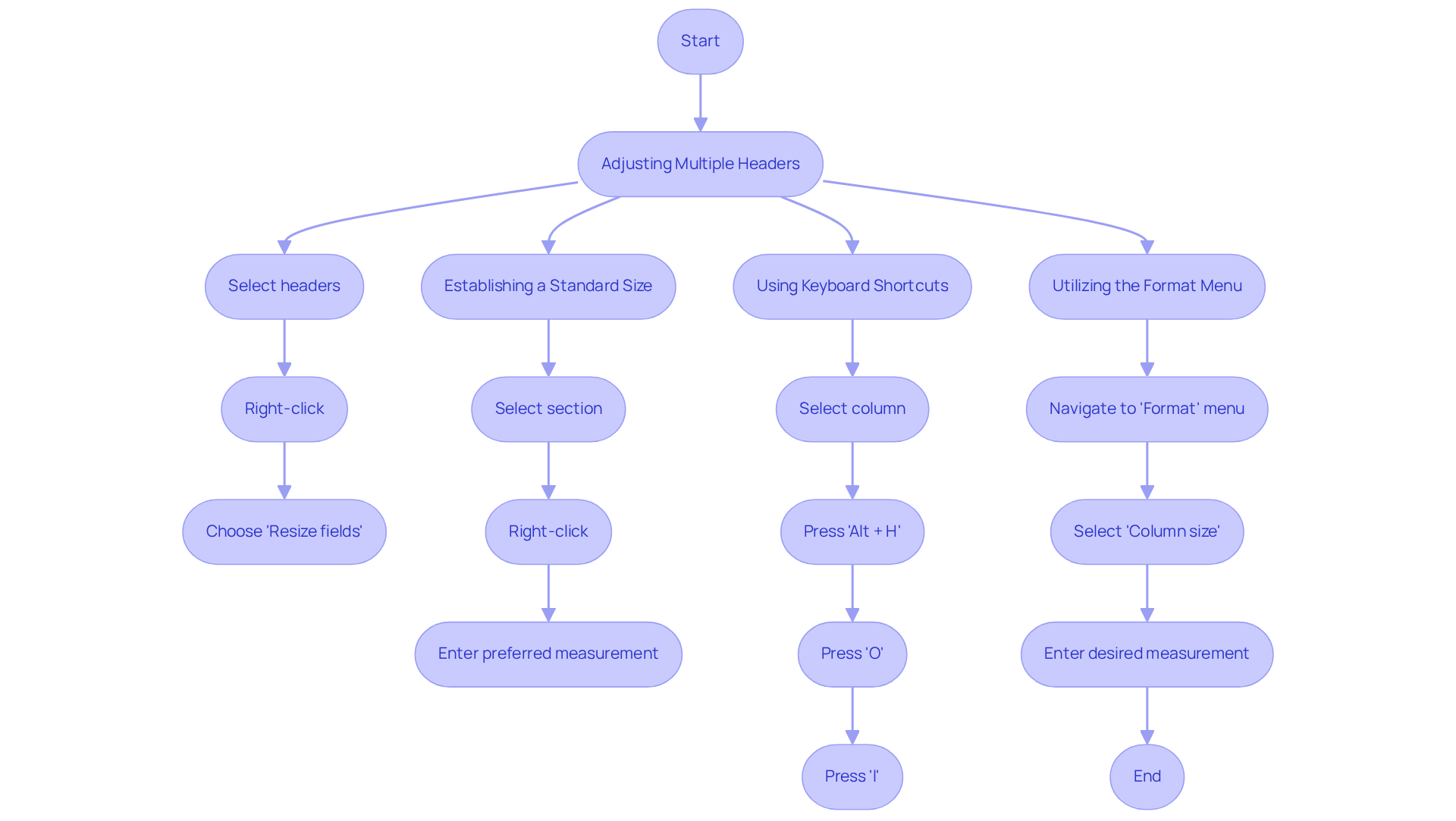
Adjusting Multiple Headers: Want to resize several headers at once? Simply click and drag across the headers to select them. Right-click on one of the selected headers and choose 'Resize fields'. You can then enter a specific measurement or opt for 'Fit to data' for automatic adjustment.
-
Establishing a Standard Size: If you frequently use a particular measurement, set a default by selecting the section, right-clicking, and choosing 'Resize section'. Enter your preferred measurement and click 'OK'. This configuration will apply to any new entries you add, streamlining your workflow.
-
Using Keyboard Shortcuts: Familiarize yourself with keyboard shortcuts for efficiency. For instance, select a column and press
Alt + H, thenO, followed byIto quickly auto-fit the selected column size. -
Utilizing the Format Menu: Navigate to the 'Format' menu, select 'Column size', and enter your desired measurement for column width in Google Sheets. This technique is particularly beneficial for precise modifications, ensuring your information is presented clearly.
Statistics indicate that efficient space management can significantly enhance productivity, with individuals often spending 60% to 80% of their time searching for information. Adjusting section sizes improves readability and contributes to visual storytelling in spreadsheets. As Brent Dykes aptly notes, "The skill of storytelling with information is removing the noise and focusing people’s attention on the key insights." Well-organized sheets reduce confusion and enhance clarity in reports, facilitating collaboration and informed decision-making. To increase section sizes beyond their default measurement, simply enter a value greater than 100 pixels, ensuring that your data is displayed clearly and effectively.
Utilize ShortieCuts for Efficient Column Management
Streamline Your Google Sheets Experience with ShortieCuts
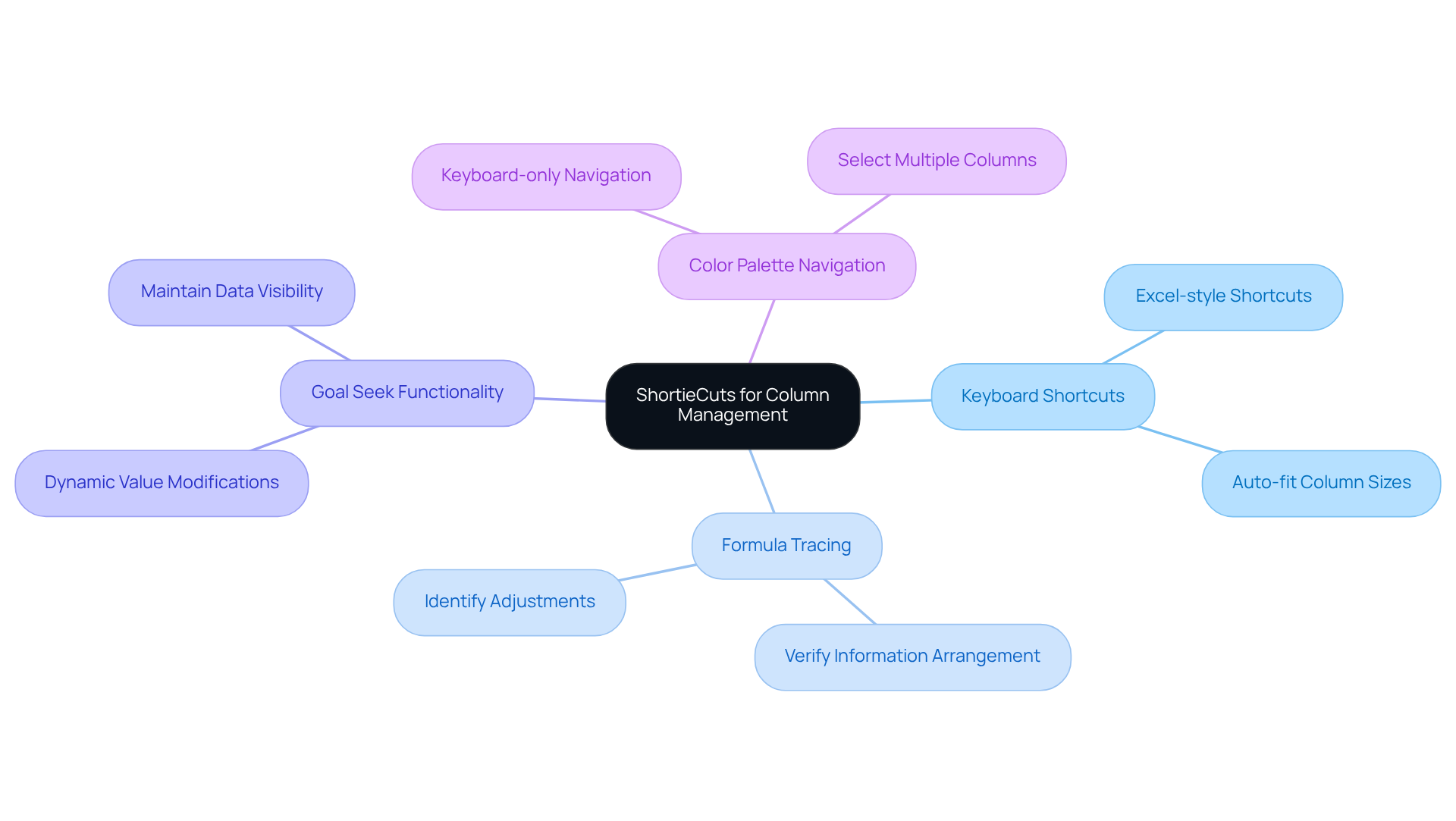
Managing columns in Google Sheets can be a daunting task, especially for finance professionals who rely on precision and efficiency. ShortieCuts offers a robust set of shortcuts and features designed to simplify this process.
-
Keyboard Shortcuts
With ShortieCuts, you can utilize Excel-style keyboard shortcuts to swiftly modify column sizes. For instance, pressingAlt + H, thenO, and subsequentlyIwill auto-fit the selected section, ensuring your data is presented effectively. -
Formula Tracing
The formula tracing functionality allows users to verify the arrangement of information, which is crucial for identifying necessary adjustments to column dimensions based on displayed data. This capability enhances clarity and accuracy in your spreadsheets. -
Goal Seek Functionality
When developing financial models, the Goal Seek feature enables dynamic value modifications. This often necessitates adjusting the column width in Google Sheets to maintain visibility, ensuring that all relevant data remains easily accessible. -
Color Palette Navigation
Take advantage of the enhanced color palette for keyboard-only navigation, making it easier to select and adjust multiple columns without a mouse. This feature boosts efficiency, particularly for users familiar with Excel shortcuts.
By integrating these techniques, finance professionals can significantly enhance their productivity and streamline their workflow in Google Sheets. Don't let column management slow you down-embrace ShortieCuts and transform your spreadsheet experience today!
Conclusion
Mastering column width adjustments in Google Sheets is not just a skill; it's a necessity for anyone looking to create organized and visually appealing spreadsheets. By applying the techniques outlined here, you can significantly enhance the clarity and efficiency of your data presentation. This ensures that your information is not only accessible but also comprehensible.
This article explores various methods for adjusting column widths, ranging from basic manual resizing to advanced customization options like setting standard sizes and utilizing keyboard shortcuts. Efficient space management is crucial; it can dramatically boost your productivity and minimize the time spent searching for information. Moreover, integrating ShortieCuts into your workflow streamlines these processes, equipping you with powerful tools to optimize your spreadsheet experience.
Embracing these strategies does more than just improve the aesthetics of your spreadsheets; it fosters better collaboration and informed decision-making. By prioritizing effective column management, you can transform your Google Sheets into powerful tools for data analysis and storytelling. This makes every spreadsheet a valuable resource for insight and clarity.
Frequently Asked Questions
Why is adjusting column width important in Google Sheets?
Adjusting column width is crucial for effective data presentation and organization, making it easier to analyze and interpret data.
How can I manually adjust the column width in Google Sheets?
To manually adjust the column width, position your cursor over the right edge of the header until it turns into a double-sided arrow. Then, click and drag to the right to widen or to the left to narrow the column.
What is the quickest way to auto-resize a column in Google Sheets?
The quickest way to auto-resize a column is to double-click the right edge of the header. This automatically adjusts the width to fit the longest content in the column.
How can I resize a column using the menu options in Google Sheets?
To resize a column using the menu, right-click on the column header and select 'Resize column'. You can enter a specific width in pixels or choose 'Fit to content' to adjust the width based on the content.
What are ShortieCuts and how do they help with column width adjustment?
ShortieCuts is an extension that provides access to over 300 Excel ALT shortcuts. By pressing 'ALT' (or Option on Mac), key-tips will appear, guiding you through efficient modifications and functionalities in Google Sheets, including column width adjustments.
How do these column width adjustment techniques enhance productivity?
Mastering these techniques improves the aesthetics of spreadsheets and significantly boosts overall productivity, making it easier to analyze and interpret data effectively.