
Master Dollar Signs in Excel Formulas: 5 Essential Steps
Learn to use dollar signs in Excel formulas for absolute references to enhance your spreadsheet efficiency.

Introduction
Mastering Excel formulas can revolutionize how finance professionals manage and analyze data, emphasizing the need for precision and efficiency. This article explores the essential steps for effectively using dollar signs in Excel formulas, focusing on the importance of absolute, relative, and mixed references.
But what happens when these crucial elements are overlooked? The challenge lies in navigating these reference types seamlessly. Ensuring accuracy while minimizing errors in complex calculations is vital.
Discover how to enhance your spreadsheet productivity and fully harness the potential of Excel formulas. By mastering these techniques, you can transform your data management practices and achieve greater efficiency in your financial analyses.
Understand Cell References in Excel
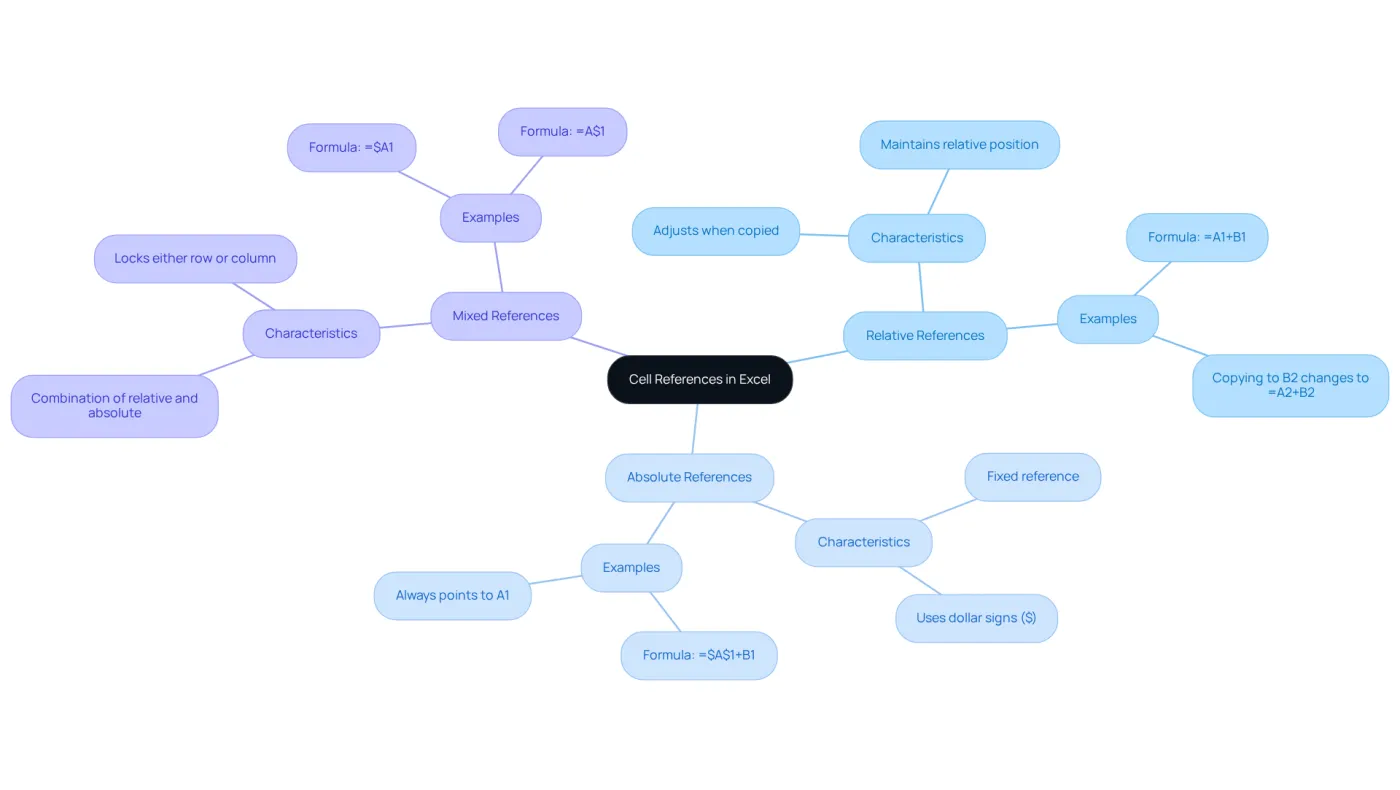
In Excel, understanding cell references is crucial for effectively managing data in specific cells. There are three primary types:
-
Relative References: These pointers automatically adjust when a calculation is copied to another location. For instance, if a calculation in cell B1 refers to A1, copying it to B2 will change the reference to A2. This adaptability is particularly beneficial for calculations that need to shift based on their position.
-
Absolute references, indicated by dollar signs in Excel formulas, remain fixed regardless of where the expression is copied. For example, an expression like
=$A$1in B1 will consistently point to A1, ensuring reliability in calculations, especially when dealing with constants such as tax rates or fixed values in financial models. Dollar signs in Excel formulas effectively lock the reference to a specific cell, maintaining consistency even as calculations move. -
Mixed References: These combine aspects of both relative and absolute references. For example,
=$A1locks the column while allowing the row to change, whereas=A$1locks the row but permits the column to adjust. This flexibility is advantageous for complex formulas that require certain elements to remain constant while others vary.
Grasping these references is essential for finance professionals, as it enhances accuracy in data manipulation and reduces errors in financial modeling. For instance, using absolute references in functions like VLOOKUP ensures that the lookup table range remains constant, which is vital for retrieving accurate data across large datasets. Notably, around 38% of spreadsheet users report that mastering these reference types significantly boosts their productivity when managing worksheets.
By effectively utilizing relative, absolute, and mixed references, users can create flexible and precise calculations, ultimately enhancing their efficiency in Excel. Additionally, the ability to quickly toggle between these reference types using the F4 key streamlines workflow, making it easier to adapt calculations as needed.
Implement Absolute References with Dollar Signs
Mastering Absolute References in Excel
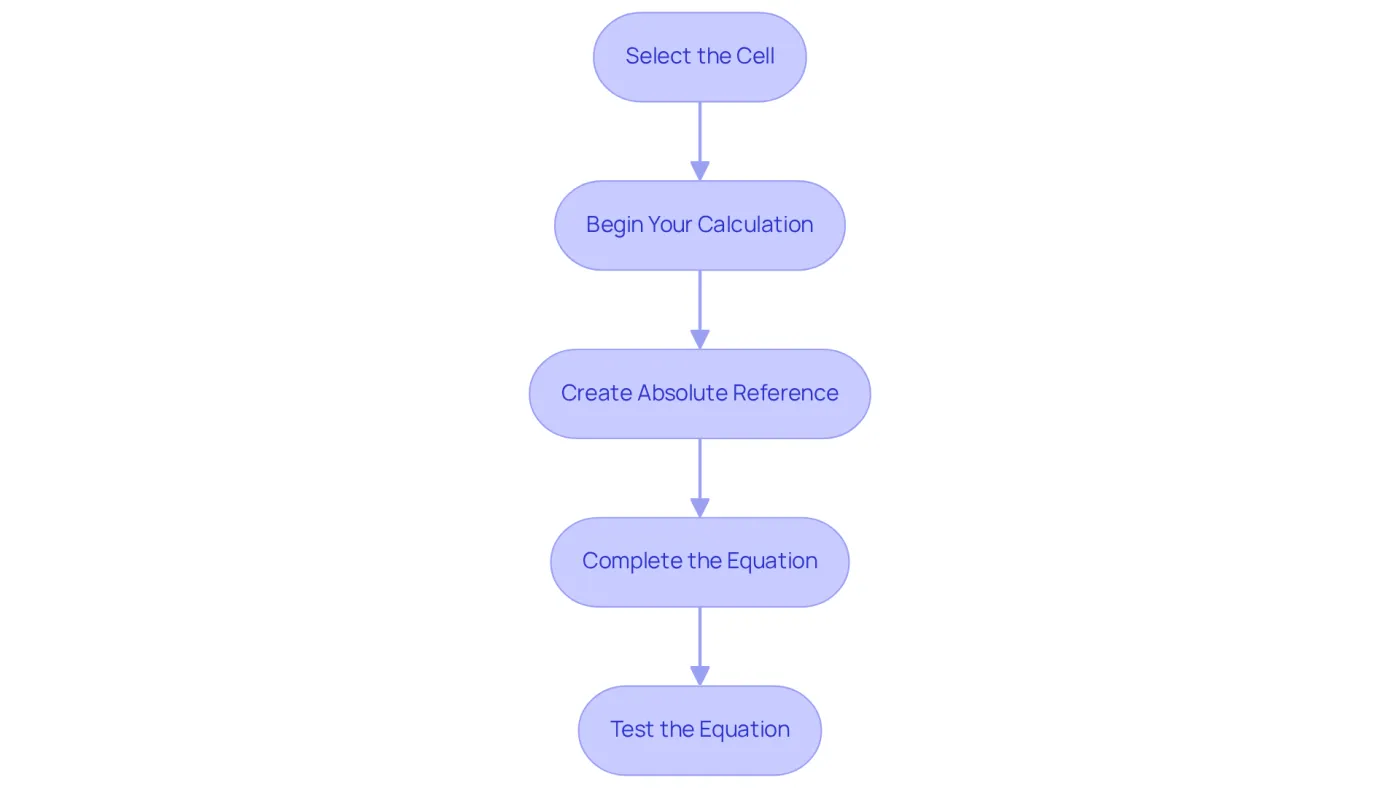
To effectively implement absolute references in your Excel formulas, follow these essential steps:
- Select the Cell: Start by clicking on the cell where you want to input your calculation.
- Begin Your Calculation: Type
=followed by your desired expression. For instance,=A1+B1is a great starting point. - To create an absolute reference, simply use dollar signs in Excel formulas by placing a dollar sign before the column letter and row number. For example, use dollar signs in Excel formulas by changing
A1to$A$1to lock both the column and row. - Complete the Equation: Finalize your equation and press Enter. Now, your formula will maintain the link to
$A$1, even if you replicate it elsewhere. - Test the Equation: Duplicate the cell containing your equation to a different position. Notice how the link to
$A$1remains unchanged, while other references adjust as expected.
By mastering these steps, you can enhance your Excel skills and ensure your formulas work seamlessly across your spreadsheets.
Utilize Relative References in Formulas
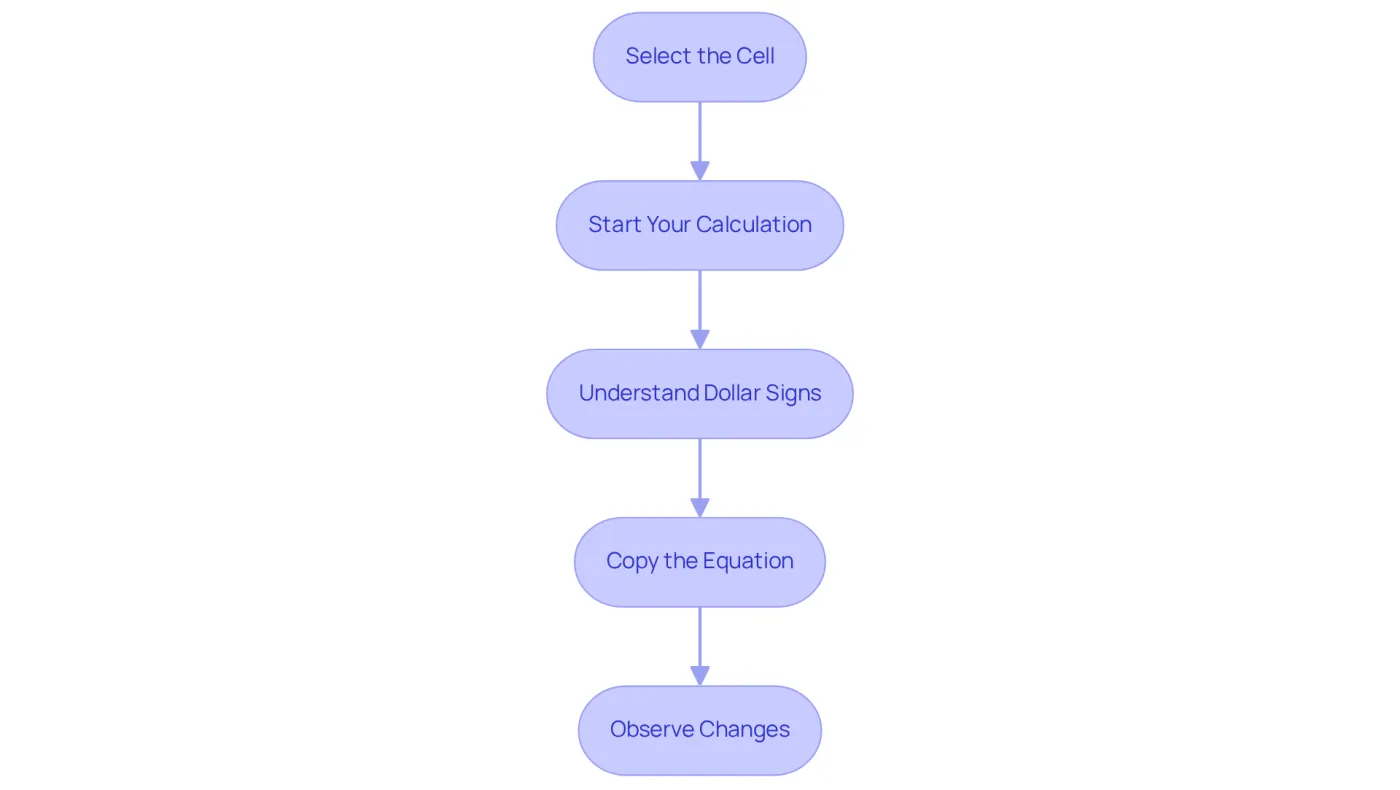
To effectively harness the power of relative references in your Excel formulas, follow these essential steps:
- Select the Cell: Click on the cell where you want to input your calculation.
- Start Your Calculation: Type
=followed by the desired equation. For example,=A1+B1. - It is important to understand how to use dollar signs in Excel formulas. Use relative references by referring to the ranges directly without including dollar signs in Excel formulas. This allows references like
A1andB1to change automatically when you replicate the equation elsewhere. - Copy the Equation: Drag the fill handle - the small square at the bottom-right corner of the cell - down or across to replicate the equation in adjacent cells.
- Observe Changes: Notice how the references adapt based on their new positions. For instance, copying the expression from C1 to C2 will automatically adjust it to
=A2+B2.
Statistics reveal that the average share of tasks involving spreadsheets is 3%. It is important to understand how to use dollar signs in Excel formulas, underscoring the reliance on relative links among spreadsheet users. This is especially advantageous for finance professionals who frequently perform repetitive calculations across multiple rows and columns. As noted by data analysts, "the capability of relative links to adapt dynamically in calculations not only streamlines workflows but also reduces mistakes." This skill is essential for anyone working extensively with spreadsheets. Furthermore, it's important to recognize that 3% of individuals who spend over 50% of their time in spreadsheets have never received formal training, highlighting the critical need for a solid understanding of these concepts.
Explore Mixed References for Advanced Formulas
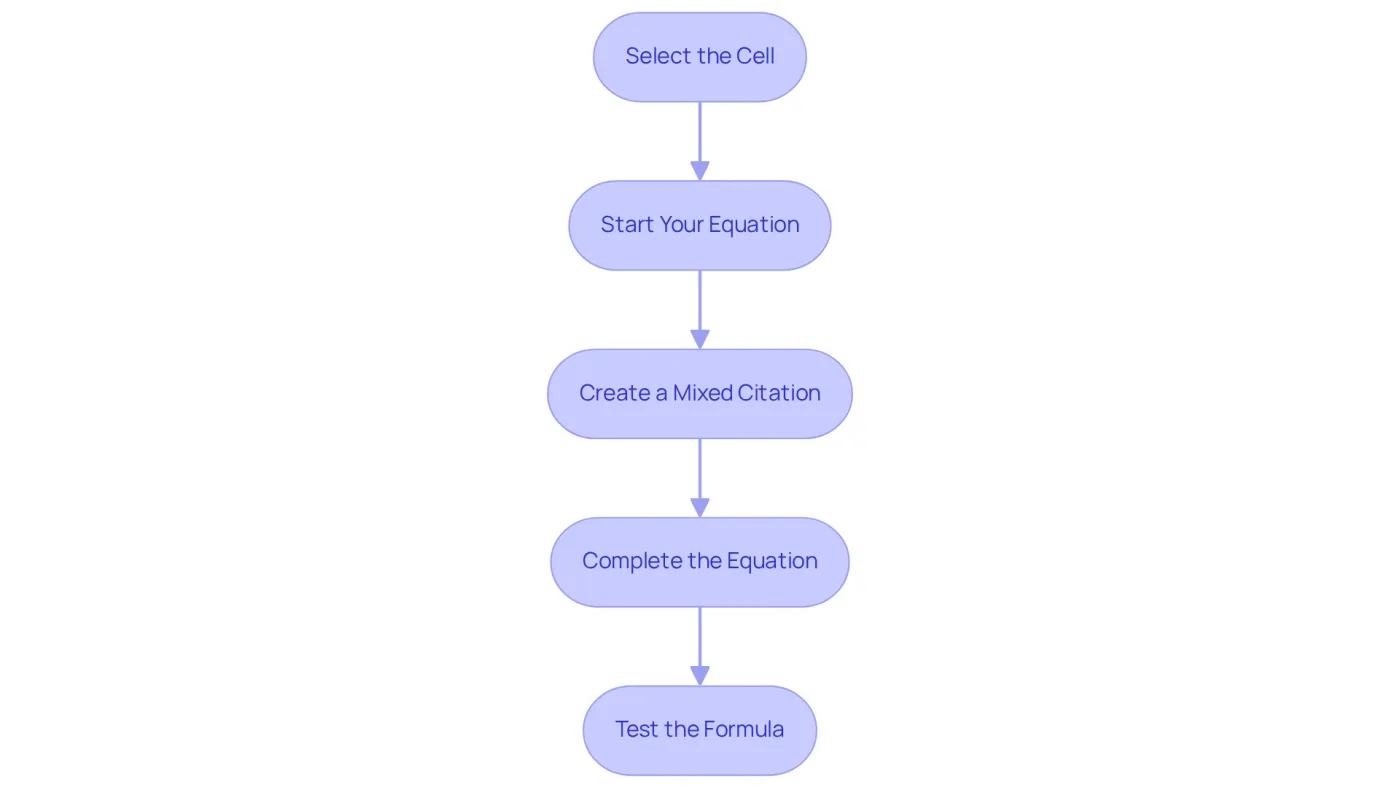
To effectively harness mixed references in your Excel formulas, follow these essential steps:
- Select the Cell: Click on the cell where you wish to input your calculation.
- Start Your Equation: Type
=followed by your desired calculation. For instance,=A1+B1is a straightforward addition equation. - To create a mixed citation, you can use dollar signs in Excel formulas by inserting a dollar sign before either the column letter or the row number. For example,
=$A1locks the column while allowing the row to change, whereas=A$1locks the row but permits the column to adjust. - Complete the Equation: Finalize your equation and press Enter. The formula will now operate based on the combined sources you have created.
- Test the Formula: Copy the cell containing the mixed indication to another location. Observe how the locked part remains constant while the other part adjusts based on its new position.
Mixed citations are particularly advantageous for financial analysts, simplifying complex calculations by allowing users to maintain fixed dollar signs in Excel formulas for certain variables while dynamically modifying others. This flexibility enhances the accuracy and efficiency of financial modeling, making it easier to analyze data across various scenarios. According to Garfield Stinvil, a seasoned software instructor, mastering mixed citations is crucial for developing practical skills in Excel that can significantly enhance financial analysis. With over 61 million users employing Google Sheets, the importance of mastering mixed citations is underscored by the widespread need for efficient data management in financial contexts.
Switch Between Reference Types Using the F4 Key
Mastering the F4 Key with ShortieCuts: A Game Changer for Spreadsheet Efficiency
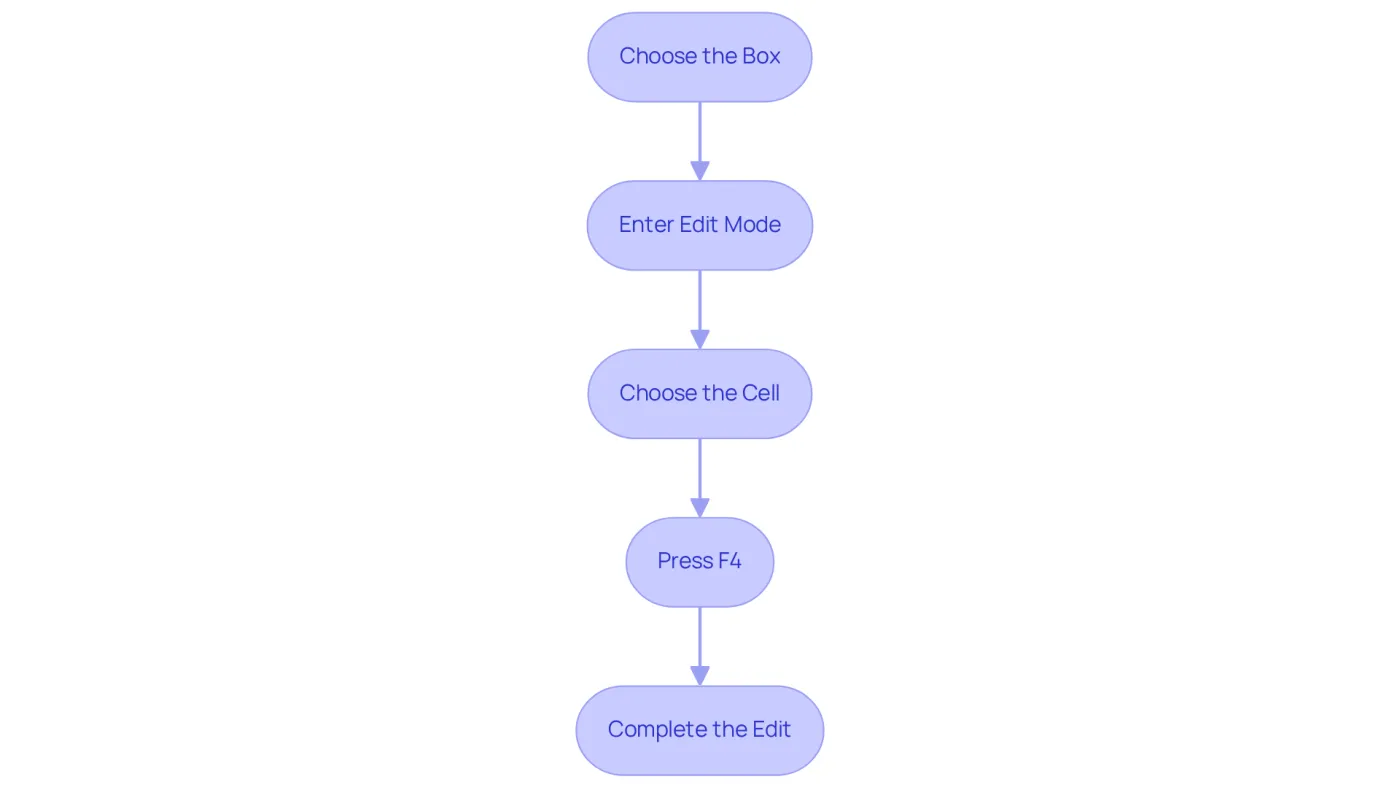
Are you tired of inefficient spreadsheet management? Switching between reference types can be a hassle, but with ShortieCuts, it doesn’t have to be. Here’s how to streamline your workflow using the F4 key:
- Choose the Box: Click on the box containing the calculation you wish to modify.
- Enter Edit Mode: Press F2 to activate edit mode for the chosen field.
- Choose the Cell: Click on the specific cell identifier within the formula that you want to modify.
- Press F4: Each press of the F4 key cycles through the various categories: relative, absolute, and mixed. For instance, starting with
A1, pressing F4 will cycle through$A$1,A$1,$A1, and back toA1. - Complete the Edit: Press Enter to save your changes. This shortcut enables quick adjustments to references without the need to manually input dollar signs.
Utilizing the F4 key can significantly enhance productivity, especially for finance professionals who frequently manipulate data in Google Sheets using ShortieCuts. With 233 ALT shortcuts available in spreadsheets, users can streamline their workflow and reduce the time spent on repetitive tasks.
Moreover, ShortieCuts ensures local data privacy, as all operations run locally on your computer, meaning your data remains secure and inaccessible to external servers. Did you know that many users are unaware of this shortcut? This lack of knowledge can lead to inefficiencies in spreadsheet management. By mastering the F4 key and other shortcuts available through ShortieCuts, you can enhance your productivity in financial modeling and analysis.
As one Excel trainer noted, "Keyboard shortcuts are essential for efficiency in spreadsheet management, allowing users to navigate and manipulate data swiftly." Incorporating these techniques can lead to substantial productivity improvements in your spreadsheet operations. Don’t let inefficiencies hold you back-embrace the power of ShortieCuts today!
Conclusion
Mastering the use of dollar signs in Excel formulas is crucial for anyone aiming to elevate their spreadsheet skills. Understanding the different types of cell references - relative, absolute, and mixed - enables users to create more efficient and accurate calculations. This knowledge streamlines workflows and significantly reduces errors, particularly in financial modeling and data analysis.
The nuances of each reference type are essential. Absolute references maintain fixed values, relative references adapt to dynamic calculations, and mixed references offer flexibility for complex formulas. Moreover, the F4 key serves as a powerful shortcut for quickly toggling between these reference types, enhancing productivity in spreadsheet management.
Embracing these techniques can revolutionize data handling in Excel. Whether you're working on financial models, crafting reports, or conducting data analysis, mastering dollar signs and cell references is transformative. By implementing these strategies, users can achieve new levels of efficiency and accuracy in their spreadsheet tasks, ultimately leading to improved decision-making and productivity in their professional endeavors.
Frequently Asked Questions
What are the primary types of cell references in Excel?
The primary types of cell references in Excel are Relative References, Absolute References, and Mixed References.
How do Relative References work in Excel?
Relative References automatically adjust when a calculation is copied to another location. For example, if a calculation in cell B1 refers to A1, copying it to B2 will change the reference to A2.
What are Absolute References and how are they indicated in Excel?
Absolute References remain fixed regardless of where the expression is copied. They are indicated by dollar signs in Excel formulas, such as =$A$1, ensuring that the reference consistently points to A1.
What are Mixed References in Excel?
Mixed References combine aspects of both relative and absolute references. For example, =$A1 locks the column while allowing the row to change, whereas =A$1 locks the row but permits the column to adjust.
Why is understanding cell references important for finance professionals?
Understanding cell references enhances accuracy in data manipulation and reduces errors in financial modeling, especially when using functions like VLOOKUP to ensure the lookup table range remains constant.
How can mastering cell references improve productivity in Excel?
Mastering different reference types significantly boosts productivity for spreadsheet users, as it allows for more flexible and precise calculations.
What is the function of the F4 key in Excel regarding cell references?
The F4 key allows users to quickly toggle between relative, absolute, and mixed references, streamlining workflow and making it easier to adapt calculations as needed.
What are the steps to implement Absolute References in Excel?
To implement Absolute References, select the cell, begin your calculation with '=', use dollar signs to lock the reference (e.g., change A1 to $A$1), complete the equation, and test by duplicating the cell to see if the reference remains unchanged.