

Overview
This article delves into mastering Excel formulas for calculating the number of days between dates, addressing common challenges faced by users. The solutions presented include straightforward methods such as simple subtraction, alongside powerful functions like DATEDIF and DAYS.
Clear, step-by-step instructions are provided to guide you through the process, ensuring you can implement these formulas effectively. Additionally, the article highlights common pitfalls that users encounter, emphasizing the critical importance of correct date formatting. This attention to detail not only guarantees accurate calculations but also enhances productivity in data analysis.
By mastering these techniques, you position yourself to streamline your workflow and improve your data management skills significantly. The benefits of using Excel for date calculations are substantial, enabling you to work more efficiently and confidently.
Introduction
Mastering date calculations in Excel is not just beneficial; it is essential for anyone aiming to enhance productivity and accuracy in data analysis. A staggering number of users remain unaware of the intricacies of Excel's date functions, leading to a significant potential for errors in calculations. This article demystifies the process of calculating the number of days between dates, offering readers a comprehensive step-by-step guide to utilizing powerful functions like DATEDIF and DAYS. But what happens when the numbers don’t add up, or when common pitfalls arise? By exploring these challenges, users will be equipped with the knowledge to navigate Excel's date calculations with confidence and precision.
Understand the Basics of Date Calculations in Excel
Excel treats dates as sequential numbers, beginning with January 1, 1900, designated as day 1. Each subsequent day increments this serial number by one, enabling users to perform arithmetic operations on time, such as addition and subtraction. For instance, if a start point is in cell A1 and an end point is in cell B1, the Excel formula for days between dates can be expressed as =B1-A1, which will yield the number of days between these two dates.
This understanding is crucial, as approximately 70% of users are unaware of how the spreadsheet's serial number system operates, potentially leading to significant errors. For example, entering a date in the format DD/MM/YY that exceeds 2029 may cause the software to misinterpret it as a date from the 1900s, resulting in considerable mistakes. To mitigate confusion, it is advisable to adopt the four-digit year format (DD/MM/YYYY).
Therefore, consistently verify that timestamps are correctly formatted to avoid calculation errors and to leverage the software's powerful temporal capabilities effectively. Additionally, consider using the Excel formula for days between dates to gain enhanced flexibility in calculating time intervals.

Explore Excel Functions for Days Calculation: DATEDIF and DAYS
Excel provides powerful tools for calculating the number of days between two points in time, with the Excel formula for days between dates, DATEDIF and DAYS being the most utilized by finance professionals. The DATEDIF function is notably flexible, allowing users to determine the difference between two dates in various units—days, months, or years. It is employed as follows: =DATEDIF(start_date, end_date, "d"), where "d" indicates that the result should be expressed in days. Furthermore, DATEDIF can also compute months and years, making it especially useful for intricate financial analyses. For example, to find the number of years between two dates, one can use =DATEDIF(start_date, end_date, "y").
Conversely, the DAYS function offers a more straightforward method by using the Excel formula for days between dates, specifically returning the number of days between two dates with the formula: =DAYS(end_time, start_time). An example of the Excel formula for days between dates in action is =DAYS('15-MAR-2021', '1-FEB-2021'), which calculates the number of days between the specified dates as 42. While both functions play crucial roles, DATEDIF is particularly distinguished by its versatility in output formats, making it invaluable for complex financial analyses. Finance experts often prefer DATEDIF for its comprehensive features, particularly when handling varied temporal calculations in financial modeling and reporting.
It is essential to ensure that both date cells are formatted correctly before executing calculations to prevent errors. The DAYS function may yield #NUM! or #VALUE! errors if the date inputs are invalid, so users should remain vigilant regarding these potential pitfalls. Moreover, DATEDIF can be applied in practical scenarios, such as calculating the remaining days after the last completed month or excluding weekends from the total days, thereby enhancing its utility in real-world applications.

Apply the DATEDIF Function: A Step-by-Step Guide
To effectively utilize the DATEDIF function in Excel, follow these straightforward steps:
- Open your Excel spreadsheet and locate the cells that hold your start and end times. For instance, input the start time in cell A1 and the end time in cell B1.
- Select the cell where you wish to display the result (e.g., C1).
- To determine the number of days between the two points in time, input the excel formula for days between dates:
=DATEDIF(A1, B1, "d"). - Press Enter. The outcome will display in the chosen cell, which utilizes an excel formula for days between dates to indicate the total days between the specified periods.
- To find the difference in months or years, simply replace "d" with "m" for months or "y" for years in the formula.
The DATEDIF function is particularly useful in various real-world scenarios, such as calculating project timelines or determining employee tenure, and can be applied using the excel formula for days between dates. For example, an HR expert can evaluate how long a worker has been with the organization by applying the formula to determine the difference between the start point and the current day. Additionally, DATEDIF can compute leftover days after calculating complete years and months, providing a more detailed understanding of time intervals.
Despite its utility, users often encounter common pitfalls when using DATEDIF. One prevalent error is neglecting to verify that the timelines are formatted properly, which can result in mistakes in calculations. Spreadsheet instructors emphasize the importance of confirming that both timestamps are recognized as legitimate formats by the software to prevent such issues. As Aditya Kumar observes, "Whether you're calculating age from birthdates, measuring project durations, or assessing intervals between events, DATEDIF provides accuracy and simplicity in managing differences in time, which is essential in any analytical task." By mastering the DATEDIF function, users can enhance their data analysis capabilities and streamline their workflow in Excel.

Use Simple Subtraction to Calculate Days Between Dates
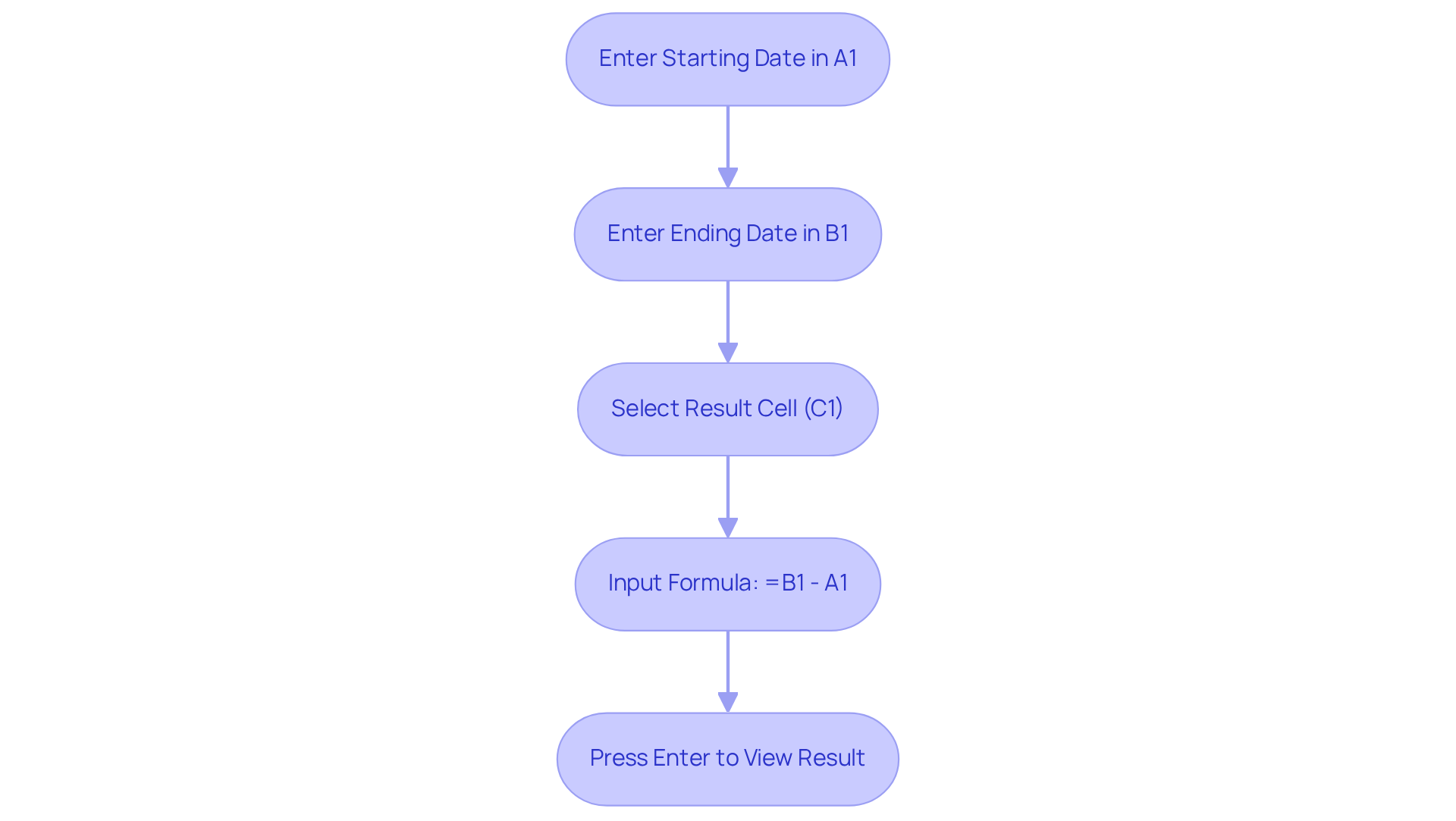
To determine the number of days between two points in time, you can use an Excel formula for days between dates, which involves straightforward subtraction. Here’s how you can do it effectively:
- Enter your starting point in cell A1 and your finishing point in cell B1.
- Select the cell where you want the result to appear (e.g., C1).
- Input the formula:
=B1 - A1. - Press Enter. The outcome will display the total count of intervals between the two points in time.
This method is particularly advantageous for those familiar with basic arithmetic operations, especially when applying an Excel formula for days between dates in spreadsheet software. For instance, subtracting the date 5/1/2016 from 5/6/2016 results in a difference of 5 days. This example illustrates how easily spreadsheet software can handle date calculations. Additionally, while the DAYS() function can yield similar results, the direct subtraction method is favored for its simplicity and speed.
Data analysts emphasize that mastering these basic arithmetic techniques in spreadsheet software, such as the Excel formula for days between dates, can significantly enhance productivity, particularly when managing timelines and deadlines in financial modeling. However, users should remain vigilant about potential errors, such as #VALUE! or #NUM!, which can arise from incorrect time formats. Ensuring that timelines are properly formatted is crucial to avoid these pitfalls, as highlighted in case studies on direct subtraction in spreadsheet software. To further improve your spreadsheet capabilities, consider exploring advanced temporal functions and techniques.
Troubleshoot Common Issues in Date Calculations
Navigating date calculations in Excel using an excel formula for days between dates presents users with several challenges that can disrupt workflow and lead to errors. Understanding these issues and their solutions is essential for mastering the Excel formula for days between dates.
-
Incorrect Format for Dates: One of the most common pitfalls is the incorrect formatting of date cells. To ensure accuracy, right-click the cell, select 'Format Cells', and choose 'Date'. This straightforward step can prevent numerous errors and enhance data integrity.
-
#VALUE! Error: This error typically arises when a cell contains text instead of a valid time. To resolve this, check that all entries are formatted as timestamps. Invalid entries can lead to significant calculation issues. Data indicates that many users encounter the #VALUE! error due to mismatched time formats, underscoring the importance of proper formatting.
-
Negative Outcomes: Subtracting a later time from an earlier one results in a negative outcome, which can be confusing. Always confirm that the start time precedes the end time to avoid this common mistake.
-
DATEDIF Issues: If the DATEDIF calculation returns an error, revisit the syntax and ensure that the start time is earlier than the end time. This operation is sensitive to the sequence of events; any discrepancies can lead to errors.
The DAYS function is an excel formula for days between dates and is particularly useful for calculating the difference between two points in time. Ensure that the times are in a valid format to prevent mistakes.
Practical examples show that users often address these challenges by converting timestamps into accepted formats, such as '21-Oct-2006' or '06/22/2000', which Excel recognizes without error. Additionally, users are encouraged to engage with the Excel Tech Community or support forums for further assistance with timeline issues. By following these troubleshooting steps, users can significantly improve their handling of date calculations and minimize disruptions in their workflow.

Conclusion
Mastering the Excel formula for calculating days between dates is not just an essential skill; it is a transformative ability that significantly enhances productivity and accuracy in data analysis. Understanding that Excel treats dates as sequential numbers empowers users to perform arithmetic operations effectively, allowing for precise time interval calculations. This foundational knowledge, when combined with powerful functions like DATEDIF and DAYS, equips users with the necessary tools to streamline their date calculations.
Throughout this article, we have provided key insights into various methods for calculating days between dates. From the straightforward subtraction technique to the versatility of the DATEDIF function—which enables the calculation of differences in days, months, and years—each approach presents unique advantages. Furthermore, we have discussed common pitfalls and troubleshooting tips to help users navigate potential errors stemming from incorrect date formatting and function usage.
In conclusion, embracing these techniques simplifies the process of date calculations in Excel while empowering users to tackle complex temporal analyses with confidence. By applying the knowledge gained from this guide, individuals can enhance their data management skills, leading to more informed decision-making and improved efficiency in their work. Whether for personal projects or professional tasks, mastering date calculations in Excel represents a valuable investment in one’s analytical capabilities.
Frequently Asked Questions
How does Excel treat dates in calculations?
Excel treats dates as sequential numbers starting from January 1, 1900, which is designated as day 1. Each subsequent day increments this serial number by one, allowing users to perform arithmetic operations on dates.
What is the formula to calculate the number of days between two dates in Excel?
The formula to calculate the number of days between two dates is =B1-A1, where A1 is the start date and B1 is the end date.
Why is it important to understand the serial number system in Excel?
Understanding the serial number system is crucial because approximately 70% of users are unaware of it, which can lead to significant calculation errors, especially when entering dates in formats that Excel may misinterpret.
What date format is recommended to avoid confusion in Excel?
It is advisable to use the four-digit year format (DD/MM/YYYY) to prevent misinterpretation of dates, particularly those that exceed the year 2029.
What are the two main functions in Excel for calculating the number of days between dates?
The two main functions for calculating the number of days between dates in Excel are DATEDIF and DAYS.
How does the DATEDIF function work?
The DATEDIF function calculates the difference between two dates in various units, such as days, months, or years. It is used as follows: =DATEDIF(start_date, end_date, "d"), where "d" indicates that the result should be in days.
What is the formula for the DAYS function in Excel?
The DAYS function uses the formula =DAYS(end_time, start_time) to return the number of days between two specified dates.
What common errors should users be aware of when using the DAYS function?
Users should be cautious of #NUM! or #VALUE! errors that may occur if the date inputs are invalid.
In what practical scenarios can the DATEDIF function be applied?
DATEDIF can be used to calculate remaining days after the last completed month or to exclude weekends from the total days, enhancing its utility in real-world applications.