
Master Excel Formula Percentage Difference for Financial Reporting
Learn to master the Excel formula percentage difference for effective financial reporting.

Introduction
Understanding the percentage difference in financial reporting is crucial for analysts who aim to capture the nuances of performance metrics. This powerful tool highlights the relative changes between two values and empowers finance professionals to make informed decisions based on these insights.
However, many may wonder: how can one effectively apply this formula in Excel to ensure accuracy and clarity in their financial reports? Exploring the methodologies and best practices for calculating percentage differences in Excel reveals potential pitfalls and opportunities that lie within this essential skill.
By mastering this technique, analysts can enhance their reporting accuracy and provide deeper insights into financial performance, ultimately driving better decision-making.
Define Percentage Difference in Excel for Financial Reporting
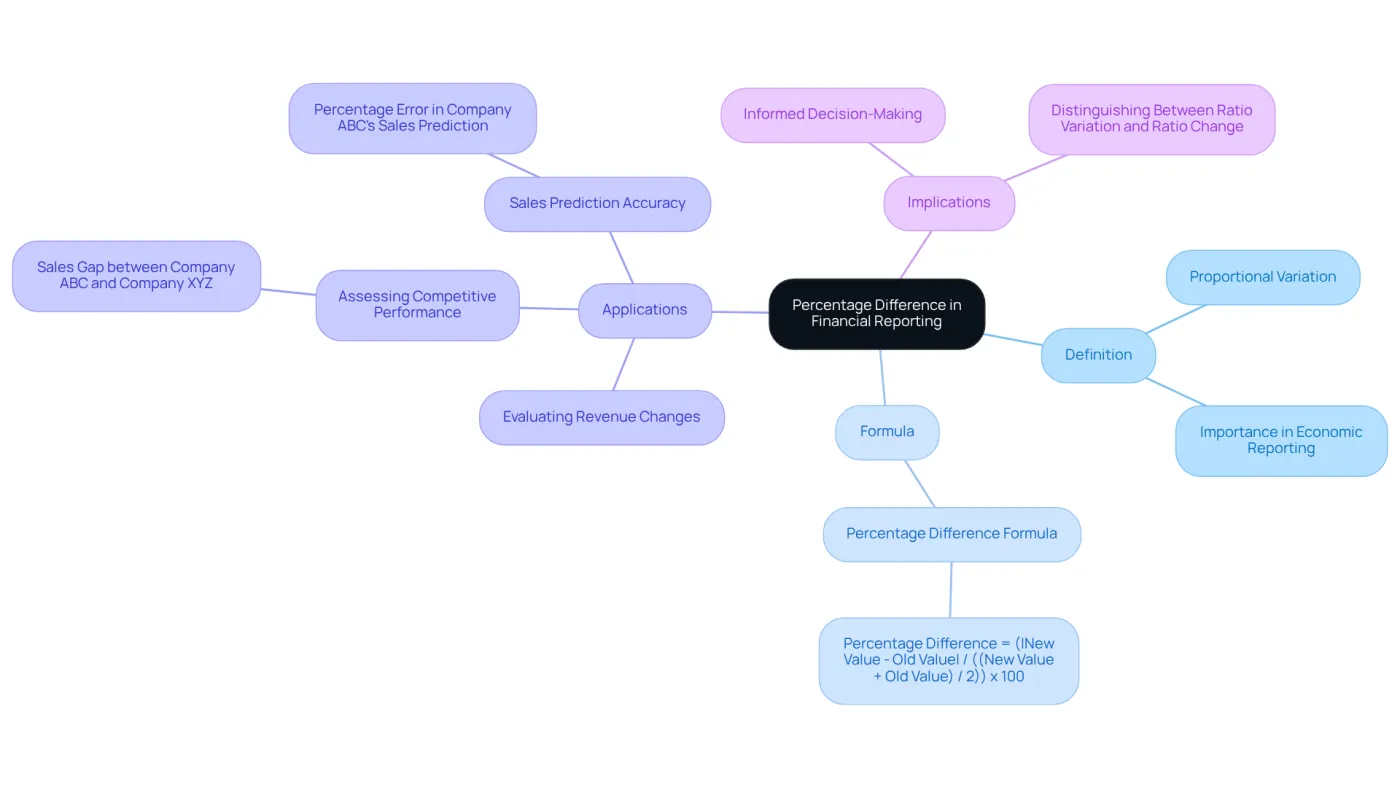
Proportional variation is a critical measure that captures the change between two values as a fraction of their mean. This metric is indispensable in economic reporting. The formula for calculating percentage difference is straightforward:
Percentage Difference = (|New Value - Old Value| / ((New Value + Old Value) / 2)) x 100
This metric proves particularly beneficial for analysts evaluating fluctuations in key financial indicators such as revenue, expenses, or profit margins. For instance, consider a scenario where a company's revenue increases from $100,000 to $120,000. The percentage difference is calculated as follows:
Percentage Difference = (|120,000 - 100,000| / ((120,000 + 100,000) / 2)) x 100 = (20,000 / 110,000) x 100 ≈ 18.18%
This calculation reveals an 18.18% growth rate, offering stakeholders a clear perspective on the company's performance trajectory. Understanding proportional variation is essential; it empowers finance professionals to make informed decisions based on relative changes in financial metrics.
For example, a study highlighted that the sales gap between Company ABC and Company XYZ was 40%, underscoring the importance of this metric in evaluating competitive performance. Additionally, the error rate in Company ABC's sales predictions was found to be 25%, indicating a pressing need for improved forecasting accuracy. These insights illustrate how understanding variation can illuminate financial trends and inform strategic planning.
It is also vital for finance experts to distinguish between ratio variation and ratio change. Misapplying these concepts can lead to flawed analyses, which can have significant repercussions.
Explore Methods to Calculate Percentage Difference in Excel
Calculating percentage difference in Excel can be straightforward, and there are several effective methods to achieve this, each tailored for specific scenarios:
-
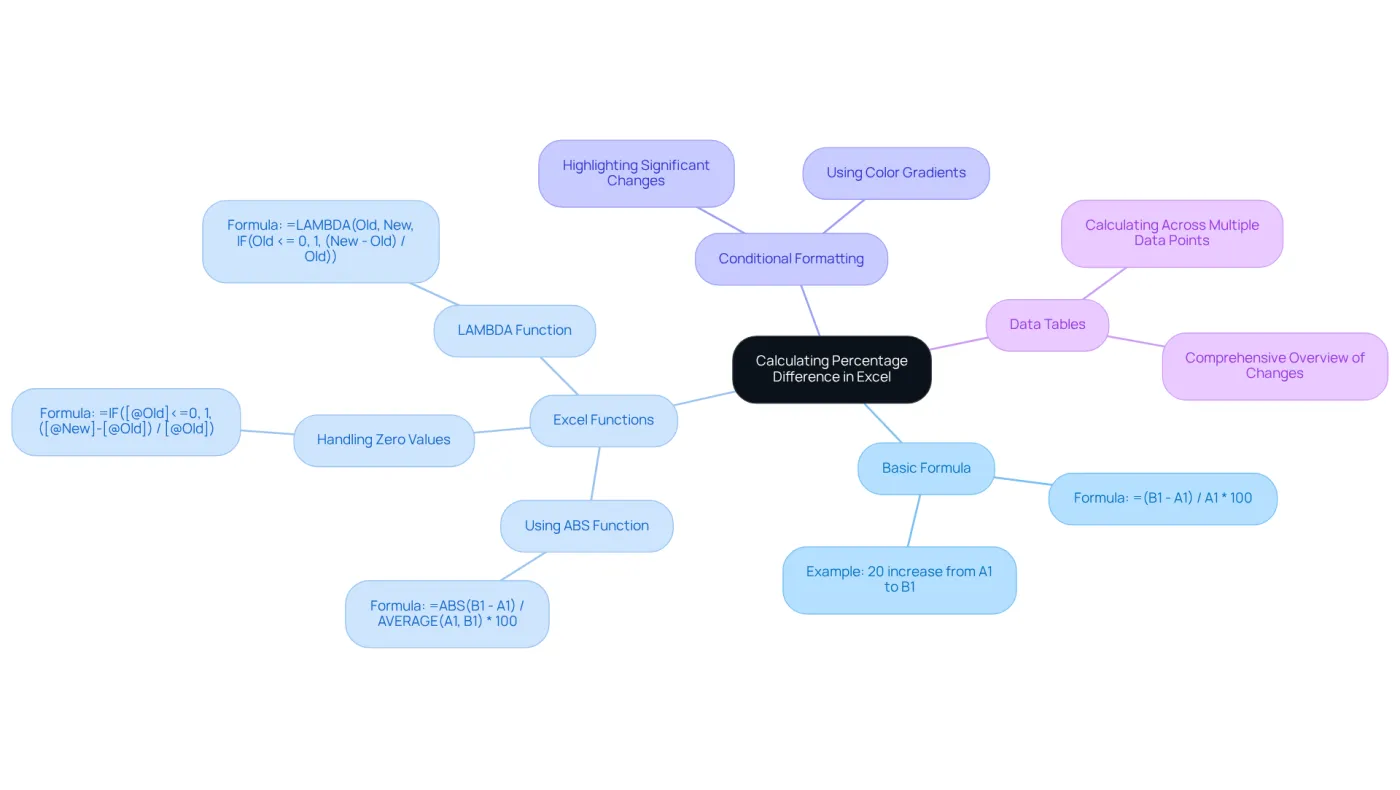
Basic Formula: The most direct approach is to use a simple formula in a cell. For instance, if the old value resides in cell A1 and the new value in cell B1, you can input the following formula in cell C1:
=(B1 - A1) / A1 * 100This formula provides the percentage change from the old value to the new value, offering a clear insight into the shift.
-
Using the Excel formula percentage difference, you can streamline your calculations with Excel's built-in functions. For example, employing the
ABSfunction ensures you work with absolute values, which is particularly beneficial when negative numbers are involved:=ABS(B1 - A1) / AVERAGE(A1, B1) * 100This method enhances accuracy in your calculations, making it easier to interpret results.
-
Conditional Formatting: To visually represent variations in ratios, leverage conditional formatting. By highlighting cells with significant changes and selecting a color gradient, you can effectively emphasize these differences, making your data more intuitive.
-
Data Tables: For more intricate analyses, consider utilizing data tables. They allow you to calculate and display differences in proportions across multiple data points, providing a comprehensive overview of changes over time or across various categories. This approach not only enhances clarity but also aids in informed decision-making.
Format and Troubleshoot Percentage Calculations in Excel
Proper formatting of calculations using the excel formula percentage difference is crucial for clarity and accuracy in financial reports. Here are some best practices to follow:
-
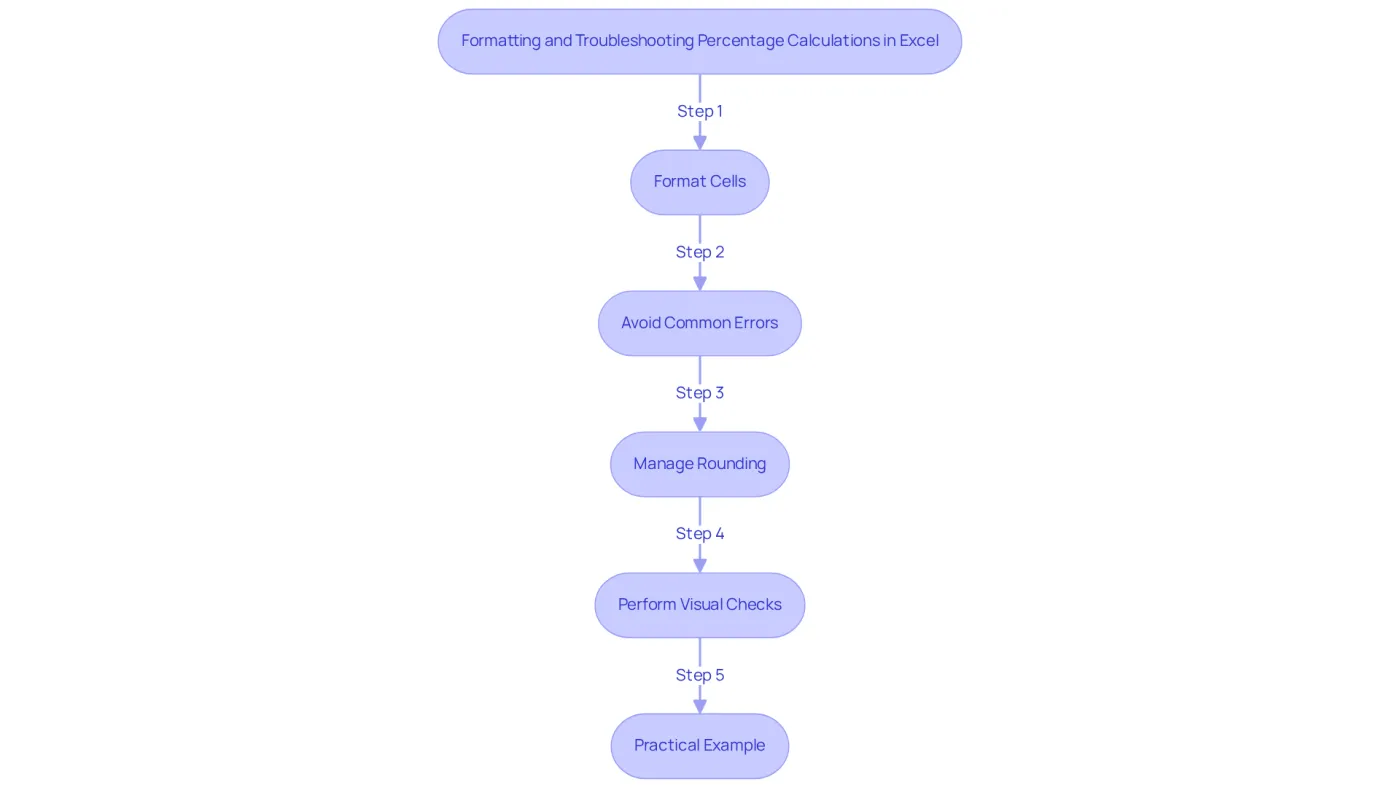
Formatting Cells: To format a cell as a percentage, select the cell, right-click, choose 'Format Cells', and select 'Percentage'. This ensures that Excel shows the amount correctly. Alternatively, use the shortcut
Ctrl + Shift + %for quick formatting of selected cells. -
Avoiding Common Errors: A frequent error encountered is the
#DIV/0!message, which arises when dividing by zero. To mitigate this, employ theIFERRORfunction:
=IFERROR((B1 - A1)/A1, 0)
This formula returns 0 instead of an error if the old value is zero, maintaining the integrity of your calculations. -
Rounding Issues: Rounding can significantly impact the precision of ratio calculations. Utilize the
ROUNDfunction to manage the number of decimal places displayed:
=ROUND((B1 - A1)/A1 * 100, 2)
This rounds the result to two decimal places, ensuring a polished presentation. -
Visual Checks: Regularly review your calculations visually to confirm their validity. If a ratio appears unusually high or low, double-check the underlying values and formulas to identify any discrepancies. This practice can help catch errors before they affect your reports.
-
Practical Example: For instance, if November earnings are $2,342 and December earnings are $2,500, the percentage change can be calculated using the formula:
=(C2-B2)/B2,
which results in a percentage change of approximately 6.75%. This example demonstrates the use of ratio calculations in economic reporting. -
Common Pitfalls: Be vigilant about verifying data summation to avoid discrepancies in your ratio calculations. Concealed data or erroneous summation can result in inflated or flawed outcomes, affecting your monetary reports.
Leverage ShortieCuts for Enhanced Excel Functionality in Google Sheets
Transform Your Google Sheets Experience with ShortieCuts
ShortieCuts significantly enhances the Google Sheets experience by integrating familiar Excel functionalities, making it an invaluable tool for finance professionals. Are you ready to elevate your productivity? Here’s how to leverage its features for calculating percentage differences:
-
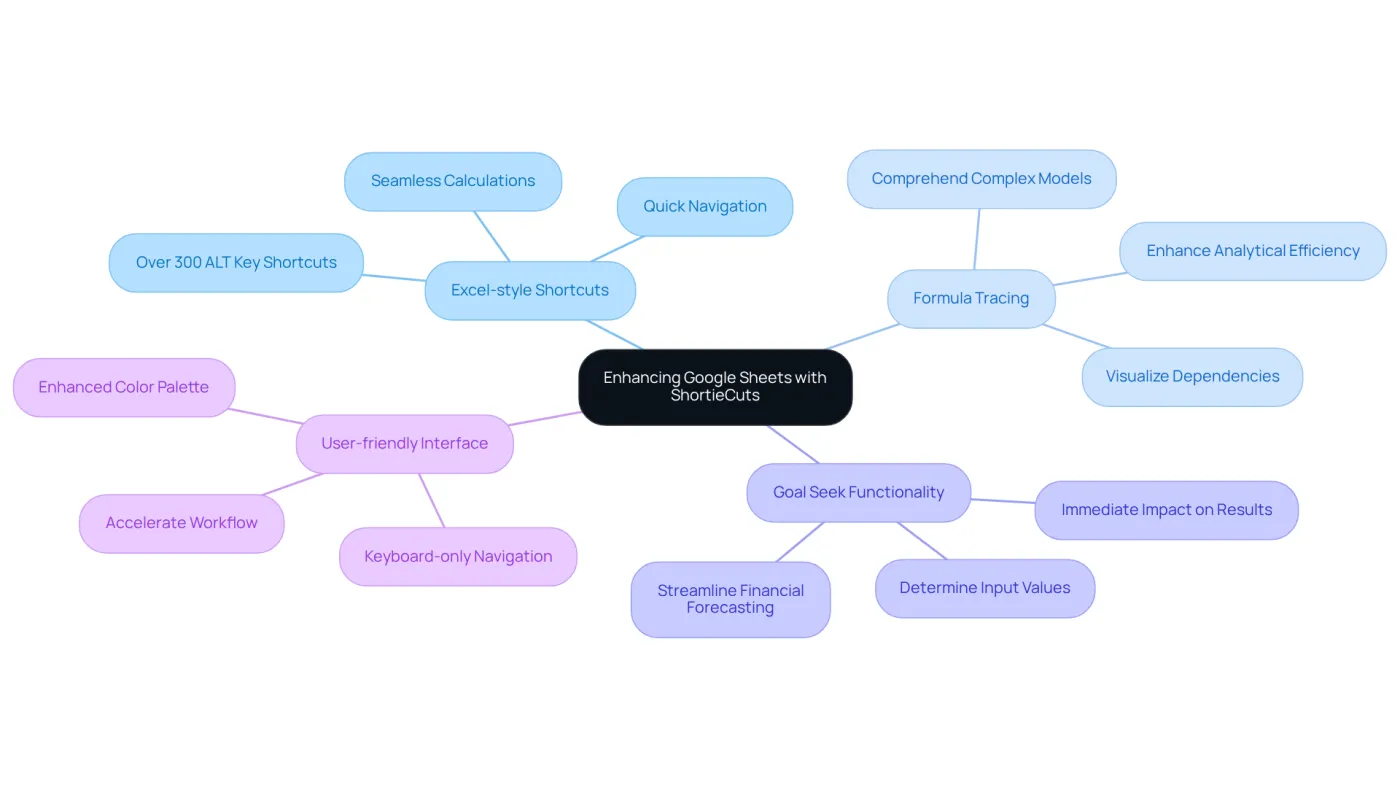
Excel-style Shortcuts: Gain access to 233 Excel ALT key shortcuts, allowing you to navigate Google Sheets and perform calculations seamlessly. For instance, pressing
ALT + Eopens the Edit menu, enabling quick use of ratio formatting-crucial for budget reporting. -
Formula Tracing: Visualize dependencies within your calculations with this feature, making it easier to comprehend how difference ratios are derived. This capability is particularly beneficial when dealing with complex economic models, enhancing your analytical efficiency.
-
Goal Seek Functionality: ShortieCuts includes a Goal Seek function similar to Excel's, enabling you to determine the necessary input values to achieve specific Excel formula percentage difference outcomes. This functionality streamlines financial forecasting and analysis, allowing you to adjust variables and see immediate impacts on results.
-
User-friendly Interface: The enhanced color palette and keyboard-only navigation facilitate quicker selection of options and formatting applications without the need for a mouse. This improvement can significantly accelerate your workflow, enabling you to focus on analysis rather than navigation.
By utilizing these features, finance professionals can enhance their productivity and efficiency in Google Sheets. Make the transition from Excel smoother and more effective-start using ShortieCuts today!
Conclusion
Understanding how to calculate and apply percentage differences in financial reporting is crucial for analysts aiming to make informed decisions based on relative changes in key metrics. Mastering the percentage difference formula and its applications in Excel empowers finance professionals to gain valuable insights into performance trends and effectively communicate these findings to stakeholders.
The significance of percentage difference in evaluating financial fluctuations cannot be overstated. Key methods for calculating this metric in Excel have been explored, including:
- Basic formulas
- The use of functions like
ABS - Visual representation through conditional formatting
Additionally, best practices for formatting and troubleshooting calculations ensure accuracy and clarity in reports. The introduction of ShortieCuts further enhances productivity in Google Sheets, streamlining the analysis process.
Recognizing the power of percentage difference not only aids in precise financial analysis but also supports strategic planning and competitive evaluation. By implementing these techniques and tools, finance professionals can elevate their reporting capabilities, driving better business outcomes. Embrace these practices to unlock the full potential of your financial data and enhance your analytical prowess.
Frequently Asked Questions
What is percentage difference in Excel for financial reporting?
Percentage difference is a measure that captures the change between two values as a fraction of their mean, and it is essential in economic reporting.
What is the formula for calculating percentage difference?
The formula for calculating percentage difference is: Percentage Difference = (|New Value - Old Value| / ((New Value + Old Value) / 2)) x 100.
Why is percentage difference important for financial analysts?
Percentage difference is important for analysts as it helps evaluate fluctuations in key financial indicators such as revenue, expenses, or profit margins.
Can you provide an example of how to calculate percentage difference?
Yes, for example, if a company's revenue increases from $100,000 to $120,000, the percentage difference is calculated as follows: Percentage Difference = (|120,000 - 100,000| / ((120,000 + 100,000) / 2)) x 100 = (20,000 / 110,000) x 100 ≈ 18.18%.
What does a percentage difference of 18.18% indicate in the example provided?
It indicates an 18.18% growth rate in the company's revenue, offering stakeholders insight into the company's performance trajectory.
How does understanding proportional variation benefit finance professionals?
Understanding proportional variation empowers finance professionals to make informed decisions based on relative changes in financial metrics.
What was highlighted in the study regarding Company ABC and Company XYZ?
The study highlighted that the sales gap between Company ABC and Company XYZ was 40%, emphasizing the importance of percentage difference in evaluating competitive performance.
What was the error rate in Company ABC's sales predictions?
The error rate in Company ABC's sales predictions was found to be 25%, indicating a need for improved forecasting accuracy.
Why is it important for finance experts to distinguish between ratio variation and ratio change?
Distinguishing between ratio variation and ratio change is vital because misapplying these concepts can lead to flawed analyses, which can have significant repercussions.