
Master Excel Formula to Add Days to Date in Google Sheets
Master the Excel formula to add days to a date in Google Sheets effortlessly.

Introduction
Mastering the art of date manipulation in Google Sheets is essential for anyone aiming to boost productivity, particularly those making the switch from Excel. This skill not only simplifies tasks like tracking project deadlines and managing warranty periods but also enhances overall efficiency. However, many users encounter common pitfalls that can hinder their progress.
So, how can you navigate these complexities? By understanding and utilizing the powerful date functions in Google Sheets, you can unlock their full potential. With just a simple formula, you can effortlessly add days to any date, streamlining your workflow and ensuring you stay on top of your commitments.
Embrace this opportunity to elevate your productivity and tackle your challenges head-on.
Understand the Basic Formula for Adding Days to a Date
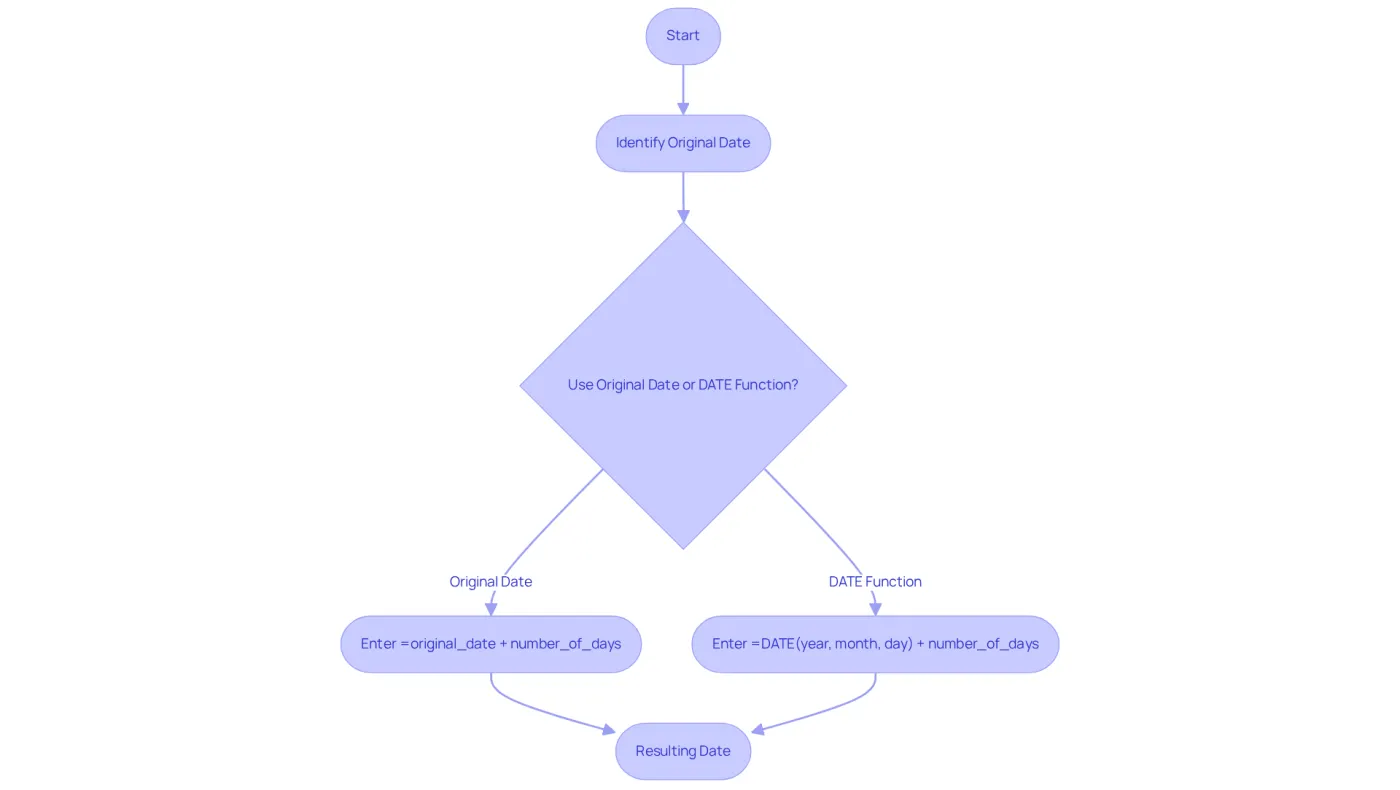
Incorporating additional time into your application is straightforward and can be accomplished by using an Excel formula to add days to a date. The basic syntax is:
=original_date + number_of_days
For example, if you have a date in cell A1 and want to add 10 days, you would enter:
=A1 + 10
Alternatively, you can utilize the DATE function to specify a date directly:
=DATE(year, month, day) + number_of_days
This method allows for effective date manipulation, which is particularly advantageous for users transitioning from Excel to Google Sheets. A significant number of users, especially those in finance and accounting, are already familiar with these temporal functions, making this knowledge essential for enhancing productivity. In fact, 70% of Workspace users actively engage with the spreadsheet application at least once a week, highlighting the necessity of mastering these skills.
Real-world applications of the Excel formula to add days to a date include tracking project deadlines or managing warranty periods. For instance, to monitor a warranty that lasts for 30 days from a purchase date in cell B2, you could use:
=B2 + 30
Mastering these date manipulation techniques not only streamlines operations but also minimizes errors in time-sensitive tasks. As Robert A. Lee, Senior Editor, notes, '70% of all Workspace users actively utilize Spreadsheets at least once per week,' underscoring the importance of these skills in today’s data-driven environment.
Apply the Formula in Excel to Add Days to Your Date
Unlock the Power of Google Sheets with ShortieCuts
Are you struggling to add days to a date in Google Sheets? Look no further. With ShortieCuts, you can streamline your workflow and enhance your productivity. Follow these simple steps to add days effortlessly:
-
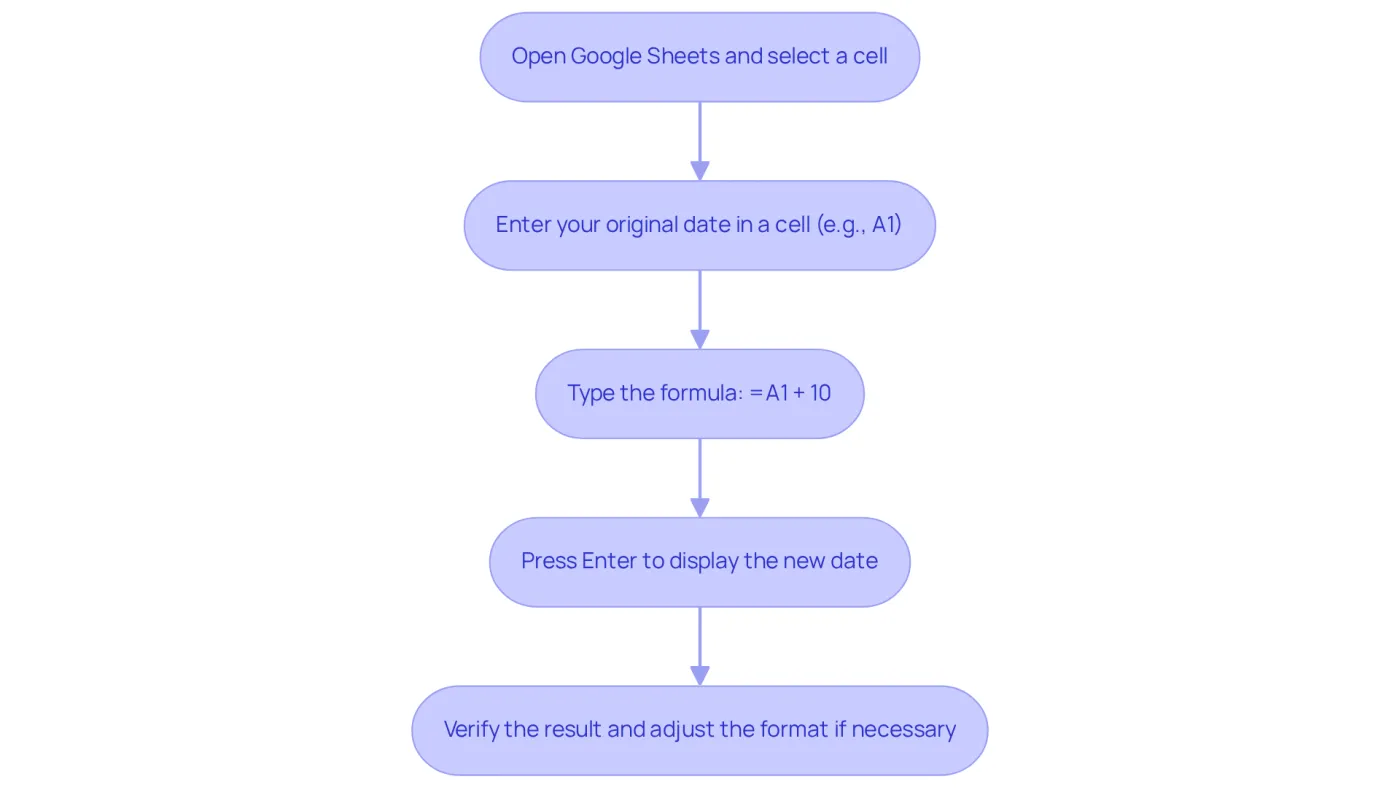
Open Google Sheets and select the cell where you want the new information to appear.
-
Enter your original date in a cell (e.g., A1).
-
In another cell, type the formula:
=A1 + 10(Replace
10with the number of days you wish to add.) -
Press Enter. The cell will now display the new date, which is determined by the excel formula add days to date by adding 10 days to the original date.
-
Verify the result by checking the format of the timestamp. If necessary, adjust the format by selecting the cell, then navigating to Format > Number > Date.
This straightforward method empowers finance professionals to transfer their Excel skills to Google Sheets seamlessly. With the ShortieCuts extension, which offers over 230 Excel ALT shortcuts, your productivity can soar. In fact, user satisfaction rates for calendar functions in Google Sheets have seen a significant rise, with 82% of educators rating it as 'very effective' for student engagement.
Moreover, many finance experts have noted that the platform's data manipulation features are on par with Excel. By leveraging these familiar formulas and the user-friendly features of ShortieCuts, you can enhance your productivity while ensuring your data remains private and secure.
Take Action Now! Start using ShortieCuts today and transform the way you work with Google Sheets.
Explore Advanced Techniques for Date Manipulation in Excel
Once you're comfortable with basic date addition, it's time to delve into advanced techniques that can enhance your date calculations:
-
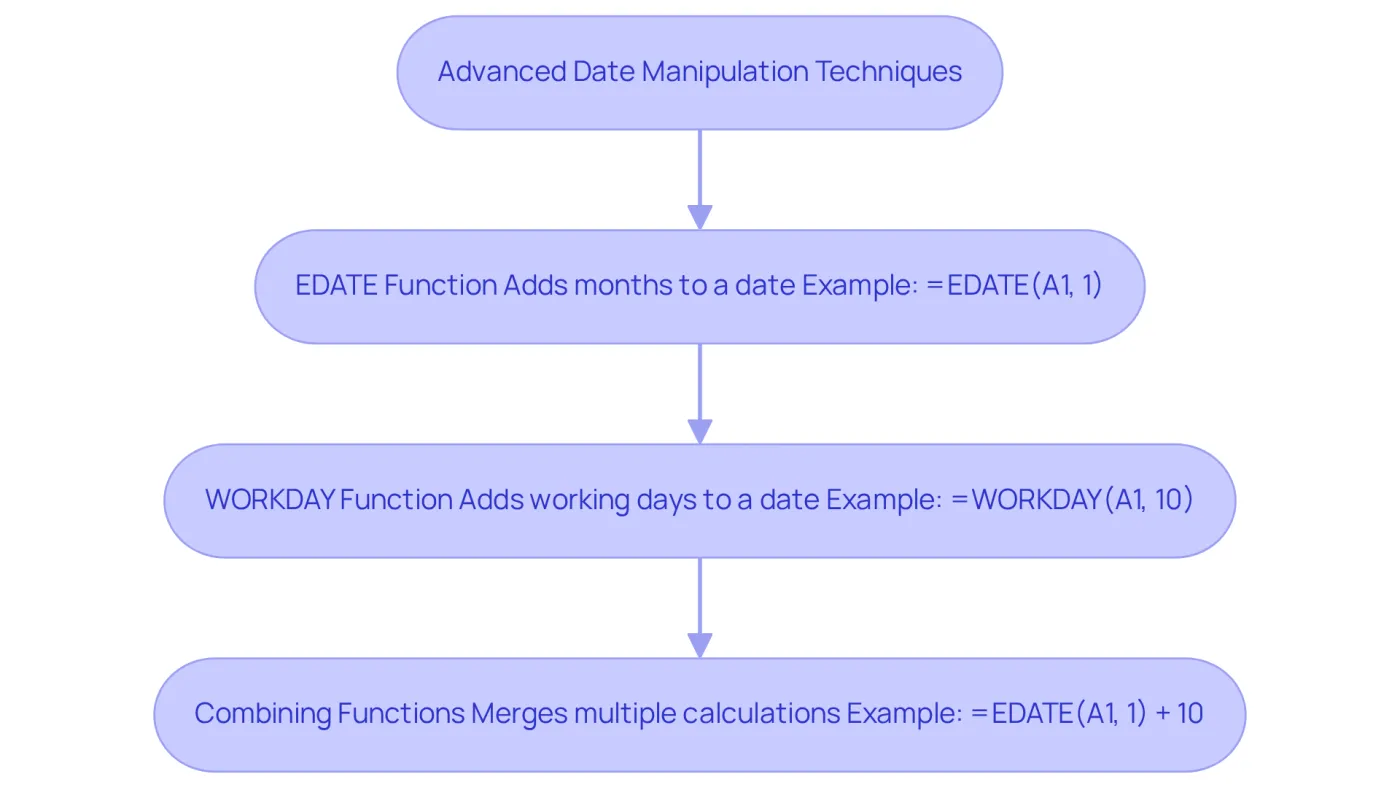
Utilizing the EDATE function: This powerful function allows you to add months instead of days. For instance:
=EDATE(A1, 1) // Adds 1 month to the date in A1 -
Using the WORKDAY function: This function helps you add time while excluding weekends, ensuring your calculations remain relevant to business contexts. For example:
=WORKDAY(A1, 10) // Adds 10 working days to the date in A1 -
Combining functions: You can merge functions for more intricate calculations. For instance:
=EDATE(A1, 1) + 10 // Adds 1 month and then 10 days
These advanced techniques provide greater flexibility and precision in date calculations, making them invaluable for users managing complex datasets. By mastering these functions, you can streamline your workflow and enhance your productivity.
Troubleshoot Common Issues When Adding Days to Dates
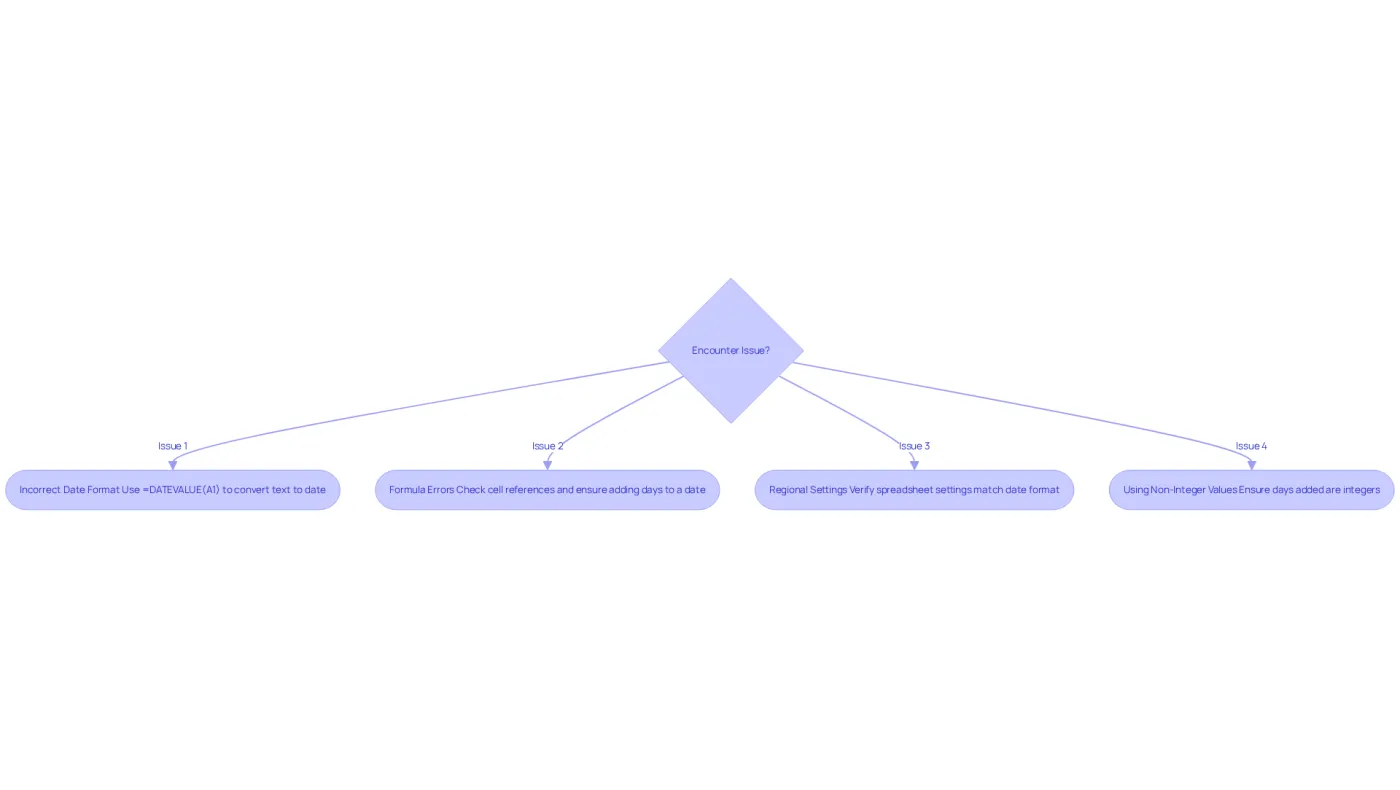
When adding days to dates in Google Sheets, users often face several common issues that can hinder their productivity:
-
Incorrect Date Format: Ensure that the original entry is recognized as a date by Google Sheets. If it appears as text, convert it using:
=DATEVALUE(A1) // Converts text to date -
Formula Errors: If you encounter an error like
#VALUE!, verify that the cell references are correct and that you are not attempting to add days to a non-date value. -
Regional Settings: Date formats can vary based on regional settings. Verify that your spreadsheet settings correspond with your preferred format for dates to prevent misinterpretation. The primary reason date formats do not function correctly in the spreadsheet application is that dates are frequently saved as text instead of date values.
-
Using Non-Integer Values: Ensure that the number of days you are adding is an integer. Non-integer values can lead to unexpected results.
Statistics indicate that 54% of U.S. small enterprises prefer a certain spreadsheet application over Microsoft Excel for data management. This underscores the significance of proper formatting and troubleshooting. By being aware of these common pitfalls and their solutions, users can navigate potential challenges more effectively, ensuring a smoother experience when working with timelines in Google Sheets. Experts emphasize that understanding the difference between text and time values is essential for utilizing the appropriate formatting and guaranteeing proper functionality in spreadsheets. As one expert suggests, consistently using the ISO8601 standard date format can help avoid confusion between different date formats.
Conclusion
Mastering the art of adding days to a date in Google Sheets is not just a skill; it’s a necessity for anyone aiming to boost productivity and streamline their workflow. Understanding the basic formula and utilizing functions like DATE, EDATE, and WORKDAY empowers users to manage time-sensitive tasks effectively-be it tracking project deadlines or calculating warranty periods. This knowledge simplifies operations and minimizes errors, making it essential for professionals across various fields.
In this article, we’ve shared key insights on straightforward methods of date manipulation, troubleshooting common issues, and the benefits of advanced techniques. From the basic addition of days to the flexibility of combining functions, you now have the tools to navigate the complexities of date calculations. Moreover, integrating ShortieCuts can significantly enhance your efficiency, facilitating a seamless transition from Excel to Google Sheets.
Embracing these skills empowers you to work more effectively and highlights the importance of data management in today’s fast-paced environment. As you become more adept at utilizing these formulas, you unlock greater potential in your projects and analyses. Start applying these techniques today, and transform the way you handle dates in Google Sheets-ensuring your work is both accurate and efficient.
Frequently Asked Questions
What is the basic formula for adding days to a date in Excel?
The basic formula for adding days to a date in Excel is =original_date + number_of_days.
How would I add 10 days to a date in cell A1?
To add 10 days to a date in cell A1, you would enter the formula =A1 + 10.
Can I use the DATE function to add days to a specific date?
Yes, you can use the DATE function by entering =DATE(year, month, day) + number_of_days to specify a date directly and add days to it.
Why is mastering date manipulation important for users transitioning from Excel to Google Sheets?
Mastering date manipulation is important for users transitioning from Excel to Google Sheets because it allows for effective date management and enhances productivity, especially for those familiar with temporal functions.
What percentage of Workspace users engage with spreadsheet applications regularly?
Approximately 70% of Workspace users actively engage with spreadsheet applications at least once a week.
What are some real-world applications of adding days to a date in Excel?
Real-world applications include tracking project deadlines or managing warranty periods, such as using the formula =B2 + 30 to monitor a warranty that lasts for 30 days from a purchase date in cell B2.
How does mastering date manipulation techniques benefit users?
Mastering date manipulation techniques streamlines operations and minimizes errors in time-sensitive tasks, which is crucial in a data-driven environment.