
Master Excel Formula to Separate First and Last Name Easily
Learn to use an Excel formula to separate first and last names effortlessly.

Introduction
Mastering the art of separating first and last names in Excel can revolutionize how individuals manage their data. This skill transforms a tedious task into a seamless process, enhancing productivity and ensuring data integrity. As organizations increasingly depend on accurate information for decision-making, the ability to efficiently split names becomes essential.
However, many users face challenges with inconsistent formats and technical errors that can hinder their efforts. How can you navigate these obstacles to streamline name separation and elevate your Excel skills? By leveraging tools like ShortieCuts, you can overcome these hurdles and unlock a more efficient workflow.
Imagine the time saved and the accuracy gained when you can effortlessly manage names in your datasets. With the right techniques, you can not only improve your efficiency but also contribute to better decision-making within your organization.
Understand the Basics of Name Separation in Excel
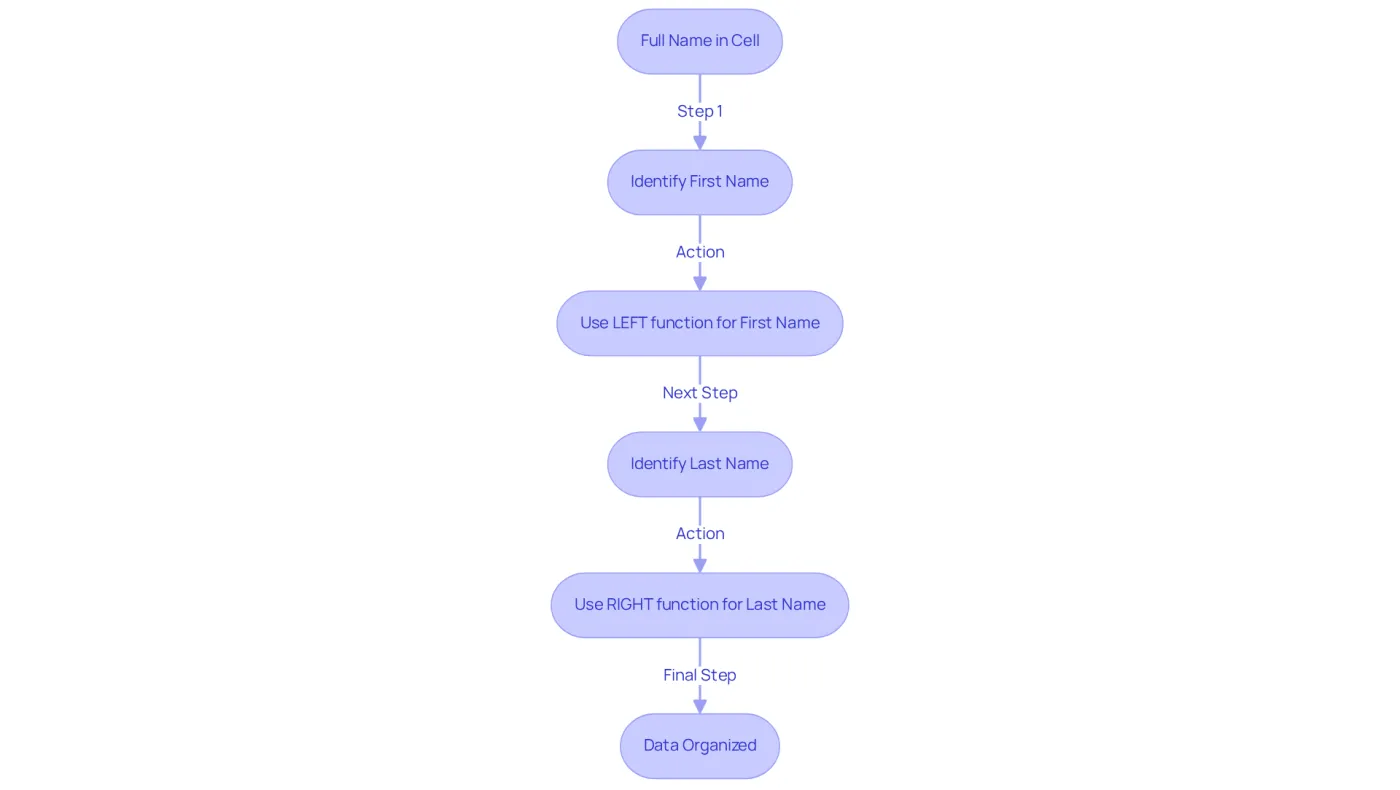
Dividing names in Excel is essential for effective information management. When identities are merged into a single cell, it can create confusion and hinder productivity. You can streamline your data organization by using an Excel formula to separate first and last name from a full name.
Understanding the various techniques available for an Excel formula to separate first and last name not only enhances your workflow but also boosts data accuracy. Whether you're preparing mailing lists, organizing contact details, or analyzing datasets, mastering these skills is crucial.
Imagine the efficiency gained when you can quickly and accurately manage your data. Familiarity with these techniques will empower you to tackle data challenges with confidence, ensuring that your information is organized and accessible.
Take action today: invest time in learning these valuable skills and watch your information management capabilities soar.
Apply the TEXTSPLIT Formula for Quick Separation
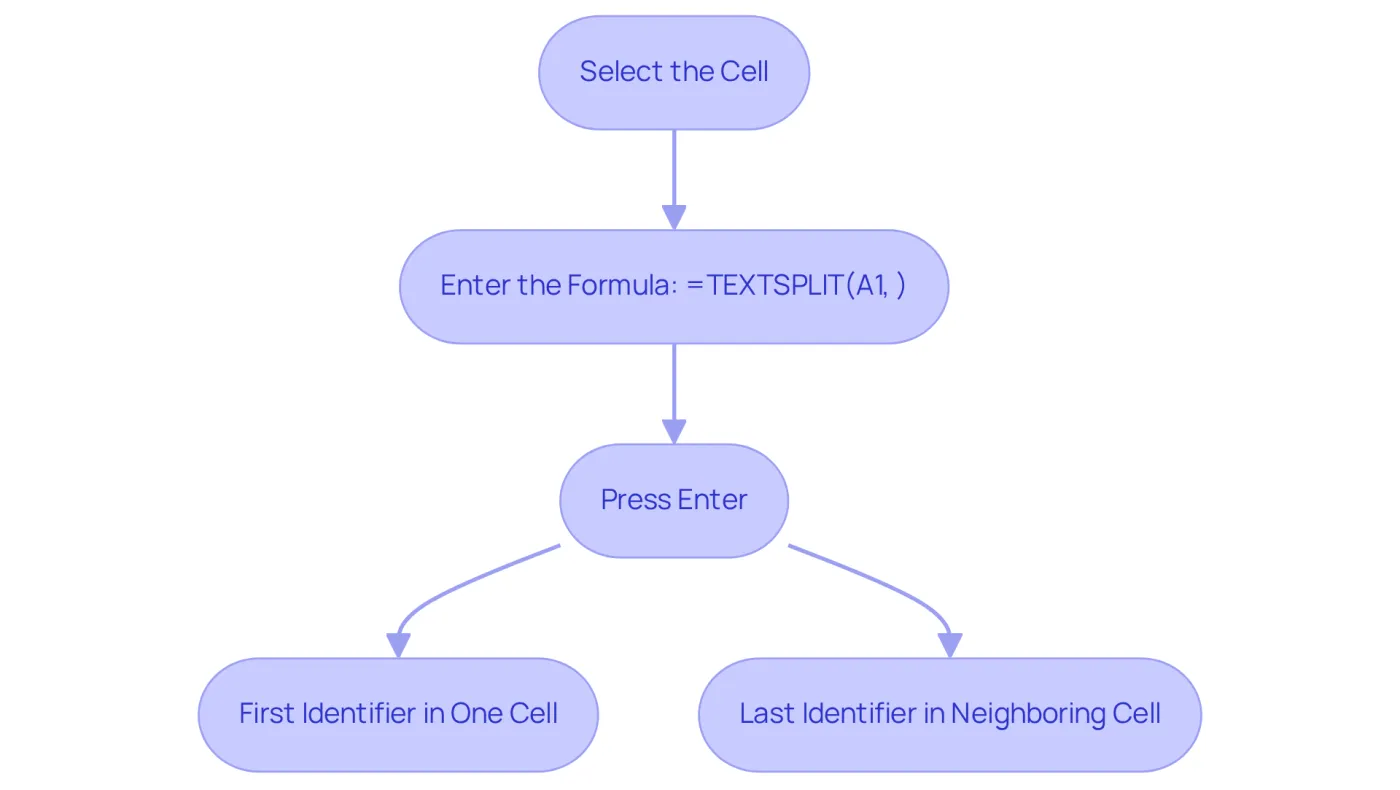
To effectively separate first and last names using the TEXTSPLIT formula, follow these straightforward steps:
- Select the Cell: Click on the cell containing the complete title you want to separate.
- Enter the Formula: In a new cell, input
=TEXTSPLIT(A1, " "), substitutingA1with the reference to your selected cell. The space within the quotes indicates that the titles are separated by spaces. - Press Enter: Hit Enter to execute the formula. The first identifier will fill one cell, while the last identifier will automatically flow into the neighboring cell.
This method is particularly effective for datasets with consistently formatted identifiers, enabling quick and accurate separation. As of 2026, the TEXTSPLIT function has gained popularity among spreadsheet users, with many professionals utilizing it for efficient information management. Excel trainers advocate for its application, emphasizing that an excel formula separate first and last name is essential for streamlining the process of name separation, particularly in environments where precise information organization is crucial.
Significantly, TEXTSPLIT is a formula-driven solution that dynamically refreshes when the source information changes, making it an invaluable tool for finance departments where accurate information handling is essential. Additionally, it can manage multiple delimiters, enhancing its versatility for various data formats. Ensure you are using Excel 365 or Excel 2021 or later to access this function.
Utilize the Text to Columns Tool for Visual Separation
Effortlessly Separate Names with the Text to Columns Tool
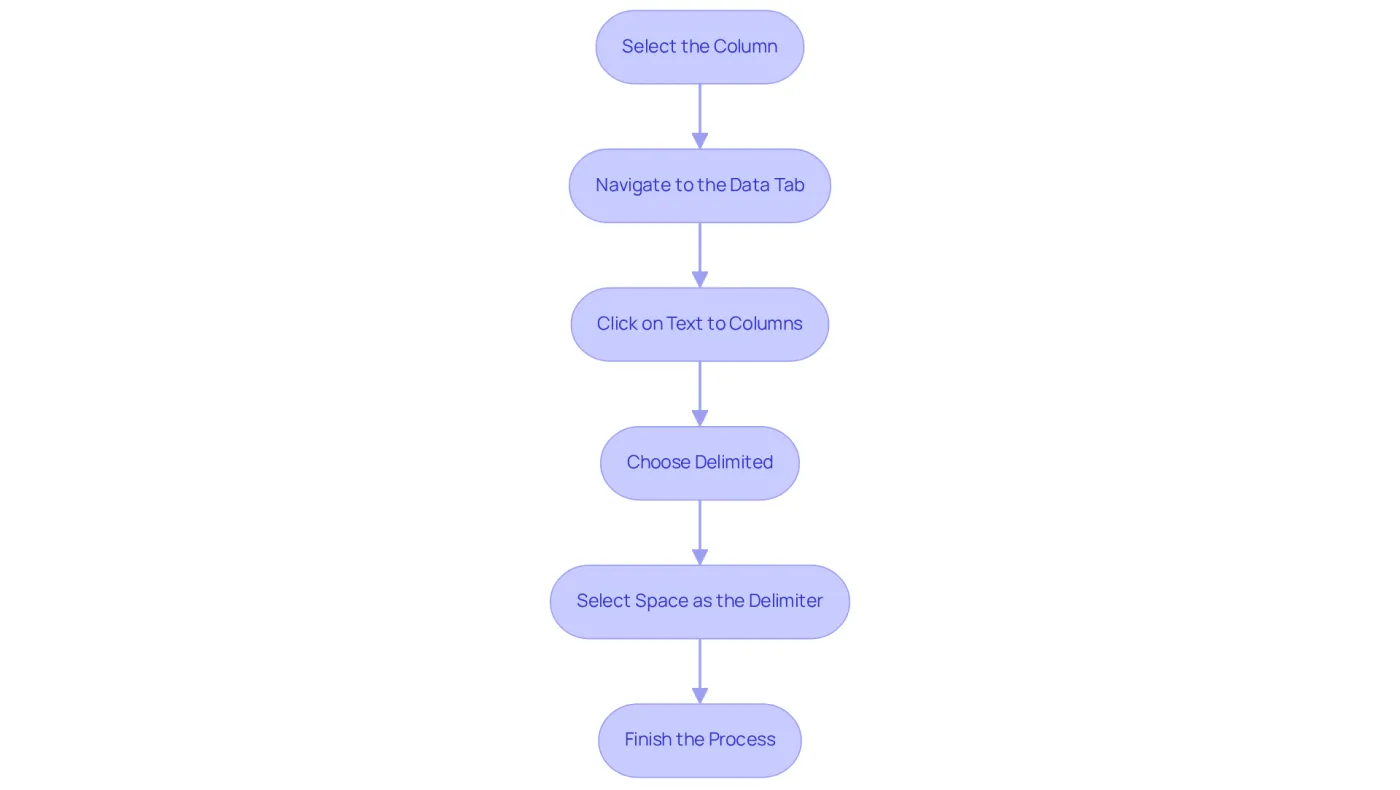
Are you struggling to manage data in Excel? While separating names can be a tedious task, using an excel formula separate first and last name with the Text to Columns tool makes it a breeze. Follow these straightforward steps to streamline your data manipulation process:
- Select the Column: Highlight the column that contains the complete titles.
- Navigate to the Data Tab: Click on the 'Data' tab in the Excel ribbon.
- Click on Text to Columns: In the Data Tools group, select 'Text to Columns'.
- Choose Delimited: In the wizard that appears, select 'Delimited' and click 'Next'.
- Select Space as the Delimiter: Check the box for 'Space' as the delimiter and click 'Next'.
- Finish the Process: Click 'Finish' to complete the separation. The excel formula separate first and last name will ensure that the first and last identifiers are now in separate columns.
This method is particularly beneficial for users who prefer a straightforward, visual approach to data manipulation. By implementing these steps, you can enhance your efficiency and accuracy in handling data.
Leverage Flash Fill for Instant Name Separation
To effectively utilize Flash Fill for separating names, follow these straightforward steps:
- Type the Given Name: In the neighboring column to the complete title, manually input the given identifier of the initial entry.
- Utilize Flash Fill: After entering the first name, press Enter. Begin typing the initial of the next entry, and the program will recognize the pattern, suggesting the other initials.
- Accept the Suggestions: Press Enter to accept the suggestions. Excel will automatically fill in the given names for the entire column.
- Repeat for Last Surnames: In another adjacent column, type the surname of the first entry and repeat the process to fill in the last surnames.
Flash Fill excels in scenarios with consistent name formats, particularly when using an excel formula to separate first and last name for rapid information entry and organization. A significant number of spreadsheet users rely on Flash Fill for their entry tasks, underscoring its importance in enhancing productivity. As Bill Jelen aptly notes, "Flash Fill has probably saved millions of hours of white-collar productivity." Recent updates in the 2026 spreadsheet application have further refined this feature, making it even more intuitive and user-friendly. Experts agree that the Excel formula to separate first and last name can streamline routine tasks, allowing professionals to focus on more complex analyses. Since its introduction in the spreadsheet application in 2013, Flash Fill has evolved into a reliable tool for users, as evidenced by case studies demonstrating its ability to extract and organize data without complicated formulas.

Troubleshoot Common Issues in Name Separation
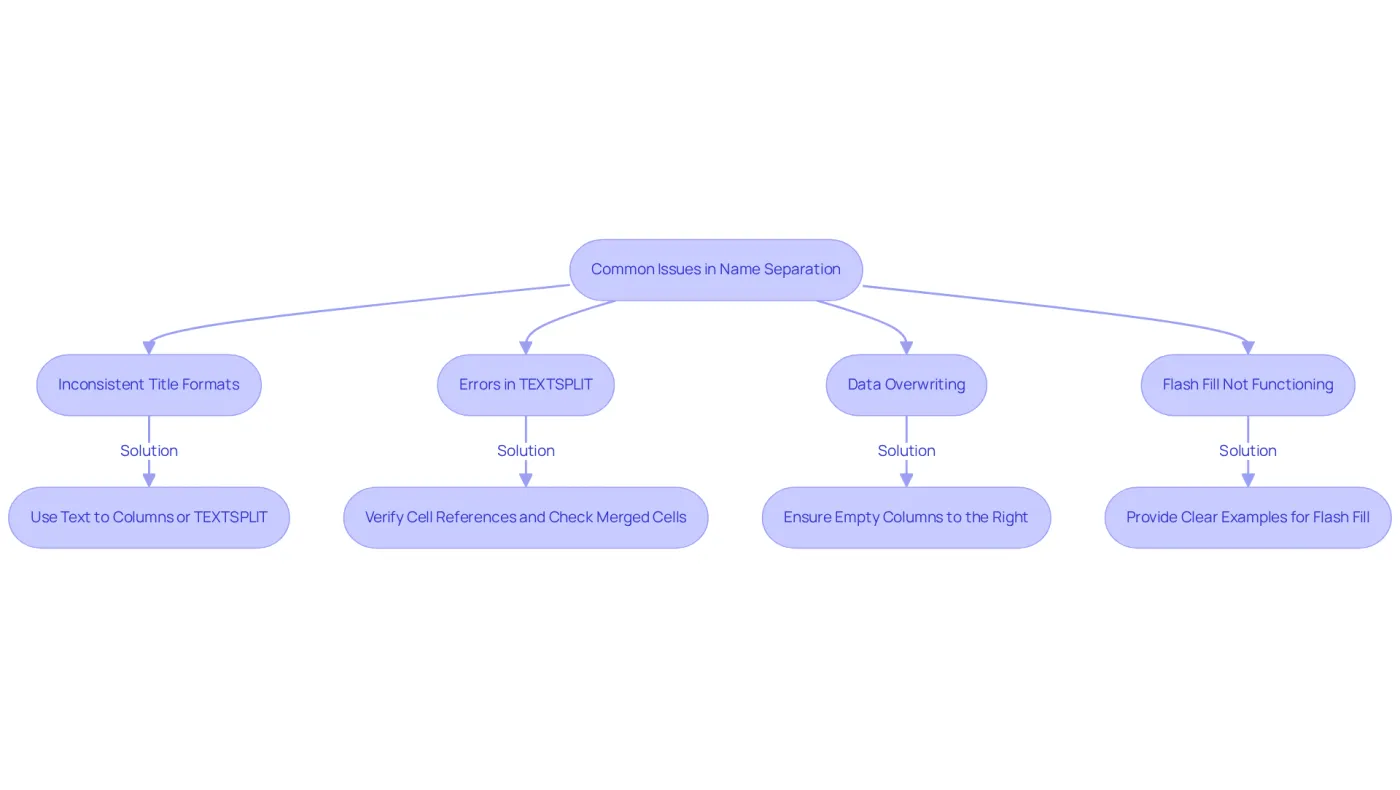
When it comes to separating names in Excel, users frequently encounter several common challenges:
-
Inconsistent Title Formats: Variations in title formatting, such as the inclusion of middle names, can significantly hinder the effectiveness of Flash Fill. Managing inconsistent name formats is essential for precise information processing. In these cases, utilizing the Text to Columns tool or the TEXTSPLIT formula offers greater control over the separation process.
-
Errors in TEXTSPLIT: Users may face #SPILL! or #NAME! errors. To resolve these issues, verify that the cell references are accurate and check for any merged cells within the specified range, as these can disrupt the function. Statistics indicate that a notable percentage of users encounter these errors, underscoring the importance of meticulous information management.
-
Data Overwriting: When using the Text to Columns feature, it's crucial to ensure that there are empty columns to the right of the selected information. This precaution prevents the accidental overwriting of existing data, which can lead to loss of details. A proposed solution for 2026 includes a 'Data Inspector' pop-up that prompts users to confirm whether unclear information should be treated as a date or a string, aiding in the prevention of such issues.
-
Flash Fill Not Functioning: If Flash Fill fails to deliver the expected outcomes, it may stem from inconsistent information. Ensure that you provide enough examples for the software to recognize the pattern, as this feature relies on identifiable trends within the data. Real-world examples demonstrate that users who present clear patterns significantly reduce the likelihood of Flash Fill errors.
By understanding these common issues and their respective solutions, users can more effectively navigate the name separation process in Excel using the excel formula separate first and last name, minimizing errors and enhancing productivity.
Conclusion
Mastering the art of separating first and last names in Excel is essential for anyone aiming to elevate their data management skills. By employing techniques like the TEXTSPLIT formula, the Text to Columns tool, and the Flash Fill feature, users can effectively organize their datasets and enhance accuracy in information processing. Each method presents unique advantages, offering flexibility tailored to the specific needs of the task at hand.
Key insights from the article underscore the significance of selecting the right approach based on the consistency of the data format and the challenges faced. The TEXTSPLIT formula delivers a dynamic solution for consistently formatted names, while the Text to Columns tool provides a visual method for those who prefer a straightforward approach. Flash Fill is particularly noteworthy for its ability to intuitively recognize patterns, making it a preferred choice for users seeking rapid name separation.
In summary, adopting these Excel name separation techniques not only streamlines data management but also empowers users to tackle complex datasets with confidence. By dedicating time to mastering these tools, individuals can significantly boost their productivity and accuracy in handling information. Now is the ideal moment to implement these strategies and revolutionize the management of names in Excel, ensuring that data remains organized and accessible for future analysis.
Frequently Asked Questions
Why is it important to separate names in Excel?
Separating names in Excel is essential for effective information management. It helps to avoid confusion and enhances productivity by organizing data more clearly.
What are the benefits of mastering name separation techniques in Excel?
Mastering name separation techniques improves workflow, boosts data accuracy, and enables efficient management of mailing lists, contact details, and datasets.
What is the TEXTSPLIT formula used for in Excel?
The TEXTSPLIT formula is used to quickly separate first and last names from a full name in a single cell by specifying a delimiter, such as a space.
How do you use the TEXTSPLIT formula to separate names?
To use the TEXTSPLIT formula, select the cell with the full name, enter the formula =TEXTSPLIT(A1, " "), and press Enter. This will separate the first and last names into adjacent cells.
What versions of Excel support the TEXTSPLIT function?
The TEXTSPLIT function is available in Excel 365 and Excel 2021 or later.
What makes the TEXTSPLIT function particularly useful for finance departments?
TEXTSPLIT is useful for finance departments because it dynamically refreshes when the source information changes, ensuring accurate information handling.
Can the TEXTSPLIT formula handle multiple delimiters?
Yes, the TEXTSPLIT formula can manage multiple delimiters, enhancing its versatility for various data formats.