
Master Excel Formulas to Calculate Hours Worked Efficiently
Master essential Excel formulas to efficiently calculate hours worked and streamline payroll processes.

Introduction
Mastering time calculations in Excel can be daunting, particularly for those transitioning to Google Sheets. Yet, efficiently computing hours worked is not merely a skill; it’s essential for boosting productivity and ensuring accurate payroll management. With the right formulas and tools - like the ShortieCuts extension - users can streamline their time tracking processes.
But what happens when common errors arise, or when shifts extend beyond midnight? Navigating these challenges is crucial for achieving precise and reliable results. Understanding how to tackle these issues can significantly enhance your efficiency and accuracy in time management.
Identify Essential Excel Formulas for Time Calculations
Maximize Your Time Management in Google Sheets
Efficiently computing time spent in Google Sheets can be a challenge for many users. However, mastering key Excel functions, especially with the ShortieCuts extension, can significantly enhance your productivity. This powerful tool offers 233 Excel ALT shortcuts, making your workflow smoother and more efficient. To access these shortcuts, simply hit 'ALT' (or Option on Mac), and key-tips will appear in the corner of your screen. Here are some fundamental formulas to get you started:
-
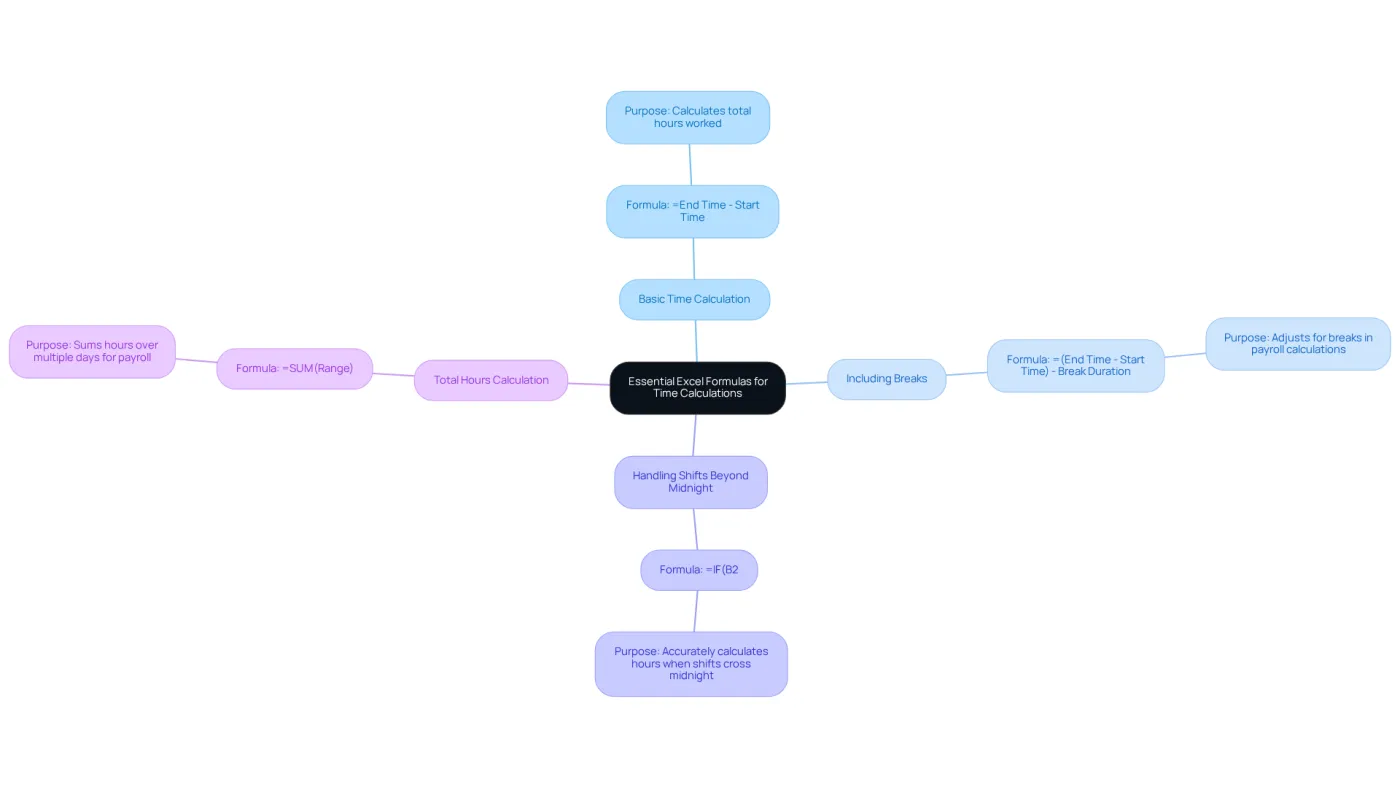
Basic Time Calculation:
=End Time - Start Time
This formula subtracts the start time from the end time, yielding the total hours worked. Ensure that both cells are formatted as hours and minutes. With ShortieCuts, accessing this functionality is a breeze, streamlining your workflow. -
Including Breaks: To account for breaks, adjust the formula to:
=(End Time - Start Time) - Break Duration
Here, 'Break Duration' should also be formatted as time. This adjustment is crucial for precise payroll calculations, and ShortieCuts can assist you in swiftly applying the excel formula to calculate hours worked without difficulty. -
Handling Shifts Beyond Midnight: For shifts that extend beyond midnight, use:
=IF(B2<A2,B2+1,B2)-A2
This formula ensures that the calculation accurately reflects the total hours worked when the end time is less than the start time, a common scenario in finance roles. -
Total Hours Calculation: For summing hours over multiple days, use:
=SUM(Range)
where 'Range' includes all daily calculations. This method provides a comprehensive total for the specified period, simplifying payroll management.
These formulas are essential for any duration tracking system and are particularly beneficial for users transitioning from Excel to Google Sheets, as they replicate familiar functionalities. In 2025, a significant percentage of finance professionals relied on an Excel formula to calculate hours worked, highlighting its importance in payroll calculations. As productivity expert Cat Symonds emphasizes, "This simplifies the time tracking process, reduces errors, and ensures you have the right data to calculate payroll."
With ShortieCuts, you can elevate your Google Sheets experience while ensuring your data remains private and secure, as everything runs locally on your computer.
Apply Formulas to Calculate Regular and Overtime Hours
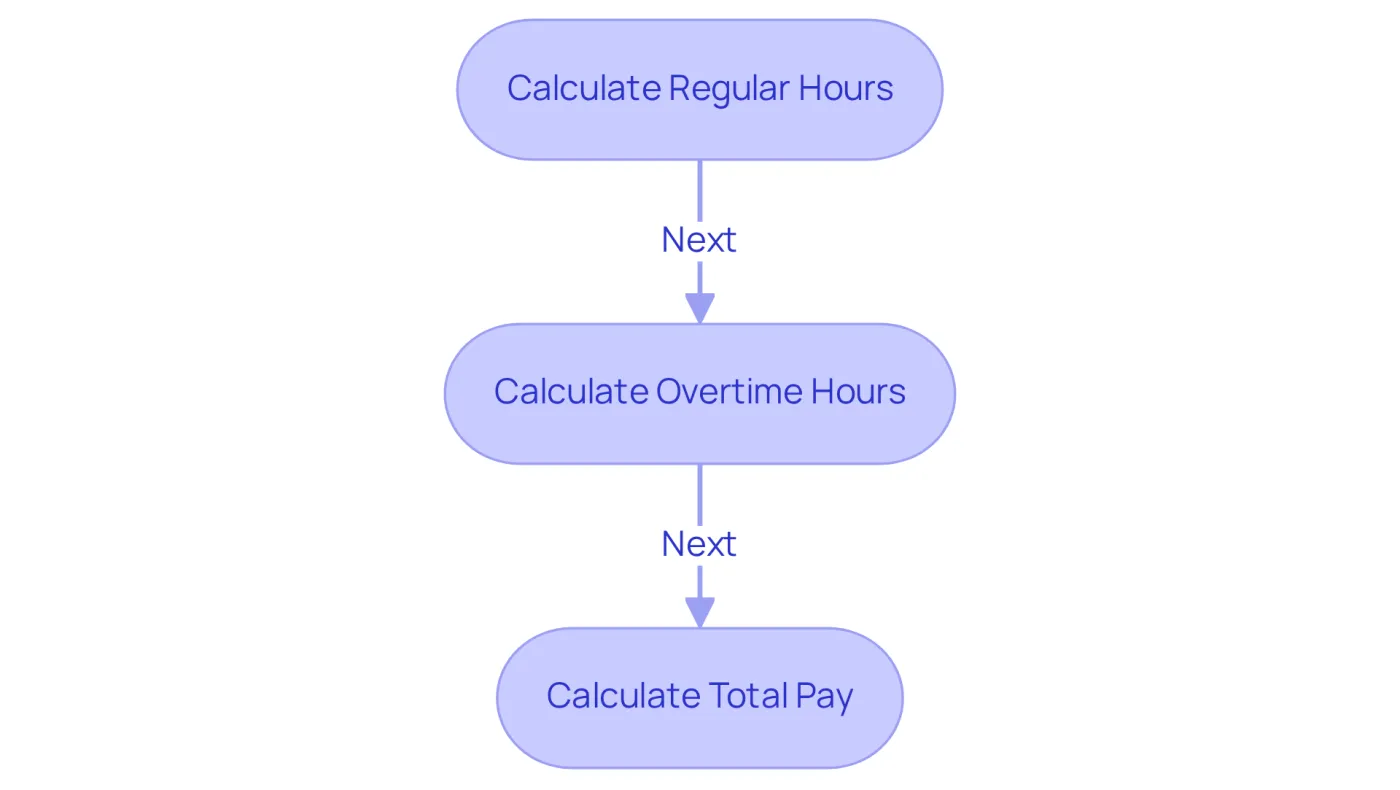
To accurately calculate regular and overtime hours, users can implement the following formulas:
-
Regular Hours Calculation: For a standard 40-hour workweek, use:
=IF(Total Hours > 40, 40, Total Hours)
This formula ensures that only the first 40 hours are counted as regular hours. -
Overtime Hours Calculation: To calculate overtime, use:
=IF(Total Hours > 40, Total Hours - 40, 0)
This formula captures any hours worked beyond the standard 40, which are typically compensated at a higher rate. -
Total Pay Calculation: To compute total pay, combine regular and overtime calculations:
=Regular Hours * Regular Rate + Overtime Hours * Overtime Rate
This formula ensures that employees are paid accurately based on their hours worked.
In 2025, finance professionals are averaging approximately 5 to 10 hours of overtime per week. This statistic is particularly relevant in light of the One Big Beautiful Bill Act (OBBBA), which introduced a tax deduction for employees receiving federally mandated overtime. This allows them to deduct part of their overtime earnings from their taxable income. By applying the excel formula to calculate hours worked, users can streamline their payroll processes, ensure compliance with labor regulations, and take advantage of the new provisions under the OBBBA. Ultimately, this enhances productivity and reduces errors in compensation.
Troubleshoot Common Issues in Time Calculations
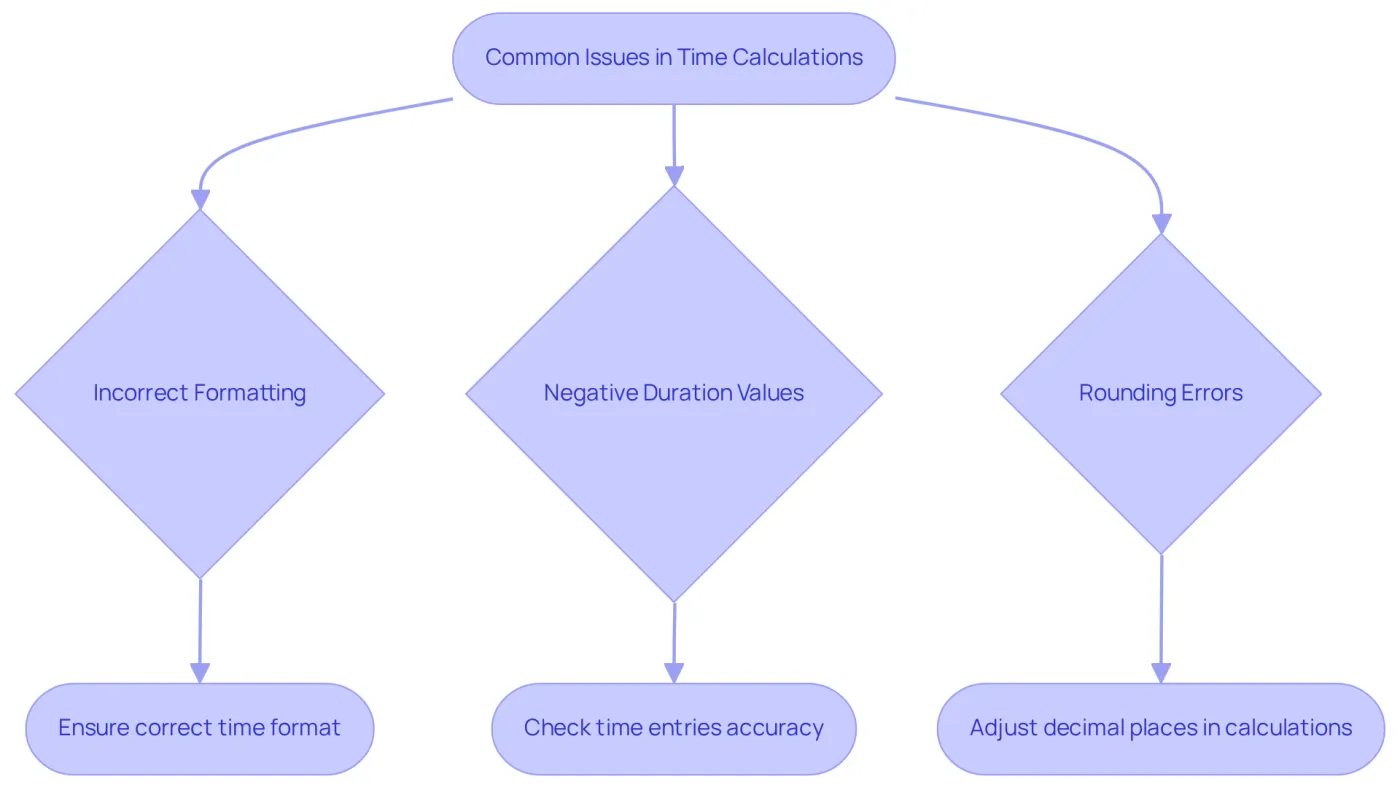
Common issues in the excel formula to calculate hours worked can lead to significant errors if not addressed. Here are some troubleshooting tips:
-
Incorrect Formatting: Ensure that all time cells are formatted correctly. Utilize the 'Time' format for entries and 'General' or 'Number' for calculations. Incorrect formatting can lead to unexpected results. Statistics indicate that formatting errors are a frequent source of discrepancies in financial reporting. A recent study found that 83% of FP&A professionals agree that technology and data skills are valued equally to finance skills, underscoring the importance of accurate data handling.
-
Negative Duration Values: Encountering negative duration values? This may occur if the end moment is earlier than the start moment. To resolve this, you should ensure your time entries are accurate with the help of an excel formula to calculate hours worked. Consider using the formula:
=IF(End Time < Start Time, End Time + 1, End Time - Start Time). This formula adjusts for shifts that cross midnight. As an expert noted, "If you intended that 12AM to be midnight at the end of the day, you need to enter it as 24:00." -
Rounding Errors: Rounding can affect total hours calculated. To avoid this, ensure your calculations display enough decimal places. Use:
=ROUND(Total Hours, 2)to round to two decimal places for clarity. A case study showed that companies implementing automated solutions experience a 95% reduction in reconciliation errors, emphasizing the importance of precise calculations.
By proactively tackling these frequent issues, users can enhance the reliability of their tracking systems with an excel formula to calculate hours worked. This ensures precise reporting and diminishes the risk of expensive discrepancies. For instance, an incorrect computed total duration of 13:48 hh:mm can significantly impact financial analyses, highlighting the need for diligence in duration calculations.
Customize Excel Templates for Diverse Time Tracking Needs
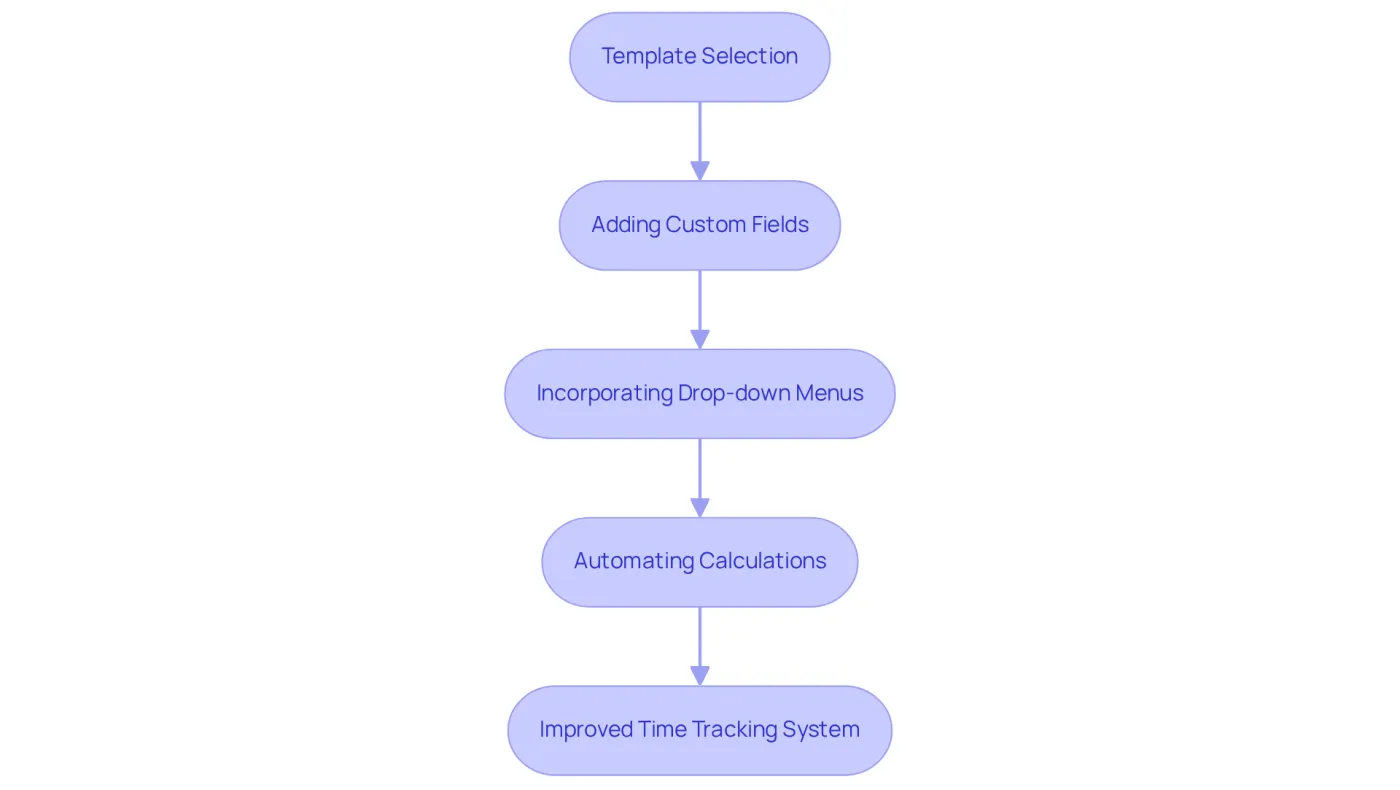
Customizing Excel templates can significantly enhance your tracking capabilities. Here are effective strategies to consider:
-
Template Selection: Start with a basic timesheet template that aligns with your specific needs. Numerous free templates are available online, including those from Microsoft and Vertex42, providing a solid foundation for your tracking system.
-
Adding Custom Fields: Tailor your template by incorporating fields for project names, client details, or specific tasks. This can be achieved by inserting new columns and labeling them appropriately, ensuring that all relevant information is captured.
-
Incorporating Drop-down Menus: Streamline data entry by implementing drop-down menus for repetitive entries, such as project names or task types. Utilize the 'Data Validation' feature in Excel to create these menus, significantly reducing input errors and conserving effort.
-
Automating Calculations: Leverage an excel formula to calculate hours worked, overtime, and pay rates. This minimizes manual entry errors and enhances efficiency, allowing for quicker updates and reporting.
By customizing your Excel templates, you establish a more efficient and tailored time tracking system that meets your specific requirements. This ultimately leads to improved productivity and better time management.
Conclusion
Mastering Excel formulas for calculating hours worked is not just a skill; it’s a game-changer for productivity and accuracy in time management. By leveraging powerful tools like the ShortieCuts extension, users can streamline workflows, minimize errors, and ensure precise payroll calculations. Understanding basic time calculations, managing overtime, troubleshooting common issues, and customizing templates to fit individual tracking needs are crucial components of effective time management.
Key insights reveal the necessity of correctly formatting time entries and using specific formulas to differentiate between regular and overtime hours. Addressing common pitfalls is essential to avoid inaccuracies that can disrupt financial reporting. This guidance simplifies the time tracking process while ensuring compliance with labor regulations, ultimately maximizing efficiency.
Investing time to master these Excel techniques pays off significantly. By implementing these best practices, users can establish a robust time tracking system that not only meets their needs but also supports accurate compensation and reporting. Embracing these strategies will undoubtedly lead to improved productivity and a more effective approach to managing time and resources in any professional setting.
Frequently Asked Questions
What is the main purpose of using Excel formulas for time calculations in Google Sheets?
The main purpose is to efficiently compute time spent on tasks, which can enhance productivity and streamline workflows.
What is the basic formula for calculating total hours worked?
The basic formula is =End Time - Start Time, which subtracts the start time from the end time to yield the total hours worked.
How can breaks be included in time calculations?
To include breaks, adjust the formula to =(End Time - Start Time) - Break Duration, ensuring that 'Break Duration' is also formatted as time.
What formula should be used for shifts that extend beyond midnight?
For shifts that extend beyond midnight, use the formula =IF(B2<A2,B2+1,B2)-A2 to accurately reflect the total hours worked.
How can total hours worked over multiple days be calculated?
To sum hours over multiple days, use the formula =SUM(Range), where 'Range' includes all daily calculations.
Why are these formulas particularly beneficial for users transitioning from Excel to Google Sheets?
These formulas replicate familiar functionalities from Excel, making it easier for users to adapt to Google Sheets.
What is the role of the ShortieCuts extension in using Excel formulas?
The ShortieCuts extension provides 233 Excel ALT shortcuts, making it easier to access and apply formulas, thus enhancing workflow efficiency.
How does using these formulas help in payroll calculations?
They simplify the time tracking process, reduce errors, and ensure accurate data for payroll calculations, which is crucial for finance professionals.