
Master Excel Formulas to Check for Partial Text in Spreadsheets
Master the excel formula that contains partial text to efficiently check for partial text in spreadsheets.

Introduction
Mastering the art of utilizing Excel formulas for checking partial text can revolutionize how professionals approach data analysis. This skill goes beyond mere efficiency; it empowers users to sift through extensive datasets, validate entries, and apply conditional formatting with precision. Yet, many finance experts struggle with the challenge of accurately identifying specific keywords or phrases - an essential task in today’s data-driven landscape.
How can you effectively leverage these formulas to streamline your workflow and minimize errors? This guide explores essential techniques and formulas that will elevate your analytical capabilities and ensure data integrity in spreadsheets. By honing this skill, you not only enhance your productivity but also position yourself as a key player in your organization’s data management efforts.
Understand the Importance of Checking for Partial Text in Excel
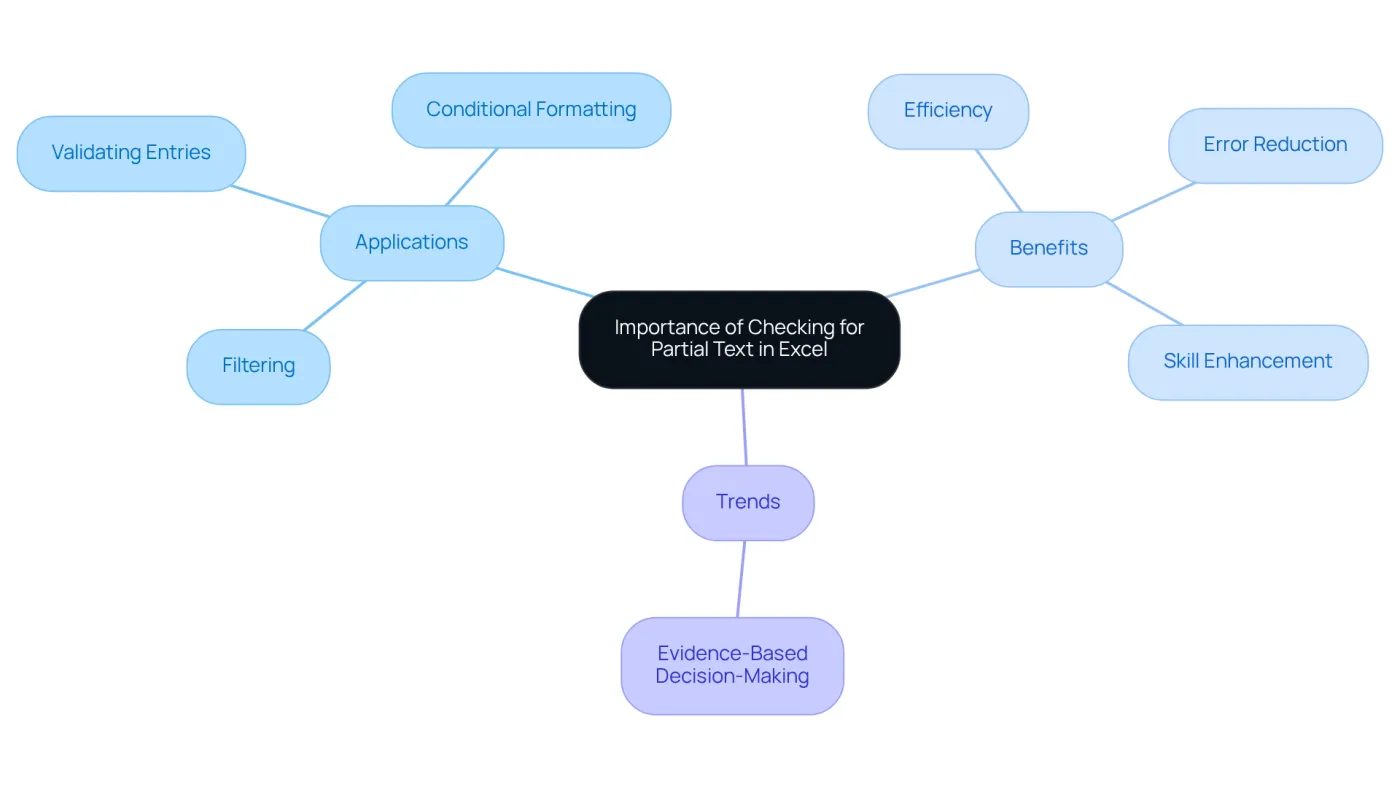
Using an excel formula that contains partial text is crucial for searching for partial content in Excel for various analytical tasks. Whether it’s filtering collections, validating entries, or applying conditional formatting, the ability to pinpoint specific keywords or phrases can significantly enhance efficiency. Finance experts often face the challenge of identifying transactions where the excel formula contains partial text related to these terms. Fortunately, partial content checks streamline this process, allowing users to navigate large datasets with ease.
This functionality not only reduces the time spent on manual reviews but also minimizes errors, leading to more accurate analyses. Imagine the impact of mastering these checks: it not only boosts your analytical efficiency but also facilitates a smoother transition for users moving from Excel to Google Sheets. By leveraging familiar tools, professionals can maintain high productivity levels.
Current trends indicate that as organizations increasingly adopt evidence-based decision-making, the ability to utilize an excel formula that contains partial text checks will become even more vital. Finance professionals who harness this capability will be better positioned to extract actionable insights from their data. Are you ready to elevate your analytical skills and embrace the future of finance? Mastering partial content checks is your first step.
Explore Key Excel Formulas for Partial Text Checks
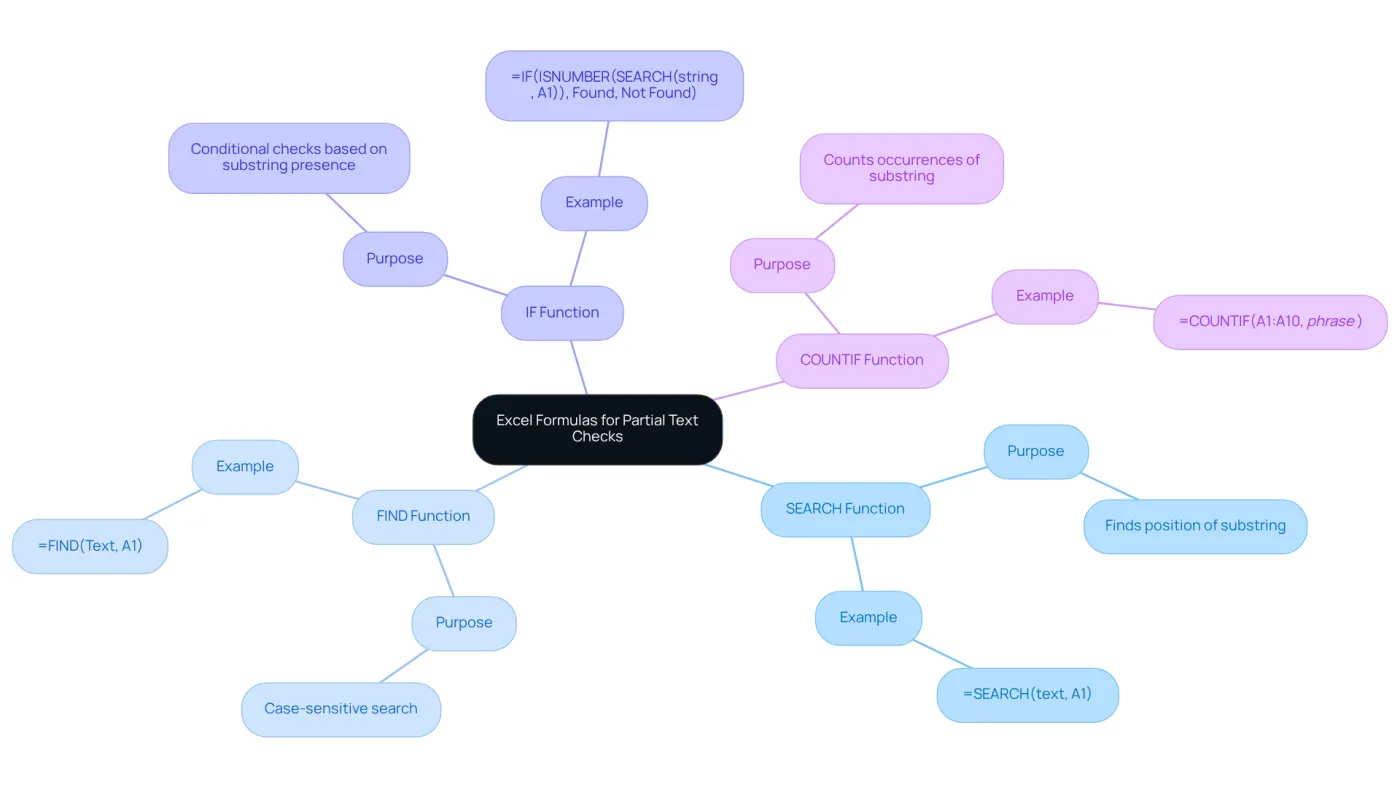
Several key formulas, specifically an Excel formula that contains partial text, are essential for checking partial information in Excel, particularly useful for data analysis and financial modeling. Here are the most commonly used ones:
-
SEARCH Function: This function returns the position of a substring within a string, ignoring case sensitivity. For instance,
=SEARCH("text", A1)will yield the starting position of "text" in cell A1, or an error if not found. As noted by Sumit Bansal, 'The SEARCH function looks for the string ‘content’ in cell A1, and if it discovers it, it returns the numeric value of the starting position where it found that string.' -
FIND Function: Similar to SEARCH, but case-sensitive. Use
=FIND("Text", A1)to locate an exact case match, which is crucial when case distinctions matter in your information. -
IF Function: This versatile function can be combined with SEARCH or FIND to return specific values based on the presence of a substring. For instance,
=IF(ISNUMBER(SEARCH("string", A1)), "Found", "Not Found")will return "Found" if the substring exists, making it a powerful tool for conditional checks. Additionally, to check if a string starts with 'ABK' or ends with 'US', you can use=IF(OR(COUNTIF(A2,'ABK*'),COUNTIF(A2,'*US')),'Yes','No'). -
COUNTIF Function: This function tallies the number of entries containing a specific substring, which is especially beneficial for summarizing information. For instance,
=COUNTIF(A1:A10, "*phrase*")counts how many cells in the range A1:A10 include the substring "phrase", offering insights into information distribution. This is particularly significant in financial modeling where comprehending trends is essential.
These equations are vital for performing partial content checks, especially when the Excel formula contains partial text, and can be modified for various situations in information analysis, enhancing efficiency and precision in spreadsheet activities. Furthermore, with the recent enhancements in Excel, users can leverage new features that simplify data analysis, making these calculations even more effective.
Implement Formulas to Check for Partial Text in Your Spreadsheet
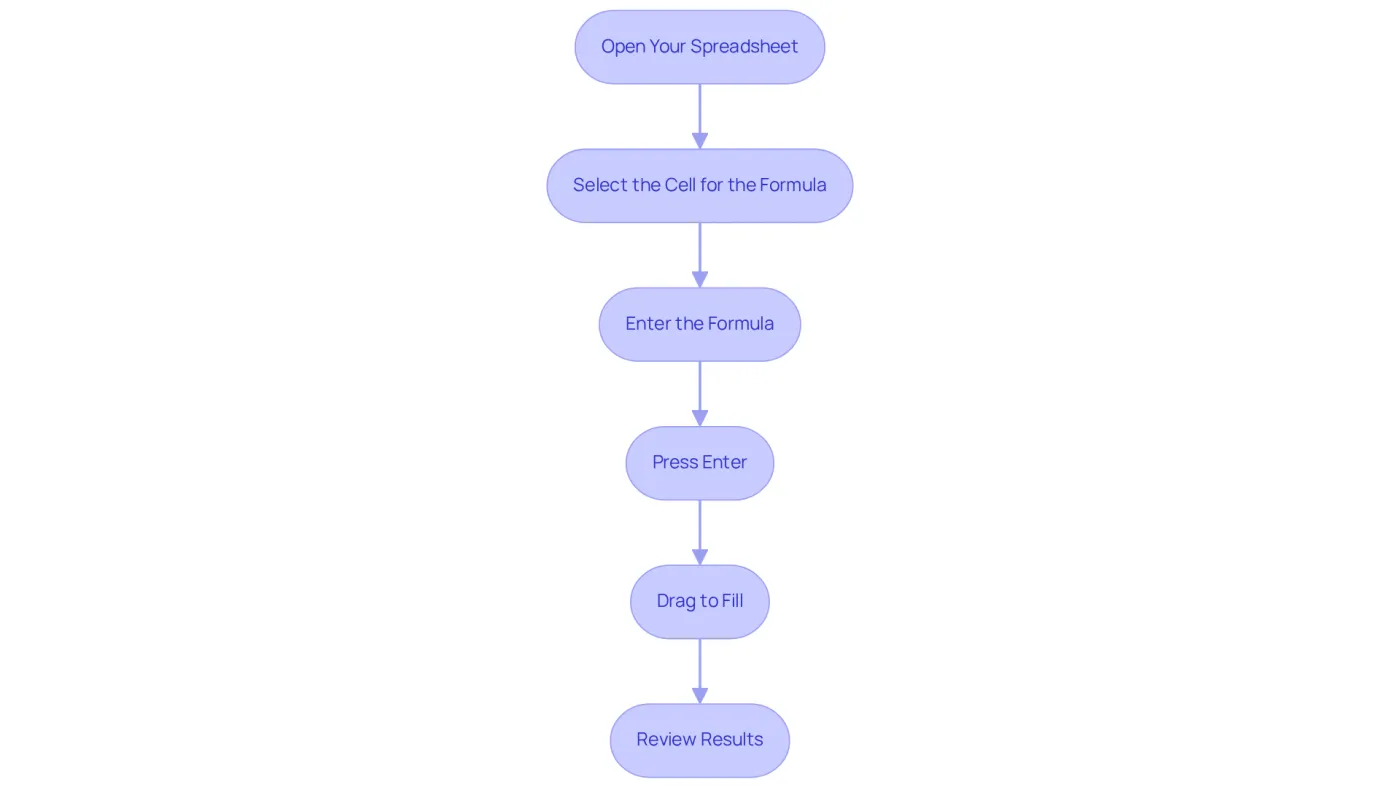
To implement formulas for checking partial text in your spreadsheet, follow these essential steps:
-
Open Your Spreadsheet: Launch Excel and access the spreadsheet where you want to conduct the partial content check.
-
Select the Cell for the Formula: Click on the cell where you want the result of your partial content check to appear.
-
Enter the Formula: Depending on your needs, enter one of the following formulas:
- For a case-insensitive search:
=IF(ISNUMBER(SEARCH("text", A1)), "Found", "Not Found") - For a case-sensitive search:
=IF(ISNUMBER(FIND("Text", A1)), "Found", "Not Found") - To count occurrences:
=COUNTIF(A1:A10, "*text*")
- For a case-insensitive search:
-
Press Enter: After typing the equation, press Enter to execute it. The grid will show the outcome according to the calculation applied.
-
Drag to Fill: If you want to apply the same calculation to other cells, click on the small square at the bottom-right corner of the cell and drag it down to fill adjacent cells.
-
Review Results: Check the results to ensure they meet your expectations. Modify the equation as needed according to your information.
By following these steps, you can efficiently utilize an Excel formula that contains partial text to check for partial content in your spreadsheets, significantly enhancing your data analysis capabilities.
Troubleshoot Common Issues with Partial Text Formulas
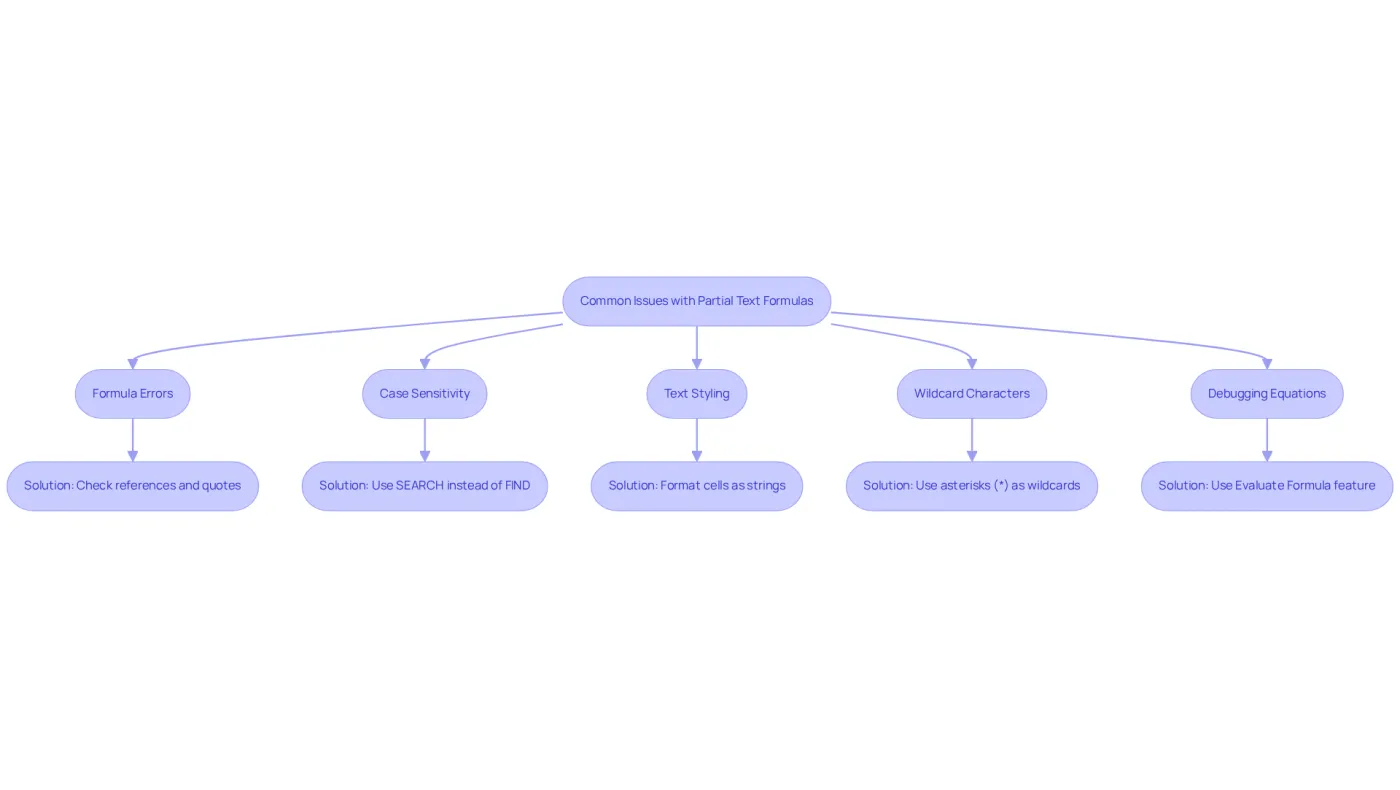
When working with partial formulas, users often face several common challenges. Here are essential troubleshooting tips to enhance your proficiency:
-
Formula Errors: Encountering an error like
#VALUE!? Confirm that your references are precise and that the string you’re searching for is enclosed in quotes. -
Case Sensitivity: Remember, the FIND function is case-sensitive, while SEARCH is not. If your results seem off, double-check which function you’re using.
-
Text Styling: Ensure the cells you reference are formatted as strings. If they’re formatted as numbers, your formulas may not yield the desired results.
-
Wildcard Characters: When using COUNTIF with partial content, incorporate asterisks (*) as wildcards. For instance,
=COUNTIF(A1:A10, "*phrase*")counts all cells containing "phrase" anywhere within the cell. -
Debugging Equations: Utilize the
Evaluate Formulafeature in Excel to step through your calculation and observe how Excel computes the result. This can help pinpoint where issues may arise.
By following these troubleshooting tips, you can effectively resolve common issues and enhance your expertise in an Excel formula that contains partial text. Given that nearly 88% of spreadsheets contain significant errors, these strategies are crucial for maintaining accuracy in your financial analyses.
Conclusion
Mastering Excel formulas for checking partial text is not just a skill; it’s an essential asset that can significantly boost your data analysis capabilities and efficiency across various tasks. By grasping and applying these formulas, you can navigate complex datasets with ease, ensuring accurate insights and streamlined workflows. Identifying specific keywords or phrases saves time and minimizes errors, leading to more reliable results.
In this article, we’ve highlighted key Excel functions such as:
- SEARCH
- FIND
- IF
- COUNTIF
as indispensable tools for conducting partial text checks. Each formula serves a unique purpose - from locating substrings to counting occurrences - allowing you to customize your approach based on your analytical needs. The step-by-step guidance empowers you to apply these formulas effectively, while troubleshooting tips help you tackle common challenges.
As organizations increasingly depend on data-driven decision-making, the significance of mastering partial text checks in Excel is paramount. Embracing these techniques will elevate your analytical skills and position you to extract actionable insights more effectively. By proactively enhancing your proficiency in these formulas, you can unlock new levels of productivity and accuracy in your spreadsheet endeavors.
Frequently Asked Questions
Why is checking for partial text in Excel important?
Checking for partial text in Excel is important for various analytical tasks such as filtering collections, validating entries, and applying conditional formatting. It enhances efficiency by allowing users to pinpoint specific keywords or phrases.
How does partial content checking benefit finance professionals?
Partial content checking helps finance professionals identify transactions related to specific terms, streamlining the process of navigating large datasets. This functionality reduces the time spent on manual reviews and minimizes errors, leading to more accurate analyses.
What impact does mastering partial content checks have on analytical efficiency?
Mastering partial content checks boosts analytical efficiency by allowing users to quickly locate relevant data, facilitating a smoother transition for those moving from Excel to Google Sheets and maintaining high productivity levels.
Why is the ability to use partial text checks becoming more vital in organizations?
As organizations increasingly adopt evidence-based decision-making, the ability to utilize partial text checks in Excel will become more vital for extracting actionable insights from data.
How can mastering partial content checks benefit a professional's career in finance?
By harnessing the capability of partial content checks, finance professionals will be better positioned to analyze data effectively, ultimately elevating their analytical skills and enhancing their career prospects in the finance industry.