
Master Excel Formulas to Remove Duplicates in 4 Simple Steps
Master the excel formula to remove duplicates with our 4 simple steps guide.

Introduction
Identifying and removing duplicates in Excel is crucial for maintaining data integrity. Yet, many users feel overwhelmed by this process. This guide provides a clear, step-by-step approach to mastering Excel formulas that simplify the task of eliminating redundancy. With various methods available - from basic formulas to advanced Power Query techniques - how can users determine the most effective strategy for their specific needs?
By following this guide, you’ll not only streamline your data management but also enhance your overall productivity. Let’s dive into the solutions that will empower you to tackle duplicates with confidence.
Identify Duplicates in Excel
Identifying duplicates in Excel can be efficiently done with an excel formula to remove duplicates, which is crucial for maintaining data integrity. Here’s how to do it effectively:
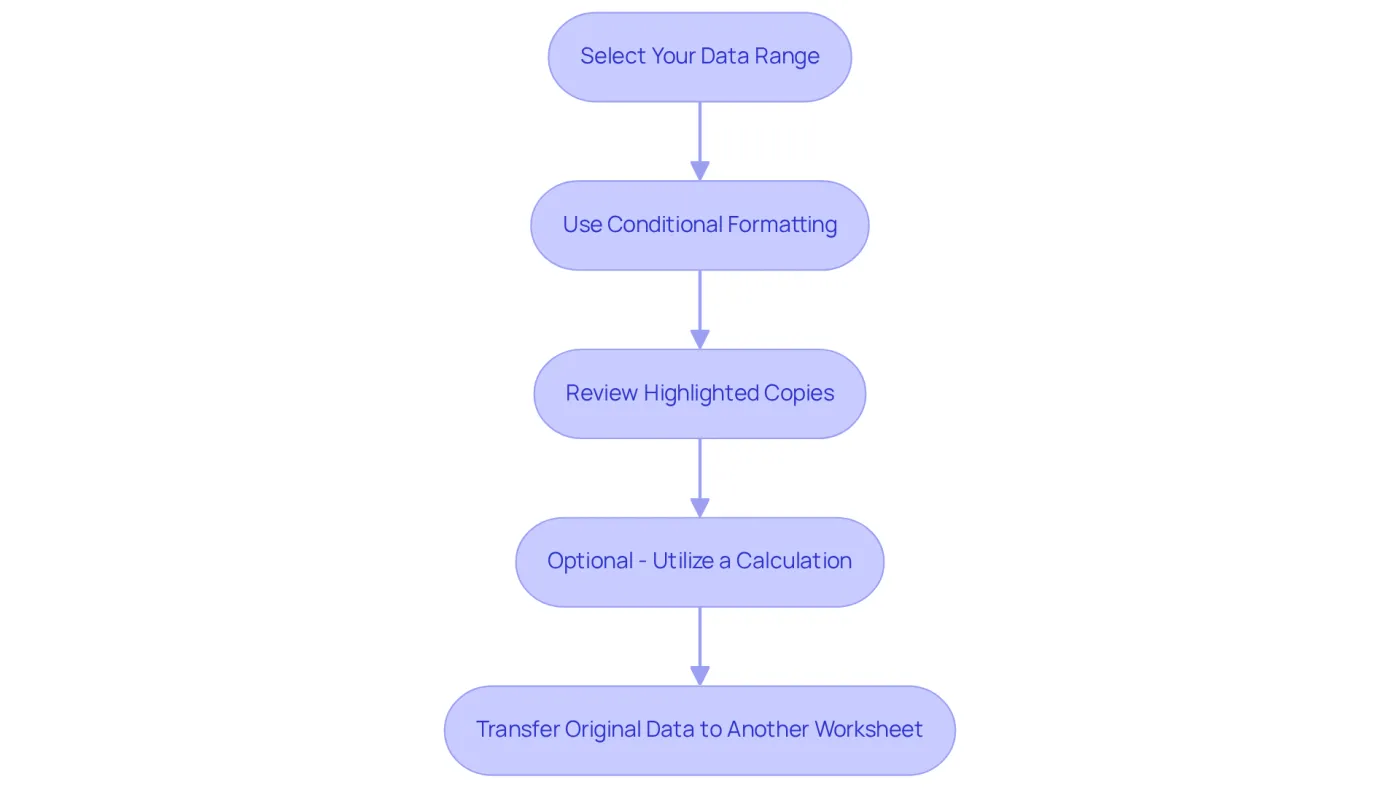
- Select Your Data Range: Begin by clicking and dragging to highlight the cells you want to check for repetitions.
- Use Conditional Formatting: Head to the Home tab, click on Conditional Formatting, then select Highlight Cells Rules and choose Duplicate Values. This will visually emphasize any repeated entries in your selected range, making them easy to spot.
- Review Highlighted Copies: Take a close look at the highlighted cells; these indicate the repeated entries that require your attention. Conditional formatting is particularly effective, simplifying the identification process significantly.
- Optional - Utilize a Calculation: For a more dynamic approach, use the expression
=COUNTIF(A:A, A1)>1in a new column to identify repeated entries. This formula will return TRUE for repeated values and FALSE for unique entries, providing a clear indication of your data's integrity.
Experts emphasize that using an excel formula to remove duplicates along with conditional formatting, such as COUNTIF, enhances accuracy by providing instant visual feedback on repeated entries. Organizations that adopt systematic approaches to redundancy detection can achieve a redundancy error rate as low as 1%, according to industry benchmarks.
Before removing repetitions, it’s advisable to transfer or replicate the original information to another worksheet to avoid losing important details. Common issues with duplicate detection, such as hidden characters or extra spaces, can be resolved using the TRIM() and CLEAN() functions in your spreadsheet application. Additionally, maintaining unnecessary redundant personal data may pose GDPR compliance risks, making it essential for finance professionals to tackle these challenges head-on.
Use Excel Formulas to Remove Duplicates
To effectively tackle the issue of duplicate entries in Excel, follow these streamlined steps:
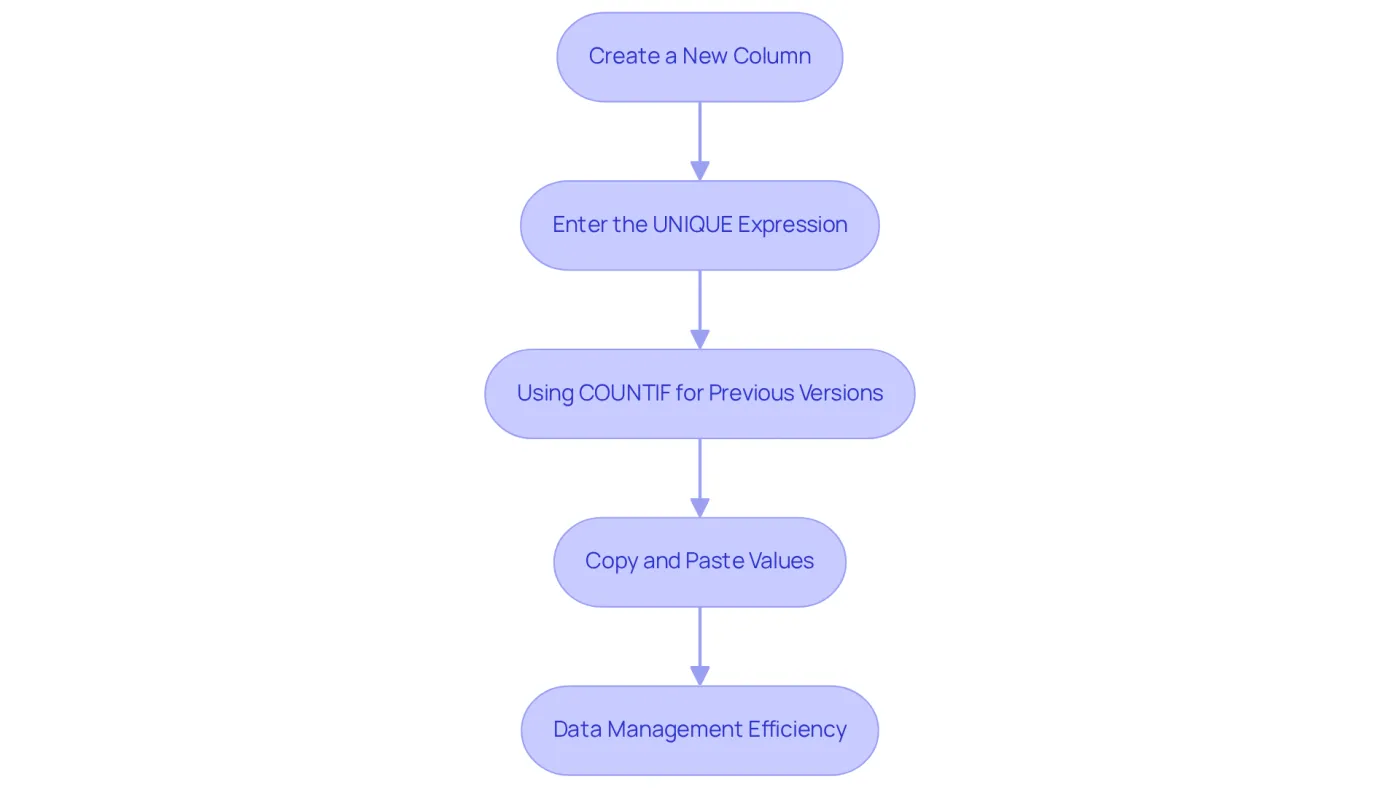
- Create a New Column: Begin by inserting a new column adjacent to your dataset, where the calculations will be applied.
- Enter the UNIQUE Expression: If you're using Microsoft 365, simply input the expression
=UNIQUE(A:A). This will utilize an excel formula to remove duplicates, extracting unique values from your data range. The UNIQUE function is particularly beneficial for generating reports free of duplicates and is available in Microsoft 365, version 2021, and the web application. - Using COUNTIF for Previous Versions: For those utilizing earlier versions of Excel, apply the expression
=IF([COUNTIF](https://datacamp.com/tutorial/remove-duplicates-excel)(A$1:A1, A1)=1, A1, '')in the new column. This formula displays the value only if it is the first occurrence, leaving duplicates blank. Notably, around 38% of spreadsheet users still rely on the excel formula to remove duplicates, highlighting its importance for effective data management. - Copy and Paste Values: Once you've generated the unique values, copy the new column and paste it as values. This action retains only the unique entries, effectively removing the formulas.
By integrating these methods, users can efficiently manage their data, regardless of the Excel version in use. As finance experts have noted, leveraging the UNIQUE function can significantly streamline the process of data cleanup, making it a favored choice among many.
Explore Advanced Methods with Power Query
To effectively remove duplicates using Power Query, follow these streamlined steps:
-
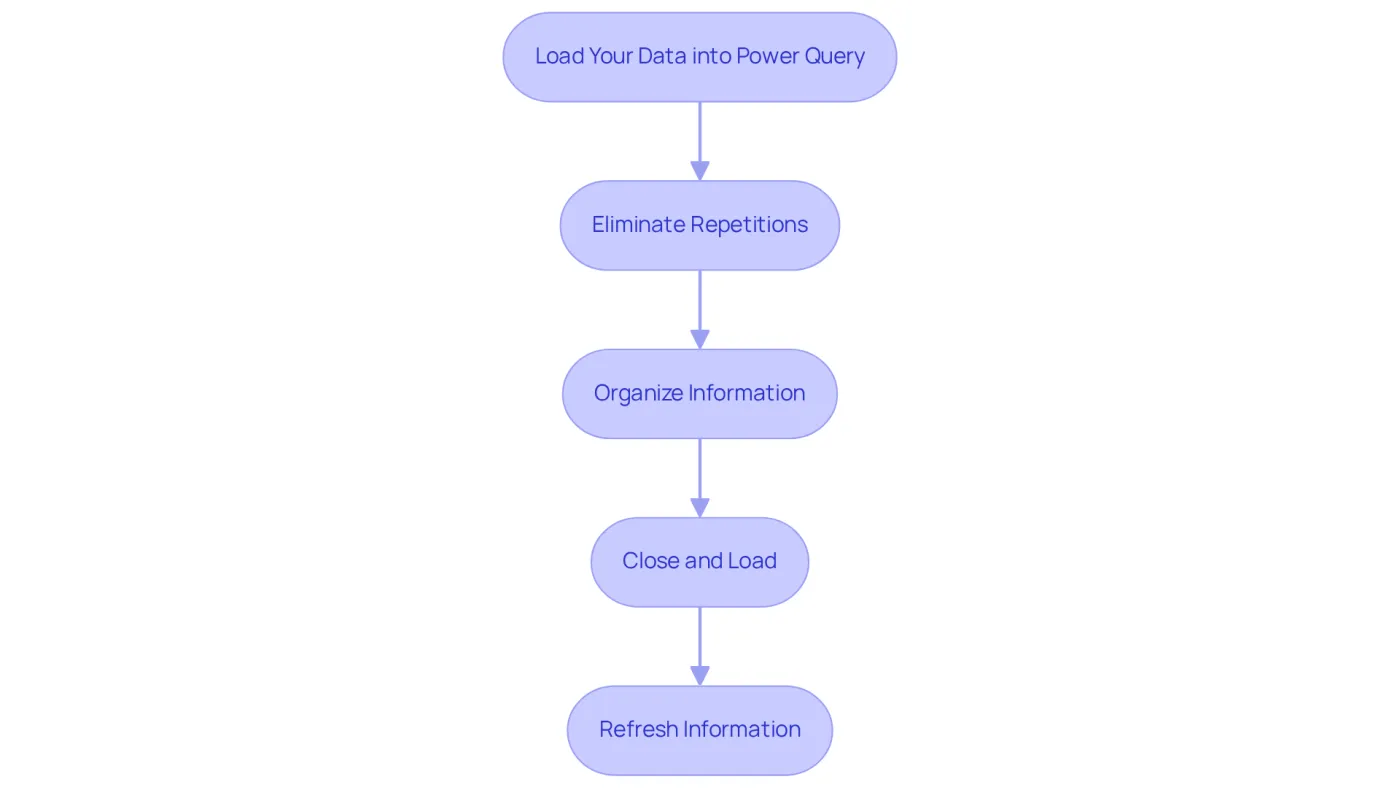
Load Your Data into Power Query: Start by selecting your data range. Navigate to the Data tab and click on From Table/Range to import your data into Power Query.
-
Eliminate Repetitions: In the Power Query editor, select the columns you wish to examine for repetitions. Proceed to the Home tab, click on Remove Rows, and then select Remove Duplicates. Remember, the spreadsheet software treats uppercase and lowercase text as distinct values when identifying repetitions, so normalizing text case may be essential.
-
Organize Information: To retain the latest instance of information when eliminating repetitions, arrange your records by the date modified column in descending order before continuing with the removal.
-
Close and Load: After removing repetitions, click on 'Close & Load' to transfer the cleaned information back into Excel.
-
Refresh Information: If your source information changes, simply refresh the Power Query to automatically update the unique values, eliminating the need to repeat the entire process.
Utilizing an excel formula to remove duplicates with Power Query not only streamlines your workflow but also enhances information accuracy. Recent statistics reveal that 70.4K users have engaged with the Excel Power Tools course, underscoring the effectiveness of Power Query in financial analysis. Laiba Siddiqui emphasizes, "Flawed information can spoil even the finest analysis, and one of the major causes of flawed information is repeated spreadsheet entries." The latest features in Power Query facilitate advanced data cleaning, making it an invaluable tool for finance professionals striving to maintain clean and reliable datasets.
Troubleshoot Common Issues in Duplicate Removal
Overcoming Common Obstacles in Spreadsheet Duplicate Removal
When it comes to eliminating repetitions in a spreadsheet application, users often face several typical challenges. Understanding these obstacles is crucial for effective troubleshooting.
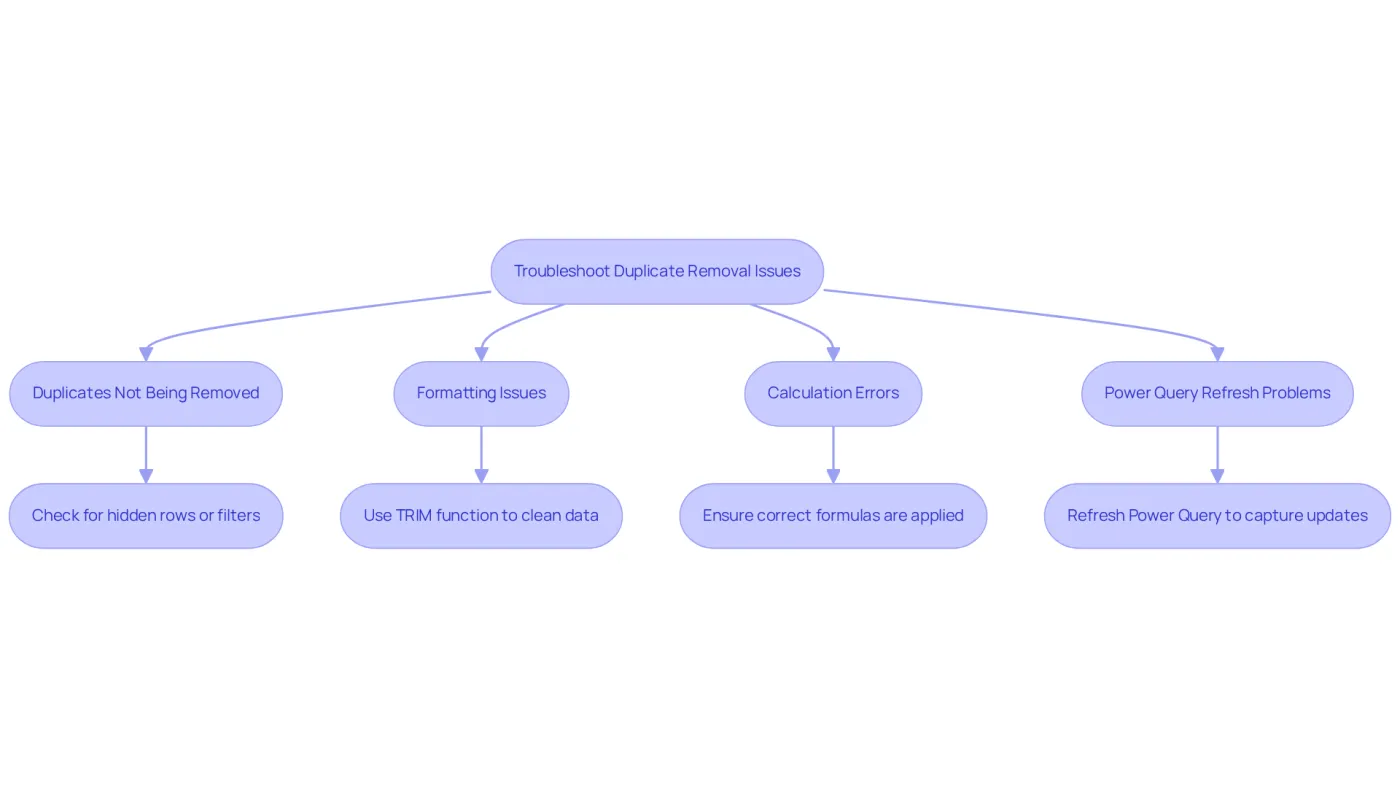
- Duplicates Not Being Removed: First, check for hidden rows or filters applied to your dataset. These elements can obstruct Excel's ability to identify repetitions, leading to incomplete removal.
- Formatting Issues: Inconsistent formatting can hinder duplication detection. For instance, text formatted as numbers, or vice versa, may not be recognized as identical. Utilize the TRIM function to eliminate extra spaces that could affect comparisons.
- Calculation Errors: Ensure that your computations are correctly defined and applied to the appropriate cell ranges. Misconfigured formulas can yield inaccurate results, preventing duplicates from being identified or removed.
- Power Query Refresh Problems: If your source has been updated, refreshing your Power Query is essential to capture the latest modifications. Right-click on the query in the Queries & Connections pane and select Refresh to ensure your data is current.
By addressing these common issues, users can significantly enhance their efficiency in managing duplicates. This ultimately leads to cleaner and more reliable datasets, empowering users to make informed decisions based on accurate information.
Conclusion
Mastering Excel formulas to remove duplicates is crucial for ensuring data accuracy and integrity. By following the outlined steps, users can effectively identify and eliminate redundant entries, enhancing the overall quality of their datasets. The combination of formulas like COUNTIF and UNIQUE, along with tools such as Power Query, empowers users to tackle duplicate data efficiently and systematically.
Key insights from this article underscore the importance of using conditional formatting for easy identification of duplicates. Various Excel functions cater to different versions, while the advanced capabilities of Power Query elevate data management. Addressing common challenges - such as hidden characters and formatting inconsistencies - is essential for successful duplicate removal. These strategies not only streamline the process but also significantly reduce the likelihood of errors in data analysis.
Ultimately, maintaining clean and reliable datasets is vital for informed decision-making, especially in finance, where data integrity is paramount. By implementing these best practices and troubleshooting tips, users can enhance their proficiency in Excel, ensuring their data remains accurate and actionable. Embracing these methods leads to improved efficiency and effectiveness in data management tasks, paving the way for better outcomes in any analytical endeavor.
Frequently Asked Questions
How can I identify duplicates in Excel?
You can identify duplicates in Excel by selecting your data range, using Conditional Formatting to highlight duplicate values, and reviewing the highlighted entries.
What steps do I need to take to use Conditional Formatting for duplicates?
To use Conditional Formatting, go to the Home tab, click on Conditional Formatting, select Highlight Cells Rules, and then choose Duplicate Values. This will visually highlight any repeated entries in your selected range.
What should I do after highlighting duplicates?
After highlighting duplicates, review the highlighted cells carefully as they indicate the repeated entries that need your attention.
Is there a formula I can use to identify duplicates dynamically?
Yes, you can use the formula =COUNTIF(A:A, A1)>1 in a new column to identify repeated entries. This formula will return TRUE for repeated values and FALSE for unique entries.
Why is it important to identify duplicates in data?
Identifying duplicates is crucial for maintaining data integrity and accuracy, as it helps prevent redundancy and errors in your data analysis.
What precautions should I take before removing duplicates?
It is advisable to transfer or replicate the original information to another worksheet before removing duplicates to avoid losing important details.
What common issues might affect duplicate detection in Excel?
Common issues include hidden characters or extra spaces, which can be resolved using the TRIM() and CLEAN() functions.
Why is it essential to manage redundant personal data?
Maintaining unnecessary redundant personal data may pose GDPR compliance risks, making it essential for professionals, especially in finance, to address these challenges.