
Master Excel to Excel Merge: Step-by-Step for Finance Pros
Master the excel to excel merge process with clear steps for finance professionals.

Introduction
Mastering the art of merging Excel workbooks is essential for finance professionals grappling with the complexities of data management. This skill not only streamlines workflows but also enhances data accuracy, leading to more informed decision-making. But with various methods available - from manual copy-pasting to advanced tools like Power Query - how can you identify the most efficient strategy for your specific needs?
In this article, we’ll explore the step-by-step process of Excel merging. You’ll gain insights into common pitfalls and learn how to optimize your data consolidation efforts. By the end, you’ll be equipped with the knowledge to tackle these challenges head-on, ensuring that your data management practices are both effective and efficient.
Prepare Your Workbooks for Merging
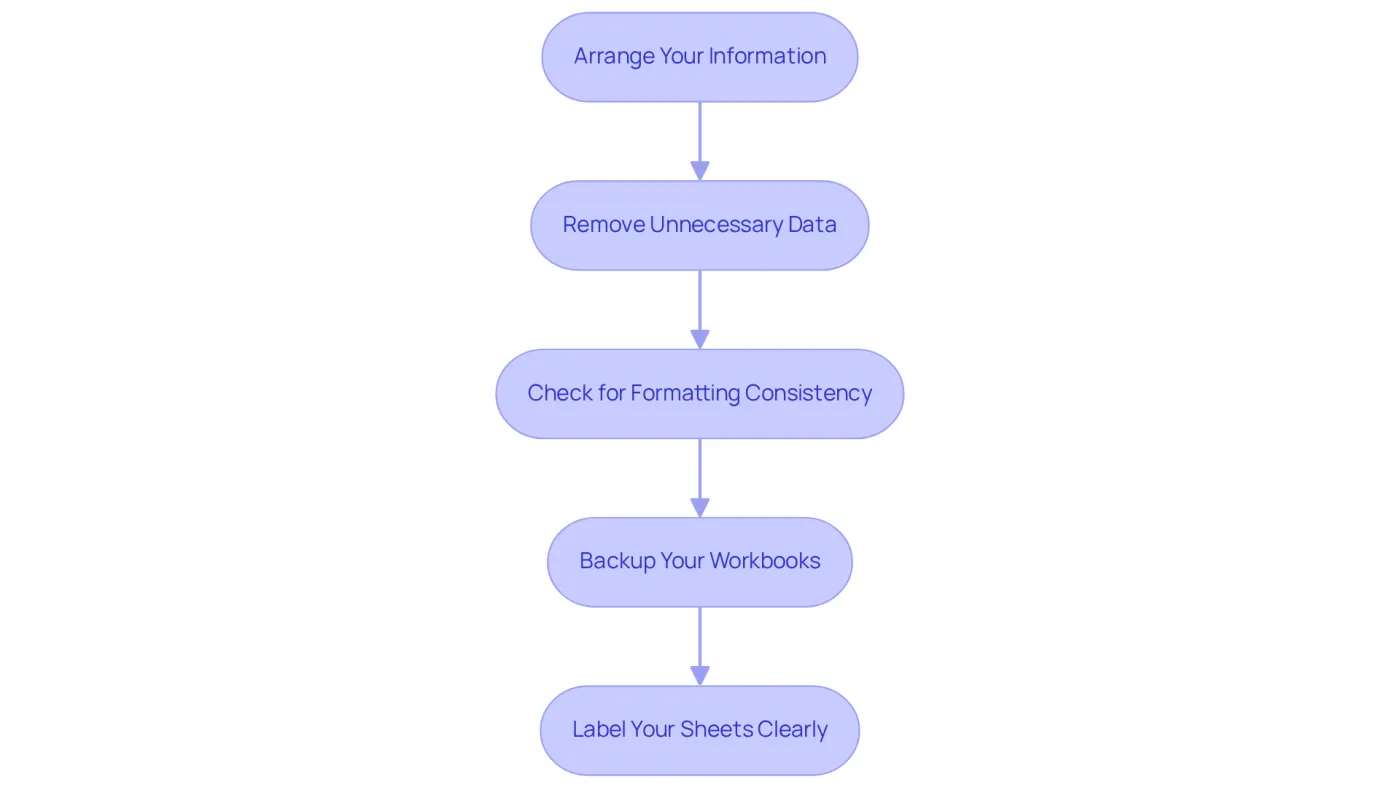
1. Arrange Your Information: Start by ensuring that all spreadsheets you plan to combine have a consistent structure. This means having the same column headers and information types across all sheets. A uniform structure is crucial for facilitating an excel to excel merge process.
2. Remove Unnecessary Data: Next, eliminate any irrelevant rows or columns that do not contribute to the final merged workbook. This step is essential for maintaining clarity and focusing on the essential data that matters most during the excel to excel merge.
3. Check for Formatting Consistency: It's vital to ensure that the formatting - such as date formats and number formats - is consistent across all sheets. Inconsistencies can lead to complications during the excel to excel merge, so take the time to verify this.
4. Backup Your Workbooks: Before making any changes, create backups of your original workbooks. This precaution allows you to revert to the initial information if something goes awry during the excel to excel merge, thereby safeguarding your data.
5. Label Your Sheets Clearly: Finally, use clear and descriptive names for your sheets to avoid confusion when merging. This practice will assist you in determining which information belongs where in the final file for the excel to excel merge, streamlining your workflow.
Explore Methods for Merging Workbooks
-
Manual Copy-Paste: To combine data manually, open both files and select the desired information from one. Use Ctrl+C to copy and Ctrl+V to paste it into the other workbook. While this method is straightforward, it can be labor-intensive for larger datasets. Attention to detail is essential to ensure accuracy.
-
Using Excel's Consolidate Function: Navigate to the Data tab and select 'Consolidate'. Choose the preferred function, such as Sum or Average, to summarize information from multiple sheets. This method effectively aggregates values and provides a quick overview of combined information.
-
Power Query: For a more efficient combining process, utilize Power Query. Access the Data tab, select 'Get Data', and choose 'From File' to import data from multiple workbooks. This tool is particularly beneficial for handling large datasets, allowing for easy updates and transformations. Consider using the
VSTACK()formula to stack ranges vertically from various sheets and theUNIQUE()function to eliminate duplicates during the combining process. -
VBA Macros: If you're comfortable with programming, creating a VBA macro can streamline the combining process. This method is ideal for repetitive tasks or when frequently combining several workbooks, significantly reducing manual effort and minimizing potential mistakes.
-
Third-Party Tools: Explore third-party tools specifically designed for combining Excel files, such as the Recoveryfix Excel Merger tool. These tools often provide enhanced features that simplify the integration process, making them a valuable choice for users seeking efficiency and convenience.
Post-Consolidation Validation: After combining, validating the accuracy and integrity of the consolidated dataset is crucial. Check for total row counts, missing columns, duplicate entries, and formatting consistency to ensure a reliable merged file.

Implement Best Practices for Successful Merging
-
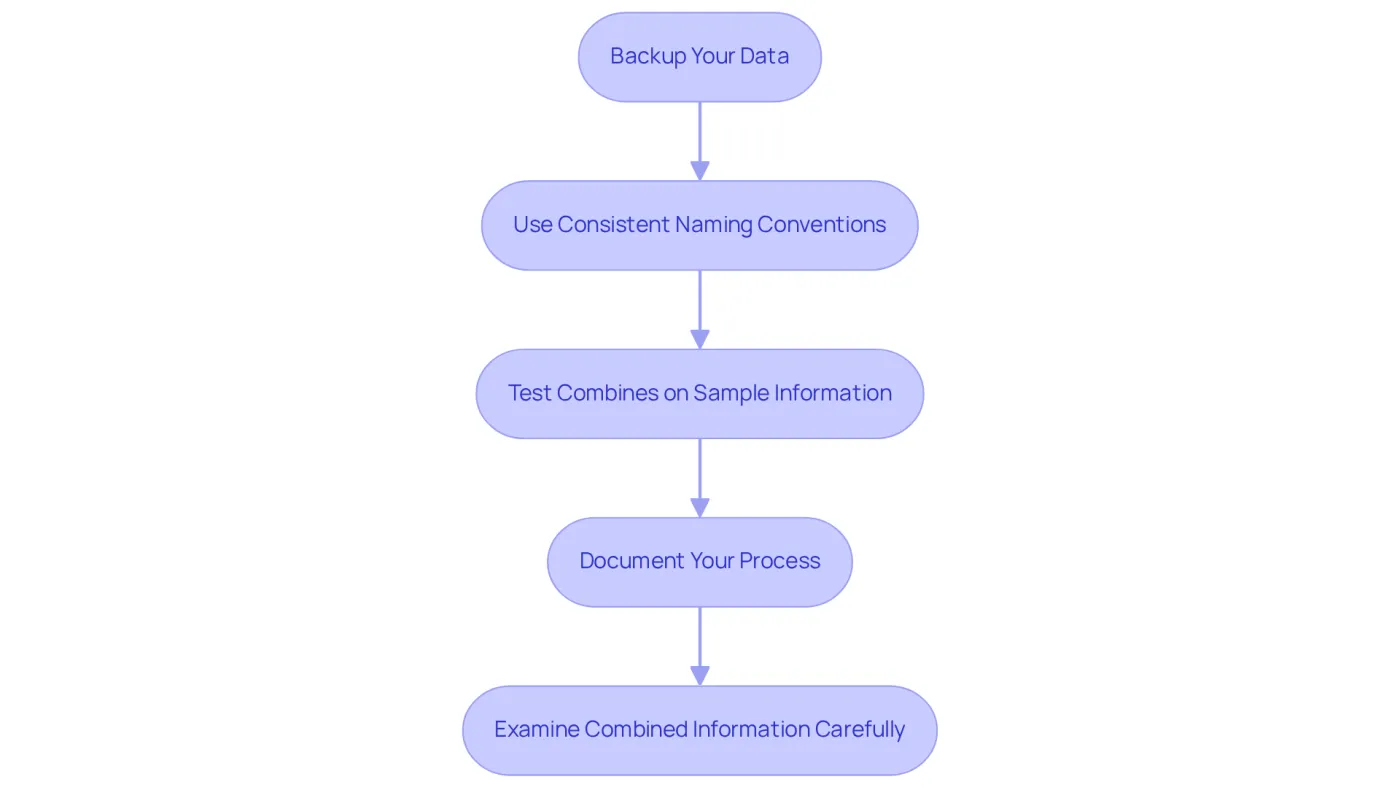
Always Backup Your Data: Before merging, it’s crucial to back up all original files. This step safeguards against potential information loss, ensuring your data remains intact.
-
Use Consistent Naming Conventions: Adopting a consistent naming convention for your sheets and files is essential. This practice facilitates quick identification of data sources, streamlining your workflow.
-
Test Combines on Sample Information: Prior to merging extensive datasets, evaluate the process on a smaller sample. This approach allows you to pinpoint possible issues before they escalate, saving time and resources.
-
Document Your Process: Keeping a detailed record of the steps taken during the integration process is invaluable. This documentation serves as a reference for future projects and aids others who may need to replicate your work.
-
Examine Combined Information Carefully: After merging, it’s imperative to assess the final dataset for any inconsistencies or mistakes. This thorough examination ensures that the combined information is accurate and dependable.
Troubleshoot Common Merging Issues
-
Information Not Combining Correctly: When information fails to combine as expected, it’s crucial to examine inconsistencies in column titles and information types. Ensure that all sheets are prepared for an excel to excel merge by sharing the same structure. As Donal Tobin aptly states, "Choosing the appropriate integration platform can decide whether your team spends months setting up pipelines or begins providing insights within days." This underscores the importance of a consistent management strategy.
-
Error Notifications: Encountering error notifications during the combining process? Take note of the specific error. Researching it can reveal effective solutions. Notably, 64% of organizations identify information quality as their primary integrity challenge, highlighting the urgent need to address these errors promptly.
-
Absent Information: If information appears to be missing after combining, verify that all relevant sheets were included and that no filters are concealing data. A case study on 'Excel Import Error #5: Missing Data' illustrates how absent values can lead to import errors, emphasizing the necessity for thorough checks prior to combining.
-
Formatting Issues: Should formatting be lost during the merge, review the formatting settings in Excel to ensure consistency across all sheets. This step is vital for preserving the visual integrity of your data during the excel to excel merge.
-
In instances of merge conflicts during an excel to excel merge, particularly when multiple users edit the same workbook, it’s essential to communicate with your team to resolve discrepancies. Ensuring everyone is aligned before proceeding with the merge is crucial. As highlighted in discussions about reconciliation challenges, effective communication is key to preventing operational disruptions.

Conclusion
Mastering the art of merging Excel workbooks is crucial for finance professionals who demand efficiency and accuracy in data management. By adopting a systematic approach-preparing your workbooks, exploring various merging methods, and implementing best practices-you can significantly streamline the process. This guide underscores the importance of consistency, clarity, and thorough validation to ensure a successful merge.
Key steps such as:
- Organizing information
- Removing unnecessary data
- Backing up original files
establish a solid foundation for a seamless merging experience. We explore various methods, from manual copy-pasting to advanced tools like Power Query and VBA macros, providing options tailored to different needs and expertise levels. Additionally, troubleshooting common issues allows you to address potential setbacks promptly, preserving the integrity of your data throughout the merging process.
Ultimately, the ability to merge Excel workbooks effectively not only boosts productivity but also enhances decision-making through accurate data analysis. By implementing the strategies outlined here and staying vigilant against common pitfalls, finance professionals can elevate their data management practices. Embrace these techniques to unlock the full potential of your Excel workbooks and propel your financial analysis forward with confidence.
Frequently Asked Questions
What is the first step in preparing workbooks for merging?
The first step is to arrange your information by ensuring that all spreadsheets you plan to combine have a consistent structure, including the same column headers and information types.
Why is it important to remove unnecessary data before merging workbooks?
Removing unnecessary rows or columns is essential for maintaining clarity and focusing on the essential data that matters most during the merge process.
How can formatting inconsistencies affect the merging process?
Inconsistencies in formatting, such as date formats and number formats, can lead to complications during the merge, so it is crucial to ensure consistency across all sheets.
What precaution should be taken before making changes to the workbooks?
It is important to create backups of your original workbooks to safeguard your data and allow you to revert to the initial information if something goes wrong during the merge.
How should sheets be labeled for an effective merge?
Sheets should be labeled clearly and descriptively to avoid confusion when merging, which will help in determining which information belongs where in the final file.