
Master Google Sheet Date Difference: Step-by-Step for Finance Pros
Calculate the google sheet date difference effortlessly with DATEDIF and essential date functions.

Introduction
Mastering date calculations in Google Sheets can significantly elevate the efficiency of finance professionals. With a wealth of built-in functions at their fingertips, users have the opportunity to streamline workflows and boost productivity by effectively managing date-related tasks. Yet, common pitfalls - like formatting errors and unexpected results - can create substantial hurdles.
How can finance professionals harness these powerful tools to ensure accuracy and efficiency in their analyses? By understanding the intricacies of date calculations, they can not only avoid these pitfalls but also enhance their overall financial reporting. This mastery leads to more reliable data, better decision-making, and ultimately, improved financial outcomes.
Understand Date Functions in Google Sheets
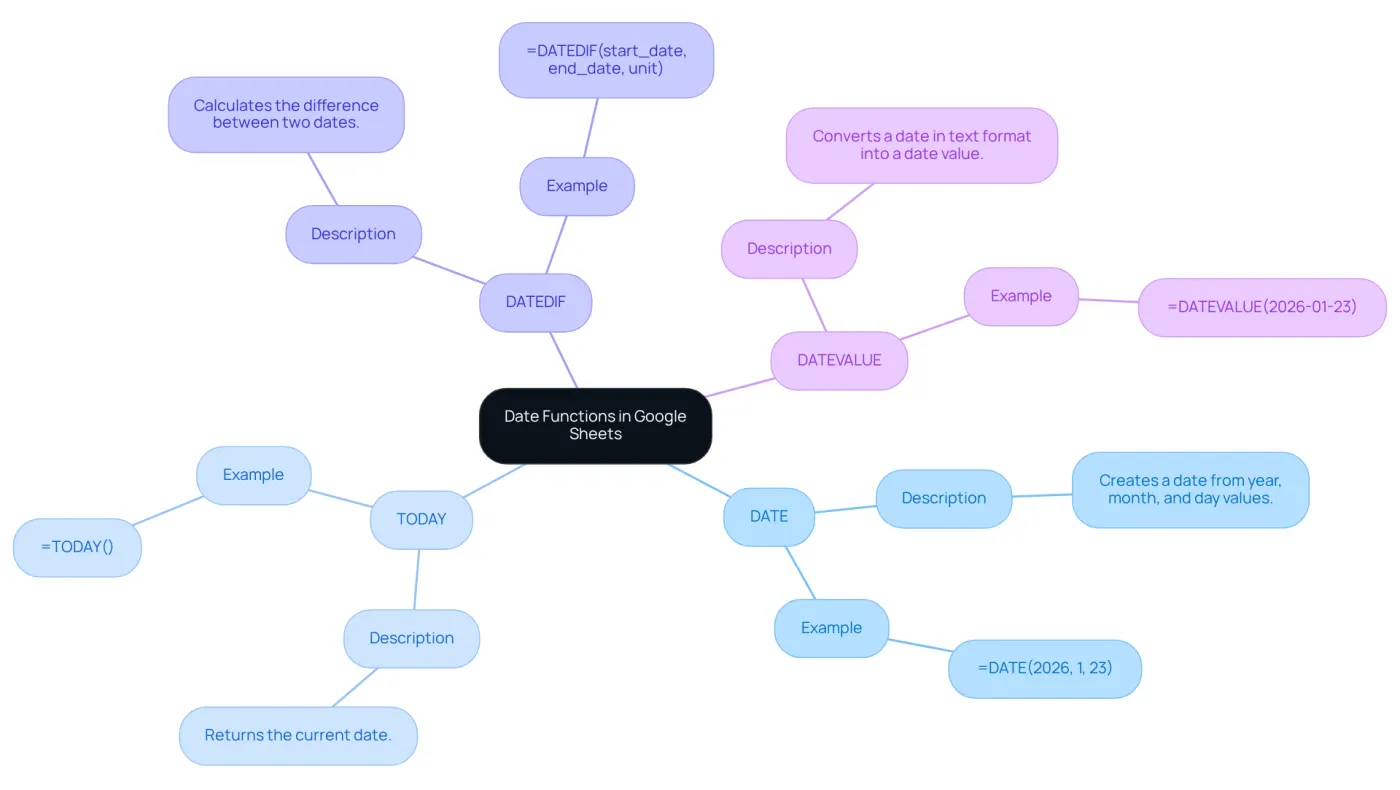
Google Sheets offers a range of built-in temporal operations that are essential for efficiently managing and calculating days. Understanding these functions can significantly enhance your productivity. Here are some key functions you should know:
- DATE: This function allows you to create a date from year, month, and day values. For instance,
=DATE(2026, 1, 23)will return January 23, 2026. - TODAY: This function provides the current date. Simply use
=TODAY()to always get today’s date. - DATEDIF: This function calculates the google sheet date difference between two dates. Its syntax is
=DATEDIF(start_date, end_date, unit), whereunitcan be "D" for days, "M" for months, or "Y" for years. - DATEVALUE: This function converts a date in text format into a value that Google Sheets recognizes. For example,
=DATEVALUE("2026-01-23")will convert the text into a date format.
Familiarizing yourself with these operations will empower you to perform a variety of time calculations, such as calculating the google sheet date difference, with ease.
Apply the DATEDIF Formula for Date Differences
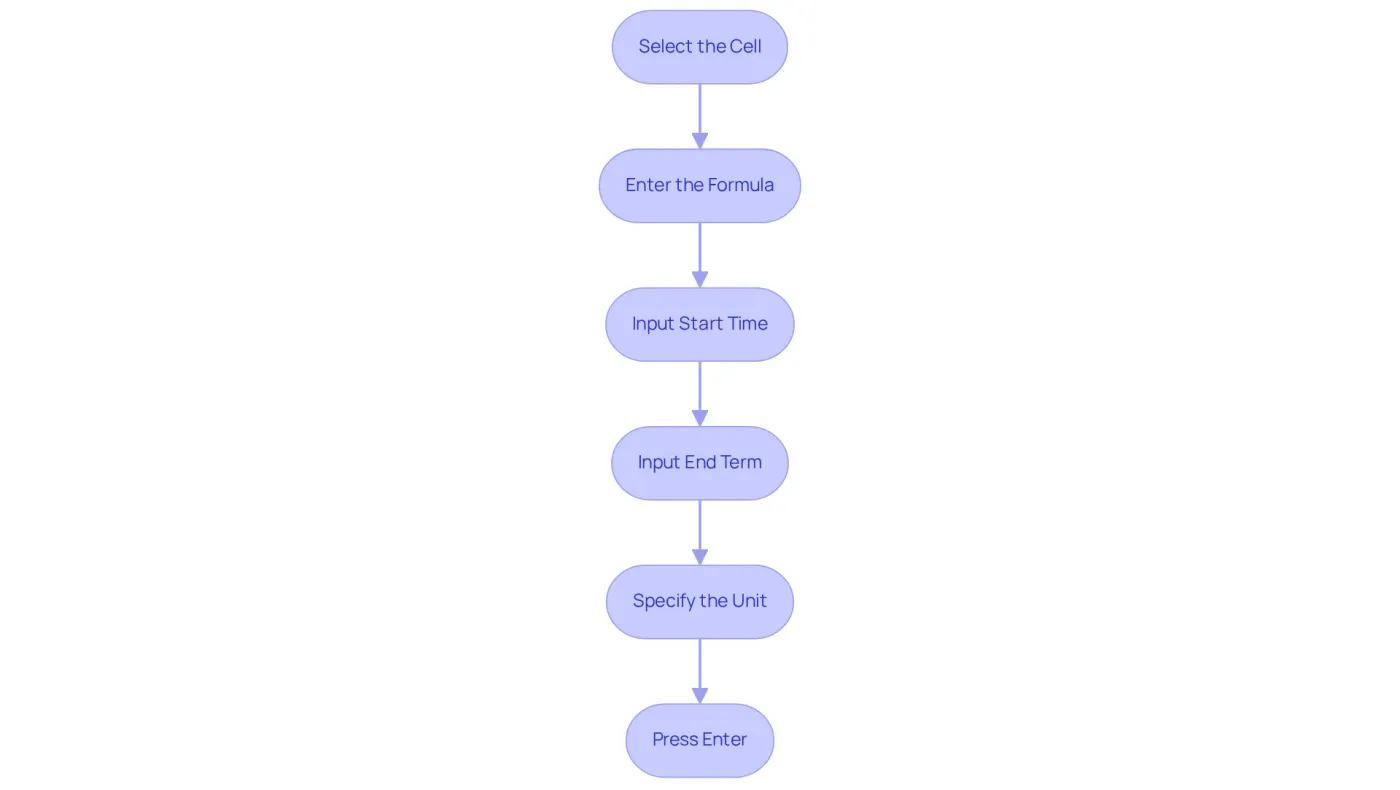
Calculating the google sheet date difference between two dates using the DATEDIF function is straightforward. Follow these steps to achieve accurate results:
- Select the Cell: Click on the cell where you want the result to appear.
- Enter the Formula: Type
=DATEDIF(to initiate the formula. - Input Start Time: Enter the beginning time. For example, if your starting point is in cell A1, type
A1,. - Input End Term: Enter the end term. If your endpoint is in cell B1, type
B1,. - Specify the Unit: Choose the unit for the difference. To find the difference in days, type
"D". Your complete formula should look like this:=DATEDIF(A1, B1, "D"). - Press Enter: Hit Enter to calculate the difference.
This formula will now display the google sheet date difference in days between the two points in time. You can easily adjust the unit to "M" for months or "Y" for years as needed. By mastering this function, you enhance your ability to analyze date-related data effectively.
Explore Variations and Common Challenges in Date Calculations
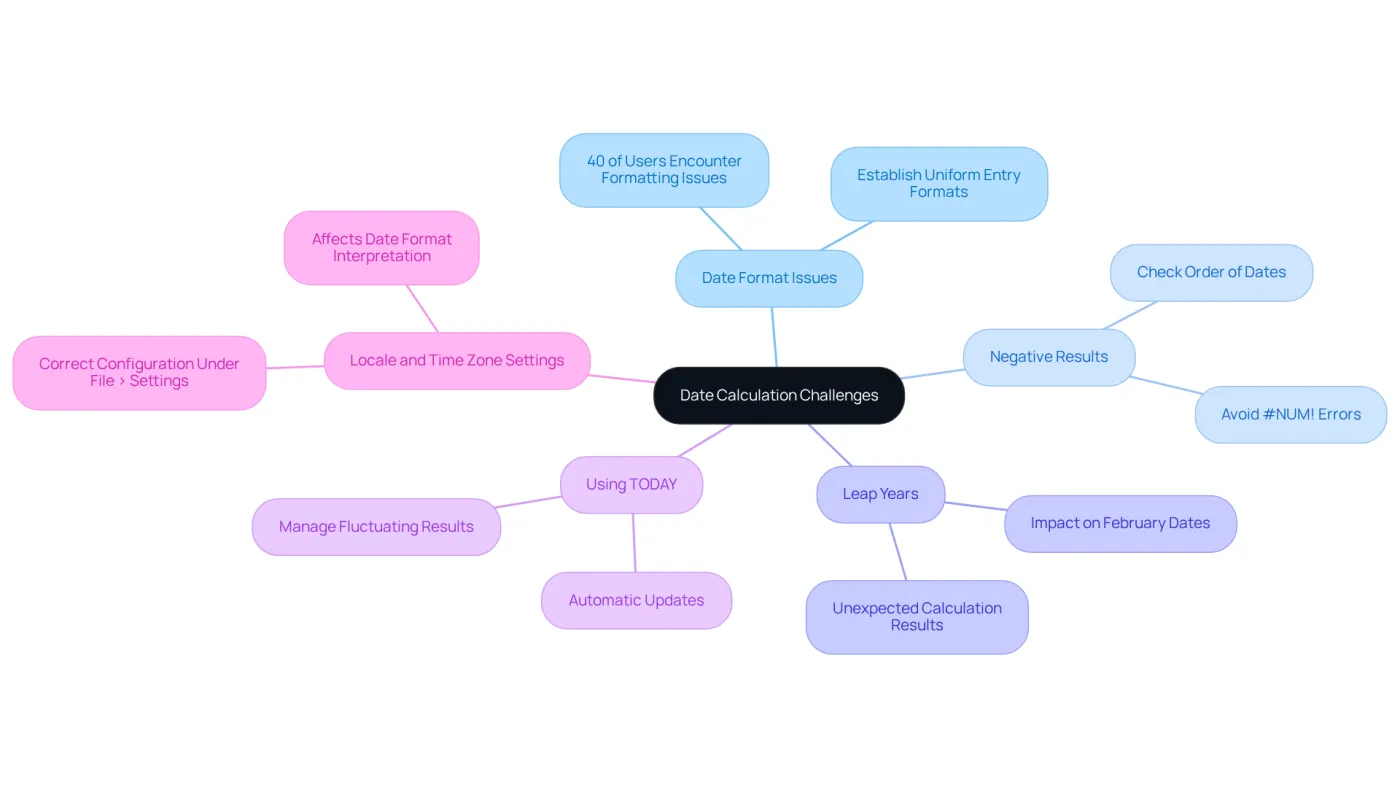
Calculating the google sheet date difference can present several challenges that affect both accuracy and efficiency.
-
Date Format Issues: Proper date formatting is essential. Google Sheets may misinterpret dates if they aren't in a recognized format, such as YYYY-MM-DD. Approximately 40% of users encounter formatting issues, which can lead to errors in calculations. To mitigate this, it's advisable to establish uniform entry formats across teams. This ensures universal recognition and minimizes confusion.
-
Negative Results: A common mistake occurs when the starting date is later than the ending date in the DATEDIF operation, resulting in a
#NUM!error. Always check the order of your dates to prevent this issue. -
Leap Years: Leap years can complicate calculations. For example, the difference between February 28 and March 1 varies depending on whether the year is a leap year, potentially leading to unexpected results.
-
Using TODAY: The
TODAY()function updates automatically, which can yield fluctuating results if not managed properly. Be cautious when incorporating it into your calculations. -
Locale and Time Zone Settings: Ensure that your locale and time zone settings in the spreadsheet application are correctly configured under File > Settings. This can significantly affect how time formats are interpreted and displayed.
By recognizing these challenges, you can troubleshoot effectively and ensure precise calculations of the google sheet date difference, ultimately enhancing your productivity in the spreadsheet application. As Geoffrey Moore states, "data is crucial for making informed business decisions," highlighting the importance of accuracy in your date calculations.
Utilize Tools and Extensions to Enhance Your Google Sheets Experience
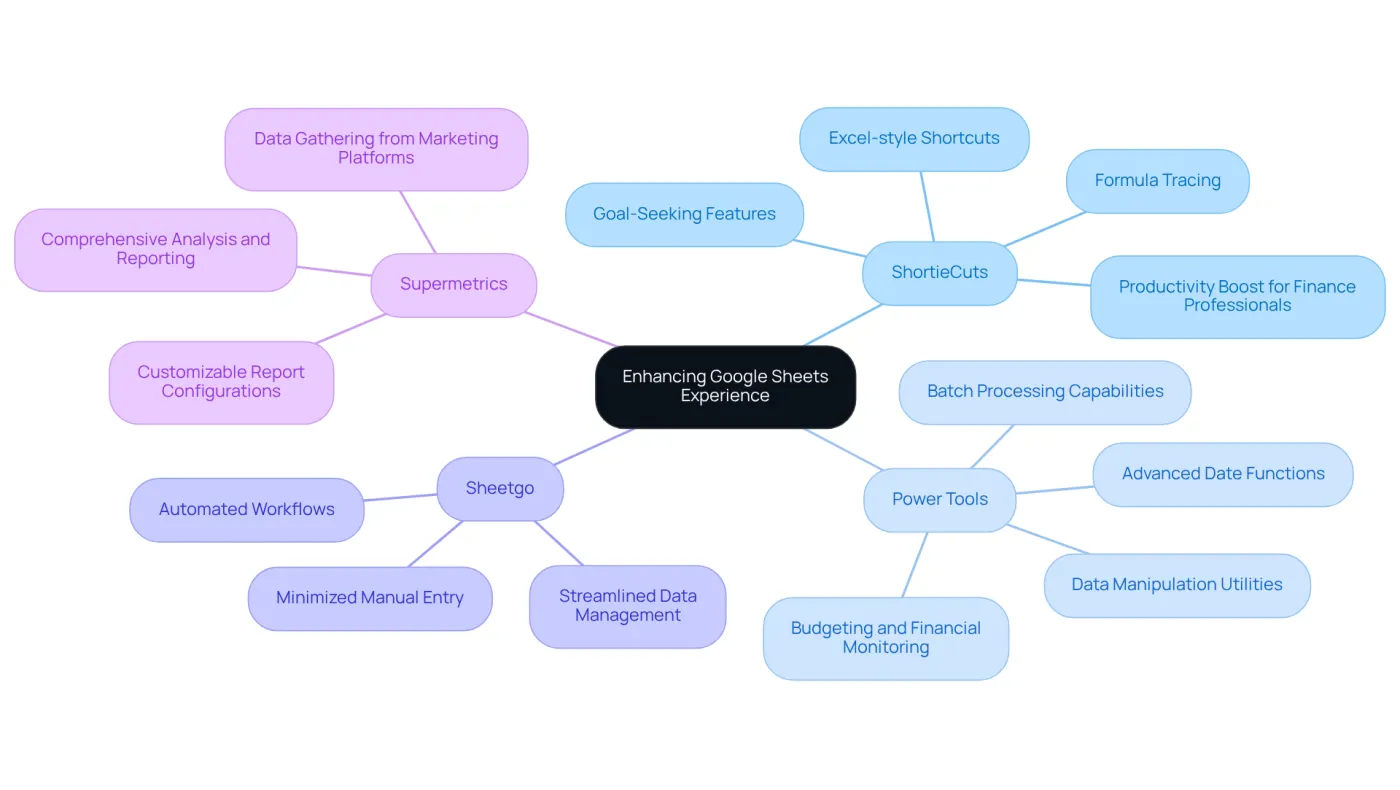
To elevate your Google Sheets experience, consider integrating the following tools and extensions:
-
ShortieCuts: This Chrome extension seamlessly incorporates Excel-style shortcuts into Google Sheets, facilitating a smoother transition for users migrating from Excel. With 233 shortcuts, along with features like formula tracing and goal-seeking, it significantly enhances productivity for finance professionals. Users have noted that 'utilizing the spreadsheet application has been a game changer for me in my college career,' underscoring its effectiveness.
-
Power Tools: This add-on offers a comprehensive suite of utilities for data manipulation, including advanced date functions that simplify calculations and enable users to easily determine the Google Sheets date difference, along with batch processing capabilities to manage large datasets. In fact, 68% of users of the spreadsheet application employ it for budgeting and financial monitoring, highlighting its significance for finance professionals.
-
Sheetgo: This tool automates workflows between spreadsheet applications and other platforms, streamlining data management across systems and minimizing manual entry.
-
Supermetrics: Designed for finance experts, this extension effectively gathers data from multiple marketing platforms into a spreadsheet application, facilitating comprehensive analysis and reporting.
Integrating these tools can simplify your workflow, automate repetitive tasks, and greatly enhance your overall efficiency in the spreadsheet application. For instance, the "Budgeting with Google Sheets" case study illustrates how these tools improve organization and efficiency, making them invaluable for finance professionals.
Conclusion
Mastering date functions in Google Sheets is essential for finance professionals aiming to boost productivity and accuracy in data management. Understanding and utilizing functions like DATEDIF, DATE, and TODAY allows users to efficiently calculate date differences and perform various time-related operations, streamlining their analytical processes.
This article provided key insights on effectively applying the DATEDIF formula, troubleshooting common challenges, and utilizing tools and extensions to enhance the Google Sheets experience. Issues such as date format discrepancies, negative results, and the impact of leap years were addressed, along with practical solutions to overcome these hurdles. Tools like ShortieCuts and Power Tools were highlighted to further enhance productivity and simplify complex tasks.
Incorporating these strategies not only facilitates accurate date calculations but also empowers finance professionals to make informed decisions based on reliable data. Embracing the full potential of Google Sheets through these functions and tools can transform the analysis and presentation of financial data. By mastering these skills, you will undoubtedly achieve greater efficiency and success in any finance-related endeavor.
Frequently Asked Questions
What is the DATE function in Google Sheets?
The DATE function allows you to create a date from year, month, and day values. For example, =DATE(2026, 1, 23) will return January 23, 2026.
How can I get the current date in Google Sheets?
You can get the current date by using the TODAY function. Simply enter =TODAY() to always display today’s date.
What does the DATEDIF function do?
The DATEDIF function calculates the difference between two dates. Its syntax is =DATEDIF(start_date, end_date, unit), where the unit can be "D" for days, "M" for months, or "Y" for years.
What is the purpose of the DATEVALUE function?
The DATEVALUE function converts a date in text format into a value that Google Sheets recognizes as a date. For example, =DATEVALUE("2026-01-23") will convert the text into a date format.
How can understanding date functions improve productivity in Google Sheets?
Familiarizing yourself with date functions allows you to perform a variety of time calculations, such as calculating the difference between dates, more efficiently and effectively.