
Master Google Sheets: Fit Cell to Text with These Simple Steps
Learn to use Google Sheets fit cell to text for enhanced readability and organization.

Introduction
Ensuring that data is clearly visible and easily readable in spreadsheets is crucial for effective communication and informed decision-making. The ability to fit text properly in Google Sheets not only enhances the document's aesthetic appeal but also significantly boosts its functionality. Yet, many users find themselves grappling with how to adjust cell sizes effectively, often compromising readability in the process.
What are the best practices for achieving the perfect fit? How can one navigate common pitfalls along the way? By mastering these techniques, you can transform your spreadsheets into powerful tools that convey information clearly and efficiently.
Understand the Importance of Fitting Text in Google Sheets
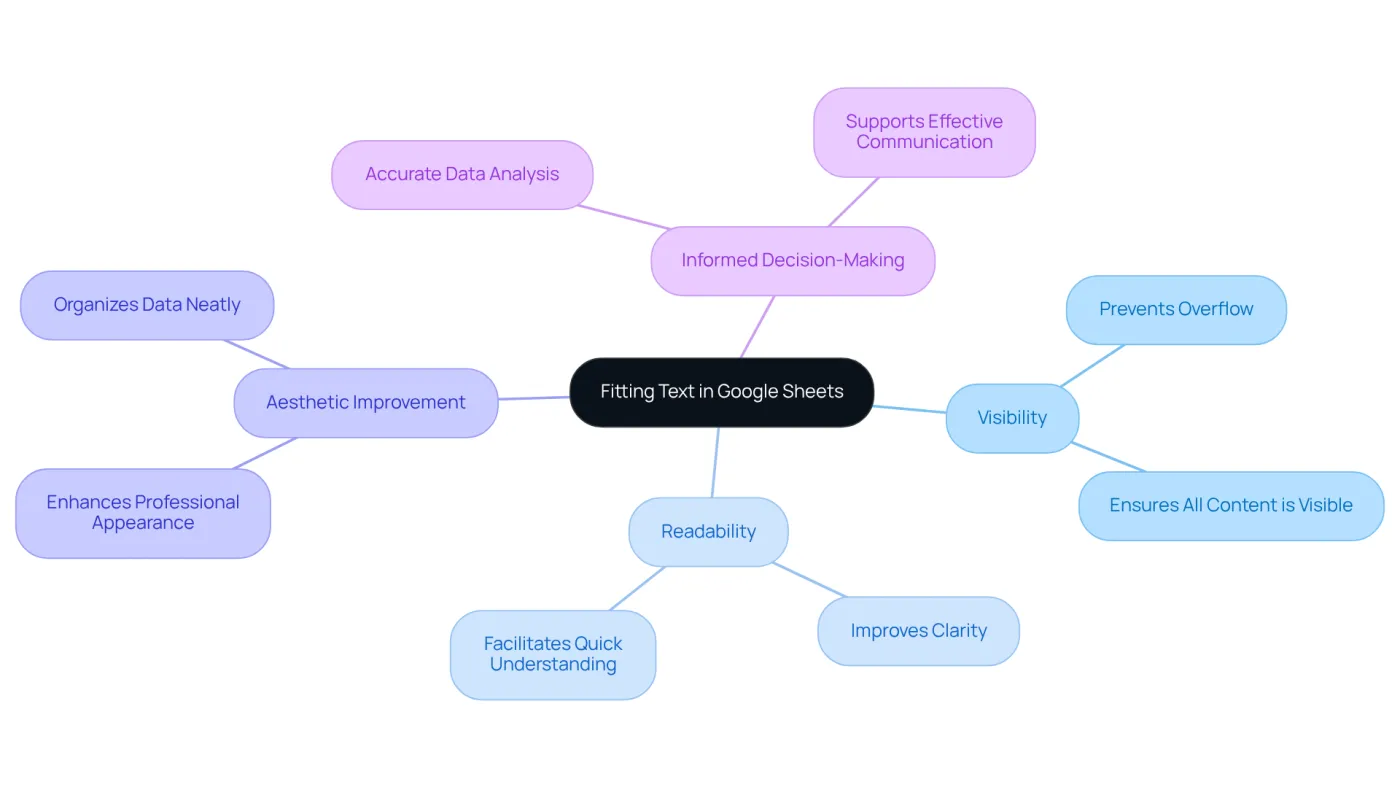
Using the option to google sheets fit cell to text is crucial for ensuring that all details are visible and easily readable. When content overflows or is truncated, it can lead to misinterpretation of information, obstructing effective communication.
Using the feature to google sheets fit cell to text not only enhances the aesthetic of your spreadsheet but also improves functionality. This allows users to quickly grasp the information presented. For professionals who rely on spreadsheets for data analysis and reporting, clear visibility of all content is essential for accurate decision-making.
By prioritizing the fitting of information, you empower yourself and your team to make informed choices based on complete and accessible data.
Use the Wrap Text Feature to Fit Long Responses
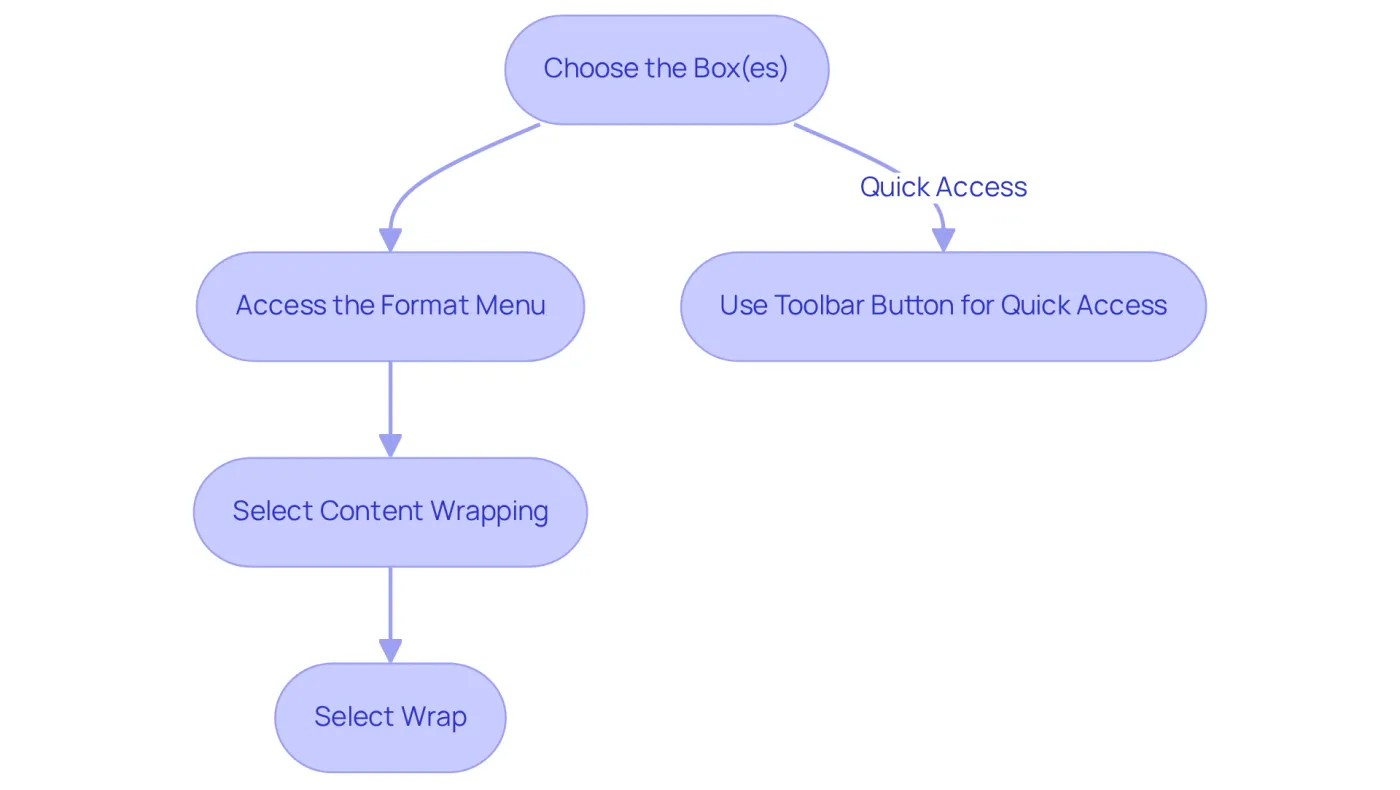
To effectively utilize the Wrap Text feature in Google Sheets, follow these straightforward steps:
- Choose the Box(es): Click on the box or range of boxes containing the content you wish to wrap.
- Access the Format Menu: Navigate to the top menu and click on
Format. - Select Content Wrapping: Hover over
Content wrappingin the dropdown menu. - Select Wrap: Click on
Wrap. This action in Google Sheets fits cell to text by automatically adjusting the row height to fit the content, allowing it to appear on multiple lines within the same section.
For quicker access, you can also use the toolbar button: select the box, then click the Text wrapping icon and choose Wrap. This feature is particularly beneficial for lengthy responses, as it utilizes Google Sheets fit cell to text, ensuring that all content remains visible without needing to adjust the column width.
Applying line wrapping significantly enhances the readability of financial reports, enabling stakeholders to grasp key insights at a glance. By preventing overflow into neighboring sections, it maintains a tidy and structured appearance, which is essential for efficient data display. Productivity specialists emphasize that utilizing the Wrap feature not only improves the viewing experience but also saves time by eliminating the need for manual adjustments, making it an indispensable tool for finance professionals.
Apply the Shrink to Fit Option for Text Adjustment
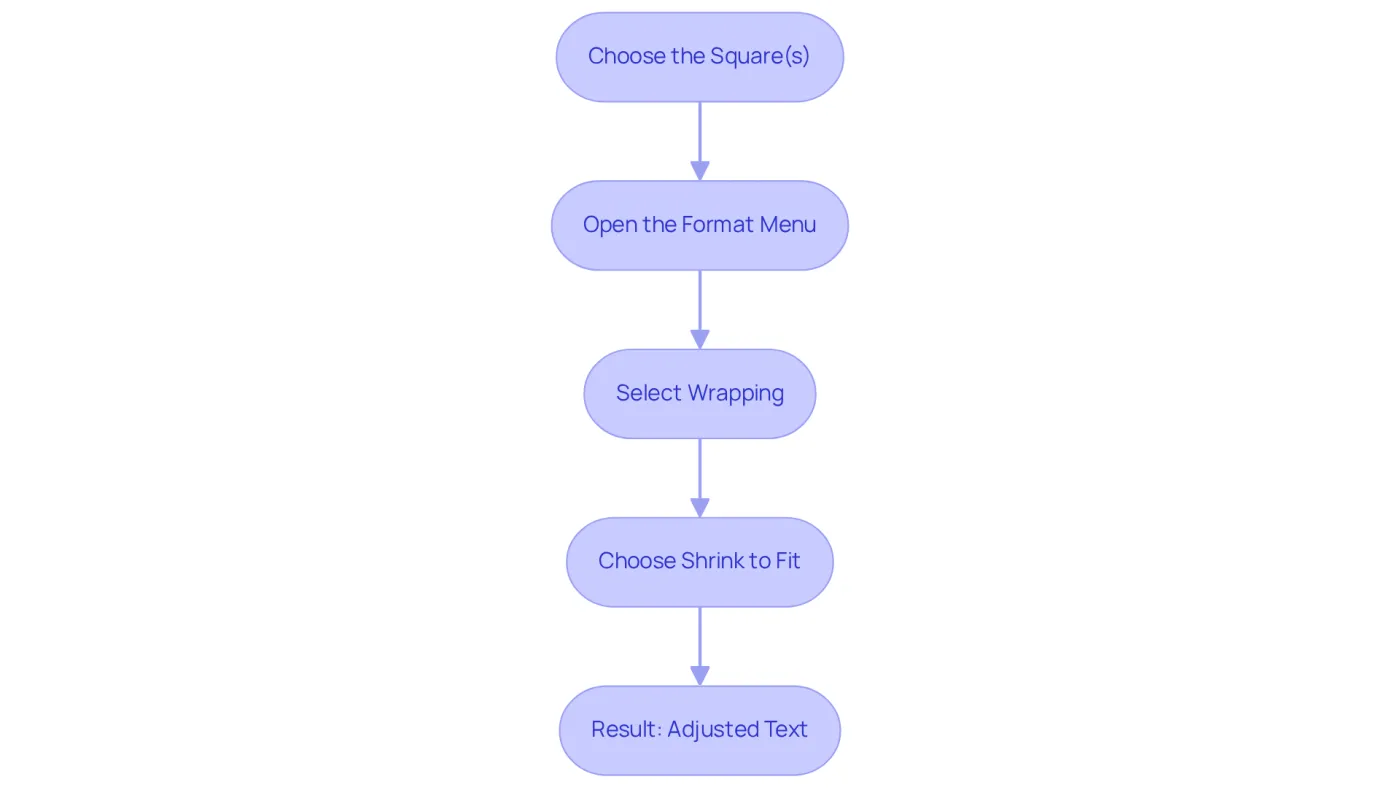
To effectively use the Shrink to Fit option in Google Sheets, follow these steps:
- Choose the Square(s): Click on the square or range of squares containing the content you want to modify.
- Open the Format Menu: Navigate to the top menu and click on
Format. - Select Wrapping: Hover over
Text wrappingand then chooseShrink to fit. This feature uses Google Sheets fit cell to text to automatically decrease the font size of the characters so they fit within the box without altering its dimensions.
This technique is particularly beneficial in financial modeling and reporting, where a clean and organized appearance is essential. For example, using Shrink to Fit can effectively present dense financial tables or compact KPIs, ensuring that all necessary information is visible without excessive cell height.
However, caution is warranted. Expert Riley Walz highlights that "Using Shrink to Fit on long paragraphs turns your sheet into a squint-fest." While this feature enhances spreadsheet aesthetics, it’s advisable to use Text Wrap for longer entries to maintain readability. By implementing this feature judiciously, users can achieve a polished and professional look in their spreadsheets.
Manually Resize Cells to Fit Text
Mastering Cell Resizing in Google Sheets with ShortieCuts
Are you struggling with resizing cells in Google Sheets? You’re not alone. Many users find it challenging to present their data clearly and effectively when they do not know how to use Google Sheets to fit cell to text. Fortunately, with ShortieCuts, you can streamline this process and enhance your productivity. Here’s how to resize cells manually for optimal results:
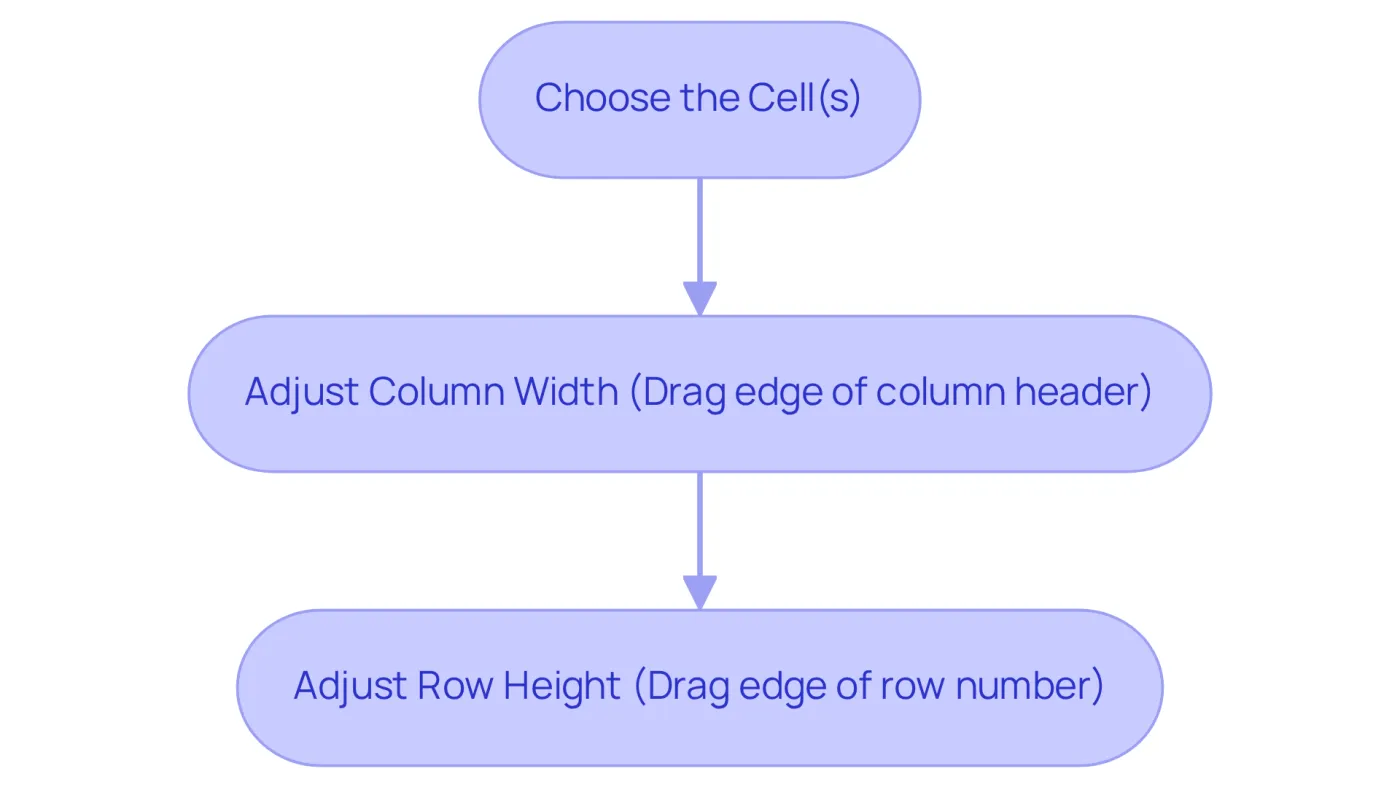
- Choose the Cell(s): Start by clicking on the square or range of squares you wish to resize.
- Adjust Column Width: Position your cursor at the right edge of the column header until it transforms into a double arrow. Click and drag to the right to increase the width or to the left to decrease it. This ensures all content is visible without overflow by utilizing the google sheets fit cell to text feature. Be mindful of common formatting pitfalls, like using the Google Sheets fit cell to text feature on lengthy paragraphs, which can render text unreadable.
- Adjust Row Height: Move your cursor to the bottom edge of the row number until it changes to a double arrow. Click and drag down to increase the height or up to decrease it.
This manual resizing technique grants you precise control over dimensions, significantly improving the clarity of your financial information. For instance, in dense financial tables, adjusting column widths to fit specific data can greatly enhance both clarity and presentation. Moreover, maintaining consistent column and row sizes across multiple sheets fosters better organization of your spreadsheets. Data experts consistently advocate these methods, emphasizing that employing google sheets fit cell to text helps achieve appropriately sized units, which contribute to a more structured and professional appearance, ultimately aiding in improved data analysis and decision-making.
To further streamline your workflow, consider utilizing the ShortieCuts extension. It offers 233 Excel ALT shortcuts for Google Sheets. By pressing 'ALT' (or Option on Mac), key-tips will appear in the corner of your screen, allowing you to swiftly access functions that facilitate efficient resizing and formatting of your grids.
Take control of your spreadsheets today with ShortieCuts and experience the difference in your data management!
Troubleshoot Common Issues with Text Fitting
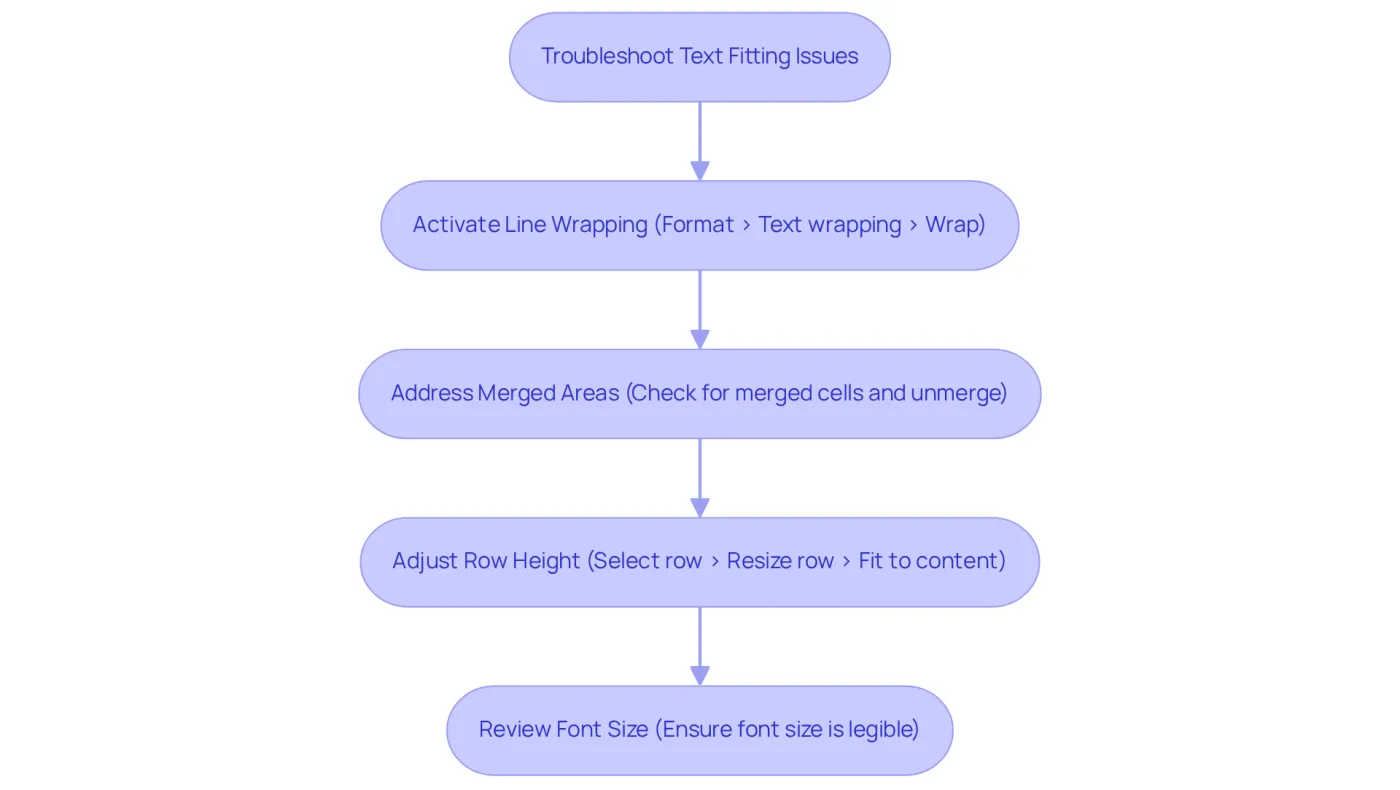
When you encounter challenges with text fitting in Google Sheets, consider these effective troubleshooting strategies:
-
Activate Line Wrapping: Ensure that the line wrapping function is enabled for the applicable areas. To ensure all content is visible within the box, use the
Format>Text wrappingoption and selectWrapin Google Sheets fit cell to text. Text wrapping allows data to be displayed in the same space without increasing the column width, which is crucial for maintaining readability. -
Address Merged Areas: Merged areas can hinder text visibility and do not support text wrapping. If you notice display issues, check for merged areas and unmerge them by selecting the area and going to
Format>Merge areas>Unmerge. Keep in mind that the default format for unmerged cells will be 'Clip', so you may need to re-enter information and apply the Wrap option. -
Adjust Row Height: If content remains cut off, manually adjust the row height. Select the row number, right-click, and choose
Resize row>Fit to contentto properly accommodate the information. -
Review Font Size: If using the Shrink to Fit option, ensure the font size is legible. Adjust the font size as necessary to maintain readability.
By implementing these steps, you can effectively resolve text fitting issues by using Google Sheets fit cell to text, ensuring your spreadsheets remain organized and professional. Regularly assessing these elements can significantly enhance information presentation, which is vital for finance professionals who rely on clear and accessible details. As Ayan Ahmad Fareedi emphasizes, "The key to effective data management is not just about inputting information but also about presenting it in a way that is easy to understand and work with.
Conclusion
Ensuring that text fits properly within cells in Google Sheets is crucial for maintaining clarity and enhancing readability. By utilizing features like Wrap Text and Shrink to Fit, users can present their data in an organized manner, facilitating better communication and decision-making. The ability to fit cell content not only improves the aesthetic appeal of spreadsheets but also supports effective data analysis, making it an essential skill for anyone working with this powerful tool.
This article highlights various methods to achieve optimal text fitting. It includes straightforward steps for using the Wrap Text feature, the Shrink to Fit option for adjusting font sizes, and manual resizing techniques. Each of these strategies contributes to a more polished and professional appearance of spreadsheets, particularly important in fields that rely heavily on data presentation, such as finance and analytics. Additionally, troubleshooting common issues ensures that users can maintain their spreadsheets effectively without compromising readability.
Ultimately, mastering the art of fitting text in Google Sheets empowers users to present information clearly and efficiently. Embracing these techniques enhances individual productivity and fosters a culture of precision and professionalism in data management. Take the time to implement these strategies, and transform your spreadsheets into powerful tools for communication and analysis.
Frequently Asked Questions
Why is fitting text in Google Sheets important?
Fitting text in Google Sheets is crucial for ensuring that all details are visible and easily readable. It prevents content overflow or truncation, which can lead to misinterpretation of information and obstruct effective communication.
How does fitting text improve the functionality of a spreadsheet?
Fitting text enhances the aesthetic of the spreadsheet and improves functionality by allowing users to quickly grasp the information presented, which is essential for accurate decision-making in data analysis and reporting.
What is the Wrap Text feature in Google Sheets?
The Wrap Text feature allows content within a cell to appear on multiple lines by automatically adjusting the row height, ensuring that all text is visible without needing to adjust the column width.
How can I use the Wrap Text feature in Google Sheets?
To use the Wrap Text feature, select the cell(s) you want to wrap, go to the Format menu, hover over Content wrapping, and select Wrap. Alternatively, you can click the Text wrapping icon in the toolbar and choose Wrap.
What are the benefits of using the Wrap Text feature?
The Wrap Text feature enhances the readability of lengthy responses, prevents overflow into neighboring sections, maintains a tidy appearance, and saves time by eliminating the need for manual adjustments, which is particularly beneficial for finance professionals.