
Master Google Sheets: Format Phone Numbers with Ease
Learn to efficiently format phone numbers in Google Sheets with this step-by-step guide.

Introduction
Formatting phone numbers in Google Sheets can often feel like navigating a maze of rules and regional variations. This complexity leaves users frustrated and confused. Yet, mastering this skill is essential. It not only enhances the professionalism of your spreadsheets but also ensures that crucial contact information is presented clearly and accurately.
What happens when users encounter common formatting challenges that threaten to derail their productivity? This guide addresses those challenges head-on. It delves into effective solutions and step-by-step instructions that empower users to format phone numbers with confidence and ease. By transforming your data management experience, you’ll find that clarity and accuracy are within reach.
Understand Phone Number Formatting in Google Sheets
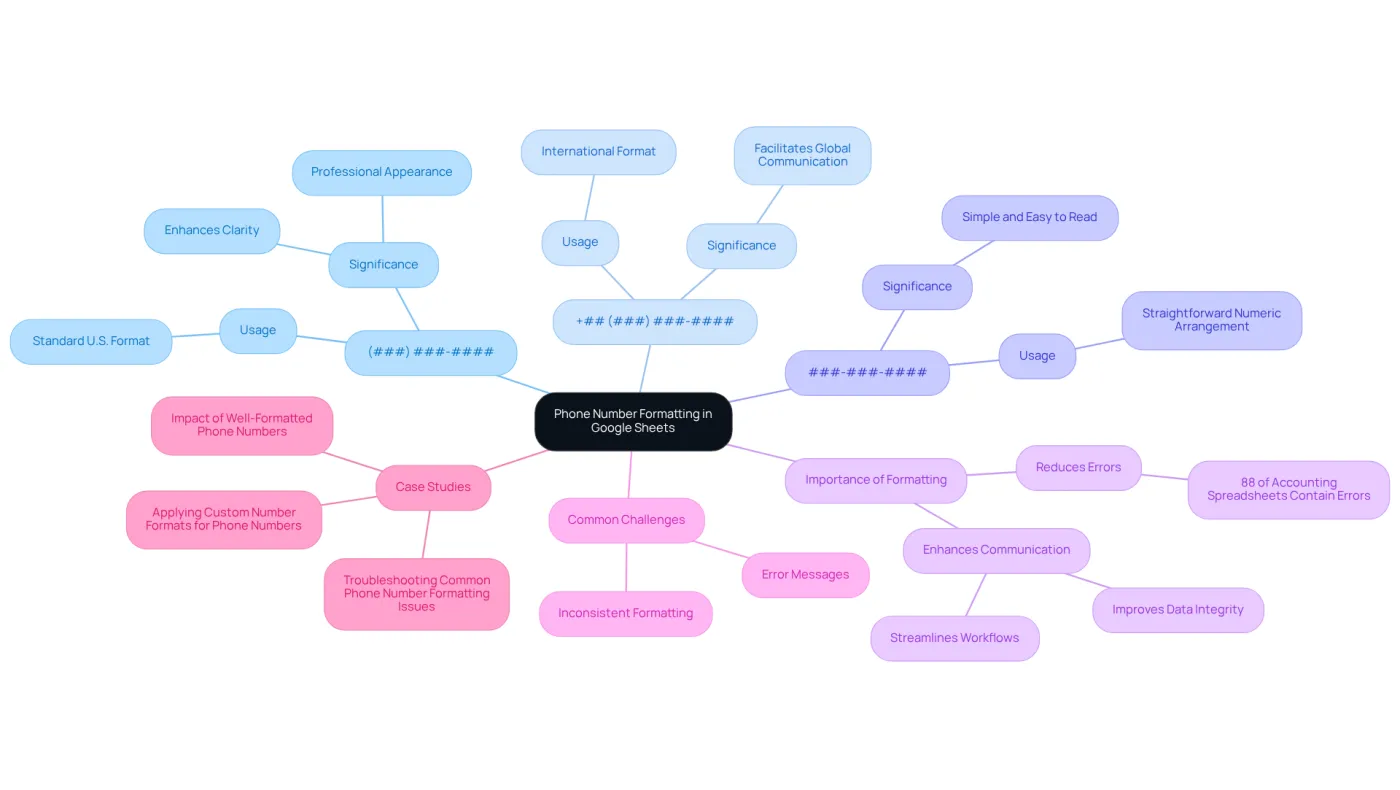
In Google Sheets, formatting phone numbers is essential for clarity and professionalism, varying significantly based on regional standards and user preferences. Here are some common formats:
- (###) ###-####: This is the standard format in the United States, where the area code is enclosed in parentheses.
- +## (###) ###-####: An international format that includes a country code, making it suitable for global communication.
- ###-###-####: A straightforward numeric arrangement that separates the digits with dashes.
Mastering the Google Sheets format for phone numbers is crucial for ensuring that phone numbers are displayed correctly and are easily readable. Proper formatting not only enhances the appearance of contact information but also minimizes the risk of errors during data entry. This is particularly important, considering that 88% of accounting spreadsheets contain human errors.
However, users often face common challenges, such as error messages and inconsistent formatting. To tackle these issues, it’s beneficial to consult the case study titled "Troubleshooting Common Phone Number Formatting Issues," which offers practical solutions for maintaining a tidy spreadsheet.
Additionally, following a step-by-step guide for applying custom formats can significantly enhance formatting skills. By adhering to these guidelines, users can uphold data integrity and improve communication when sharing spreadsheets, ultimately streamlining workflows and fostering better collaboration.
Follow Step-by-Step Instructions for Formatting
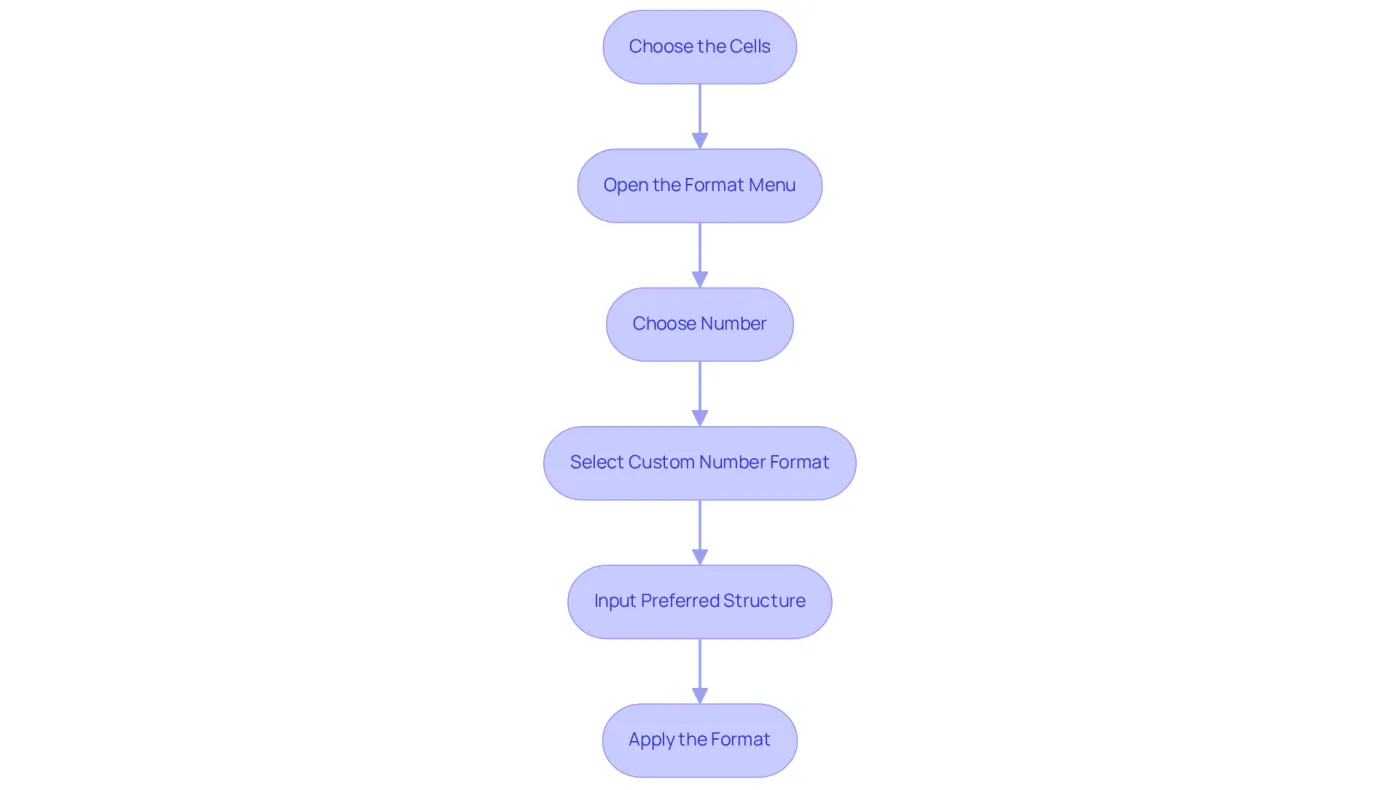
To format phone numbers in Google Sheets, follow these straightforward steps:
- Choose the Cells: Highlight the cells containing the phone digits you wish to style.
- Open the Format Menu: Click on the 'Format' option in the top menu bar.
- Choose Number: Hover over the 'Number' option to reveal a dropdown menu.
- Select Custom Number Format: At the bottom of the dropdown, click on 'Custom number format'.
- In the dialog box that appears, input your preferred structure. For example, to format as
(###) ###-####, type(###) ###-####. - Apply the Format: Click 'Apply' to see the changes reflected in your selected cells.
By following these steps, you ensure that all phone numbers are formatted consistently and professionally in the Google Sheets format phone number. Proper structuring enhances readability and data integrity, which is crucial for effective communication and data analysis. As productivity specialist Algirdas Jasaitis states, "Consistent contact details presentation guarantees that the data is precise and can be easily understood and utilized for various purposes." Consistent formatting not only improves the visual appeal of your spreadsheets but also saves users an average of 30% of their time when managing contact information, allowing for more efficient data handling.
Troubleshoot Common Formatting Issues
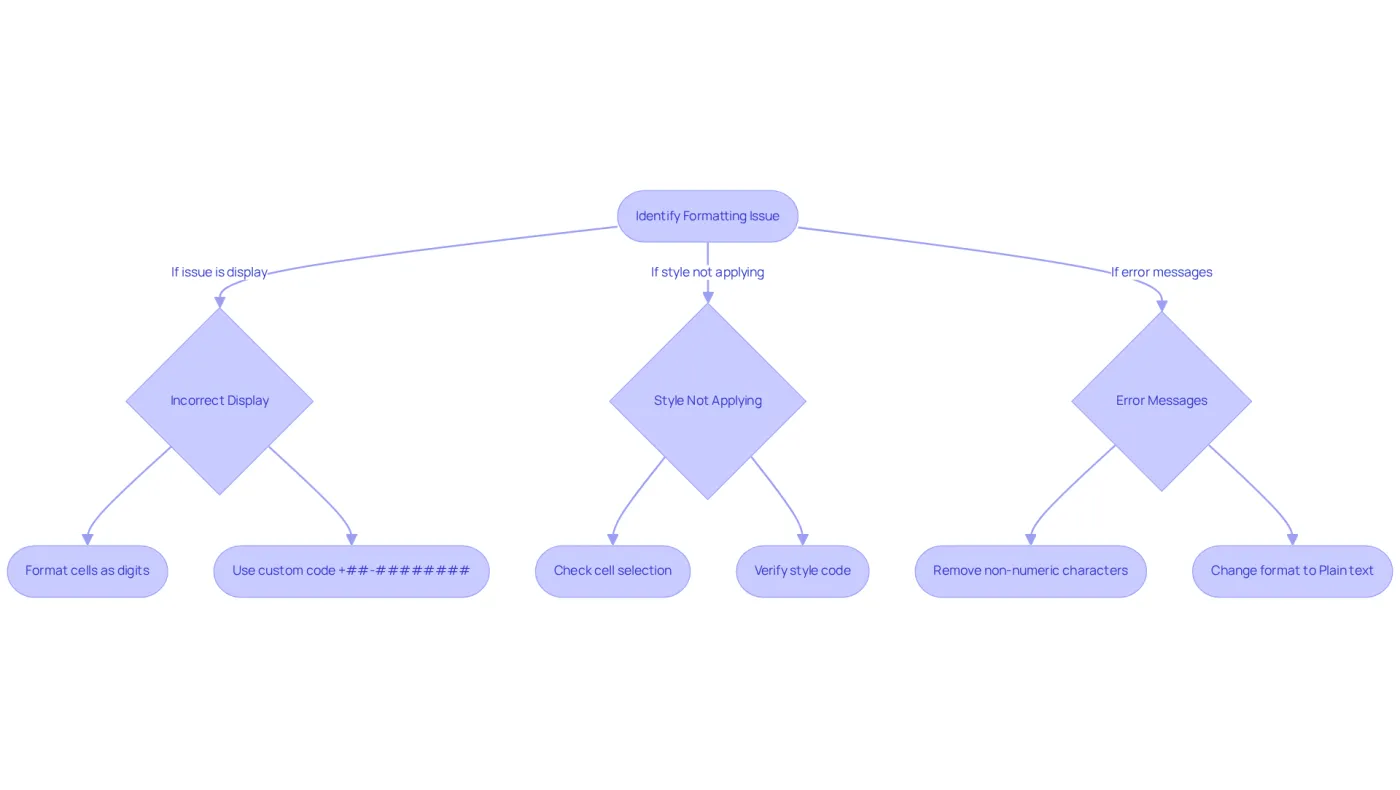
Formatting phone numbers in Google Sheets can present several common challenges that users must navigate:
-
Incorrect Display: Phone numbers may appear in scientific notation (e.g., 1.23E+10). To resolve this, ensure that the cells are formatted as digits before applying any custom styles. For example, entering an international phone number in the Google Sheets format phone number like +65-12345678 can lead to display issues if not formatted correctly.
-
Style Not Applying: If the custom style fails to apply, double-check that the correct cells are selected and that the style code is entered accurately. For international figures, using the custom code +##-######## allows for the input of 10 digits in the Google Sheets format phone number while displaying them in the desired format.
-
Error Messages: Errors such as #VALUE! may arise from non-numeric characters in the phone numbers. To rectify this, clean the data by removing any letters or symbols. Additionally, changing the cell format to Plain text does not resolve the issue with the + sign, which is essential for international formats.
Understanding these issues and their solutions is vital for maintaining a clean and professional spreadsheet, especially when you need to use the Google Sheets format phone number. Consistent presentation not only enhances readability but also ensures data integrity, which is crucial for effective communication and analysis. Familiarity with various contact styles, including local formats like (###) ###-#### and international formats, guarantees clarity and functionality in spreadsheets.
Explore Tools and Resources for Enhanced Formatting
Master Your Phone Number Formatting in Google Sheets
Are you struggling with formatting phone numbers in Google Sheets? You’re not alone. Many users face this challenge, but the good news is that there are effective tools and resources to help you enhance your skills.
-
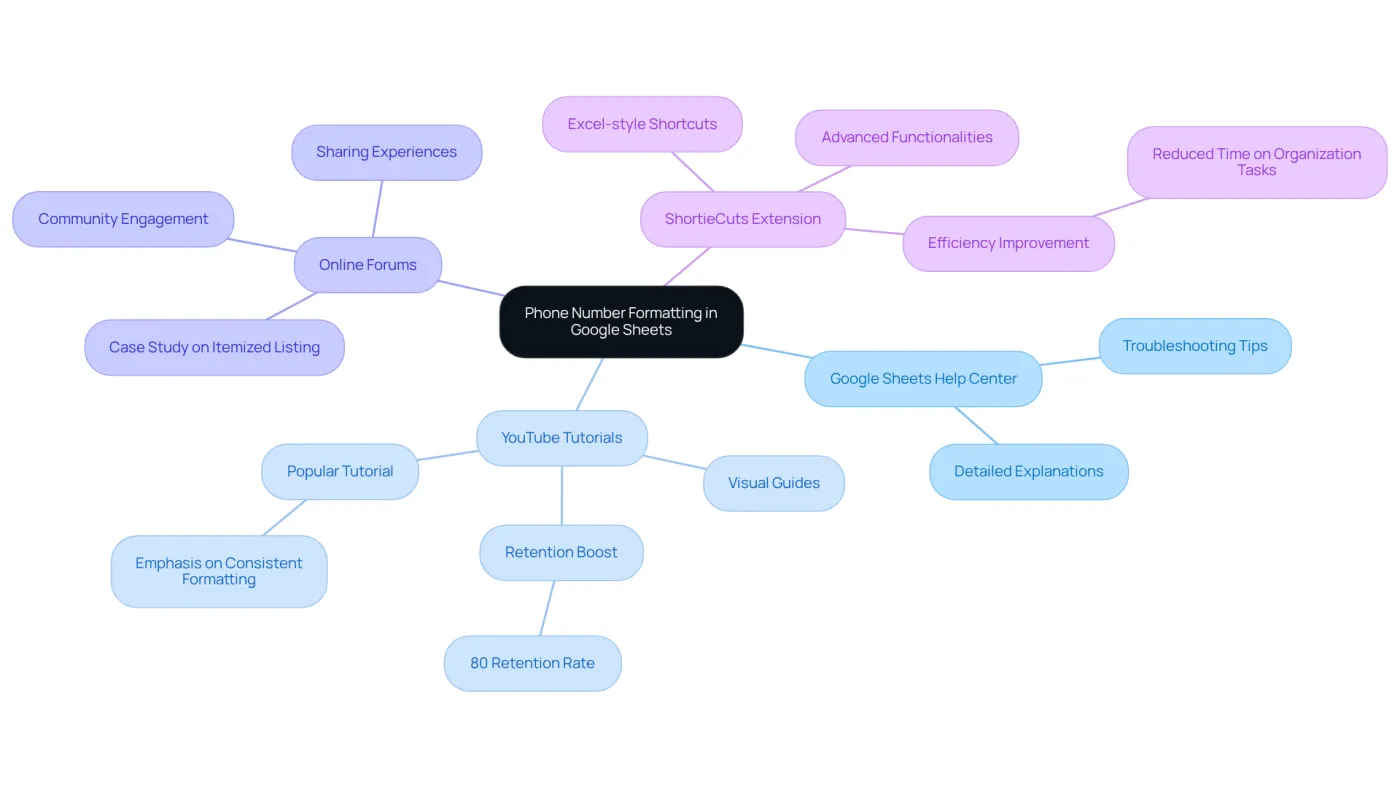
Google Sheets Help Center: This comprehensive resource is your go-to for troubleshooting tips and detailed explanations of various features within Google Sheets. It’s an essential starting point for users looking to improve their formatting skills.
-
YouTube Tutorials: Dive into a wealth of visual guides on Google Sheets by searching for 'Google Sheets phone number styles.' These tutorials can significantly aid your learning process. In fact, studies show that visual learning through platforms like YouTube can boost retention rates by up to 80%. A popular tutorial by a Google Sheets trainer emphasizes the importance of consistent formatting to avoid errors.
-
Online Forums: Engage with communities on platforms like Reddit and Stack Overflow. Here, you can ask questions and share experiences, fostering a collaborative learning environment. A case study on itemized listing of costs illustrates how users benefited from community advice on formatting.
-
ShortieCuts Extension: This Chrome extension revolutionizes your Google Sheets experience by integrating Excel-style shortcuts and advanced functionalities. It streamlines styling tasks and improves overall efficiency. Users have reported that utilizing ShortieCuts has significantly reduced the time spent on organization tasks.
By leveraging these resources, including insights from community discussions and expert tutorials, you can become proficient in the Google Sheets format phone number and utilizing Google Sheets effectively. Don’t wait-start enhancing your skills today!
Conclusion
Mastering the formatting of phone numbers in Google Sheets is crucial for ensuring clarity and professionalism in your spreadsheets. Understanding various formatting styles and applying them correctly can significantly enhance the readability and functionality of your contact information. Proper formatting goes beyond aesthetics; it minimizes errors and fosters effective communication.
This guide has shared key insights, including:
- The importance of selecting the right format based on regional standards
- Following a step-by-step approach to apply custom formats
- Troubleshooting common issues that may arise
Resources such as the Google Sheets Help Center, YouTube tutorials, and community forums offer valuable support for users eager to improve their formatting skills and tackle challenges.
Investing time in mastering phone number formatting in Google Sheets leads to more organized, efficient, and error-free spreadsheets. By leveraging the available tools and resources, you can enhance your data management capabilities and ensure your contact details are presented consistently and professionally. Embrace these practices today to streamline your workflows and foster better collaboration in all your spreadsheet endeavors.
Frequently Asked Questions
Why is formatting phone numbers important in Google Sheets?
Formatting phone numbers in Google Sheets is essential for clarity and professionalism, ensuring that contact information is displayed correctly and is easily readable.
What are some common phone number formats used in Google Sheets?
Common formats include:
- (###) ###-####: The standard format in the United States, with the area code in parentheses.
- +## (###) ###-####: An international format that includes a country code.
- ###-###-####: A straightforward numeric arrangement that separates digits with dashes.
How does proper phone number formatting reduce errors in spreadsheets?
Proper formatting enhances the appearance of contact information and minimizes the risk of errors during data entry, which is crucial as 88% of accounting spreadsheets contain human errors.
What challenges do users face with phone number formatting in Google Sheets?
Users often encounter common challenges such as error messages and inconsistent formatting.
Where can I find solutions for troubleshooting phone number formatting issues?
It is beneficial to consult the case study titled "Troubleshooting Common Phone Number Formatting Issues," which offers practical solutions for maintaining a tidy spreadsheet.
How can I improve my phone number formatting skills in Google Sheets?
Following a step-by-step guide for applying custom formats can significantly enhance formatting skills and help maintain data integrity.