
Master Google Sheets Number Formatting for Finance Professionals
Enhance financial data clarity with effective Google Sheets number formatting techniques.

Introduction
Mastering number formatting in Google Sheets is essential for finance professionals who need to present data clearly and effectively. This skill goes beyond mere technical ability; it transforms raw figures into insightful reports that convey crucial financial information at a glance. Yet, the challenge remains: how can one ensure consistency and clarity across multiple sheets? Overlooking this can lead to confusion, undermining the very purpose of the data presentation.
So, how can finance experts leverage these formatting techniques to enhance their reports? By understanding the intricacies of custom formats, they can elevate their work, facilitating better decision-making and driving impactful results. It's time to explore how mastering these techniques can not only improve clarity but also empower professionals to communicate financial insights with confidence.
Understand Custom Number Format Structure
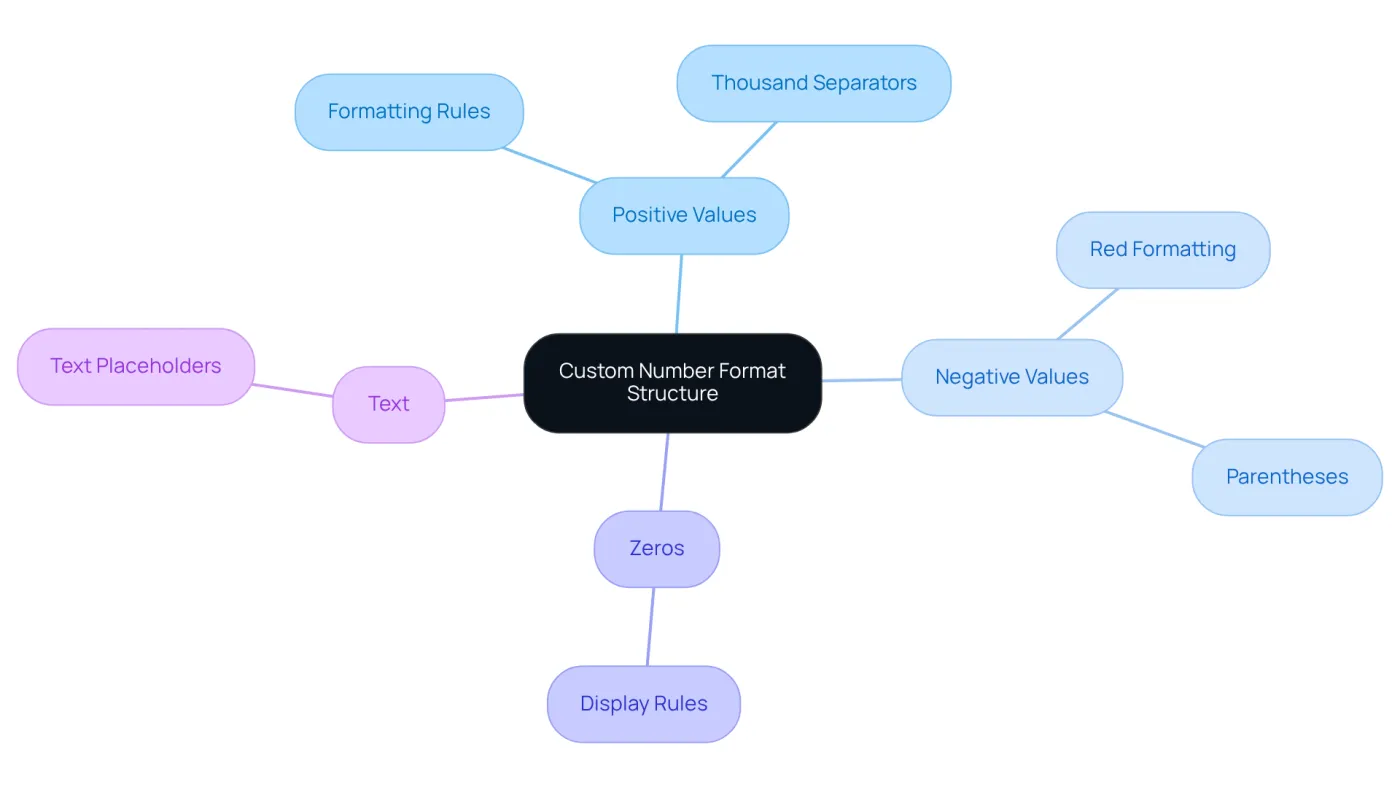
Custom formats in Google Sheets number formatting are essential for managing the display of values, particularly in financial data presentation. This structure typically consists of four sections: positive values, negative values, zeros, and text. For example, a format like #,##0;[Red]-#,##0;0;@ specifies how to show positive values, negative values in red, zeros, and text.
Understanding this structure is crucial for finance professionals aiming to enhance clarity and effectively convey important information. Consider the common practice of using parentheses for negative numbers, such as (1,000). This approach simplifies the identification of losses at a glance, making it an invaluable tool in accounting.
By mastering Google Sheets number formatting, you can significantly improve the presentation of your financial data, ensuring that critical information stands out and is easily interpretable.
Apply Formatting Rules for Various Data Types
Correct structuring of monetary information is essential for clarity and precision in reports. Proper structuring not only aids a report in conveying its message more clearly but also highlights crucial information. For currency values, utilizing Google Sheets number formatting significantly enhances readability. To achieve this, select the relevant cells and navigate to:
- Format
- Number
- Currency
in Google Sheets number formatting. This ensures that monetary figures are displayed clearly, which is vital for effective economic communication.
Similarly, for percentages, select the appropriate cells and use Google Sheets number formatting by choosing:
- Format
- Number
- Percent
This arrangement is particularly beneficial for illustrating growth rates or economic ratios, enabling stakeholders to grasp the data effortlessly. For instance, a growth rate expressed as a percentage provides quick insight into performance trends, simplifying the evaluation process for decision-makers regarding economic health.
Moreover, avoiding common pitfalls, such as inconsistent styles or neglecting to round numbers, can greatly enhance the overall presentation of monetary reports. By applying these structuring methods, you not only improve clarity but also facilitate better decision-making in fiscal analysis.

Utilize Advanced Formatting Techniques for Clarity
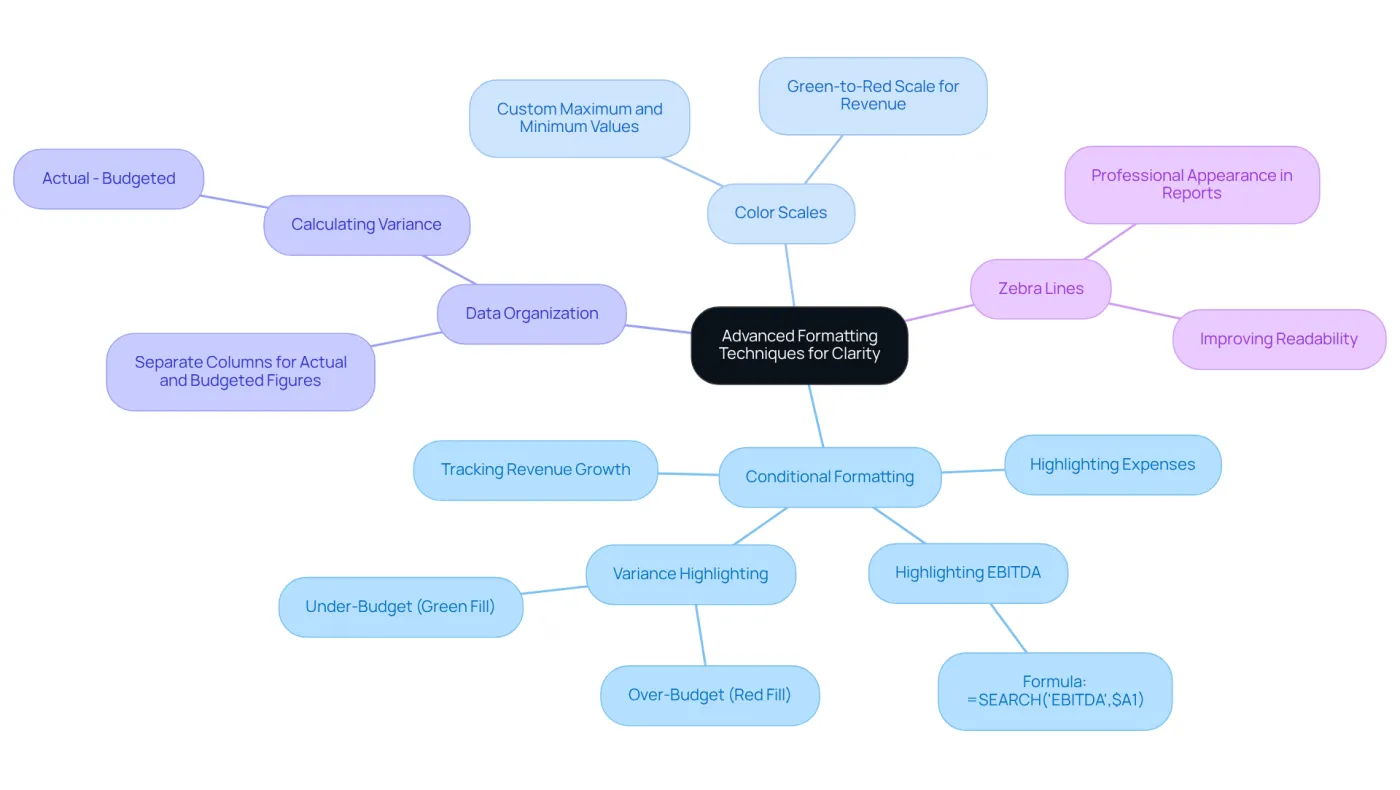
Advanced styling techniques significantly enhance the clarity of financial data through Google Sheets number formatting. For instance, conditional formatting allows users to emphasize key figures, such as expenses exceeding a certain limit or profits falling short of expectations. To apply this, simply select the range of cells, navigate to Format > Conditional formatting, and establish rules based on your criteria. For example, to highlight cells containing the term 'EBITDA', you can use the formula =SEARCH('EBITDA',$A1). Additionally, utilizing color scales aids in visualizing trends, such as revenue growth over time. Applying a green-to-red color scale to a revenue column using Google Sheets number formatting swiftly indicates performance levels, enabling finance experts to assess economic health at a glance.
Organizing your information is equally crucial. Separate columns for actual figures, budgeted amounts, and variance - calculated as actual minus budgeted - promote efficient financial reporting and enhance the effectiveness of conditional styling. Moreover, employing zebra lines improves the readability of printed reports, giving them a more professional appearance. By implementing these advanced structuring techniques, finance professionals can transform raw data into actionable insights, facilitating the monitoring of variances and enhancing analysis and reporting outcomes.
Maintain Consistency in Number Formatting Across Sheets
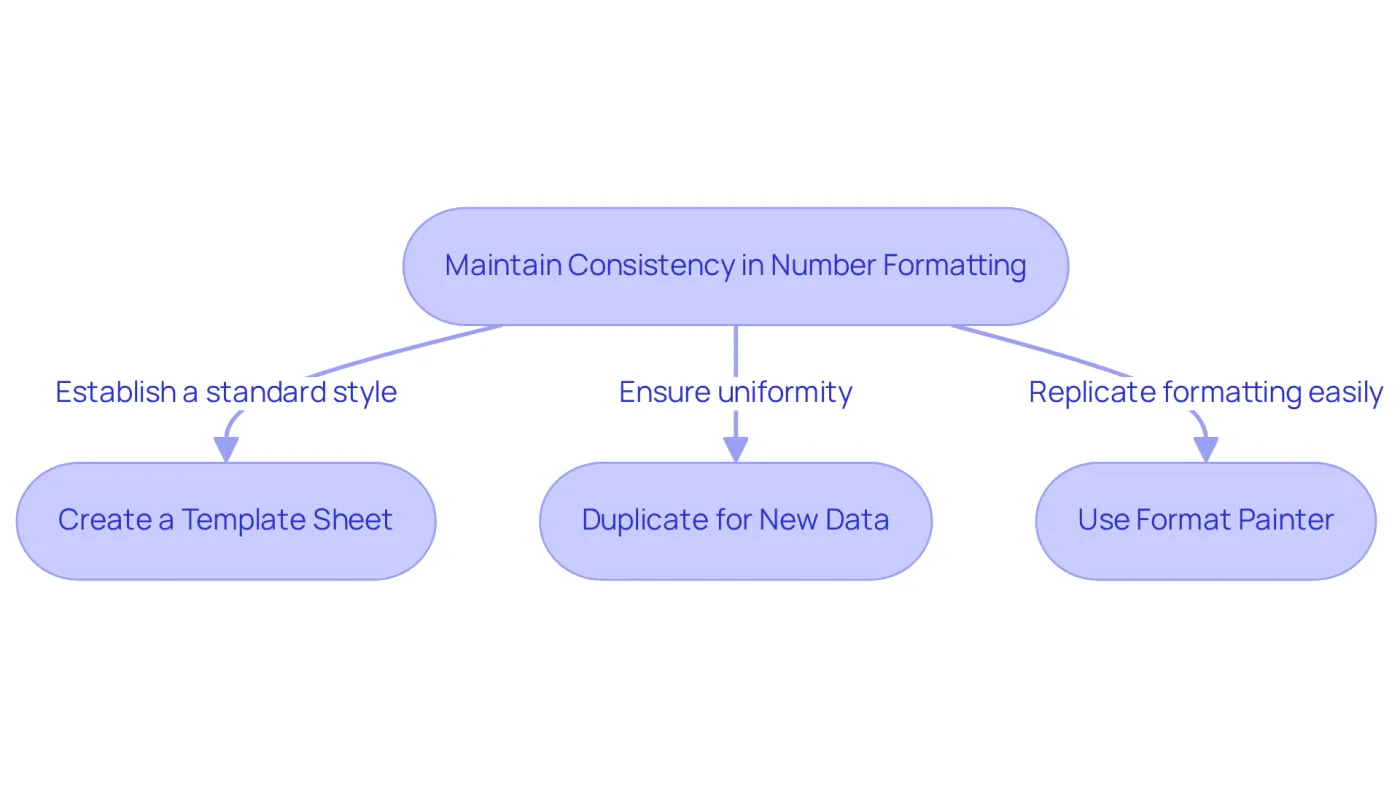
To maintain uniformity in number presentation across multiple sheets, using Google Sheets number formatting to establish a standard style is essential. The challenge many face is inconsistency, which can lead to confusion and errors. A practical solution is to create a template sheet that embodies the desired layout. This template can be duplicated for new data entries, ensuring that all sheets adhere to the same presentation standards. The result? Enhanced clarity and professionalism in your documents.
Moreover, leveraging the 'Format Painter' tool allows for the swift application of consistent formatting from one cell to another. For instance, if you have a meticulously formatted summary sheet, using the Format Painter can effortlessly replicate that style across all other sheets. This not only streamlines your workflow but also significantly improves the overall presentation of your documents.
As financial analysts emphasize, maintaining a consistent Google Sheets number formatting throughout a spreadsheet is crucial. It helps avoid confusion and is vital for ensuring accuracy and readability in financial reporting. However, it’s important to be cautious of excessive merging of cells. Overdoing it can complicate data interpretation and analysis, ultimately hindering effective decision-making. By following these guidelines, you can enhance your spreadsheet's effectiveness and professionalism.
Conclusion
Mastering Google Sheets number formatting is crucial for finance professionals who want to present financial data clearly and effectively. Understanding and applying custom number formats enhances the readability and interpretation of complex financial information, ensuring that critical insights are easily accessible.
Structuring monetary values, percentages, and advanced formatting techniques is essential for improving financial reporting. Key practices include:
- Using conditional formatting to emphasize significant figures.
- Maintaining consistency across sheets to avoid confusion.
- Employing templates to streamline the formatting process.
These strategies not only enhance clarity but also empower decision-makers with actionable insights derived from well-organized data.
Effective number formatting in Google Sheets transcends aesthetics; it is a fundamental skill that can significantly impact financial analysis and communication. By adopting these best practices, finance professionals can elevate their reporting standards, ensuring that their data is not only accurate but also presented in a manner that facilitates informed decision-making. Embrace these techniques to transform your financial data into a powerful tool for clarity and insight.
Frequently Asked Questions
What is the purpose of custom number formats in Google Sheets?
Custom number formats in Google Sheets are essential for managing the display of values, particularly in financial data presentation.
How is the structure of a custom number format organized?
The structure of a custom number format typically consists of four sections: positive values, negative values, zeros, and text.
Can you provide an example of a custom number format?
An example of a custom number format is #,##0;[Red]-#,##0;0;@, which specifies how to display positive values, negative values in red, zeros, and text.
Why is understanding custom number formats important for finance professionals?
Understanding custom number formats is crucial for finance professionals as it enhances clarity and effectively conveys important information in financial data.
What is a common practice for displaying negative numbers in financial data?
A common practice for displaying negative numbers is using parentheses, such as (1,000), which simplifies the identification of losses at a glance.
How can mastering Google Sheets number formatting benefit financial data presentation?
Mastering Google Sheets number formatting can significantly improve the presentation of financial data, ensuring that critical information stands out and is easily interpretable.