
Master Google Spreadsheet Number Format for Financial Success
Master google spreadsheet number format for clear financial presentations and effective decision-making.

Introduction
Mastering number formatting in Google Sheets is essential for achieving financial clarity and success. With a range of numerical styles available - from currency to percentages - users can present their data in ways that enhance understanding and support informed decision-making. Yet, navigating the complexities of these formats can be challenging, and common pitfalls may obscure valuable insights.
How can you ensure that your financial data not only appears professional but also communicates effectively to stakeholders? By mastering these formatting techniques, you can elevate your presentations and drive impactful discussions.
Understand Google Sheets Number Formats
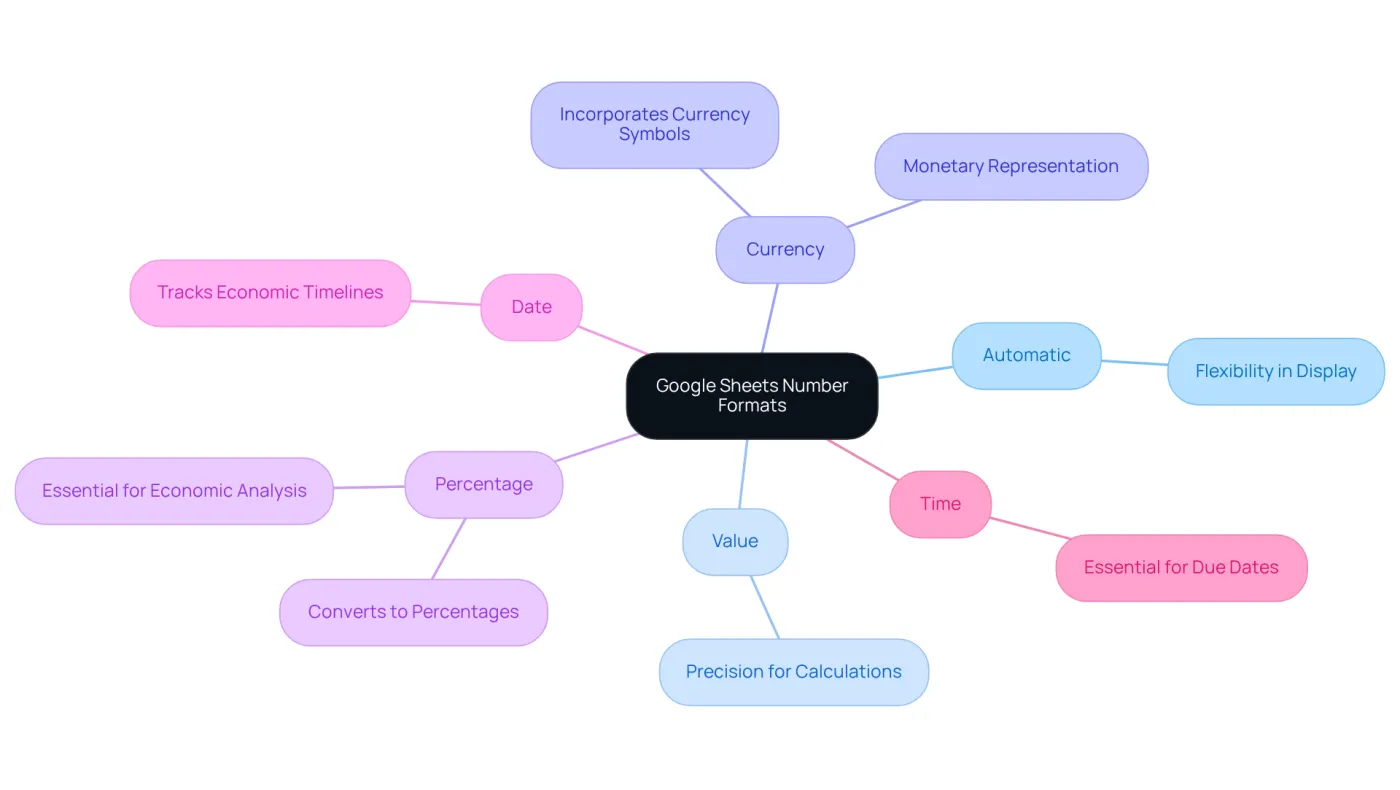
Google Sheets offers a range of numerical styles, including Automatic, Standard, Currency, Percentage, Date, and Time. Each format serves a distinct purpose:
- Automatic: This format allows Google Sheets to determine the best display based on the data entered, ensuring flexibility.
- Value: Displays figures as they are, permitting decimal adjustments, which is ideal for precise calculations.
- Currency: Formats figures as monetary values, incorporating currency symbols to clearly indicate financial amounts.
- Percentage: Converts numbers into percentages by multiplying by 100 and appending a percent sign, crucial for economic analysis.
- Date and Time: Formats information as dates or times, essential for tracking economic timelines and due dates.
Understanding these formats empowers users to present their information clearly and accurately, which is vital for economic analysis and reporting. Well-structured figures reduce cognitive load for executives, enabling them to focus on insights rather than deciphering data. Furthermore, establishing benchmarks and educating teams on formatting principles can transform financial presentations from overwhelming data dumps into impactful executive briefings. Companies that effectively utilize the google spreadsheet number format in Google Sheets can streamline their reporting processes, leading to clearer insights and enhanced decision-making. Analysts emphasize that well-organized data structures not only foster understanding but also build trust in financial presentations, allowing stakeholders to concentrate on insights rather than interpretation.
Apply Number Formats Effectively
Mastering Number Formats in Google Sheets
To effectively apply number formats in Google Sheets, follow these essential steps:
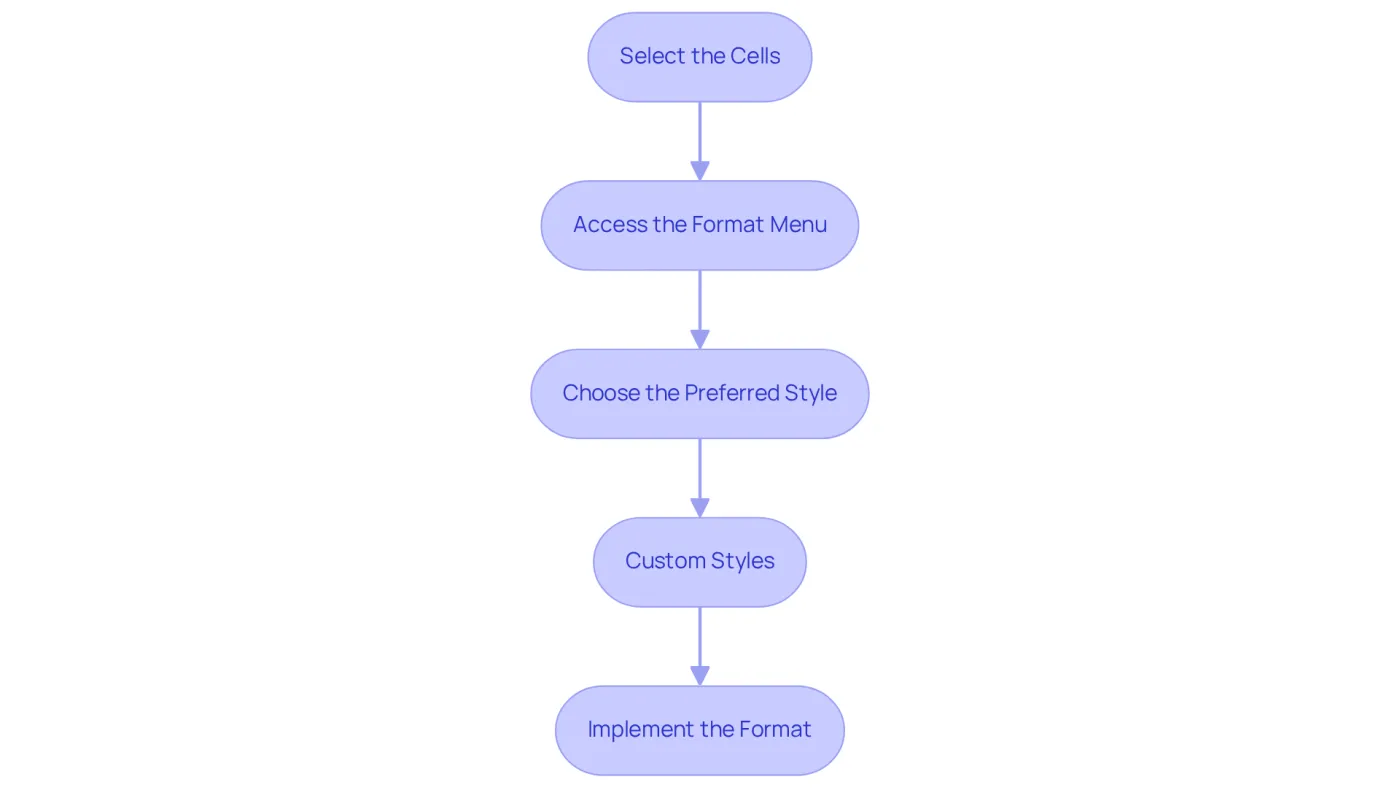
- Select the Cells: Start by highlighting the cells you wish to style. This simple action sets the stage for clear data presentation.
- Access the Format Menu: Click on 'Format' in the top menu, then select 'Number'. This is where the magic begins.
- Choose the Preferred Style: From the dropdown, select the option that best suits your data - be it Currency for financial figures or another format that enhances clarity.
- Custom Styles: For unique needs, opt for 'More Styles' and then 'Custom number style'. Here, you can create specific formats, such as '0.00' for two decimal places or '0,000' for thousands.
By implementing these structured steps, you ensure that your financial information is displayed clearly using the Google Sheets number format. This clarity not only aids in effective communication but also supports improved decision-making. Don't underestimate the power of well-formatted data - it's a crucial tool in your financial toolkit.
Customize Number Formats for Enhanced Clarity
Enhancing the clarity of your data display through digit style alterations is essential. Here’s how you can achieve this:
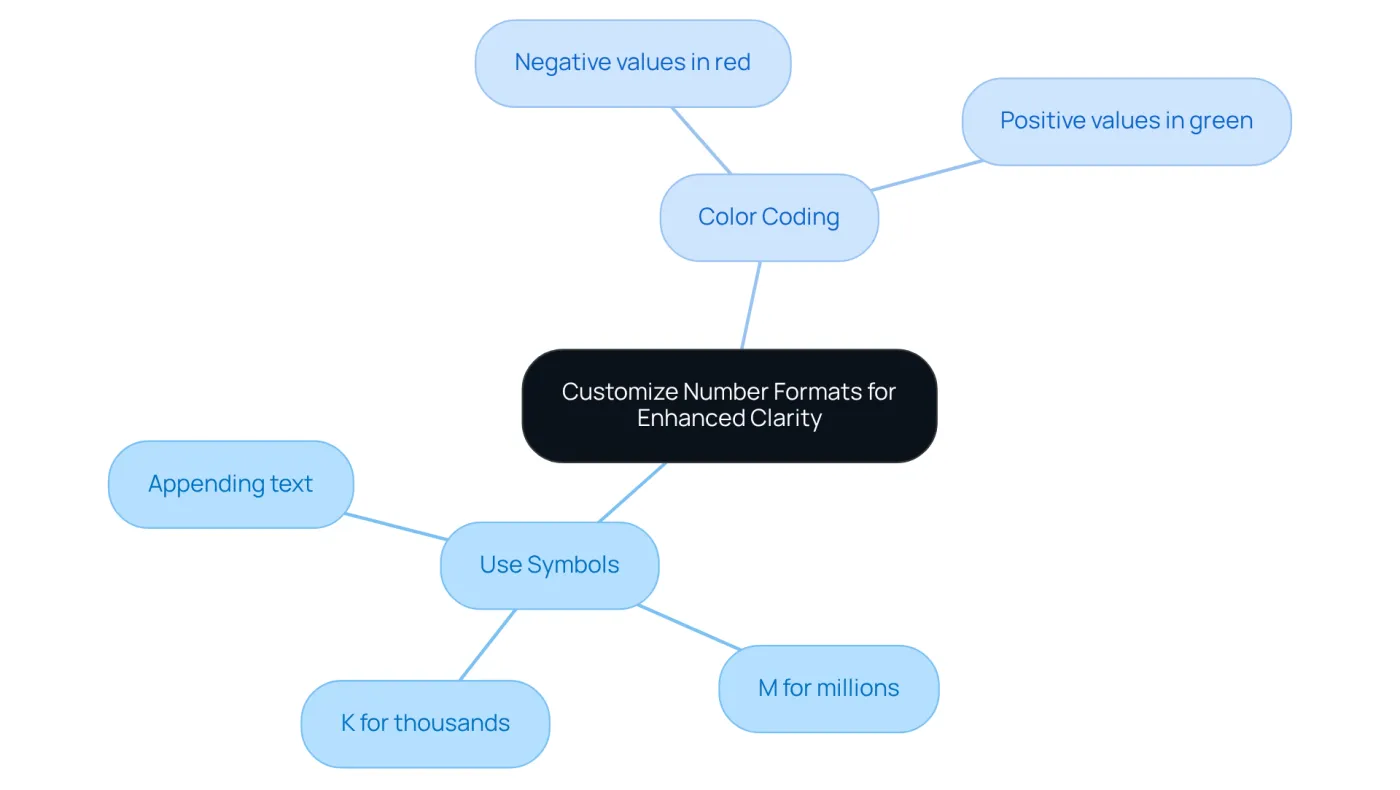
- Use Symbols: Incorporate symbols like 'K' for thousands or 'M' for millions by utilizing custom formats such as
#,##0,'K'or#,##0,'M'. This approach provides a clearer depiction of large figures, particularly beneficial in financial reporting. You can also append text to your figures for added context, such as0.00 'units'to indicate measurement units. This practice clarifies the nature of the information presented, making it easier for stakeholders to interpret. - Color Coding: Leverage color to distinguish between positive and negative values, enhancing visual analysis. For instance, the style
[Red]0;[Green]0displays negative values in red and positive values in green, facilitating rapid evaluations of economic performance.
These customizations not only improve the clarity of your information but also elevate the professionalism of your documents, making them more appealing and easier to navigate.
Avoid Common Number Formatting Mistakes
To maintain accuracy in your financial spreadsheets, it's crucial to avoid these common number formatting mistakes:
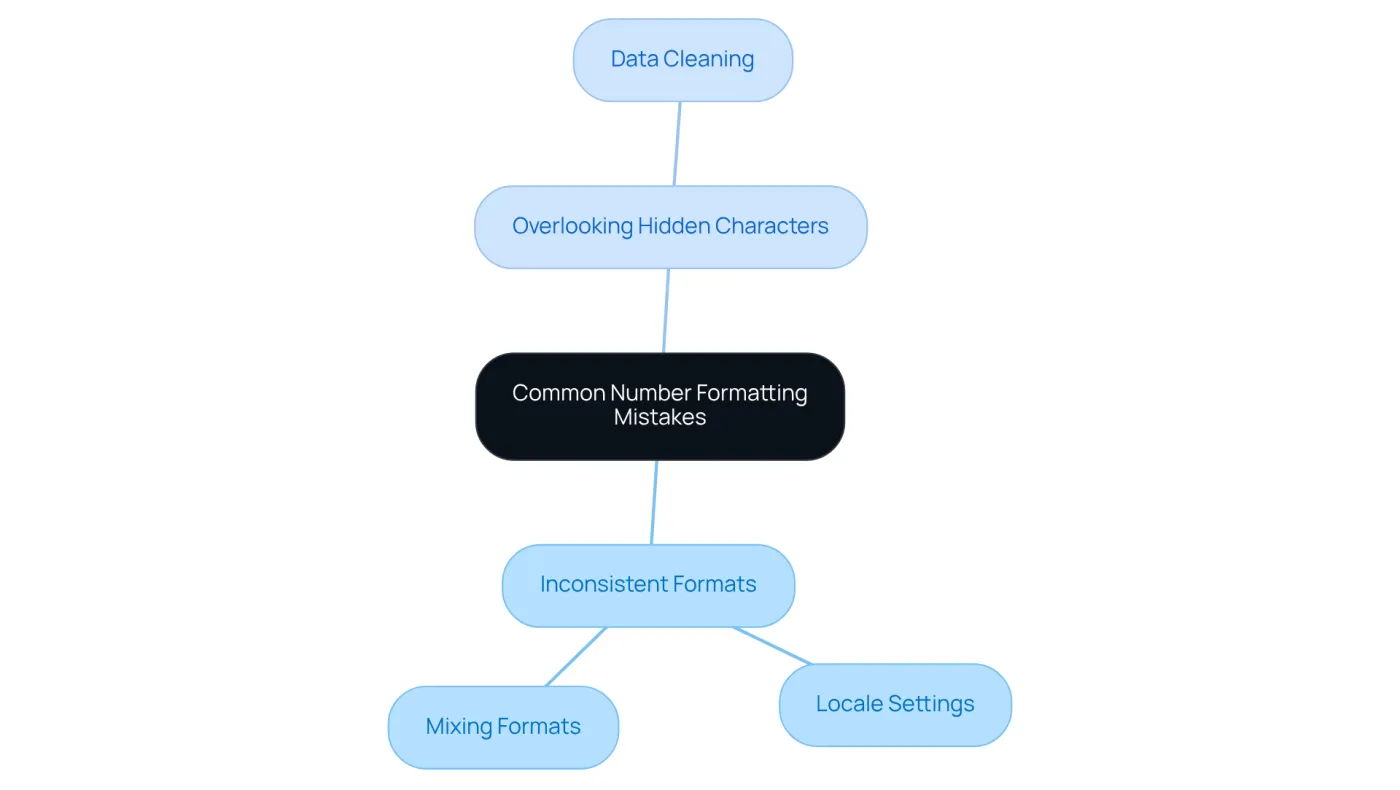
- Inconsistent Formats: Ensure that all similar data types use the same format. Mixing formats, such as having some currency values in google spreadsheet number format and others as Currency, can lead to serious misinterpretation.
Be mindful of locale settings that affect the google spreadsheet number format as well as date and number representations. For example, some regions use commas as decimal points, while others use periods. This can create confusion if not addressed.
- Overlooking Hidden Characters: Sometimes, information imported from other sources may contain hidden characters that disrupt formatting. Always clean your data before applying any google spreadsheet number format to ensure accuracy.
By being aware of these pitfalls, you can ensure your financial data remains accurate and professional. This attention to detail not only enhances your credibility but also fosters trust in your financial reporting.
Conclusion
Mastering number formatting in Google Sheets is not just a skill; it's a cornerstone of financial success and clarity in data presentation. By leveraging various number formats - like Currency, Percentage, and Date - you can significantly enhance the readability and professionalism of your financial reports. This expertise not only facilitates effective communication but also empowers stakeholders to derive meaningful insights from data, free from the distractions of poorly presented figures.
Key insights from this article underscore the necessity of selecting the right number format for different data types, implementing custom styles for clarity, and steering clear of common formatting pitfalls. By adhering to structured steps for applying these formats, you can streamline your reporting process, fostering understanding and building trust among stakeholders. Moreover, incorporating symbols and color coding can further elevate the visual appeal and interpretability of your financial data.
The importance of proper number formatting in Google Sheets cannot be overstated. It is an essential tool for financial analysts and organizations aiming for accuracy and professionalism in their reporting. By adopting these best practices, you and your team can transform your data presentations, making them not only more informative but also more impactful. Investing time in refining your number formatting techniques can lead to improved decision-making and greater financial success.
Frequently Asked Questions
What number formats are available in Google Sheets?
Google Sheets offers several number formats, including Automatic, Standard, Currency, Percentage, Date, and Time.
What is the purpose of the Automatic format in Google Sheets?
The Automatic format allows Google Sheets to determine the best display based on the data entered, providing flexibility in presentation.
How does the Standard format work in Google Sheets?
The Standard format displays figures as they are, allowing for decimal adjustments, which is ideal for precise calculations.
What does the Currency format do in Google Sheets?
The Currency format presents figures as monetary values, incorporating currency symbols to clearly indicate financial amounts.
How does the Percentage format function in Google Sheets?
The Percentage format converts numbers into percentages by multiplying by 100 and appending a percent sign, which is crucial for economic analysis.
What is the significance of the Date and Time formats in Google Sheets?
The Date and Time formats are essential for tracking economic timelines and due dates, enabling better organization of time-sensitive information.
Why is understanding number formats important for users of Google Sheets?
Understanding these formats helps users present their information clearly and accurately, which is vital for economic analysis and reporting.
How can well-structured figures in Google Sheets benefit executives?
Well-structured figures reduce cognitive load for executives, allowing them to focus on insights rather than deciphering complex data.
What impact can proper number formatting have on financial presentations?
Proper number formatting can transform financial presentations from overwhelming data dumps into impactful executive briefings, enhancing clarity and decision-making.
How can companies benefit from utilizing Google Sheets number formats effectively?
Companies that effectively utilize number formats in Google Sheets can streamline their reporting processes, leading to clearer insights and enhanced decision-making.