
Master How to Autofit Cells in Google Sheets for Seamless Use
Learn how to autofit cells in Google Sheets for a cleaner, organized spreadsheet display.

Introduction
Autofitting cells in Google Sheets revolutionizes how users engage with their data. This feature offers a seamless solution to the often tedious task of manual resizing, transforming a cumbersome process into a streamlined experience. Not only does it enhance the visual clarity of spreadsheets, but it also saves valuable time, paving the way for a more organized and efficient workflow.
However, despite these clear advantages, many users face challenges that can hinder their spreadsheet management. What are the common pitfalls of autofitting? How can these obstacles be effectively navigated to ensure optimal results? Understanding these aspects is crucial for maximizing the benefits of this powerful tool.
Understand Autofitting Cells in Google Sheets
Streamline Your Spreadsheets with Autofitting in Google Sheets
Autofitting cells in Google Sheets is a game-changer. It automatically adjusts row heights and cell widths to fit the content perfectly. This feature demonstrates how to autofit cells in Google Sheets, eliminating the hassle of manual resizing, saving you valuable time, and ensuring that all text is visible. Imagine the clarity you can achieve in your spreadsheets, making data analysis and presentation not just easier, but more effective. Learning how to autofit cells in Google Sheets allows for the adjustment of both rows and sections, resulting in a cleaner, more organized appearance of your data.
Effortless Application
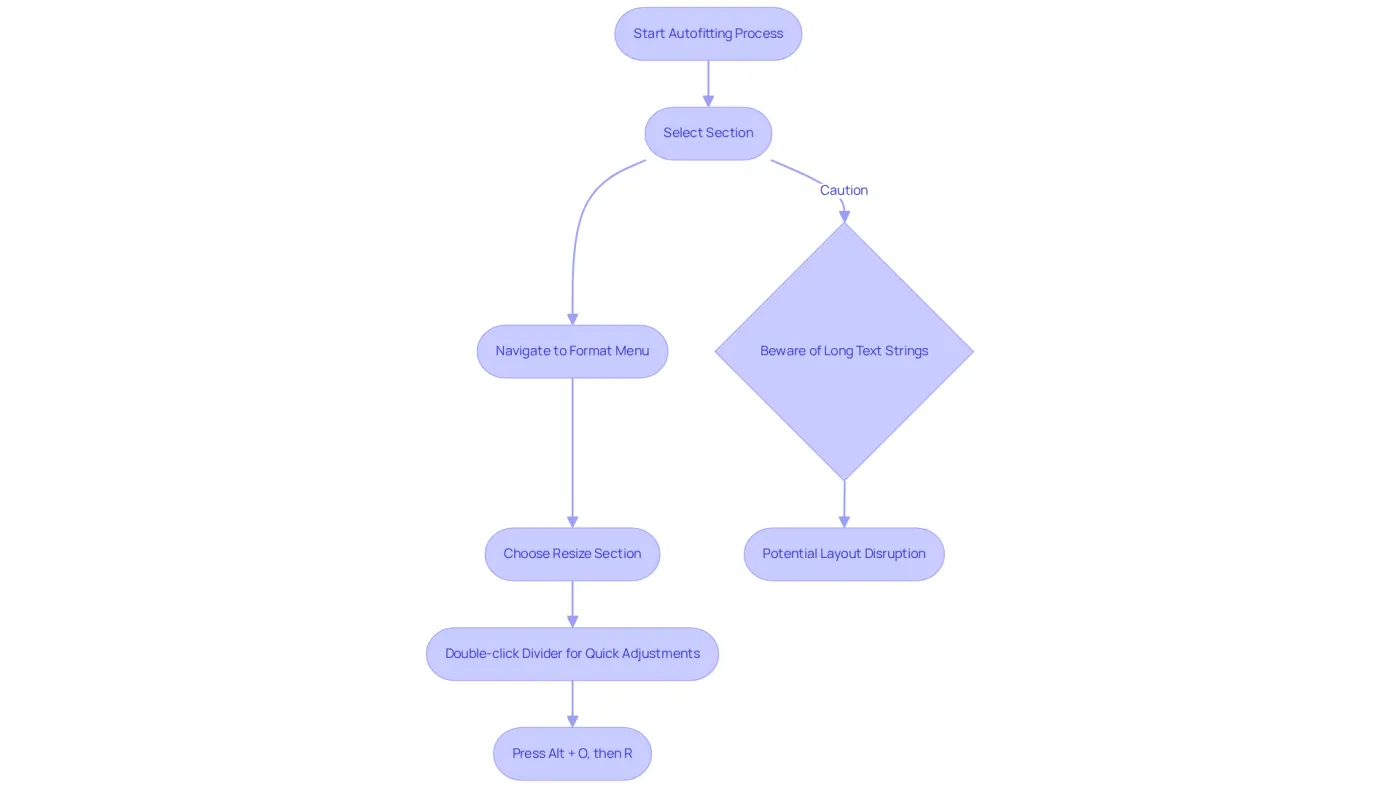
Applying autofit is straightforward. Simply select the section, navigate to the Format menu, and choose Resize Section. Alternatively, double-clicking the divider between header areas allows for quick adjustments. For those who prefer keyboard shortcuts, using Alt + O followed by R opens the Resize Column dialog box. The ShortieCuts extension enhances this experience further; just hit the 'ALT' key to reveal key-tips on the screen, making it easier to remember and utilize these shortcuts effectively.
Caution with Long Text
However, be mindful of very long text strings. Autofitting can lead to excessively wide sections, potentially disrupting your spreadsheet's overall layout. If the information in the cells changes, you’ll need to redo the resizing steps to maintain suitable widths.
Enhancing Professionalism
Ultimately, the autofit feature contributes to a polished display of information, which is crucial in professional settings. Properly adjusted column widths enhance clarity, ensuring that your data is easily interpretable. As one expert notes, "by enabling the auto-resize feature, you can ensure that all the text within a cell is fully visible without manually adjusting the cell size each time." This capability is particularly beneficial for finance professionals and data analysts who depend on clear and concise data representation in their work.
Use Google Sheets Built-in Autofit Feature
To effectively leverage the built-in autofit feature in Google Sheets, follow these straightforward steps:
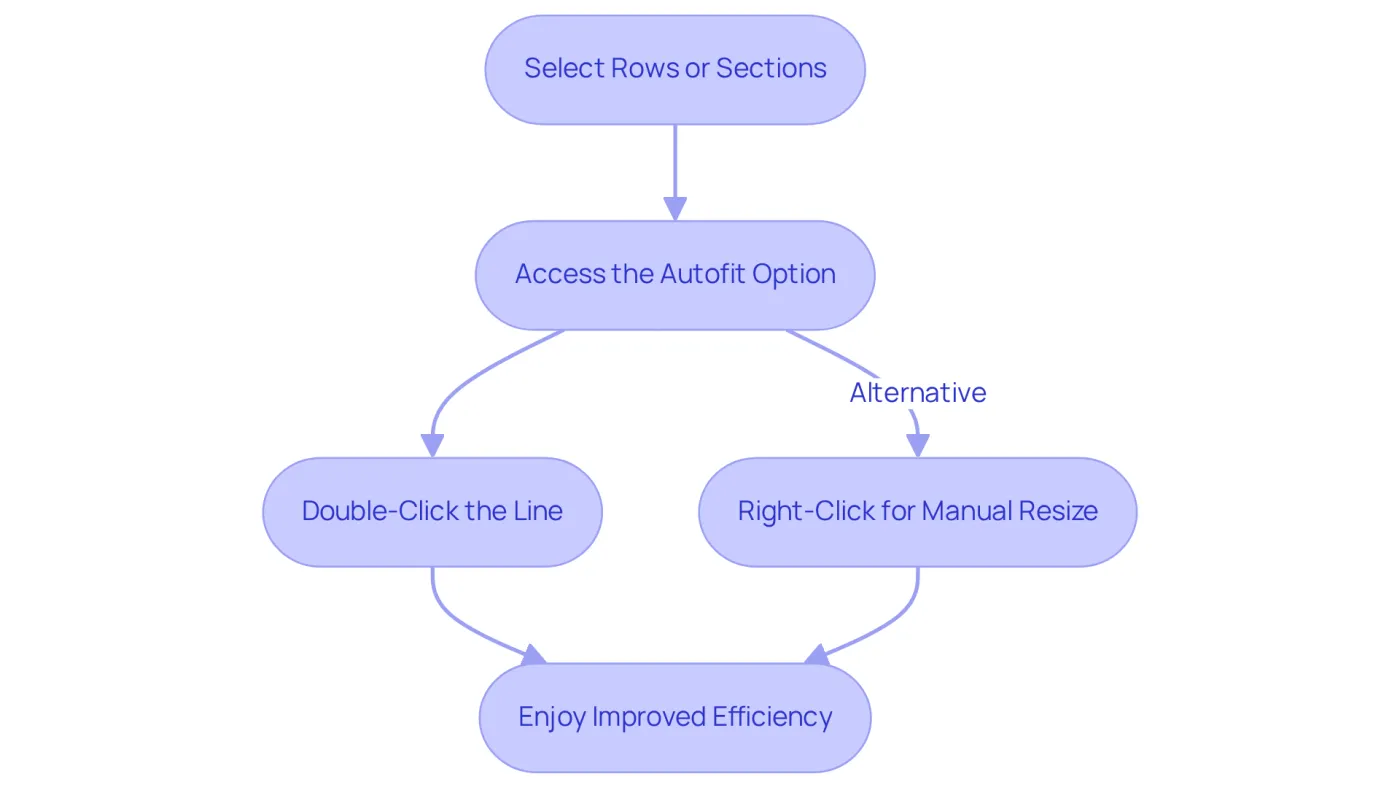
- Select the Rows or Sections: Begin by highlighting the rows or sections you want to autofit. You can do this by clicking and dragging your cursor. If you wish to select the entire sheet, simply click the rectangle located at the top left corner of the sheet.
- Access the Autofit Option: For sections, hover your cursor over the line between two header spaces until it transforms into a double arrow. For rows, perform the same action between the row numbers.
- Double-Click: Next, double-click the line between the headers. This action will automatically adjust the selected rows or sections to fit the content perfectly.
Alternatively, you can right-click on the chosen rows or columns, select 'Resize rows' or 'Resize columns', and then opt for 'Fit to content'. This method provides a more manual approach for those who prefer using context menus.
Experts across various fields, including finance and education, have reported significant efficiency improvements by utilizing this automatic adjustment feature. Notably, 61% of individuals in marketing and eCommerce rely on analytics add-ons weekly, often enhancing their information presentation in Sheets. Instructors emphasize that mastering the automatic adjustment process not only improves visual clarity but also boosts overall productivity. Many users have observed a marked enhancement in their workflow as a result.
Current satisfaction rates indicate that users highly regard Google Sheets' autofit feature, as they appreciate its simplicity and effectiveness, especially when they learn how to autofit cells in Google Sheets. Furthermore, classrooms that integrate Google Sheets with Forms and Slides have seen assignment completion rates increase by 22%, underscoring the tool's positive impact on collaborative efforts. As collaboration grows, the average number of collaborators per Google Sheet has risen to 4.3, further emphasizing the necessity of effective data presentation in team settings.
Explore Alternative Autofit Methods with ShortieCuts
Enhance Your Google Sheets Experience with ShortieCuts
Are you struggling with efficiency in Google Sheets? ShortieCuts is here to transform your experience by integrating familiar Excel-style shortcuts, specifically teaching you how to autofit cells in Google Sheets. With 233 Excel ALT shortcuts at your fingertips, you can streamline your workflow and replicate the efficiency of Excel in Google Sheets. Here’s how to utilize these shortcuts effectively:
-
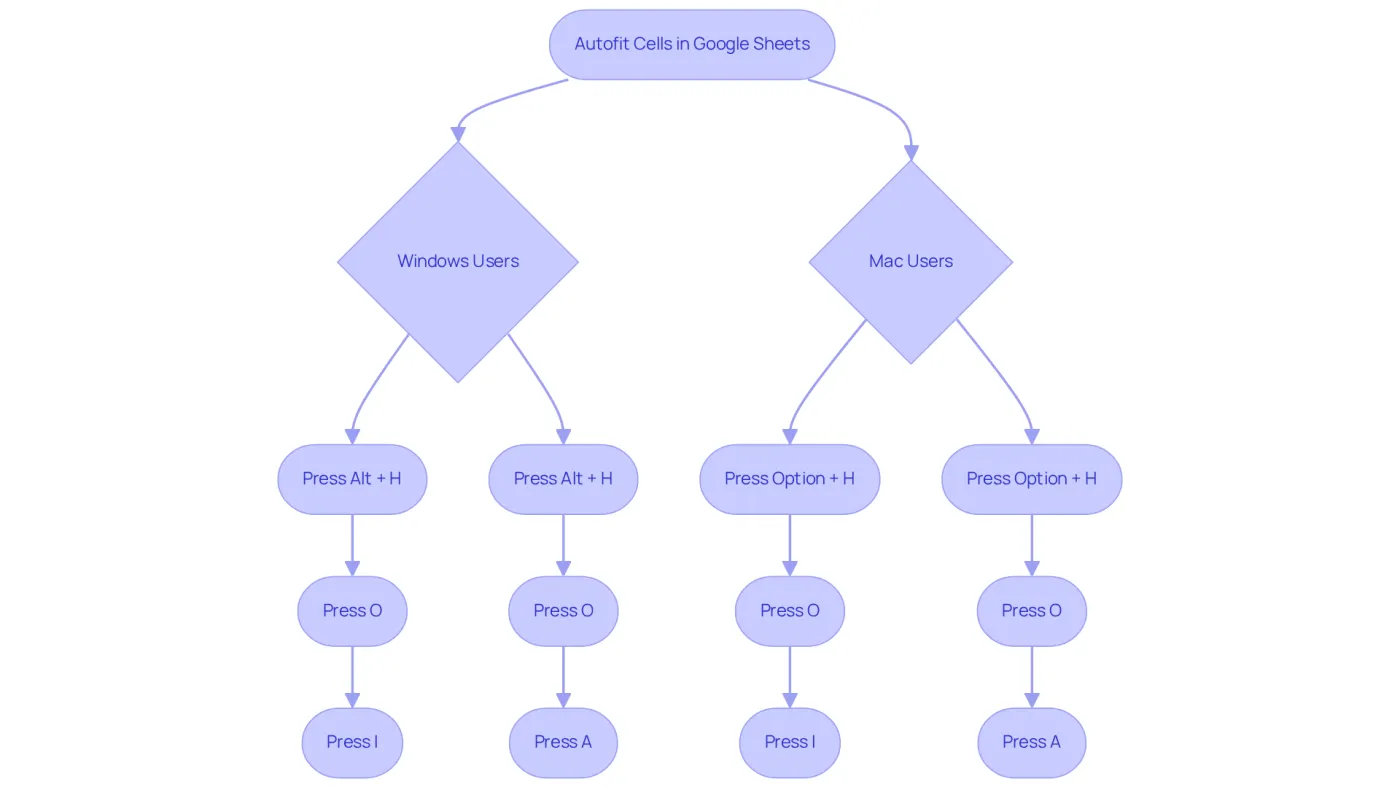
Autofit Column Width: For Windows users, simply press
Alt + H, thenO, followed byI. Mac users can achieve the same by pressingOption + H,O,I. This shortcut shows how to autofit cells in Google Sheets by automatically adjusting the width of the selected columns to fit their content seamlessly. As you use this shortcut, key-tips will appear in the corner of your screen, guiding you through the process. -
To understand how to autofit cells in Google Sheets, adjust row heights using
Alt + H, thenO, followed byAon Windows, orOption + H,O,Aon Mac. This will resize the selected rows to accommodate the tallest content, ensuring everything is visible. -
Utilizing the ShortieCuts Interface: Prefer a visual method? The ShortieCuts menu in Google Sheets offers convenient access to resize options. This interface allows for quick adjustments without the need to memorize shortcuts, streamlining your workflow.
Incorporating keyboard shortcuts into your workflow can lead to increased overall productivity. Many professionals have noted that these shortcuts significantly enhance their comfort and efficiency while working in Google Sheets. By replicating the Excel experience, ShortieCuts reduces the learning curve for individuals transitioning from Excel, making it an invaluable tool for finance professionals and data analysts alike.
Take Action Now: Start using ShortieCuts today and experience the difference in your productivity!
Troubleshoot Common Autofit Issues
Overcoming Common Challenges with Google Sheets' Autofit Feature
When utilizing the automatic adjustment feature in Google Sheets, users often encounter several typical challenges. Understanding these issues and their solutions can significantly enhance spreadsheet management efficiency, especially for finance professionals who depend on clear and organized data presentation.
-
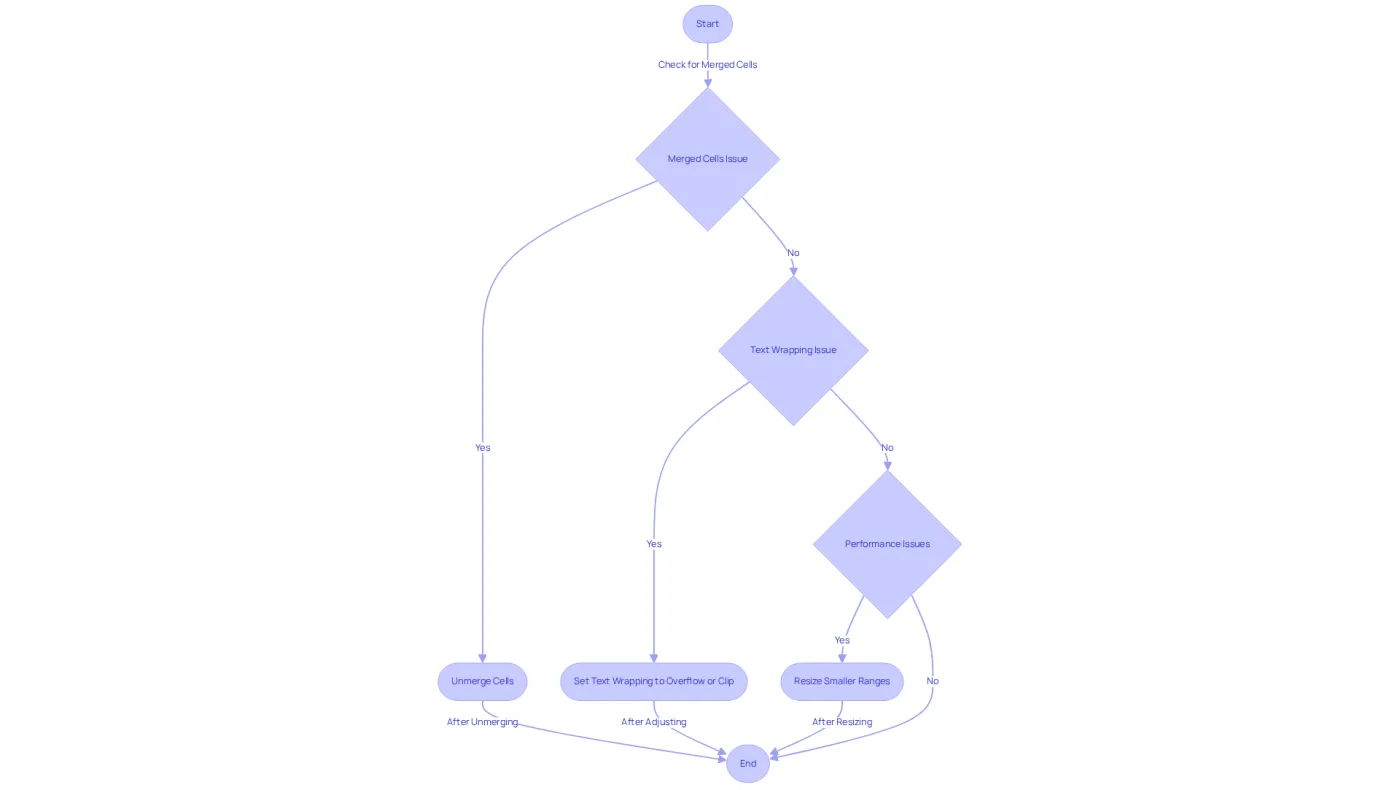
Merged Cells: One of the primary obstacles is the presence of merged cells within the selected range, which can hinder the autofit functionality. Statistics indicate that a significant percentage of users face difficulties due to merged cells affecting resizing performance. To resolve this, simply unmerge the cells by selecting them, right-clicking, and choosing 'Unmerge'. After unmerging, attempt the fitting process again to achieve the desired results.
-
Text Wrapping: The configuration of text wrapping plays a crucial role in the fitting results. For optimal performance, ensure that text wrapping is set to 'Overflow' or 'Clip'. You can adjust this by selecting the relevant cells, right-clicking, and navigating to 'Format cells', then 'Text wrapping'. This simple adjustment can greatly improve the precision of the automatic fitting feature. As noted by spreadsheet experts, proper text wrapping is essential for maintaining clarity in data presentation.
-
Performance Issues: If you notice that resizing is sluggish, particularly in large sheets, consider applying the resizing function to smaller ranges instead of the entire sheet. This strategy can enhance performance and responsiveness, leading to a smoother user experience. Additionally, disregarding merged cells during the automatic sizing process can further improve functionality.
By addressing these common autofit challenges, you can discover how to autofit cells in Google Sheets, thereby streamlining your spreadsheet management process and ensuring that your data is presented clearly and effectively.
Conclusion
Mastering the autofitting feature in Google Sheets is not just a skill; it’s an essential asset that enhances the clarity and professionalism of your spreadsheet presentations. By effectively utilizing this feature, you can effortlessly adjust row heights and column widths to fit your content, resulting in a more organized and visually appealing layout. This approach not only saves time but also facilitates better data analysis and communication.
In this article, we’ve explored key strategies for implementing autofit. We discussed straightforward methods for applying the feature, the advantages of using keyboard shortcuts, and how to tackle common challenges like merged cells and text wrapping. Tools like ShortieCuts play a pivotal role in streamlining your workflow, allowing you to replicate the efficiency of Excel within Google Sheets.
Ultimately, mastering autofit transcends aesthetics; it’s a crucial component of effective data management. By embracing these techniques, you can significantly boost your productivity and ensure that your spreadsheets convey information clearly. Taking action to incorporate these practices will lead to more efficient collaboration and enhanced data presentation. Make the mastery of autofitting cells in Google Sheets a valuable asset in your data management toolkit.
Frequently Asked Questions
What is autofitting in Google Sheets?
Autofitting in Google Sheets automatically adjusts row heights and cell widths to fit the content perfectly, eliminating the need for manual resizing.
How does autofitting improve spreadsheets?
Autofitting enhances the clarity and organization of spreadsheets, making data analysis and presentation easier and more effective.
How can I apply autofitting to cells in Google Sheets?
To apply autofitting, select the section, navigate to the Format menu, and choose Resize Section. You can also double-click the divider between header areas or use the keyboard shortcut Alt + O followed by R to open the Resize Column dialog box.
What are some additional features that can help with autofitting?
The ShortieCuts extension can enhance the autofitting experience by displaying key-tips on the screen when you press the 'ALT' key, making it easier to remember and use shortcuts.
Are there any considerations to keep in mind when using autofitting?
Yes, be cautious with very long text strings, as autofitting can lead to excessively wide sections that may disrupt the overall layout of your spreadsheet. If the content changes, you will need to redo the resizing steps to maintain appropriate widths.
Why is autofitting important in professional settings?
Autofitting contributes to a polished display of information, enhancing clarity and ensuring that data is easily interpretable, which is particularly beneficial for finance professionals and data analysts.