
Master How to Center Text in Google Sheets: A Step-by-Step Guide
Learn how to center text in Google Sheets with this step-by-step guide for better alignment.

Introduction
Mastering text alignment can elevate a cluttered spreadsheet into a visually appealing and easily navigable document. Centering text in Google Sheets not only enhances the aesthetic quality of your data presentations but also significantly improves readability. This makes it easier for viewers to digest critical information. Yet, many users face challenges with misalignment and formatting inconsistencies that can undermine their efforts. So, how can you master the art of text centering in Google Sheets to ensure a polished and professional appearance?
By understanding and applying effective text alignment techniques, you can transform your spreadsheets into powerful communication tools. Imagine presenting your data in a way that captures attention and conveys professionalism. With the right approach, you can achieve this and more.
Understand Text Centering in Google Sheets
Understanding how to center text in Google Sheets is crucial for aligning characters horizontally within a cell, ensuring they sit perfectly in the middle of the cell's width. This technique is especially beneficial for headings, titles, or any data that demands emphasis. By centering content, you not only enhance the visual appeal of your spreadsheet but also facilitate easier reading and interpretation of the displayed information. Google Sheets allows for both horizontal and vertical alignment, significantly improving the overall arrangement of your data.
To understand how to center text in Google Sheets horizontally, simply use the keyboard shortcut:
- Ctrl + Shift + E on Windows and ChromeOS
- Cmd + Shift + E on Mac
Google Sheets offers nine alignment options: Left, Center, Right, Top, Middle, and Bottom, providing a comprehensive approach to alignment.
When crafting a primary title for a report, combining sections and aligning content can create a tidy, professional appearance that spans the entire data table. However, be cautious - merging cells can impact sorting and filtering, which is vital for finance professionals managing complex data presentations.
The impact of effective content centering on spreadsheet readability is significant. Proper arrangement guides the viewer's eye, leading to a more organized and coherent presentation of data. Users have noted that misalignment, particularly with quotes, can disrupt the flow of information, making it appear cluttered and challenging to follow. Scott Hunter pointed out that the middle align property does not account for double quotes when arranging characters, complicating the alignment process further. Thus, mastering alignment techniques is essential for anyone looking to enhance the clarity and professionalism of their spreadsheets.
Select Cells for Centering Text
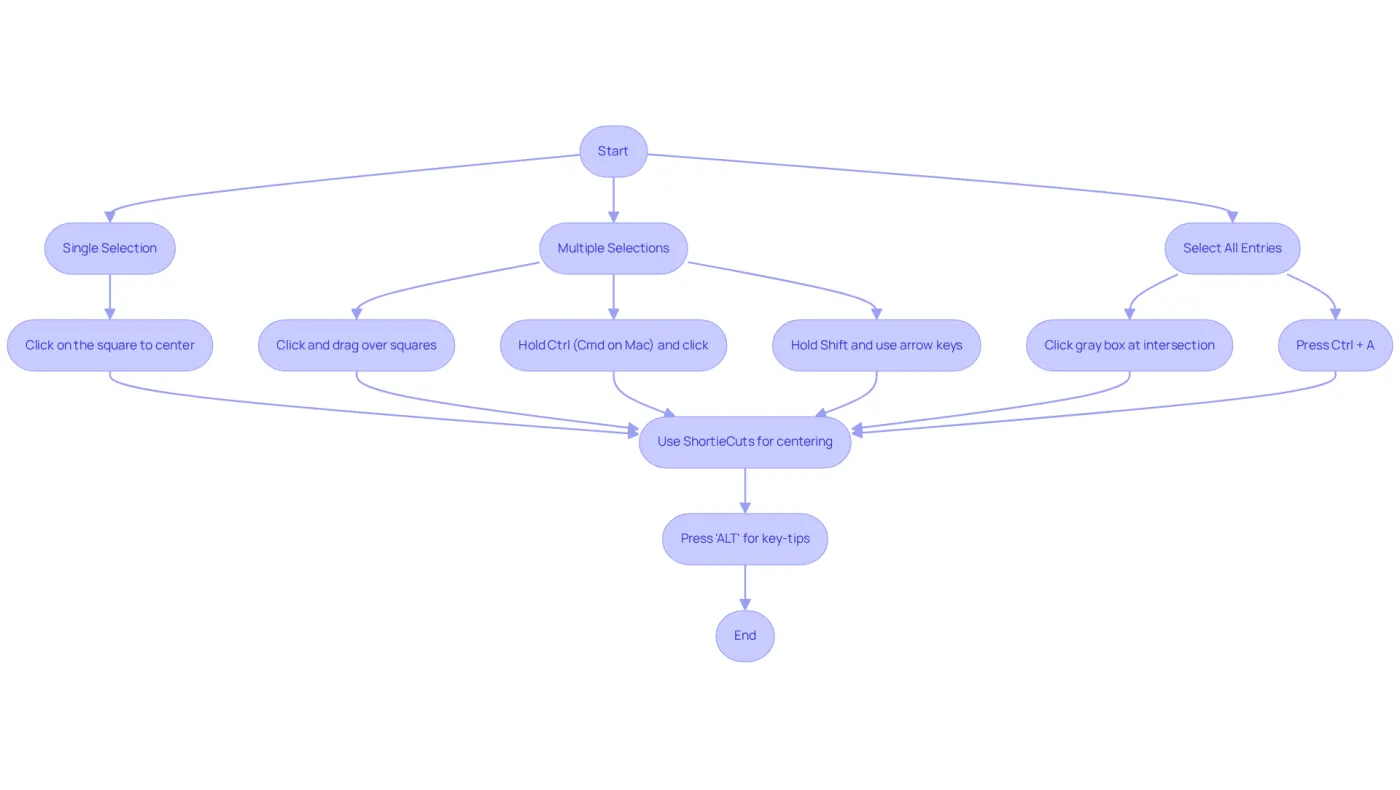
Aligning text in Google Sheets, particularly how to center text in Google Sheets, can be a challenge, but with ShortieCuts, it becomes a seamless process. Here’s how to do it effectively:
- Single Selection: Click on the square you want to center.
- Multiple Selections: Click and drag your mouse over the range of squares you wish to choose. Alternatively, hold down the
Ctrlkey (orCmdon Mac) while clicking on individual items to select non-adjacent selections. You can also hold theShiftkey and use the Left or Right arrow keys to select multiple adjacent squares. - Select All Entries: To choose all entries in the sheet, click the gray box situated at the intersection of the row and column headers in the top left corner, or simply press
Ctrl + Ato select the complete sheet.
Once your components are selected, leverage the ShortieCuts extension to enhance your workflow. By pressing 'ALT' (or Option on Mac), key-tips will appear in the corner of your screen, providing quick access to 233 Excel ALT Shortcuts, including instructions on how to center text in Google Sheets. This not only streamlines your workflow but also significantly boosts your efficiency when managing data in Google Sheets.
Embrace the power of ShortieCuts and transform your data handling experience today!
Apply Centering Techniques for Text
Centering Your Text in Google Sheets: A Step-by-Step Guide
Are you struggling with misaligned text in your Google Sheets? Understanding how to center text in Google Sheets can significantly enhance the appearance of your spreadsheet and improve readability. Here’s how to do it effectively:
-
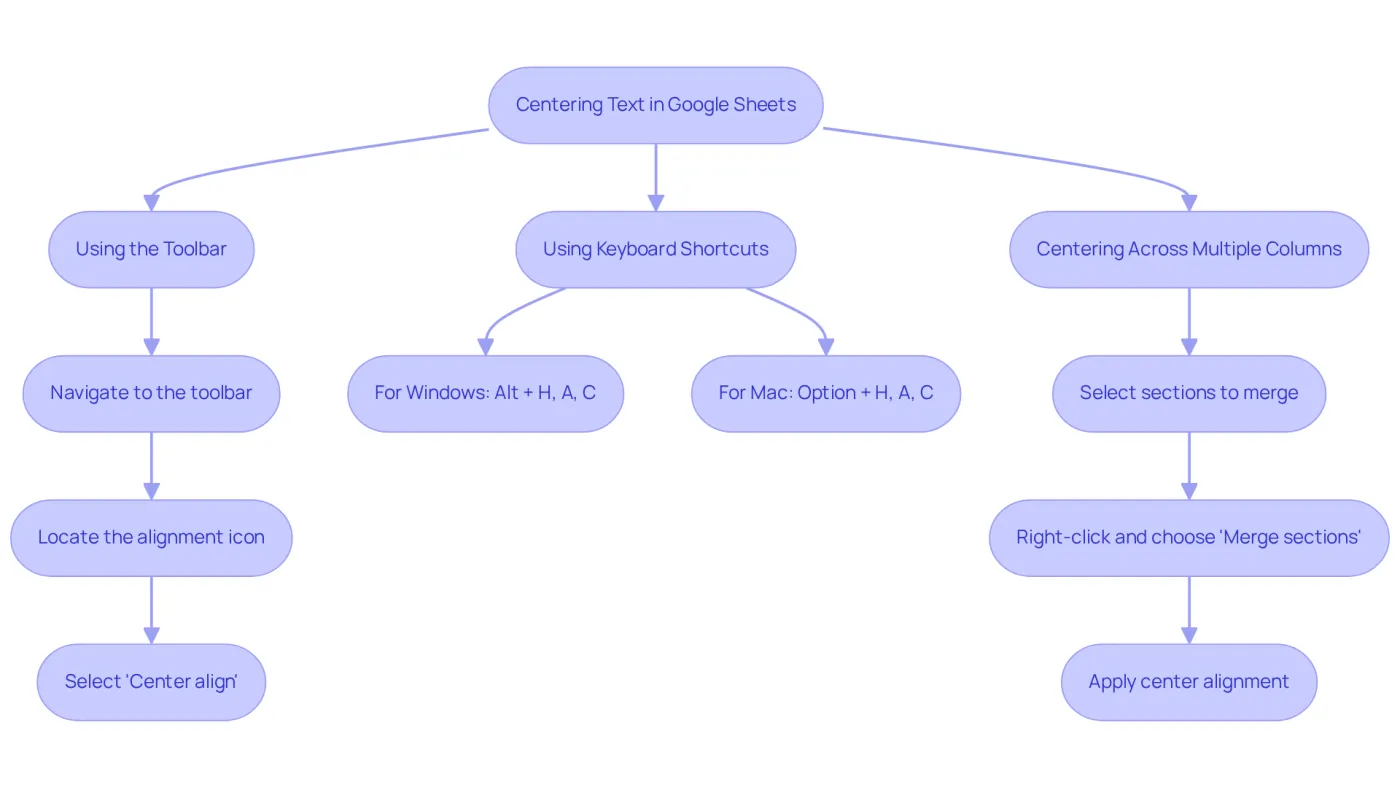
Using the Toolbar:
- Navigate to the toolbar at the top of the Google Sheets interface.
- Locate the alignment icon, which resembles a horizontal line with three alignment options.
- Click on the icon and select 'Center align' from the dropdown menu.
-
Using Keyboard Shortcuts with ShortieCuts:
- For Windows: Press
Alt + H, thenA, and finallyCto center align the selected text. With ShortieCuts, simply hit "ALT" and the key-tips will appear, guiding you through the process seamlessly. - For Mac: Press
Option + H, thenA, andC.
- For Windows: Press
-
Centering Across Multiple Columns:
- To center text across multiple columns, merge the cells first. Select the sections, right-click, and choose 'Merge sections', then apply the center alignment.
By following these steps on how to center text in Google Sheets, your content will be perfectly centered within the chosen areas, enhancing the overall appearance of your spreadsheet. Moreover, utilizing ShortieCuts can streamline your workflow with 233 shortcuts available, significantly boosting your productivity. Why not give it a try and experience the difference for yourself?
Troubleshoot Common Centering Issues
If you're facing challenges with centering text in Google Sheets, here are some effective troubleshooting tips:
-
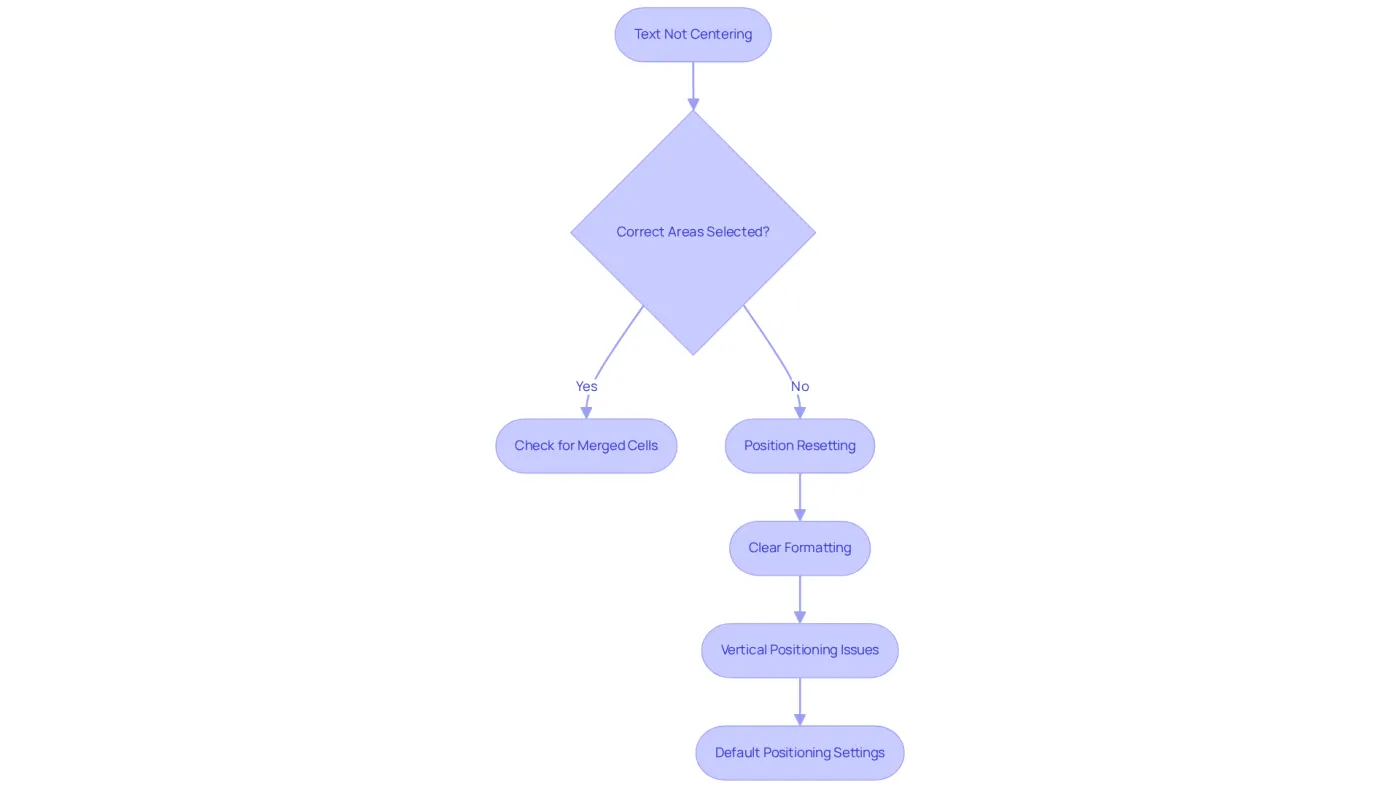
Text Not Centering: First, ensure you've selected the correct areas. If the text still doesn’t align, check for merged cells, as this can disrupt positioning. Users have reported that center and right alignments sometimes cause content to shift left, often due to merged cells or other formatting issues.
-
Position Resetting: If your text positioning resets after making edits, it could be due to existing formatting in the box. Clear any formatting by selecting the cells and navigating to Format > Clear formatting. This step is essential, as improper formatting can lead to persistent alignment problems.
-
Vertical Positioning Issues: For vertical misalignment, verify that the vertical positioning is set to 'Middle'. You can adjust this by selecting the relevant areas, clicking on the vertical positioning icon in the toolbar, and choosing 'Middle'. Many users encounter vertical positioning issues, particularly when using specific browsers or configurations.
-
Default Positioning Settings: To establish middle positioning as the default for new cells, consider creating a template or manually adjusting settings each time. Currently, Google Sheets does not support default positioning settings, a limitation noted by users who frequently work with spreadsheets and require consistent formatting.
These troubleshooting steps can help resolve common issues and illustrate how to center text in Google Sheets effectively. Many users have reported alignment problems, especially with center and right alignments, leading to text appearing left-aligned instead. Addressing these issues promptly enhances the professionalism and readability of your spreadsheets. As suggested by Lance.NYC, testing in different browsers may also help identify if the issue is browser-related.
Conclusion
Mastering the technique of centering text in Google Sheets is crucial for anyone aiming to elevate the visual organization of their spreadsheets. By aligning text both horizontally and vertically, users can achieve a more professional and readable presentation of data. This skill proves particularly beneficial for headings, titles, and any content that demands emphasis, ensuring that information is not only visually appealing but also easy to interpret.
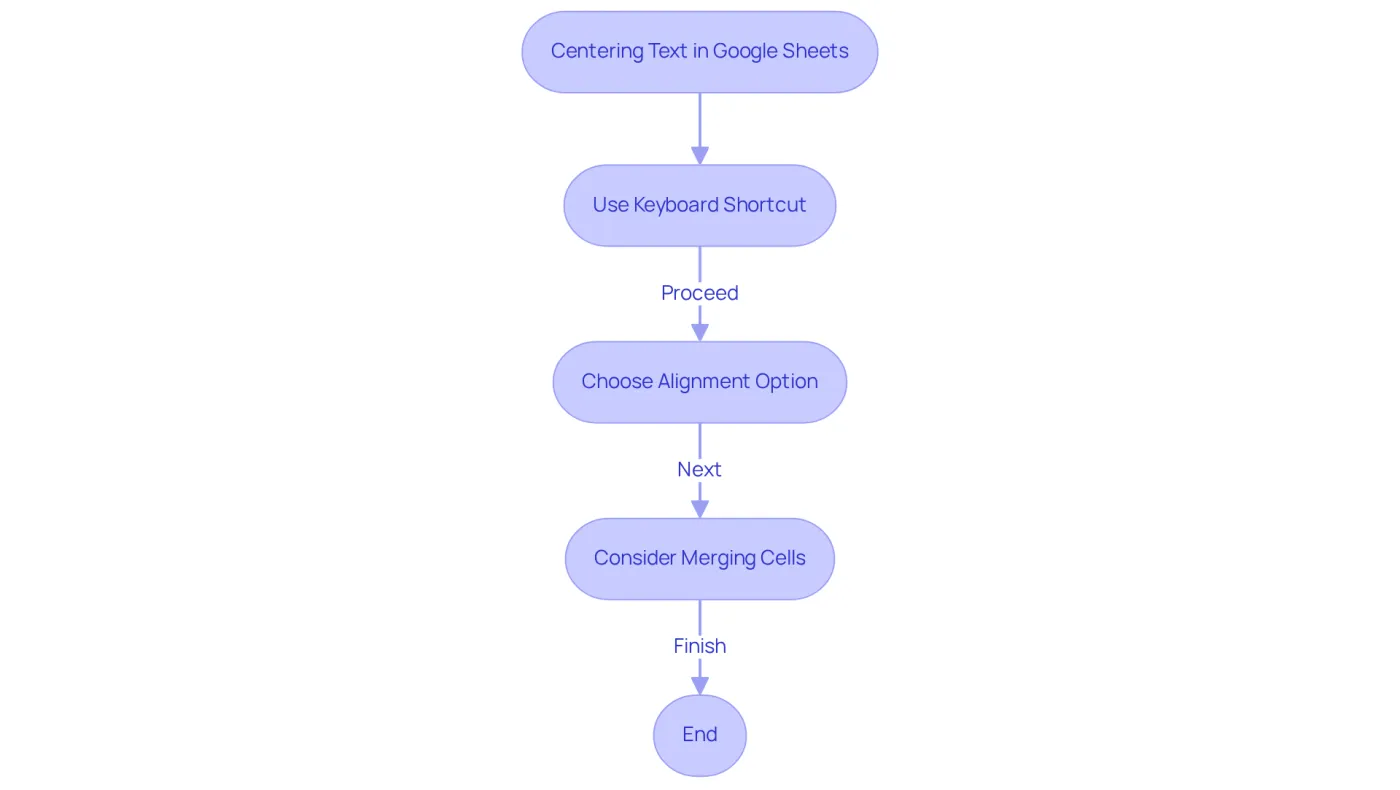
In this guide, we explored various methods for centering text, including:
- Keyboard shortcuts
- Toolbar options
- Merging cells for alignment across multiple columns
Additionally, key troubleshooting tips were provided to help users navigate common issues, such as misalignment caused by merged cells or formatting challenges. Grasping these techniques and their applications can significantly enhance the clarity and effectiveness of data presentation in Google Sheets.
Ultimately, the ability to center text effectively transcends mere formatting; it is a vital component of data communication. By implementing these strategies, users can refine their spreadsheet skills, making their data not only more attractive but also easier to navigate. Embrace these practices to transform your Google Sheets experience, ensuring that your content stands out and conveys professionalism.
Frequently Asked Questions
Why is centering text in Google Sheets important?
Centering text in Google Sheets is important for aligning characters horizontally within a cell, enhancing the visual appeal of the spreadsheet, and facilitating easier reading and interpretation of the displayed information.
How can I center text horizontally in Google Sheets?
To center text horizontally in Google Sheets, you can use the keyboard shortcut Ctrl + Shift + E on Windows and ChromeOS, or Cmd + Shift + E on Mac.
What alignment options are available in Google Sheets?
Google Sheets offers nine alignment options: Left, Center, Right, Top, Middle, and Bottom.
What should I consider when merging cells for titles in Google Sheets?
When merging cells for titles, it's important to note that it can impact sorting and filtering, which is crucial for managing complex data presentations, especially for finance professionals.
How does effective content centering affect spreadsheet readability?
Effective content centering significantly improves spreadsheet readability by guiding the viewer's eye and creating a more organized and coherent presentation of data.
What issues can arise from misalignment in a spreadsheet?
Misalignment, particularly with quotes, can disrupt the flow of information, making the spreadsheet appear cluttered and challenging to follow.
What specific challenge is noted regarding the middle align property in Google Sheets?
The middle align property does not account for double quotes when arranging characters, complicating the alignment process further.