

Overview
Combining Excel spreadsheets is essential for achieving financial success. This practice enhances data analysis, minimizes errors, and ensures consistency in reporting within collaborative environments. Various methods for merging spreadsheets are available, including:
- The Consolidate Function
- Power Query
- VBA macros
These approaches streamline the process and significantly improve data management efficiency.
Introduction
Understanding the nuances of financial analysis often hinges on the effective management and synthesis of data from multiple sources. For finance professionals, mastering the art of combining Excel spreadsheets transcends mere technical skill; it serves as a critical gateway to enhanced reporting, streamlined workflows, and informed decision-making.
However, this process is fraught with challenges—ranging from data inconsistencies to potential errors in manual consolidation—that can undermine the very insights one seeks to derive.
How can finance experts navigate these complexities to unlock the full potential of their data?
Understand the Importance of Combining Excel Spreadsheets
For finance experts, knowing how to combine Excel spreadsheets is essential, as it provides a comprehensive perspective that enhances analysis and reporting capabilities. This consolidation minimizes the risk of errors that often arise from managing data across multiple files, a critical factor in financial modeling where precise data aggregation is vital for reliable forecasting and budgeting. By merging spreadsheets, users can streamline their workflow, allowing for the examination of diverse information sources in a single location, thereby facilitating more effective decision-making and boosting productivity.
Moreover, integrating spreadsheets ensures consistency across financial reports, guaranteeing that all stakeholders are aligned with the same set of information. This consistency is particularly crucial in collaborative environments where multiple team members contribute to financial analyses and reporting tasks. Recognizing the significance of how to combine Excel spreadsheets in this merging process is a fundamental step toward achieving financial success through efficient data management.
According to recent statistics, 51% of finance leaders continue to prefer a detailed bottom-up planning process utilizing spreadsheets, underscoring their ongoing relevance in financial practices. The historical context of spreadsheets in finance traces back to the introduction of VisiCalc in 1979, highlighting their integral role in shaping financial modeling and analysis. However, it is important to acknowledge the challenges associated with Excel usage, such as the potential for manual errors, as noted by industry experts. Insights from thought leaders like Charlotte Hosking, who emphasizes the critical importance of financial planning and analysis (FP&A), can further enrich the discourse on data management in finance. Overall, understanding how to combine Excel spreadsheets, along with recognizing the importance of this merging process, its historical significance, and associated challenges, is the initial step toward achieving financial success through efficient data management.

Explore Different Methods to Combine Excel Files
There are several methods on how to combine Excel spreadsheets, with each method tailored for distinct scenarios and user preferences.
-
Copy and Paste: The most straightforward approach involves manually duplicating information from one spreadsheet and inserting it into another. This method proves effective for small datasets but can become time-consuming for larger files.
-
The Excel Consolidate Function demonstrates how to combine Excel spreadsheets by merging information from multiple sheets into one. It is particularly beneficial for summarizing data, such as totals or averages, across various spreadsheets. Financial analysts frequently rely on this function for efficient information aggregation.
-
Power Query: A robust tool within Excel, Power Query allows users to import, transform, and combine information from diverse sources. It is ideal for those who regularly need to consolidate data, as it streamlines the process and efficiently manages large datasets. As highlighted by financial analysts, utilizing Power Query significantly reduces the time spent on data preparation, enabling a greater focus on analysis.
-
VBA Macros: For experienced users, creating a VBA macro can expedite the integration process, allowing rapid consolidation of multiple documents with a single command. This approach is particularly advantageous for repetitive tasks or when handling numerous spreadsheets.
-
Third-Party Tools: A variety of software applications exist that specialize in combining spreadsheet files. These tools often provide additional functionalities, such as information validation and error checking, enhancing the integration process and ensuring data integrity.
By understanding these methods, users can learn how to combine Excel spreadsheets using the most appropriate technique based on their individual needs and expertise. Furthermore, it is crucial to ensure data validation throughout the merging process to uphold integrity and precision.

Follow a Step-by-Step Process to Merge Excel Files Using VBA
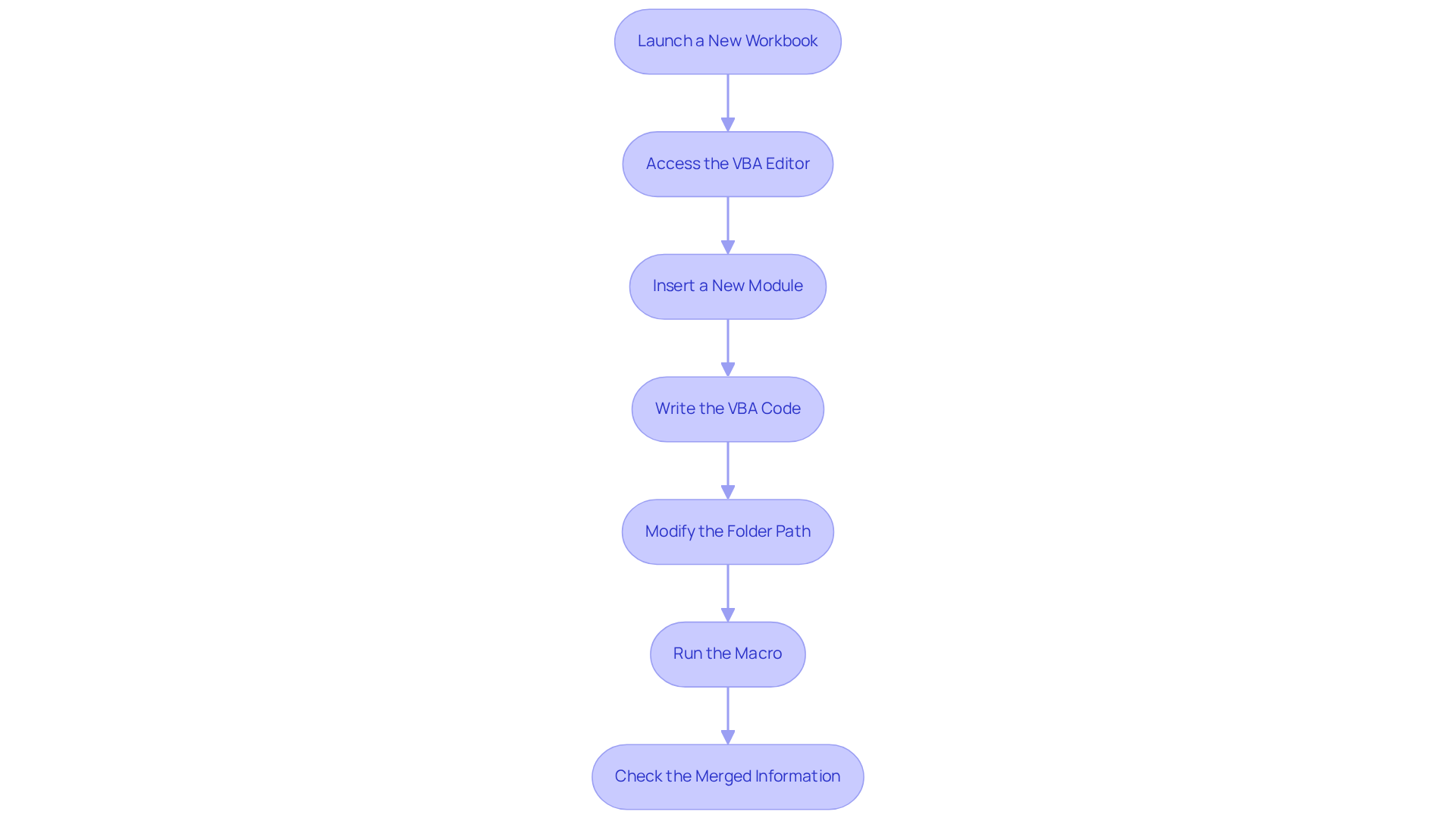
To merge Excel files using VBA, follow these steps:
-
Launch a New Workbook: Begin by opening a new workbook in which you wish to consolidate your information.
-
Access the VBA Editor: Press
Alt + F11to open the Visual Basic for Applications (VBA) editor. -
Insert a New Module: In the VBA editor, right-click on any of the items in the Project Explorer, select
Insert, and then click onModule. This creates a new module for your code. -
Write the VBA Code: Copy and paste the following code into the module:
Sub MergeWorkbooks() Dim wb As Workbook Dim ws As Worksheet Dim masterWb As Workbook Dim masterWs As Worksheet Dim folderPath As String Dim fileName As String ' Set the folder path where the files are located folderPath = "C:\YourFolderPath\" fileName = Dir(folderPath & "*.xlsx") ' Create a new workbook for the merged data Set masterWb = Workbooks.Add Set masterWs = masterWb.Sheets(1) ' Loop through each file in the folder Do While fileName <> "" Set wb = Workbooks.Open(folderPath & fileName) For Each ws In wb.Sheets ws.UsedRange.Copy masterWs.Cells(masterWs.Cells(Rows.Count, 1).End(xlUp).Row + 1, 1) Next ws wb.Close False fileName = Dir Loop ' Save the merged workbook masterWb.SaveAs folderPath & "MergedWorkbook.xlsx" masterWb.Close End Sub -
Modify the Folder Path: Change the
folderPathvariable in the code to the location of your spreadsheet documents. -
Run the Macro: Close the VBA editor and return to the spreadsheet. Press
Alt + F8, selectMergeWorkbooks, and clickRun. This will execute the macro, combining all spreadsheet documents in the designated folder into a new workbook. Note that screen flickering and alert pop-ups will be disabled during execution for a smoother experience. -
Check the Merged Information: Open the newly created
MergedWorkbook.xlsxto review the consolidated information.
By following these steps, users can understand how to combine Excel spreadsheets effectively, significantly reducing the time required for manual information consolidation. You can learn how to combine Excel spreadsheets in just three quick steps, making it an efficient process. With a spreadsheet program capable of handling up to 255 worksheets in a single workbook, utilizing VBA for consolidation enhances productivity and improves information management. Furthermore, users can customize the VBA code to meet specific requirements, tailoring the process to their unique needs.
Troubleshoot Common Issues When Combining Excel Spreadsheets
When learning how to combine Excel spreadsheets, users may encounter several common issues that can hinder their efforts. Below are essential troubleshooting tips:
-
Information Format Inconsistencies: It is imperative to ensure that formats (e.g., date, currency) are consistent across all spreadsheets. Inconsistent formats can lead to errors during consolidation. Standardizing formats before merging is crucial; for instance, if one sheet uses a comma as a decimal separator while another uses a dot, it can distort calculations. Addressing these discrepancies early can save significant time and effort later. As highlighted, absent information is one of the most frequent mistakes faced during spreadsheet imports, resulting in incomplete analyses and misguided choices. Roby Hyde, an Expert Customer Engineer, emphasizes that 'Excel import errors hinder the entire import process and necessitate your client to perform a lot of additional work on their end to format everything according to a set template.'
-
Absence of Information: The lack of information in any document can undermine the overall analysis. Always confirm that all essential documents are available and contain the needed information before commencing the merging process. Reports indicate that missing data is one of the most common errors encountered during Excel imports, which can lead to incomplete analyses and misguided decisions.
-
VBA Errors: When utilizing VBA, ensure that the code is correctly written and that the folder path is accurate. Frequent mistakes involve incorrect document paths or syntax errors. Debugging the code line by line can help identify issues, as even minor errors can disrupt the entire merging process.
-
Large Document Sizes: Combining large Excel documents can result in performance problems or crashes. If this occurs, consider dividing the documents into smaller parts or employing Power Query, which is designed to manage large datasets more effectively. This approach can significantly reduce the risk of crashes and improve processing speed. For example, large file sizes can exceed the limits set by the program or the available memory on the system, leading to import errors.
-
Duplicate Entries: After merging, it is essential to check for duplicate entries that may have been inadvertently included. Utilize the
Remove Duplicatesfunction in the spreadsheet application to tidy up the information. Duplicate entries can skew results and lead to inaccurate insights, making this step crucial for maintaining data integrity. -
Compatibility Issues: Ensure that all documents are compatible with the version of the spreadsheet software being utilized. Older document formats may not function properly with more recent versions of the software. Converting files to the latest format, such as .xlsx, can prevent compatibility issues and ensure smooth operation.
By being aware of these common issues and their solutions, users can learn how to combine Excel spreadsheets more effectively, ensuring a successful consolidation.

Conclusion
Combining Excel spreadsheets transcends mere technicality; it stands as a pivotal strategy for achieving financial success. The ability to merge data effectively not only enhances analytical capabilities but also reduces errors and fosters consistency in reporting. This foundational skill empowers finance professionals to streamline workflows and make informed decisions, ultimately leading to superior financial outcomes.
Throughout this article, we have explored various methods for combining Excel files, including:
- Manual techniques
- Excel’s built-in functions
- Power Query
- VBA macros
Each approach presents unique advantages, catering to diverse user needs and levels of expertise. Additionally, we have addressed common challenges such as:
- Format inconsistencies
- Missing data
- Performance issues
These challenges underscore the necessity of meticulous data management during the consolidation process.
Embracing the practice of combining Excel spreadsheets not only boosts productivity but also fortifies the integrity of financial analyses. By implementing the methods and troubleshooting tips discussed, finance professionals can significantly enhance their data management practices. This leads to more accurate reporting and positions them to make strategic decisions that drive financial success. Thus, mastering the art of merging spreadsheets is an investment in both personal and organizational growth within the financial sector.
Frequently Asked Questions
Why is combining Excel spreadsheets important for finance experts?
Combining Excel spreadsheets is essential for finance experts as it provides a comprehensive perspective that enhances analysis and reporting capabilities, minimizes errors, and streamlines workflow for effective decision-making.
How does merging spreadsheets improve data management?
Merging spreadsheets allows users to examine diverse information sources in one location, ensuring consistency across financial reports and aligning all stakeholders with the same set of information.
What role do spreadsheets play in financial practices today?
Spreadsheets remain relevant in financial practices, with 51% of finance leaders preferring a detailed bottom-up planning process that utilizes spreadsheets for their analytical capabilities.
What is the historical significance of spreadsheets in finance?
The historical context of spreadsheets in finance began with the introduction of VisiCalc in 1979, marking their integral role in shaping financial modeling and analysis.
What challenges are associated with using Excel spreadsheets?
Challenges associated with Excel usage include the potential for manual errors, which can impact the accuracy of financial data and analysis.
Who emphasizes the importance of financial planning and analysis in relation to data management?
Insights from thought leaders like Charlotte Hosking highlight the critical importance of financial planning and analysis (FP&A) in enriching the discourse on data management in finance.