
Master How to Compare Excel Spreadsheets: Essential Methods for Finance Pros
Learn essential methods for how to compare Excel spreadsheets effectively in finance.

Overview
Mastering the comparison of Excel spreadsheets is crucial for finance professionals. Why? Because accuracy and integrity in financial decision-making hinge on it. By employing various methods—manual comparisons, spreadsheet formulas, and advanced tools like Excel's built-in features and third-party applications—finance professionals can enhance efficiency and significantly reduce errors in financial data management.
Consider the challenges faced in financial analysis. Inaccurate data can lead to misguided decisions, impacting the bottom line. Fortunately, there are effective solutions available. Manual comparisons may work for smaller datasets, but as complexity increases, so does the need for more sophisticated methods. Utilizing Excel's built-in features or third-party applications can streamline the process, ensuring that data integrity is maintained.
The benefits of implementing these strategies are clear. Not only do they save time, but they also bolster confidence in the data being analyzed. Imagine making financial decisions backed by accurate, reliable information. This is not just a possibility; it’s an achievable goal for those who master these comparison techniques.
In conclusion, finance professionals must prioritize mastering Excel comparisons. By doing so, they not only enhance their efficiency but also safeguard the integrity of their financial decision-making processes. Are you ready to elevate your financial analysis skills? Start exploring these methods today.
Introduction
In the fast-paced realm of finance, accuracy is not merely a goal; it’s an absolute necessity. Professionals often navigate through multiple versions of spreadsheets, where even the slightest discrepancy can lead to significant consequences. Thus, understanding how to effectively compare Excel spreadsheets becomes crucial. This skill not only enhances decision-making but also safeguards the integrity of financial data.
However, with a plethora of methods available—from manual checks to advanced software tools—how can finance experts determine the most effective approach for their specific needs? This question is pivotal, as the right method can streamline processes and mitigate risks, ultimately leading to better financial outcomes.
Understand the Importance of Comparing Excel Spreadsheets
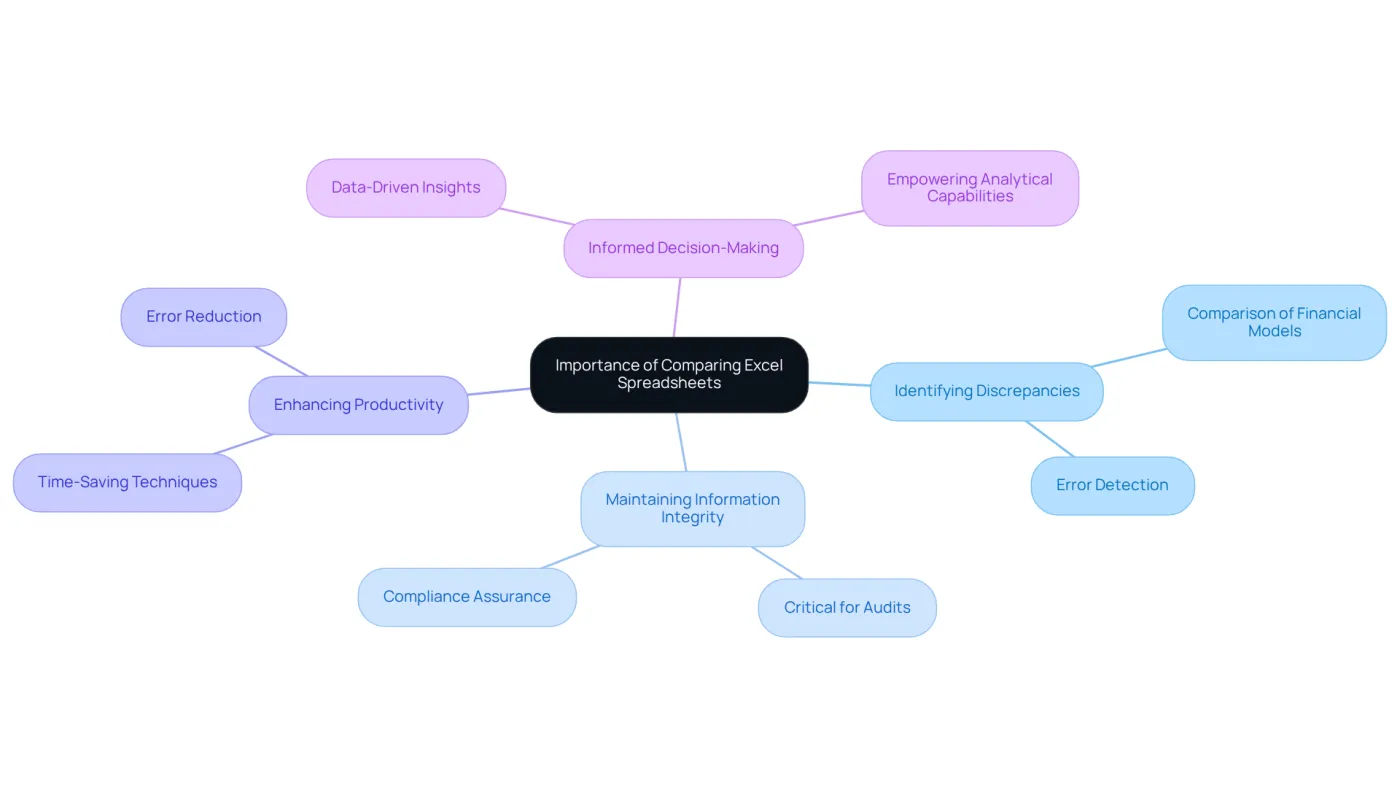
In the finance sector, understanding how to compare Excel spreadsheets is not just beneficial; it’s essential. Why? Because it allows professionals to identify discrepancies between different versions of financial models. This ensures that the most accurate information is used for decision-making, which is critical in a field where precision is paramount.
Moreover, tracking changes over time is vital for audits and compliance. By mastering how to compare Excel spreadsheets, finance professionals can maintain information integrity, which is a cornerstone of effective financial management.
But that’s not all. Effective evaluation techniques can save time and reduce errors, ultimately enhancing productivity. Imagine the impact of streamlined processes on your workflow. By implementing these practices, you not only improve accuracy but also empower your analytical capabilities.
In summary, knowing how to compare Excel spreadsheets effectively is a game-changer in finance. It’s about more than just numbers; it’s about making informed decisions that drive success.
Explore Methods for Comparing Excel Spreadsheets
Mastering Excel Spreadsheet Comparisons: Essential Methods for Financial Accuracy
In the world of finance, comparing Excel spreadsheets is a critical task that can significantly impact decision-making. However, the challenge lies in choosing the most effective method for how to compare Excel spreadsheets. Here are several approaches, each with its unique advantages:
-
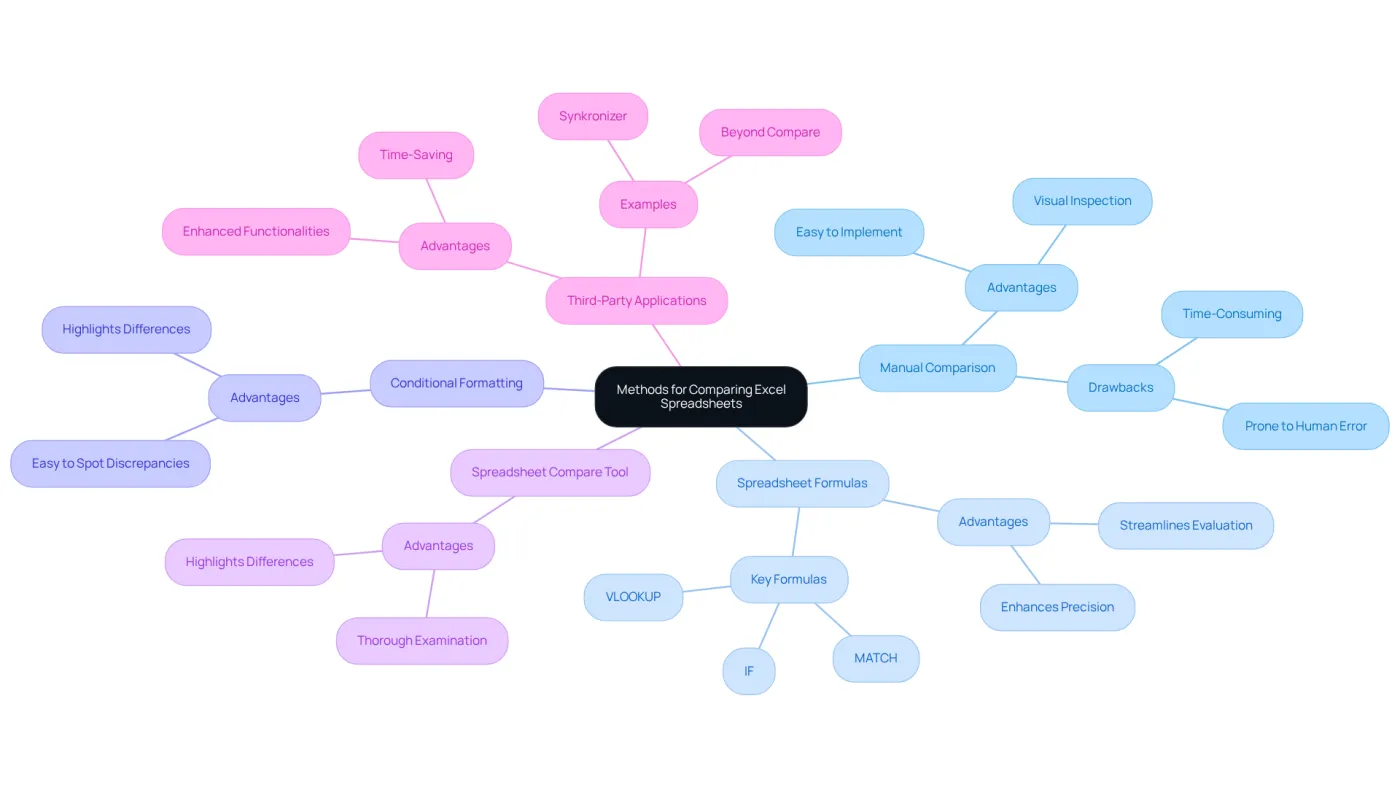
Manual Comparison: This straightforward method involves visually inspecting spreadsheets side by side. While it’s easy to implement, it can be time-consuming and prone to human error, especially with complex datasets. Relying solely on this approach can lead to inaccuracies, as numerous case studies have shown. Understanding statistical concepts is vital to minimize mistakes in data interpretation.
-
Spreadsheet Formulas: Utilizing formulas like
IF,VLOOKUP, orMATCHcan streamline the evaluation process. For example, creating a new column to check if values in two columns match provides a quick overview of discrepancies. Case studies support the effectiveness of these formulas, demonstrating how they enhance precision in comparisons. -
Conditional Formatting: This powerful feature allows users to highlight differences directly within the spreadsheet, making discrepancies easy to spot at a glance. By implementing color codes, users can quickly identify areas that require attention, which is crucial for efficient information management in finance.
-
Spreadsheet Compare Tool: Excel’s built-in feature enables users to compare two workbooks, highlighting differences in values, formulas, and formatting. This tool is invaluable for thorough examinations, ensuring that no changes go unnoticed. It underscores the importance of precise data evaluation in financial scenarios.
-
Third-Party Applications: Advanced comparison software, such as Beyond Compare or Synkronizer, offers enhanced functionalities, including the ability to merge changes and track revisions. These tools can save time and improve accuracy, particularly when handling large datasets.
Recognizing how to compare Excel spreadsheets can lead to more effective information management and analysis for finance professionals. As Duilio Divisi aptly stated, "The initial phase of statistical work is the gathering of information, which, if well organized, saves effort in later operations and enables the proper arrangement for the analysis." Embrace these methods to improve your understanding of how to compare Excel spreadsheets and ensure accuracy in your financial analyses.
Utilize Excel's Built-in Features for Comparison
Excel provides a suite of powerful built-in features that significantly enhance how to compare Excel spreadsheets, which is an essential task for finance professionals who prioritize accuracy and efficiency.
-
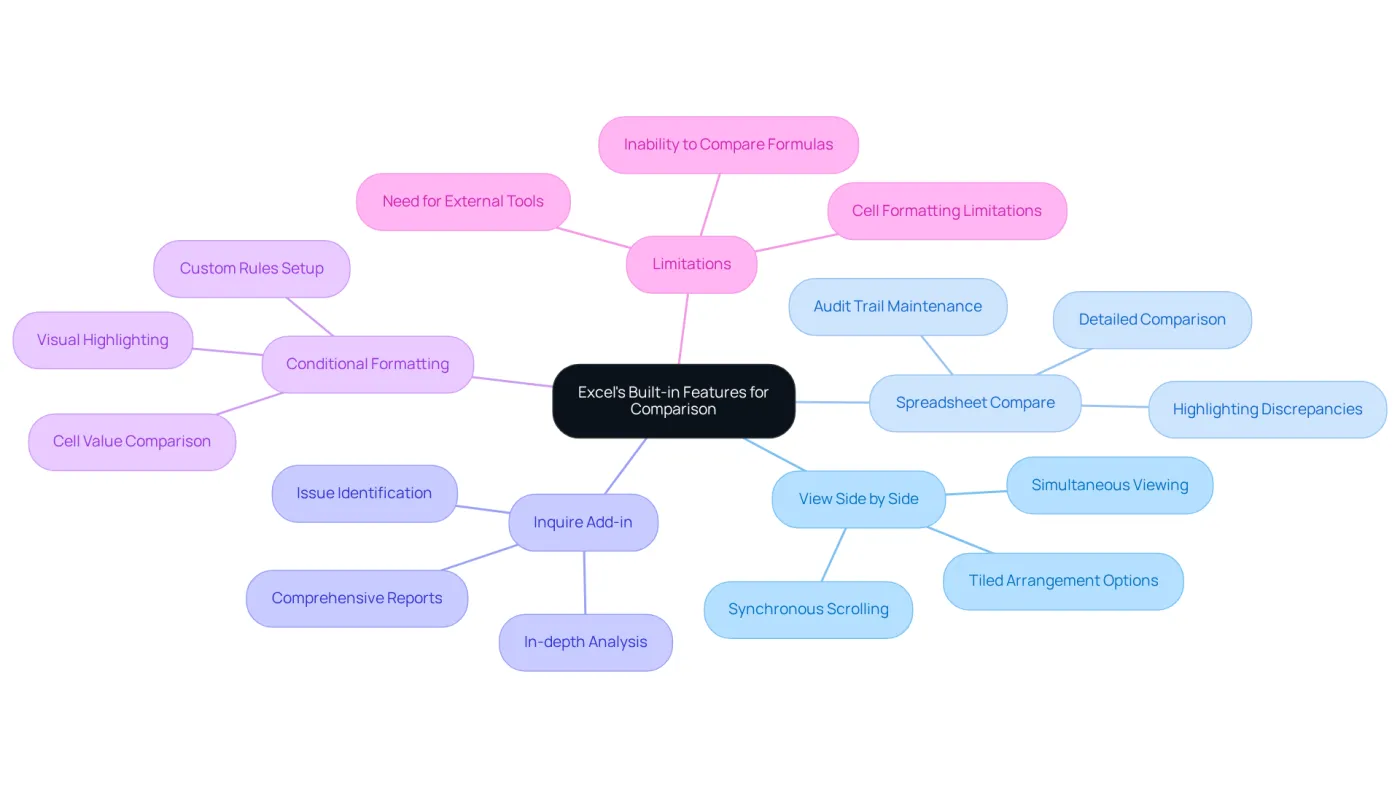
View Side by Side: This feature enables users to open two workbooks simultaneously and select 'View Side by Side' from the View tab. It allows for concurrent scrolling through both sheets, making it easier to spot differences in information and formulas.
-
Spreadsheet Compare: Accessible through the Windows search bar, this tool provides a detailed comparison of two workbooks, highlighting discrepancies in formulas, values, and formatting. It’s particularly beneficial for maintaining a clear audit trail and ensuring data integrity.
-
Inquire Add-in: For those using Excel Professional Plus, enabling the Inquire add-in generates a comprehensive report on workbook differences. This tool is invaluable for in-depth analysis and auditing, allowing finance professionals to quickly identify issues.
-
Conditional Formatting: This feature visually highlights cells that differ between two sheets. By selecting the relevant range, navigating to Conditional Formatting, and setting specific rules, users can easily pinpoint discrepancies, thereby enhancing their data management capabilities.
While these tools significantly boost efficiency and precision, it’s crucial to acknowledge that when considering how to compare Excel spreadsheets, Excel's built-in methods for evaluating data have limitations, such as the inability to assess formulas or cell formatting directly. For more thorough evaluations, finance experts may consider external resources that can bridge these gaps. Additionally, automation features, like those offered by HIA, can further streamline processes, reducing manual work and enhancing efficiency in financial reporting. Integrating these insights empowers finance professionals to make informed decisions regarding the best resources for their needs.
Leverage Advanced Tools and Techniques for Enhanced Comparison
For more complex comparisons, advanced tools can significantly enhance your workflow:
-
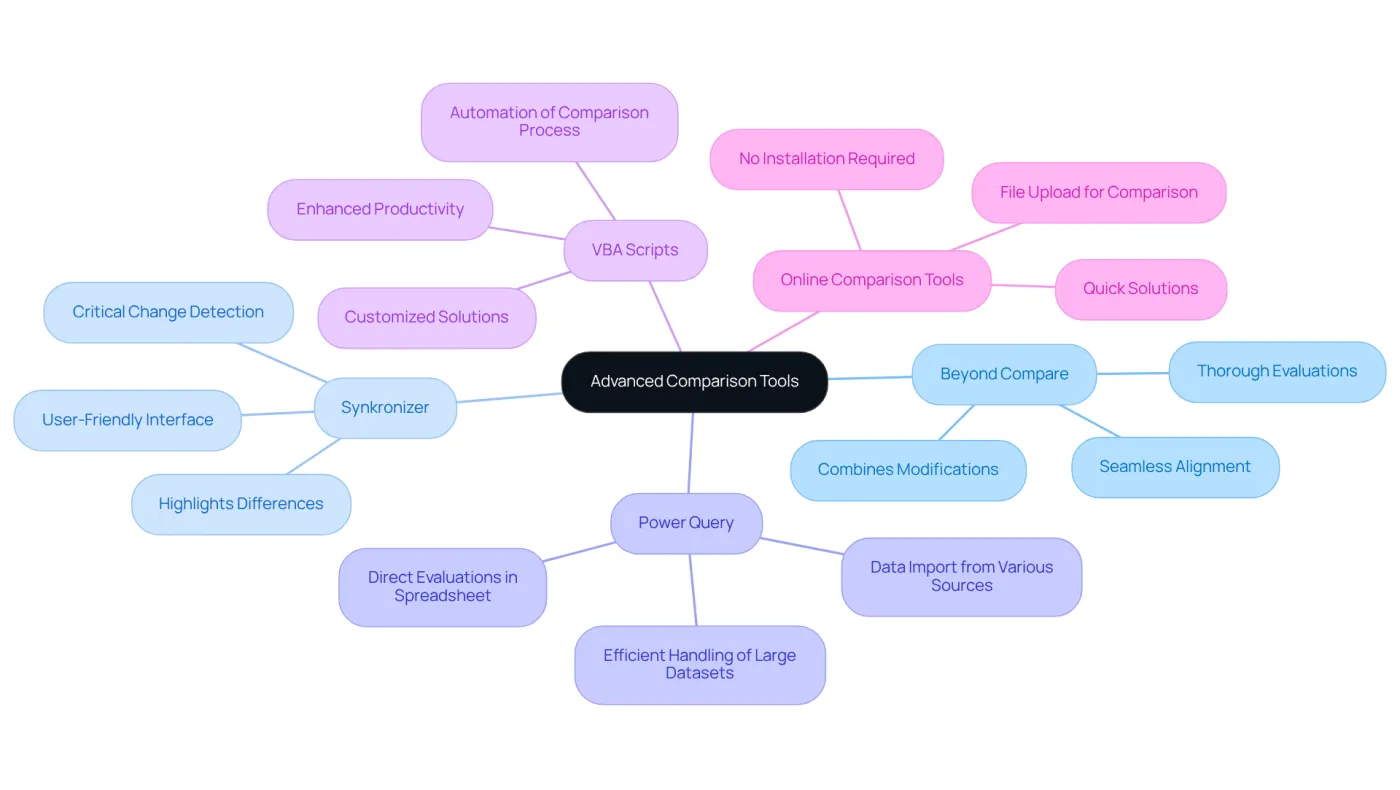
Beyond Compare: This tool allows for thorough evaluations of spreadsheet files. It not only combines modifications but also aligns information seamlessly, making it an essential asset for detailed analysis.
-
Synkronizer: As a powerful add-in for spreadsheets, Synkronizer offers a user-friendly interface for comparing and merging files. It highlights differences clearly, ensuring you never miss a critical change.
-
Power Query: Leverage Power Query to import data from various sources and conduct evaluations directly within your spreadsheet application. This is particularly beneficial for handling large datasets efficiently.
-
VBA Scripts: For those comfortable with programming, writing VBA scripts can automate the comparison process. This allows for customized solutions tailored to your specific needs, enhancing productivity.
-
Online Comparison Tools: Websites like Diffchecker provide a quick solution for comparing Excel files online. You can upload your files and get results without the need to install additional software.
By utilizing these advanced tools, you can streamline how to compare excel spreadsheets, which ensures accuracy and efficiency in your work.
Conclusion
Mastering the art of comparing Excel spreadsheets is essential for finance professionals, as it directly impacts the accuracy of financial decision-making. This skill transcends mere data management; it ensures that the information guiding critical business strategies is both precise and reliable. By honing this ability, finance experts can significantly enhance their analytical capabilities and uphold the integrity of their financial models.
Throughout this article, we’ve explored various methods for comparing Excel spreadsheets, including:
- Manual comparisons
- Formulas
- Conditional formatting
- Built-in Excel features
- Advanced third-party tools
Each method presents unique advantages tailored to different needs, underscoring the importance of selecting the right approach based on the complexity of the data and the specific requirements of the task at hand. Effective comparison techniques can save time, reduce errors, and ultimately lead to more informed decision-making.
In an environment where financial accuracy is paramount, the ability to compare spreadsheets efficiently is invaluable. Embracing these techniques and tools not only streamlines workflows but also empowers finance professionals to make data-driven decisions with confidence. By prioritizing these practices, individuals can enhance their productivity and contribute significantly to the overall success of their organizations.
Frequently Asked Questions
Why is comparing Excel spreadsheets important in the finance sector?
Comparing Excel spreadsheets is essential in finance because it helps professionals identify discrepancies between different versions of financial models, ensuring that accurate information is used for decision-making.
How does comparing Excel spreadsheets contribute to audits and compliance?
It allows finance professionals to track changes over time, which is vital for audits and compliance, helping to maintain information integrity.
What are the benefits of mastering Excel spreadsheet comparison techniques?
Mastering these techniques can save time, reduce errors, enhance productivity, and improve the accuracy of financial information.
How does effective comparison of Excel spreadsheets impact workflow?
Streamlined processes from effective comparison can significantly enhance workflow, empowering analytical capabilities and leading to more informed decision-making.
What is the overall significance of knowing how to compare Excel spreadsheets?
Knowing how to compare Excel spreadsheets effectively is a game-changer in finance, as it goes beyond just numbers and supports informed decisions that drive success.