
Master How to Convert TXT to Excel: Step-by-Step for Finance Pros
Learn how to convert TXT to Excel efficiently with step-by-step methods for finance professionals.

Overview
The article serves as a comprehensive guide for finance professionals on effectively converting TXT files to Excel through various methods. It presents step-by-step instructions for:
- Direct import in Excel
- Online conversion tools
- Google Sheets
- VBA scripts
- Third-party software
Emphasis is placed on the significance of selecting the proper delimiter and formatting to ensure data integrity throughout the conversion process.
Introduction
Converting TXT files to Excel is an essential skill for finance professionals who depend on precise data management to make informed decisions. This guide delves into various methods—from direct imports to online tools—that enable users to convert their text files into well-organized spreadsheets. However, this process may present challenges, such as data misalignment or formatting issues.
How can one effectively navigate these pitfalls to ensure a seamless conversion?
Explore Methods to Convert TXT Files to Excel
Converting TXT files to Excel can be efficiently achieved through several tailored methods, each addressing specific needs:
- Direct Import in Excel: Begin by opening Excel and navigating to
File > Opento select the TXT file. The Text Import Wizard will guide you through the process, allowing you to specify delimiters and formatting options, ensuring accurate representation of your data. Selecting the appropriate delimiter is crucial to prevent misalignment of information. - [Utilizing Online Conversion Tools](https://nanonets.com/blog/convert-text-excel): Websites such as Zamzar and Convertio enable users to upload a TXT document and receive it as a spreadsheet. This method is efficient and user-friendly; however, it may raise privacy concerns regarding data handling. Notably, over 4 million users have benefited from these tools, underscoring their popularity and effectiveness.
- Utilizing Google Sheets: For those familiar with Google’s ecosystem, uploading the TXT document to Google Drive and accessing it via Google Sheets before downloading it as a spreadsheet is a practical solution. This method takes advantage of Google’s interface for seamless conversion.
- Utilizing VBA Scripts: Experienced users can create VBA scripts in a spreadsheet application to . This approach is especially advantageous for batch conversions of multiple TXT documents, saving time and effort.
- Third-Party Software: Specialized transformation tools like Alteryx can effectively manage complex TXT files, converting them into Excel format while preserving data integrity and structure.
As Geoffrey Moore aptly noted, information is essential for informed business decisions. Implementing best practices—such as ensuring proper formatting and understanding delimiter selection—can significantly enhance how to convert TXT to Excel. By leveraging these methods, finance professionals can streamline their data management tasks and improve overall productivity.

Implement Step-by-Step Conversion Techniques
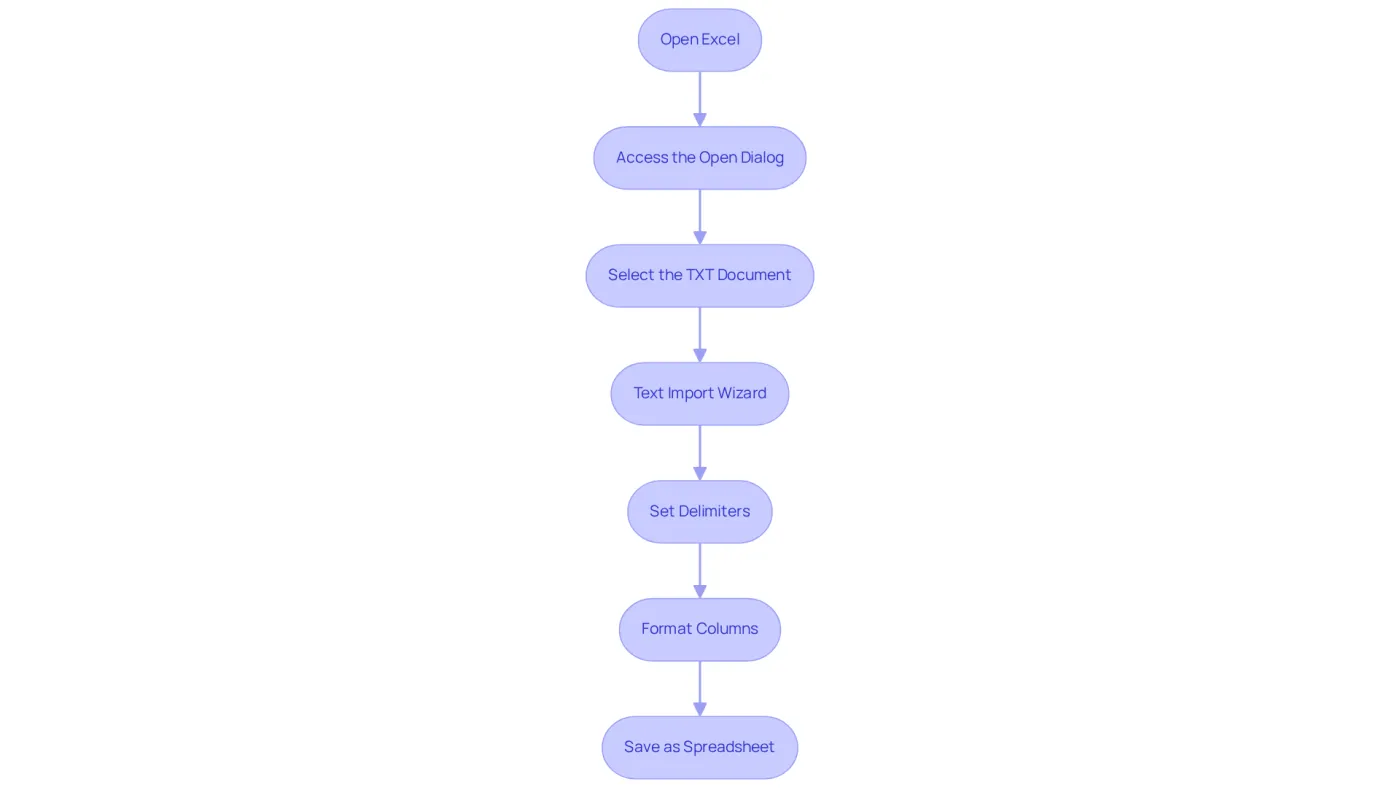
To convert a TXT file to Excel efficiently, follow these detailed steps:
- Open Excel: Start by launching Microsoft Excel on your computer.
- Access the Open Dialog: Click on
Filein the top menu, then selectOpen. - Select the TXT Document: In the type dropdown, choose
Text Files (*.txt)to filter for TXT documents. Navigate to the location of your TXT document and select it. - [Text Import Wizard](https://shortiecuts.com/post/the-impact-of-excel-style-shortcuts-on-google-sheets-navigation): The Text Import Wizard will appear. Here, you can select whether your information is delimited (e.g., by commas or tabs) or fixed width. Click
Nextto proceed. - Set Delimiters: If you selected delimited, specify the delimiter (comma, tab, etc.) used in your TXT file. A preview will demonstrate how your information will be divided into columns. Click
Nextto continue. - Format Columns: This step is crucial. Choose each column and configure its format (General, Text, Date, etc.) to guarantee that the spreadsheet software understands your information accurately. Pay special attention to columns that require leading zeros, such as account numbers. Click
Finishonce done. - Save as Spreadsheet: After your information is shown in the spreadsheet program, navigate to
File > Save As, choose your desired location, and selectWorkbook (*.xlsx)as the document type. ClickSaveto finalize the conversion.
By adhering to these steps, you will understand how to convert txt to excel effectively, transforming your TXT files into a structured Excel format and improving your analysis capabilities. Finance experts have observed that using the Text Import Wizard not only simplifies their workflow but also maintains essential formats, such as leading zeros in account numbers, ensuring precision in financial reporting. This method has proven successful in various real-world applications, allowing users to manage their data more efficiently. Furthermore, be mindful that documents surpassing 1,048,576 rows cannot be converted to spreadsheet format, and if you face problems with CSV formats, changing them to .txt can activate the Text Import Wizard.
Troubleshoot Common Conversion Issues
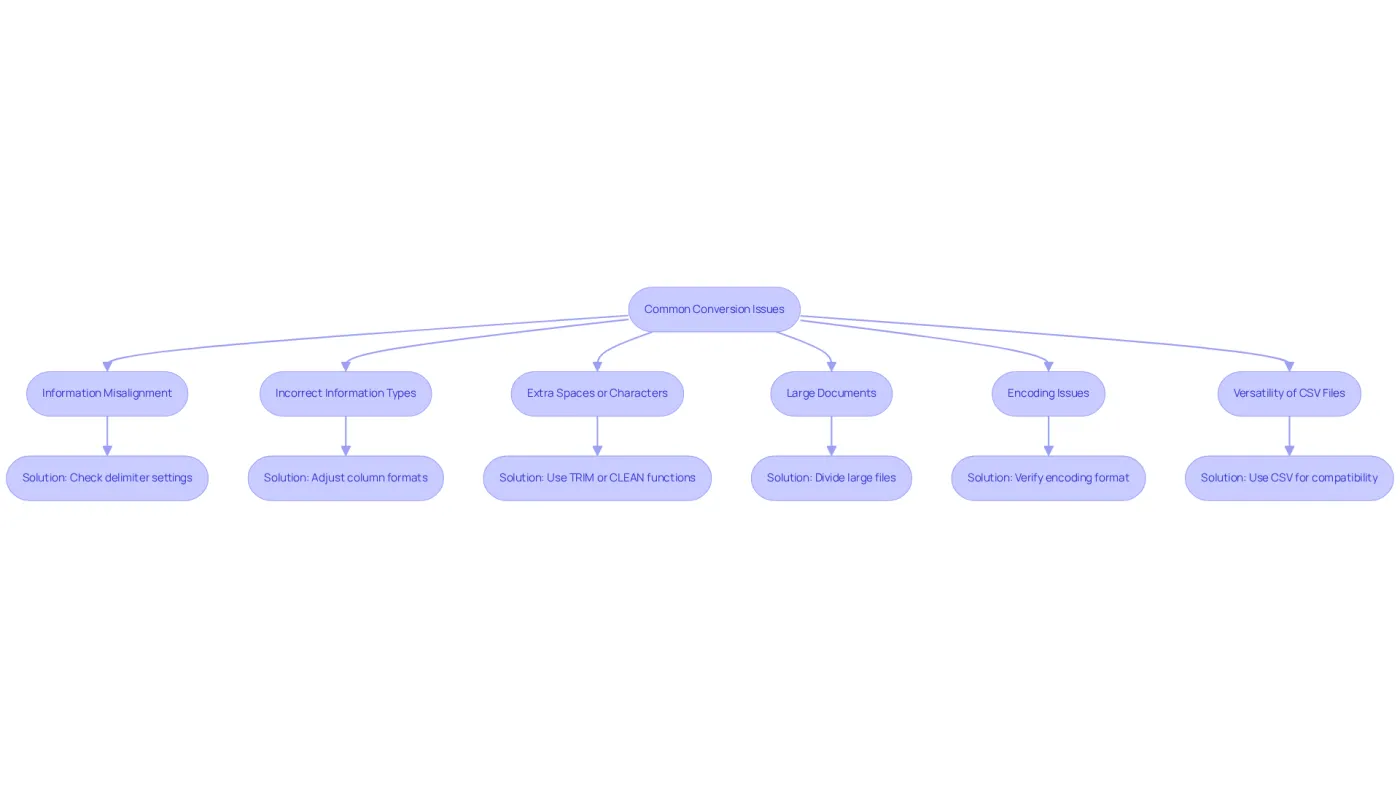
Converting TXT files to Excel can often be straightforward; however, users may encounter several common issues that require attention:
- Information Misalignment: If you notice misalignment of information in Excel, it is crucial to double-check the delimiter settings in the Text Import Wizard. Ensure that the delimiter you are using matches your TXT file. Research indicates that a significant percentage of users face information misalignment during these conversions, underscoring the importance of proper formatting and settings.
- Incorrect Information Types: At times, the spreadsheet application may misinterpret information types, such as treating numbers as text. To rectify this, select the affected columns and to the appropriate type.
- Extra Spaces or Characters: If your data contains extra spaces or unwanted characters, utilize the
TRIMorCLEANfunctions within the spreadsheet application to refine the information post-import. Additionally, ensure there are no blank rows above the data in the spreadsheet to prevent import errors. - Large Documents: For particularly large TXT documents, consider dividing them into smaller sections before conversion, as Excel has limitations regarding the number of rows it can handle.
- Encoding Issues: If special characters do not display correctly, verify that the TXT document is saved in a compatible encoding format, such as UTF-8. It may be necessary to use a text editor to modify the encoding prior to importing.
- Versatility of CSV Files: It is essential to remember that CSV files are versatile and can be opened across various operating systems, making them compatible with numerous spreadsheet applications.
For further assistance, QuickStart guides are available for download, offering step-by-step instructions designed to streamline your conversion process. By being cognizant of these issues and their corresponding solutions, you can uphold data integrity and enhance overall efficiency.
Conclusion
Converting TXT files to Excel stands as a vital competency for finance professionals eager to optimize their data management processes. By utilizing diverse methods—such as direct imports, online tools, Google Sheets, VBA scripts, and specialized software—users can adeptly convert their TXT documents into organized Excel spreadsheets. Each method presents distinct advantages, tailored to various levels of expertise and specific requirements.
This guide outlines essential steps and troubleshooting strategies to facilitate a seamless conversion experience. Key insights emphasize the necessity of:
- Selecting the appropriate delimiter
- Formatting columns correctly
- Resolving common issues like misalignment and incorrect data types
Grasping these elements not only enhances conversion accuracy but also preserves data integrity, a critical factor in financial reporting.
Ultimately, mastering the conversion of TXT files to Excel can dramatically elevate productivity and enhance data analysis capabilities. By embracing these methods and recognizing potential pitfalls, finance professionals can make informed choices that refine their workflows. Adopting these tools and techniques empowers users to manage their data more effectively, paving the way for informed business strategies and successful outcomes.
Frequently Asked Questions
What are the primary methods to convert TXT files to Excel?
The primary methods include Direct Import in Excel, utilizing online conversion tools, using Google Sheets, employing VBA scripts, and leveraging third-party software.
How can I directly import a TXT file into Excel?
To directly import a TXT file, open Excel, navigate to File > Open, select the TXT file, and follow the Text Import Wizard, where you can specify delimiters and formatting options.
What are some popular online conversion tools for TXT to Excel?
Popular online conversion tools include Zamzar and Convertio, which allow users to upload TXT documents and receive them as spreadsheets.
Are there any privacy concerns when using online conversion tools?
Yes, using online conversion tools may raise privacy concerns regarding data handling, as sensitive information could be uploaded to external servers.
How can I use Google Sheets to convert a TXT file to Excel?
You can upload the TXT document to Google Drive, access it via Google Sheets, and then download it as a spreadsheet.
What is the advantage of using VBA scripts for conversion?
VBA scripts allow experienced users to automate the conversion process, which is particularly beneficial for batch conversions of multiple TXT documents, saving time and effort.
What is an example of third-party software that can convert TXT files to Excel?
An example of specialized transformation software is Alteryx, which can effectively manage complex TXT files and convert them into Excel format while preserving data integrity and structure.
What best practices should be followed when converting TXT to Excel?
Best practices include ensuring proper formatting and understanding delimiter selection to enhance the accuracy of the conversion process.