
Master How to Copy a Formula Down a Column in Google Sheets
Learn how to efficiently copy a formula down a column in Google Sheets for accurate calculations.

Introduction
Mastering the art of copying formulas down a column in Google Sheets can revolutionize how users manage data, making calculations not only faster but also more accurate. This guide explores essential techniques and common pitfalls associated with formula copying, empowering you to enhance your efficiency in spreadsheet tasks.
With various methods at your disposal and potential errors lurking, how can you ensure a seamless experience while fully leveraging the capabilities of Google Sheets? Let's dive in.
Understand the Basics of Copying Formulas in Google Sheets
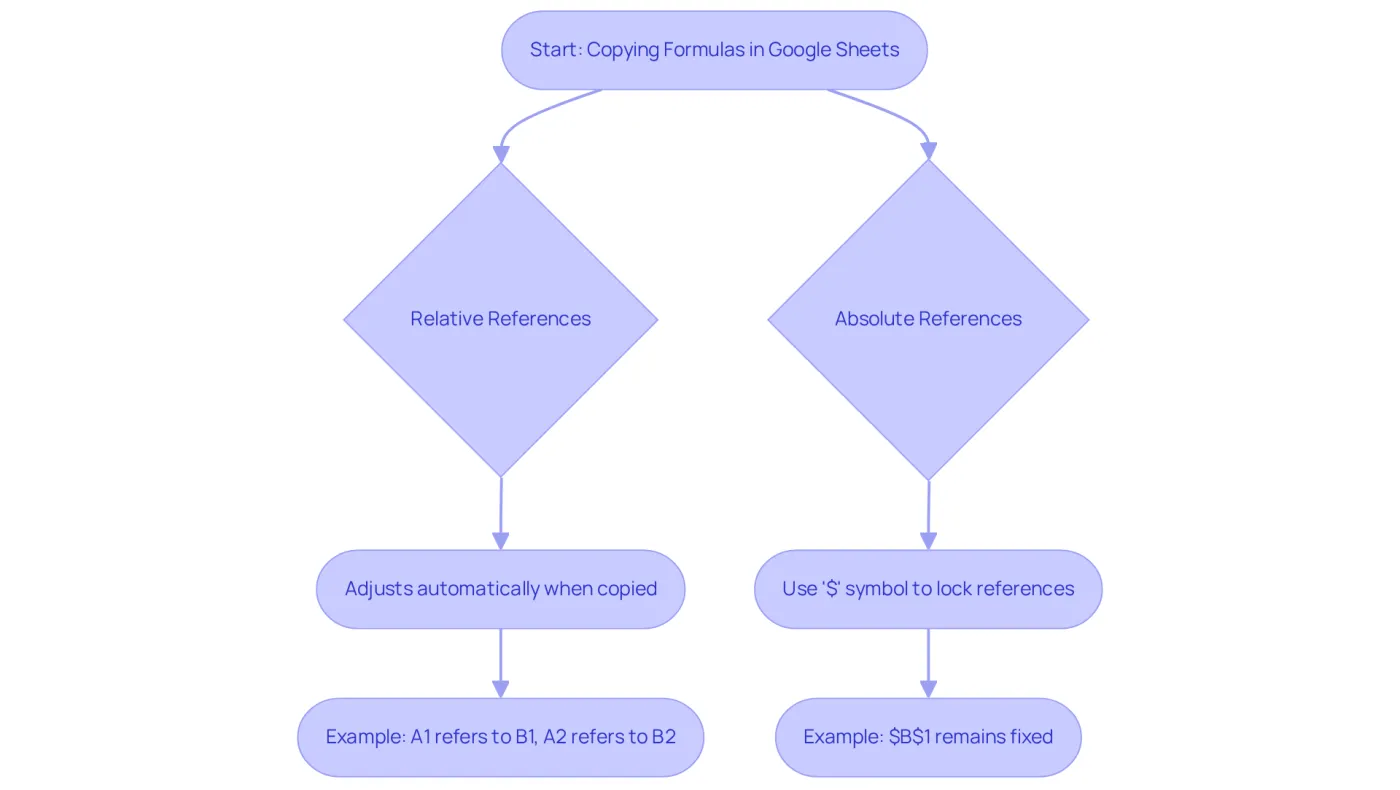
To efficiently copy a formula down a column in an online spreadsheet application, it is crucial to understand how calculations function. An equation begins with an equal sign (=) followed by the desired calculation. When you replicate a calculation, Google Sheets automatically modifies the references based on their relative positions, unless absolute references are used, indicated by the $ symbol. For instance, if a calculation in cell A1 refers to B1, duplicating it to A2 will change the reference to B2. This automatic adjustment is vital for maintaining accurate calculations as you copy a formula down a column.
Relative References: These adjust automatically when copied. For example, if you have a calculation in A1 that adds values in B1 and C1, duplicating it to A2 will change the references to B2 and C2, enabling dynamic computations across rows.
Absolute References: To lock a reference, use the $ symbol (e.g., $B$1). This ensures that when you replicate the equation, the reference remains fixed, which is particularly useful when you want to refer to a constant value or a specific cell across multiple calculations.
Understanding these concepts is essential, as many users rely on equations in the application for data analysis and financial modeling. Recent insights reveal that numerous finance professionals leverage these features to boost their productivity. By mastering the use of relative and absolute references, you can enhance your efficiency and accuracy when you copy a formula down a column in your spreadsheet tasks. As specialists in the field emphasize, 'Mastering these references is essential to unlocking the full potential of Sheets for financial analysis.
Explore Methods to Copy Formulas Down a Column
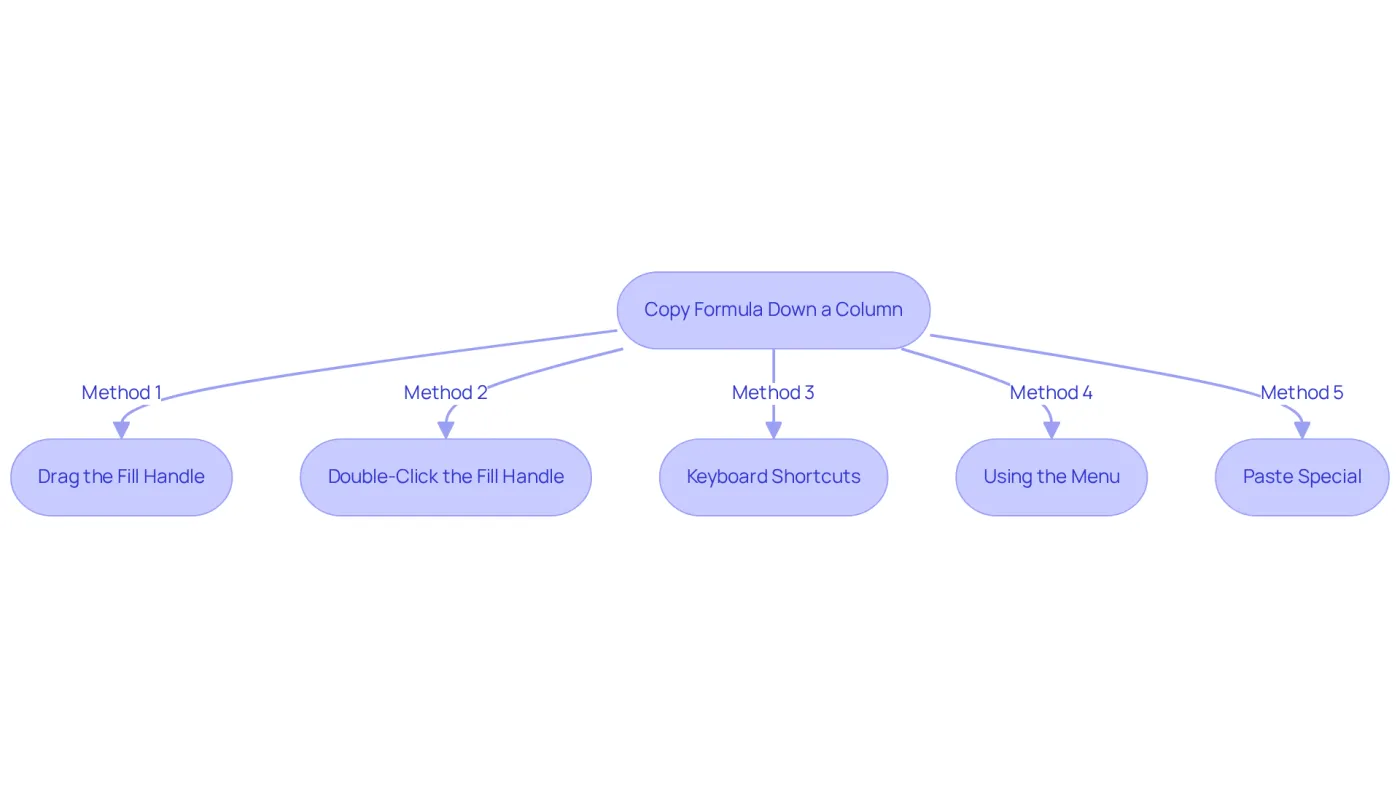
Several effective methods exist for copying a formula down a column in Google Sheets:
-
Drag the Fill Handle:
- Enter your formula in the first cell (e.g., A1).
- Click on the small blue square (fill handle) at the bottom-right corner of the box.
- Drag it down to populate the calculation into neighboring spaces.
-
Double-Click the Fill Handle:
- If there is adjacent data in the column next to your formula, double-click the fill handle to automatically fill the formula down to the last row of adjacent data.
-
Keyboard Shortcuts:
- Select the cell with the formula, press
Ctrl + C(Windows) orCommand + C(Mac) to copy. - Highlight the range where you want to paste the equation and press
Ctrl + VorCommand + Vto paste.
- Select the cell with the formula, press
-
Using the Menu:
- Select the cell with the formula, go to the
Editmenu, and chooseCopy. - Highlight the target areas, return to the
Editmenu, and selectPaste.
- Select the cell with the formula, go to the
-
Paste Special:
- After copying, right-click on the target cells, select
Paste special, and choosePaste formula onlyto avoid pasting formatting.
- After copying, right-click on the target cells, select
These techniques significantly enhance productivity. Users can optimize their workflow in Google Sheets by efficiently copying a formula down a column across extensive datasets.
Troubleshoot Common Issues When Copying Formulas
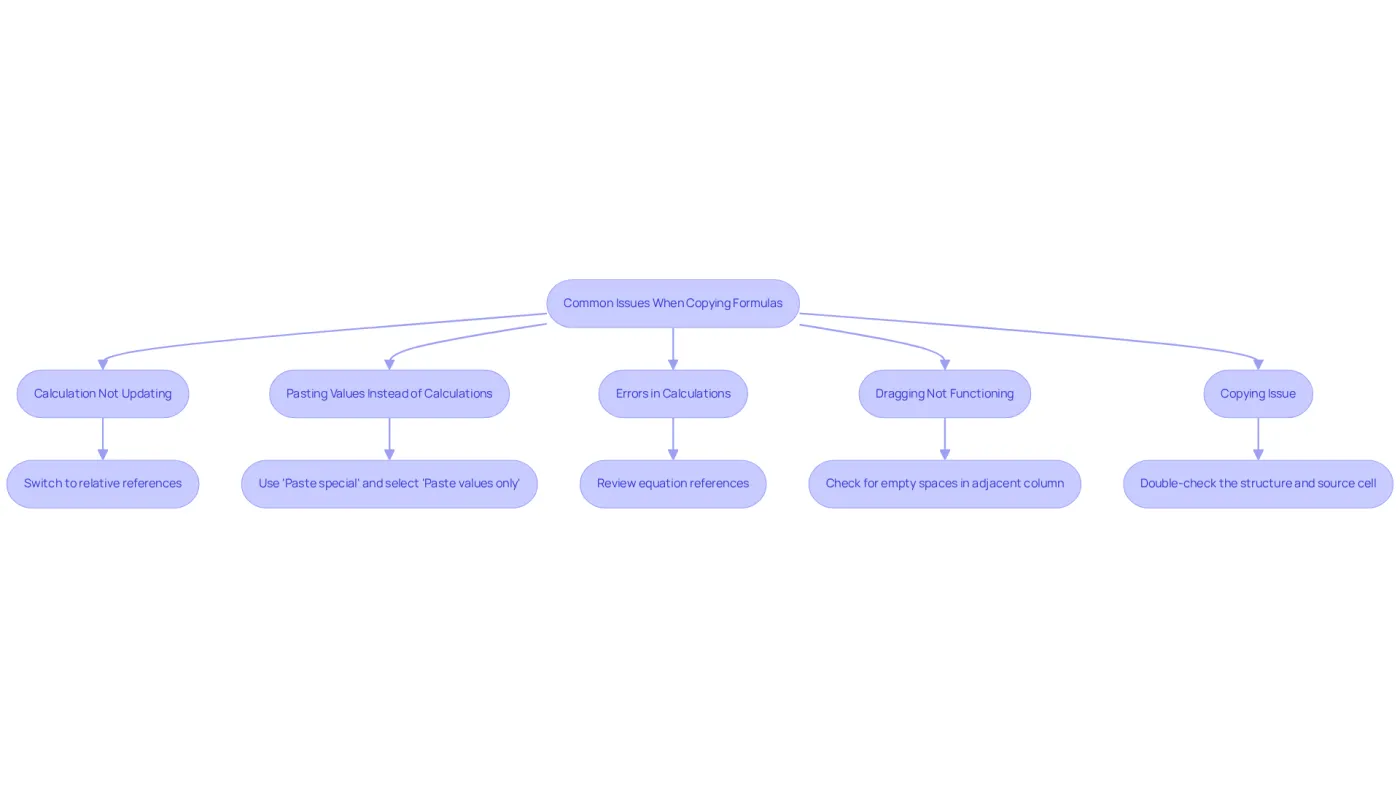
When copying formulas in Google Sheets, users frequently encounter several common issues that can disrupt their workflow:
-
Calculation Not Updating: If your calculations aren’t adjusting as expected, it’s likely due to absolute references (e.g.,
$A$1). To enable automatic adjustments, switch to relative references. -
Pasting Values Instead of Calculations: If pasting results in values rather than calculations, verify that you’re using the correct paste method. Opt for
Paste specialand selectPaste values onlyto retain the calculation. -
Errors in Calculations: Errors like
#REF!indicate that the calculation is referencing a cell that no longer exists. Review your equation references and make the necessary adjustments to resolve these errors. -
Dragging Not Functioning: If dragging the fill handle isn’t working, check for empty spaces in the adjacent column that might be interfering with the fill process. Alternatively, consider using keyboard shortcuts or the menu method to effectively copy a formula down a column.
-
Copying Issue: If calculations are duplicating inaccurately, such as referencing incorrect cells, double-check the structure and ensure you’re copying from the right cell.
Statistics reveal that around 30% of users face calculation errors in Google Sheets, underscoring the importance of understanding these common pitfalls. Many data analysts express frustration with copying problems, highlighting the need for effective troubleshooting strategies. As one analyst noted, "The most frequent issue I encounter is when calculations don’t refresh accurately, which can lead to significant mistakes in my reports."
By addressing these typical issues, users can enhance their productivity and confidence, especially when they need to copy a formula down a column in the application. Moreover, utilizing tools like Gemini in Sheets can provide comprehensive clarifications and troubleshooting support for calculations, further assisting users in overcoming these challenges.
Utilize ShortieCuts for Enhanced Formula Copying Efficiency
Boost Your Efficiency with ShortieCuts
Are you tired of spending too much time on formula copying in Google Sheets? ShortieCuts offers a powerful suite of features designed to enhance your efficiency and streamline your workflow.
Excel-Style Shortcuts
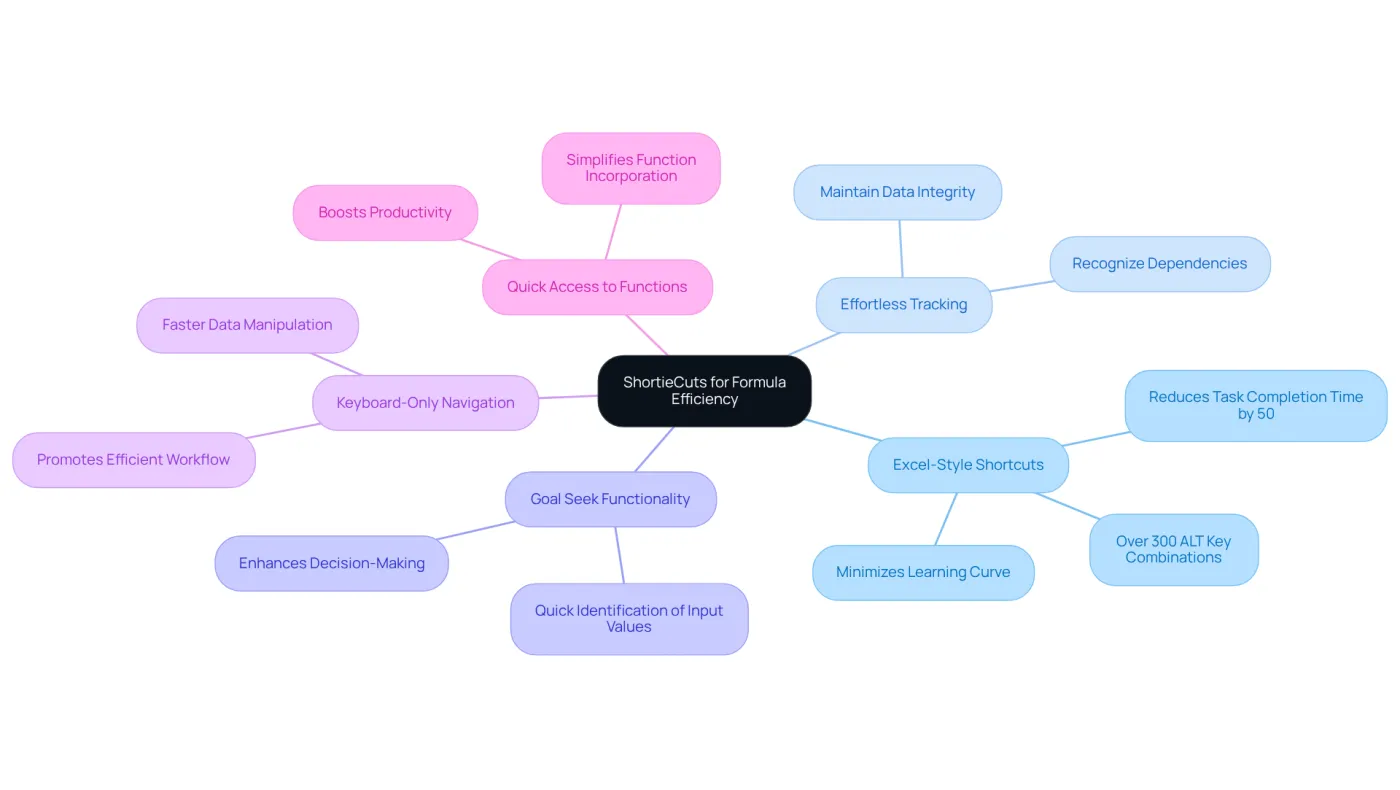
Imagine replicating calculations with ease using 233 integrated Excel ALT key shortcuts. These familiar commands not only minimize the learning curve but can also reduce task completion time by up to 50%. For finance professionals, this means more time for analysis and less time on repetitive tasks.
Effortless Tracking of Calculations
With the tracking calculations feature, you can easily recognize and trace the dependencies of your computations. This ensures precision when you copy a formula down a column, which is crucial for maintaining data integrity in complex spreadsheets. As finance professionals know, accuracy is paramount in our work.
Streamlined Goal Seek Functionality
Need to adjust equations based on specific outcomes? The Goal Seek feature allows for quick identification of necessary input values, enhancing your decision-making processes. Users have reported significant improvements in their ability to make data-driven decisions thanks to this functionality.
Keyboard-Only Navigation
ShortieCuts transforms your spreadsheet experience with a color palette that supports keyboard navigation. This makes it easier to select and manipulate cells without a mouse, promoting a more efficient workflow. "By embracing keyboard combinations, users can navigate and manipulate data with greater speed and efficiency," notes a finance professional.
Quick Access to Functions
The extension simplifies access to commonly used functions, allowing you to incorporate them into calculations effortlessly. This ease of use not only boosts productivity but also creates a more fluid spreadsheet experience. Plus, the extensive Excel shortcut cheat sheet included with ShortieCuts serves as a valuable resource for users transitioning from Excel to other spreadsheet applications.
By leveraging these features, finance professionals can significantly enhance their productivity and efficiency when working with formulas in Google Sheets. Don’t let inefficiency hold you back - try ShortieCuts today and transform your spreadsheet experience!
Conclusion
Mastering the art of copying formulas down a column in Google Sheets is not just a skill; it’s essential for anyone aiming to boost productivity and accuracy in data management. Understanding the differences between relative and absolute references allows users to maintain the integrity of their calculations as they replicate formulas across multiple rows. This foundational knowledge empowers users to leverage the full capabilities of Google Sheets, whether for simple tasks or complex financial analyses.
This article outlines several practical methods for copying formulas, including:
- The fill handle
- Keyboard shortcuts
- Menu options
Each technique offers unique advantages, enabling users to select the approach that best fits their workflow. Additionally, common issues such as calculation errors and pasting problems are addressed, providing valuable troubleshooting tips that can save time and frustration. Tools like ShortieCuts further enhance the formula copying experience, streamlining processes and improving efficiency.
Embracing these strategies and tools can significantly transform how users interact with Google Sheets. By optimizing formula copying techniques, individuals can focus more on analysis and decision-making rather than getting bogged down by repetitive tasks. Whether for personal use or professional projects, mastering these skills is a vital step toward achieving greater efficiency and accuracy in spreadsheet management.
Explore these methods today and unlock the true potential of Google Sheets in your work.
Frequently Asked Questions
What is the basic way to copy a formula in Google Sheets?
To copy a formula in Google Sheets, start with an equal sign (=) followed by the calculation. When you duplicate the formula down a column, Google Sheets automatically adjusts the references based on their relative positions.
What are relative references in Google Sheets?
Relative references in Google Sheets adjust automatically when copied. For example, if a formula in cell A1 adds values from B1 and C1, copying it to A2 will change the references to B2 and C2, allowing for dynamic calculations across rows.
What are absolute references in Google Sheets?
Absolute references use the $ symbol (e.g., $B$1) to lock a reference in place. This means that when you copy the formula, the reference remains fixed, which is useful for referring to a constant value or specific cell across multiple calculations.
Why is it important to understand relative and absolute references when using Google Sheets?
Understanding relative and absolute references is essential for maintaining accurate calculations and enhancing efficiency in spreadsheet tasks, particularly for data analysis and financial modeling.
How do finance professionals utilize these features in Google Sheets?
Many finance professionals leverage the features of relative and absolute references to boost their productivity and improve the accuracy of their calculations in financial analysis.