
Master How to Copy and Paste in Google Sheets for Finance Pros
Learn how to copy and paste in Google Sheets effectively to enhance your workflow.

Introduction
Transitioning from Excel to Google Sheets presents a significant challenge for finance professionals who are used to the familiar shortcuts and functionalities of their previous software. Mastering the nuances of copy and paste in Google Sheets is not just a matter of convenience; it’s essential for maintaining productivity and ensuring data integrity.
But how can users effectively navigate this shift? With unique features and challenges, it’s crucial to leverage the full potential of these new tools. This article explores the key differences between Excel and Google Sheets, offers practical tips, and introduces innovative solutions like ShortieCuts to streamline the copy-paste process. By doing so, we empower finance professionals to work smarter, not harder.
Understand Copy-Paste Differences Between Excel and Google Sheets
Transitioning from Excel to an online spreadsheet application presents unique challenges, especially when learning how to copy and paste in Google Sheets. Understanding these differences is crucial for finance professionals aiming to maintain workflow efficiency. Here’s what you need to know:
-
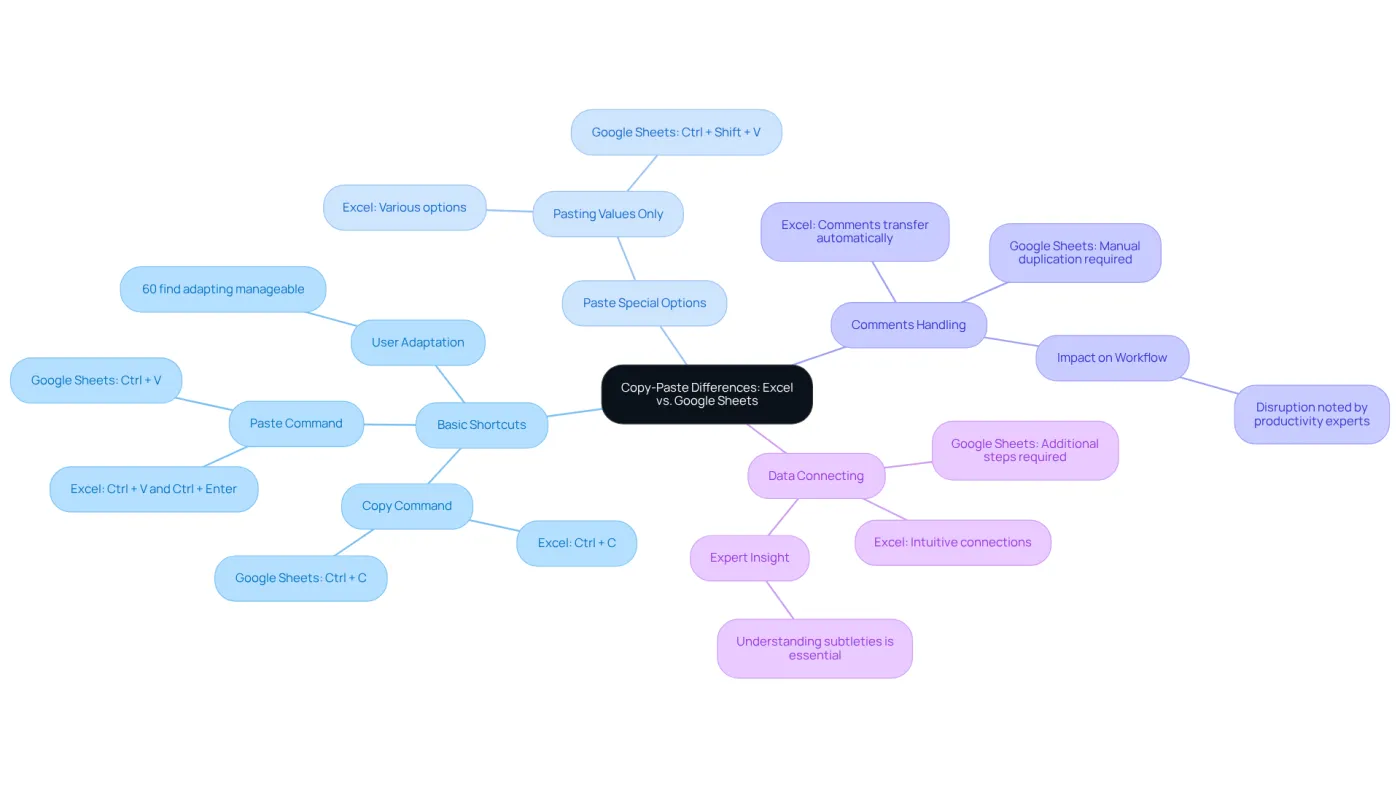
Basic shortcuts for how to copy and paste in Google Sheets are
Ctrl + Cfor copying andCtrl + Vfor pasting. However, Excel allows pasting withEnter, preserving the original cell's formatting-a feature not available in other spreadsheet applications. This distinction can confuse users who are accustomed to Excel, as they may revert to familiar commands out of habit. -
Paste Special Options: The application provides various paste special options, such as pasting values only with
Ctrl + Shift + V. While this mirrors Excel's functionality, the different keystrokes may require adjustment for users. Statistics show that about 60% of users find adapting to these new shortcuts manageable, especially when they can leverage familiar functionalities alongside new features. -
Comments Handling: Another significant difference lies in comment management. In the spreadsheet application, comments do not automatically transfer with cell information, necessitating manual duplication if comments are essential. This contrasts with Excel's seamless integration, and productivity experts note that this adjustment can disrupt established workflows, making it vital for users to recognize this change.
-
Data Connecting: Excel facilitates more intuitive connections between sheets, while other applications may require additional steps to achieve similar results, potentially interfering with established workflows. As a productivity specialist emphasizes, "Understanding these subtleties is essential for finance professionals adjusting to the software, as it enables a smoother transition and better utilization of the platform."
Moreover, with ShortieCuts, your information remains confidential, as everything operates locally on your computer. This guarantees that no content is accessed or stored externally, enhancing the user experience and ensuring a smooth transition from Excel to an alternative spreadsheet application while safeguarding information privacy. Embracing these differences can lead to improved efficiency and collaboration in spreadsheet management. For further details on privacy and compatibility, please consult our FAQs.
Execute Copy and Paste in Google Sheets with Comments
Mastering Copy and Paste in Google Sheets with ShortieCuts
Are you tired of the hassle that comes with copying and pasting in Google Sheets? Let’s streamline your workflow with ShortieCuts. Follow these straightforward steps to enhance your efficiency:
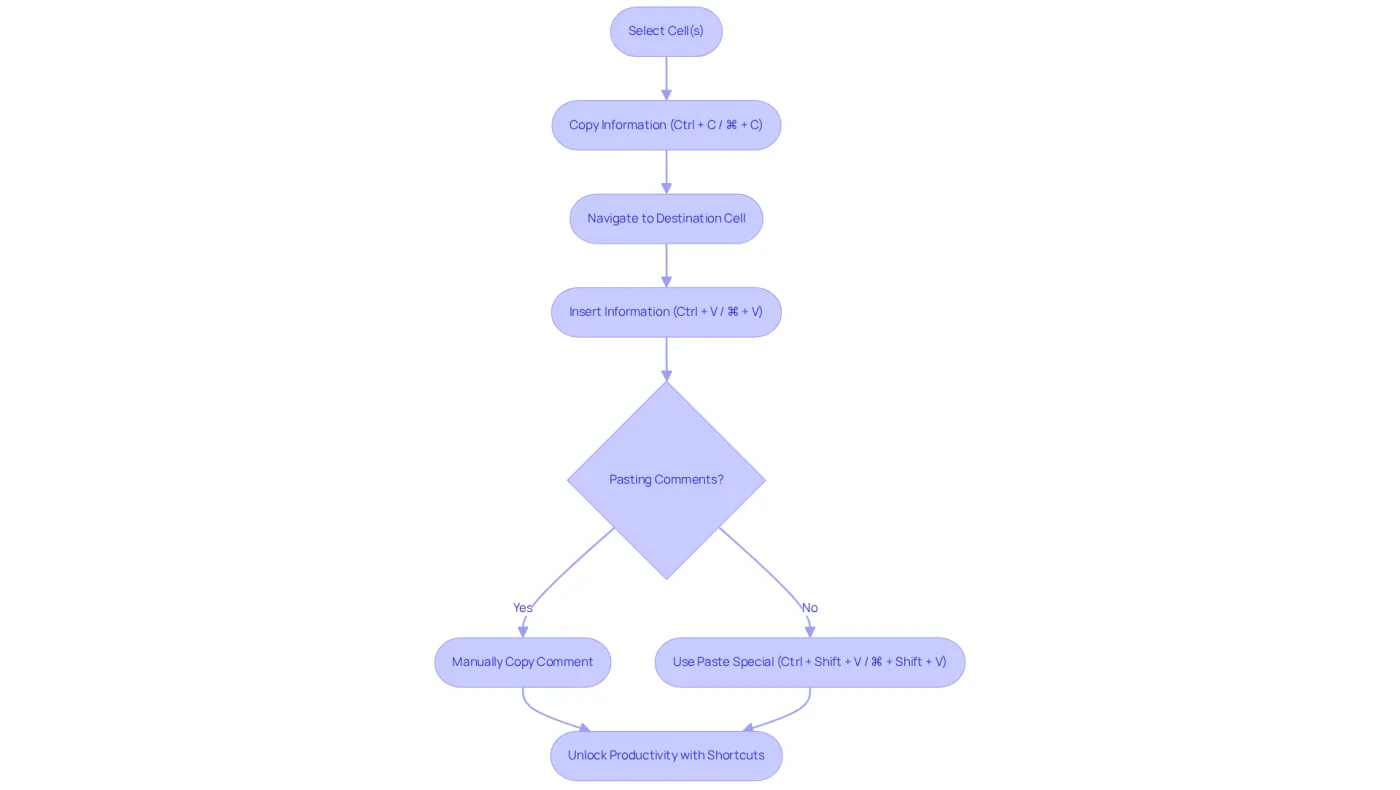
- Select the Cell(s): Start by clicking on the cell or dragging to select multiple cells that you wish to copy.
- Copy the Information: Use the shortcut
Ctrl + C(Windows) or⌘ + C(Mac) to copy the selected content effortlessly. - Navigate to the Destination: Click on the cell where you want to paste the copied information.
- Insert the Information: Press
Ctrl + V(Windows) or⌘ + V(Mac) to insert the information seamlessly. - Pasting Comments: Currently, Google Sheets does not support copying and pasting cells with comments included. To transfer comments, manually copy the comment text by right-clicking on the cell with the comment, selecting 'Copy comment', and then pasting it into the desired cell by right-clicking and selecting 'Paste'. This workaround is crucial for finance professionals who depend on comments for context.
- Using Paste Special: For pasting values only, which is particularly useful in financial contexts, use
Ctrl + Shift + V(Windows) or⌘ + Shift + V(Mac). This allows you to paste calculated values without the underlying formulas, ensuring your data remains clean and focused. - Unlocking Productivity with Shortcuts: To further enhance your efficiency, utilize the extension. Simply press 'ALT' (or Option on Mac) and key-tips will show up in the corner of your display, offering you 233 Excel ALT shortcuts that can be effortlessly incorporated into another spreadsheet application.
By mastering these steps and utilizing shortcuts, finance professionals can learn how to copy and paste in Google Sheets to ensure their data is correctly transferred and formatted in the spreadsheet application. This not only enhances productivity but also significantly improves data management capabilities.
Utilize ShortieCuts for Enhanced Copy-Paste Efficiency
Enhance Your Google Sheets Experience with ShortieCuts
Are you tired of inefficient copy-pasting in Google Sheets? ShortieCuts is here to revolutionize your workflow by integrating Excel-style shortcuts, making your tasks not just easier but significantly faster. Here’s how to maximize its potential:
-
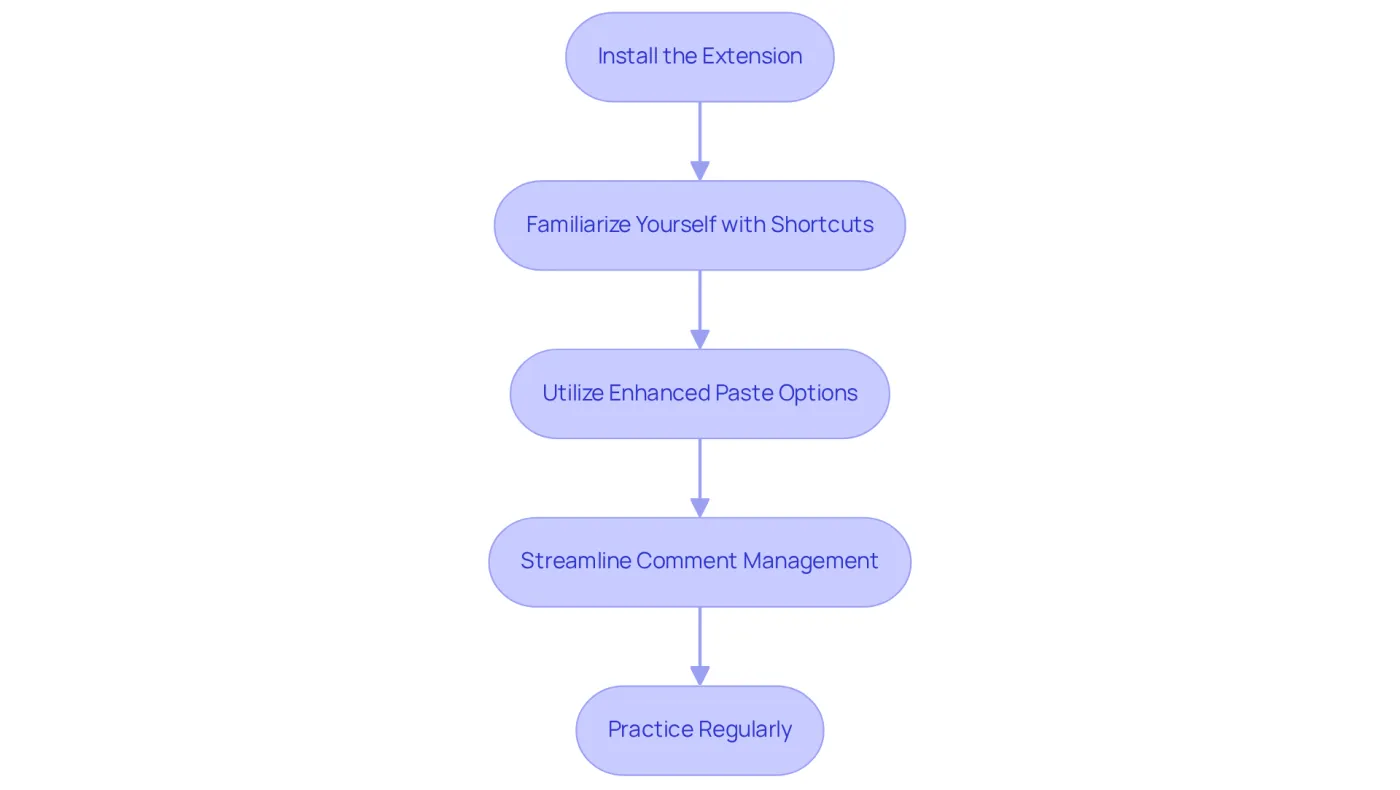
Install the Extension: Start by installing the Chrome extension from the Chrome Web Store. This simple step unlocks a suite of powerful features designed to streamline your experience.
-
Familiarize Yourself with Shortcuts: Once installed, take a moment to get acquainted with the Excel-like shortcuts provided by the application. For example, use
Alt + Cto copy andAlt + Vto paste, demonstrating how to copy and paste in Google Sheets while mirroring the familiar Excel experience. With 233 ALT key combinations available, you can optimize your workflow significantly. -
Utilize Enhanced Paste Options: The tool offers quick access to advanced paste options. Knowing how to copy and paste in Google Sheets allows you to paste values, formats, or formulas using specific shortcuts, significantly accelerating your information manipulation tasks. Users have reported that utilizing these shortcuts allows them to complete tasks in a fraction of the time compared to using a mouse.
-
Streamline Comment Management: While Google Sheets doesn’t automatically copy comments, this tool simplifies adding them to cells. Use the assigned shortcut to insert comments quickly, ensuring your notes are always connected to the pertinent information. Importantly, the application keeps your data securely on your device, enhancing confidence when handling sensitive information.
-
Practice Regularly: Frequent use of these shortcuts will make them second nature. The more you practice, the smoother your transition from Excel to Google Sheets will be, ultimately enhancing your productivity. Research indicates that users lose an average of 2 seconds per minute by switching between keyboard and mouse, highlighting the efficiency gained by mastering these shortcuts.
By leveraging ShortieCuts, finance professionals can effectively reduce the learning curve associated with Google Sheets, maintaining their workflow efficiency. Testimonials from users emphasize the transformative impact of this extension, allowing them to navigate spreadsheets with greater ease and confidence. Don't miss out on the opportunity to elevate your productivity-install ShortieCuts today!
Troubleshoot Common Copy-Paste Issues in Google Sheets
Overcoming Common Copy-Paste Challenges in Google Sheets
Even with a solid understanding of copy-paste functions, users often encounter hurdles. Here are some common issues and effective solutions:
-
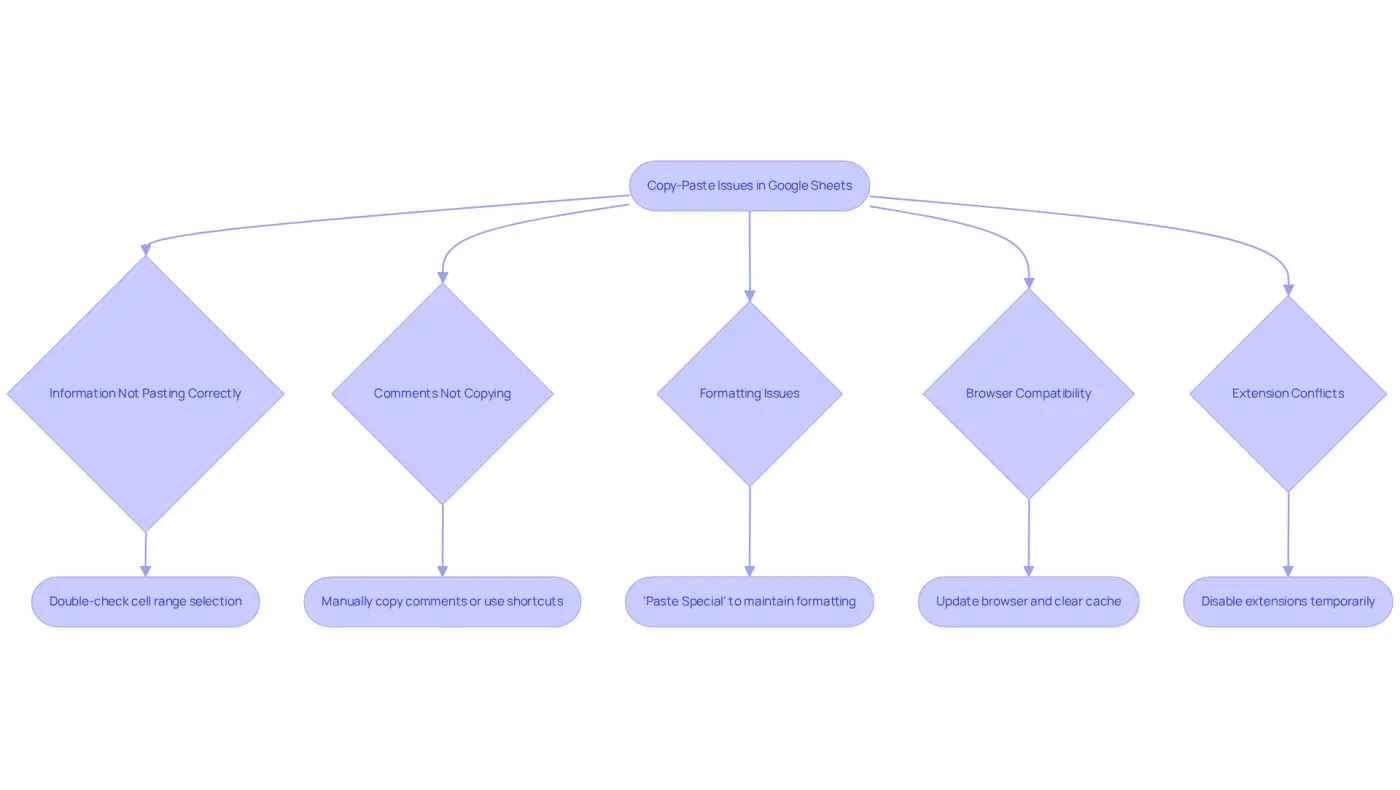
Information Not Pasting Correctly: If the pasted content appears disorganized or doesn't meet expectations, double-check that the correct cell range is selected. Hidden rows or columns can disrupt the paste operation, leading to confusion.
-
Comments Not Copying: Comments do not automatically transfer with cell data. To ensure comments are included, manually copy them or utilize shortcuts to streamline the process.
-
Formatting Issues: When formatting discrepancies arise after pasting, use the 'Paste Special' option to paste only values or formats. This method helps maintain consistency across your spreadsheet.
-
Browser Compatibility: Occasionally, browser-related issues can hinder application functionality. Ensure your browser is up to date, and consider clearing the cache if problems persist. Currently, the service operates seamlessly on Chrome, with plans to support Safari soon, ensuring a smooth experience for users.
-
Extension Conflicts: Installed extensions may interfere with operations in the online spreadsheet application. Temporarily disabling other extensions can help identify if they are causing the issue.
By recognizing these common challenges and implementing the suggested solutions, finance professionals can troubleshoot effectively and understand how to copy and paste in Google Sheets to maintain productivity. Moreover, ShortieCuts ensures that your data remains secure and private. For further assistance, refer to our FAQs for more detailed guidance.
Conclusion
Mastering the art of copy and paste in Google Sheets is crucial for finance professionals aiming to boost productivity and streamline workflows. Understanding the unique differences between Google Sheets and Excel allows users to adapt their skills effectively to this powerful online tool. This guide clarifies not only how to execute basic copy-paste functions but also emphasizes the importance of leveraging shortcuts and specialized features to maintain data integrity and efficiency.
Key arguments include:
- Essential shortcuts for copying and pasting
- The significance of utilizing Paste Special options
- The challenges associated with comment management
Tools like ShortieCuts can significantly ease the transition from Excel to Google Sheets, enabling users to retain familiar functionalities while adapting to new environments. Addressing common copy-paste issues empowers finance professionals to troubleshoot effectively, ensuring productivity remains uninterrupted.
Embracing these techniques and tools enhances individual efficiency and fosters a collaborative environment where data management becomes intuitive. By implementing these best practices, finance professionals can unlock the full potential of Google Sheets, ensuring their data handling processes are secure and efficient. The journey toward mastering copy and paste in Google Sheets transcends merely learning new commands; it transforms how data is managed and utilized in a fast-paced financial landscape.
Frequently Asked Questions
What are the basic shortcuts for copying and pasting in Google Sheets?
The basic shortcuts for copying and pasting in Google Sheets are Ctrl + C for copying and Ctrl + V for pasting.
How does pasting in Google Sheets differ from pasting in Excel?
In Excel, users can paste using the Enter key, which preserves the original cell's formatting. This feature is not available in Google Sheets, which can confuse users familiar with Excel.
What are the Paste Special options available in Google Sheets?
Google Sheets offers various Paste Special options, such as pasting values only with Ctrl + Shift + V. While this is similar to Excel's functionality, the different keystrokes may require users to adjust.
How do comments behave when copying and pasting in Google Sheets compared to Excel?
In Google Sheets, comments do not automatically transfer with cell information, requiring manual duplication if comments are essential. In contrast, Excel integrates comments seamlessly with cell information.
What challenges might users face when connecting data between sheets in Google Sheets?
Excel allows for more intuitive connections between sheets, while Google Sheets may require additional steps to achieve similar results, potentially disrupting established workflows.
How does ShortieCuts enhance user experience when transitioning from Excel to other spreadsheet applications?
ShortieCuts ensures that information remains confidential by operating locally on the user's computer, preventing external access or storage of content, which enhances the user experience and safeguards information privacy.